I realized how important PDF redaction is while preparing documents for an external FixThePhoto contractor. Before sharing the files, I had to make sure all sensitive information, including employee names, personal email addresses, payment details, signatures, and internal notes, was completely removed.
Before I sent the file, one of my coworkers checked it by selecting the text hidden under a black box. To my surprise, the original content was still there and could be copied into another document. The black rectangle only covered the text on the screen - it didn't actually remove it from the PDF.
That experience made me change the way I handle sensitive PDF files. I realized that true redaction is much more than placing a black box over text, using a black highlight, blurring part of a screenshot, or hiding information in a design app. A reliable PDF redactor must permanently erase the original content along with any hidden data, so nothing can be recovered after the file is shared.
At FixThePhoto, we often deal with contracts, invoices, model releases, client instructions, internal reports, and job application documents. That’s why my coworkers and I decided to test more than 30 PDF redaction tools, choosing the ones most frequently mentioned in Google search results, Reddit discussions, legal tech communities, office productivity forums, and YouTube reviews.
| Tool | Use case | Free plan/trial | Cost |
|---|---|---|---|
|
Professional and sensitive documents
|
✔️
|
From $19.99/mo
|
|
|
Quick browser-based redaction
|
✔️
|
From $10/mo yearly
|
|
|
Free daily redaction without registration
|
✔️
|
From $4.99/mo
|
|
|
Fast manual text and page redaction
|
✔️
|
From $7/mo
|
|
|
AI-powered PII detection
|
✔️
|
From $29/mo
|
|
|
Simple redaction without signup
|
✔️
|
Free
|
|
|
Free offline redaction
|
✔️
|
Free
|
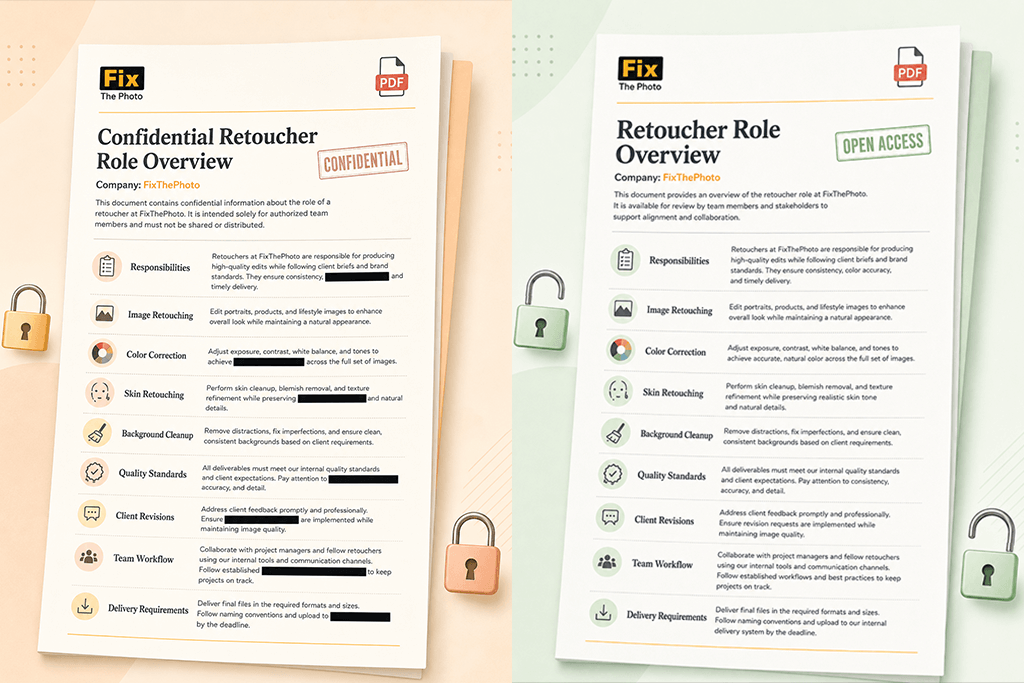
Redaction permanently deletes confidential information from a PDF. A black box only covers the text on the page, but the original content can often still be copied, searched, or recovered.
As part of my FixThePhoto testing, I created four versions of the same fictional invoice:
Only the file processed with a proper redaction tool completely removed the sensitive text. In the other versions, my coworkers were able to reveal the hidden information by copying the page, removing the black overlay, or increasing the image contrast. To double-check the results, I also opened every file in a free PDF reader and tested whether the hidden text could still be selected or found using the search function.
Hidden content can remain
Even if a name is no longer visible on the page, it may still be stored in comments, form fields, attachments, metadata, or the document title. Before sharing any PDF, I always check these areas to make sure no sensitive information is left behind.
Scans require OCR and manual review
Many scanned PDFs don't contain searchable text. OCR can detect names, numbers, and other text, but its accuracy may drop if the document is faded, handwritten, or has shadows or poor image quality.
Repeated details are easy to miss
In longer PDFs, the same information can appear in headers, footers, tables, and attachments. I search for full names, last names, email addresses, and parts of account or reference numbers separately to make sure nothing is missed.
Context may reveal the hidden detail
Removing a single word is not always enough. Details like a job title, an email domain, a table heading, or even a few visible digits can still reveal a person's identity or an account.
The safest approach is to keep the original file unchanged, redact a copy, check for hidden data, and make sure the removed information can no longer be searched, selected, or copied.
Best for: Legal, HR, financial, and confidential documents
Platform compatibility: Web, Windows, macOS, iOS, Android
I began my testing with Adobe Acrobat because my FixThePhoto coworkers trusted it most for contracts and other documents where privacy mistakes could have serious consequences.
To evaluate this PDF redaction tool, I prepared a sample employment agreement filled with different types of sensitive information, including personal details, banking information, signatures, internal notes, and metadata. I also used the same employee name in multiple places to check whether the software could locate every match.
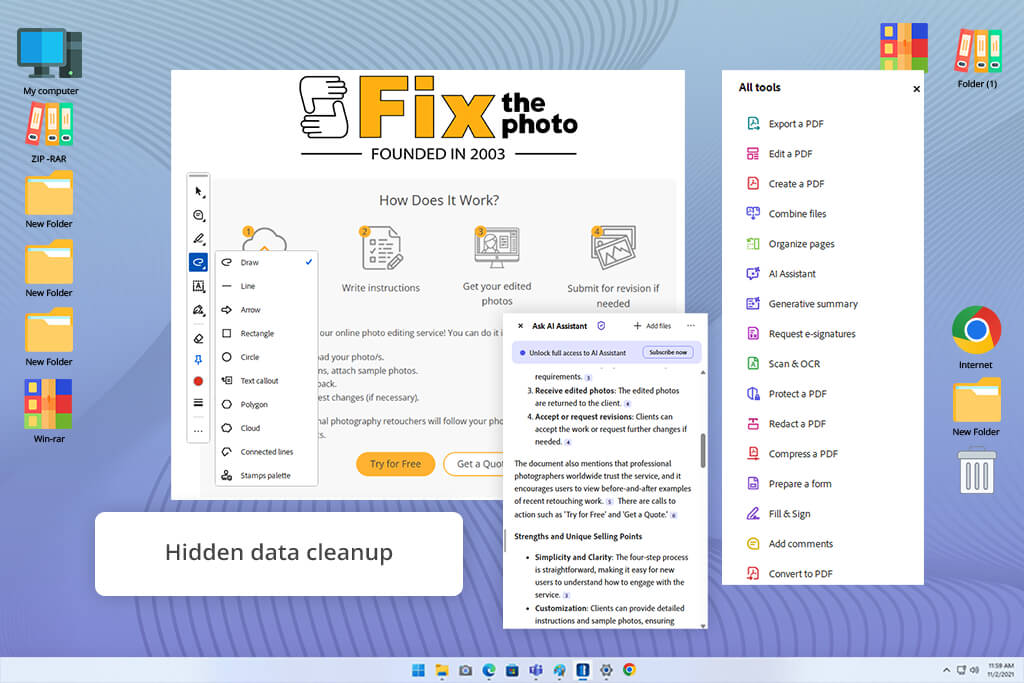
While learning how to redact PDF files in Adobe Acrobat, I opened All tools, chose Redact a PDF, selected the text and images I wanted to remove, reviewed the highlighted areas, and applied the changes. Unlike using black boxes, Acrobat permanently removed the selected content from the document.
I didn't have to scan the document page by page. After entering a name, Acrobat highlighted every match, including those scattered throughout different parts of the agreement.
Acrobat stood out because it covered the entire document security process. Besides permanently removing sensitive information, it let me clear hidden data, delete comments, password-protect the file, and prevent editing or copying.
“I always use Search & Remove Text before applying redactions because it quickly finds repeated names, email addresses, phone numbers, and account details across the document.”

I also liked the review step before the changes became permanent. Acrobat highlighted every selected area, giving me a chance to check that nothing was missed. During this review, I switched to different overlay colors to make the marked sections easier to spot, then changed them back to the standard black marks before saving the final file.
My tests showed that Acrobat could remove different types of content, not just text. It easily erased a photo, a handwritten signature, a full table row, and an entire appendix page.
My tip: Keep the original PDF unchanged, make all redactions in a copy, remove hidden data, and then open the exported file again to make sure the deleted information can't be searched, selected, or copied.
Why it’s in my top:
Pricing: Limited free tools; Acrobat Pro from approximately $19.99/mo
Best for: Quick tasks and beginner-friendly redaction
Platform compatibility: Web, Windows, macOS, Linux, iOS, Android
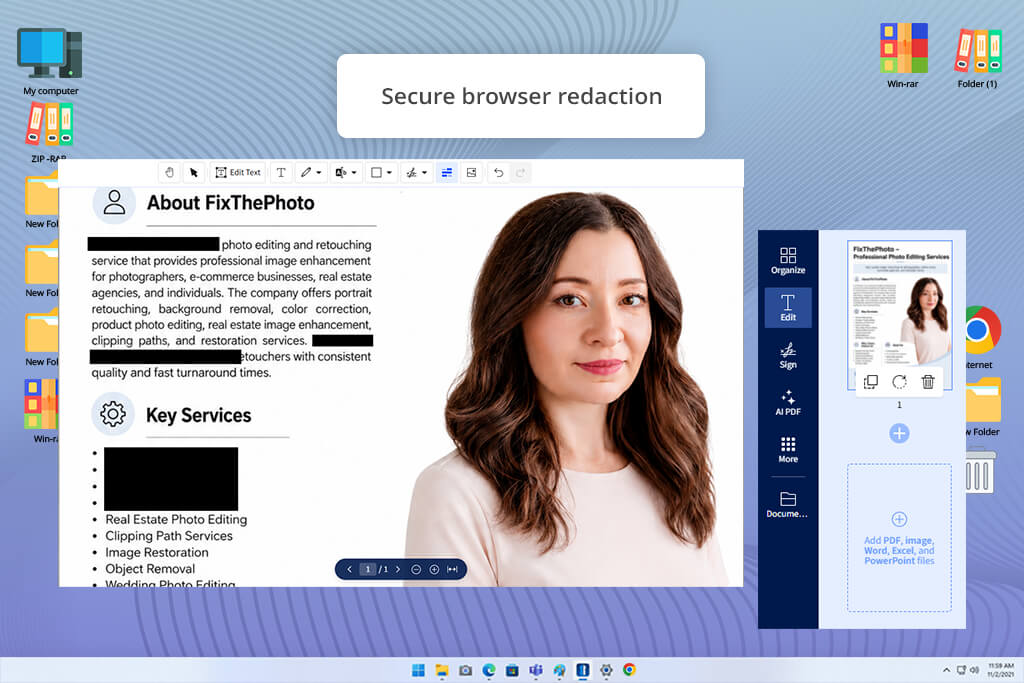
I came across Smallpdf when I needed to quickly remove contact details from a short supplier document before a meeting. Since it was a simple task, I wasn't looking for OCR or advanced document management features. I just needed a fast way to upload the file, redact a few areas, and download a secure copy.
I didn't need any instructions to get started. After uploading the PDF, I selected the sensitive text, covered a small logo with a redaction mark, reviewed the file, and saved the changes.
Before starting the redaction, I used a PNG to PDF converter to combine several scanned invoice pages into a single PDF. Since Smallpdf includes both conversion and redaction tools, I finished the entire job in the same browser.
According to Smallpdf, the selected content is permanently deleted rather than just covered with a black mark. The company also states that the information is removed from the document's searchable text and metadata instead of staying hidden in the PDF.
“When I need fast results, I use Smallpdf. Before sharing the final PDF, I always open it again and check whether anything in the redacted area can still be selected or copied.”

Smallpdf also made the rest of the workflow convenient. After finishing the redaction, I compressed the file and added password protection without repeatedly downloading and uploading the PDF.
This online PDF redaction tool is available on Mac, Windows, Linux, iOS, and Android. The company highlights that you can redact PDFs without downloading software or creating an account for basic, occasional use.
The biggest drawback became clear when I tested a longer document with repeated names. Acrobat made it much easier to locate and review every match, while Smallpdf worked best for documents with only a few obvious areas that needed redaction.
I found Smallpdf most useful for resumes, invoices, application files, school documents, and similar PDFs that only need a small amount of redaction.
My tip: Before applying a redaction, zoom in and check the selection carefully. A single visible digit or part of an email address can still identify the person or account.
Why it’s in my top:
Pricing: Free with limits; Pro from approximately $10/mo yearly
Best for: One secure browser task per day
Platform compatibility: Web, Windows, macOS, Linux, iOS, Android
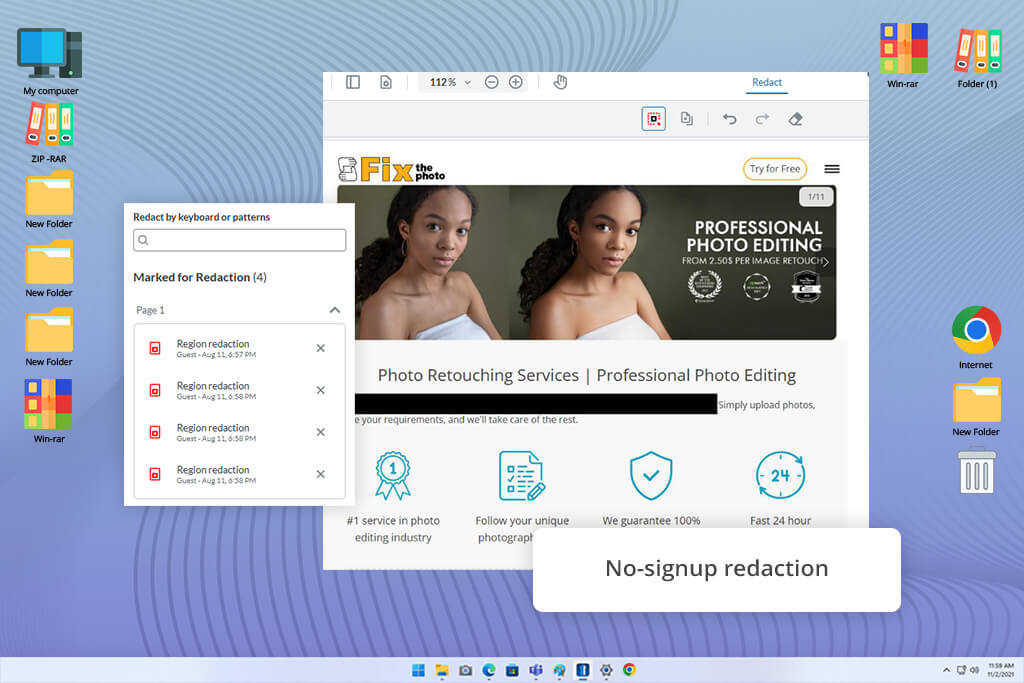
I decided to test Xodo while looking for a way to redact PDF without registration. I also wanted to see whether a free AI PDF editor could offer proper redaction features instead of just covering text with black boxes.
For my test, I used a sample bank statement filled with fictional personal and payment details, including names, email addresses, phone numbers, and card numbers. I relied on the built-in search feature to quickly find every repeated match instead of checking the document by hand.
Besides searching for individual words, Xodo also detects common data patterns like email addresses, credit card numbers, and phone numbers. Once I confirmed the matches, I applied the redactions and exported the finished document.
One feature I appreciated was Xodo's local browser processing. According to the company, the PDF stays in the browser during redaction instead of being uploaded to external servers, making it a good option when I want an online workflow with fewer server transfers.
“When the same confidential information appears multiple times, Xodo really shows its value. I started by entering the full term into the search box, reviewed each match one by one, and then selected Redact All to remove every occurrence at once.”

While testing this PDF redaction tool, I was pleased to see that it detected all email addresses with high accuracy. I also tested its preset pattern search for phone numbers and card numbers. The detection worked very well overall, although I occasionally had to adjust the selection manually to match the exact spacing or formatting.
The Xodo mobile apps for iOS and Android let you edit, annotate, organize, and redact documents even when you're away from your computer.
I see Xodo as a good choice for occasional invoices, bank statements, forms, reports, and similar documents where search-based redaction speeds up the process. While the one-document daily limit isn't ideal for frequent office use, it's more than enough for personal tasks.
My tip: Don't rely on a single search. Look for the full name, last name, email address, and the ending digits of an account number separately to catch every match.
Why it’s in my top:
Pricing: One document daily for free; paid access from $4.99/mo
Best for: Redacting visible words, graphics, and complete pages
Platform compatibility: Web, Windows, macOS, iOS, Android
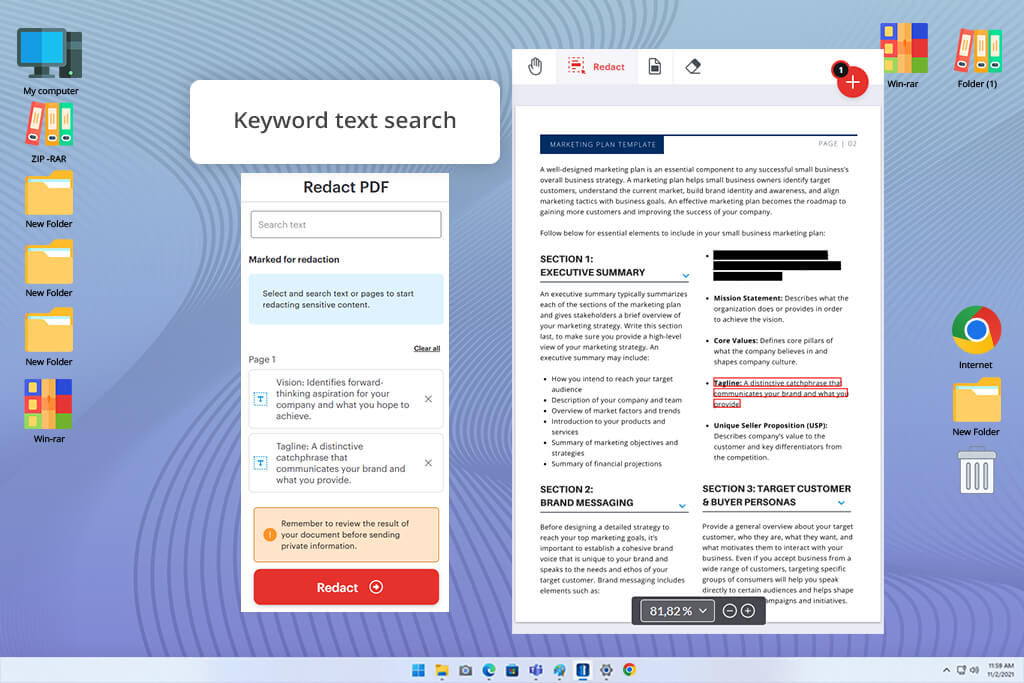
I decided to test iLovePDF because several people at FixThePhoto already relied on it for merging, splitting, and compressing PDFs. I was curious whether its newer redaction tool was just as practical.
I worked with a six-page client report that included personal names, screenshots, email addresses, and a page that needed to be removed before the file could be shared.
The workflow allowed me to redact visible text, search for specific words, cover graphics, and remove entire pages. According to iLovePDF, the selected text and images are permanently deleted instead of simply being hidden with a black overlay.
I especially liked the option to redact an entire page. It saved me from manually covering every line of a confidential appendix before sharing the document.
“The most effective approach was using both search and manual redaction. Search located repeated names in seconds, while area selection made it easy to remove screenshots and signatures.”

One detail I appreciated was the clear separation between marked areas and completed redactions. It reduced the chance of confusing a preview overlay with a finished, permanent redaction.
Working with Google Drive was convenient because I could open a file, finish the redaction, and save it without managing local copies. iLovePDF also supports Dropbox.
The mobile app includes redaction features, but according to iLovePDF, the dedicated mobile PDF redaction tool is available only with a Premium subscription.
It's a good choice for forms, invoices, reports, application documents, screenshots, and other PDFs where the areas to redact are already clear.
My tip: Check every marked area before applying the final redactions. iLovePDF also recommends reviewing the finished document before sharing it with others.
Why it’s in my top:
Pricing: Free with limits; Premium from approximately $7/mo
Best for: Large document collections and automatic PII detection
Platform compatibility: Web
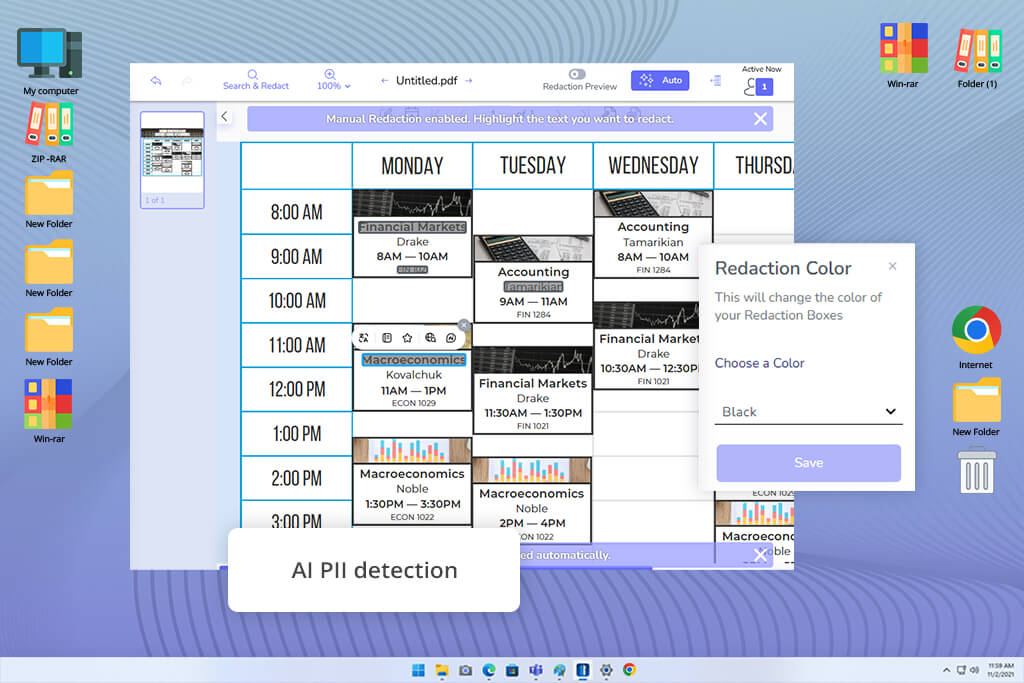
Redactable was mentioned often during my search for professional AI redaction tools. Unlike free PDF editors, its main purpose is to detect and permanently remove confidential information.
My sample files included fictional HR documents with names, addresses, Social Security number patterns, phone numbers, birth dates, signatures, and handwritten entries, giving me a good mix of sensitive data to redact.
The platform automatically scanned the documents and highlighted possible personal information, so I didn't have to search for everything myself. I reviewed the detected categories, approved the correct matches, rejected the incorrect ones, and then applied the redactions.
According to Redactable's pricing information, every plan includes AI-powered redaction and OCR for scanned files. The cost depends on the number of processed documents rather than the number of pages.
“AI detection is useful, but I don't apply all the suggestions automatically. I review each category carefully and then inspect the entire document one last time.”

The pricing model also stood out. Since Redactable charges by document rather than by page, a 100-page file counts as a single document. That approach is especially useful for legal, healthcare, government, real estate, and HR teams managing large files.
Redactable isn't the only tool with this limitation. Automatic redaction results vary depending on OCR accuracy, document layout, formatting, and the selected detection categories. A 2026 benchmark study reached a similar conclusion, finding that these systems still struggle to remove all sensitive data without affecting useful information.
New users can process three documents for free without providing payment details. According to Redactable's published pricing, additional documents cost $7.50 each on the pay-as-you-go plan, while subscriptions begin at about $29 per month.
For a short invoice with only one address to remove, Redactable would be more than I need. However, when I need to permanently redact PDF online across long documents containing repeated sensitive information, it becomes much more valuable.
My tip: Scan each category separately, review every AI suggestion, and then manually search for key names, numbers, and identifiers before completing the redaction.
Why it’s in my top:
Pricing: Three documents free; $7.50 per additional document or plans from $29/mo
Best for: Simple manual redaction and occasional documents
Platform compatibility: Web, Windows, macOS, Linux, iOS, Android browsers
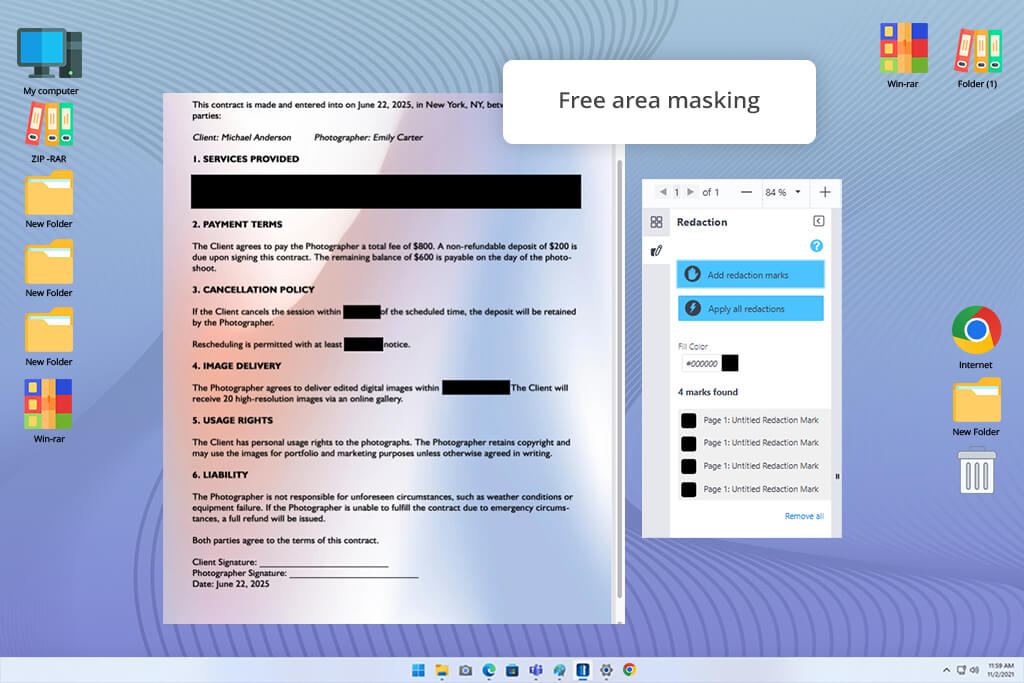
I came across AvePDF while looking for a free online PDF redaction tool that didn't require an account. Although the interface is more functional than polished, I had no trouble finding and using the dedicated redaction tool.
I worked with a short model-release document containing an address, identification number, and handwritten signature. After uploading the PDF, I selected the sensitive content, reviewed every marked section, and applied the changes.
AvePDF says that redactions become permanent after you apply the changes and save the document. Everything works in the browser, so there's no need to install software or sign up.
The customizable redaction marks were a nice addition. Black worked well for most files, while white was a better choice for one internal draft because it matched the page background.
“AvePDF is a good fit for short PDFs when the sensitive information is easy to identify. For large files with many repeated entries, manual review would take too much time.”

The final PDF passed my copy-and-search check. I couldn't recover any of the removed information, and the rest of the page stayed exactly as it was.
AvePDF also includes browser-based tools for removing interactive elements, deleting PDF data, converting files, compressing documents, and organizing pages. Because everything works online, I found it a practical alternative to PDF editors for Mac when I needed to handle a quick task without installing software.
My tip: Save the redacted PDF with a new filename and store the original version in a separate, secure folder.
Why it’s in my top:
Pricing: Free
Best for: Private files that should remain on the computer
Platform compatibility: Windows, macOS, iOS, iPadOS, Android
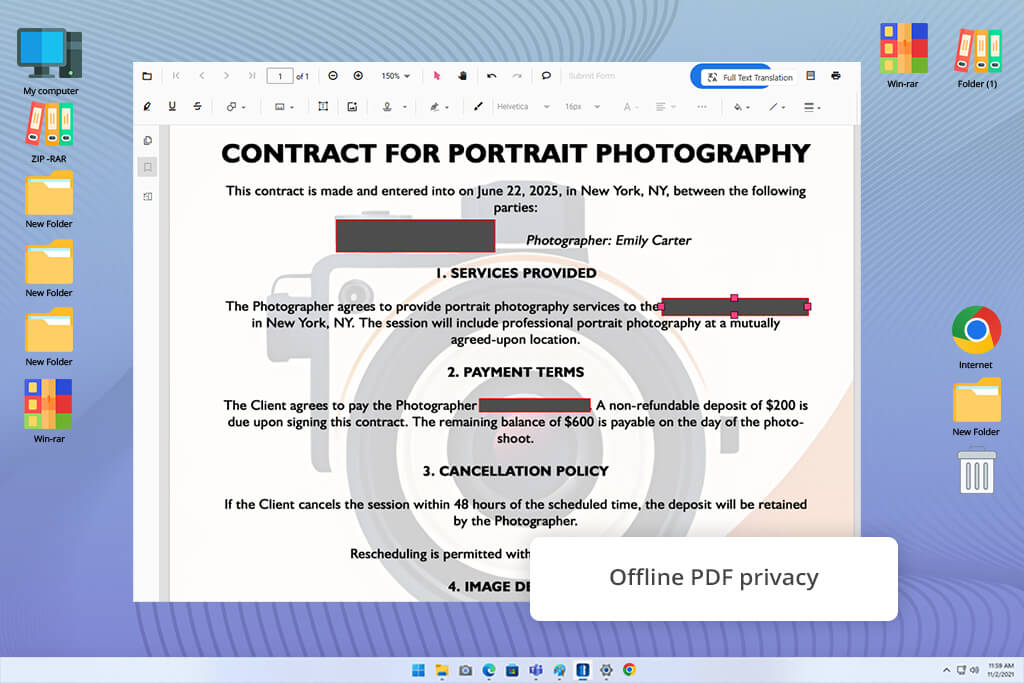
I came across PDFgear while looking for alternatives to Adobe for PDF redaction. Its desktop application immediately caught my attention because I prefer keeping confidential documents on my own computer instead of uploading them to an online service.
After installing PDFgear, I opened a fictional contractor agreement with addresses, payment rates, contact details, and signatures. I found the redaction tool in the Protect section and started marking the sensitive information.
Before redacting the file, I used the built-in OCR software to recognize the scanned text. Once the document became searchable, I could quickly locate names and contact details instead of inspecting every page manually.
“For offline work with confidential files, PDFgear is my preferred free option when I need to redact PDF without Adobe. I just make sure to use the Protect → Redact feature rather than highlighting or drawing over the content.”

This difference is worth remembering because older tutorials and online discussions sometimes suggested using black highlights as a shortcut. PDFgear now provides a dedicated Redact feature and documents secure redaction in its release notes.
After saving the PDF, I searched for the removed name, copied nearby text, and opened the file in another PDF editor. I couldn't recover any of the redacted information.
PDFgear handled more than redaction. I could edit text, rearrange pages, convert documents, add signatures, and use the built-in PDF assistant before saving the final file.
My tip: Keep PDFgear up to date and always check that you're using the dedicated Protect → Redact feature rather than Highlight, Draw, or a black shape.
Why it’s in my top:
Pricing: Free
While testing, my FixThePhoto team focused on privacy protection rather than simply comparing interfaces.
I gathered more than 40 PDF redaction tools from Google search results, Reddit, YouTube, legal-tech communities, and privacy forums. After the initial screening, we evaluated over 30 of them with fictional contracts, scanned forms, invoices, bank statements, signatures, comments, metadata, and repeated personal data.
Canva, PDF24, DocHub, Soda PDF, Foxit, Nitro PDF, and Preview for Mac didn't make my final list because their redaction tools were either less intuitive, offered fewer features, or weren't the best choice for permanent content removal.
We tested each platform, paying attention to the following aspects:
Permanent removal. After saving each redacted PDF, I reopened it and checked whether the removed information could still be copied, found through search, or extracted.
Search accuracy. I repeated names, email addresses, phone numbers, and account details throughout long documents to see whether every occurrence could be found.
Visual redaction. My team redacted signatures, faces, screenshots, QR codes, and parts of scanned pages, then checked whether any visible traces remained.
OCR quality. Clean scans, faded photocopies, and smartphone images helped us evaluate OCR accuracy across different document types.
Hidden data. We also checked comments, attachments, form fields, metadata, and document properties separately.
Formatting. The design team compared the exported PDFs to the originals to see whether fonts, tables, borders, spacing, and images were preserved.
Ease of use. Tools with a clear selection, preview, and redaction process received higher scores.
Privacy. I reviewed each platform's approach to server uploads, local processing, file deletion, encryption, and offline availability.
Free access. The comparison also included page limits, file-size caps, registration requirements, watermarks, and download restrictions.
I never assume a black box means the information is securely removed. Before sharing a PDF, I check for hidden data, search for sensitive information, and verify that the redacted content can't be recovered.



![7 Best AI Image Analyzers [{{%year}} FixThePhoto Choice]](http://fixthephoto.com/blog/images/gallery/news_main__preview_29393.jpg)


![7 Best AI Video Highlight Generators [100% FREE]](http://fixthephoto.com/blog/images/gallery/news_main__preview_29348.jpg)

















