As an app and software testing professional, I often use photo editors to perform color correction, retouch images, make creative edits, and prepare pictures for online use. I have been using Luminar and VSCO for a while, which is why I am familiar with their features, interfaces, and editing workflows. As more people became curious about these tools, I’ve started getting a lot of questions about their differences and suitability for different editing workflows.
When I decided to compare Luminar vs VSCO, I started to thoroughly test both solutions. My colleagues from the FixThePhoto team also provided their feedback and shared their experience of using these editors when working with different types of images.
I was especially interested in the way they handle daily retouching tasks. I also compared them in terms of their creative controls, AI tools and presets, RAW support, ease of use, speed, and pricing.
My top choice is Luminar. It allows me to edit individual photos with high precision and perform all sorts of editing tasks. Besides, I can use AI to expedite my workflow and automate repetitive tasks. VSCO allows me to achieve consistent results quickly when I need to produce multiple polished outputs, but if I had to choose only one option for my daily FixThePhoto workflow, I would choose Luminar.
|
|

Luminar |

VSCO |
|
Main editing approach |
Photo-first, AI-assisted |
Preset-first |
|
Exposure & contrast |
✔️
|
✔️
|
|
HSL adjustments
|
✔️
|
✔️
|
|
AI enhancement
|
✔️
|
✔️
|
|
Film-inspired presets
|
Presets available
|
Core strength
|
|
Sky replacement
|
✔️
|
✔️
|
|
Object removal
|
✔️
|
✔️
|
|
Portrait retouching
|
AI-assisted skin and face tools
|
Basic appearance adjustments
|
|
AI masking
|
✔️
|
❌
|
|
Depth-aware relighting
|
✔️
|
❌
|
|
Grain & fade
|
Creative adjustments available
|
Dedicated controls
|
|
Local editing
|
Masking and targeted adjustments
|
More limited
|
|
Layers
|
✔️
|
❌
|
|
RAW editing
|
✔️
|
✔️
|
|
Editing focus
|
Detailed corrections and creative changes
|
Color, mood, and consistent styling
|
What makes Luminar different from VSCO is that this app requires me to choose a different approach. While using Luminar Mobile, I prefer to start with the image. I use its AI tools to analyze light, color, depth, and detail. Then, I decide how to continue editing my image further.
VSCO prioritizes working with presets. I start by choosing a look and then adjust exposure, color, grain, fade, and HSL settings. It allows me to ensure that multiple photos will have the same mood and visual aesthetic.
“I typically use Luminar to enhance a photo in a specific way. At the same time, I use VSCO to achieve a specific color or mood. I can use both tools to produce a polished image quickly, but the steps I take are different.”

Another difference I noticed when writing this VSCO vs Luminar comparison was when I needed to perform more complex tasks than simple color adjustments. Luminar Mobile comes with tools for sky replacement, skin retouching, object removal, detail improvement, and quick AI-powered edits. It allows me to perform tasks of different complexity while editing an image.
VSCO allows me to access intuitive manual controls and use an extensive library of filters. I use it for subtle edits, as it allows me to achieve consistency while enhancing bundles of photos. Each app allows me to achieve polished outputs, but I follow different procedures.
There are noticeable differences between the workflows. I use Luminar Mobile together with other tools instead of using it as an isolated app. I can access it on iOS or Android, then switch to Luminar on Desktop, and use Luminar Space to share the outputs with others. VSCO is more suitable for mobile edits.
It supports in-app discovery and comes with helpful single-image editing tools. After using both tools, I concluded that Luminar is more suitable for a wider range of photo-specific tasks and has AI-driven editing tools. VSCO is more suitable for quick style enhancements.
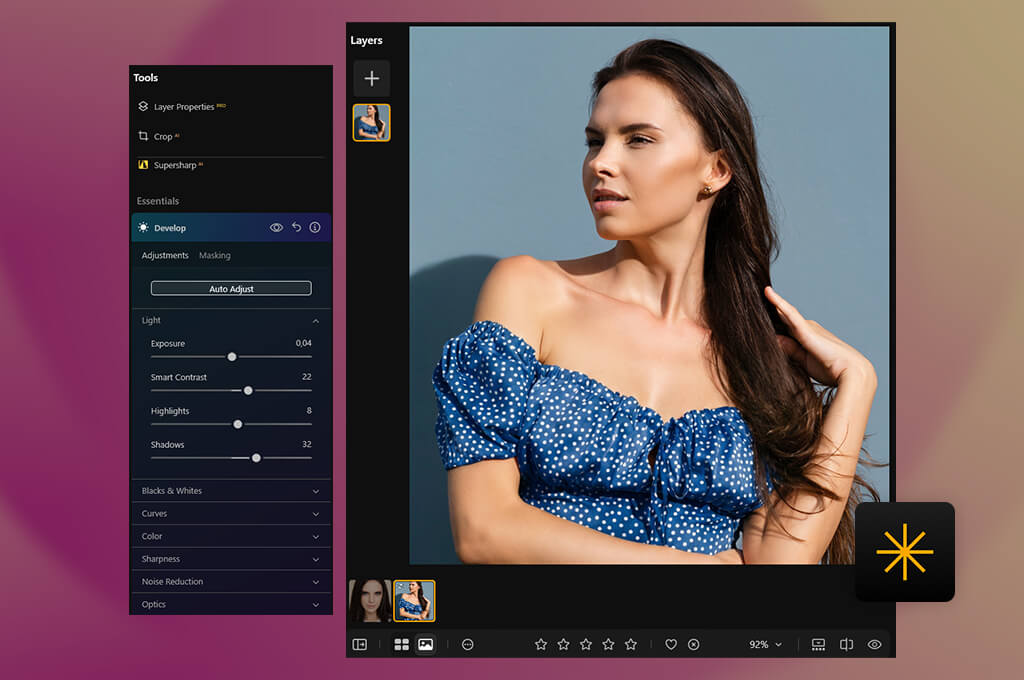
When I need to edit a photo that requires more advanced editing than simple color correction, I normally use Luminar. For instance, Relight AI allows me to adjust the brightness of the foreground and background separately. Mask AI is suitable for isolating specific image areas and making local edits.
While enhancing portraits, I use Face AI and skin-related controls. It allows me to delete distracting elements, replace backgrounds, use layers, or use the Enhance AI tool to fix tones and colors. If you take a look at the Luminar features, you will see that many of them allow users to make edits more quickly than regular tools.
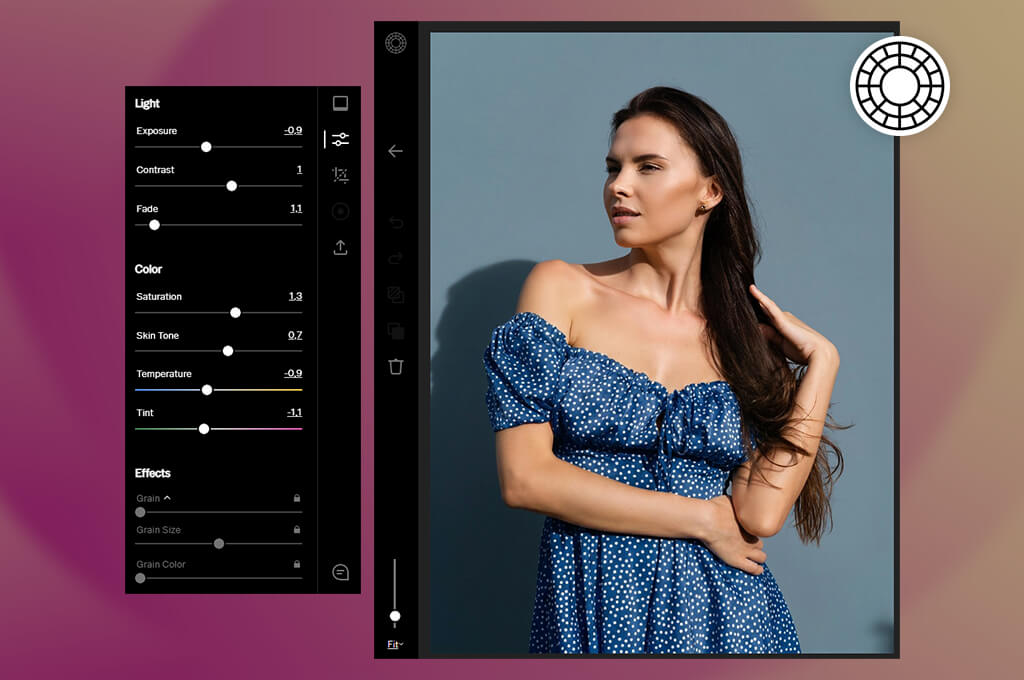
The tools available in VSCO are better suited for enhancing the whole image. I often adjust exposure and contrast alongside HSL when I need to tweak specific colors and then add grain or fade effects when it’s necessary. Its filters allow me to make the initial edit, making it especially suitable for enhancing multiple photos that require the same color and atmosphere.
I can customize a preset to my liking. However, after comparing Luminar Neo vs VSCO, I prefer to use the former when I need to remove objects, replace the sky, and make local edits.
“I decided to enhance a photo that had a background that looked almost perfect but had one distracting object. In Luminar, I could fix this issue without impacting the rest of the image, making this solution perfect for my needs.”

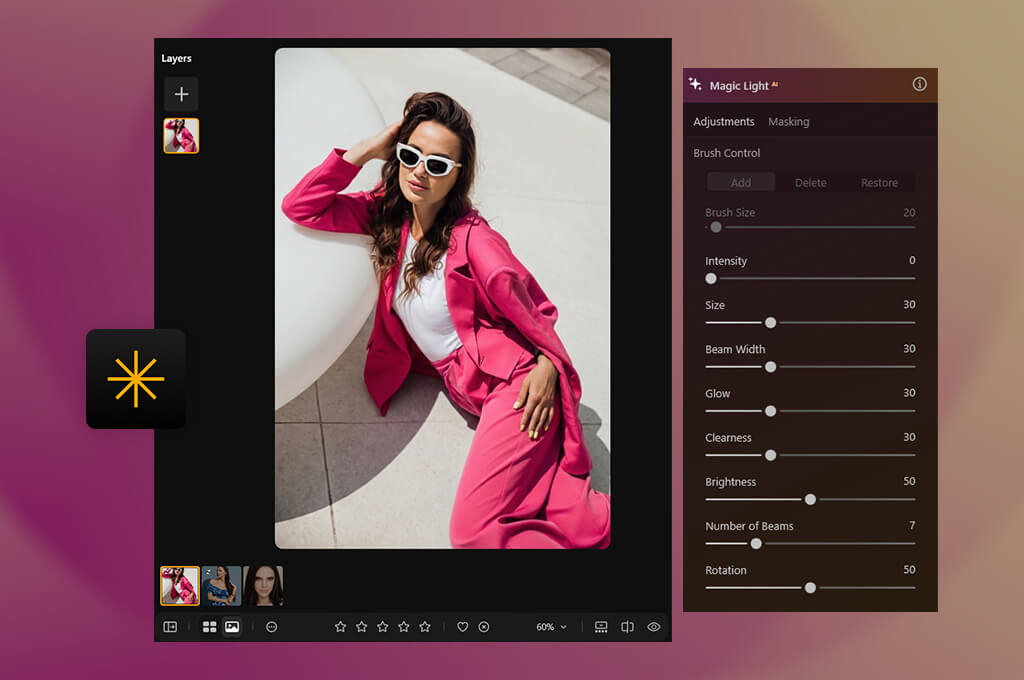
What I like the most about Luminar is that I do not need to think a lot about what edit to make first. This AI photo editor analyzes the whole image, including light, color, depth, and detail. It allows me to create an initial edit and enhance it later.
In some cases, I prefer to make quick enhancements. Other times, I enhance the whole image before making more specific edits. After the recent Luminar update, the performance of its AI tools has become much better. I use them when I need to make specific edits.
Luminar AI tools include:
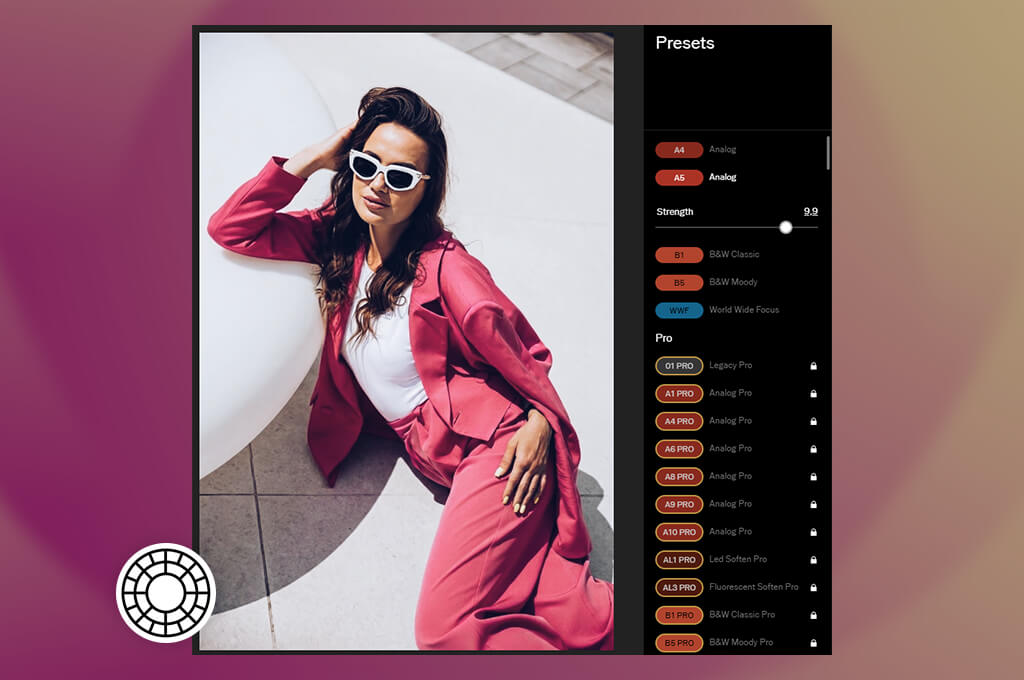
When I use VSCO, I use its presets to optimize my workflow. I can explore the collection of film-themed effects and choose the filters that allow me to recreate the mood I need. I can also adjust these effects to my liking instead of editing photos from scratch. I’ve discovered that this approach is especially suitable for enhancing a batch of images.
Luminar and VSCO allow me to optimize my workflows in different ways. Luminar is better suited for enhancing what is happening inside a frame, while VSCO facilitates following the right visual direction.
“I rarely use Luminar’s AI tools without reducing their intensity. I use Enhance AI to make the initial edit and then adjust the result manually if I need to make the photo more natural.”

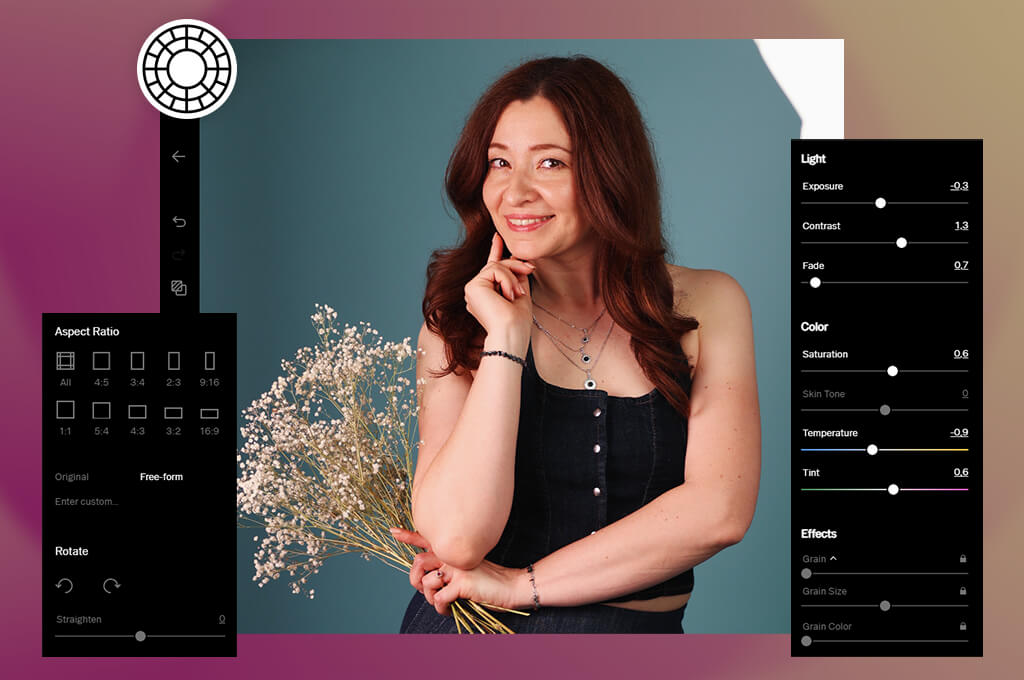
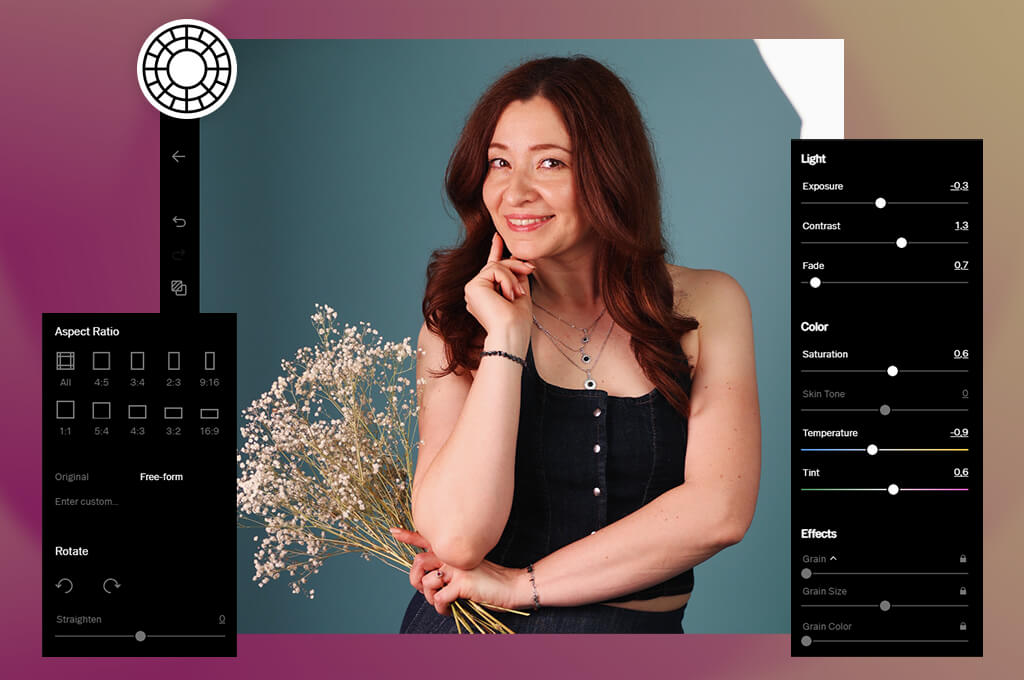
When editing portrait photos, I noticed a significant difference between Luminar and VSCO. While using Luminar AI, I can edit a person instead of focusing on the color of the photo. It makes it especially suitable for those who are interested in typical portrait photography. It allows them to make the skin texture softer, make subtle adjustments while testing facial features, add background blur, and change the light around the subject. I do not use every tool while editing every portrait photo. However, it’s quite convenient to be able to access them when I need to make the colors more flattering.
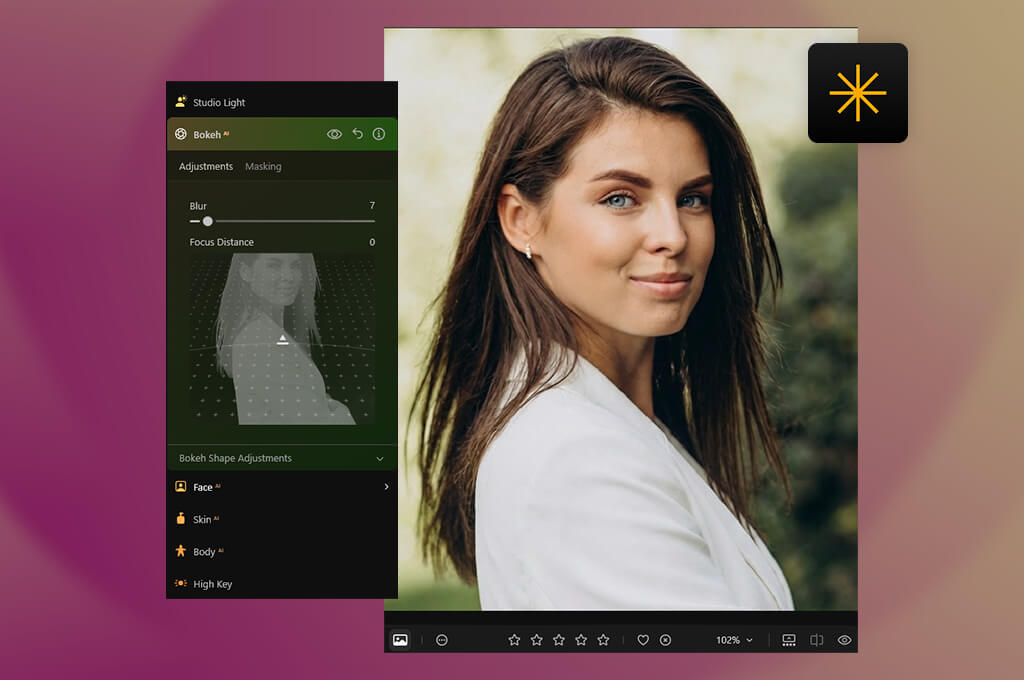
Luminar portrait tools include:
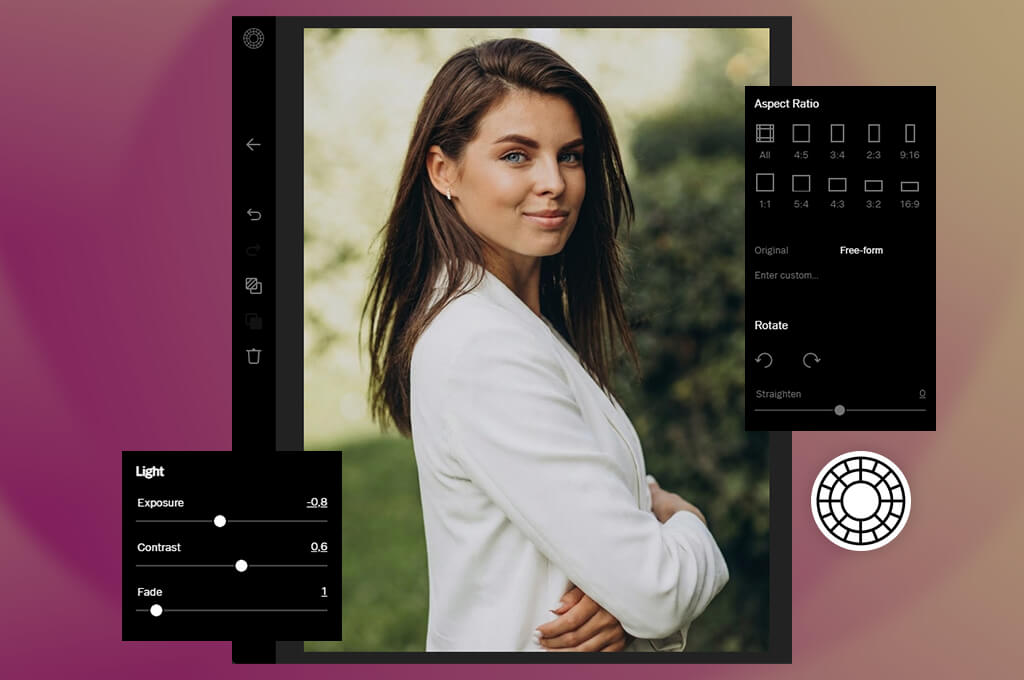
VSCO is suitable for enhancing colors and tones of portrait photos, as well as for adding selective finishing touches. It comes with the Skin Tone feature, which allows me to edit skin tones with a lot of red and green. This tool does not make the texture excessively smooth and is suitable for more complex tasks than just removing blemishes.
I use HSL and White Balance when I want to solve issues caused by surrounding colors or uneven lighting. The Dodge & Burn effect allows me to adjust underexposed and overexposed areas. I use the blur effect to separate the subject from the background on iOS. Besides, VSCO has a collection of Portrait presets that are suitable for enhancing portraits that require some finishing touches.
Landscape photos can be quite challenging, which is why I prefer to use Luminar photo editor to perform scene correction. This solution has tools for making the sky deeper, transforming the atmosphere, and tweaking lighting. I can also enhance haze, water, and lighting effects separately.
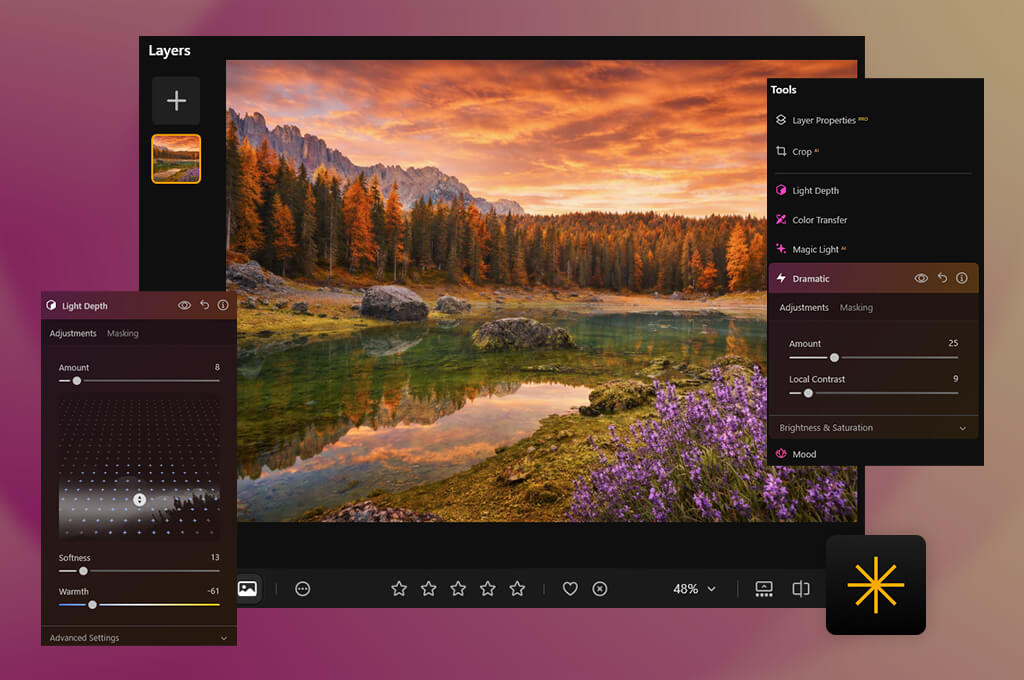
Luminar landscape tools include:
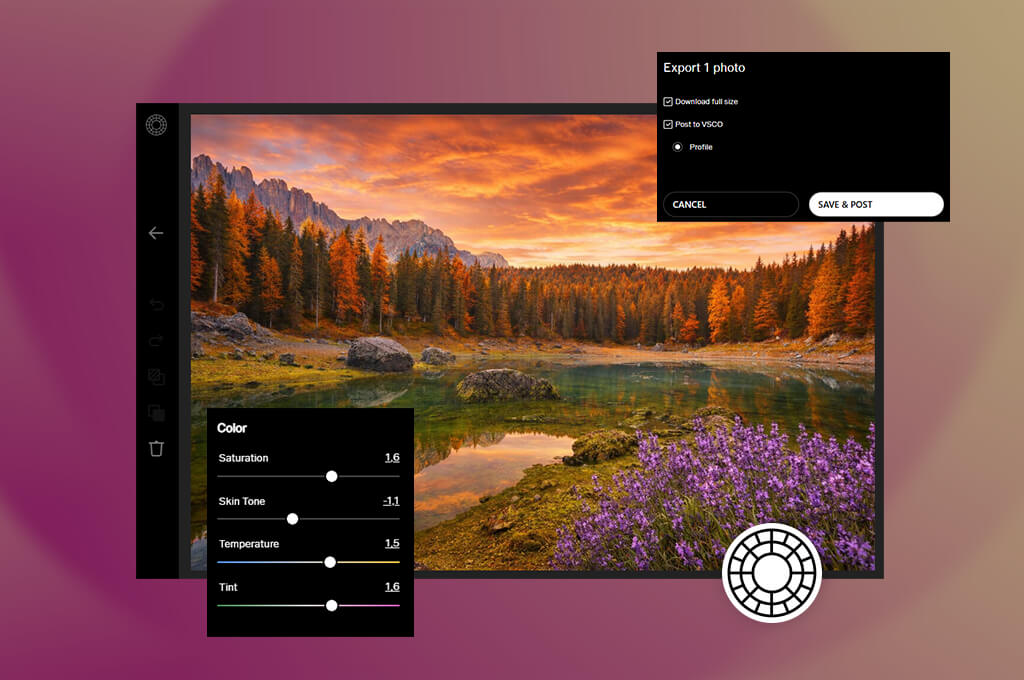
VSCO also allows me to edit landscape photos. I can use HSL to edit blues, greens, yellows, and other color ranges separately. It’s also possible to adjust White Balance, Tone, Clarity, Sharpen, and Saturation tools to transform the overall scene. Clarity is especially important because it can emphasize texture in clouds, grass, streets, and water, as well as minimize haze.
I typically make such adjustments when I work on a landscape photo that already has the right composition and elements and mostly needs improved color, contrast, or definition.
“While using Luminar, I edit the sky and transform the atmosphere without impacting the rest of the image. With VSCO, I decided to keep the original scene after I adjusted the blues, greens, and contrast. However, it’s more suitable for editing what was already in the frame instead of changing the scene itself.”
Luminar has a streamlined navigation system. There are also a lot of Luminar tutorials available. Its recent version has an improved workspace, which is why I can switch between tools quickly when making simple edits. You may still have to spend some time to master more advanced tools if you haven’t used this type of editor before.
Its AI features, masking tools, and pro-grade features are more complex. After the upgrade, its performance has also been improved. Its preset previews are generated faster. I can export multiple files more quickly.
“VSCO allows me to achieve faster results when I already understand how I want to edit my photo. I choose a preset, customize it to my liking, fix the exposure, tweak colors, and get a usable output. It takes me longer to edit images in Luminar because it has more tools.”
VSCO is easier to master because it supports an intuitive editing workflow. I can choose a suitable preset, change its strength, make some adjustments, and achieve the result I need without adjusting many controls.
Most tools in this filter app are easy to find, which is why I can make decisions quickly. When I need to adjust the tone, exposure, or overall atmosphere of a photo, I can achieve decent outputs without delays.
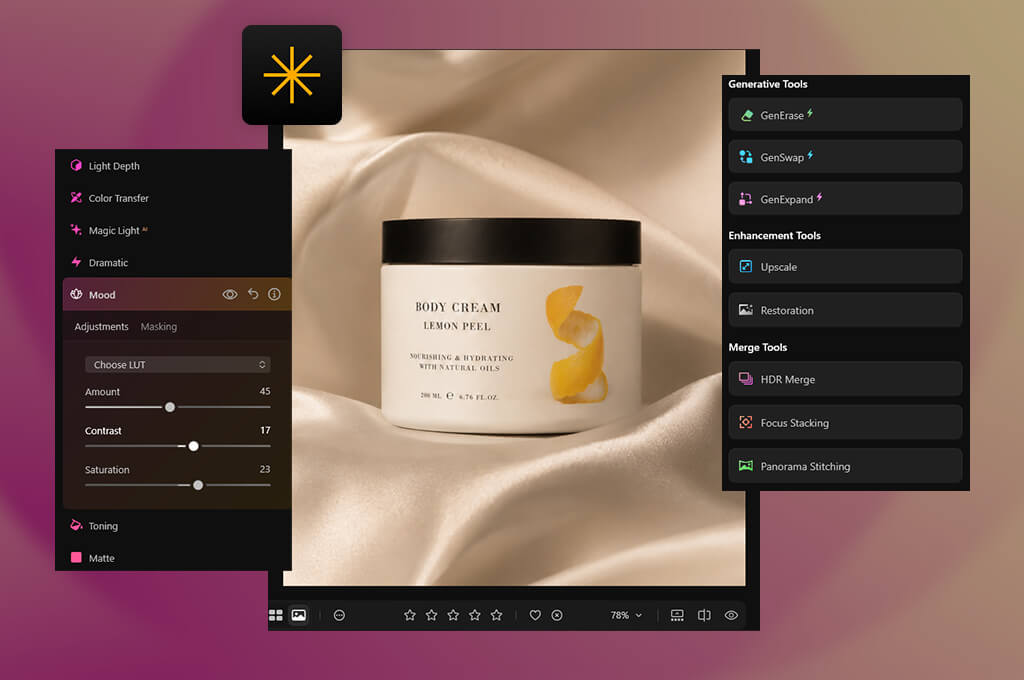
With Luminar, I can edit my photos at a more advanced level. I like the fact that it allows me to work with RAW files and handle information captured by the camera first. Then, I can use AI to enhance photos, perform detailed adjustments, perform retouching tasks, or make more creative edits.
While working on images for web use, I can use pictures in regular formats like JPEG. After the most recent update, Luminar now supports Panasonic Lumix DC-L10, Sony A7 V Compressed RAW, and Sony A7R VI files. It makes it more suitable for my needs than solutions with an extensive list of creative effects.

VSCO is better suited for the part of my workflow where I need to enhance photos that are almost ready and want to adjust their colors. I use VSCO for photo editing because I can access its presets, HSL controls, contrast adjustment tools, grain, and fade effects to transform the style of an image without complex editing.
I prefer to reduce the intensity of each preset and tweak the colors manually. It allows me to achieve natural results, especially when editing portrait photos. VSCO supports specific file formats and export options, which is why I always consider this besides assessing the visual output instead of assessing the image quality based only on presets.
At the moment, Luminar pricing options are the following types of perpetual access:
Before paying for a specific option, consider the fact that these licenses cover access to AI tools only for 365 days. During this period, you can use Restoration, GenErase, GenSwap, GenExpand, and AI Assistant tools. After that, you can renew access through Luminar Prime.
Even though it’s impossible to access these tools forever for free, I still like the idea of having access to the main editor. Skylum often runs promotional campaigns, which is why I prefer to check the availability of Luminar discounts before paying the full price.
“Once you understand that the perpetual license does not cover AI tools, Luminar becomes easier to understand. It’s nice to know that I will still have access to the main editor if I decide against paying for AI tools. VSCO has more intuitive subscription options, but I need to decide whether I need to use specific paid presets and tools to keep renewing the subscription.”
VSCO has convenient subscription plans:
I prefer to consider a specific tier instead of focusing on the lowest prices. Some tools are available only in the Pro version, and users need to renew their subscription to keep using the included features. VSCO also has monthly Plus and Pro subscription plans. However, their annual plans are more affordable.
|
✔️ AI tools allow users to perform certain tasks such as relighting, masking, object removal, and sky replacement. They are not suitable for enhancing the whole photo.
|
❌ Some AI-powered edits still require manual adjustments, especially when I need to achieve natural outputs.
|
|
✔️ I can make quick AI-based edits and then enhance the output manually instead of considering the initial version as the final one.
|
❌ It takes a lot of time to master all the tools, making it less convenient to use than a basic mobile editor with a collection of presets.
|
|
✔️ RAW support allows me to edit camera files that require significant adjustments.
|
|
|
✔️ Tools for masking, portrait editing, object removal, and detail refinement allow me to make all sorts of edits without using third-party apps.
|
|
|
✔️ I can access mobile and desktop versions of Luminar instead of editing my images only on a phone.
|
|
|
✔️ The extensive choice of film-themed presets allows me to expedite my editing workflow and automate repetitive tasks.
|
❌ A preset-focused workflow may seem limited when I need to edit a specific image in a more unique style.
|
|
✔️ I can customize the intensity of each preset and then adjust exposure, contrast, HSL, grain, fade, and other settings to achieve more unique results.
|
❌ I have a limited choice of options for performing precise adjustments when I need to edit only a specific part of a photo.
|
|
✔️ The intuitive workflow is especially suitable for situations when I need to enhance multiple photos and keep their colors and atmosphere consistent.
|
❌ One should pay for a subscription to access the whole collection of presets and all the editing features.
|
|
✔️ The interface is quite intuitive, which allows me to complete tasks quickly.
|
|
|
✔️ The free Starter plan allows me to access simple editing tools and a limited choice of presets before making up my mind about a subscription.
|
|
If I had to choose between these solutions, I would prefer to use Luminar. It allows me to perform more complex tasks while editing photos than basic color adjustments. I can remove unwanted objects, enhance skies, perform local adjustments, edit portraits, work with RAW files, and perform other tasks without switching to other editors.
In addition, I like the fact that I can access AI tools when I need to save time and still be able to refine the outputs manually. Besides, Luminar has the desktop and mobile versions, making it suitable for different types of editing.
It does not necessarily mean that VSCO is a bad option. I would use VSCO for editing when I have a set of polished photos and want to adjust colors in a consistent style without spending a lot of time on manual adjustments. It has handy presets, grain, fade, and HSL effects, and more intuitive tools that are best suited for such enhancements. However, such tasks are only a part of my workflow, which is why I prefer to use Luminar, as it allows me to access more tools.
Not quite. Even though they have some similar basic tools, presets, and photo enhancement options, I use them for different purposes. Luminar is suitable for more complex edits, AI-driven tasks, masking, object removal, and RAW editing. VSCO is perfect for situations when I need to perform specific color adjustments and achieve a certain mood quickly.
Yes. I typically do not accept AI edits as the final version. I can use Enhance AI or Relight AI to make the initial edit and then fine-tune photos afterward. This is why I normally use Luminar when I need to achieve a high degree of control instead of being satisfied with quick edits.
Yes, unlike Luminar Neo, VSCO allows me to adjust exposure, contrast, HSL, fade, and style. However, it’s not the solution I use to perform local edits. I use Luminar whenever I need to delete an unwanted object, replace the sky, or make more targeted edits.
I normally use Luminar when RAW editing is an important part of my project. It allows me to keep working on my images after performing initial RAW edits. It’s especially suitable for masking, retouching, detail work, or AI-driven edits. VSCO is also suitable for RAW editing, but it’s more suitable for color adjustments and styling.
Both allow users to produce realistic outputs, but they have different workflows. While using Luminar, I can adjust the intensity of AI effects and enhance specific areas instead of editing the whole image. While using VSCO, I reduce the intensity of a preset and then tweak colors, exposure, or HSL manually. Regardless of the editor I use, I achieve better results when I use the AI-assisted edit as a starting point.
While writing this VSCO vs Luminar Neo comparison, we tested them on different types of photos that we need to edit regularly. I did not want to compare these solutions only based on their lists of features. We used them to enhance portraits, outdoor photos, pictures taken in challenging lighting conditions, photos with distracting elements, and technically good pictures that required color adjustment. While working with RAW images, we considered whether we could make many adjustments before focusing on more creative tasks.
I started with edits that were supported by both editors. We fixed contrast and exposure, performed color and HSL adjustments, applied presets, and enhanced the image as a whole. I considered whether it would be possible to achieve a polished output quickly, whether we had to make many edits, and whether I would be able to optimize my workflow. Presets were tested for initial enhancements instead of using them for achieving final outputs.
“It was challenging to notice any difference while editing perfectly exposed photos. However, it was easy to spot the difference when we had to edit a portrait or remove distracting elements from the frame. I wanted to see whether it would be possible to achieve the result I needed without switching to another app, because I was mostly interested in the solutions suitable for solving daily editing tasks.”
Ann then focused on the edits where the differences between Luminar and VSCO became even more noticeable. While testing Luminar, she tested AI-powered enhancement tools, created masks, adjusted lighting, edited portraits, removed objects, and made other targeted edits.
While testing VSCO, we wanted to focus on film-inspired presets and the manual adjustment tools. We used them to enhance colors and adjust contrast, grain, fade, and other settings. This approach helped us understand what type of workflow each editor was particularly suitable for.
We were also interested in image quality. Nataly checked whether it would be possible to restore detail in highlights and shadows, make the skin textures natural, reduce sharpening, fix color shifts, and delete artifacts noticeable after significant corrections.
Nataly also considered whether it would be possible to achieve visual consistency while editing several photos. She did not want to assess the performance of each editor based on the results of several successful edits.
Finally, I wanted to understand whether these solutions could help me optimize my workflow. I checked whether their interfaces were easy to navigate, considered the number of steps we had to take, applied the presets, and used AI tools to check whether they could help me expedite our workflow. Besides, we wanted to see whether it would be necessary for us to switch to another app.
I tested mobile and desktop versions of these services and considered their pricing. So, which option, VSCO or Luminar Neo, is better? I concluded that even though they share a lot of similarities, they are suitable for different workflows.