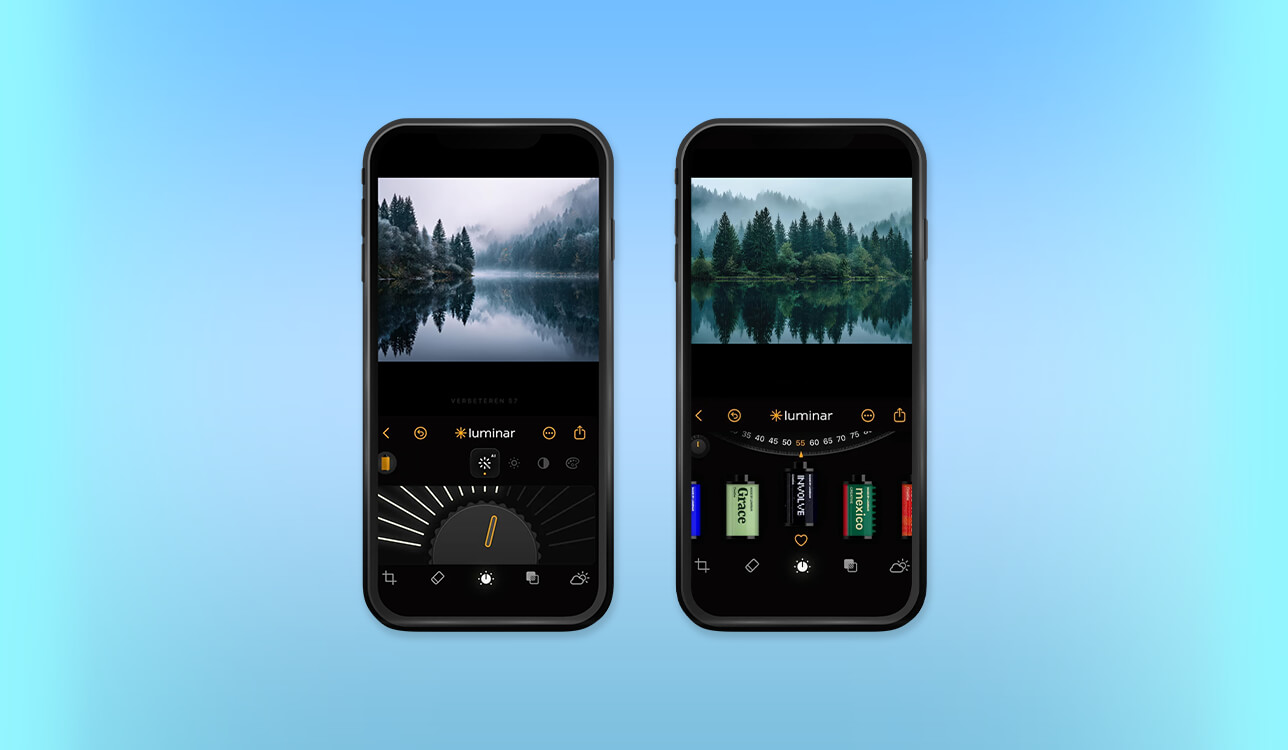
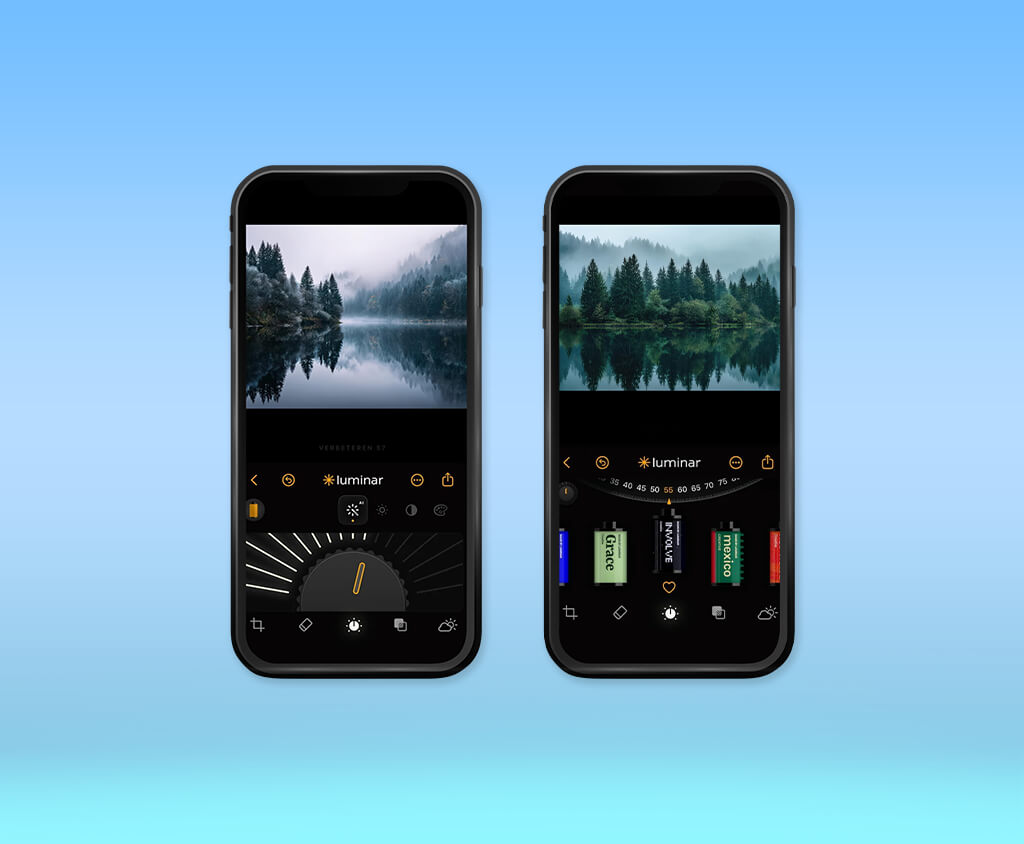
I work as a retoucher, which is why I decided to write this Luminar review, hoping that this mobile editor would allow me to perform more complex editing tasks than just applying a filter to a photo. While traveling, I may need to fix lighting issues, remove unwanted objects, or enhance the skin before sending photos to clients.
I decided to learn more about Luminar Mobile in 2026 to see whether the new update would make this app even more convenient to use. Both current versions for iOS and Android allow users to access Enhance AI, Sky AI, Erase, and portrait retouching features. Besides, they support RAW format and have manual adjustment tools like Curves.
I can access these apps from different devices, which helps me to streamline my Luminar workflow. When working on this review, I decided to check whether it would be convenient for me to use these tools on a phone, because it could be all too easy to overlook a blurry edge or an artificial-looking effect on a smaller screen.
Editorial note: While writing this review, I used Skylum’s current product information and app release notes. I also shared my own suggestions on how to make specific edits. I haven’t tested some of these tools on specific iPhone and Android models, as they are yet to be released. I’ve also asked my colleagues to provide their feedback on some of these features.
My initial question was: “Is Luminar worth it?” Luminar Mobile is the perfect option for your needs if you need to edit travel photos, portraits, social media visuals, or pictures for quick client previews. I am pleased by the fact that I could follow two different approaches. I can use AI to make quick edits and then fine-tune the output using manual tools. It makes it a more practical solution than many basic apps with libraries of presets.
The main advantages of this app are its light correction, sky replacement, and portrait cleanup tools. It allows me to start editing photos on my phone and then continue working on them on my computer. I avoid applying too many effects, as I don't want to make the output look overly edited. I always check whether the replacement sky has the same lighting as the rest of a photo and examine skin texture in portrait photos to ensure that the edits look realistic at a larger size.
“I’d gladly use my phone while editing travel photos and creating quick client previews. However, I’d still view portraits and pictures that require detailed retouching on a larger screen before sending the output to a client.”

Best for: beginners, travel photographers, content creators, and anyone editing between shoots
While using a mobile version of a photo editor, I want to be able to find the tools I need quickly. I do not want to switch between multiple menus to make a portrait lighter or straighter a horizon. What I like about Luminar Mobile is that its AI tools are suitable for making the initial edits quickly. Besides, I can use tools like Crop, Develop, and Curves to adjust the settings with higher precision. Skylum added these tools, together with filters and the Erase feature, to the mobile app.
When I need to edit an everyday photo, I follow the same simple steps. After cropping the image, I perform general enhancement, fix lighting, and zoom in on the photo before saving it. I never use every AI feature available in the app because I want to keep the result natural. When I use a phone to edit photos, I know that a few controlled adjustments would allow me to achieve more polished results.
The 2026 iOS release notes also contain information about workflow changes. The new version will support batch import for up to 10 pictures. Users will be able to copy and paste adjustments. Besides, there will be an indicator for photos that were already enhanced in Luminar Space.
These changes will make it easier for me to work on a series of photos. Skylum mentions these upgrades only in the iOS notes so far, so I would read the description of the current Android version carefully before trying to find them there.
Best for: flat phone photos, travel shots, backlit subjects, and quick edits for social media
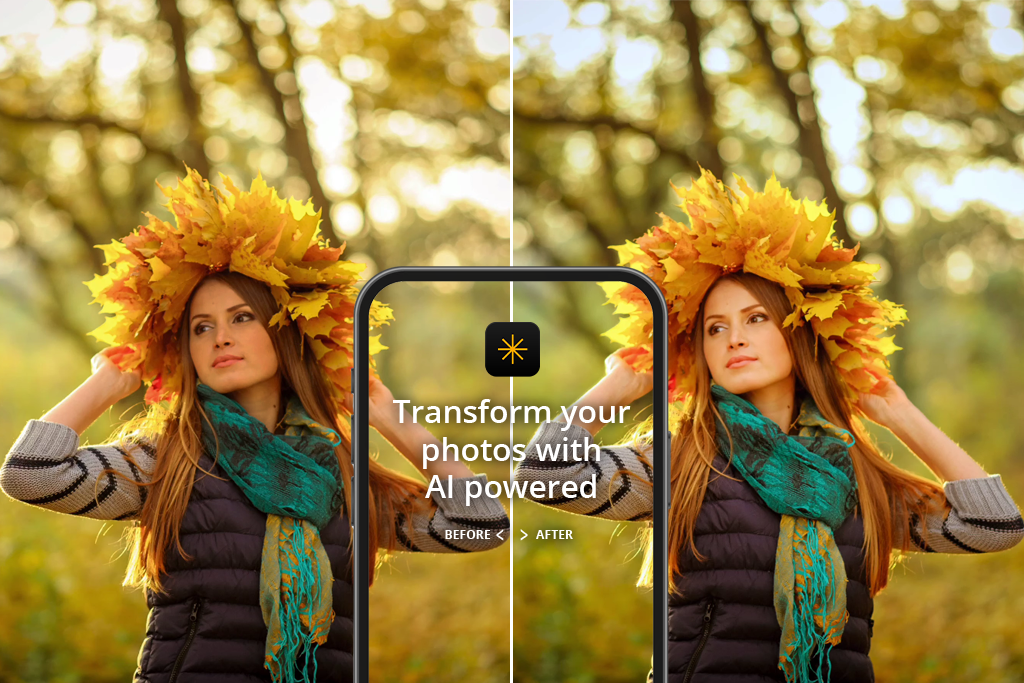
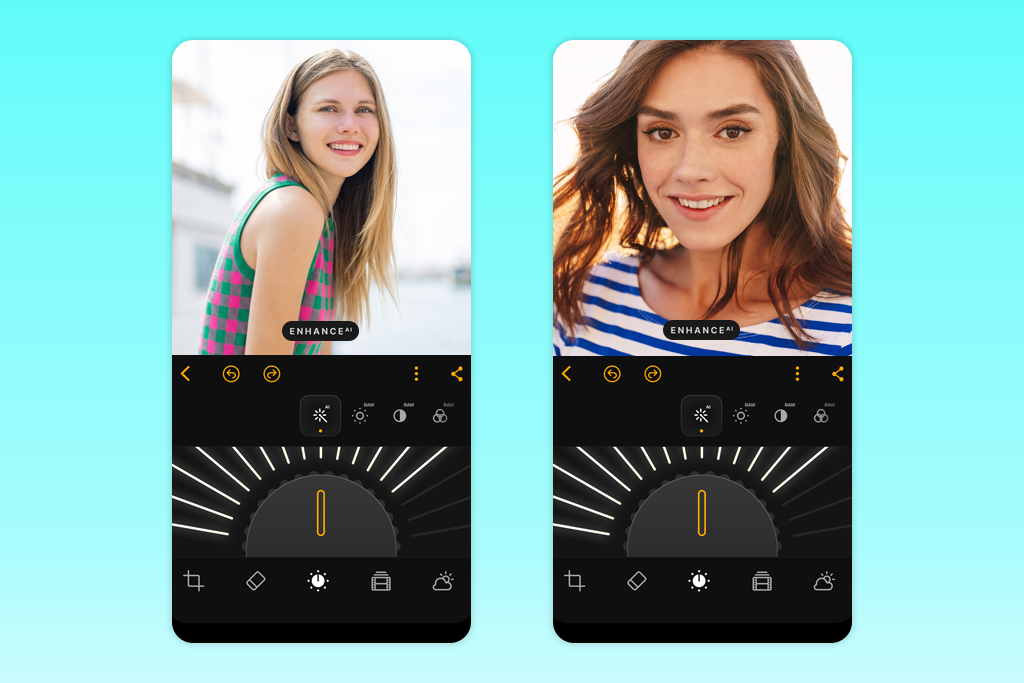
I would use Enhance AI when editing photos that look somewhat bleak but do not have noticeable issues otherwise. It facilitates making the initial edit. If the subject is still too dark, I would then use the lighting adjustment features available in the app instead of trying to enhance the whole image.
Luminar Mobile photo editor comes with the Relight AI tool that facilitates exposure adjustment. Skylum’s iOS 3.2 notes also describe an upgraded lighting feature built to produce more natural outputs.
While testing the Luminar features, I especially enjoyed using light correction tools on my mobile phone. Pictures captured with the help of a phone often have mixed lighting. It won’t suffice simply to increase brightness while editing them, as such edits might make the brightest parts of the image bleaker.
“I wouldn’t use this feature for the final touches, but I often use it to make the initial edit. It allows me to understand what mood I want to achieve in the output.”

When assessing the result, I consider the subject and background separately. I want to understand whether the face immediately catches attention, whether bright windows are sufficiently detailed, and whether the light has the right direction. These checks allow me to achieve more polished results, as I do not simply focus on whether the output looks brighter.
Use it when:
Be careful when:
Best for: family photos, profile pictures, travel portraits, and quick headshot cleanup
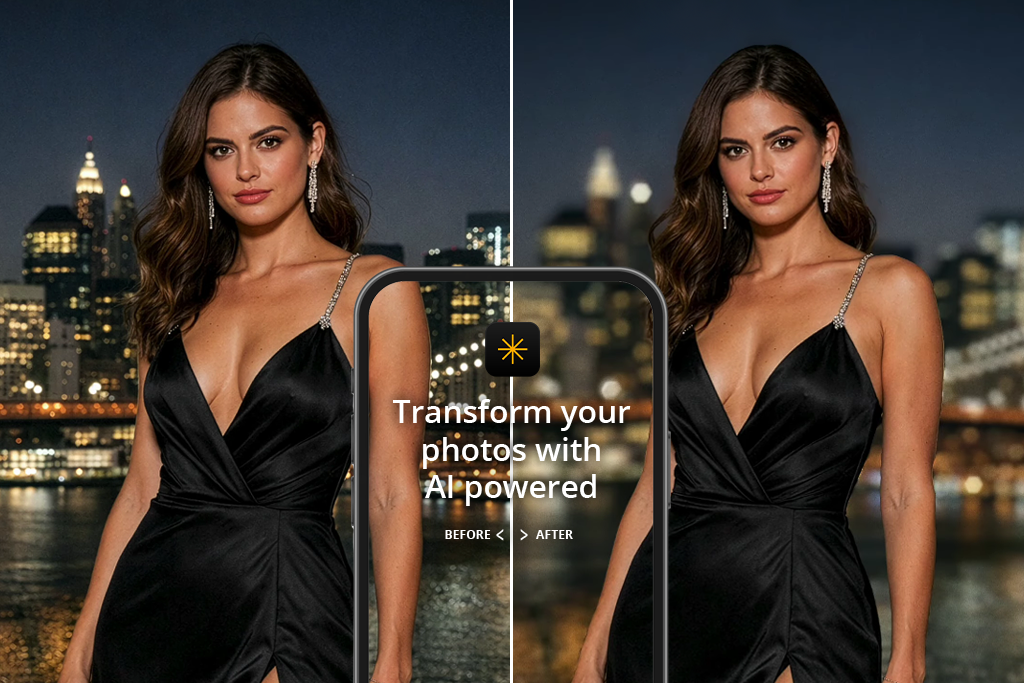
While comparing Luminar free vs paid versions, I noticed that the latter has some advanced features. The mobile version has handy portrait tools, making it perfect for those who want to enhance their photos and share them online quickly. Luminar Mobile comes with skin and facial adjustment features.
Besides, its Bokeh AI tool allows me to make the background around a subject blurry. The current version released by Skylum describes Bokeh AI as a tool designed for editing photos with people, pets, and objects. The 2026 iOS notes specify that the update will include Face AI and upgraded blemish removal tools.
I would use these features to remove small blemishes, highlight a face, or make the background less distracting. I follow the same strategy I described when I was learning how to edit photos in Luminar.
I would not use these options to fully transform the whole face. It’s easy to distort skin texture and make it appear less natural when editing photos on a phone. This is why I zoom in before sending a photo to a client.
“Bokeh AI allows me to edit photos with distracting backgrounds quickly. After using this feature, I normally examine the hair and glasses, which allows me to catch potential issues.”

I typically use Bokeh AI when I need to edit photos where the background is too distracting. When using this effect, I make sure to check the edges around hair, glasses, clothing, and body to ensure that the automatic separation looks realistic.
What works well for a quick edit:
What needs caution:
Best for: landscapes, travel photos, outdoor portraits, and creative social media images
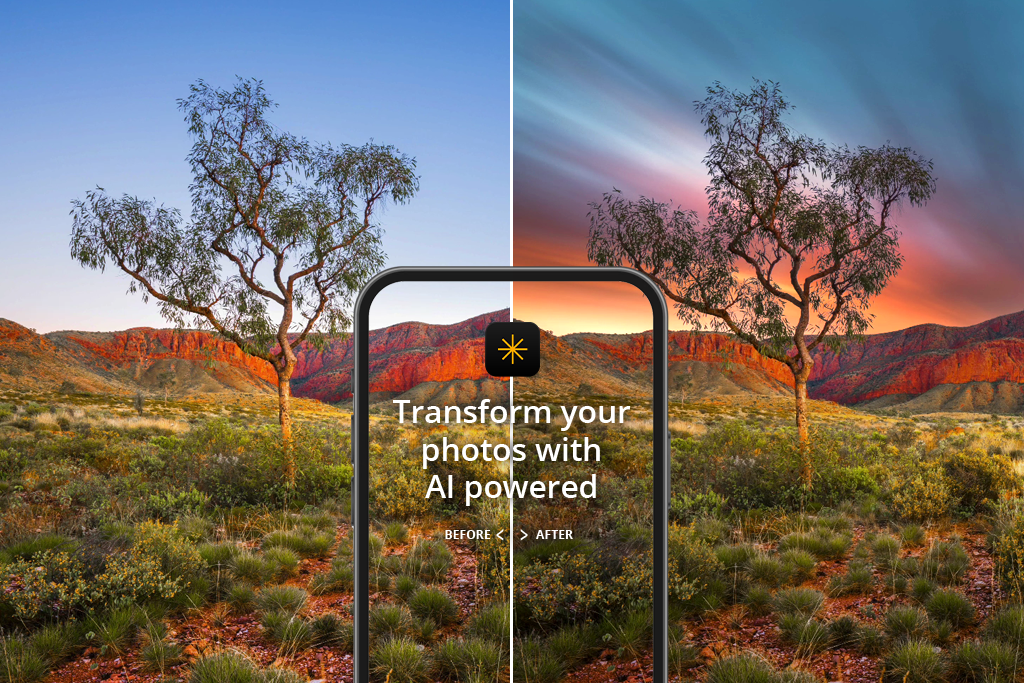
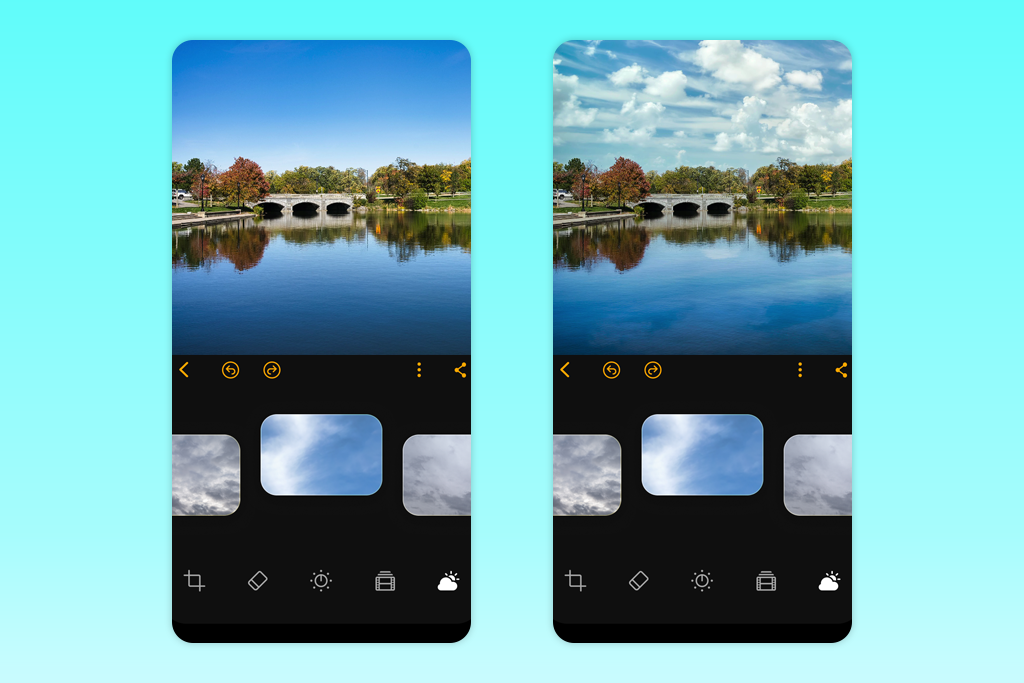
I prefer to use Sky AI when I need to edit an outdoor photo with perfect lighting and composition that has a bleak sky. Luminar Mobile allows me to replace the sky on a phone. The iOS 3.2 update includes more sky backgrounds sorted into different categories.
To achieve a natural result, I choose a sky with lighting that matches the lighting in the photo. While editing a RAW file, I start by adjusting exposure and color. Before using Luminar AI, I follow the approach I mastered while I was trying to learn how to edit RAW in Luminar.
I never add a warm sunset above a subject lit by cool midday sun, as it’s impossible to achieve believable results in this situation. Besides, I consider buildings, tree branches, and reflections.
“I add a sky with matching lighting to achieve a natural output. A subtle refinement allows me to make a travel photo more polished. It’s challenging to get a realistic output if you add a dramatic sunset to a midday scene.”

If I want to publish a photo on social media, I normally make it more attention-grabbing. However, while editing a real estate photo, I prioritize higher accuracy.
Good uses:
Be careful with:
Best for: photographers who want to finish an edit on their phone without relying entirely on presets
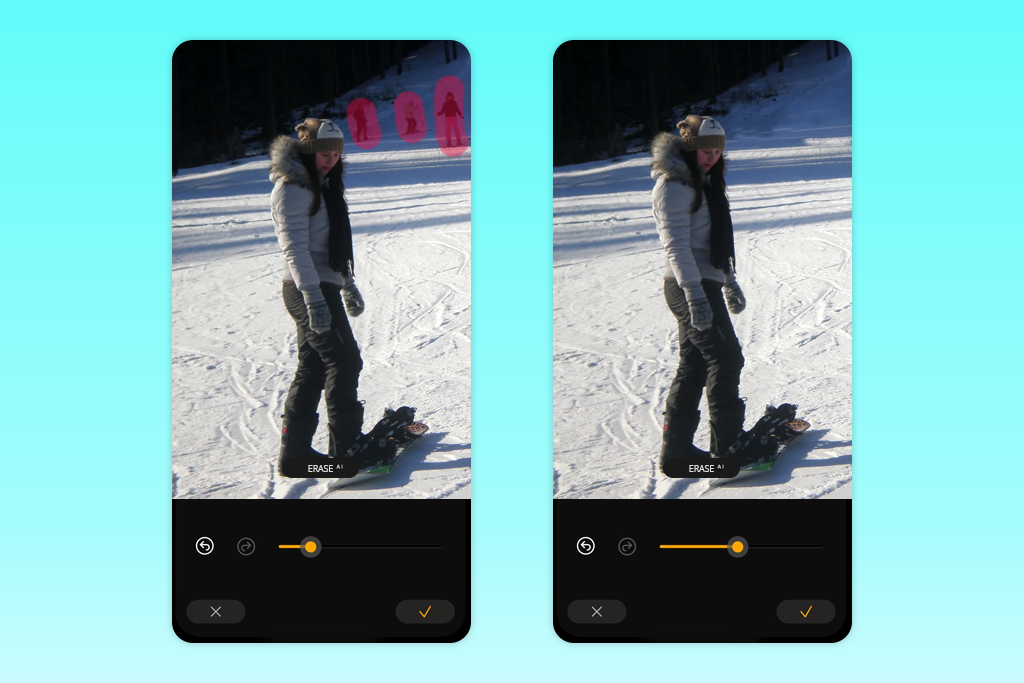
When I need to make subtle edits, I probably use the Erase tool most often. Even a small distraction somewhere along the edge can spoil a polished photo. Luminar Mobile allows users to access Erase and object removal tools. Besides, it supports RAW editing and manual adjustments.
I normally get the best results while editing simple areas like an even wall, open sky, or a patch of ground. Whenever I need to edit complex patterns, lettering, and architectural elements, I prefer to examine the outputs closely after removing distracting elements. Only after viewing my edits at full size do I send the result to a client.

While using a photo editing app, I prioritize RAW support over a large collection of filters. It allows me to edit pictures captured by my camera the same way I edit photos taken with my phone. Whenever I need to meet tight deadline when working on a project that involves editing photos from my phone, I prefer to check whether the app I use allows me to open and export specific camera files first.
Best for: photographers who start editing photos while traveling and continue working using a desktop PC
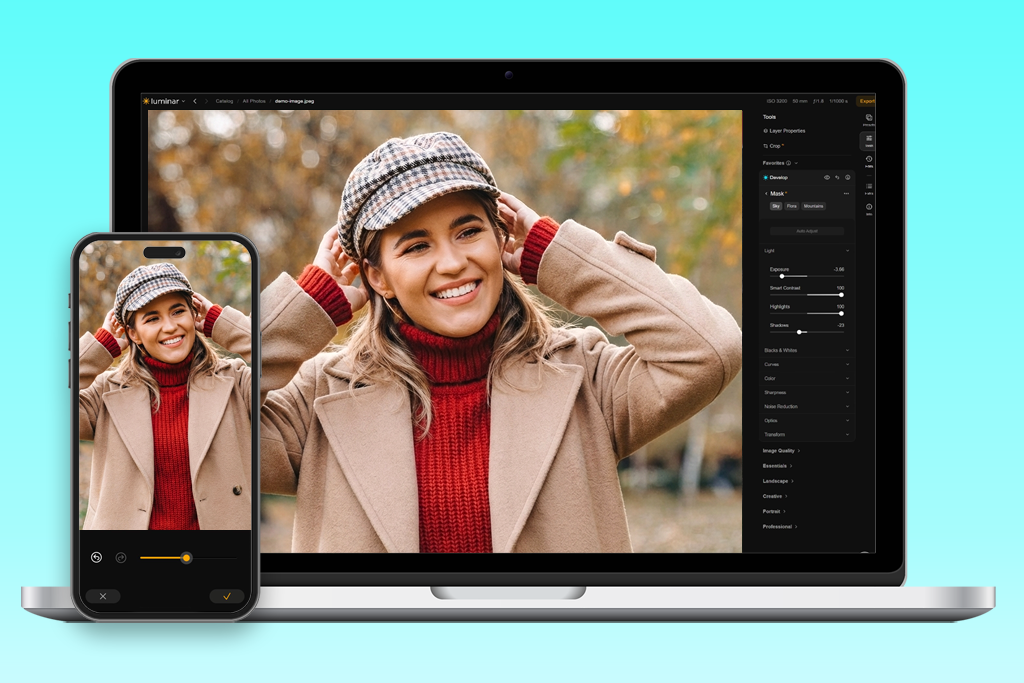
I often start editing pictures on my phone and then continue to refine them on a computer. It allows me to make the first edits while traveling and then make more precise adjustments on a larger screen.
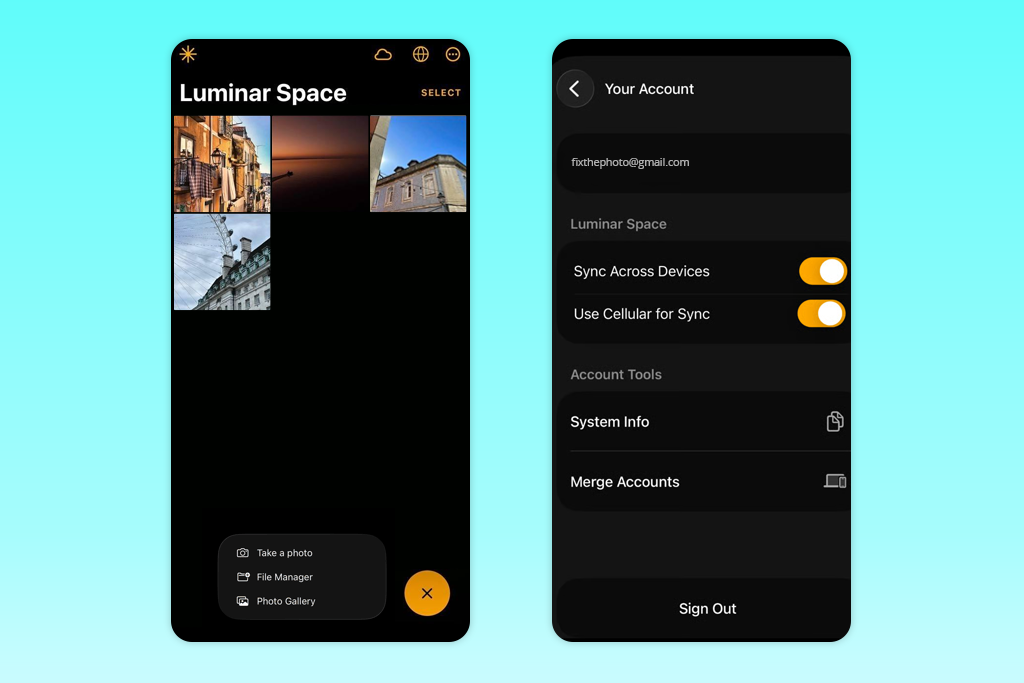
Skylum’s support documentation includes information about support for a mobile-to-desktop workflow and mobile-to-mobile syncing available for users who sign in to their Skylum accounts. However, I believe that there might still be some synchronization issues when desktop edits are synchronized with a phone.
“When I need to edit photos on the go, I prefer to start enhancing them on my phone and then continue working on them on a computer. It would be nice if the transfer was simple and intuitive in both directions.”

It’s important to pay for the premium version to access all the tools. Skylum’s All Platforms plan allows users to access Luminar on Mobile and use the desktop Luminar software. The Desktop Only plan does not cover the app. I decided that it’s necessary to check the plan I am going to pay for carefully because cross-device synchronization might not be available in some plans.
Useful for:
Less suitable for:
After I became interested in the Luminar updates that are set to be released this year, I realized that it makes sense to consider mobile release notes and announcements about the wider range of Luminar products separately.
According to the documentation, the new iOS version will allow users to import up to 10 pages, copy and paste edits, access extra sky tools, use an edited-photo indicator, get an upgraded lighting adjustment feature, and navigate the improved UI. There will also be changes in sign-in and new tools for editing portraits, such as Bokeh AI, Face AI, and upgraded blemish removal. Everyone who edits their photos on a supported iPhone or iPad will be able to access these updates.
Skylum has also made its Luminar branding more consistent and announced a larger summer and fall upgrade. In fall, it is set to release upgraded Atmosphere, Enhance, and AI Assistant tools. Besides, its web editor will finally become available.
These are general ecosystem upgrades, which probably means that there is no guarantee that they will be available for both iOS and Android versions. In the initial announcement, the company specified that the promotional preorder period would end on August 31, 2026.
I became interested mostly in the mobile updates, as they include tools that can help me significantly streamline repetitive workflows. I will be able to copy a specific adjustment when editing a bundle of photos, which will save me much time.
You can install Luminar Mobile on iPhone and Android phones. Besides, it’s available for some supported tablets. Skylum requires users to use iOS 17 or newer and Android 11 or newer models. The Android app is also available on compatible ChromeOS devices. Some tools might not be available on older models.
I would also consider the available memory and storage, especially if I often need to edit large RAW images. The app has the minimum OS requirements, which is why it’s important to meet them to avoid potential performance issues. While it’s possible to install it on older devices, there is no guarantee that it would function flawlessly.

While writing this Luminar pricing review, I decided to compare two purchase options. In the app store, you can pay for a subscription or buy a perpetual licence. Besides, Skylum sells plans that allow users to access desktop, mobile, and web-based versions. The latter will be released with the next update. On Google Play, you can pay for monthly, annual, and lifetime licenses. There is a 7-day trial available for the annual subscription. The prices depend on the country and platform.
If you are interested in phone editing, check the mobile store. If you often need to switch between your mobile phone and computer, consider Skylum’s All Platforms subscription plan. I believe that the Desktop Only version is suitable only for those who do not want to use the mobile app at all. The All Platforms plan is perfect for those who are interested in cross-device compatibility.
After testing Luminar Mobile, I realized that it offers excellent value for those who often use several of its most powerful tools. However, if you need to occasionally crop some of your pics or fix brightness issues, it does not make sense to pay for its extensive AI toolkit.
You need to use a phone with iOS 17 or Android 11 or newer. Some tools may not be available on older OS.
Yes, this app also supports RAW files. You can edit them using tools such as Curves, Crop, Erase, and Sky AI. Before using the app for a complex project, be sure to check whether it supports specific camera formats.
Yes. You have to pay for a subscription or buy a perpetual license to use all the tools. The choice of the features and prices of the plans depend on your location.
They synchronize only if your plan covers cross-device access and you sign in using the same Skylum account. Skylum solutions normally support mobile-to-desktop workflows, but it’s always important to check the availability of this option beforehand.
The Bokeh AI feature was created for enhancing photos of people, objects, and pets. Be sure to zoom in on fur before saving your file to ensure that there are no issues with fine edges.
It’s not clear whether they will be added at the same time. Skylum plans to release upgraded batch import and copy-and-paste features for the iOS version. Check the information about the scheduled releases for your Android app if you are interested in these tools.
Skylum is to release new tools for the Luminar ecosystem. However, at the moment, there is no direct confirmation that the mobile version will include these features as well. Be sure to check release notes regularly to see whether the upgrade will be available for your app.
Luminar Mobile is a powerful editor for those who want to enhance their photos on the go. I prefer to use it whenever I need to perform subtle light adjustments, edit travel pics, clean up portraits, edit the sky, and remove unwanted objects. I like the fact that it supports RAW format and can be accessed from multiple devices, which allows me to continue editing photos using my workstation.
I still prefer to check outputs at a larger size to ensure that skin textures look natural, see whether objects have been deleted without a trace, and consider whether the sky was removed in a realistic way. Such issues are often impossible to spot when previewing images on a phone. While testing photo editors at FixThePhoto, I focus on such details to assess their practical usability. Luminar Mobile is more useful than basic filter apps when it comes to creating the initial edit.