At FixThePhoto, I often need to perform advanced photo editing tasks and then switch to quick content production. I might be tasked with enhancing RAW portraits, recovering a sky, and adding masks to specific areas. Next, I may need to give a polished feel to product photos by replacing the background. This is why I decided to compare Luminar vs Photoroom to see which one would suit my workflow best.
Both solutions have helpful AI tools. However, Photoroom is better suited for enhancing product photos to ensure they meet the requirements of eCommerce platforms. Luminar is a full photo editor that also has useful AI features.
While comparing these options, I enhanced portraits, RAW photos, landscapes, travel pics, product photos, and pictures with complex backgrounds. Besides, I tested the newly added Luminar features, including Crop 2.0, Atmosphere 2.0, Enhance AI 2.0, and AI Assistant 2.0.
My overall choice is Luminar. It allows me to control the outputs and automate many manual editing steps. Photoroom is more suitable for quick commercial edits, but Luminar fits better into my FixThePhoto workflow.
|
|

Luminar |

Photoroom |
|
Rating
|
★★★★★ (5/5)
|
★★★★☆ (4/5)
|
|
Best for
|
RAW, portraits, landscapes, creative photo editing
|
Product photos, e-commerce, backgrounds
|
|
User level
|
Beginners to advanced photographers
|
Beginners, sellers, marketing teams
|
|
Main strength
|
Full photo editing with powerful AI
|
Fast commercial image production
|
|
RAW editing
|
✔️
|
❌
|
|
Layers
|
✔️
|
✔️
|
|
Advanced masking
|
✔️
|
❌
|
|
Background removal
|
✔️
|
✔️
|
|
Product staging
|
✔️
|
✔️
|
|
Free option
|
❌
|
✔️
|
|
Lifetime license
|
✔️
|
❌
|
|
Platforms
|
Windows, macOS, mobile, web ecosystem
|
Web, iOS, Android
|
|
Pricing
|
From $129 one-time
|
From $7.50/mo billed annually
|
Luminar an AI-driven photo editor created by Skylum specifically for photographers. It comes with traditional editing tools and automated AI features, making it suitable for masking, portrait retouching, sky replacement, object removal, photo enhancement, lighting adjustment, composition improvement, and applying atmospheric effects.
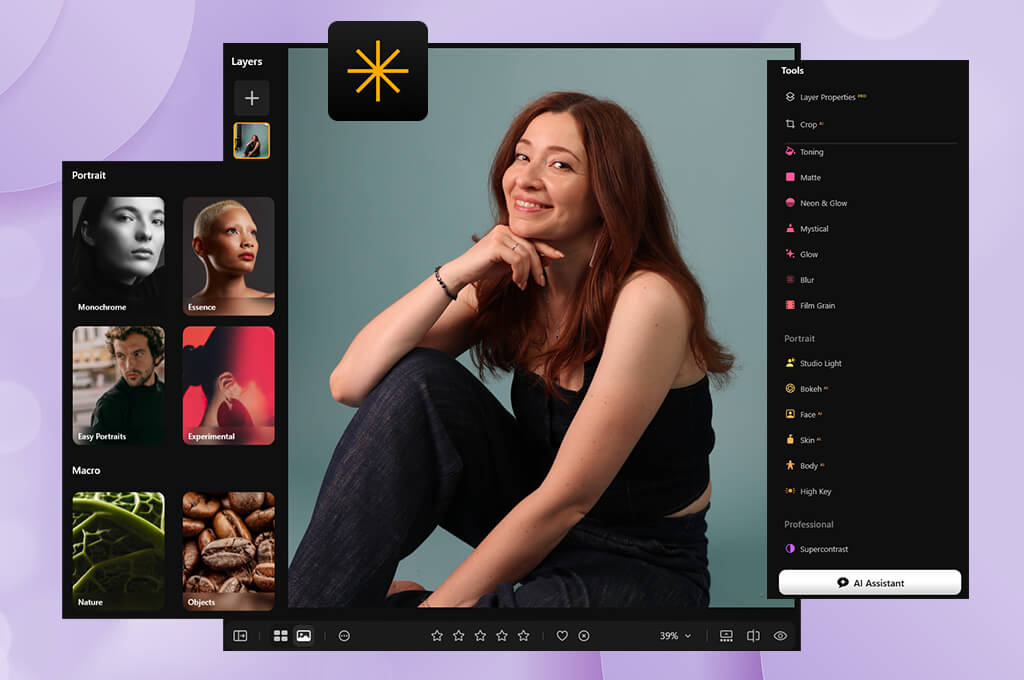
I like the fact that I do not need to rely only on the AI. I use Enhance AI to automate 80% of the editing tasks, after which I fine-tune the output manually. I can refine the results of automatic masking or minimize the intensity of portrait adjustments. It makes Luminar more intuitive than many professional editors.
When comparing Photoroom vs Luminar, I noticed that the latter supports RAW processing, layers, luminosity masking, and multiple export options such as JPEG, PNG, TIFF, PSD, and DNG. I can also use its Mask AI feature and creative tools.
Photoroom is an AI-driven image photo editing solution developed for those who are interested in product photography, background removal, e-commerce visuals, marketing graphics, and quick content enhancement and production.
While testing Luminar vs Photoroom, I noticed that the latter is extremely easy to set up and use. After uploading a product photo, I can remove the background automatically, replace it with another one, add shadows, resize the image, and export the output. It does not require me to have advanced photo editing skills to use it. Such intuitive functionality makes it perfect for eCommerce sellers.
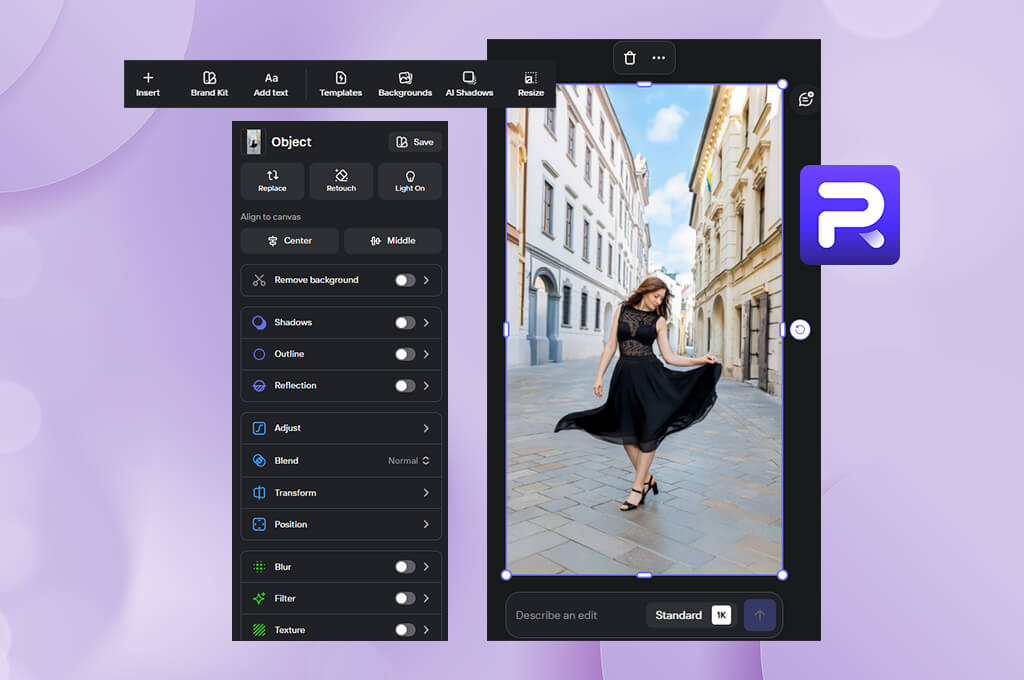
The platform also allows users to generate AI Backgrounds, perform product staging, use fashion-focused features, process batches of images, use templates, access collaboration Spaces, and use multiple AI generation tools. Its paid plans include generous monthly AI-credit allowances. However, when I need to edit photos manually in a more traditional way, I find its functionality quite limited.
The winner: Luminar because its newest version has a streamlined interface that still includes advanced editing tools.
Photoroom may seem more intuitive during the early editing stage. I can navigate its interface with ease, as it guides me toward the tools I need to choose.
I can upload a photo quickly, remove the background, use a suitable template, add a new background, and save the output. It’s the best solution for basic tasks. However, I instantly noticed the limitations of this solution when I decided to perform more complex tonal adjustments.
Luminar photo editor may be more difficult to master, but it also has a wider choice of photo editing tools. Once I got used to its interface, it became easier for me to perform more complex photo editing tasks.
The interface is easier to navigate than in older Luminar versions. I could find the tools I needed to use quickly without browsing through too many menus. There is no need to read any Luminar tutorials to learn how to use it. I was especially pleased with:
The interface allows me to edit photos quickly and choose the right tools for my project.
“Photoroom is more beginner-friendly, but Luminar is easy to master and is suitable for tasks of different complexity.”

The winner: Luminar because it allows me to adjust light, color, tone, and detail as wel as supports local edits.
I tested Luminar AI vs Photoroom while editing photos with flat lighting, wrong white balance, excessive highlights, dark faces, bleak skies, and low-contrast scenes.
Luminar helped me edit these photos in a more traditional way. With Luminar features, I could restore highlights and shadows, adjust exposure, fix blacks and whites, tweak colors, and use masks to make local adjustments.
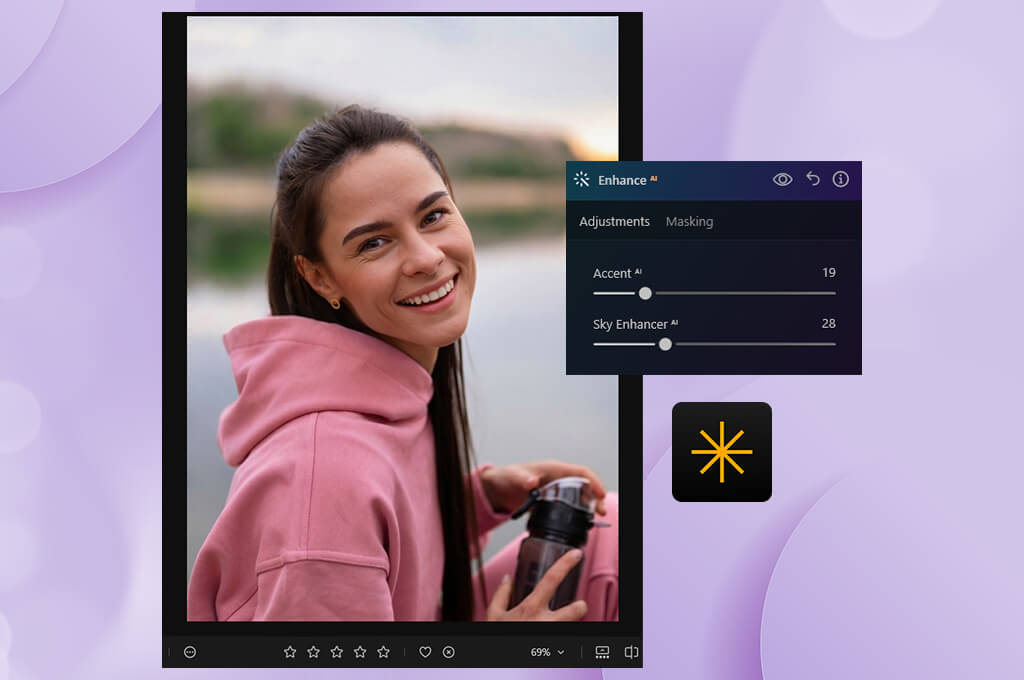
Enhance AI 2.0 is perfect for making the initial edit. It analyzes a photo before adjusting contrast and saturation. While editing landscape photos, I discovered that the outputs looked more professionally edited, making this solution better than automated mobile editors. I typically follow these steps:
This approach helps me edit photos much faster.
While using Photoroom, I tried editing the same set of photos that included portraits and travel pics. It has a set of quick enhancement tools. However, it was more difficult for me to edit highlights, colors, and specific parts of the image manually after performing automatic correction.
“Photoroom has handy enhancement tools, but I mostly use them for quick corrections as this solution does not have a full photographic toolkit.”

The winner: Luminar because it was built for those who need to edit RAW camera files instead of enhancing finished consumer photos.
RAW support is one of the main reasons why I would choose Luminar over Photoroom. While editing RAW photos, it’s easier for me to fix white balance, exposure, highlights, shadows, and colors.
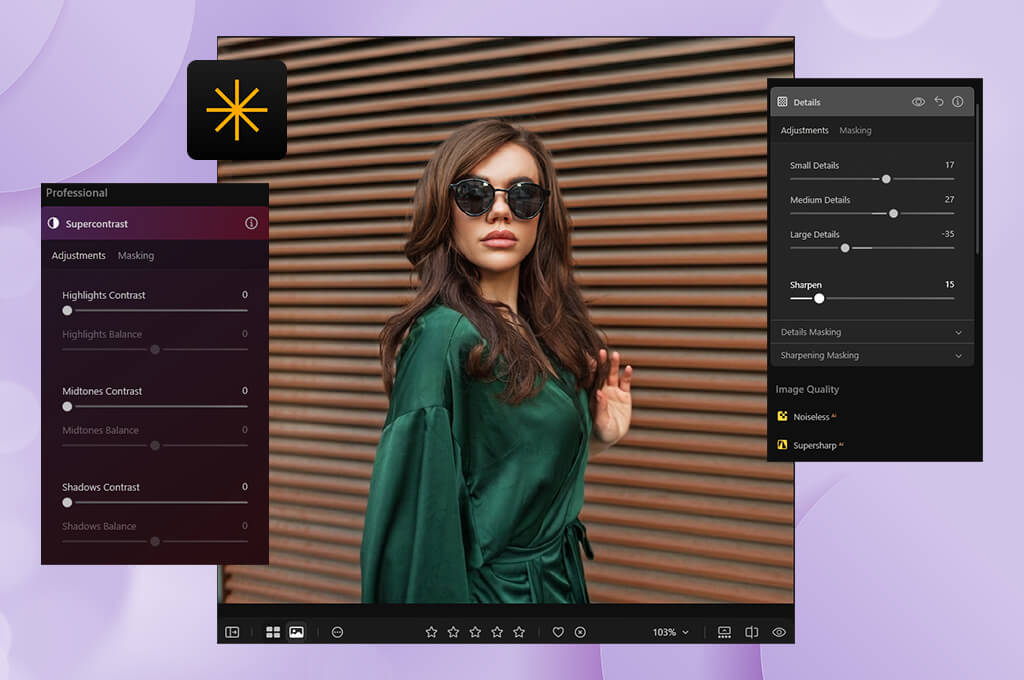
RAW support is crucial when editing challenging shots. I used Luminar to enhance a bright outdoor portrait with exposure issues and a closely cropped background. I would make the photo more polished and less flat. Here are the main advantages of this format:
I also tried using Photoroom photo editor to enhance RAW photos but immediately felt that it wasn’t built for this task. It was easier to edit a photo using another software first and then use Photoroom for backgrounds, layouts, or other commercial edits.
Photoroom delivers better performance when it comes to enhancing photos that have already been edited. It’s better suited for those who need to edit JPG files captured with a smartphone.
The winner: Luminar because its AI tools optimize the whole photo editing workflow instead of focusing on content creation.
During my Luminar AI vs Photoroom test, I noticed that the former also has excellent AI tools. Its AI Backgrounds, fashion, product staging, AI Fill, AI Expand, and other similar tools make it perfect for commercial photo production.
While testing Photoroom, I used a prompt for a production task instead of asking it to edit a photo. I could enhance a product photo and replace the background more quickly than in Luminar. However, it was more challenging to make more subtle AI edits.
Luminar has different AI tools. They are better suited for enhancing photos at a professional level. Here are the tools I liked the most:
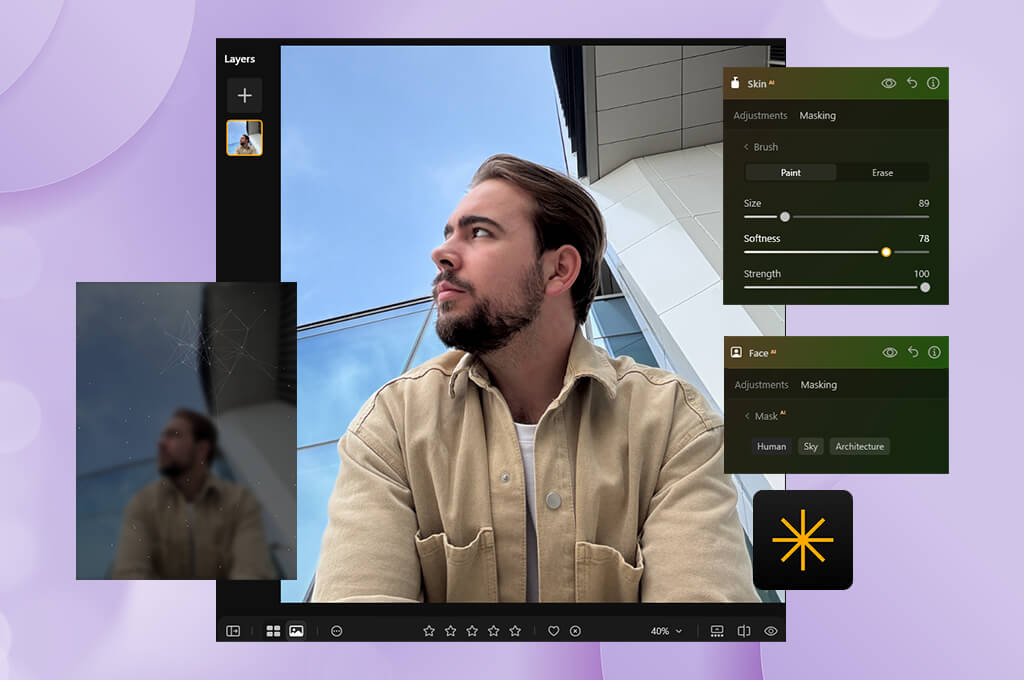
The best thing is that after using the AI I can enhance the outputs manually. This AI photo editor helps me cope with the repetitive tasks more quickly and control the output the way I can do it in professional photo software.
The winner: Luminar because Photoroom has only simple cropping features, while Luminar allows you to improve the whole composition.
When editing poorly framed travel or street photos, it’s essential to use cropping tools. I tested such features in photos where it was necessary to choose less obvious cropping options.
The Crop 2.0 feature in Luminar analyzes a source photo and suggests multiple composition options based on subject placement, balance, leading lines, and visual weight.
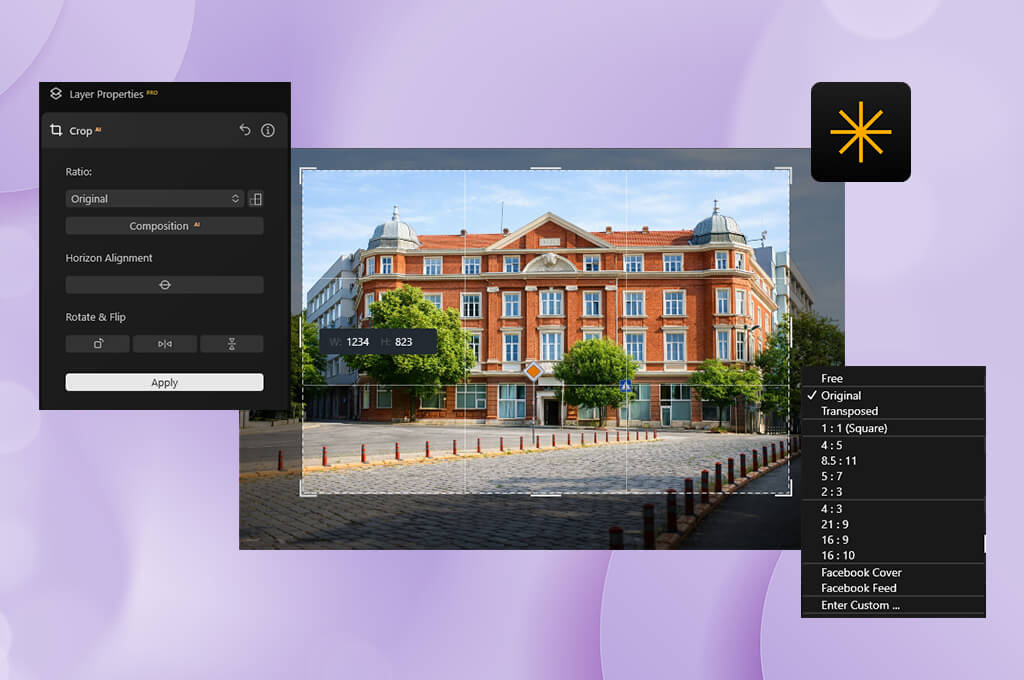
Photoroom supports faster regular cropping than Luminar and many Photoroom alternatives. it was quite useful when I needed to get the output in a specific size. However, Luminar also helped me improve the composition of my images.
“Photoroom delivers faster performance when I need to crop pics to the required marketplace or social media ratio. Luminar is perfect for improving the composition of a photo.”

The winner: Luminar because it comes with a set of atmospheric features that were designed specifically for enhancing the whole scene instead of simply replacing the background.
Atmosphere 2.0 was one of the first Luminar’s updates I decided to test. I know that it’s challenging to create the fog effect that would look natural. The density of the fog across a person in the foreground and the objects in the background should not stay consistent. Atmosphere 2.0 helped me achieve decent results, as it considers the following:
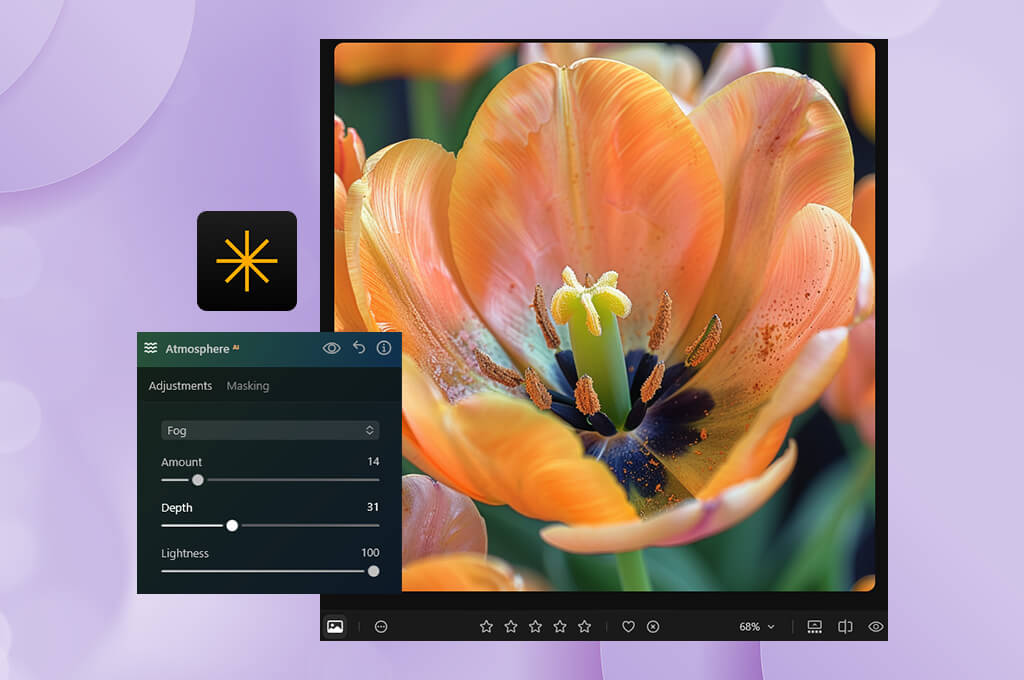
I tried making similar adjustments in Photoroom by replacing or generating backgrounds. I could achieve a dramatic effect easily, but its tool changed the original theme too much. In contrast, Luminar allows me to transform the atmosphere in a more subtle way.
The winner: Luminar because it comes with a built-in AI assistant that allows users to understand how to use editing tools instead of relying only on the generative capabilities of AI features.
Luminar’s AI Assistant 2.0 is better suited to my needs that AI-powered chatbots that I used while testing other similar apps. I can describe the output I want to achieve in simple words. For instance, I experimented with such prompts:

The Assistant analyzes your intent and suggests the most suitable tools available in Luminar. I can still choose the features I need and control the direction of the edit.
Photoroom also has helpful AI tools that analyze complex editing prompts. I used them a lot when I needed to enhance product photos or backgrounds. However, when I needed to make subtler edits, it was difficult for me to understand how the particular output was achieved. Luminar allows me to use AI to create a base edit and then fine-tune the result manually.
“I believe that Luminar is a more intuitive solution for beginners. Moreover, it has more advanced features for seasoned photo editors who need to make precise adjustments.”

The winner: Luminar photo editor because it comes with a set of automatic face and skin enhancement features and also supports manual editing and masking.
Portrait retouching involves using AI to optimize my workflow and editing the photos manually to control the output with higher precision.
Luminar was built for such tasks. I use its portrait tools to edit close-ups, waist-up portraits, and photos with multiple people. Here are the subtle edits I found the best for my needs:
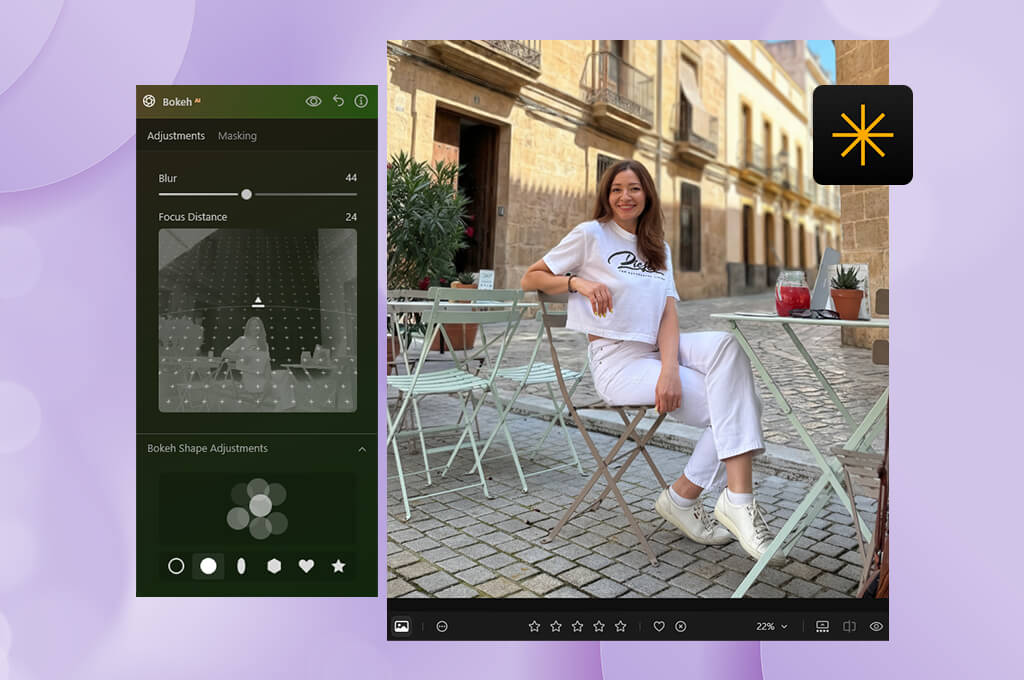
Luminar has recently improved its portrait workflow. Its Bokeh AI was designed to adjust scene depth and perform subject separation to achieve more natural results. Whenever I apply AI effects, I still reduce their intensity to ensure that my image stays realistic.
While using Photoroom, it was easy for me to clean up a portrait and replace the background quickly. However, this software is better suited for enhancing social media content. It has a limited choice of tools for enhancing skin texture, fixing facial lighting issues, and performing subject separation. It makes it less suitable for making subtle adjustments.
The winner: Photoroom is better suited for such tasks as it comes with dedicated background removal tools and supports a limited number of corrections.
This is the area where Photoroom clearly excels. I tested it while editing photos of people, accessories, product packaging, unusual objects, hair, and objects with holes.
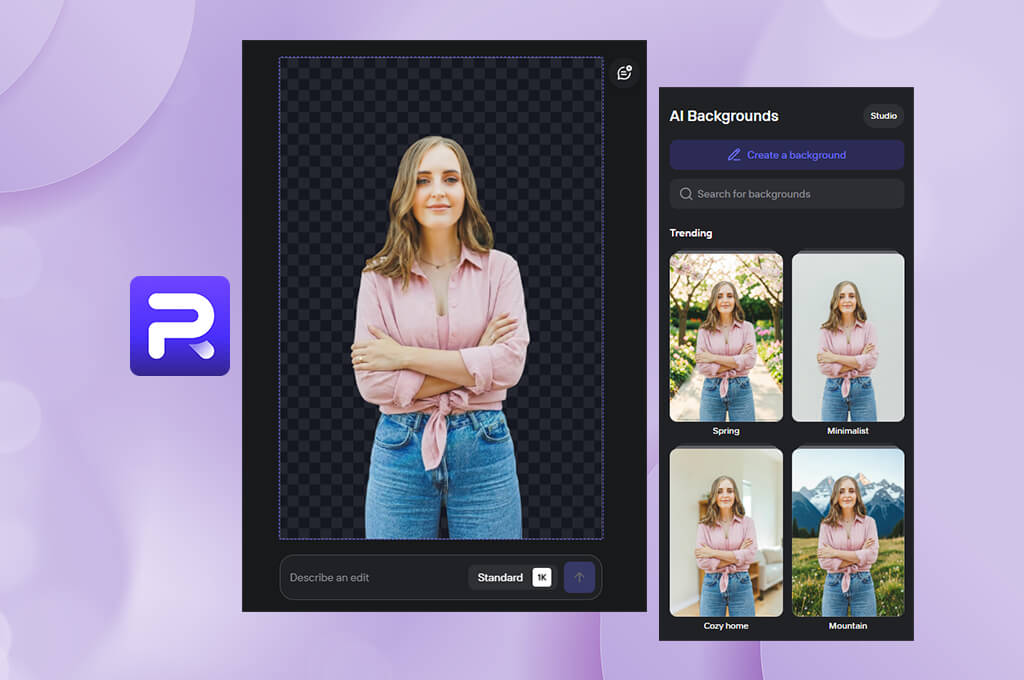
While comparing Photoroom AI photo editor vs Luminar, I saw that the former helped me to achieve clean cutouts that did not require much manual enhancement. Besides, it was easy for me to perform other tasks after removing the background. I could do the following:
Luminar also facilitates separating subjects from the backgrounds and using AI masks and layers. It delivers more powerful performance than many Luminar alternatives. I especially liked using it when I needed to streamline subject detection with the help of masking tools.
It allows me to adjust edges manually and insert the cutout into another image. Unlike Photoroom, Luminar is suitable for more complex tasks. This is why I prefer to use it when I also need to perform other tasks besides background editing.
The winner: Luminar because it has a set of generative tools that facilitate improving photography editing workflows.
GenErase is one of the most efficient Luminar tools when it comes to enhancing travel and street photos. I used it to delete small signs, passersby, cables, trash, and unwanted elements near the frame edge. I achieved the best results when I selected one element I wanted to delete at a time.
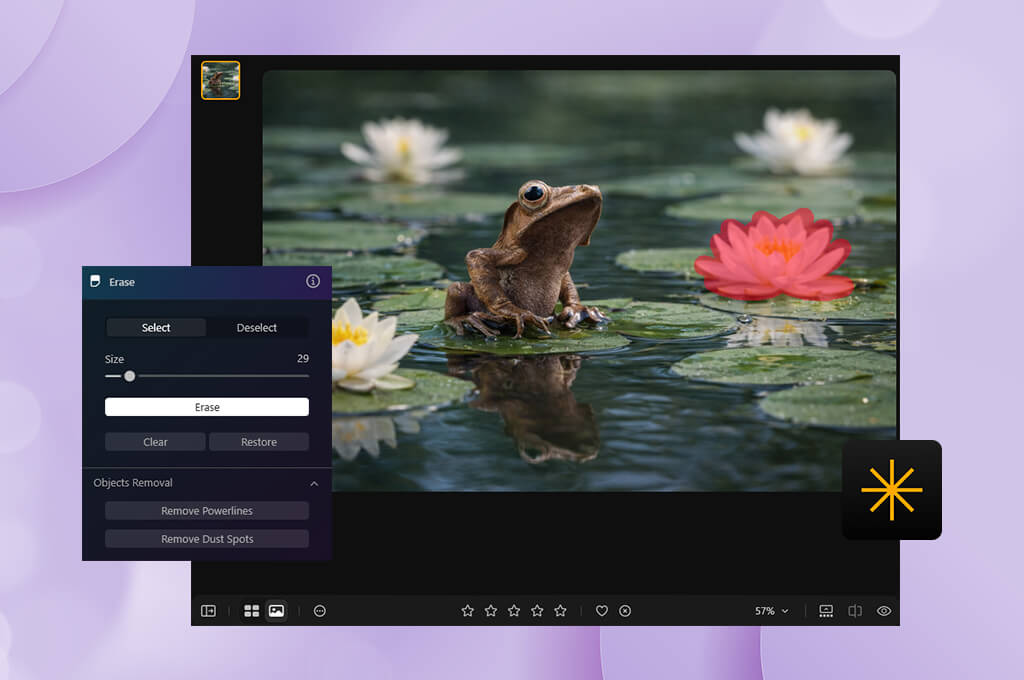
GenExpand is perfect for situations when a crop seems to be too tight. GenSwap makes it easier to replace separate elements. It was very convenient to be able to access all three tools from the same editing environment.
Photoroom also has powerful generative features. Its Product Fixer, AI Fill, AI Expand, and product-focused generation tools are perfect for those who want to enhance product photos.
I experimented with the AI Fill feature and used the expansion tool to produce polished results for eCommerce listings quickly. However, I noticed that Luminar allows me to control the outputs with better precision when I need to keep the source photo realistic.
So I came to the following conclusions:
The winner: Luminar because it comes with a set of more powerful tools for editing skies, transforming atmosphere, adding some depth to photos, enhancing light, tweaking colors, and making local adjustments.
While editing landscape photos, you will notice the difference between these programs quickly. Such pictures often require you to fix five separate issues. You may need to make the foreground lighter, adjust the brightness of the sky, add some depth to the picture, tweak colors, and remove unwanted passersby.
Luminar allows me to solve all these issues without switching to another software. Sky AI comes in handy when replacement is necessary. Even though I do not replace the sky in every photo, it allows me to spend less time on masking.
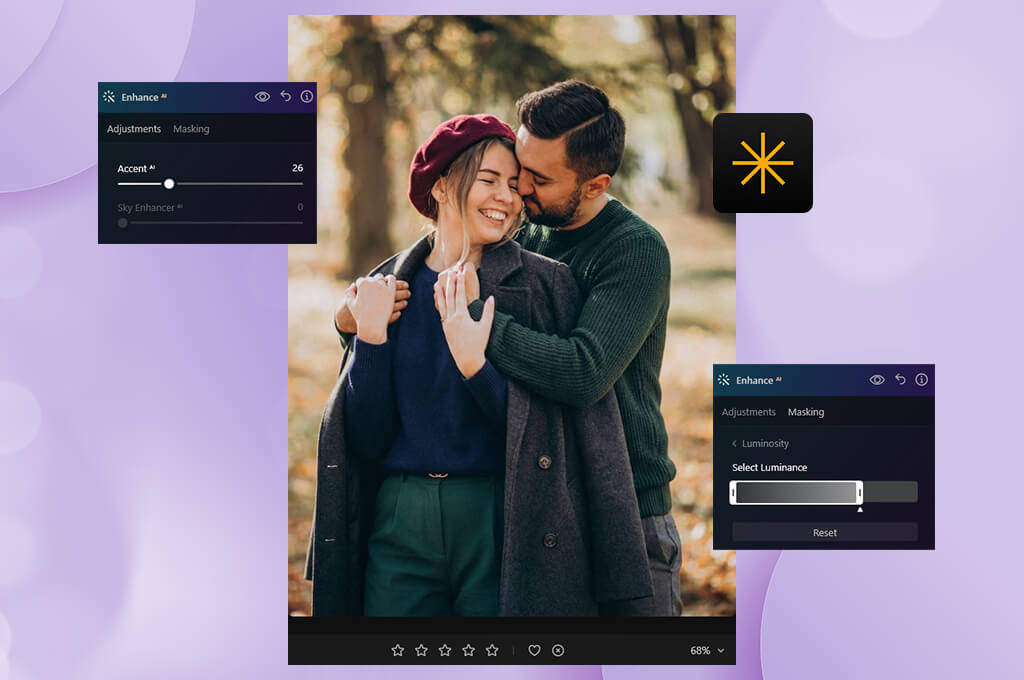
Luminar has features such as Atmosphere 2.0, Mask AI, and Enhance AI 2.0. Besides, it supports advanced color controls and local adjustments, making it perfect for those who need to edit travel photos.
I also tried editing some travel photos with the help of Photoroom AI. It supports quick AI edits, which allow me to instantly make photos brighter and enhance them before publishing them on social media.
The only shortcoming of this solution is that it’s hardly suitable for editing photos with difficult skies and mixed lighting. It makes it challenging to edit individual areas, as its tools were built for enhancing the whole photo.
The winner: Photoroom because it was built for enhancing bundles of eCommerce photos quickly.
This is where Photoroom shines the most. I uploaded multiple product photos with cluttered backgrounds and used this software to give them a polished feel and ensure that they meet the requirements of eCommerce platforms. Photoroom helped me speed up my workflow. Depending on the plan, I can access the following features:
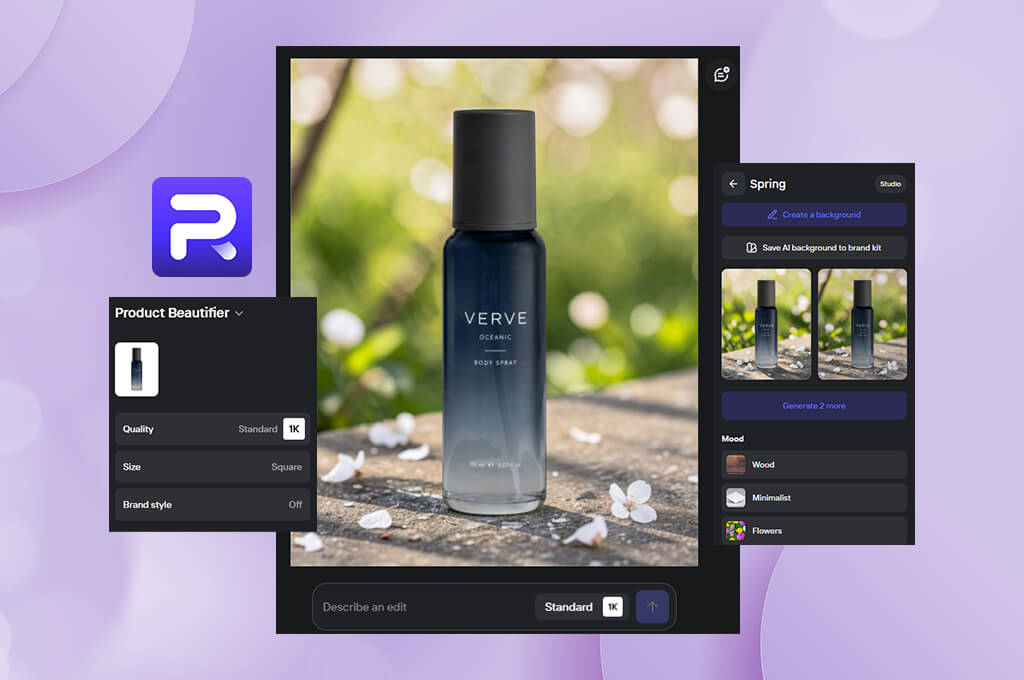
Photoroom has paid plans that are especially suitable for sellers, small businesses, brands, and large catalogs. They have generous AI-credit and export limits.
I edited the same product photos in Luminar photo editor to see whether it can beat Photoroom in terms of convenience.
While using Luminar, I could enjoy a higher degree of control when it comes to adjusting color, exposure, reflections, and small details. It makes it perfect for enhancing the main image of a listing. However, it’s less suitable for enhancing multiple photos using the same settings quickly.
“I typically use Luminar when I prioritize color accuracy and in-depth manual editing over high speed. However, I would use Photoroom when I need to enhance photos for 100 eCommerce listings.”

The winner: Luminar because it supports advanced control over adjustments and allows me to make my edits more precise.
This is one of the main selling points of Luminar, making it an appealing option for those who aren’t satisfied with automatic corrections. Mask AI detects typical scene elements such as people, skies, buildings, vehicles, water, plants, mountains, and ground. I can then make those selections more precise manually.
Luminosity masks make it easy for me to adjust my edits the way I need. For instance, I can enhance only bright or dark tonal ranges instead of selecting these areas manually. It’s also quite convenient to combine masks with layers. Such functionality allows me to make more complex edits and edit individual elements separately.
In Photoroom, I can still create complex compositions using layers that may include backgrounds, graphics, text, and product elements. It makes it perfect for editing most marketplace designs.
The only limitation that I noticed is that it’s impossible to use those layers and masks to perform highly accurate photographic corrections. They are more suitable for arranging content. When it comes to creating highly precise photography masks, Luminar is a better option to consider.
The winner: Luminar is a better choice for photographers because it has a collection of presets that expedite photo editing and make it easy to further enhance the photos to make them more unique.
Luminar presets are handy when I need to edit several photos in the same visual style. With it, I can experiment with different looks quickly, produce the first version, and then enhance it the way I see fit.
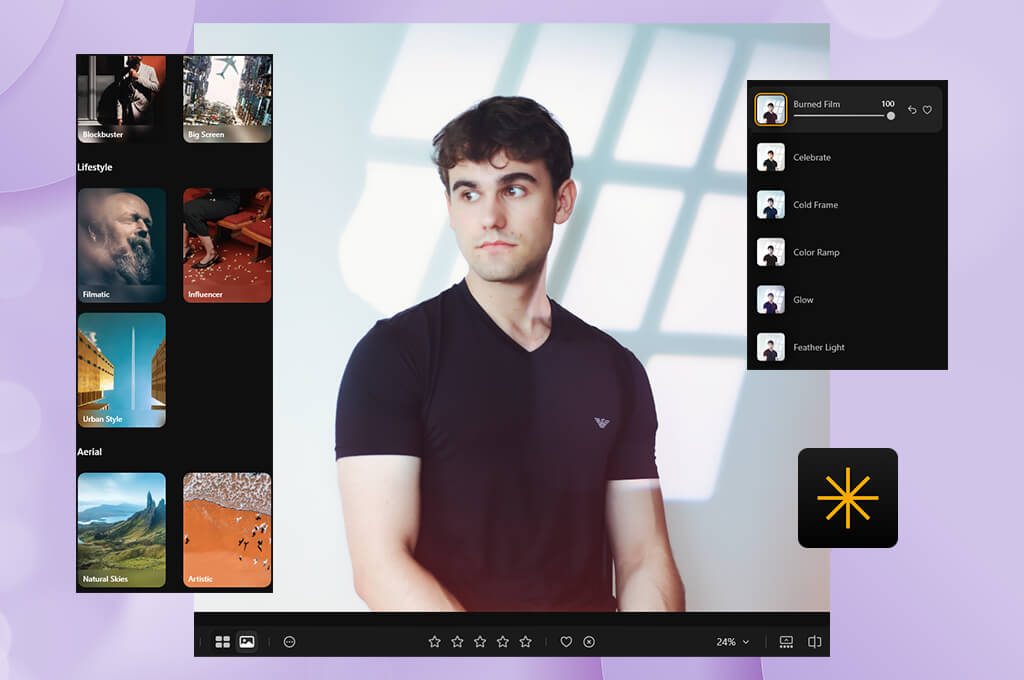
It makes it especially useful for:
Photoroom has a collection of templates that were created for a different purpose. I normally use them for situations when I know what type of output I need, such as an eCommerce photo, promotional image, social media content, or product graphic. Photoroom templates helped me expedite my workflow when I experimented with different variations of the same photo for different platforms.
It was easy for me to switch from a marketplace layout to a promotional visual quickly. However, the output largely depended on the template I used. In contrast, after using Luminar presets, I could further edit my photos with ease to give them a more unique look.
“When I need to focus on the quality of a photo, I prefer Luminar. However, Photoroom is clearly a better option when I need to achieve graphic consistency while editing photos for listings.”

The winner: Photoroom because it supports high-volume editing, making it perfect for handling repetitive tasks for commerce workflows.
Luminar allows users to apply consistent edits across a bundle of photos, making it perfect for situations when I need to edit sets of portrait and travel photos taken with similar settings and in similar lighting conditions. I tried processing sets of pictures taken during the same photoshoot, and it helped me achieve excellent results when lighting and colors stayed consistent.
It was easy for me to produce the base version and then fix individual photos. However, I noticed that the outputs produced with the help of Photoroom required less manual editing when I edited the background or enhanced a batch of product photos in the same way.
Photoroom is more suitable for enhancing images for catalogs. Its paid plans cover batch processing features with AI credits and include export limits for a specific product volume.
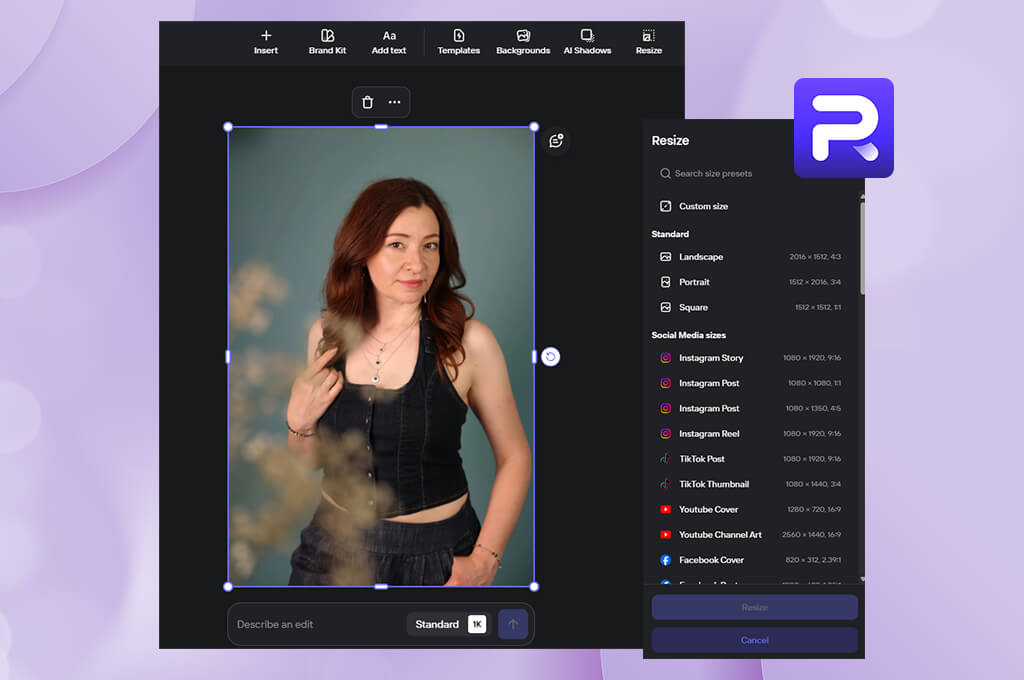
The winner: Photoroom because it’s suitable for both browser-based and mobile editing and supports high-performance speed.
I prefer to handle complex editing tasks on my computer, which is why I like editing photos in Luminar using its desktop version. Another thing that I discovered while comparing Photoroom vs Luminar photo editor is that the latter can be accessed from multiple devices, making it easier to switch from desktop to mobile editing and synchronize edits between devices.
Photoroom is more suitable for situations when I need to edit my photos quickly and do not have access to my main workstation.
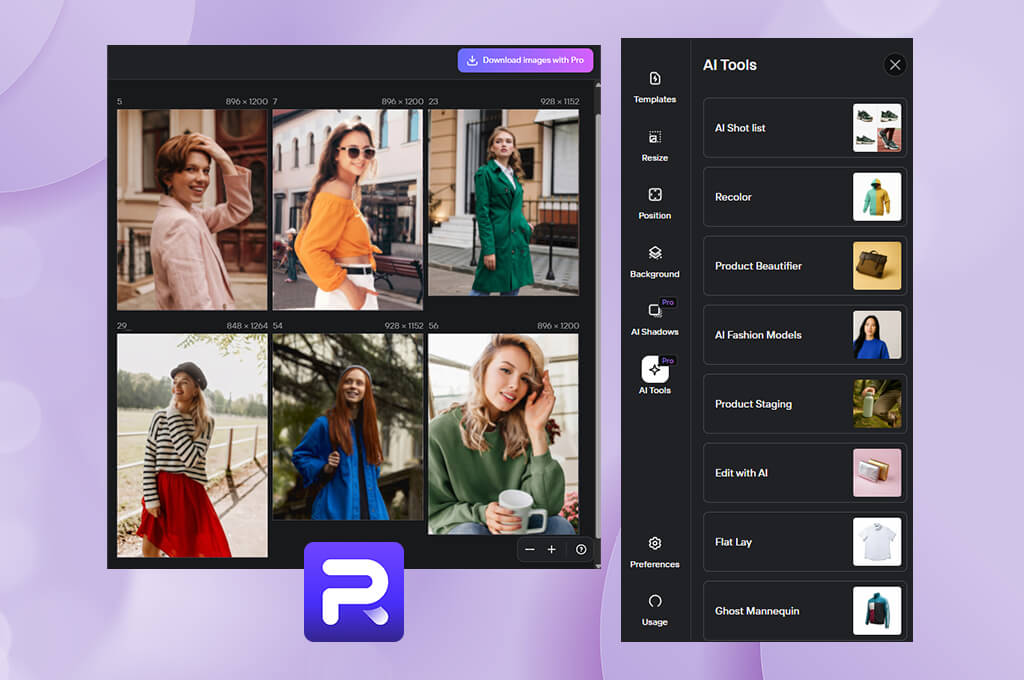
Its browser-based version supports uploading, editing, batch downloading, sharing, and collaboration. Besides, it allows me to access AI tools. All in all, Photoroom is extremely easy to use on a phone.
“While working on detailed projects, I prefer to use the desktop version of Luminar. Photoroom is a better option when I need to quickly edit a photo on the go.”

The winner: Photoroom because its Spaces were created specifically for teams that work on content production together.
Such functionality is less important for me when I need to edit one photo, but it’s essential for commercial production.
Photoroom introduced Spaces to allow team members to share access and use the tools available in that Space. The Space can be accessed by up to 50 users. The subscription cost is attached to the whole Space, which means that every member is not charged separately. It makes it perfect for situations when multiple people need to manage the same catalog.
Luminar was designed mostly for photographers’ needs. I prefer to edit my photos myself and then share the output with other team members. However, I normally use Photoroom when I need to work on e-commerce content together with my colleagues.
The winner: Luminar because it allows photographers to control the output with higher precision.
Luminar essentially functions like a full desktop photo editor. It supports the following export options:
Luminar allows users to export files with up to 15,000 pixels and supports sRGB, Adobe RGB, and ProPhoto RGB. It makes it especially convenient to use when I need to prepare photos for printing, archiving, editing, or all sorts of professional uses.
Photoroom has multiple export options that are more suitable for saving digital content. The Ultra tier supports AI image quality of up to 4K. Lower tiers support lower quality and credit costs, making them sufficient for those who want to enhance product listings. Luminar is a better solution for those who are interested in photography-related tasks.
The winner: Luminar is a better solution overall because recent upgrades made it even faster without compromising on the professional editing tools.
Photoroom still delivers faster performance for certain specific tasks. It’s better suited for situations where I need to remove the background quickly and make it white. However, I still needed to choose a solution that would allow me to enhance a photo as a whole and get a polished output.
Luminar's updated version has impressive export speed, lower memory use, and handy preset previews. Skylum reports that exports became up to 25% faster. Besides, the new version supports 33% lower RAM use for masking and makes preset previews up to four times faster.
The difference between the old and new versions became even more noticeable when I needed to switch between masks and experiment with different presets. Luminar delivers much faster performance now, so that when I use its advanced controls, it does not slow down my workflow.
The winner: Luminar because it is accessible through a perpetual license, making it a better option for my needs, as I want to be able to use a photo editor for years.
At the moment, Luminar has three main perpetual licenses:
Before paying for these licenses, one should consider the fact that they do not include perpetual access to AI tools. Even though it’s possible to get lifelong access to the main app, a user will be able to use features such as Restoration, GenErase, GenSwap, GenExpand, and AI Assistant for 365 days only. Besides, they will have to pay for a Luminar Prime subscription that is renewed annually.
Even though this pricing system may seem to be unnecessarily complex than a traditional perpetual licence, the lifelong access option still makes sense, as it allows me to pay for the main photo editor once. Besides, you can get it cheaper by using Luminar discounts offered by Slylum.
Photoroom has a free version, but it allows users to access a limited choice of tools, AI features, and export options. Besides, it has restrictions regarding commercial use. There are three main subscription plans currently available:
Photoroom does not have a lifetime subscription. The Pro plan is quite affordable, making it suitable for occasional product photo editing. However, if you are interested in high-volume AI generation, it may turn out too expensive.
Photoroom Pro is a budget-friendly option for those who are interested in background removal and product content editing. However, I still need to use a photo editing software with more extensive functionality for my regular workflow, and Luminar covers these needs better.
After thoroughly testing Luminar AI vs Photoroom, I decided that the former suits my needs best. It integrates perfectly into my FixThePhoto workflow and allows me to handle any issue I may face. Here are the main things that I like about Luminar:
Another thing that I saw while testing Photoroom AI vs Luminar is that, after recent updates, the latter no longer has some issues that cause me to mistrust many AI photo editors. Instead of adding AI buttons, the developers introduced the Crop 2.0 feature that allows users to improve composition.
Enhance AI 2.0 is responsible for a better automated starting edit. Atmosphere 2.0 supports realistic depth, while AI Assistant 2.0 streamlines editing and makes it easier to control the output. These upgrades helped me streamline my editing workflow.
Photoroom could also be quite useful in some editing scenarios. There are still several situations where I would choose Photoroom, as it supports the following:
If I had to manage hundreds of listings on an eCommerce platform, I would choose Photoroom. However, it still has a limited area of application.
Luminar is a better solution for editing portraits, landscapes, RAW images, travel pics, and client photos. Besides, it’s more suitable for making creative edits and performing everyday image enhancements.
Together with other members of the FixThePhoto team, I tested Luminar and Photoroom to see whether they would allow me to enhance the same source photos at the same level instead of choosing photos that were easier to edit in a specific editor:
“Photoroom makes it easier to transform a scene using generated backgrounds. It allows me to add a dramatic feel to my photos. However, Luminar has more advanced controls, making it perfect for atmospheric and realistic photo edits.”

While testing these solutions, I used RAW and JPEG photos, portraits with various skin tones, landscapes with challenging dynamic range, casual travel pics, product photos, reflective products, images with detailed hair, and pictures with complex backgrounds.
Besides, I tried editing photos that had noticeable imperfections. There was no point in using perfect photos captured in a studio environment that would not allow me to fully assess the performance of AI tools. I considered how much manual cleanup was required after an automatic enhancement. I did not rank a tool higher simply because it supported one-click enhancement. When assessing AI edits, I considered:
“Photoroom allows me to give portraits a polished feel and replace backgrounds quickly, but it does not have the same advanced retouching tools as Luminar.”

In addition, I tested these programs to see whether it would be easy for me to edit automatic outputs. That was especially essential in Luminar because many of its AI tools are linked with adjustable controls, allowing users to fine-tune the results.
Besides, I considered whether it would be necessary to take a lot of steps to achieve a result worthy of publication. I prioritized image quality over image processing speed. I did not need to spend ten seconds on editing only to spend five more minutes to enhance the result. This is why I ranked higher the solutions that allowed me to achieve polished results quickly without wasting a lot of time on manual editing.