While working at FixThePhoto, I often need to create PDF portfolios, photo editing proposals, client contracts, etc. In most cases, I need to make several revisions to make my docs more polished before sharing them. I noticed that it might be difficult to remove outdated pages, which is why I started looking for the best online PDF page remover tools that could be integrated into my workflow.
Recently, I was working on a PDF presentation for a potential client when I realized that the information about our prices was outdated. Besides, there were some duplicates of before-and-after pics and one internal note that I did not want to share. I decided to remove these pages without re-creating the presentation from scratch.
I typically organize my documents with the help of Adobe Acrobat, but I decided to check whether a free PDF page remover could potentially replace it. It was easy to find a platform that could delete PDF pages online. However, it was more challenging to discover a reliable solution that maintains the original image quality, does not have significant limitations, and processes files without compromising sensitive data.
Together with my colleagues from the FixThePhoto team, I decided to test 40+ online PDF page remover tools and discover the most reliable solutions for our workflow. Here are the main things I focused on:
Adobe Acrobat is my top choice when it comes to working with professional documents, but I was also pleased with several other free services and realized that they could be integrated perfectly into my workflow.
It might seem easy to delete a PDF page online. However, if you upload a document online, you might compromise sensitive information that was never meant to be shared.
After comparing popular tools that allow users to remove pages from PDF online, I decided that it is important to consider the whole functionality of every platform instead of focusing only on the Delete button.
1️⃣ Is the file processed locally or online? PDFgear, Drawboard, and Scan.Plus process documents locally and can be accessed via a browser. Smallpdf, PDF24, and iLovePDF use cloud processing. I consider this before choosing a suitable platform for working with client documents.
2️⃣ Do I have to sign up? Acrobat requires me to create an account to delete pages from PDFs online. Smallpdf, PDF24, PDFgear, Drawboard, and Scan.Plus do not require users to sign up. I prefer to use such solutions when I need to delete pages quickly without paying a dime.
3️⃣ How long is my document stored? Smallpdf and PDF24 claim that they delete uploaded files after one hour. Smallpdf users can also save documents to their account. I always check which privacy policy a platform has before using it.
4️⃣ Does the PDF contain confidential information? When I work with IDs, contracts, medical records, and unreleased client photos, I prefer to use a reliable local or offline solution. I want to be sure that when I delete a page after uploading my document, the original document won’t be affected.
5️⃣ Will the links and other elements still work after I delete some document pages? Smallpdf notifies users that internal links may stop working when a user deletes pages. Besides, it might be necessary to fix references to page numbers. This is why I prefer to reopen the exported PDF and check navigation.
I check the following things when working with FixThePhoto documents:
I prefer to use a dedicated PDF redaction tool online to handle confidential data on the pages that remain in your documents.
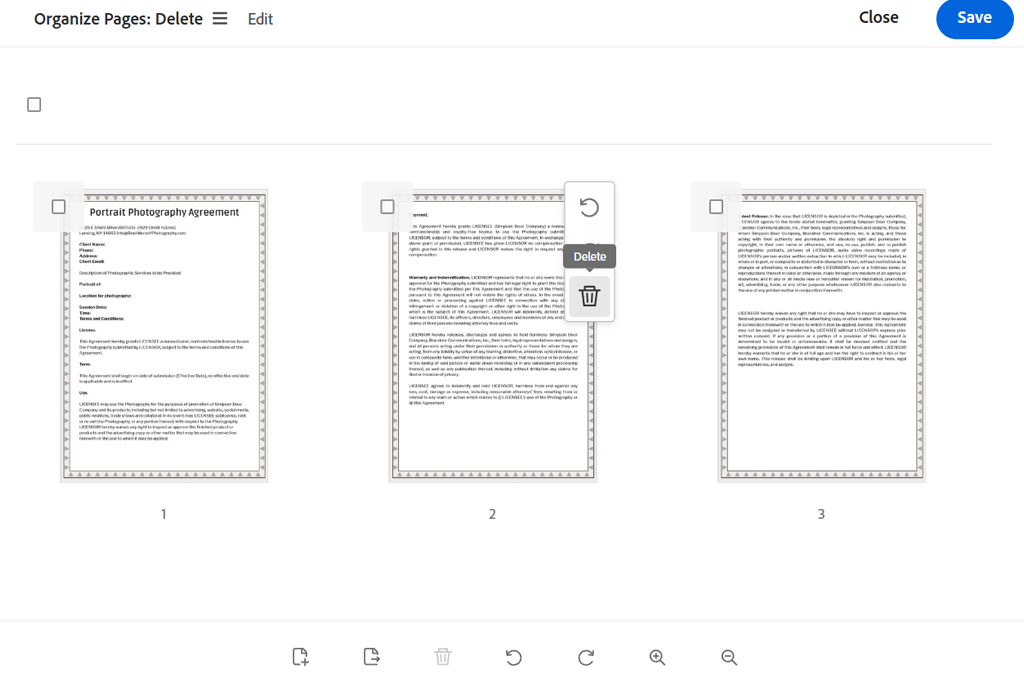
My verdict: Acrobat remains my top choice among the best online PDF page remover tools when I need to edit client documents professionally. I prefer to use it whenever I need to edit PDF documents after deleting some pages.
I have been using Adobe Acrobat as part of my daily FixThePhoto workflow for a long time. I use it whenever I need to prepare contracts, retouching briefs, and presentations. This is why I decided to check whether deleting PDF pages in Adobe Acrobat in the browser would be just as easy as in the desktop version.
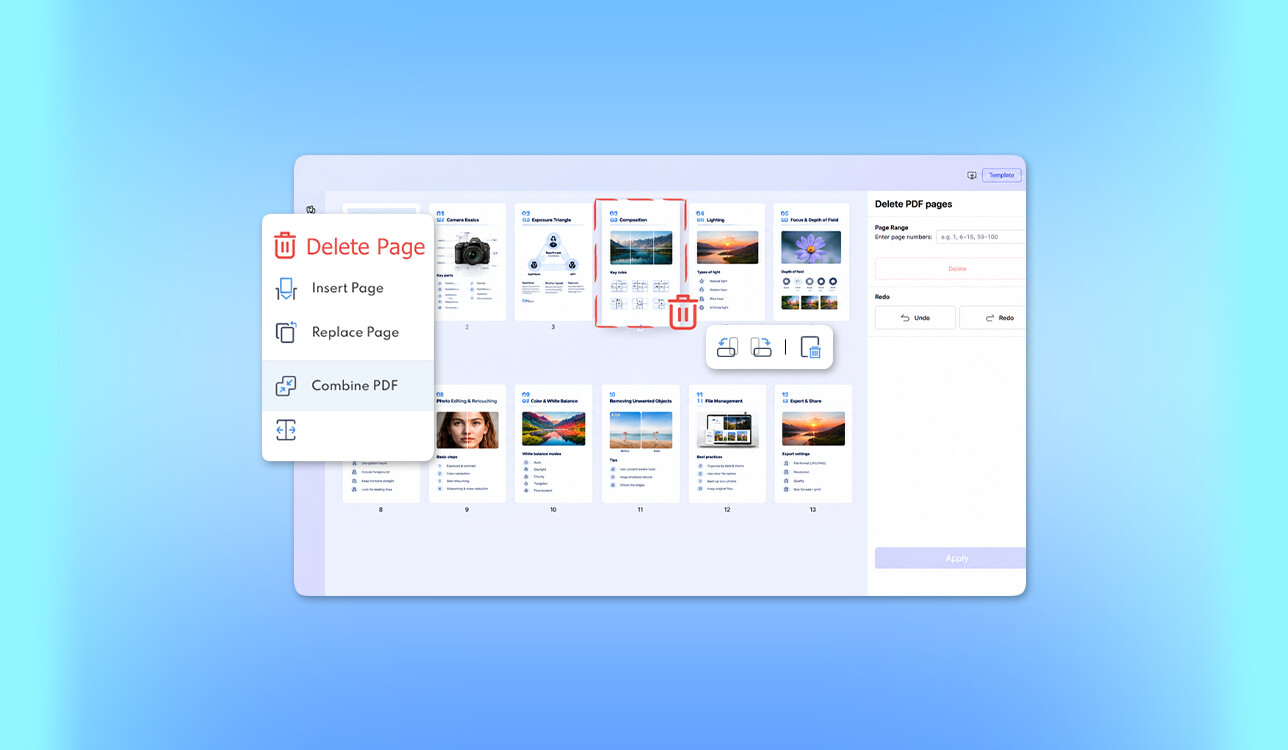
I wanted to edit a 34-page photography portfolio that included high-resolution photos, information about pricing, and layouts that required an upgrade. After signing in and uploading my document, I used the thumbnail preview panel to select three nonconsecutive pages and deleted them.
This solution is extremely intuitive. I was especially pleased by the fact that I could rotate pages and change their order without using any third-party services.
"I was happy to discover that I could remove outdated pages, change the page order, and produce a polished client file in one workspace."

I was especially interested in the output quality. Photography portfolios may include subtle gradients, fine skin textures, and typography elements put in a specific order. The remaining pages had the same visual appearance and layouts as the pages in the source file.
Another thing that I liked about Acrobat is that it supported a broad editing environment. If a client asks us to update a project sequence, I can delete pages and organize PDF documents with ease. This free online tool is especially suitable for occasional corrections. Nonetheless, some people might not like the fact that they have to register to use it. It makes it less convenient than some other platforms that do not require users to sign up.
I wouldn’t pay for Acrobat Pro only to delete PDF pages. However, if you also need to edit contracts, convert files, process scanned documents, or use pro-grade redaction tools, this solution has great value for money.
Pricing: The free online version allows users to delete pages after signing in. It has some usage limitations. Acrobat Standard costs from $14.99/mo; Acrobat Pro costs from $19.99/mo for an annual plan when billed monthly ($239.88/year equivalent).
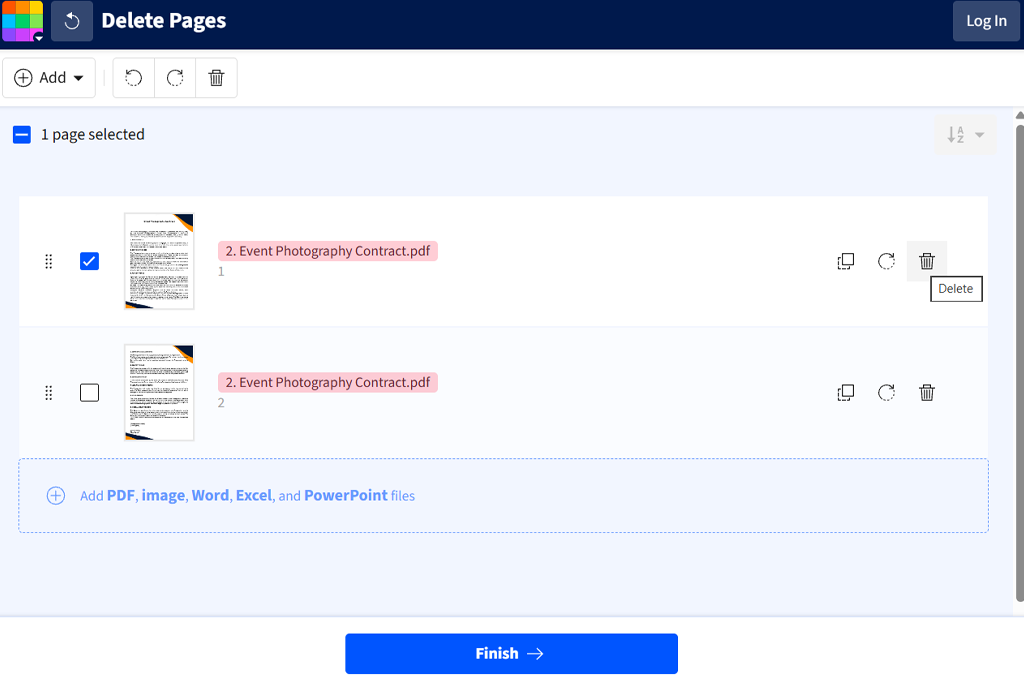
My verdict: I would still use Smallpdf after testing it, as it’s perfectly suitable for quick edits. I like its streamlined visual interface and the fact that I do not need to sign up to use it.
I liked Smallpdf because I could use this intuitive PDF page remover online. Sometimes, I receive PDF files from freelancers that include cover pages we don’t need, duplicated screenshots, or attachments with outdated information. I can find every tool I need quickly, as the menus are well-organized.
While writing this comparison, I used many tools to delete pages from PDF. When testing Smallpdf, I uploaded a 22-page project proposal with two blank pages and a services section that required an update. I reviewed the thumbnails, deleted the pages I did not need, and exported the updated version.
I was especially impressed by the fact that I could quickly find the pages I wanted to delete with the help of previews. This service allows me to delete inconsequential document pages even if I do not remember their numbers.
I also liked being able to continue with compression. When our clients ask us to send presentations to them by email, I compress documents, preview the exported files, and send them quickly. I always check the outputs with many photos carefully to ensure there are no artifacts.
Smallpdf also comes with tools for merging, splitting, converting, and signing PDFs. Such functionality makes it perfect for freelancers who do not want to use a full desktop editor.
I also discovered two limitations of this service. It restricts free downloads and processes documents in the cloud. This platform deletes documents automatically after one hour unless you decide to save them to your account.
I like using this free service while working with documents daily. However, if you need to remove pages from PDFs regularly, the Pro version might be a smart option to consider. Besides, you may find plenty of free alternatives that were built specifically for deleting pages.
Pricing: Free with limited document downloads. Smallpdf Pro starts at approximately $9/mo with annual billing ($108/year), with monthly billing listed up to $15/mo.
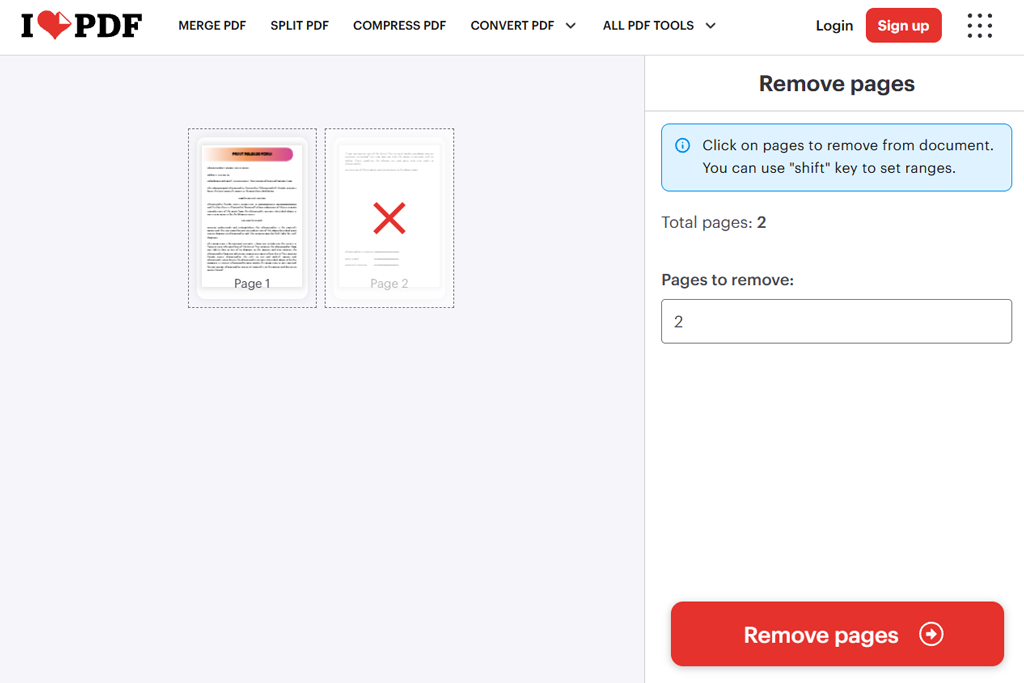
My verdict: I would use iLovePDF when I need to delete pages with specific numbers. It allows me to choose a specific page range quickly.
I realized that iLovePDF could be especially useful when I need to process longer documents. At FixThePhoto, I occasionally need to review multi-page reports with dozens of screenshots, technical explanations, and previous versions.
To review this online PDF page remover, I selected a 68-page PDF report and indicated that I wanted to remove specific page ranges, including pages 10–21, 25, and 50–56. I did not need to select every thumbnail manually, as I could enter the page numbers directly.
This feature saved me a lot of time. By typing page ranges, I could remove sections with ease. There was no need to scroll through the whole document.
"It’s much easier to enter a page range than click twenty thumbnails one by one. I like using this service when editing long reports."

This platform also supports visual page selection and Shift-click ranges. I discovered that these features are even more convenient to use because in some situations I know the page numbers I want to delete, while in others I need to use previews.
After removing pages, I can use page organization tools available in iLovePDF. It includes features for splitting, merging, rotating, and rearranging pages. However, I noticed that even if I delete a page with an unwanted watermark, it doesn't remove watermarks from other pages. In such cases, I normally use a dedicated PDF watermark remover.
The free Basic plan is best suited for occasional page removal. However, the processing limits make it hardly suitable for those who work on larger projects. Premium version supports unlimited document processing and does not have any ads. While working on sensitive files, keep in mind that this service relies on cloud processing. iLovePDF also has a separate desktop version that supports local processing.
Pricing: Free Basic plan with document processing limits. Premium from $9/mo with monthly billing or $5/mo with annual billing ($60/year).
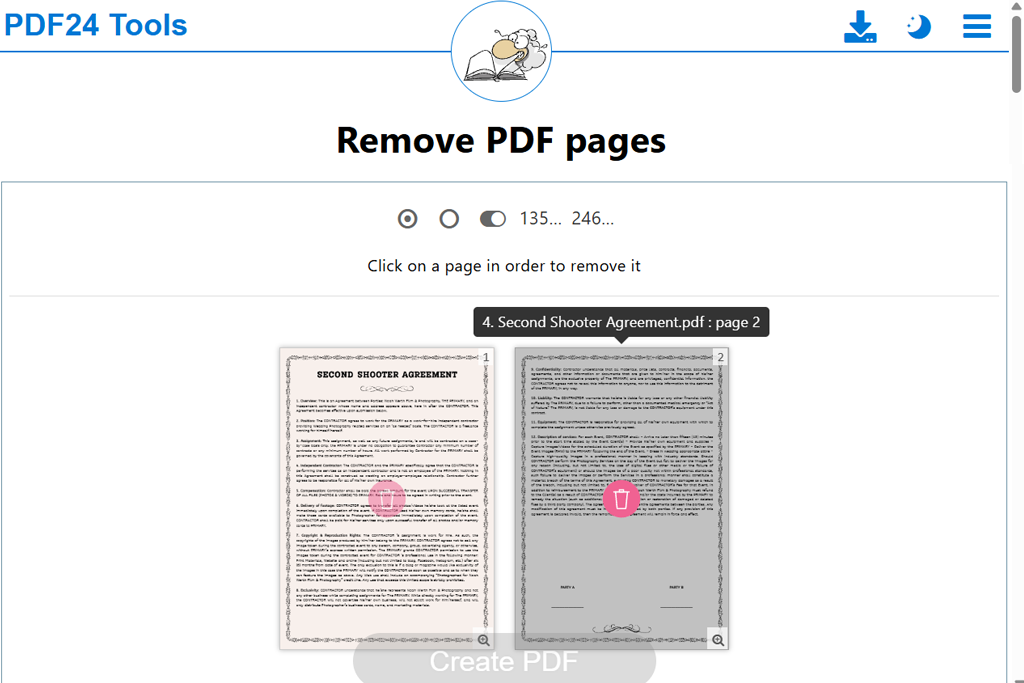
My verdict: PDF24 is one of the most reliable free cloud-based solutions I’ve tested. I believe that it could be an excellent option for students, freelancers, and small teams that often need to remove unwanted pages from PDF files without paying for a subscription.
PDF24 Tools exceeded my expectations. Even though it’s a completely free PDF page remover, it does not have download limits or watermarks. Besides, it does not prompt users to upgrade when they use it to delete PDF pages online. This web-based page remover is supported by advertising, which allows users to get full access to its tools.
I uploaded a 46-page scanned reference document that included blank pages, repeated photos, and blank sheets. The thumbnails helped me find the pages I needed to remove quickly.
What makes this service different from the rest is that it allows me to mark even or odd pages for deletion. This can be perfect for fixing scanning mistakes. However, I always double-check the page order after using this feature.
The pages in the exported file maintained the original appearance. I was happy to see that the platform did not compress detailed retouching examples. I could also use tools for extracting, rotating, merging, and organizing PDFs without a subscription.
PDF24 declares that uploaded documents are processed on servers located in Germany and are automatically deleted after one hour. Those who are interested in local processing can install a Windows desktop version, PDF24 Creator.
Pricing: Completely free. Does not require a subscription or signing up. No advertised usage limits. PDF24 Creator desktop software is also free.
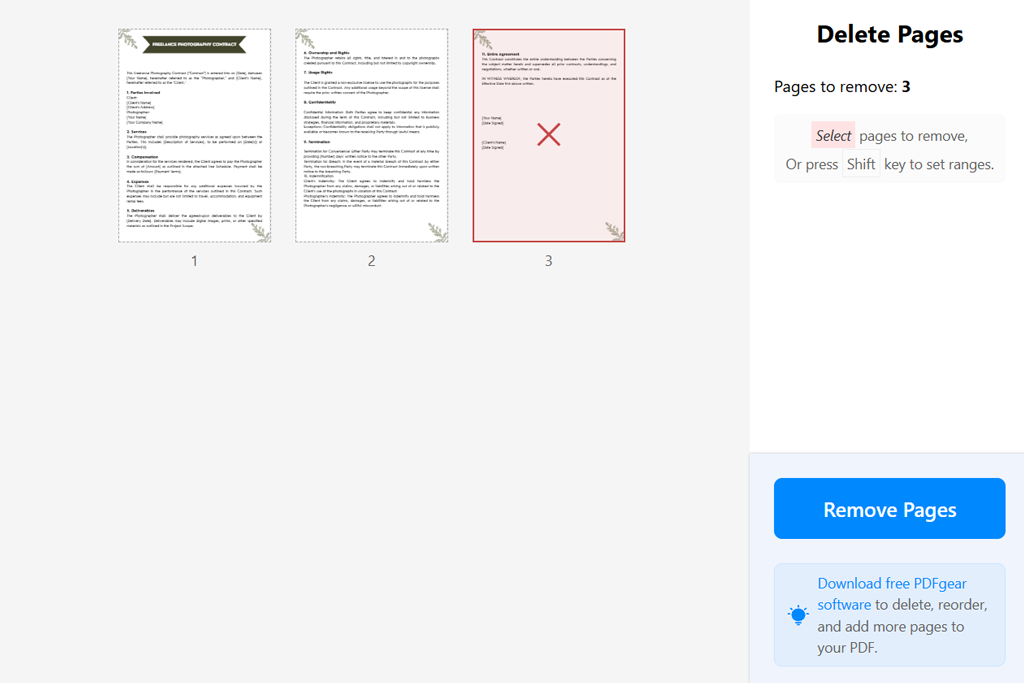
My verdict: PDFgear is one of my favorite free solutions for removing pages from PDFs. While using it, I do not need to upload my files to a third-party processing server. While working with confidential documents, I still prefer to use its offline desktop version.
I became curious about PDFgear after hearing that it has a strong privacy policy. I occasionally work with unreleased photo projects, files with internal editing guidelines, and PDFs that contain sensitive data that shouldn't be uploaded online.
What makes PDFgear different from regular cloud-based platforms is that this online page remover processes documents locally inside the browser. The company claims that processed documents aren't uploaded to its servers when users delete selected pages from PDF.
While working on this guide, I used a PDF containing sample contact sheets, model-release templates, and some outdated reference pages. I selected thumbnails, used Shift-click for a continuous range, and produced a polished copy.
"I like the fact that I can clean up a PDF without uploading it to the cloud."

I was pleased with its streamlined workflow. It allows me to access adjustment menus with ease and does not prompt me to upgrade. The remaining pages had the same appearance as in the source file, making it perfect for working with image-heavy PDFs.
Unlike Acrobat, this browser tool doesn't have professional document-management tools. However, PDFgear also has a free desktop software version with more advanced document organization and editing features. If you want to perform pro-grade document analysis or access content-editing features, take a closer look at dedicated AI PDF editors.
Keep in mind that local processing speed depends on your hardware. This service will consume a lot of browser memory while handling a large PDF. The good thing is that it does not limit a file size.
Pricing: This is a free online PDF page removal tool without advertised file-size or page-count limits. PDFgear also has a free desktop version.
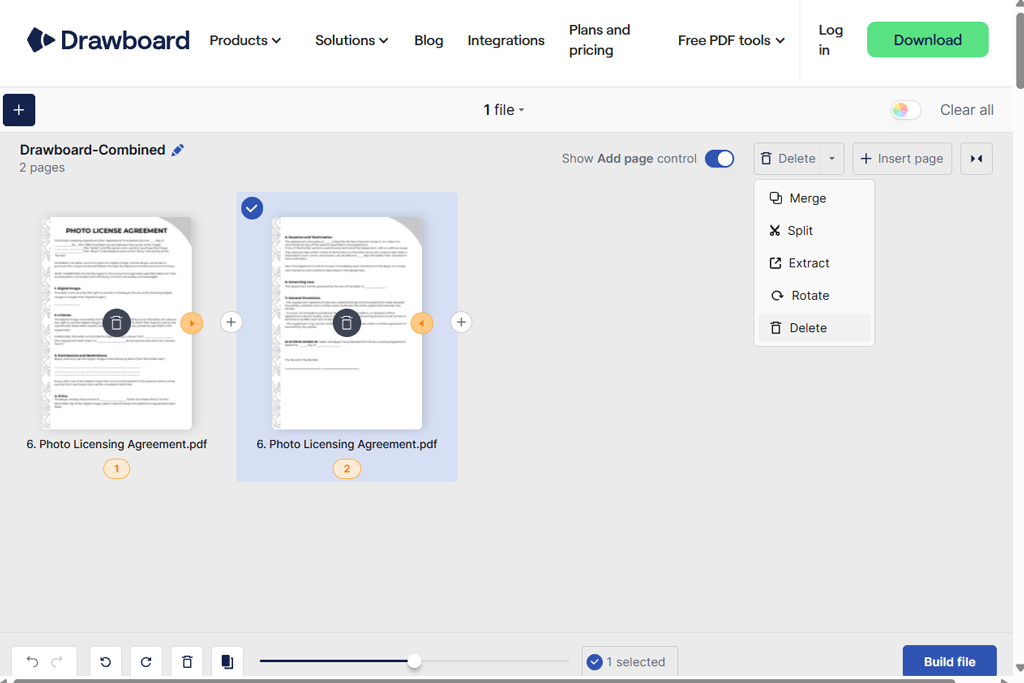
My verdict: I highly recommend Drawboard for those who need to create design proofs and review documents together with others. It has a stripped-down interface and supports local processing, making it a more practical solution than many platforms with advanced settings.
What struck me about Drawboard is that it integrates into PDF review and annotation workflows perfectly. Our designers often share PDF proofs with different layout versions with each other, leave comments, and add visual references.
My goal was to check whether this free web-based solution would help me remove unwanted pages from PDF and streamline the final cleanup stage. I uploaded a sample presentation with different versions of the same promotional banner. After opening the file, I enlarged the page previews, selected old versions, and created a new PDF.
The interface is extremely intuitive. This service does not require me to register, adjust output settings, or take any complex steps to remove pages. Drawboard performs page removal locally in the browser, which means that I do not need to uploading documents to servers. Another advantage of this service is that it can be used offline once a webpage has loaded.
The output document maintained the same appearance as the remaining pages. However, this free deletion tool isn't suitable for complex design adjustments. I would use a dedicated PDF annotation remover to delete handwritten notes, highlights, or comments from a page.
The premium version of Drawboard comes with more advanced annotation and collaboration tools. They might be especially useful for designers and reviewers. However, if you only need to remove pages from a PDF, it does not make any sense to pay for a subscription.
Pricing: Free online page-removal service without page or usage limits. Optional Drawboard PDF Pro Lite from $5.99/mo or $50/year; Pro Plus from $9.99/mo or $84/year.
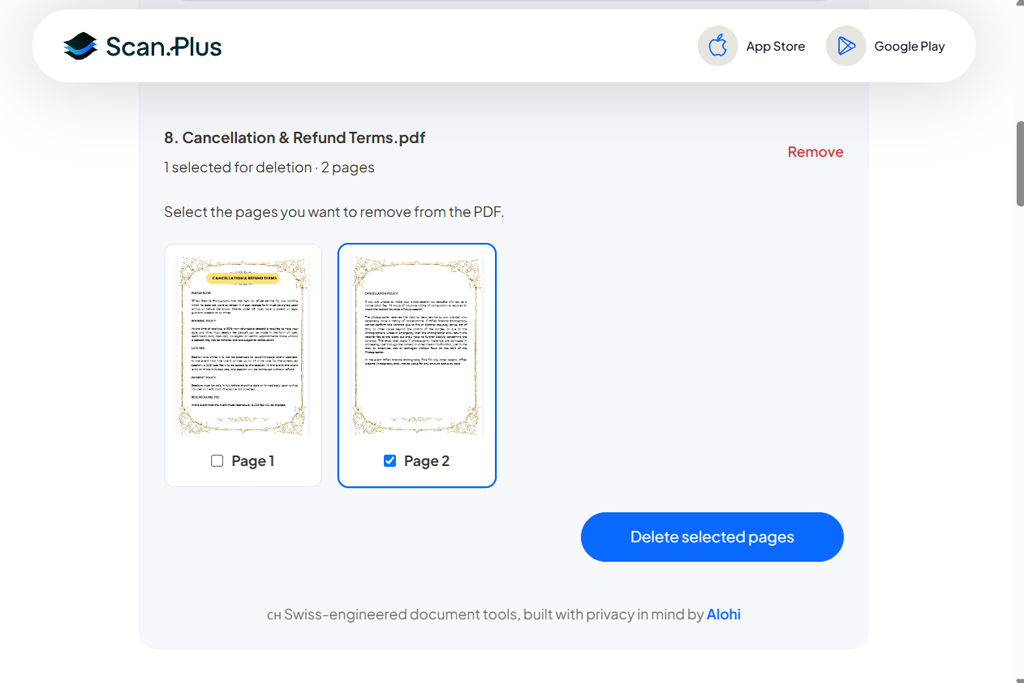
My verdict: Scan.Plus is a practical option for those who often work with receipts, forms, and smaller scanned files. I believe that it’s hardly suitable for large visual portfolios, but it’s an excellent option for everyday document cleanup.
Scan.Plus was released by a company mostly known for the solutions that streamline digital scanning and document workflows. I often work with scanned forms, receipts, and paperwork that were created with the help of an automatic scanner. They often have an extra blank page.
When writing this comparison, I decided to test this solution on a 14-page scanned document with two blank sheets, a duplicate receipt, and one page scanned upside down. Using the page remover, I could preview the pages as thumbnails, select the ones I did not need, and download the resulting file. The process was extremely intuitive, even if a user does not have any prior experience with PDF editing tools.
"It's an excellent solution for those who want to quickly delete blank scan pages before sending a PDF to a client."

I was especially pleased by the fact that this solution does not require me to sign up to use it. Scan.Plus also ensures that file processing happens locally in the browser, which means that PDFs aren’t uploaded to servers when one needs to delete a page.
The main shortcoming of this service is that it limits the file size to 20 MB. This is hardly an issue for those who work with receipts or forms, but it makes it hardly suitable for those who work with high-resolution photography portfolios or multi-page color scans.
This online PDF page remover tool also has features for rotating, splitting, and merging PDF documents. They are especially useful when one needs to edit a scan. However, these features can be accessed only as separate tools, as they aren’t available as settings inside the remover.
I was happy to discover that the source file remains unchanged. This minimizes the risk of losing a scanned document when creating a shorter version for sharing.
Pricing: Free online PDF page removal platform that limits the maximum file size to 20 MB. It does not require signing up or paying for a subscription. There are no watermarks on the outputs.
When my colleagues from the FixThePhoto team and I started comparing online PDF page remover tools, I did not want to assess them based only on the information that can be found on their websites. Most platforms claim that they support quick processing, maintain the original quality, and support quick page deletion.
I wanted to thoroughly examine these services to understand whether they could be integrated into our photography, editing, and document-management workflows.
“I like the thumbnail preview option in Smallpdf, as it helps me avoid deleting the wrong page. This practical solution allows me to fix a presentation quickly."

Our test documents. We decided to test these services on the same sample PDFs:
While testing cloud-based platforms, we uploaded synthetic or nonconfidential files to ensure that we won’t compromise actual client data.
"PDF24 has everything I ever need and does not require me to upgrade. It's perfect for situations when I need to clean up several reports."

What we checked:
1. Page selection accuracy. I tested each solution to see whether it would allow me to delete selected pages from PDF documents without removing the content I actually needed. While working on my projects, I often need to perform nonconsecutive selections. For instance, I may need to remove pages 5, 7, and 11.
2. Speed and intuitive workflow. We considered how many steps we needed to take to upload or open a document, preview thumbnails, select pages, and download the output. I liked the solutions that did not require us to sign up, perform repetitive tasks, or navigate a convoluted interface.
3. Image and layout preservation. While working on FixThePhoto projects, I always pay attention to such capabilities. I compared the remaining pages with the source file while focusing on image detail, gradients, typography elements, margins, and positioning.
When working with complex documents, I considered whether links, bookmarks, and page references remained functional. I also checked whether this PDF page numbering editor would allow me to handle issues with shifted numbering.
4. Free versions and hidden limitations. A free solution is hardly practical if it allows one to export a single file and then requires them to pay for a subscription. We considered account requirements, document limits, file-size limitations, watermarks, and premium tools.
5. Privacy and document processing. I read the privacy documentation published on the official websites and checked whether the provider processed files locally or on a remote server. I did not blindly trust the services that supported local processing unless they underwent a third-party security audit. For those who work with client documents, organizational policies are extremely important.
"Drawboard is the perfect option for deleting old design versions. I was pleased to discover that the document never leaves my computer."

How we chose the winners. After thoroughly testing over 40 services, we chose seven that came with practical page-removal tools, were convenient to use, maintained the original quality, and had great value for the money.
Acrobat is the best online PDF page remover tool for professional workflows. PDF24 struck with its highly functional free version, while PDFgear impressed me with its local browser processing capabilities.
I also ranked services higher if they produced the output I needed. For instance, I prioritized solutions that produced a clear thumbnail preview over the options with extensive lists of features, as the former are better suited for client work.
Adobe Acrobat is the top choice because it supports accurate page deletion and comes with pro-grade document organization and PDF editing tools. If you are looking for a free page removal solution, take a closer look at PDF24 Tools. PDFgear might be a better solution for those who are interested in local browser processing.
Yes. PDF24, PDFgear, Drawboard, and Scan.Plus come with free tools for removing pages. You don’t need to pay for a subscription to access them. Scan.Plus processes files up to 20 MB, while the free versions of Smallpdf and iLovePDF have usage restrictions.
Upload your PDF on a page-removal platform, preview the thumbnails, choose the pages you do not need pages, delete them, and export a new file. The pages that were left should maintain the original layout, but be sure to check links, bookmarks, and page references after deletion.
If you don’t have a source file stored elsewhere, you won’t be able to restore the page you have deleted. This is why I prefer to keep a backup. I can also add pages to a PDF using Adobe Acrobat to recreate the section that was deleted.
Only if the document’s permissions allow you to edit the file or you have authorization to lift the limitations. If a document is protected, be sure to remove password protection from a PDF file in Adobe Reader first.
Yes, in most situations. However, the amount of saved space depends on the content of the deleted pages. You can significantly reduce the size of your file if you remove several pages with many images. Deleting blank pages will hardly have any effect on the file size. It’s better to rely on dedicated compression tools if you want to minimize file size.
It depends on the platform you use, the file itself, and your company’s policy. While working with sensitive documents, I prefer to process them locally and check a cloud platform’s policy carefully before uploading them. It would be a mistake to believe that removing a page also deletes sensitive metadata or hidden content.