
As a part of the tech writing and software testing team at FixThePhoto, I frequently have to deal with research, documents, presentations, and collaborative projects. That eventually led me to explore the world of college project management tools that help students handle assignments instead of adding unnecessary friction.
To check how applicable they are for actual study scenarios, I evaluated more than 40 tools that received positive feedback from students, US universities, Reddit communities, YouTube channels, and Google results. I prioritized apps that offer the features necessary for planning, research, writing, presentations, citations, and group work.
When trying to find the best tools for college projects, I searched for:
The main mistake I’ve seen many people make is trying to find a single tool that can handle everything. A high-quality research platform isn’t necessarily the best at presentations, and a reliable writing assistant might be subpar at dealing with group projects.
For research papers, I suggest trying Zotero. It allows me to gather sources, manage references, and create citations without manually copying all authors, titles, URLs, and publication dates.
For planning bigger assignments, I prefer Notion. It helps me manage deadlines, notes, documents, links, and task statuses in a single workspace instead of having to juggle multiple apps, while also being arguably the best free student software for tackling daily project organization tasks.
For group projects, Google Drive is the most straightforward choice. All users can access the same documents and presentations without the tedium of sharing updated files back and forth.
For presentations and visual assignments, Canva is the most efficient solution. I use it to transform raw research into slides, infographics, charts, posters, and other visual aids without having to create each layout from scratch.
For brainstorming, Miro provides superior results compared to regular tools. It helps me map out concepts, connect ideas, construct flowcharts, and bring order to initial-stage thoughts before I start working on the final project.
For writing, Grammarly can be a lifesaver towards the end. I like to write the initial draft on my own and then turn to this tool to identify grammar mistakes, repetitive phrasing, and confusing sentences.
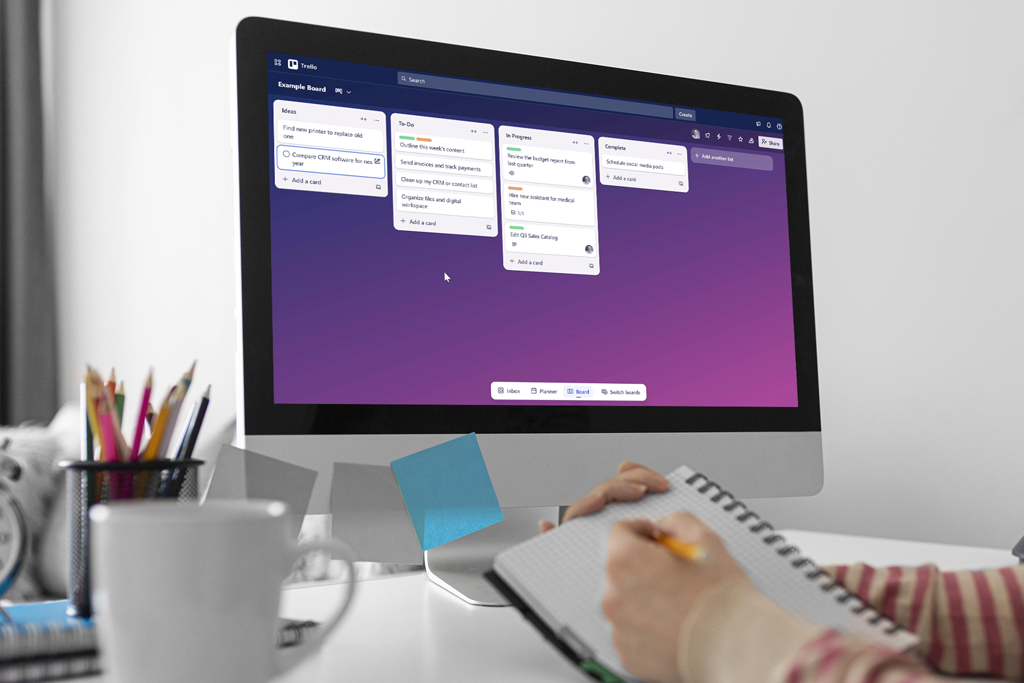
For basic task monitoring, Trello reigns supreme. Its card-based layout makes it clear what tasks still have to be done and which members are responsible for which part.
Before I submit an assignment, I always check three things: the content, the formatting, and the final file permissions. A finished project won’t do much good if the professor can't even access it.
Platform compatibility: Web, Windows, macOS, iOS, Android
I often saw Notion being mentioned among the best tools for college projects, but I wanted to check if it’s actually that great or just gained popularity with its stylish-looking dashboards.
After I stopped looking at Notion as a basic note-taking app and began utilizing it as a project workspace, it earned the highest marks in my test.
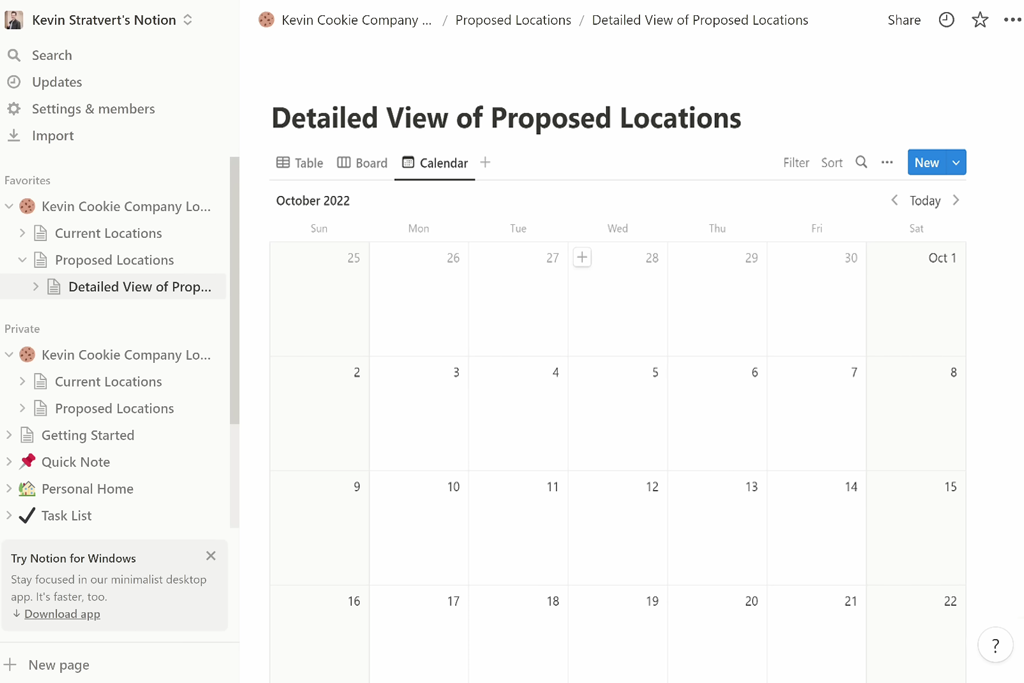
I made one main page for each assignment and paired it with research notes, deadlines, tasks, files, and progress monitoring. For larger projects, this was a lot more convenient than trying to store all instructions in one file, sources in another, and deadlines in a dedicated calendar.
My favorite part about Notion is its flexibility. I could just as easily design a basic task list for a minor assignment as I could make a more intricate system for a semester-long project.
“The most productive Notion setup I designed was rather straightforward. All I did was assign deadlines, tasks, the owner, status, source, and file link to ensure my entire project was under control.”

However, its main selling point is also its drawback. Since Notion is so flexible, you can end up spending more time preparing the workspace than working on your assignment.
My recommendation is to stick to a basic setup. A single project page, one task database, and one resource list should cover the majority of college assignments.
Pricing: Notion has a free version, and eligible students can get extra education benefits via their university account.
Platform compatibility: Web, Windows, macOS, iOS, Android
I wanted to check out Canva since it’s frequently brought up when discussing the best tools for college students working on presentations, posters, infographics, and other visual assignments. Its main selling point became evident instantly: even with zero professional design skills, I could easily create something that looked professional and polished.
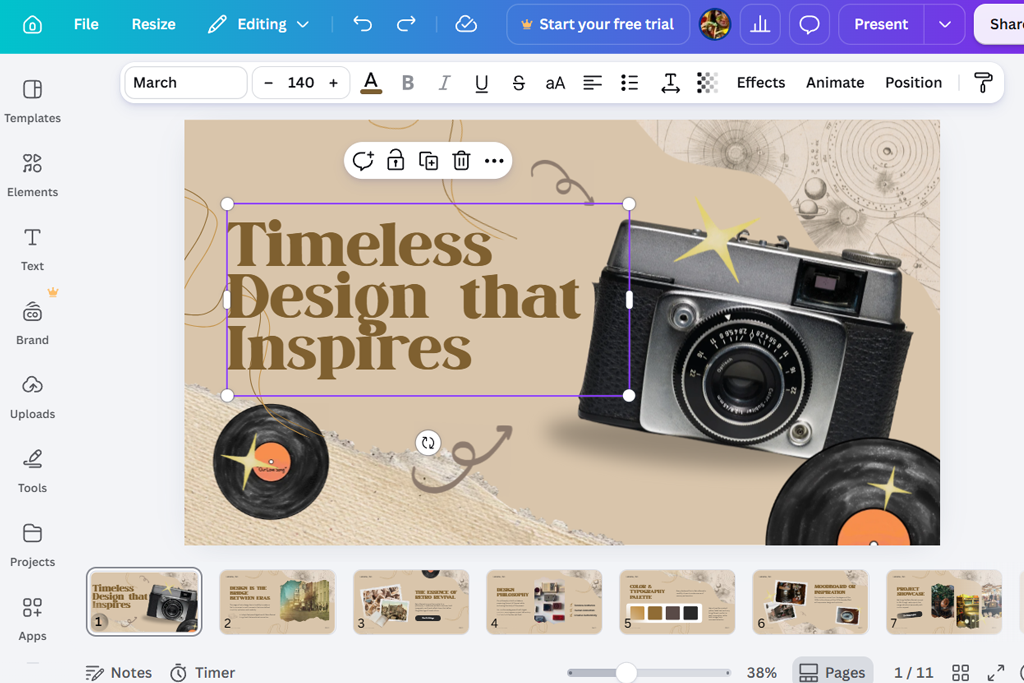
In addition to presentations, Canva can be used for making posters, infographics, documents, charts, diagrams, whiteboards, videos, image editing, templates, shared designs, and collaborative commenting. Such versatility helped me tackle multiple parts of a single assignment without having to go back to an empty canvas for each design.
My favorite part about Canva was the speed with which I could transform rough ideas into professional-looking designs. It’s a great choice for students who frequently need to prepare presentations, posters, reports, infographics, portfolios, and other assignments that value visuals but don’t require you to learn complex software.
“I employ Canva whenever I have to make the project look polished pronto. It’s particularly helpful for presentations and assignments that prioritize visual consistency over intricate design control.”

The provided templates often feel generic if you don’t customize them, so I don’t think Canva is a good fit for professional graphic design, but when it comes to productivity apps for everyday college assignments, the provided mix of speed, collaboration features, and user-friendliness is incredibly enticing.
My suggestion is to relegate templates to serve as a foundation instead of the final design. I typically swap out the fonts, alter spacing, images, colors, and multiple layout elements to ensure my project looks and feels personalized.
Canva's free plan is sufficient for most simple college projects, but some templates, stock images, AI tools, and brand controls are only available for a price. University students might also gain access to them via their institution.
Pricing: Canva Free comes with standard design and collaboration tools. Extra premium content and features are locked behind Canva Pro or institutional access, depending on your specific university.
Platform compatibility: Windows, macOS, Linux, Web
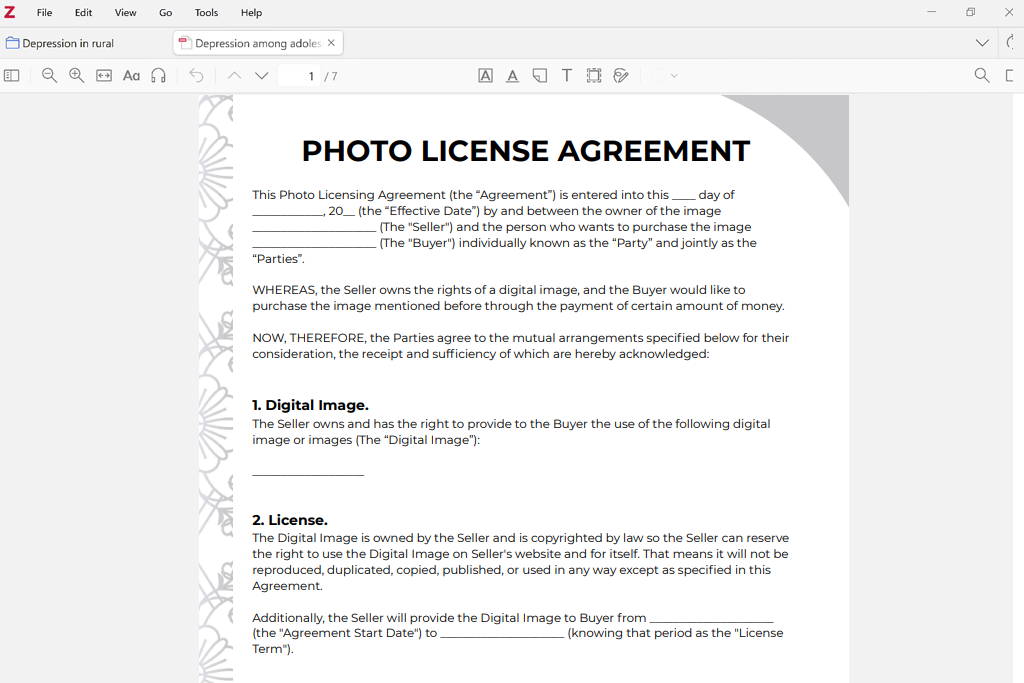
Zotero doesn’t look particularly impressive, but that doesn’t really matter since its main benefits become apparent once your research project reaches a point where you no longer know which browser tab leads to which source.
I installed this browser connector and began saving articles the moment I discovered them. Rather than just adding links to a single list, this tool for college projects ensured all sources were saved with their bibliographic information and could be sorted in your collection as you saw fit.
Once I collected over 20 references, my library sorted into separate topics instead of being presented as a single long list. Additionally, I included brief notes like “use for methodology,” “solid counterargument,” or “verify statistics,” which was particularly helpful when gathering sources from various online learning platforms, as I didn't have to reopen each PDF just to remind myself why I added it.
The citation workflow is where this tool truly shines. It helped me cut down the number of repetitive tasks, helping me focus on writing instead of having to manually recreate each reference from scratch during the research stage.
“Zotero is among the most time-efficient solutions as long as you use it from the very beginning of the project to handle all your references and source materials.”

Zotero is significantly more narrow-focused compared to Notion and Google Drive, but this also works in its favor. For projects that only include 5 sources, manual citation is doable. For a thesis, literature review, or assignments with dozens of references, doing everything manually is a waste of time.
However, this tool can sometimes input incorrect metadata, especially when handling webpages and unusual publications, so don’t put blind trust into all imported fields.
My tip: Leverage collections and tags from your very first research session. If you delay using this tool, managing your source library will become a lot more complicated.
Zotero is a free tool, but bulkier projects might require extra online storage for large PDF libraries.
Pricing: Free reference manager with optional paid cloud-storage upgrades.

Platform compatibility: Web, Windows, macOS, iOS, Android
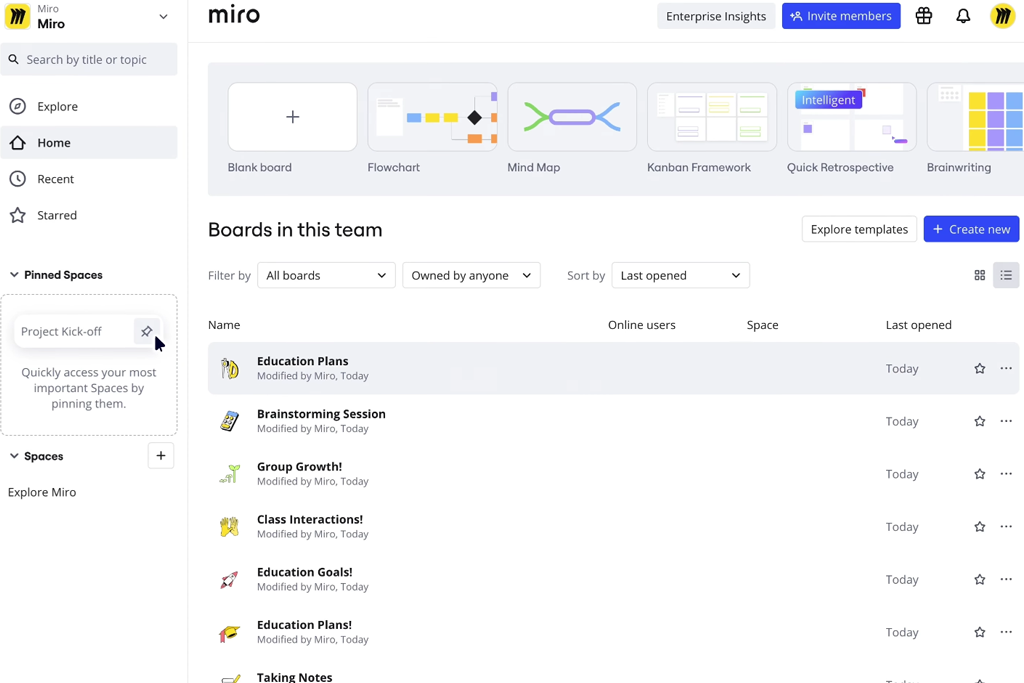
I initially gave Miro a shot when I felt a regular document felt too limiting during the initial stages of my assignments. When you’re dealing with research materials, images, questions, ideas, and rough connections between topics, organizing everything into a cohesive whole can be difficult without proper tools for college projects.
“Miro is a workplace where I allow myself to get a bit messy. Once I establish all the connections between different ideas, I transfer the created structure to Notion, Docs, or the final presentation.”

I don’t think it’s the best choice when it comes to long written research papers since bigger boards can quickly start looking cluttered, but as a planning and ideation platform, Miro is great at organizing before you move on to preparing the final version.
My suggestion is to separate the board into clear sections before adding all the content. I usually prepare sections for research, concepts, questions, approved material, responsibilities, and the final structure. Otherwise, a handy brainstorming board can end up looking like a chaotic mess of disconnected sticky notes.
Miro has a free version that lets you check out the main whiteboard workflow, while more advanced collaboration, project-management, and administration tools are included in the premium plans. Education access might also be offered to eligible students.
Pricing: Free plan offered with limited boards and collaboration tools. Premium plans offer extra boards, features, controls, and team functionality.
Platform compatibility: Web, Windows, macOS, iOS, Android
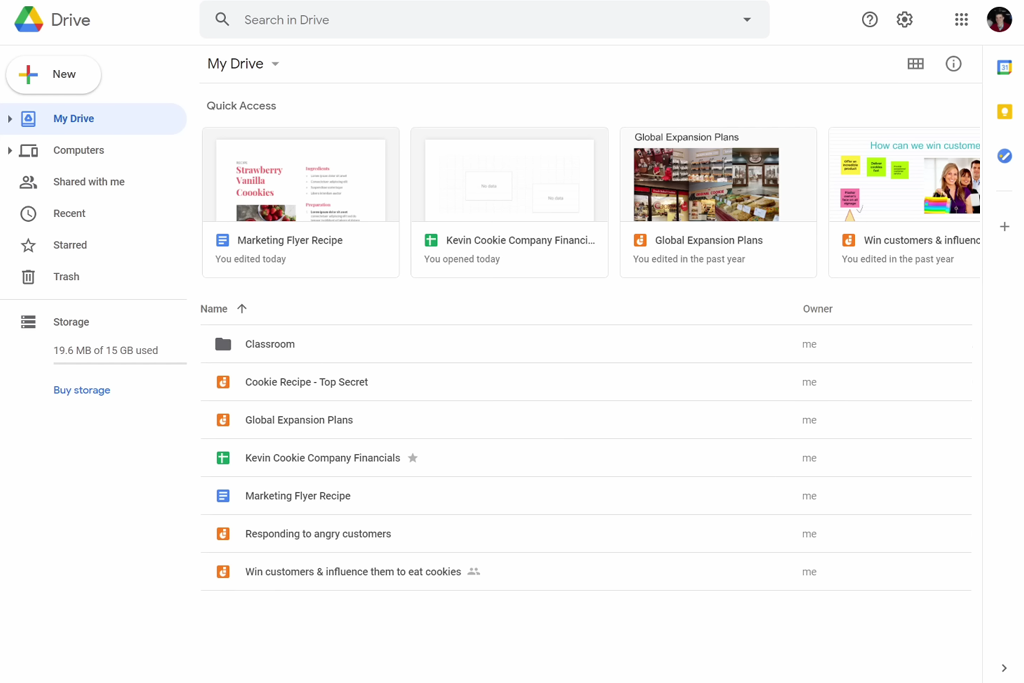
I think Google Drive deserves to be included among the best organization tools for college students because group tasks tend to feel overcomplicated for a common reason: everyone is working on a different version of the same file. For my test, I decided to check if storing the whole project in a single shared space would streamline the collaboration process.
Google Drive allows you to handle Documents, Slides, Sheets, Forms, comments, suggestion mode, version history, folder sharing, permissions, and cloud storage. It helped store the project instructions, research, related files, pictures, spreadsheets, and final submission in a single folder. For creative tasks, guides like how to connect CC libraries with Google Drive are great for when Adobe assets have to be shared along with the other project files.
I particularly appreciated how intuitive Google Drive is, making it easy to get everyone onboard. It’s a great option for collaborative projects that involve sharing files and editing documents. Notion provides more advanced planning while Trello makes it easier to monitor tasks, but when it comes to streamlined collaboration – Google Drive is unrivaled.
“Before I submit a project from Drive, I view the final link in an incognito window. It’s the most reliable method for identifying potential group-project disasters: a fantastic assignment that the professor doesn’t have permission to open.”
My recommendation is to prepare the folder structure and permissions before you add any files. I usually make folders like Brief, Research, Working Files, Assets, and Final, and I check the final sharing link in a private browser window before sending it to someone.
A free Google account provides cloud storage shared across Google services, while university-managed Google Workspace accounts can offer different storage limits and extra institutional tools.
Pricing: Free for personal Google accounts with cloud storage. Extra storage is available via Google One, while university accounts rely on the institution's Google Workspace configuration.
Platform compatibility: Web, Windows, macOS, browser extensions, iOS, Android
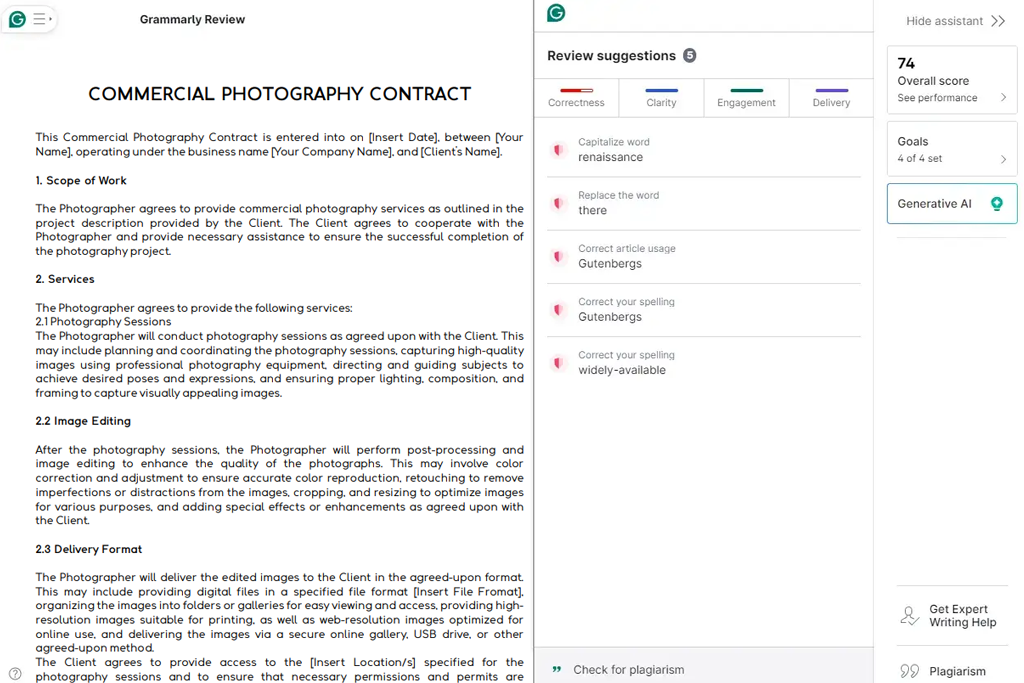
Grammarly is one of the best tools for college projects once you’ve reached the polishing phase. Rather than being used for creating content, it helps improve grammar, clarity, repetition, punctuation, and awkward wording.
Grammarly can be included in a variety of setups, as it provides grammar checking, spelling corrections, clarity recommendations, tone feedback, sentence rewriting, citation-related features, and generative AI functionality. The recommendations pop up automatically while you edit the text, meaning you don't have to copy text into a separate platform.
Grammarly isn’t as important for presentations since they don’t feature lengthy paragraphs. Still, it can help you proofread slide titles, short explanations, and speaker notes to ensure you’re not making any mistakes.
This solution can’t help with the visuals of your college projects, meaning you’ll have to use it in tandem with other tools. Additionally, it can’t evaluate whether your argument is scientifically sound or whether the evidence you use is relevant.
Grammarly shines when it’s time to make the final editing pass. After writing and editing the same paper for hours, previously obvious awkward phrasing can be frustratingly hard to notice, and generative rewriting isn’t always reliable. A smoother sentence isn't always a more precise one, particularly in academic writing where a single altered qualifier can change the whole meaning.
This solution offers a free version for essential checks, while more advanced suggestions and AI tools are offered in subscription plans or provided based on institutional access.
My tip: I finish an entire section before checking out Grammarly's suggestions. Incessant corrections when writing a draft can disrupt your line of thought more than they help.
Pricing: Free basic plan with extra features offered via paid and educational plans.
Platform compatibility: Web, Windows, macOS, iOS, Android
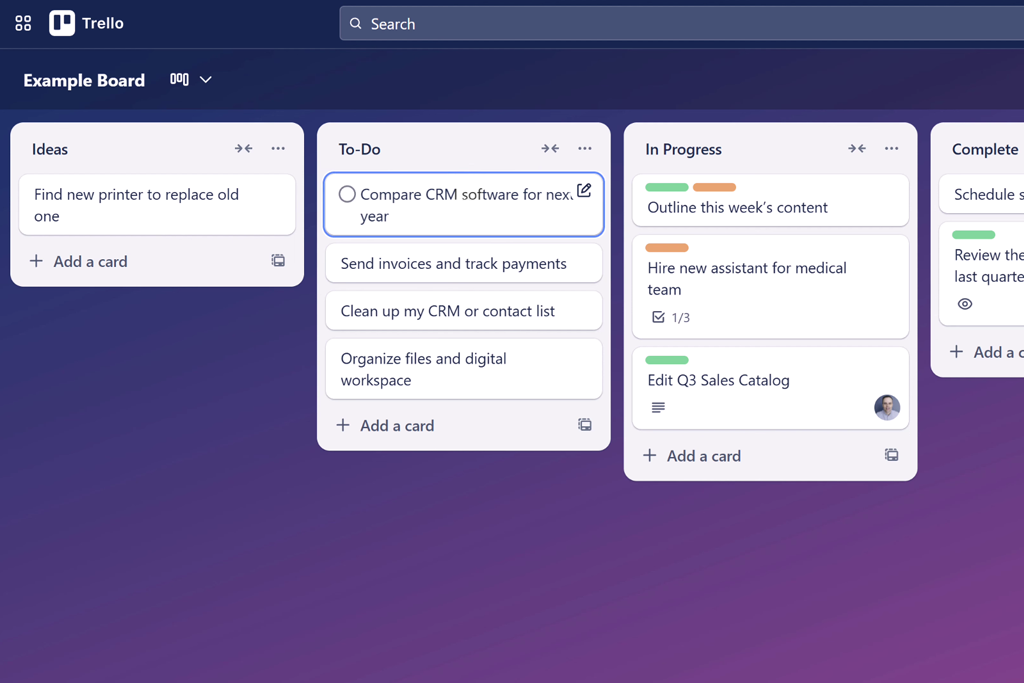
Trello is the last of the college productivity tools I tried, and I was highly impressed by its organizational capabilities.
Whenever I have an elaborate project to deal with, especially if it involves working with other people, I use Trello to prepare task lists, handle assignments, track progress, create checklists, brainstorm ideas, and reach out to other users.
Trello offers a pleasantly intuitive way to handle both project management and team management, which is why it's sometimes even used by university professors.
The card system used by Trello boards is highly flexible, allowing you to use it for a variety of projects without ever feeling lost or confused. It also lets you assign labels and leverage color coding to make it even easier to find different tasks, documents, or files.
While Trello is perfect for project management, it lacks any text editing or generative features found in other solutions, which is why it’s often used alongside other tools.
“If I struggle to figure out the status of the project within 10 seconds of looking at my Trello board, I’ve probably made it too complicated. Simplicity is key to efficient project organization.”

My tip: Add detailed steps to card checklists instead of making ten separate columns. The board will remain readable even as the assignment grows in complexity.
The free plan is sufficient for common personal and small-group college projects, while advanced views, automation, and workspace controls are locked behind premium plans.
Pricing: Free core plan available, with premium tiers for more robust project-management tools.
Trying to find the best tools for college projects required more than a quick glance at different feature lists. I tested more than 40 options with the FixThePhoto team, while putting them through the same three scenarios: a research paper, a group presentation, and a visual marketing project.
Each finalist was tested for:
Multiple handy tools failed to make the final list. Todoist is great at personal planning but isn’t suited for complex projects. Goodnotes can process handwritten notes and offers PDF annotation, and Microsoft 365 was powerful but felt clunky for fast mixed-group collaboration.
Perplexity, Gemini, and ChatGPT are suitable for brainstorming, learning unfamiliar topics, and discovering directions for future research, but they should be treated as supporting tools rather than comprehensive college project solutions.
Additionally, I evaluated the setup time. Tools that demanded a lot of customization before I could begin working received lower scores, particularly if a simpler alternative could perform the same task quicker.
After testing everything, I determined that the best college productivity tools were the ones that managed to cover a specific part of the workflow exceptionally well, whether it was planning, research, presentations, collaboration, or proofreading, instead of trying to handle everything at once.




![7 Best AI Article to Video Generators [100% FREE & ONLINE]](http://fixthephoto.com/blog/images/gallery/news_main__preview_29363.jpg)


![7 Best AI Age Progression Tools in {{%year}} [Tested & Reviewed]](http://fixthephoto.com/blog/images/gallery/news_main__preview_29353.jpg)
![7 Best iPhone Mockup Generators [{{%year}} FixThePhoto Choice]](http://fixthephoto.com/blog/images/gallery/news_main__preview_29335.jpg)



















