
Recording a lecture sounds like a simple task: just press record and listen later. But many students know how hard it actually is to replay a long audio file filled with echoes, background noise, missing parts, or unclear timing.
When you have many subjects, long lectures, online classes, and video calls, staying organized becomes harder than recording itself.
Some apps record clear sound but do a poor job of organizing notes. Others handle notes well but compress audio quality too much. Some apps split long lectures into random pieces, which makes studying frustrating. Many apps also make it difficult to export good-quality audio on Android or Windows.
To find out which apps can truly help students study, we tested them in real classrooms, online lectures, and mixed learning setups. The difference between a good app and a bad one becomes very clear when you are revising for an exam.
| Tool | Audio Quality | Note Features | Best For | Free Plan |
|---|---|---|---|---|
|
High
|
Linked audio notes
|
Students with iPad workflows
|
✔️
|
|
|
Good
|
Document + whiteboard capture
|
Visual learners, board-heavy classes
|
✔️
|
|
|
High
|
Screen + mic + webcam
|
Online classes, Zoom lectures
|
❌
|
|
|
Good
|
Tagging + searchable notes
|
Organized multi-subject students
|
✔️
|
|
|
Good
|
Card-style learning system
|
Revision and micro-notes
|
✔️
|
|
|
High
|
Screen + camera bubbles
|
Visual explanations / tutors
|
✔️
|
|
|
Professional
|
Unlimited scenes & sources
|
Complex hybrid / online courses
|
✔️
|
|
|
High
|
AI transcription, summaries, smart bookmarks, searchable notes
|
Long lectures, seminars, and students who need automatic notes
|
✔️
|
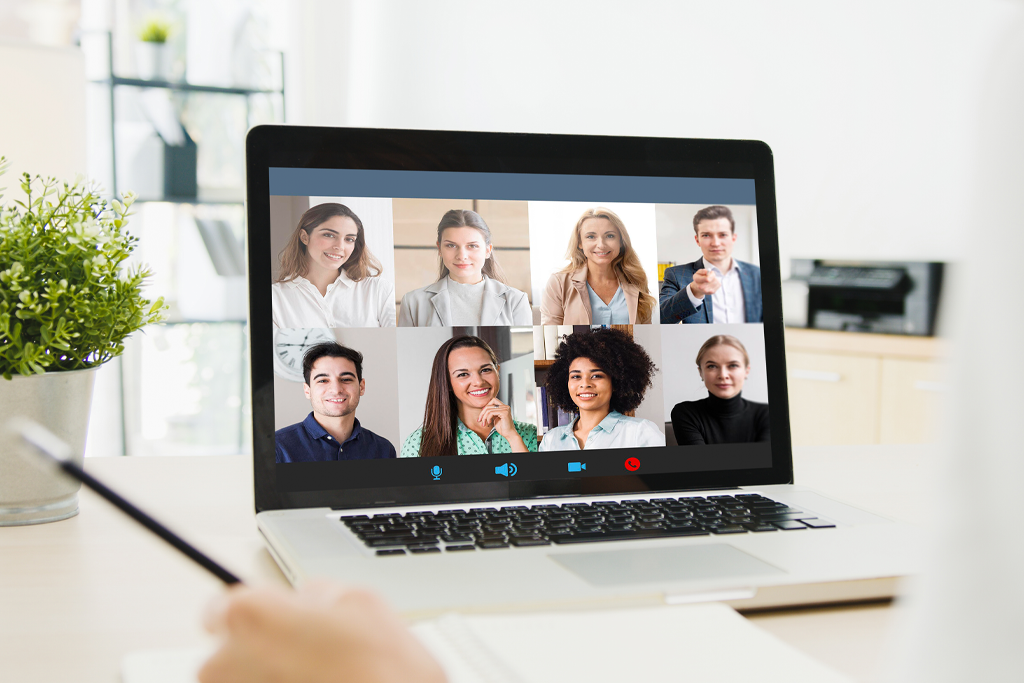
Many students think their lecture recordings turn out badly because the teacher speaks quietly, other students make noise, or the classroom has poor acoustics. After testing different recording apps during real lectures, it became clear that this is usually not the main problem. Most recording issues happen because of wrong app settings, unstable ways of recording, or messy workflows, not because of the room.
Even high-quality free screen recording software can create useless recordings if they are not set up properly. The difference between apps becomes clear when students listen to their recordings again during the revision sessions. Some recordings sound clear and complete, while others are quiet, unclear, or stop suddenly before the lecture ends.
Below are the most common problems we noticed, along with simple ways to prevent them:


Price: Free + Premium $20 per year
Compatibility: iOS, iPadOS
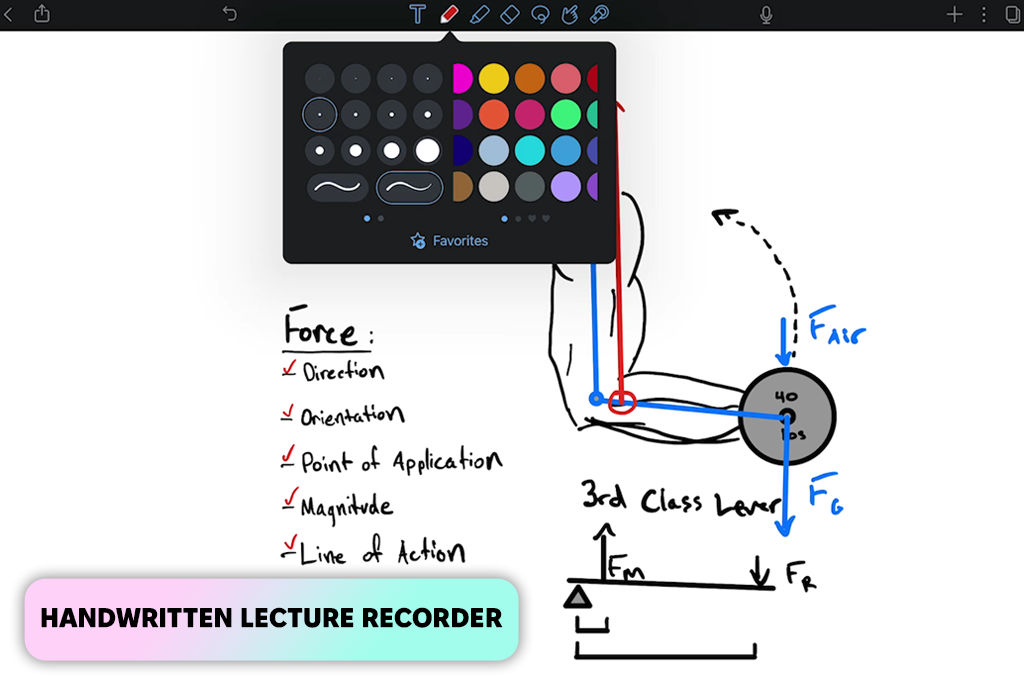
I tried Notability cos I needed a way to record long theory lectures without dealing with many separate audio files. What stood out right away was how the notes connect to the timeline. Every word I wrote by hand was linked to the exact moment in the lecture when it was said. This made studying later much faster and easier to follow. Notability also works very well as a note-taking app for students who want neat, organized notes that stay synced across devices.
While testing it in large lecture halls, Notability worked better than I expected. Even with echoes and background sounds, the recording was clear enough to understand difficult explanations. The app synced instantly between devices, so I could start revising on my iPad and continue on my phone without saving or sending files myself.
Compared to other apps, Notability felt more like a serious university tool than a basic recorder. If you use handwritten notes, draw diagrams, and care about matching notes with exact moments in the lecture, this lecture recording app stays reliable and smooth, which is crucial for the exam prep period.
“Before each class, I set up a blank page with the lecture topic and a few main questions. This helps Notability connect the audio to clear notes and makes studying later much simpler.”

Price: Free
Compatibility: iOS, Android
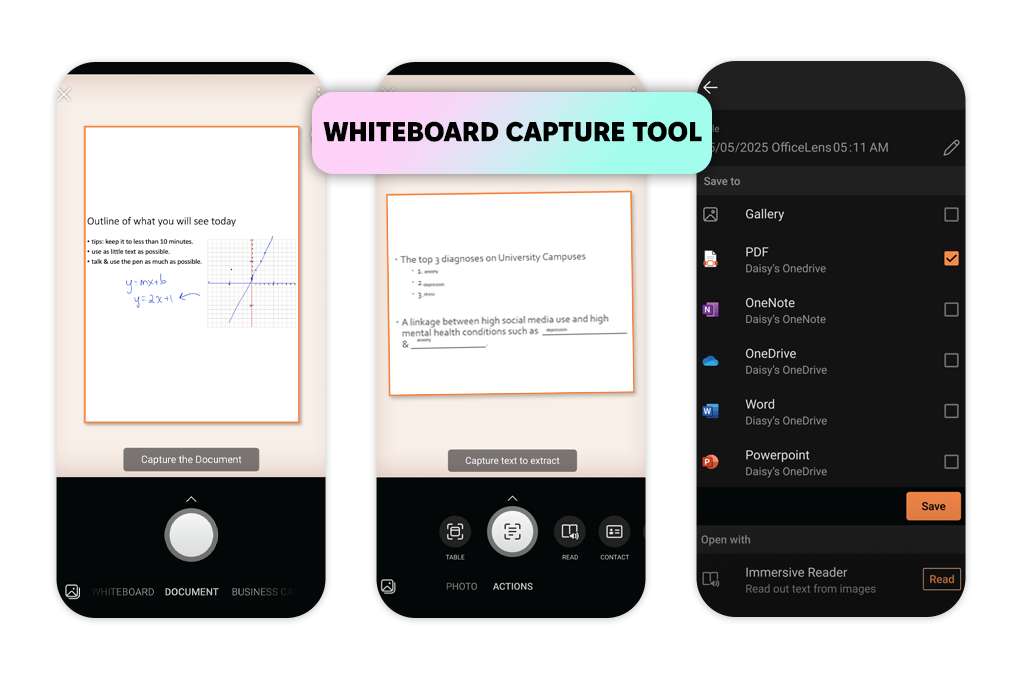
I started using Microsoft Lens in classes where teachers filled the board with equations, charts, or step-by-step explanations. Instead of taking blurry photos, Lens fixed the image automatically. It straightened the picture, improved the lighting, and removed shine from the board, giving me clear images that were easier to read than what I saw during the class.
During testing, Lens worked well even in dark rooms or when I was sitting off to the side. I could also add short voice notes to each image, which helped link the board content to what the teacher was saying. For subjects like math, engineering, or chemistry, this method was more useful than recording the entire lecture.
Lens is not meant for long lectures that last over an hour and a half, but it is excellent for saving clear board work during fast lessons. If your classes focus more on diagrams than talking, Lens is one of the most practical tools to use.
Price:
Compatibility: Windows, macOS
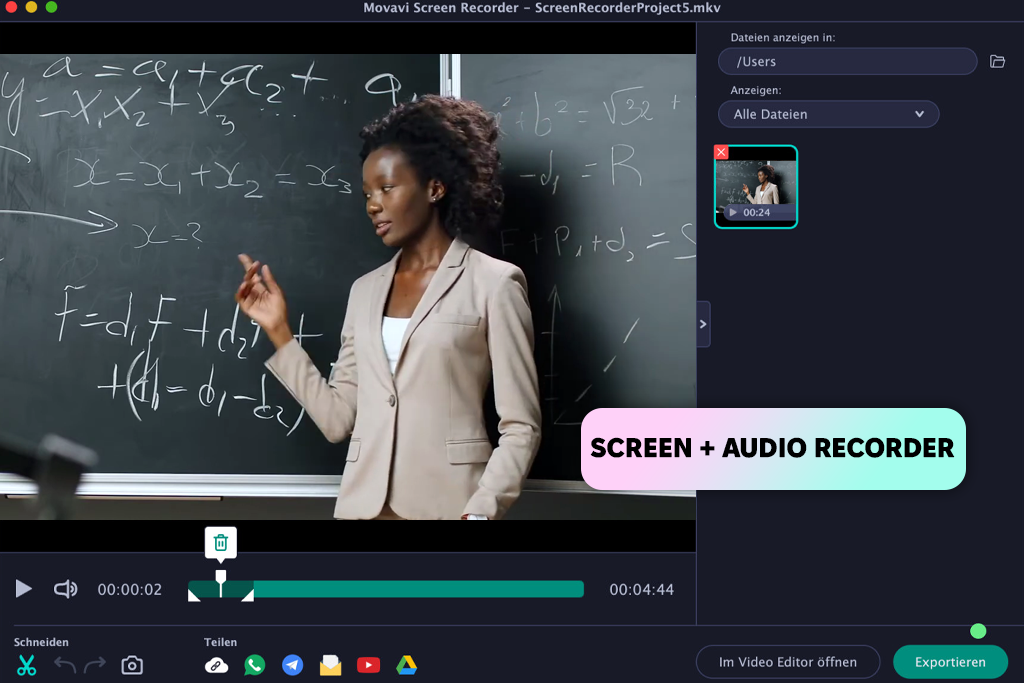
Movavi Screen Recorder became my main choice for online and mixed classes where teachers shared slides, websites, or software. Instead of recording sound only, Movavi captures the full lesson, including the screen, the teacher’s voice, and even your own comments. Watching the recording later feels close to attending the class again.
In testing, the lecture recording app stayed steady during long Zoom and Google Meet sessions. The sound and video stayed matched, and quiet explanations were still easy to hear. Saving the recordings as MP4 files was fast, and the file sizes were small enough to keep lectures from the whole semester.
Movavi works best for students who depend on visuals (such as those studying design, coding, architecture, or units where what happens on the screen matters just as much as what the tutor is saying). When comparing Movavi Screen Recorder vs Bandicam, Movavi was easier to use. It handled long lectures with better sound and timing, making it more suitable for schoolwork.
Price:
Compatibility: Windows, macOS, iOS, Android
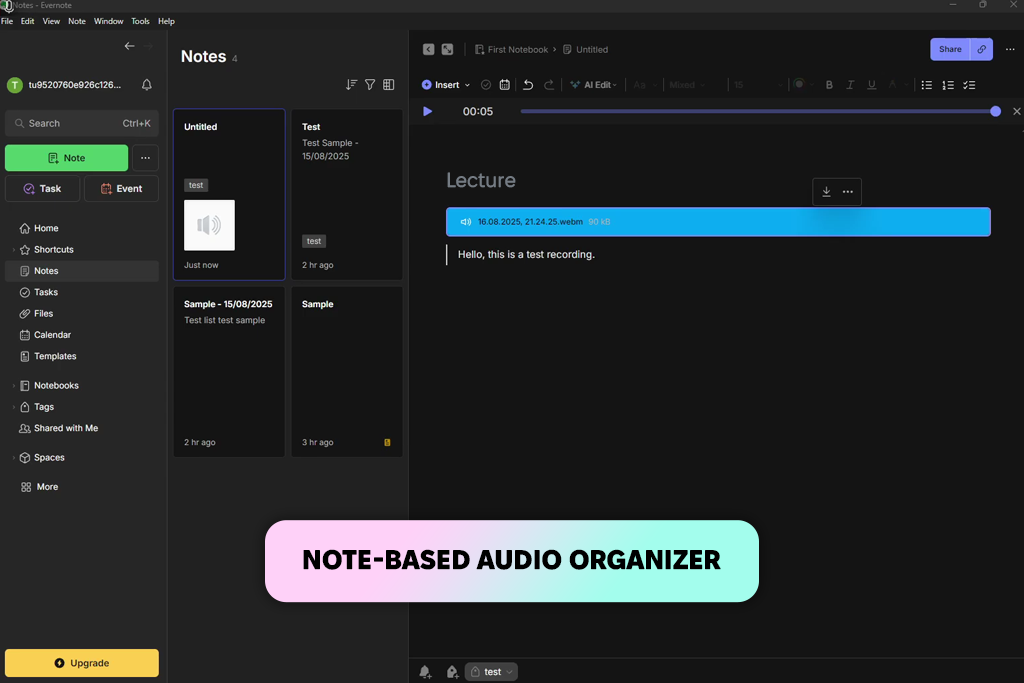
Evernote focuses less on recording lectures and more on keeping all your school material organized in one place. It is useful when you study several subjects and need to connect notes, short audio clips, and ideas in a clear system. With tags, notebooks, and syncing, Evernote feels more like a digital study library than a recording app.
During testing, Evernote helped most with subjects that needed clear summaries and layered explanations. I could record a short voice note for one idea, attach it to written notes, and tag it by topic. The search tool, especially for handwritten notes, saved a lot of time during exam periods.
Evernote is not the best app if you only want to record lectures, but it becomes very useful when organization is the main goal. If your semester includes many subjects, assignments, and connected topics, Evernote offers a structure that simple lecture audio recording apps cannot provide.
“I tag my notes by exam topic instead of by date. This turns Evernote into a ready-made study guide when final exams are approaching”

Price:
Compatibility: Web, Windows, macOS, iOS, Android
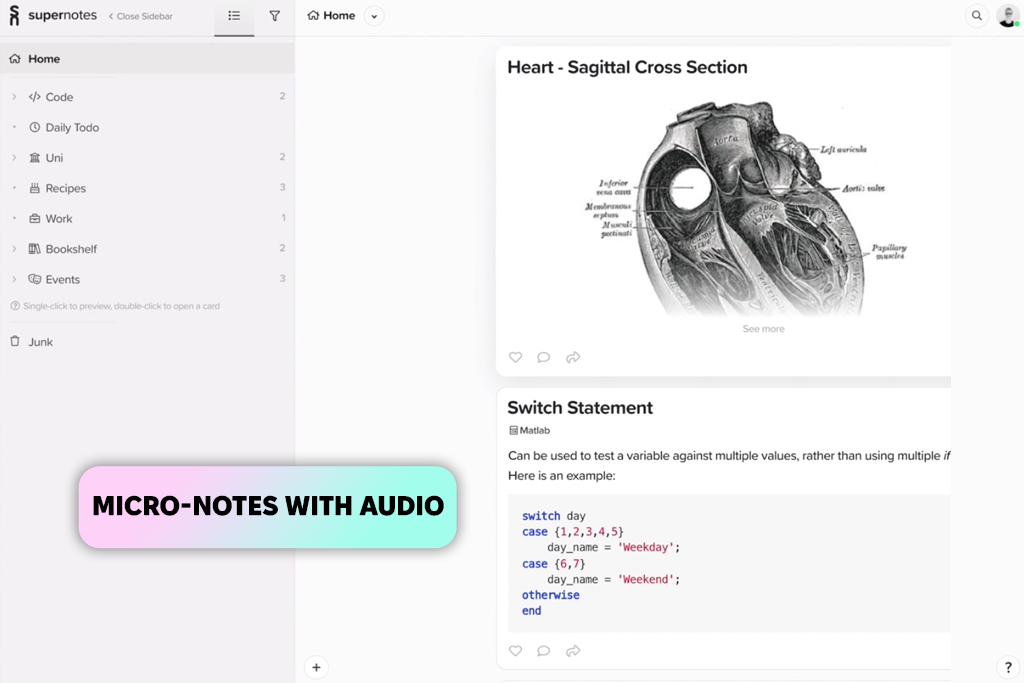
Supernotes takes a very different approach when it comes to recording lectures. Instead of saving long audio files, the app lets you create small digital cards, which hold a short voice clip and the main idea. This setup pushes you to focus on key points and turns recordings into clear study pieces instead of long files that are challenging to review. It works best for subjects where understanding ideas is more important than listening to long monologues.
While testing Supernotes, it worked especially well in quick-moving classes. When teachers shared definitions, formulas, or short examples one after another, I could make a new card for each idea and add a short voice note. This made the material easier to review later without sorting through hours of audio.
For subjects that rely on drawings or diagrams, using Supernotes together with a mobile scanner app helps a lot. You can scan board drawings or sketches and attach them directly to the cards, which builds a stronger and more complete study set.
Supernotes is not made for recording full lectures from start to finish, but it is excellent for clearly organizing study material. If you learn best through short notes and repeated review, this app fits that style better than standard lecture recording tools.
Price:
Compatibility: Windows, macOS, iOS, Chrome
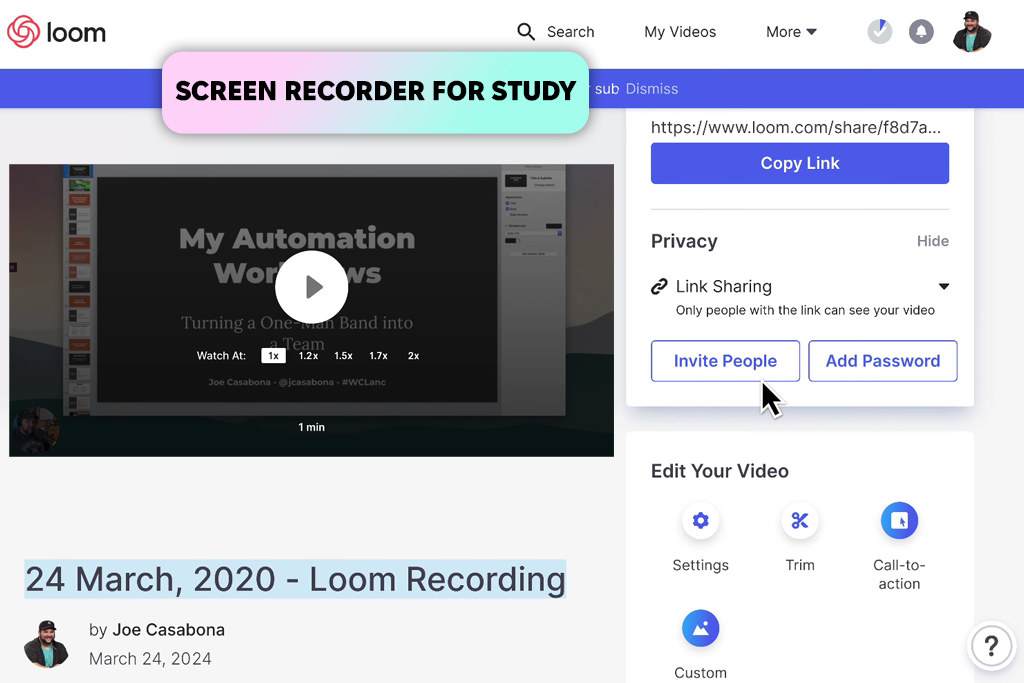
Loom records your screen and shows your webcam video at the same time, which makes it useful for going over slides, reviewing lessons, or explaining topics to classmates. The simple one-click recording is helpful when you need to quickly review a difficult subject.
During testing, Loom produced some of the clearest screen recordings compared to other tools. Whether recording slides, online lessons, or software demonstrations, the videos stayed sharp and easy to follow. The recordings are uploaded to the cloud right away, which makes sharing notes or organizing them into folders simple.
Loom is a good choice for students who learn better through visuals, online tutoring, and classes where images and slides matter more than long spoken lectures. It is also useful for creating your own study videos (like short summaries, step-by-step problem explanations, or personal review clips) that are helpful before exams.
Price: Free
Compatibility: Windows, macOS, Linux
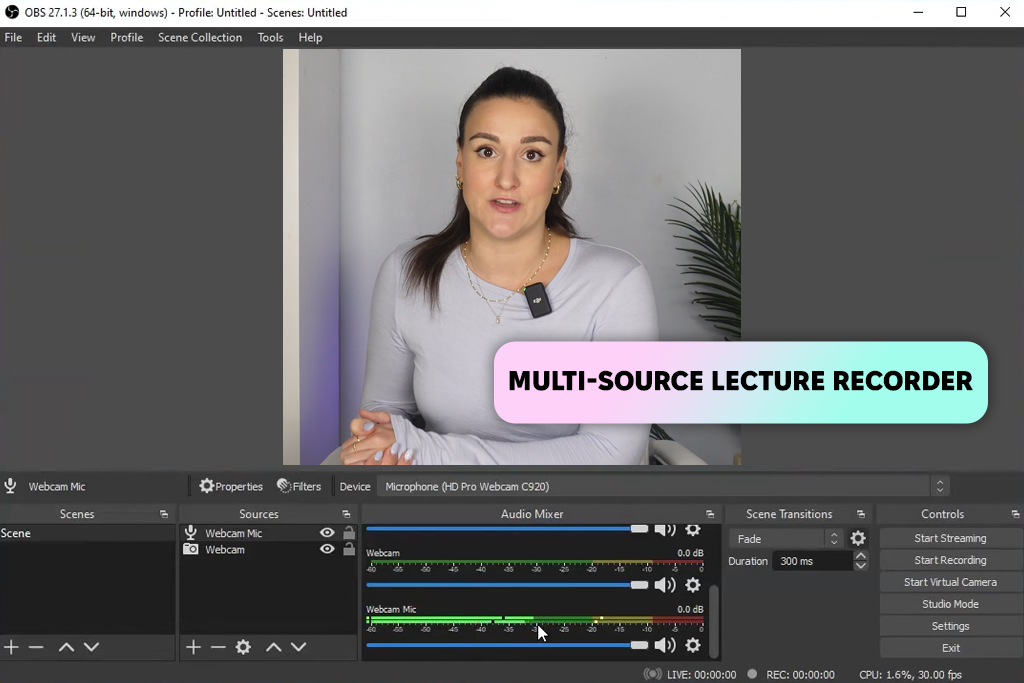
OBS Studio is the most advanced lecture recording tool on this list. It is often used by streamers and teachers, but its strength comes from recording many sources at once, such as your screen, webcam, microphone, and slides. This makes OBS more like a full lecture capture system than a basic recorder, and it performs better than many HD screen recorders that struggle with complex setups.
In testing, OBS recorded sessions that lasted several hours without slowing down or losing audio sync. It handled everything from dual screens and browser tabs to high-quality slides smoothly. Compared to mobile lecture recording apps, OBS keeps much more detail in both sound and video, which matters for technical subjects.
OBS is best for students in challenging fields like engineering, programming, media, architecture, and digital design. The main drawback is that it can feel heavy on older laptops, and beginners may face issues if settings are wrong, such as recording the wrong screen, missing audio, or creating very large files.
“I set up different OBS scenes for each subject, such as slides, board view, and a screen with notes. This lets me switch layouts quickly and keep recordings neat and well organized.”

Price: Free or from $19/mo
Compatibility: Web, iOS, Android
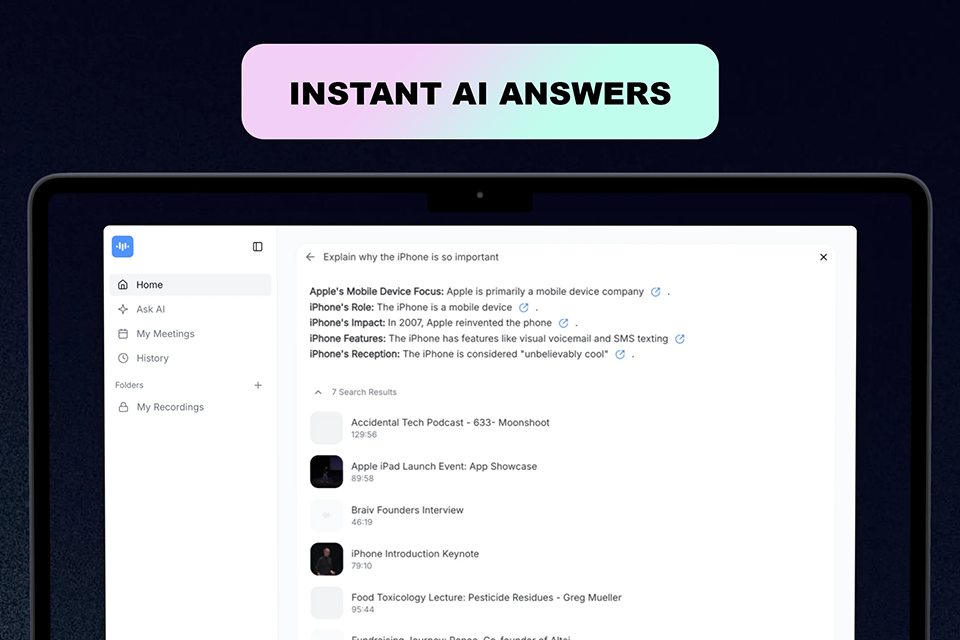
I could easily capture an entire lesson using ScreenApp without worrying about time constraints or omitting crucial information. Shortly after I stopped recording, this lecture recording app produced structured notes, divided speakers, and produced a searchable transcript. Instead of attempting to jot down every explanation, example, and important term in real time, I could concentrate on the lecture.
The option to ask questions about the recorded content, automatic summaries, smart bookmarks, and noise reduction were particularly appealing to me. I could begin recording on one device and then examine the transcript, notes, and highlighted moments from my laptop thanks to the cloud sync.
To make sure the rankings matched real study situations, the FixThePhoto team tested every lecture recording app using the same step-by-step process.
The goal was to see how the apps worked during real classes, not flawless demo conditions.
As part of the testing, the team checked how each app performed during long recordings, changing sound levels, and fast note-taking moments that students deal with every day.
Each app was tested in three main situations:
The main focus was on practical use: clear sound, stable files, easy naming, accurate timestamps, and how well apps handled background noise and sudden volume changes. Recording quality was tested using different microphones, battery settings, and phone or desk placements to find problems in use.
The team also reviewed how well each lecture recording app handled organization, such as syncing files, linking notes to audio, and how fast recordings could be reviewed before exams. Apps that failed during long lectures, lost audio, broke timestamps, or produced unstable files were removed.
Tools that did not meet the standards included basic phone recorders, outdated free apps, and simple screen capture extensions that didn't have proper audio support. Only apps that worked consistently in real student conditions were included in the final list.
Yes, but only apps with strong audio settings work well in rooms with echo. Notability, Movavi, and OBS Studio performed best in these conditions.
Yes. OBS Studio, Loom Starter, and several free screen recording apps with no watermark allow clean recordings without logos.
Movavi Screen Recorder works best for Zoom, Google Meet, and Microsoft Teams because it captures screen content, system sound, and microphone audio at the same time.
Most universities allow recordings for personal study, but the rules are different for each course. It’s always best to check the class policy or ask the teacher first.
Microsoft Lens is a good choice for saving handwritten notes, formulas, and diagrams. Adding short voice notes helps explain what the teacher was saying.
OBS takes some time to learn, but once the scenes and audio sources are set up, it can become more dependable than mobile recording apps.
Audio-only recording lecture apps take up little space, while screen recording apps use more storage(especially if recording is high quality). Movavi and OBS both include options to reduce file size and save space.



![13 Best AI Character Generators [Free & Easy-to-Use]](http://fixthephoto.com/blog/images/gallery/news_main__preview_28476.jpg)

![5 Best Free JPEG to JPG Converters [Without Watermarks]](http://fixthephoto.com/blog/images/gallery/news_main__preview_28485.jpg)
![8 Best AI ASMR Video Generators in {{%year}} [100% WORKING]](http://fixthephoto.com/blog/images/gallery/news_main__preview_28804.jpg)
![13 Best AI YouTube Shorts Generators [+BONUS]](http://fixthephoto.com/blog/images/gallery/news_main__preview_28463.jpg)



















