Most users who look for a “WFP to MP4 converter” online ordinarily want to ensure their Filmora project can be easily played and shared. MP4 is one of the industry-standard formats, while WFP isn’t supported by many players, messengers, and browsers. I experienced this issue myself once. Having exported my video from Filmora, I tried sharing it only to discover that WFP isn’t even a video format. It’s simply a project file made by Filmora that contains the timelines, effects, and links to media, but not actual video data.
This is why you can’t find an online WFP to MP4 converter. Filmora is the only software that can read and play WFP files, and it can’t be replaced with a web platform. Your only solution is to open the WFP project in Filmora and export it in MP4 format. Once you know this, you don’t have to worry about anything else. Now let’s talk about what you can and can’t do when exporting files in Filmora and how to get the result you need without messing around with fake tools that promise you can convert WFP to MP4 online.
Web-based converters function in a very straightforward manner: you import a file that includes the video and audio data, and the platform re-encodes that data into a different format, like MP4. This is why people often use such tools to convert their files to MP4, AVI, MOV, or MKV without using any other software, since all the visual and audio data is already included inside.
A WFP file is an entirely different story. It’s completely devoid of any video or audio data. In reality, it’s Filmora video editor’s project file that only contains editing instructions: the timeline status, VFX, transitions, and links to the original files on your device. Even if you import a WFP project to a service that claims it’s a free WFP to MP4 converter, nothing will happen since the server has no data to process.
It’s also worth noting that WFP files utilize Filmora’s rendering engine. Only Filmora knows how to interpret the project data correctly, add effects, and render the final video. Online platforms can’t access Filmora’s software or its project-processing logic, meaning you can’t actually convert your Filmora WFP file to MP4 in a browser.
As such, every time you see someone marketing an online “WFP to MP4 converters,” you're actually looking at a platform that will:
Summarizing, there is no actual online WFP to MP4 converter. Since WFP isn’t a video format, the only method for receiving an MP4 is to open your project in Filmora and export it directly.
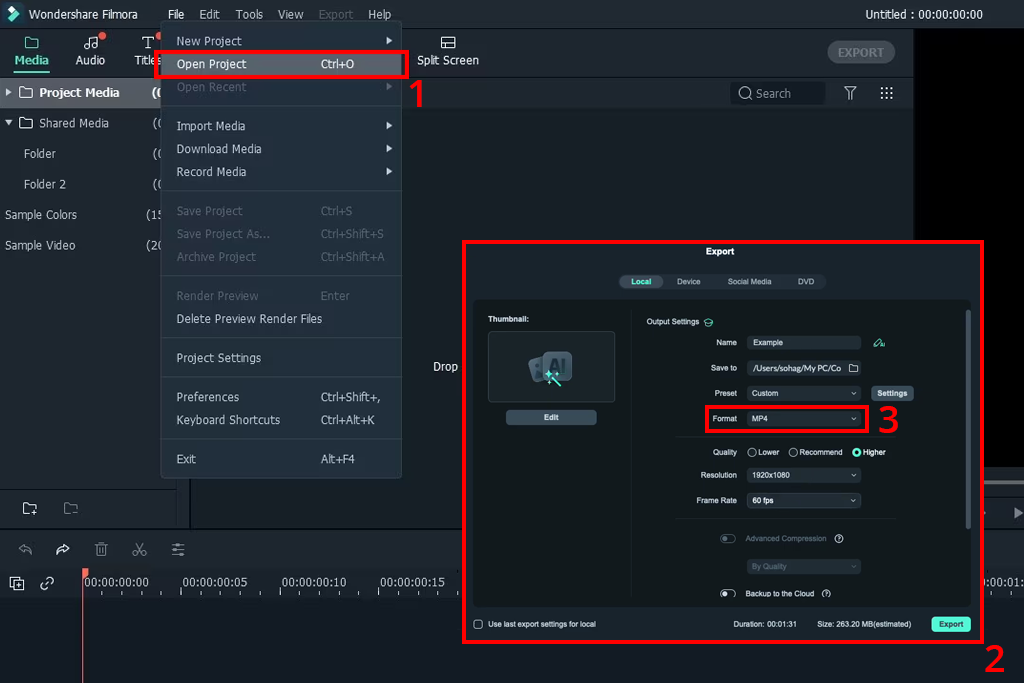
In my experience, saving your project in the desired format straight in Filmora is the only correct and dependable method for turning a WFP file into an MP4 file. Since WFP is Filmora’s native format, the software already has all the data it needs to render the effects, transitions, captions, and audio as intended.
I follow this algorithm:
As a result, you’ll receive a proper, shareable video file that can be played or embedded on most platforms while offering a good mix of size and quality.
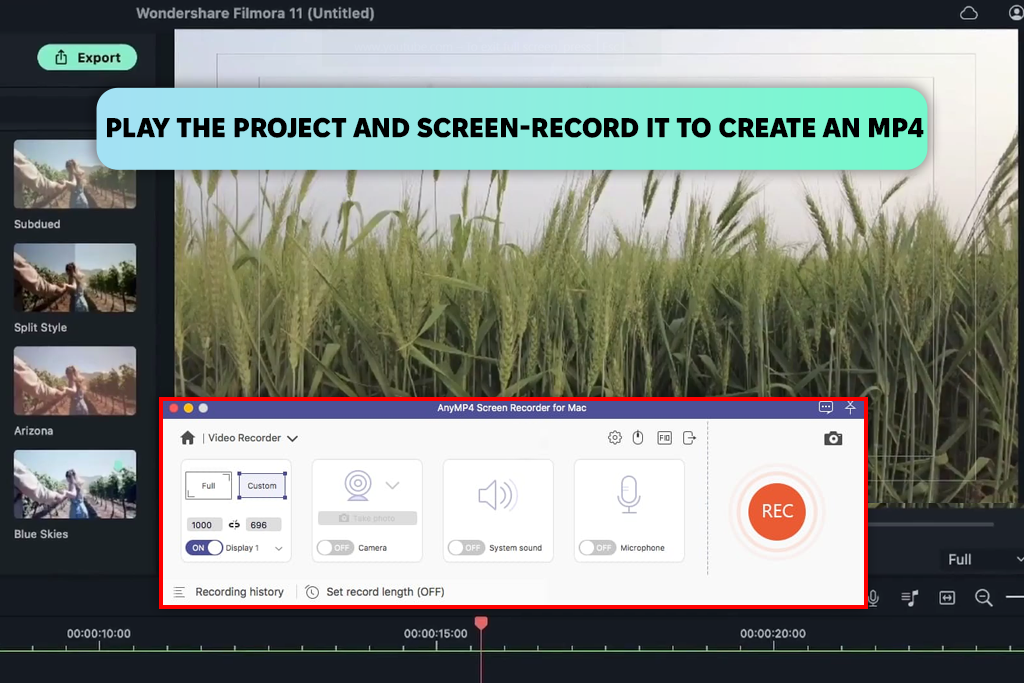
If you don’t have the option to export the project from Filmora, and since there’s no other WFP to MP4 software out there, you can only play the project and screen-capture it to create an MP4. This process doesn’t really allow you to convert WFP to MP4 since it’s only recording what is displayed on the screen, but it’s better than nothing. I once had to resort to this method when I couldn’t access the correct Filmora version or wanted to make a quick preview video.
Doing so is very simple: open the WFP project in Filmora, play it in full screen, and capture the playback using any free screen recording software you like.
Widely used solutions include:
I should also mention that if you’re using Filmora without a premium license, saving a WFP in MP4 will apply a watermark. If you can’t get the premium version, then screen capture is the best method you can use to avoid having a watermark added to your video. The downside is that screen-recorded videos often have lower quality and audio compared to proper export.
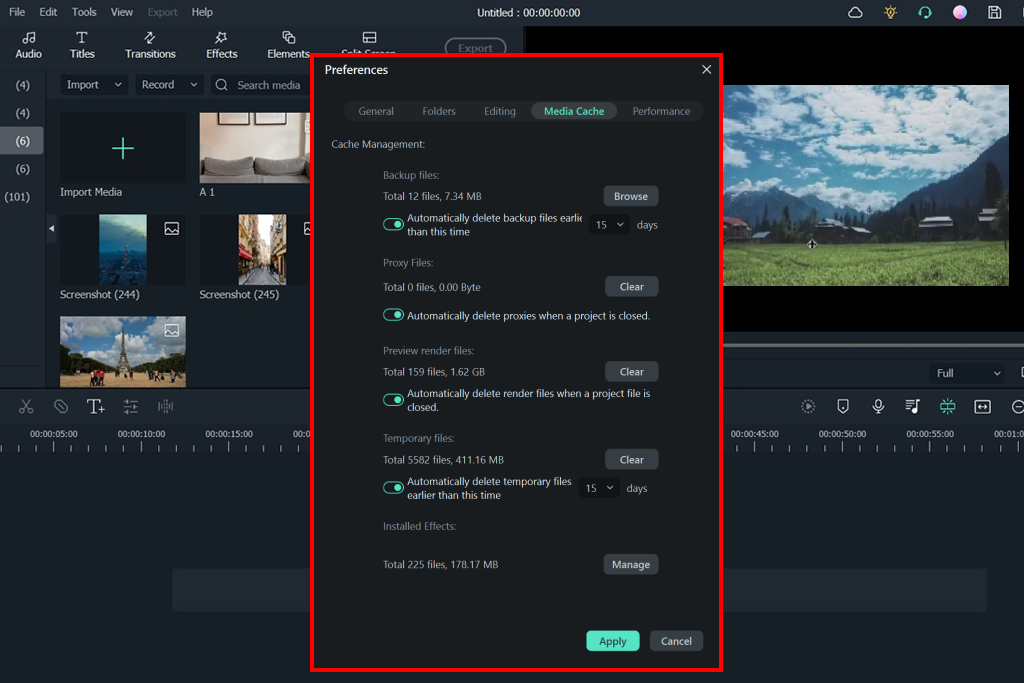
If you want to learn how to convert WFP to MP4, and if you can't currently access Filmora, you can try looking for your cached previews or previously exported clips. Filmora tends to have a folder for temporary preview files that are created as you work on a project, as well as some of your previous exports. Such files are saved in video format, meaning you can convert them to MP4 without having to deal with WFP data.
Here’s my approach to such situations:
This approach only allows you to bypass the need for a free WFP to MP4 converter if the preview or export files exist. If you have never rendered your project, this won't help. If you do find them, the quality might be a tad lower compared to a properly exported version, particularly if the cached files have a lower resolution. This is a solid option for emergency cases or situations when you can't launch Filmora for some reason.
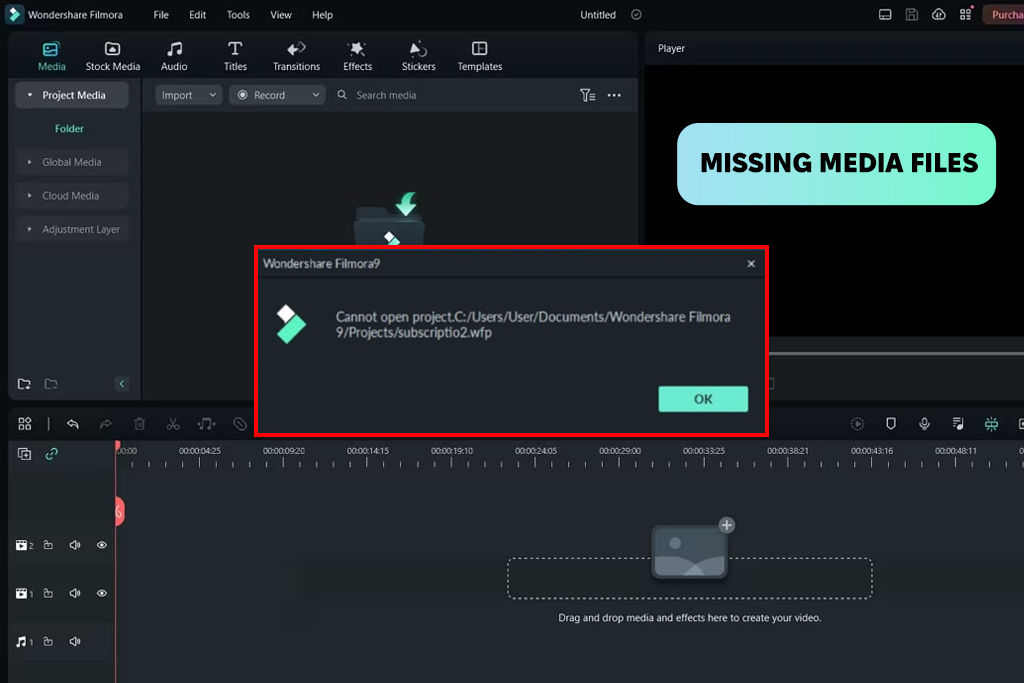
In my experience, even when you're using Filmora to make a WFP to MP4 export, you can still suffer from multiple problems. Check out this rundown of popular issues and the solutions to them:
Practical Tips:
By accounting for all these problems and working around them, you’ll ensure the process of exporting WFP files to MP4 is smooth and efficient.
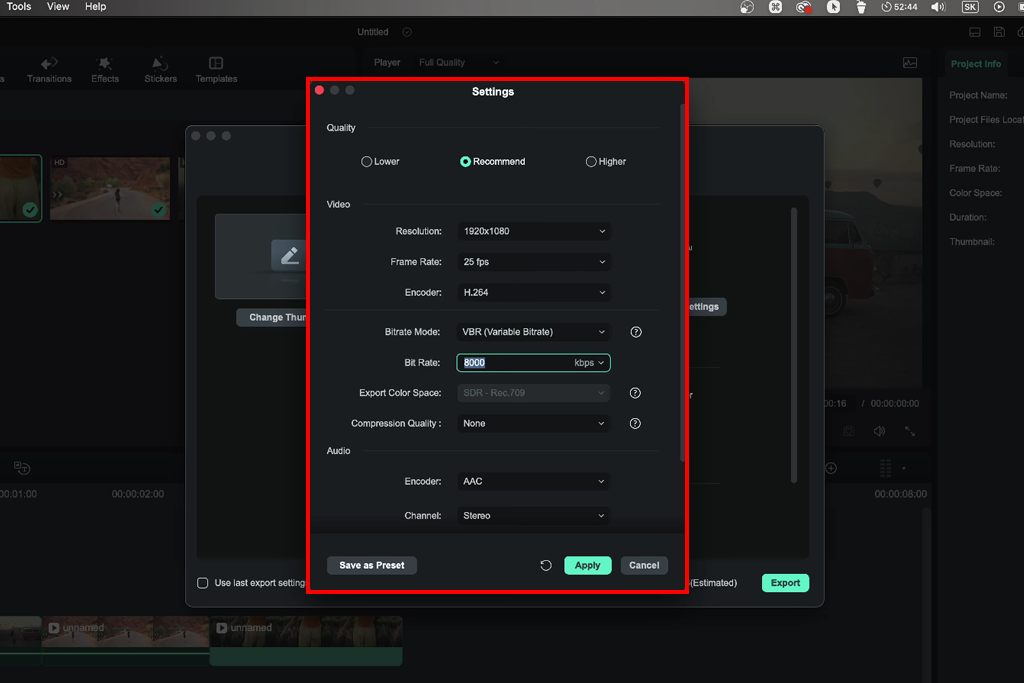
I believe that exporting a WFP file to MP4 is a bit more complicated than simply clicking on “Export.” Being mindful of the parameters you choose will help you guarantee the result looks professional, plays smoothly, and doesn’t lose quality. My colleagues at FixThePhoto and I use the following settings:
1. Recommended Resolution, Frame Rate, and Codec
2. Bitrate Tips for YouTube, Instagram, and Storage
3. How to Prevent Unwanted Re-Compression
By adhering to these recommendations, you'll manage to easily save your WFP projects as clean, high-quality MP4s that you can upload to YouTube, social media, or employ for professional projects, without struggling with multiple exports or dealing with quality loss.
Extra Tip: Having exported your WFP project as an MP4 file, you can open it in Premiere Pro to enhance it even further. It's perfect for performing color grading, improving the audio, adding motion graphics, or transitions before sharing the result on the desired platform or delivering it to your client.

No. File converter software can only recognize files with actual video or audio streams. A WFP file is a Filmora project file, and it only contains timelines, effects, and references to media, but not the video footage. Only Filmora can be used for viewing and rendering WFP files.
No. We tested some platforms that promised that they can be used as WFP to MP4 tools, but they turned out to be misleading. The only “free” method is to use Filmora itself, but without a premium license, the exported MP4 will have a watermark.
Yes. WFP files can be version-specific since each Filmora edition can come with new effects or tools. Newer versions can ordinarily open older files, but older versions frequently struggle to open newer WFPs or can swap out unsupported effects.
Sadly, in this case, your WFP project won’t be able to render a proper MP4. WFP only contains links to your media, so if you’re missing video footage or audio, they won’t be included in the export. That’s why it’s essential to keep all source files in a single folder.
Typical reasons include missing source files, incorrect software version, or corrupted data. Ensure all files are accessible and you have a compatible Filmora version.
You’ll have to share both the WFP file and all related source files. Otherwise, the second user will receive missing media notifications and will be unable to export their WFP video to MP4 properly.



![7 Best AI Background Generators [Real Tests]](http://fixthephoto.com/blog/images/gallery/news_main__preview_28187.jpg)


![Stable Diffusion Alternatives [1 Prompt – 9 Competitors]](http://fixthephoto.com/blog/images/gallery/news_main__preview_28384.jpg)
![9 Best AI News Generators [{{%year}} FixThePhoto Choice]](http://fixthephoto.com/blog/images/gallery/news_main__preview_28524.jpg)
![Remove Logo From Clothes AI App [FREE]](http://fixthephoto.com/blog/images/gallery/news_main__preview_27732.png)
![7 Best AI Handshake Video Generators [{{%year}} FixThePhoto Choice]](http://fixthephoto.com/blog/images/gallery/news_main__preview_28493.jpg)

















