

About a month ago, I posted a little video on Instagram that featured me shaking hands with several celebrities. It looked so realistic that many of my followers wondered how I created it and which AI handshake video generator I used. Wanting to provide a satisfying answer, I decided to do some research and find the best platform that I could confidently recommend to my audience.
To ensure this overview is as unbiased as possible, I asked the FixThePhoto team to help me test 30+ AI handshake video makers. We dedicated several weeks to testing the realism, functionality, creative control, and speed to determine which tools could provide a natural-looking result while being convenient to use for both beginners and professionals.
If you’re unfamiliar with such solutions, they utilize AI to simulate a handshake between two people by combining several clips or creating a new one from scratch.
AI tools for handshake videos rely on a database of existing footage that features different body motions, gestures, and perspectives to generate seamless interactions, allowing you to receive realistic clips that you can use for marketing, social media, or creative projects.
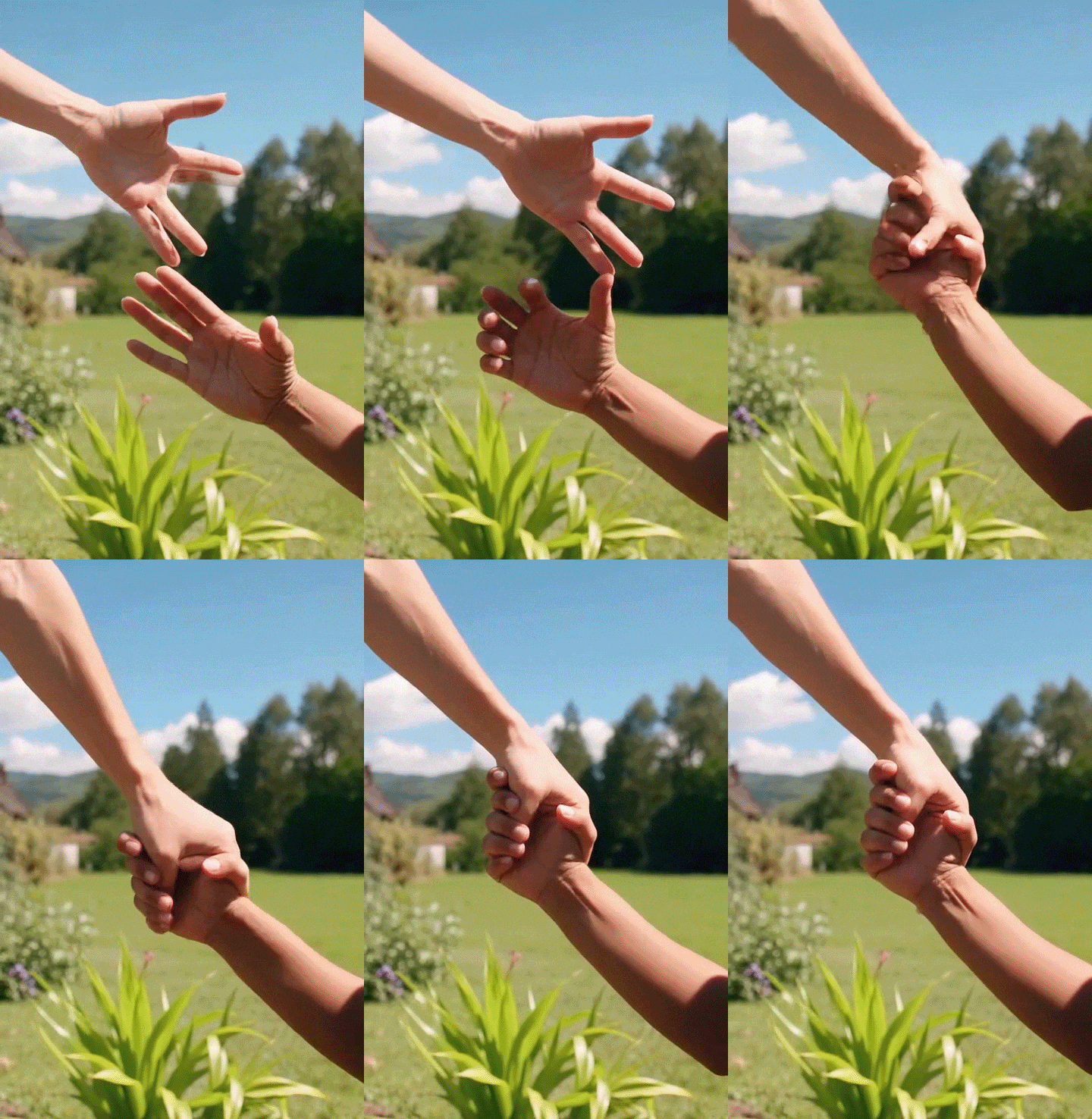
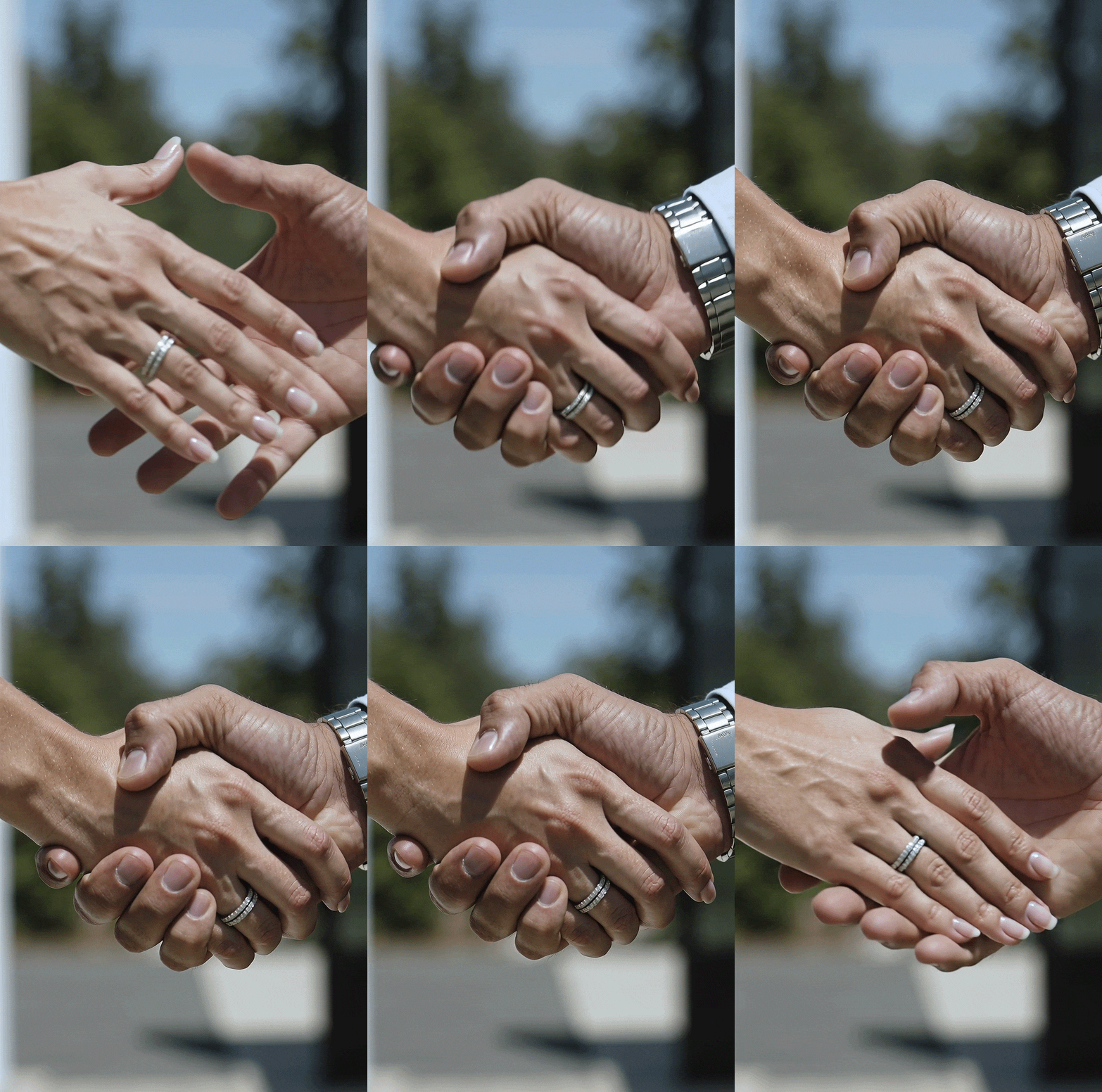
Many people get excited when they discover a free AI handshake video generator and don’t take the time to learn how it works. If you import a low-res or poorly-lit clip, you’re very likely to get unrealistic results with misaligned hand gestures or distorted facial expressions. It’s recommended to use clean, high-resolution footage, particularly if you’re combining your video with someone else’s.
Users also forget to take reference angles into account. The hand position, lighting, and angle need to approximately match the clip you’re going to combine it with. Otherwise, the handshake will look awkward, as one person might look like they’re standing too close or too far away. I tend to film multiple takes from different angles before picking the most natural alignment with the generated model.
Another mistake users make is never changing the default parameters. Most platforms offer sliders for adjusting the movement smoothness, lighting, or blending intensity, but some people completely ignore them. Dedicating a couple of extra minutes to tweaking these parameters can be the difference between an offensively artificial handshake and one that looks realistic.
On the opposite spectrum of those who ignore all settings are the users who tend to over-edit the video. After generating the clip, some people apply too many filters, transitions, or effects to “improve” realism, while achieving the opposite result. Keep the editing to a minimum, focusing on tasteful color correction and stabilization to preserve the realism of the movement.
It’s also important to remember about privacy and copyright concerns. When featuring someone’s likeness, even for a fun video, you need to have the right to use their image. AI platforms can tempt you to do whatever you want, but ethical use is important. I suggest sticking to royalty-free models or creating synthetic characters rather than featuring real public figures unless you have permission.
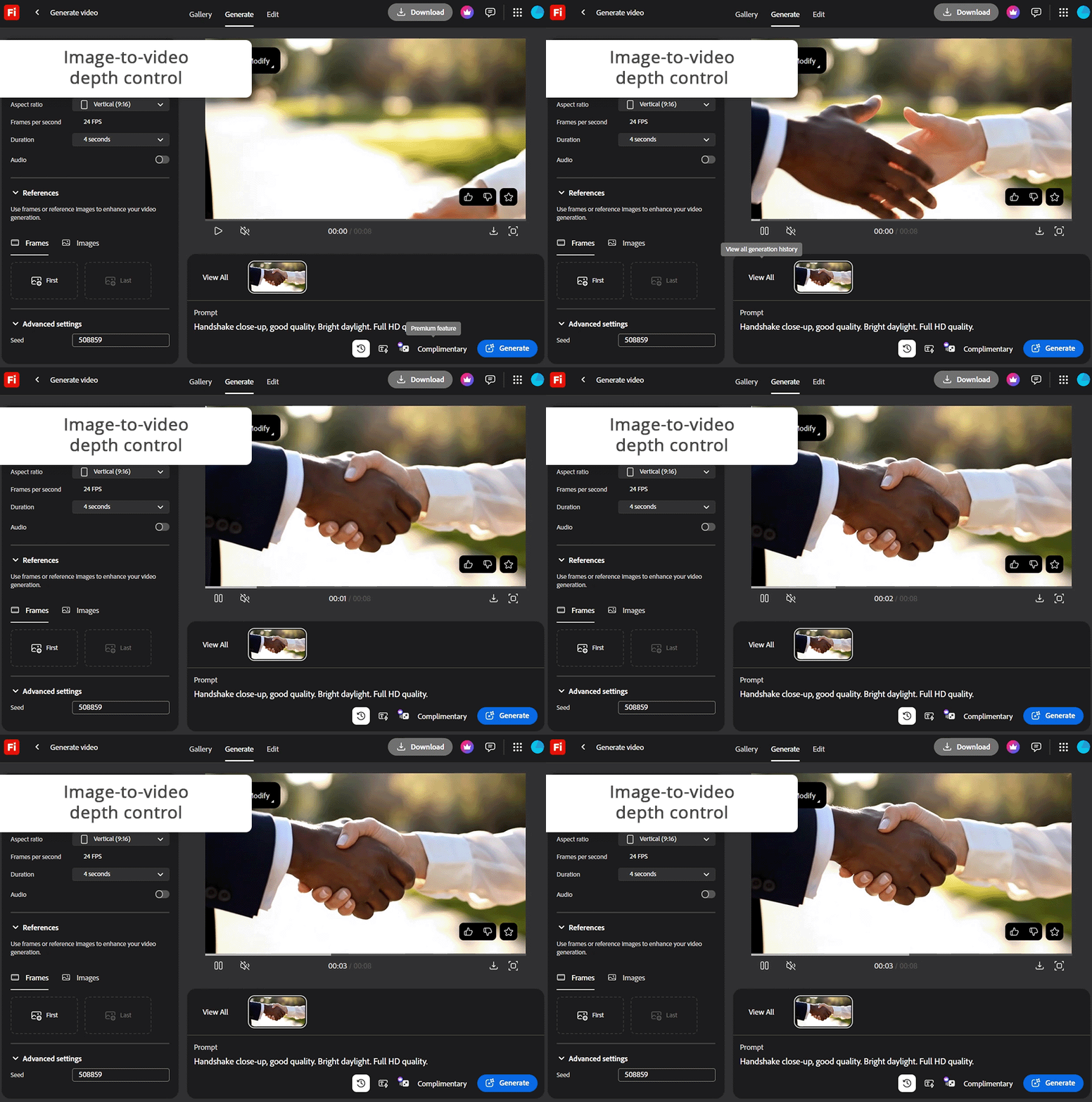
Adobe software is a mainstay on my PC, so I wanted to check how the Firefly video model would produce a handshake video. I began by importing a photo of myself with an outstretched hand and combined it with a basic prompt: “two people shaking hands in natural light.”
After just a couple of minutes, Firefly generated a fluid, natural result. The movement looked smooth, and the lighting remained consistent across the entire clip, which can be an issue with other solutions.
My decision to crown Firefly as the best AI handshake creator came after trying its image-to-video feature to transform a 2D render into an animated 3D project with simulated depth. It not only added the necessary perspective to make the handshake look dynamic but also simulated the facial expressions and avoided the common uncanny valley impression, which many AI tools suffer from.
Even though the UI offers an aesthetically pleasing layout, finding and tweaking some settings can be a bit time-consuming, as you try to strike a balance between expressive movement and realism. Additionally, as Firefily is still actively developing its AI motion model, the hand motion can sometimes look off, particularly in profile angles.
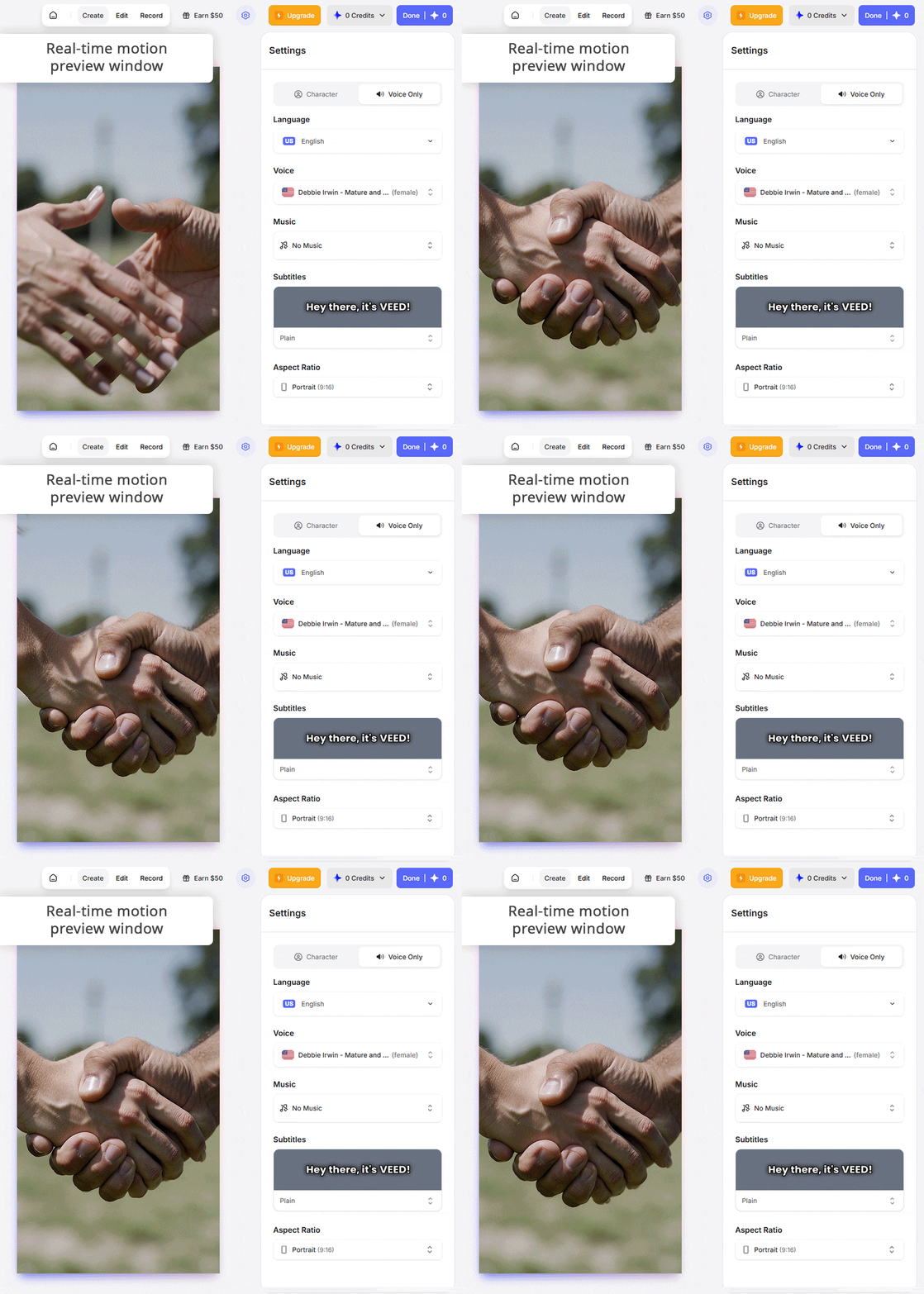
My coworker Robin constantly relies on VEED to tackle all kinds of projects, so she suggested I try it for AI-generated handshake videos. I imported a picture of myself with an extended hand and wrote a prompt mentioning a casual handshake with smooth camera motion. After just two minutes, VEED delivered a brief clip that looked natural and professional.
The AI identified my hand and generated movement that aligned with the angle of my body, ensuring everything looked natural and properly proportioned. Afterward, I started applying different effects, including a soft backdrop blur and a subtle zoom-in. VEED also allowed me to choose between different handshake styles, add audio effects, or tweak the movement speed.
The main drawback I noticed is the overly elastic motion that appears if the motion intensity is set too high. The export speed can also be rather inconsistent, as VEED’s performance depends on the chosen style and the number of applied effects.
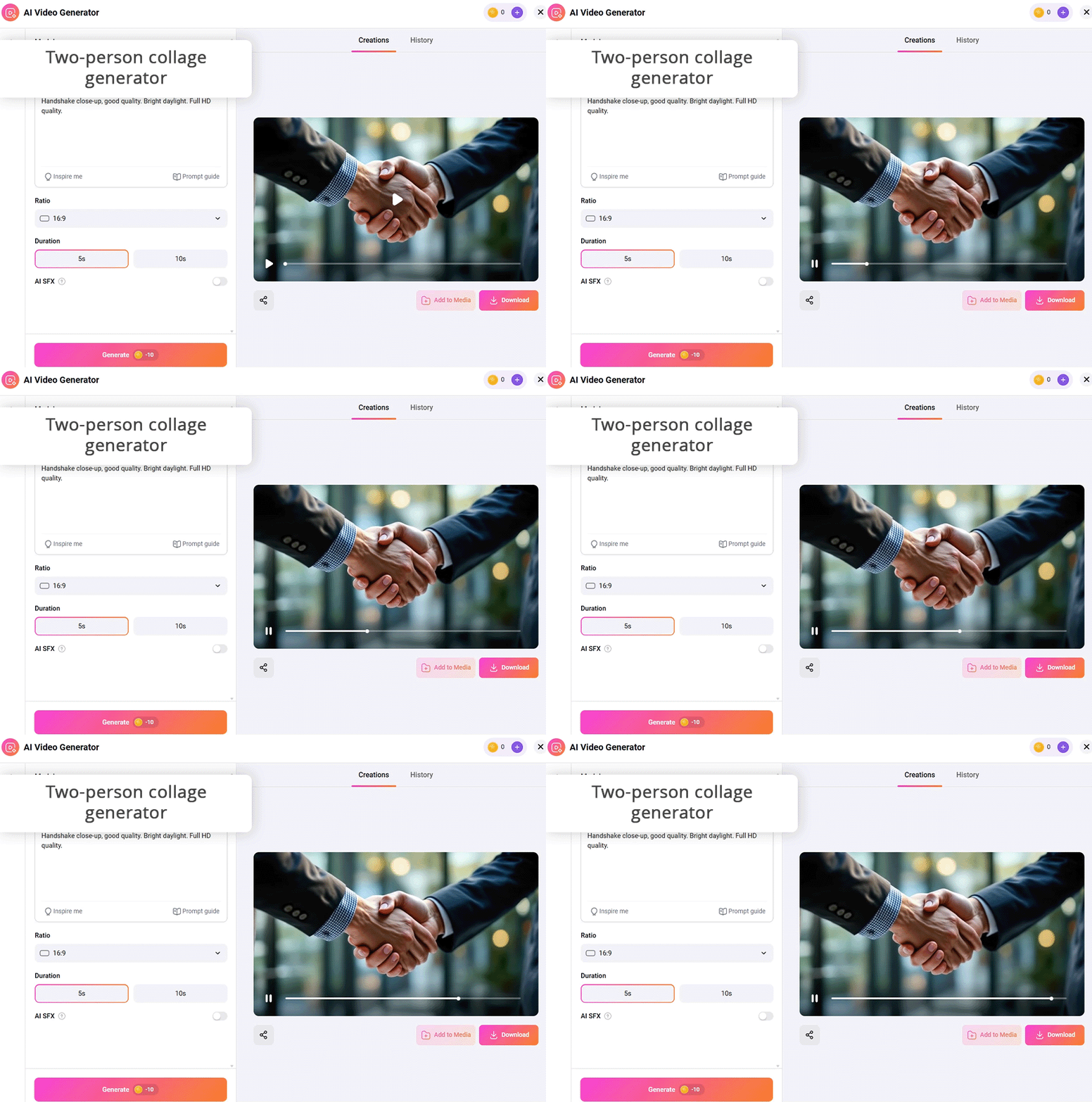
FlexClip allows you to begin by just importing two still images and using them to create a video. I leveraged this AI handshake animation generator to transform a collage of two businesspeople facing each other by simply typing in the following prompt: “make these two people shake hands naturally.” The hand motion looked natural, and the transition between frames was fluid, not jittery.
Next, I tried the text-to-video feature without importing any visuals of my own. The prompt I chose was “two coworkers greeting each other in a well-lit office.” The AI did a great job processing the instructions and produced a brief video that had natural motion and facial expressions. I liked how this AI video generator uses its database of existing footage to simulate subtle, in-between gestures.
After polishing the motion, I opened the Editing panel to make some adjustments. The integrated tools allowed me to add audio effects, titles, and background music. The only drawback is the slow preview rendering speeds on slower connections. Additionally, the initially generated video might require some edits before it’s ready for publishing.
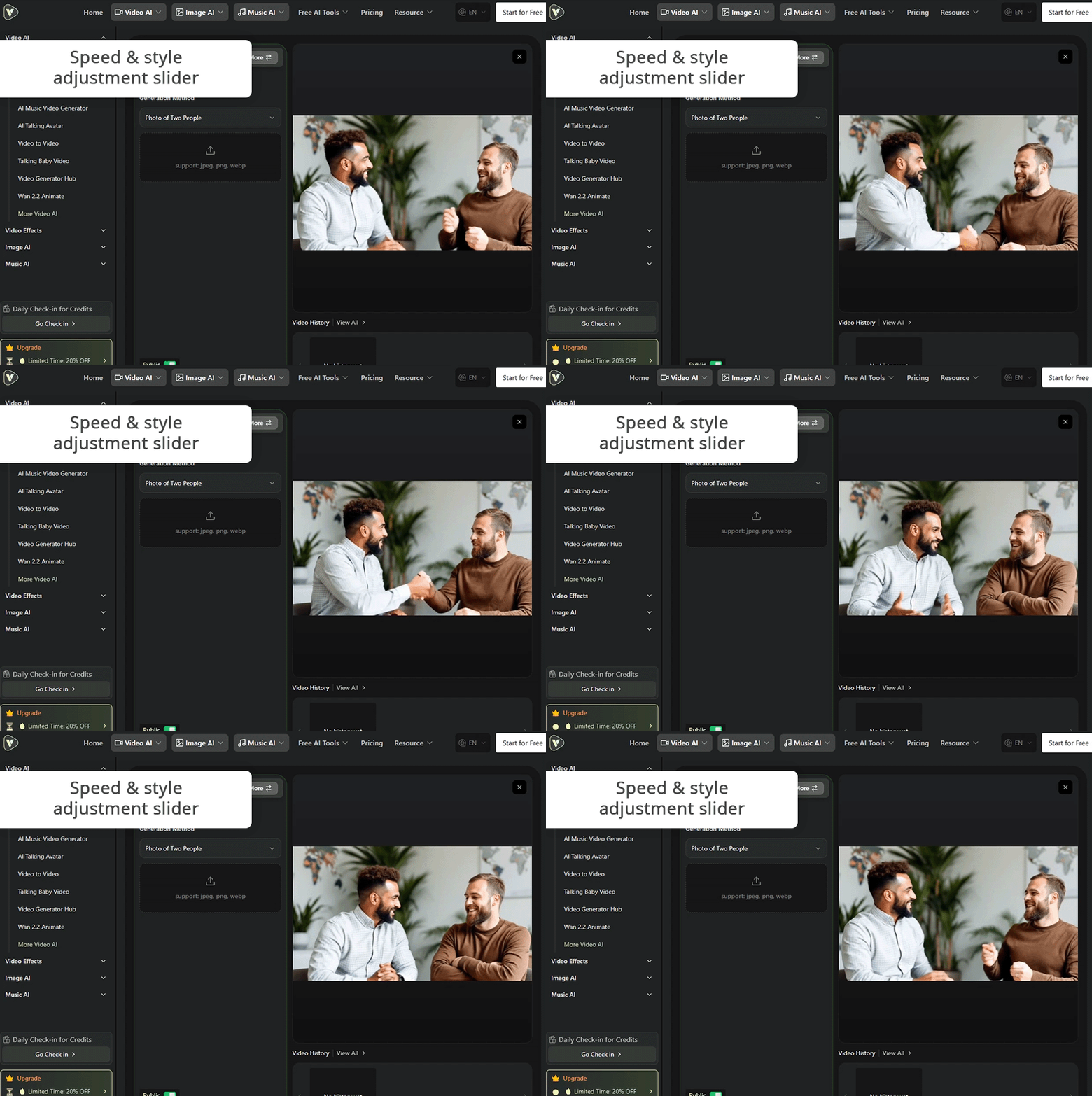
I found VideoWeb when I was looking for a more streamlined AI handshake motion generator. I imported a picture of myself, wrote a brief prompt, and clicked on “Generate.” It took less than a minute to produce fluid, realistic motion. I was surprised by the quality and balance of the movement, as it didn’t have any flaws that would give away its artificial nature.
This browser-based AI handshake video generator is great at simulating motion and adapting it to the imported image. The AI is efficient at examining the posture and hand placement and producing movement that aligns with the body position. It also lets you adjust the speed and angle to make the video livelier or calmer and more professional.
VideoWeb does have its flaws. The UI feels a bit too stripped down and isn’t as polished as you’d see in more popular tools. Additionally, it doesn’t allow adding text overlays or audio effects, forcing you to use other software for this purpose.
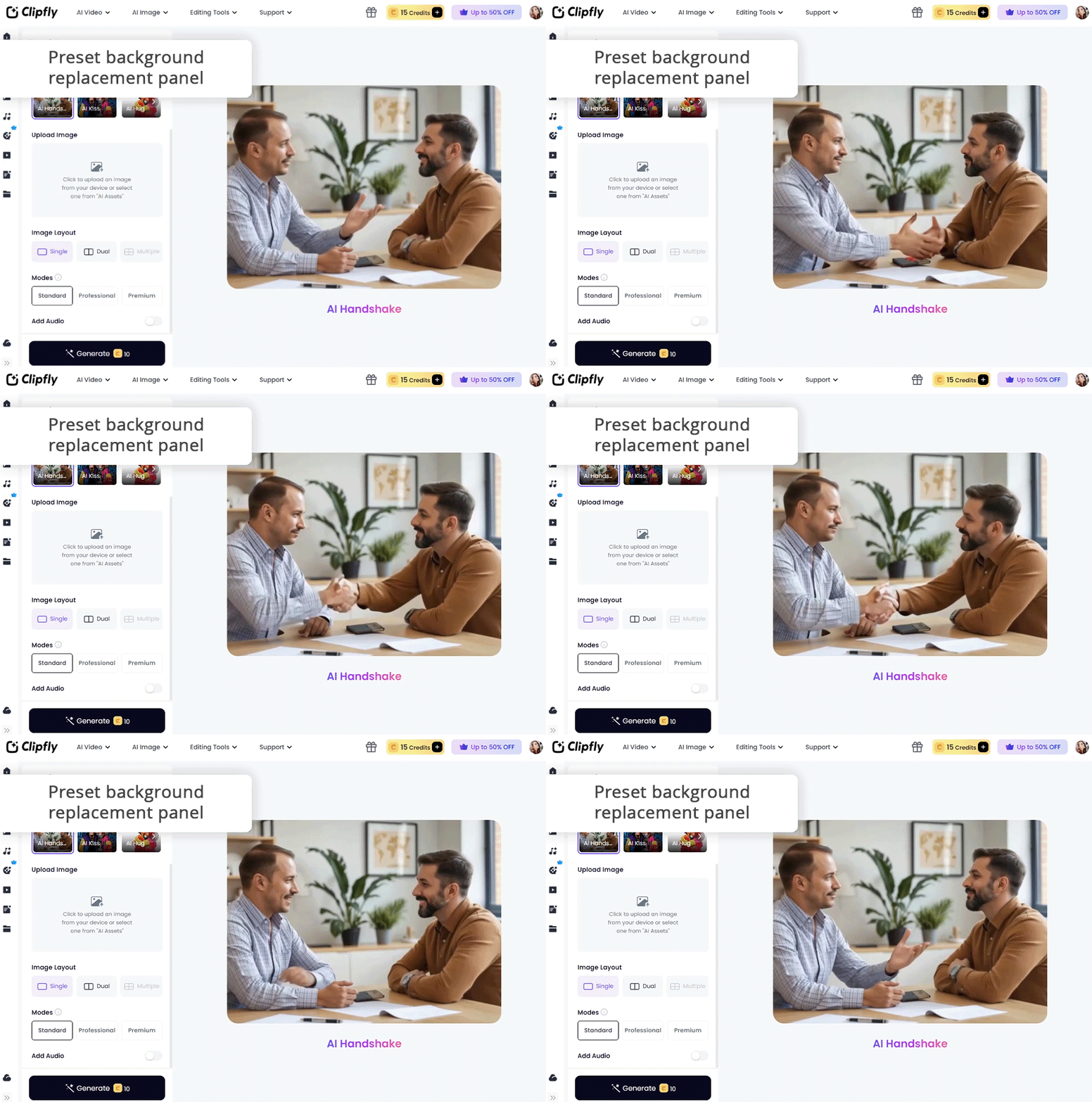
I’ve seen ClipFly receive a lot of praise as an AI handshake animation maker on Reddit, and I wanted to use it myself. I began with the “single photo” option, importing an older image of myself with my brother, and provided a brief prompt: “two people shaking hands affectionately.” The produced animation was warm and natural, and the faces matched the vibes of the original picture.
I was pleasantly surprised by the “two-photo-collage” option. I used it to merge two portraits using the provided AI functionality. I imported the two files, provided a brief prompt, and tried out several preset backdrops, ending up with a neutral studio option. The platform automatically deleted the original backdrop and added it to the new environment while still ensuring everything looked realistic.
This AI clip maker also allows you to import your own backgrounds, which is great for making your animation more unique. I uploaded an office space photo, and the produced clip resembled professional promotional content. However, some of the available presets are too stylized, and the rendering times can also feel too long compared to other AI handshake creators online.
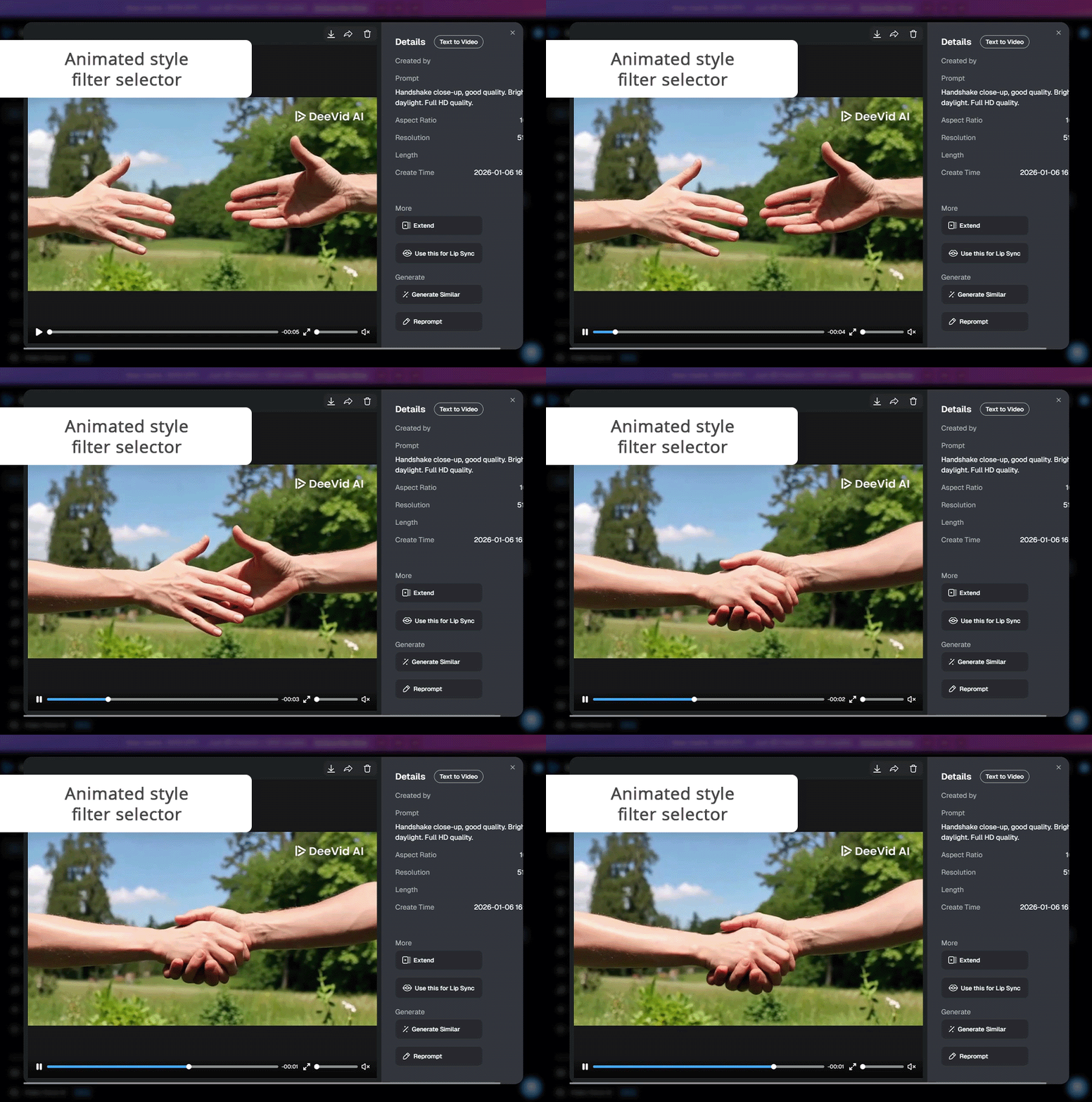
While DeeVid is not known for producing professional content, it’s an incredibly fun AI handshake video generator for quick, light-hearted clips for your socials. I began by importing a selfie and writing: “two friends greeting each other with a handshake.” DeeVid generated a brief video in less than a minute, and it looked realistic and engaging enough to be posted online.
Next, I used the platform’s style filters that offer more artistic flair than realism. DeeVid lets you go from cinematic lighting to cartoon or sketch mode in a single click. I made a sketch video, and the result resembled a motion comic, which looked very fun and didn’t require any technical skills on my part.
However, if you’re looking for an AI video maker to ensure the handshake looks highly realistic or can be highly customized, you should look elsewhere. The produced movements are often exaggerated, particularly if you set a higher motion speed.
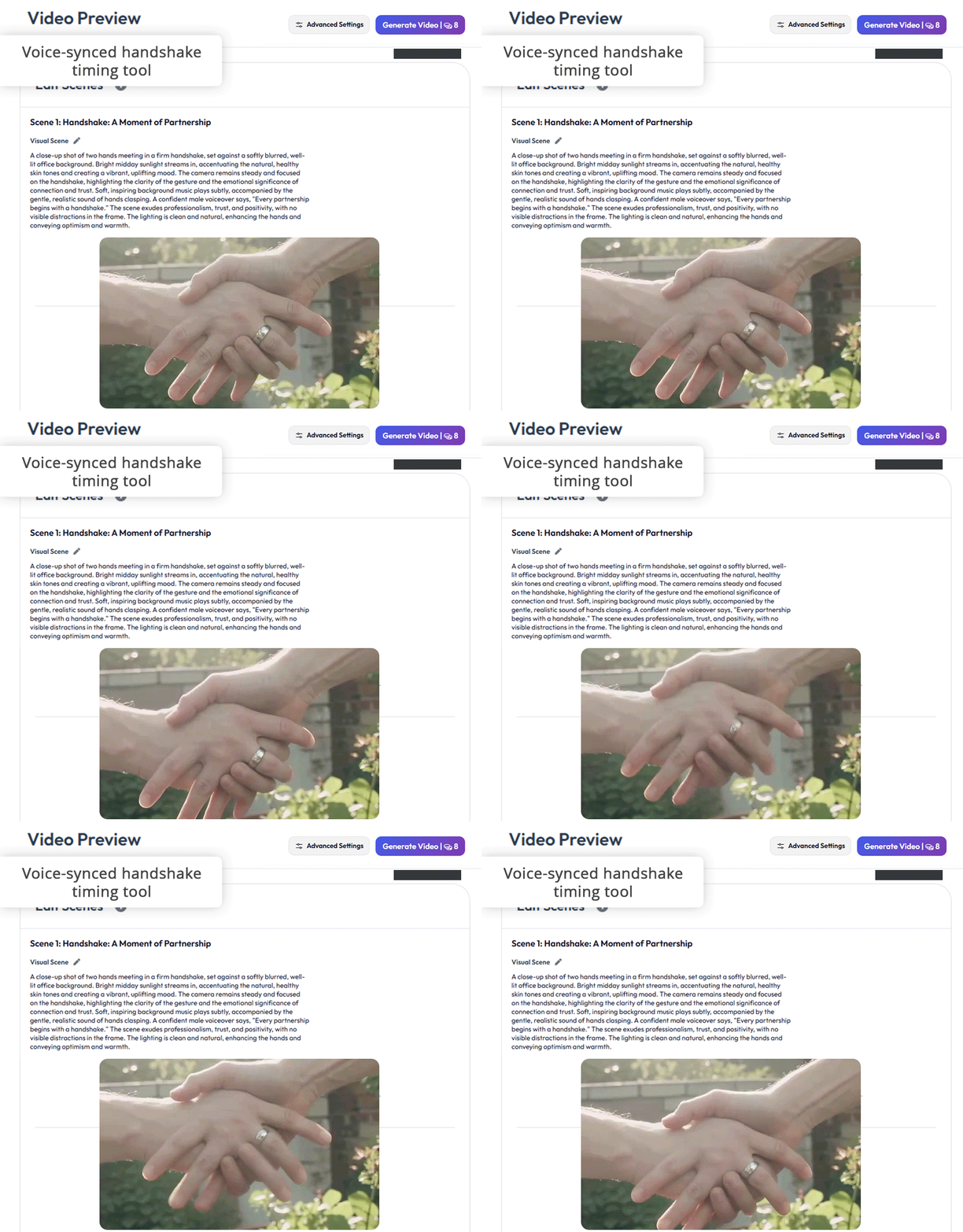
I started by importing two pictures – one of me and one of my coworker – before writing a prompt that mentioned a friendly handshake in an office space. The wait was noticeably longer compared to other AI handshake clip generators, but the result was worth it. The movement was fluid and natural, and the expressions matched the situation.
I also used its AI sound effect generator, which is the standout feature of this option. I made a brief voiceover created by Wavel and synchronized it with the handshake. The software automatically tweaked the timing of the video to match the speech, resulting in an immersive output. It’s a great tool to have if you plan to produce professional promotional content.
In terms of editing tools, this AI handshake video generator allows you to handle color correction, transitions, and logo overlays, creating polished clips without resorting to using other software. The only noteworthy flaws are the lower rendering speeds and small background selection.
To ensure we are objective when choosing the best AI handshake tool, FixThePhoto team and I put together a test setup that emulated real shooting conditions.
I picked three types of images: a neutral one with my hand slightly extended forward, a paired picture with another person for two-subject clips, and one shot at an angle to check how the AI processes perspective. We wanted to determine which options excelled at interpreting visual cues – arm direction, body alignment, and hand contact.
Robin checked how each option tackled handshake alignment – whether the hands met at a natural point, and if the motion emulated an actual handshake rather than two clips sliding together. She examined each clip video frame by frame to determine how the arm joints moved and whether the positioning of the rest of the body felt natural.
Handshake AI video makers that introduced little body shifts or grip motion received better scores, as such finer details go a long way to make the video more realistic.
The second testing stage involved examining timing and synchronization. A proper handshake lasts about one or two seconds with a brisk clasp and release. Certain AI solutions made the entire process too long, while others preserved a realistic pace.
Nataly evaluated if both participants started moving at the same time, and if one of the subjects reached out their hand with a little delay – it added a small plus to the realism column.
Next, I focused on evaluating contact realism. When two hands meet, there tends to be a brief compression and overlap that demonstrates pressure and grip. I checked for signs of floating hands, gaps, or distorted fingers. It’s also important for the lighting to adapt to the motion and add the necessary shadows as the hands are about to touch.
Finally, we focused on workflow efficiency. I measured the amount of time it took every AI handshake editor to go through all the stages from upload to export, the number of required manual edits, and whether the integrated editing tools let me deal with small problems like flicker or background mismatch.
The point of this stage was to evaluate reliability and whether a specific solution allows you to maintain a highly productive workflow while producing a high-quality result.
Having finished the test, we knew which tools did the best job at generating handshake videos that looked and felt natural and engaging.



![Imagen AI Review from Wedding Photographer [2000+ Edits]](http://fixthephoto.com/blog/images/gallery/news_main__preview_28342.png)

![8 Best AI Tattoo Generator Tools [+Good Prompts]](http://fixthephoto.com/blog/images/gallery/news_main__preview_28202.jpg)
![9 Best Video Delivery Platforms [Simple & Free]](http://fixthephoto.com/blog/images/gallery/news_main__preview_28433.jpg)
![Stable Diffusion Alternatives [1 Prompt – 9 Competitors]](http://fixthephoto.com/blog/images/gallery/news_main__preview_28384.jpg)



















