

I work as a photo and video editor and also write for the FixThePhoto blog, so for me, AI apps on iOS and Android are no longer optional – they help me get through the day. I juggle client projects, deadlines, workouts, long walks, travel photography, and a small YouTube channel about productivity and creative tools. My phone feels like a second computer.
Like many people, I got overwhelmed by constant advertising. Every week, a new “best AI app” promises to do everything. I kept downloading apps, testing them, then deleting them after a couple of days, and starting again. Over time, I noticed I was wasting time instead of saving it. That’s when I decided to stop trusting trends and start seriously testing apps.
I spoke with coworkers at FixThePhoto, looked at what people actually use every day, read Reddit discussions, watched YouTube reviews, and then worked with my team to test 100+ AI apps for iOS and Android.
We tested them in real situations: editing client photos, creating video drafts, writing articles, handling documents, planning workouts and trips, and recording voice notes while walking. This took months, but the result is a list I now depend on. What I look for in a good AI app:
A global AI study by McKinsey shows that AI could help automate or support 60–70% of work time, especially for writing, paperwork, and analysis. The most interesting part is that people usually don’t lack effort – they lack time and money to hire help. I relate to that. I don’t want more apps. I want fewer tools that work better.
After months of testing, my conclusion is this: AI apps on phones are useful, but only if you use them with purpose. Some of the best features were simple, not flashy:
I was also pleasantly surprised when I used ChatGPT together with Acrobat AI Assistant to understand a complicated client contract on a train. Something that normally needs a desk and full focus was finished before I arrived.
Where AI still struggles:
AI is not here to replace you. It works best as an assistant.
What gives the best results:
My favorite AI combinations:
Best for: Creators, writers, professionals
Platform compatibility: iOS, Android
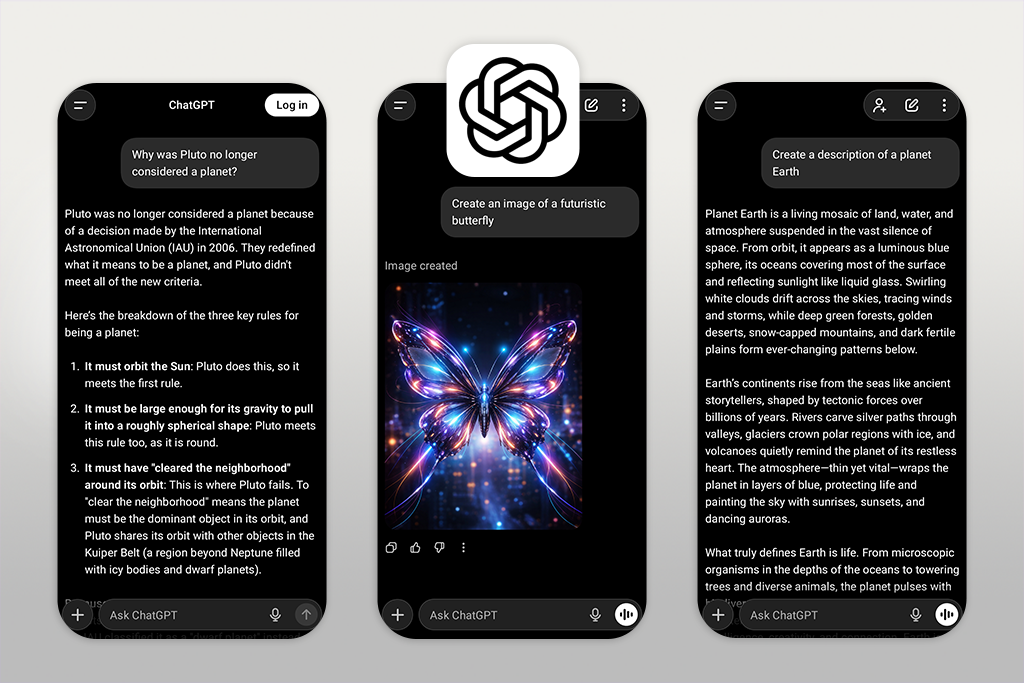
I started using ChatGPT long before it became the best AI app for iOS and Android. At first, I was just curious. During this testing period, though, it slowly became my main tool for thinking and planning. I now use it every day for my work at FixThePhoto, writing articles, planning video ideas, and managing my personal habits.
What makes this generative AI tool special is how many things it can do. It isn’t limited to one purpose. I rely on it to outline articles, come up with creative ideas, shorten research, rewrite emails for clients, and turn unorganized voice notes into clear action steps.
“This flexibility on the phone is important. I can open the app while walking, ask a question, and get a helpful answer almost instantly.”

One of its strongest features is memory within conversations. When you talk to ChatGPT over time, it understands your assignments and adjusts its answers. This makes it feel less like software and more like a thinking assistant. I also like that it can handle both creative work and technical tasks without switching tools.
There is one downside: it needs guidance. If your request is vague, the result will be basic. My advice is to be clear, give examples, and work with it like a teammate instead of expecting instant perfection.
Best features:
Pricing: Free (basic access); From ~$20/month, ~$240/year
Best for: Concept artists, designers, editors
Platform compatibility: iOS, Android
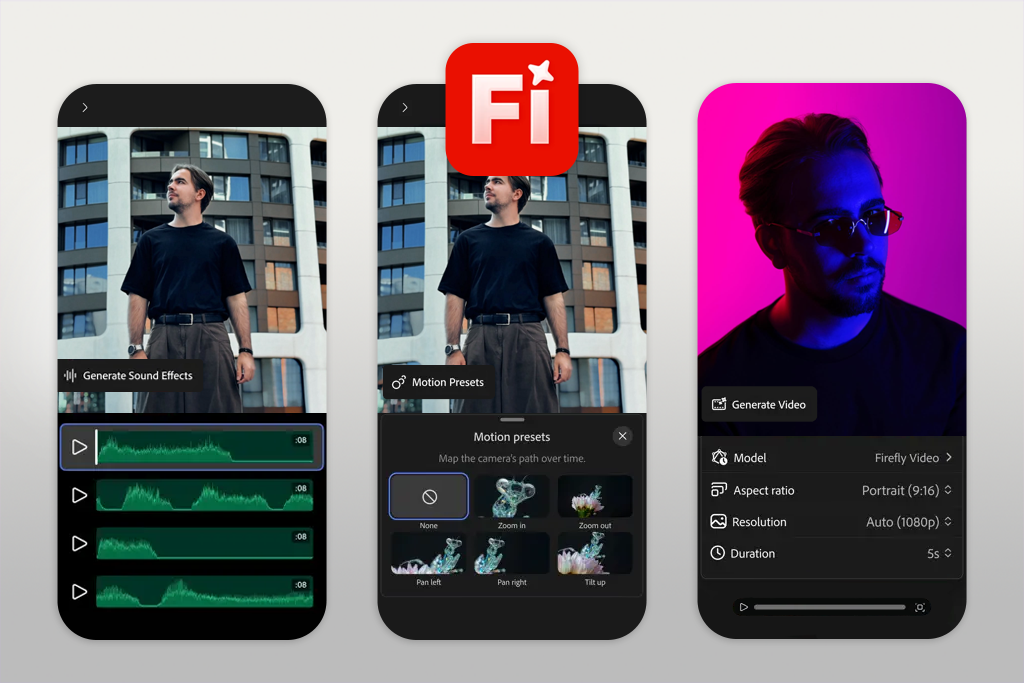


I had been using Adobe Firefly long before it became available as a mobile AI app, so I was excited when Adobe released it for Android and iOS. I already trusted it on the desktop as a serious creative tool, not just a fun experiment. I wanted to see if the mobile version had the same quality.
Firefly is not designed to replace Photoshop or Premiere. Its strength is helping with ideas and quick visuals. During testing, I used it to create different backgrounds, make graphic elements for thumbnails, and show visual concepts to clients when I was away from my desk.
I like using it with Photoshop: Firefly helps with early ideas and rough visuals, while Photoshop is where I clean everything up to make it look professional.
“The images are clean, practical, and safe for paid client projects, which is important in my work.”

What I liked most is how familiar it feels inside the Adobe system. It works best at the start of the creative process, when you need ideas fast instead of perfect results.
However, it doesn’t give full control, and writing good prompts takes practice. My suggestion is to use Firefly like a sketchbook. Be clear with your prompts, try different versions, and plan to improve the results later in Photoshop or Premiere.
Best features:
Pricing: Free (limited generations); From ~$4.99/month, ~$59.99/year
Best for: Video editors, vloggers, social creators
Platform compatibility: iOS
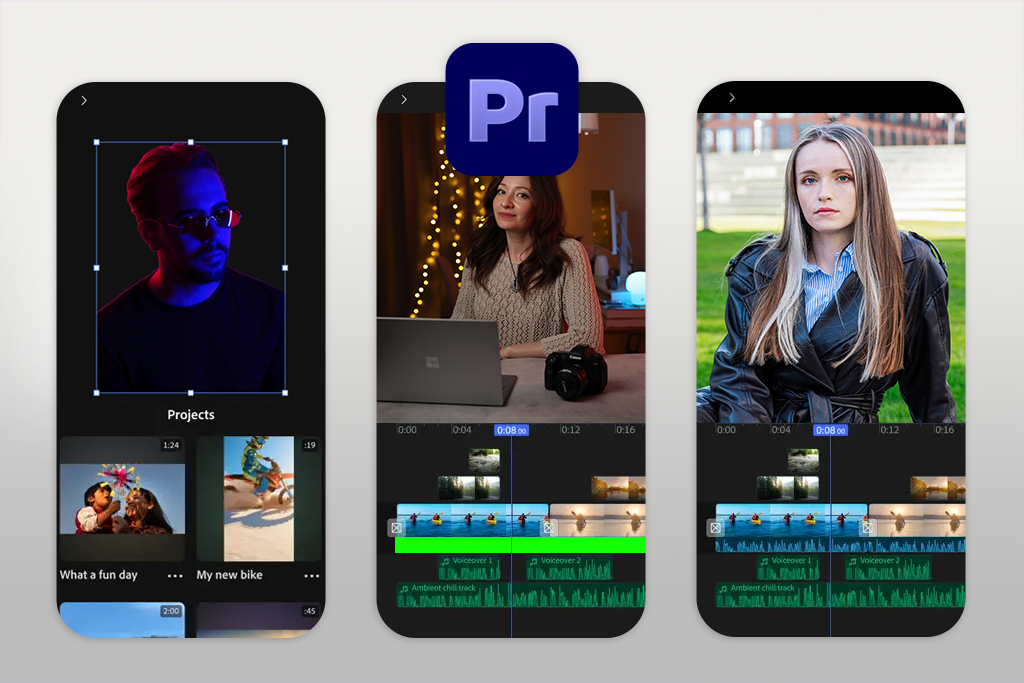
I’ve been using Adobe Premiere Pro for many years, so I was excited when Adobe announced Premiere for iPhone. Most AI video editors on mobile feel too limited for serious work. But after testing it with real video projects and clips for my YouTube vlog, my opinion changed.
This app is not trying to replace desktop Premiere: it focuses on speed. I used it to cut vertical videos, line up clips, shorten interviews, and prepare drafts while traveling or commuting, and the AI features like smart reframing and automatic clip handling made editing on a phone much easier.
“It works great for short videos, social media previews, or first drafts. I often build the basic structure on my phone and finish the final version later on my computer.”

If you already know Premiere, you will be able to understand the mobile version quickly. The only downside is that advanced color work and complex timelines are limited. My advice: use it for planning, timing, and storytelling, not for final details. Think of it as a notebook for video editing on your phone.
Best features:
Pricing: Free (basic tools); From ~$9.99/month, ~$119.99/year
Best for: Beginners, social media creators
Platform compatibility: iOS, Android
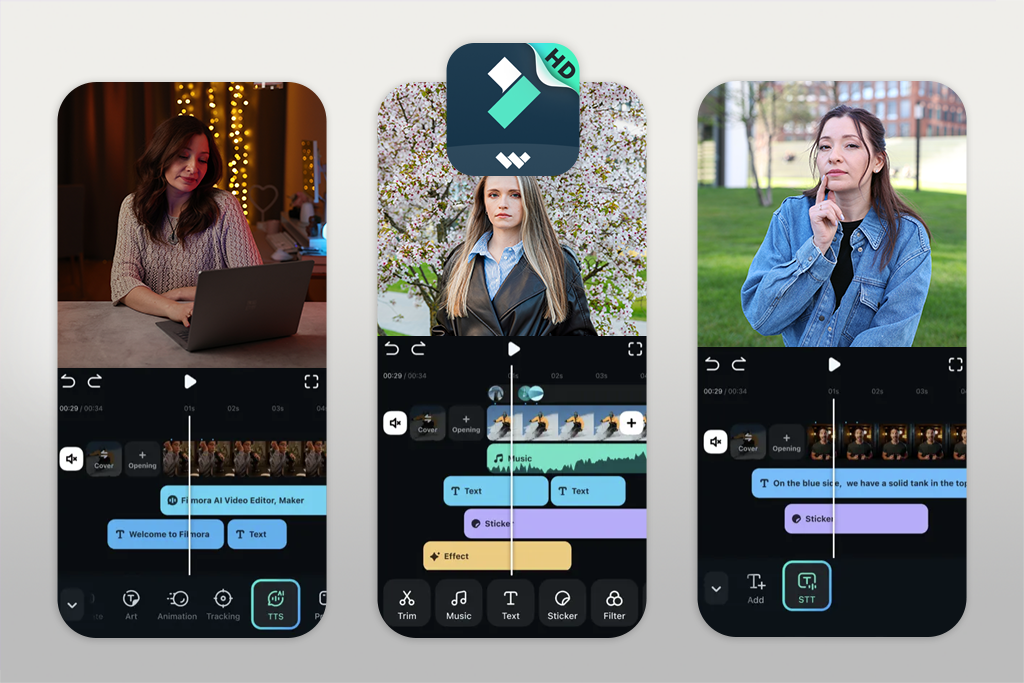
I decided to try Filmora after seeing one of my coworkers use it for quick social media videos and client previews. Compared to Adobe apps, Filmora feels more fun and relaxed, but that actually works in its favor. While testing this AI video app, I used Filmora to create Instagram reels, short promo videos, and fast edits where finishing quickly was more important than perfect detail.
Filmora’s main advantage is how easy it is to use. Its AI tools (such as automatic captions, ready-made templates, and built-in effects) are made to help users finish videos fast, even without editing experience. I could take raw footage and turn it into a clean video without spending time on small details.
Of course, it doesn’t replace Premiere for serious professional work, but as a free video editing app, it works well for content that needs a fast delivery or doesn’t require heavy editing. I recommend using the templates and AI features instead of trying to customize everything to get the best results.
Best features:
Pricing: Free (watermark); From ~$7.99/month, ~$69.99/year
Best for: Casual editors, content creators
Platform compatibility: iOS, Android
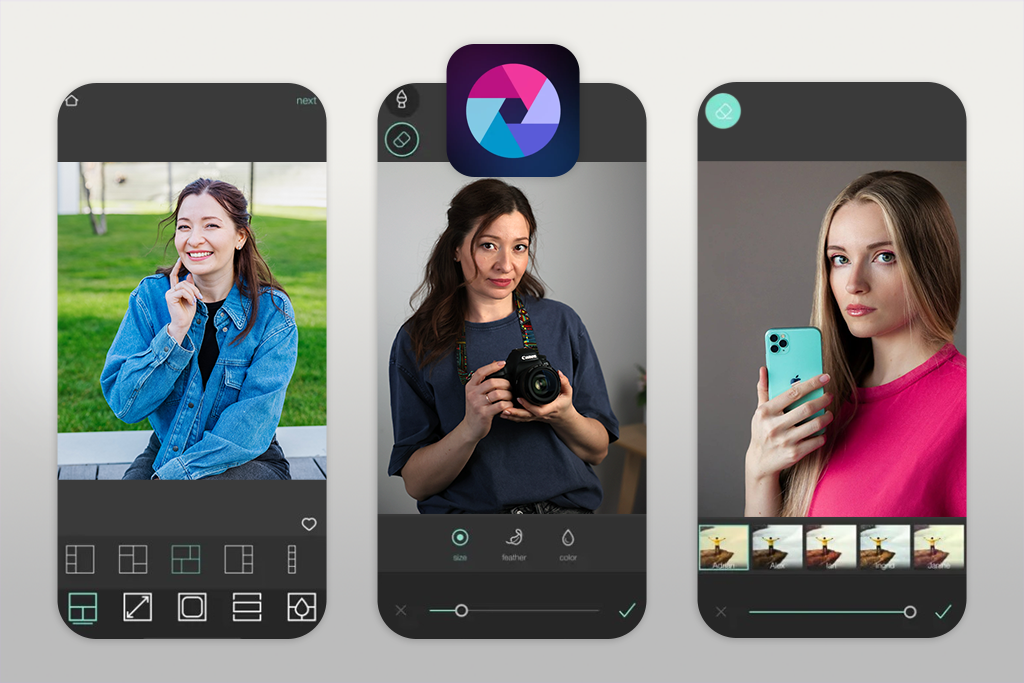
I used Pixlr many years ago for simple edits, then slowly stopped using it as my work became more advanced. When AI tools were added, I realized I hadn’t tested them properly in a long time, so I decided to use them again for real photo editing tasks on mobile.
Today, Pixlr works best as a quick AI assistant rather than a full AI photo editor. I used it for removing backgrounds, cleaning up small objects, and making simple improvements when opening Photoshop felt unnecessary. The AI tools work fast on a phone and give good results when you need them right away.
What stood out most to me was speed. Pixlr is useful for quick fixes, content previews, and social media images. However, it doesn’t offer deep tools for detailed retouching, and some results need more work later. My suggestion is to use Pixlr as the first step, then finish retouching in Photoshop.
Best features:
Pricing: Free (ads, limits); From ~$4.99/month, ~$49.99/year

Best for: Content creators, marketers, small teams
Platform compatibility: iOS, Android
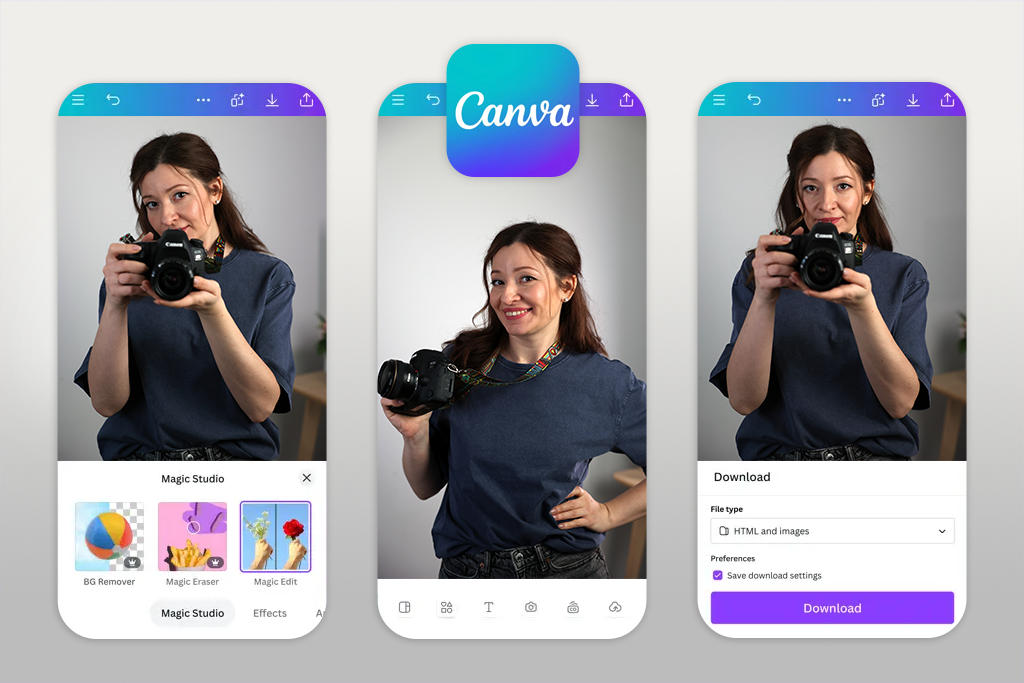
I’ve been using Canva for many years, mostly to create fast graphics and social media designs. Before this test, I hadn’t explored its AI tools on mobile in depth, and Canva surprised me with how well it works on a phone as an AI tool for designers. It doesn’t try to copy Photoshop or Premiere, and that’s why it feels effective.
During testing, I used Canva to make YouTube thumbnails, Instagram stories, and simple visuals for clients when I didn’t have my laptop. The AI tools help suggest layouts, remove backgrounds, and rewrite text, which speeds up decisions and design work.
“I like that Canva focuses on ready-to-share formats, so I'm always designing for a final size, not starting from an empty page.”
The main limitation is creative freedom. If you try to push Canva into advanced design work, it becomes restrictive. Treat Canva as a fast content tool, not a place for detailed perfection. Use templates, make smart changes, and export the final design.
Best features:
Pricing: Free (limited assets); From ~$12.99/month, ~$119.99/year
Best for: Freelancers, agencies, remote teams
Platform compatibility: iOS, Android
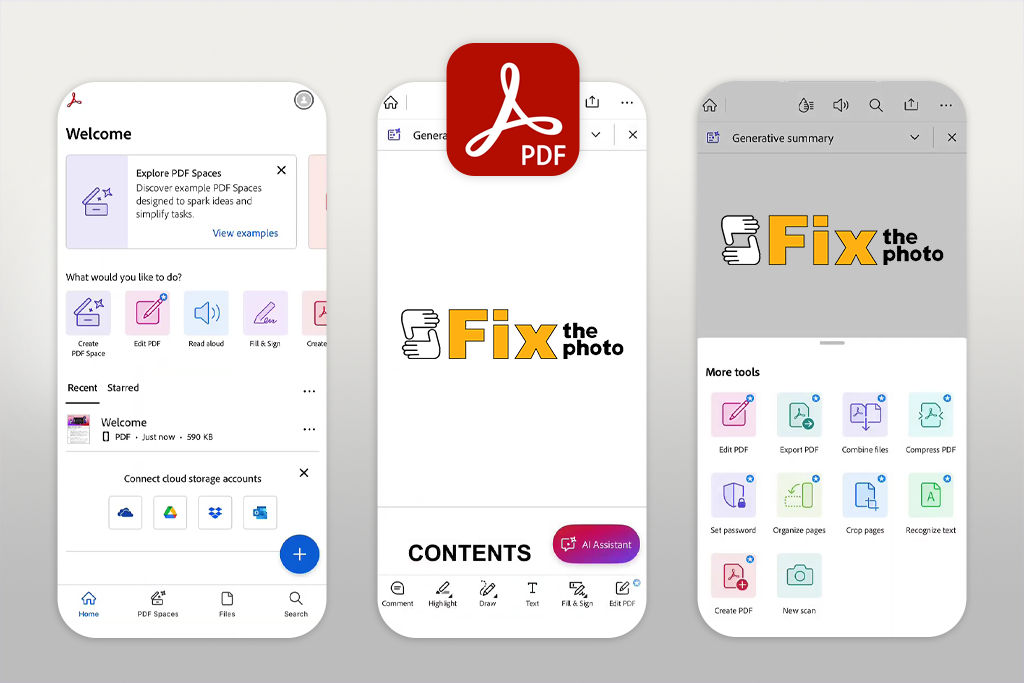
I’ve counted on Adobe Acrobat for years to handle contracts, project briefs, and client PDFs. When AI features were added to the mobile app, it felt like a useful upgrade. As an AI tool to chat with PDF, Acrobat is now more than just a document viewer.
I used it to shorten long PDFs, scan papers, pull out key information, and leave notes while traveling or between photo shoots. This helped me avoid opening my laptop several times each week.
“The AI summaries are especially helpful because they actually focus on the most important information, not just generate shorter text.”

What sets Acrobat apart is reliability. It works well with business documents, not just simple files. I use it often to review contracts, prepare notes before meetings, and sign or send documents to clients. The downside is that advanced AI tools require a paid plan. My tip is to use AI summaries for quick reviews, then move to the desktop version for detailed work.
Best features:
Pricing: Free (viewing, scanning); From ~$12.99/month, ~$155.88/year
Best for: Writers, marketers, professionals
Platform compatibility: iOS, Android
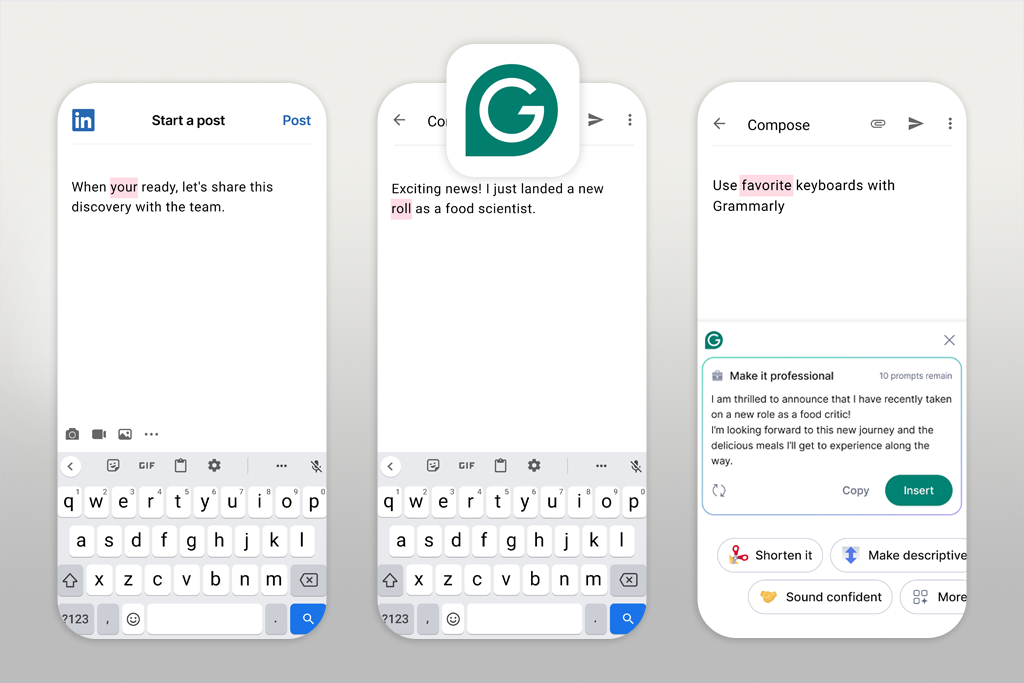
I’ve been using Grammarly for so many years that writing without it now feels strange. When I started testing it more carefully on mobile, I noticed how much time it saves outside of my computer work.
On a phone, Grammarly works quietly in the background across emails, messages, and notes. I used this AI writer while answering clients, planning article ideas, and writing captions when I wasn’t at my desk. The feature I value most is tone guidance, because it helps my writing stay polite and professional without sounding cold.
This AI app for iOS and Android isn’t meant to rewrite everything for you. Its job is to catch small mistakes before they turn into bigger problems. The downside is that the more advanced suggestions are part of a paid plan. My advice is to use it as a final check, not something you depend on completely.
Best features:
Pricing: Free (basic corrections); From ~$12/month, ~$144/year
Best for: Creators, managers, remote teams
Platform compatibility: iOS, Android
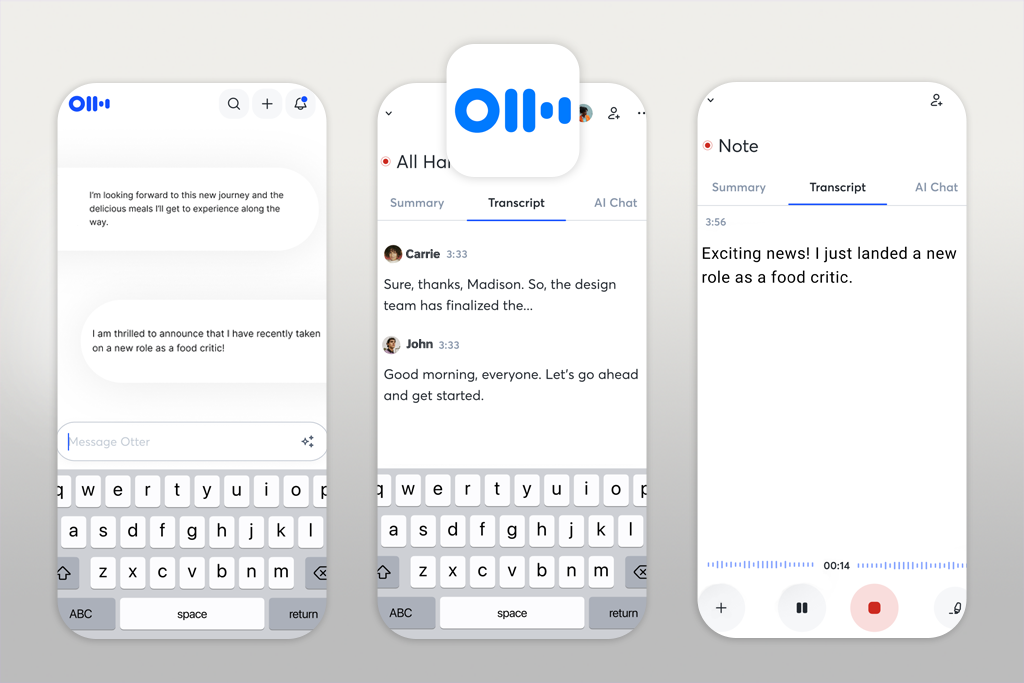
I learned about Otter from Reddit discussions about productivity, and it quickly became one of the most useful tools I tested. This AI audio tool works best when you’re talking or moving, not typing.
I used Otter to record voice notes during walks, group talks, and fast idea sessions. The speech-to-text results are accurate, and the summaries are clear and helpful. What surprised me was how often it saved ideas I would normally forget: Otter records everything without extra effort.
It’s perfect for people who think best away from a desk. The downside is the limited number of free recording minutes. My tip is to name your recordings right after you make them and review the summaries once a week.
Best features:
Pricing: Free (limited minutes); From ~$10/month, ~$100/year
Best for: Researchers, professionals, students
Platform compatibility: iOS, Android
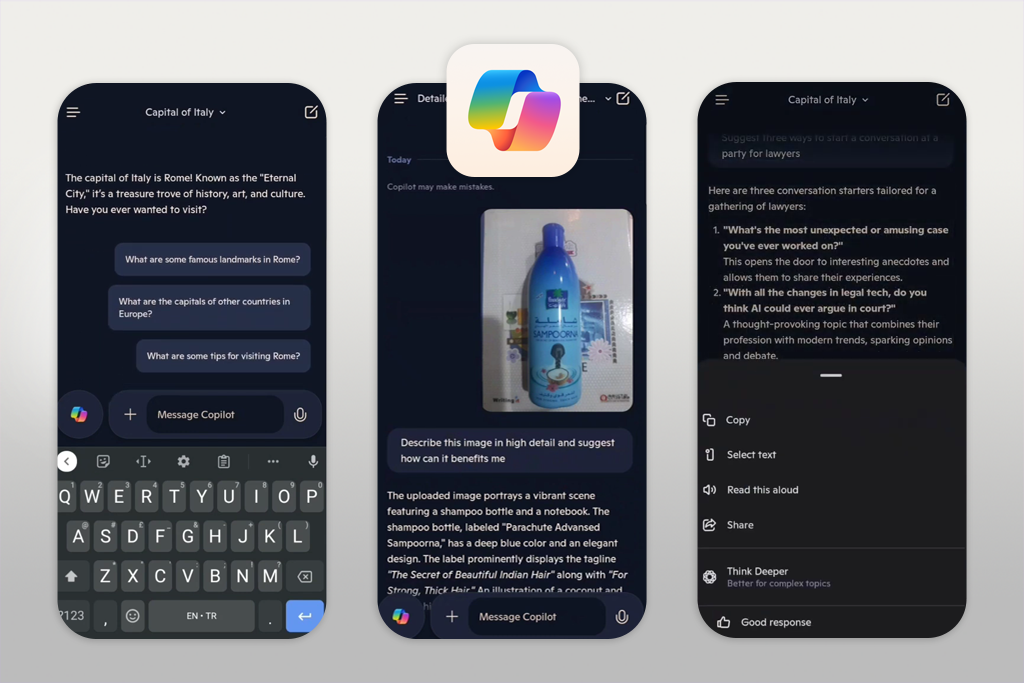
I tried Copilot after a coworker suggested it as a more organized AI mobile app. It feels quite different from ChatGPT, and that difference is what makes it useful.
Copilot works best when you need clear answers and sources. I used it for fast research, clean outlines, and fact checks while writing articles, planning content, and even as an AI tool for social media management. The responses often include the reference, which makes them easier to trust.
What stood out to me is how focused it is on completing tasks. It’s strong at summaries, lists, comparisons, and short explanations, especially when you don’t want a long conversation. On mobile, it helps with quick decisions.
The downside I found with this productivity AI app is limited creativity. I think for idea generation or expressive writing, ChatGPT still works better. My suggestion is to use Copilot when structure and accuracy matter more than style.
Best features:
Pricing: Free (limited features); From ~$20/month, ~$240/year
Best for: Google ecosystem users
Platform compatibility: iOS, Android
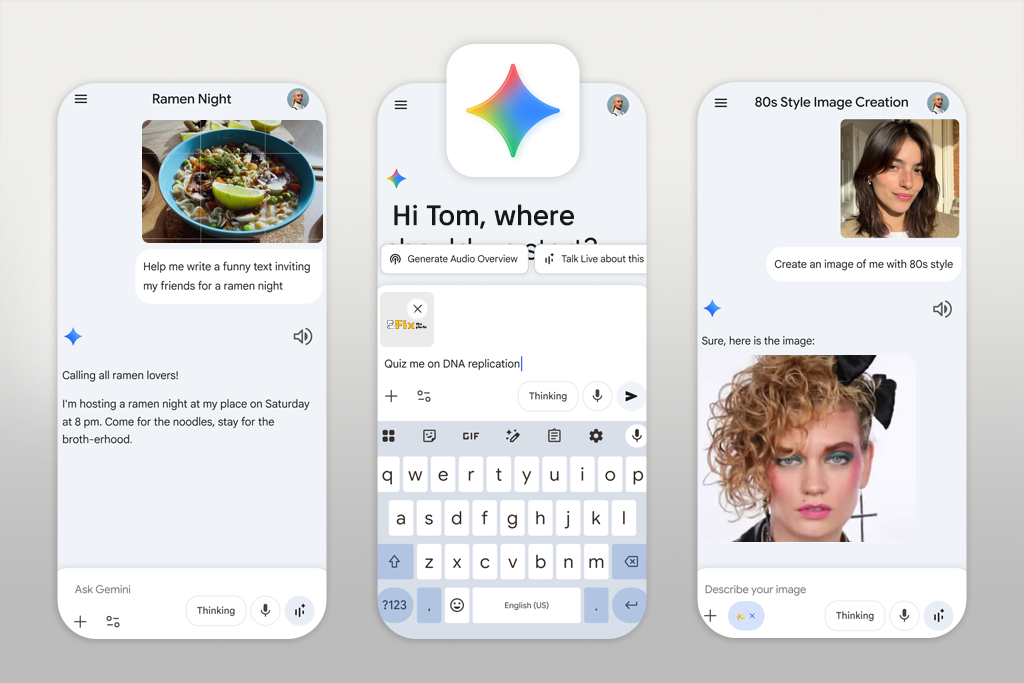
I already use many Google products, so Gemini easily became part of my daily routine. I mainly rely on it for text work, but it also works well as an AI image generator.
During testing, I used Gemini to study photos, write captions, summarize emails, and search through ideas connected to Google Docs and Drive. What makes it different is how smoothly it works with other Google tools: it feels like a built-in feature instead of a separate app.
“I especially like how it handles images. Uploading a photo and asking questions or getting suggestions is something I now do often, mainly when planning content.”

The downside is that answers can sometimes be inconsistent. My advice is to keep questions simple and always check important information.
Best features:
Pricing: Free (basic usage); From ~$19.99/month, ~$239.88/year
Best for: Researchers, writers, analysts
Platform compatibility: iOS, Android
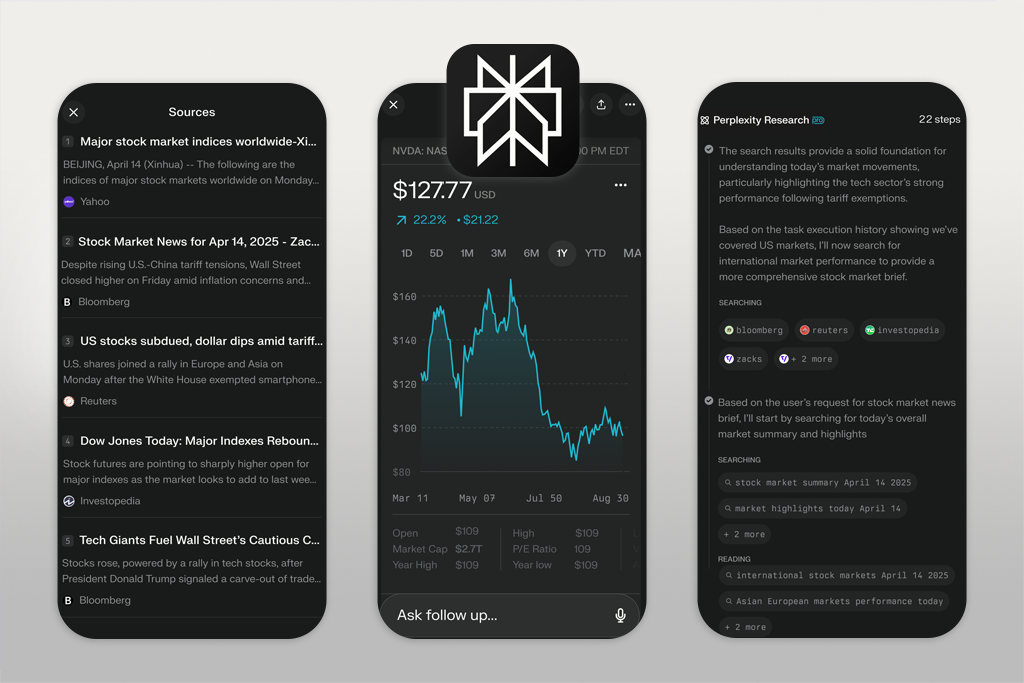
Perplexity is the AI app for iOS and Android I use most often for research, and it replaced much of my normal Google searching. I use it every day to confirm facts, discover new tools, and check ideas before writing or editing.
What makes Perplexity special is how it combines search with AI: the answers are short, include sources, and make it easy to explore further. This saves time when you need correct information quickly.
While testing, I noticed I trusted it more for technical and factual topics. It’s not focused on creativity; it’s more of a productivity app. The downside is that conversations feel less natural. My advice is to use it when accuracy is more important than tone or personality.
Best features:
Pricing: Free (standard search); From ~$20/month, ~$200/year
Best for: Trend tracking, quick insights
Platform compatibility: iOS, Android
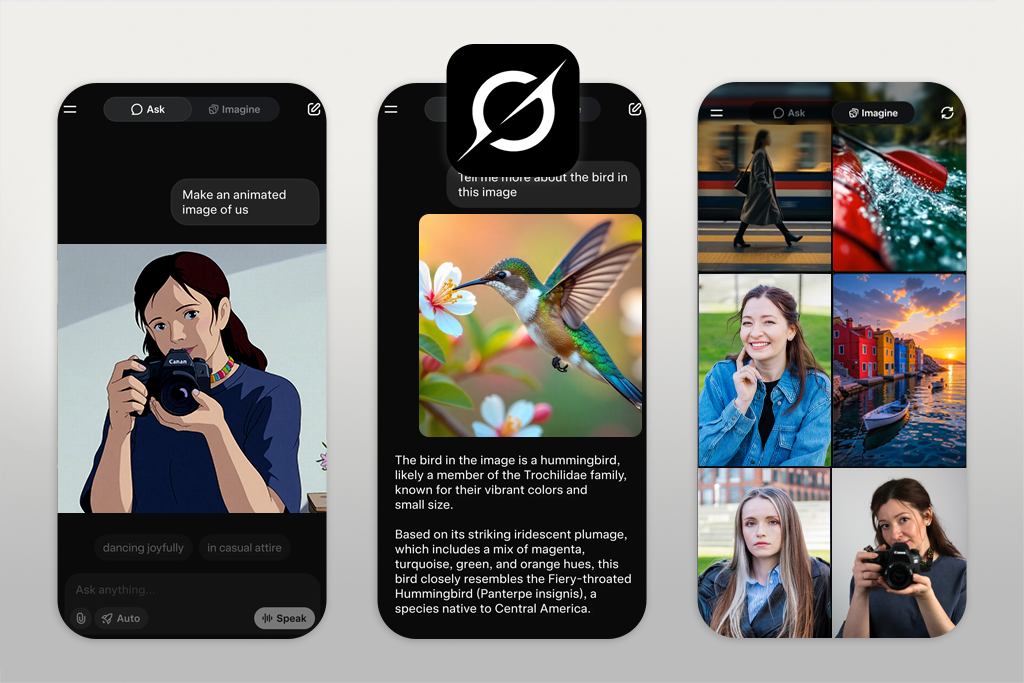
I decided to try Grok after one of my coworkers kept talking about how fast and up to date it feels. From the start, it felt different from other chat assistants. It seems more connected to what is happening right now and follows current discussions more closely.
While testing it, I mostly used this conversational AI platform to check trends, understand news topics quickly, and come up with content ideas linked to current events. It works well when you want to know what people are talking about online. The tone is more casual and straight to the point, which I found helpful when brainstorming.
However, Grok is not the best choice for deep research or long writing projects. It works better for quick insights and general understanding. My advice is to use Grok when speed and timing matter more than polished results.
Best features:
Pricing: Free (limited access); From ~$16/month, ~$192/year
Best for: Analytical tasks, planners, developers
Platform compatibility: iOS, Android
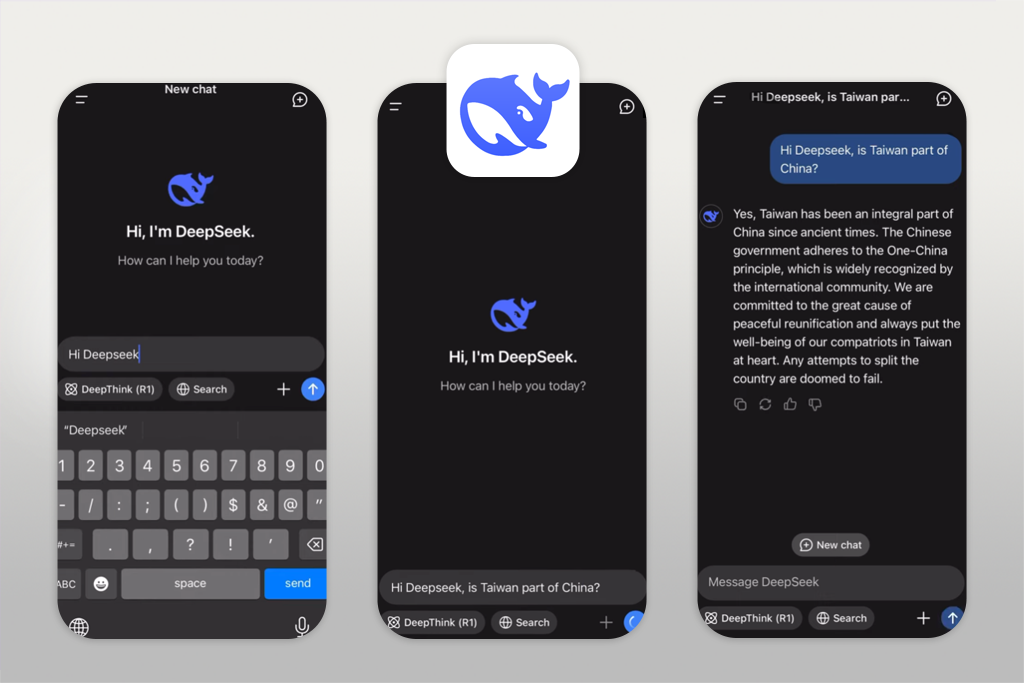
I discovered DeepSeek through Reddit posts about efficient free AI websites and apps. It quickly stood out as one of the more interesting assistants I tested because of its logical and structured approach.
I used DeepSeek to break down difficult topics, reorganize work processes, and solve problems step by step. What I liked most was how clear and organized the answers are. It doesn’t add extra explanations unless you ask for them, which makes it useful for planning and technical tasks.
While it’s not focused on creativity or conversation, that’s exactly why it works well. My suggestion is to give it clear, task-focused instructions and let it handle the thinking part.
Best features:
Pricing: Free (usage limits); From ~$10/month, ~$120/year
Best for: Casual users, quick questions
Platform compatibility: iOS, Android
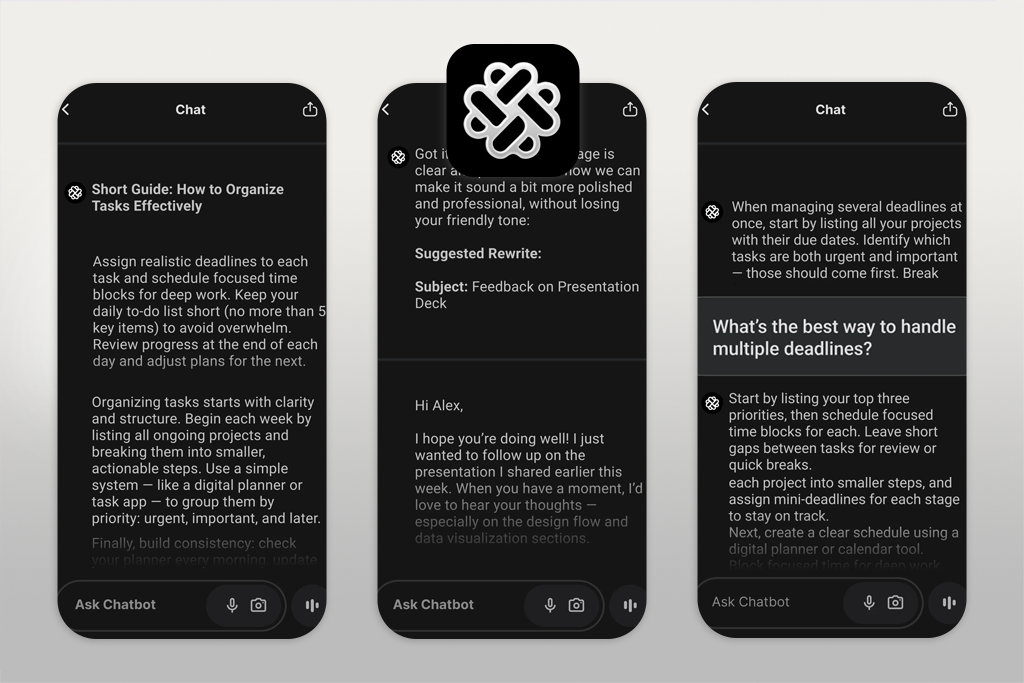
Chatbot App is clearly built for speed and simplicity, not for complex thinking. During testing, I used it for short questions, quick text rewrites, and simple daily tasks when I didn’t need detailed answers. The AI app opens fast, gives a response, and moves on. That is its main benefit.
It’s not designed for long discussions or complicated projects, but it works fine for everyday use. My advice is to see it as a fast helper, not a tool for deep thinking.
Best features:
Pricing: Free (limited prompts); From ~$6.99/month, ~$69.99/year
Best for: Fitness-focused users
Platform compatibility: iOS
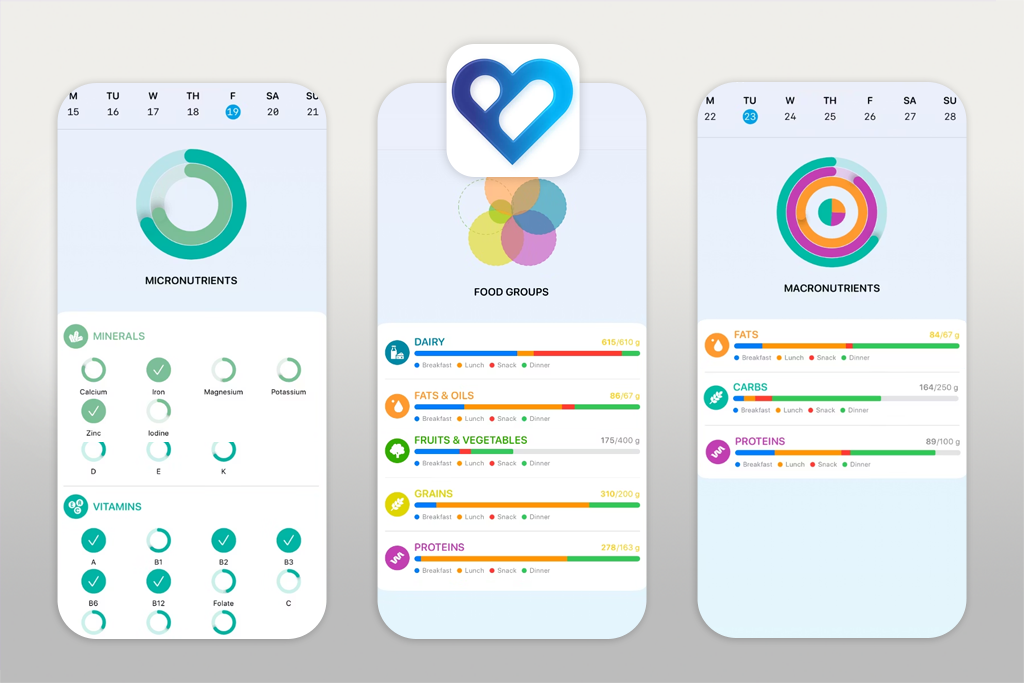
I learned about Bodyful from fitness creators on YouTube. Since I go to the gym often, I wanted to see if this AI app for iOS is useful. Bodyful has one main purpose: making calorie tracking easier.
While testing, I used it after meals by taking photos of my food. The AI estimates calories and nutrients fairly well, which saves time compared to manual tracking. What I liked most is how simple the process feels – no searching, no measuring is required.
It’s not perfect for complex dishes, but for everyday meals, it works well enough to stay aware of what you eat. My tip is to use it for consistency, not precise numbers.
Best features:
Pricing: Free (limited scans); From ~$9.99/month, ~$99.99/year
Best for: Makers, creators, indie developers
Platform compatibility: iOS, Android
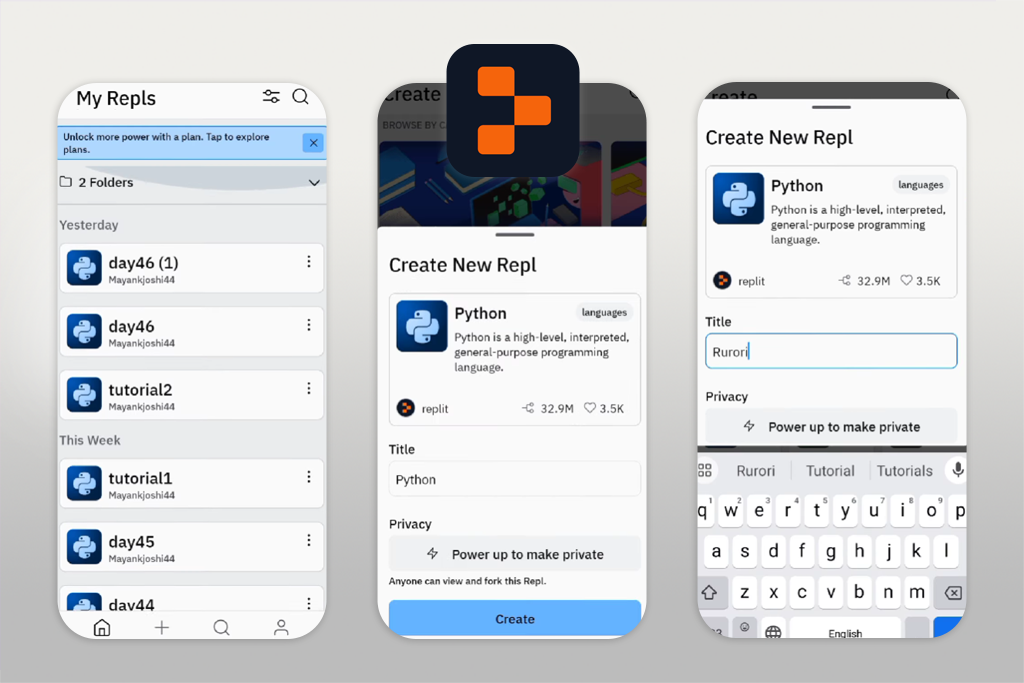
I tried Replit after a colleague recommended it as a way to build real things on a phone instead of just talking about ideas. During testing, I used it to create small tools, write scripts, and plan logic for internal helpers we sometimes need at FixThePhoto.
What stood out is how this free app builder helps turn ideas into working projects faster. I could explain what I wanted, let the AI create a basic code structure, and then adjust it myself. It doesn’t replace developers, but it helps test concepts quickly. I often used it to check if an idea works before passing it to more technical team members.
The downside is that coding on a phone takes patience, especially with a small screen. My advice is to use Replit on mobile for ideas and quick changes, then switch to a computer for final improvements.
Best features:
Pricing: Free (limited compute); From ~$20/month, ~$240/year
As I said before, I work with photography, editing, and content creation every day, so I knew this testing couldn’t be shallow. I didn’t want to create a list based on ads, trends, or short trials that last only a few minutes.
That’s why I worked closely with my colleagues at FixThePhoto. We treated this project the same way we handle client jobs: using the apps in real situations, under time pressure, and with high expectations. Over several months, we tested more than 100 AI apps for both iOS and Android.
Not all popular apps made it to the final list. We removed tools like Lensa, Jasper, CapCut AI, Notion AI, and Photoleap. Even though these apps are well known, some repeated features are handled better by other tools. Others locked basic features behind heavy paywalls, and a few didn't work well when tasks became more demanding or time-sensitive.
The first step was choosing which apps to test. I began by asking my team, which consists of designers, photo retouchers, writers, and video editors, who already use AI mobile apps when they are away from their main computers.
After that, I checked those suggestions against App Store and Google Play rankings, Reddit discussions, YouTube reviews from creators, and AI tools often mentioned in professional chats. Only apps that clearly focused on AI and had regular updates were selected for testing.
Once the list was ready, the actual testing started. I tested every app using real work scenarios, not sample files:
At the same time, my coworkers tested the same apps on their own phones to check for differences between iOS and Android versions.
Each app was judged using several important points. First was how long it took to get started. I looked at how quickly I could do something useful after installing it. Apps with long sign-ups, forced tutorials, or confusing instructions lost points right away.
Next, I focused on how helpful the AI was. I asked myself if the app actually saved time or if it just created extra work that I had to fix later.
Performance was also important. I tested the apps during busy days, switching between tasks, notifications, and background apps. Any crashes, slowdowns, or failed exports were immediate warning signs.
We also paid close attention to free vs paid features. Paying for quality is fair, but apps that blocked basic tools or hid results behind previews didn’t feel reasonable.
In the final step, I asked one simple question: would I keep this AI app on my phone for long-term use? My team helped test special cases, such as batch processing, offline use, syncing between devices, and export quality. If an app looked good at first but failed after repeated use, it was removed.
This project wasn’t about finding the most popular AI apps. It was about choosing tools that truly deserve a place in a real creative workflow.




![11 Designhill Alternative for Graphic Designers [Real Tests]](http://fixthephoto.com/blog/images/gallery/news_main__preview_27909.jpg)
![9 AI Background Remover Tools [Tested with Examples]](http://fixthephoto.com/blog/images/gallery/news_main__preview_28341.jpg)


![Thanksgiving Photo Editor [FREE]](http://fixthephoto.com/blog/images/gallery/news_main__preview_27826.png)


















