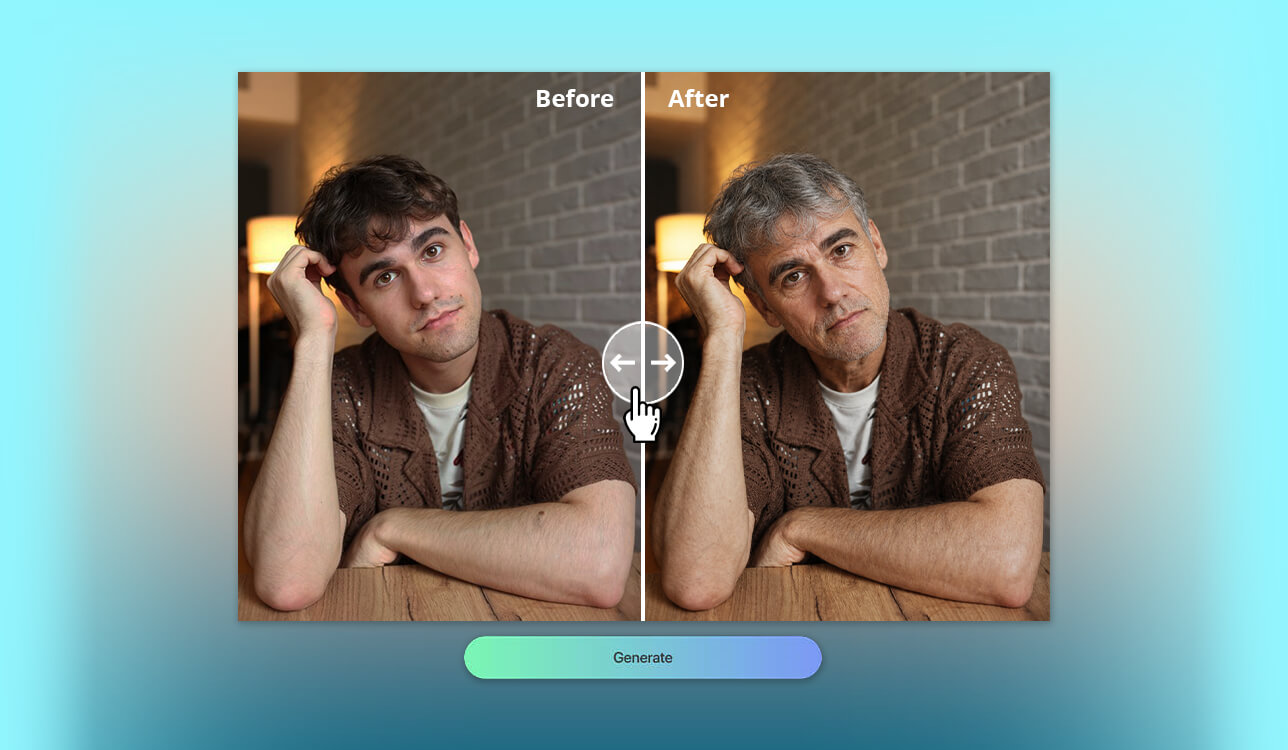
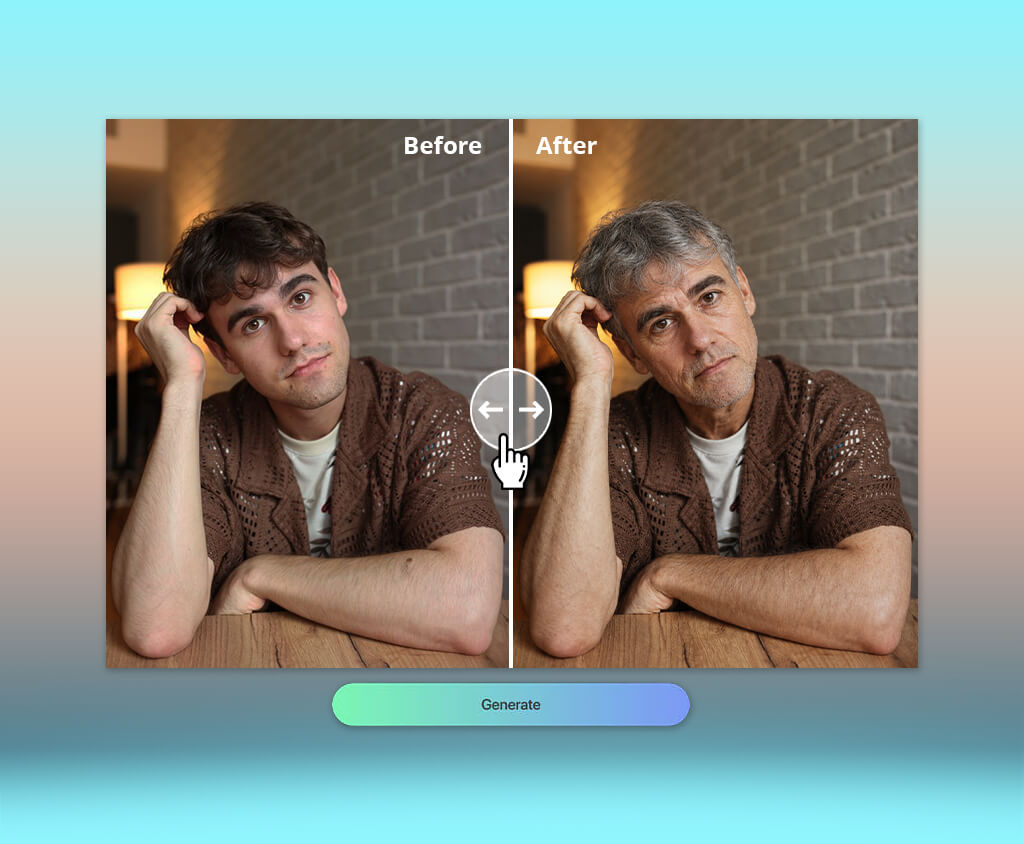
I began searching for the best AI age progression tools once my company decided to organize a fun office challenge. We wanted to figure out how everyone might look in their fifties, sixties, or even seventies, and compare the results. What should have been a quick project evolved into a long-term event, as some applications delivered highly realistic portraits, while others only managed to make subtle changes or applied random wrinkles that looked fake.
To determine which options are actually usable, I tested over 20 tools by importing the same selfies and portraits, checking the level of realism, user-friendliness, customization options, and overall picture quality. Additionally, I collaborated with multiple members from my FixThePhoto team to share our thoughts and ensure we selected tools that offered the most consistent results.
When picking the best AI age progression apps, I examined how natural the aged faces looked and whether they still looked like the original person in the photo. Other important factors included ease of use, picture quality, level of available customization, generation speed, additional AI editing tools, skin texture preservation, free plan restrictions, and how well-suited each option was for different kinds of users.
After testing all the different AI age progression tools, it became evident that the quality of the original image is as important as which AI model you use. If you want to ensure higher-quality results, I recommend doing the following:
Price: Free (limited daily generations) or from $9.99/month
Availability: Web
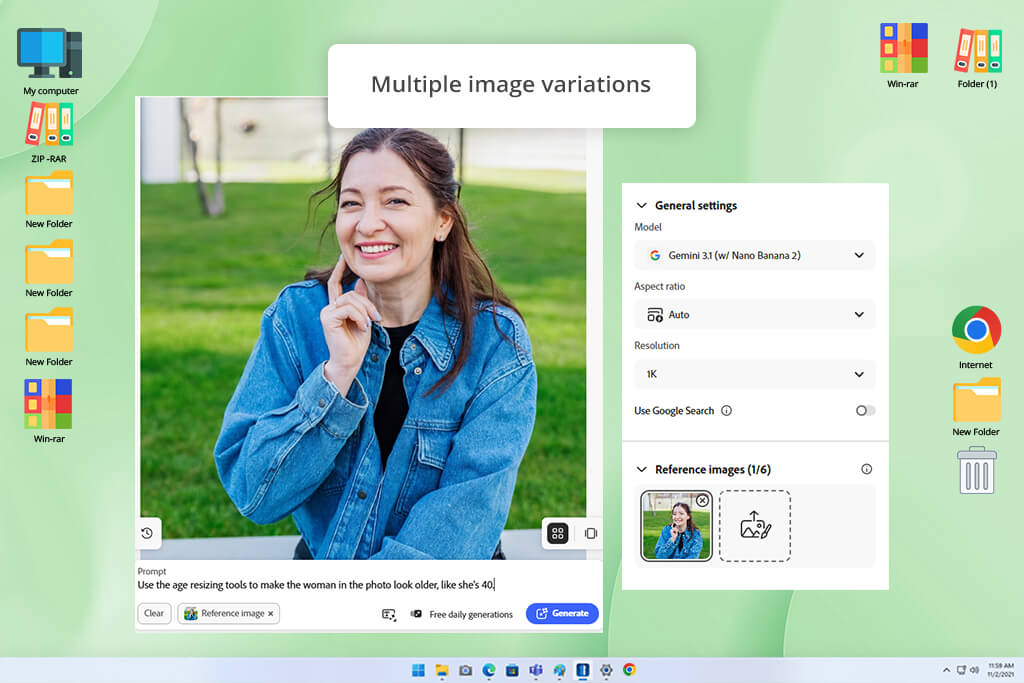
Adobe Firefly isn't a regular AI age progression tool, but it has proven to deliver some of the most natural and authentic-looking aged portraits I’ve seen. Rather than depending on premade filters, it lets the user age faces using text prompts and Generative AI tools like Generative Fill and Structure Reference to provide more realistic results.
The UI is minimalistic and intuitive. I merely had to import my photo, select the face using the brush tool, and write a prompt along the lines of "elderly person with realistic wrinkles and grey hair," before generating multiple variations. Structure Reference did a great job maintaining the original facial features while applying realistic signs of aging. The output looked detailed and natural without suffering from artificial wrinkles that tend to pop up when using most single-click solutions.
Additionally, I greatly appreciated Firefly’s integration with Photoshop, which allowed me to continue working on my photo in the latter whenever I needed to make more accurate edits with the help of layers, masks, and other AI features. Not only is Firefly arguably the best AI age progression tool, but it also allows you to customize the hairstyles, attire, accessories, and backgrounds. The main drawback is that it requires more effort than a single-click app, but the increased result quality makes it more than worth it.
“Firefly does more than apply a couple of wrinkles, as it makes the aging effect look believable while ensuring the face still resembles the original person. The key is to write good prompts since they have a huge impact on the final quality.”

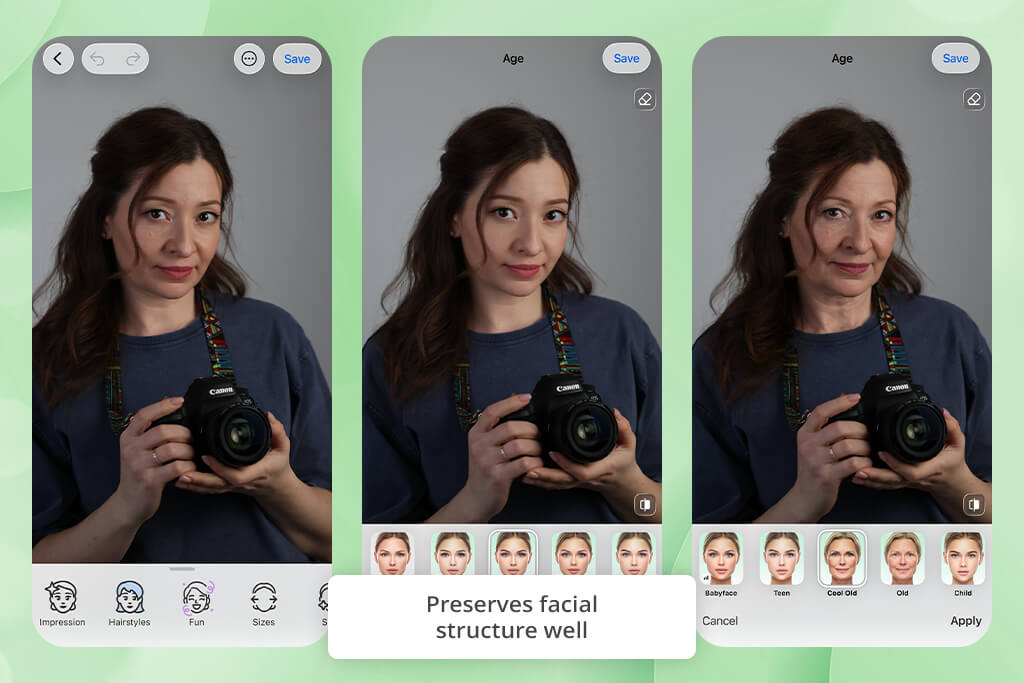
Price: Free or from $10/month
Availability: iOS, Android
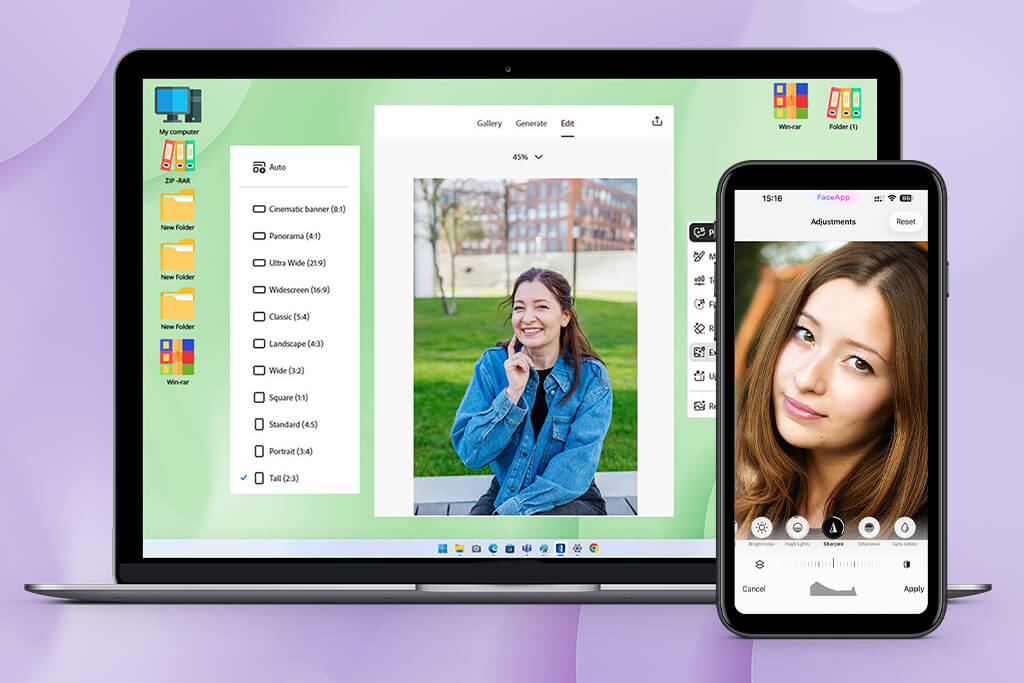
FaceApp is a free photo editing app that allows you to perform AI-based age progression and regression, while leveraging other portrait enhancement features. Upon importing each photo, I chose the Age filter, and the platform generated an older version within a couple of seconds. Rather than adding a basic overlay, it mapped wrinkles, grey hair, and sagging skin to the subject’s facial structure and expression.
While the results looked consistently impressive, some portraits did suffer from an over-processed feel. In addition to being an AI age progression app, it allows users to tweak the hair color, add a smile, swap genders, and add new backgrounds, representing a great option for fast portrait edits. Its biggest downside is the absence of manual controls, as you can’t change the intensity of the aging effect or generate several versions, while several advanced tools are only available in the premium plan.
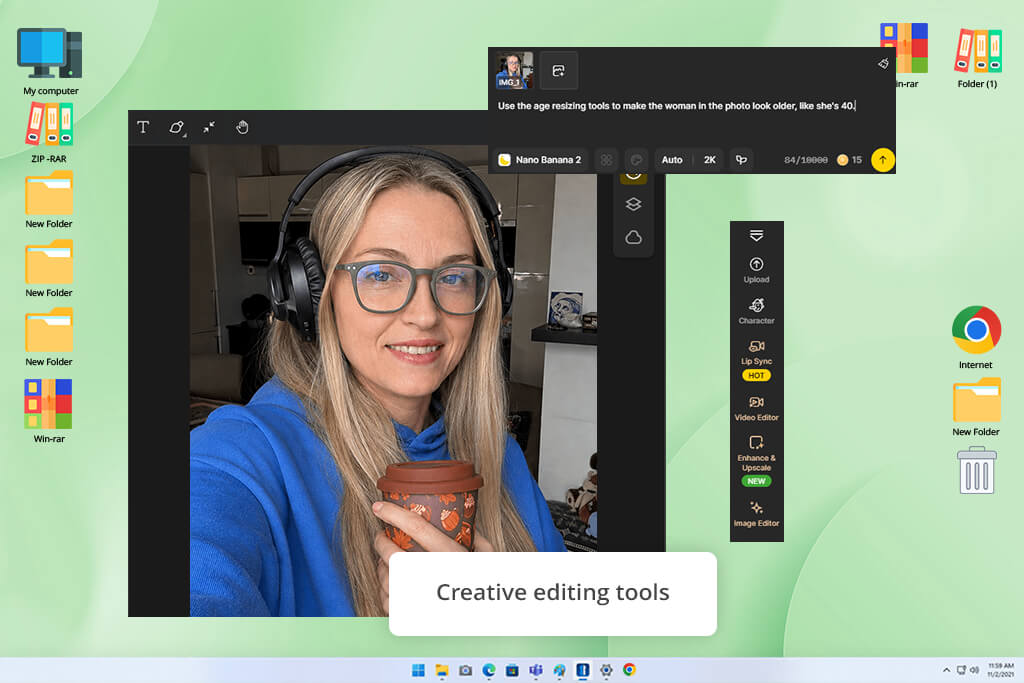
Price: Free (100 сredits after sign-up) or from $8.99/month
Availability: Web
Dzine is often listed among the best AI age progression tools since it allows you to predict how someone might look 20, 30, or even 60 years later. The UI is incredibly easy to navigate. I imported an image, chose the age progression feature, and the AI delivered the result in just a couple of seconds. The AI creates natural-looking wrinkles, grey hair, skin texture, and makes little facial structure transformations rather than applying a generic aging filter. In my experience, the lighting and facial proportions are preserved, so the results look authentic.
After completing the main test, I tested Dzine's AI Photo Enhancer to enhance the overall photo quality. In addition to age progression, this AI tool for content creation can tackle background deletion, image expansion, artistic filters, and other editing features designed for polishing portraits for a variety of purposes. Its most noticeable downside is the fact that drastic age transformations can lead to unnatural facial details, and the free plan imposes a credit system.
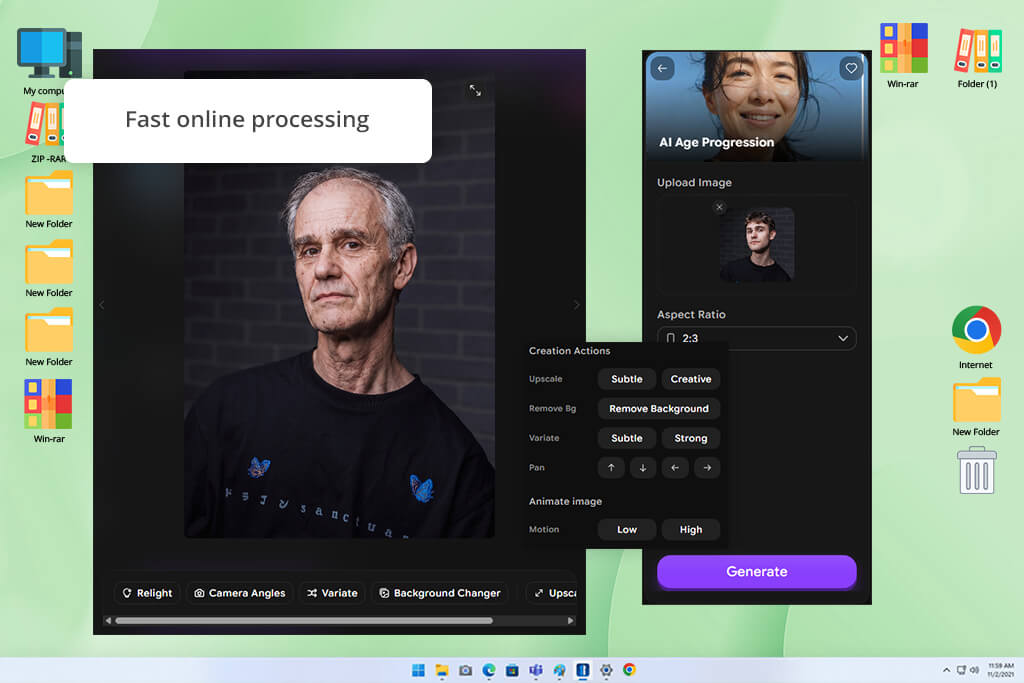
Price: Free (100 credits daily) or from $13/month
Availability: Web
ImagineArt is a multipurpose AI creative suite that comes with an AI image generator, face editing, AI videos, and a built-in AI age progression feature. Even though it’s not a dedicated AI age progression generator, it’s still capable of delivering realistic older portraits and then transforming them into polished creative projects. I imported a clear face picture and pressed Generate. The task was completed within a couple of seconds.
The AI ensured the eyes, smile, and facial structure all resembled the original person in the photo while generating wrinkles, grey hair, and skin texture. Next, I saved the high-resolution image and later experimented with the integrated AI image and video generators to add the aged portrait to various scenes and produce brief animated clips.
As an age progression app, it’s capable of more than basic face aging. Sadly, it doesn’t allow you to set a specific target age as you can in dedicated solutions. It can also blur certain facial details, so generate multiple versions to guarantee a good result.
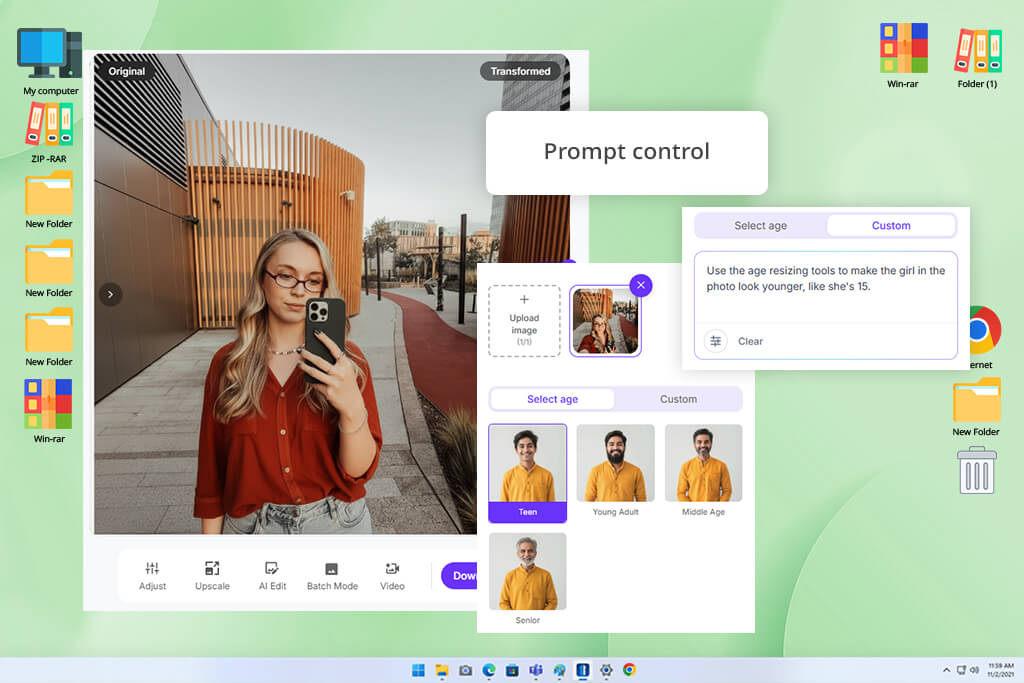
Price: Free (10 credits) or from $14.99/month
Availability: Web, iOS, Android
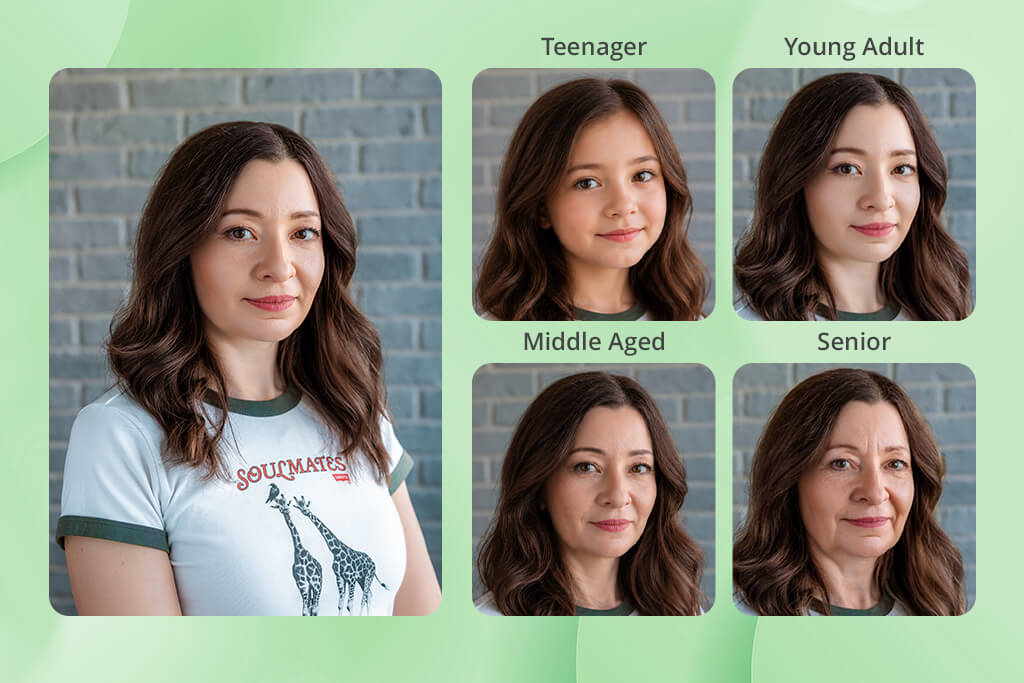
Pixelbin strives to streamline the age transformation process by providing convenient preset options like Teen, Young Adult, and Middle Age, as well as customizable prompts for more unique results. To check what this AI age progression app can offer, I imported JPEG and PNG photos, chose an age preset, and evaluated the results I got from the Nano Banana and Pro models. The AI maintained the original facial expressions while generating natural wrinkles, grey hair, and making appropriate skin edits.
The UI is minimalistic and browser-based, meaning I could begin working on my photos without even registering an account. Additionally, I enjoyed the provided selective AI photo editor, which helped me enhance specific facial areas rather than being forced to regenerate the entire picture.
Once generated, I could save the HD photo and adjust it to fit different aspect ratios for various social networks. That said, I highly recommend only using clear, front-facing portraits since pictures with uneven lighting, glasses, or distracting backdrops can result in an inaccurate output.
“Pixelbin was pleasantly intuitive to navigate, and being able to save the results in HD format was a nice bonus. However, in some cases, it took a couple of generations to get a satisfying result.”

Price: Free (credits daily, watermark) or from $8.99/month
Availability: Web
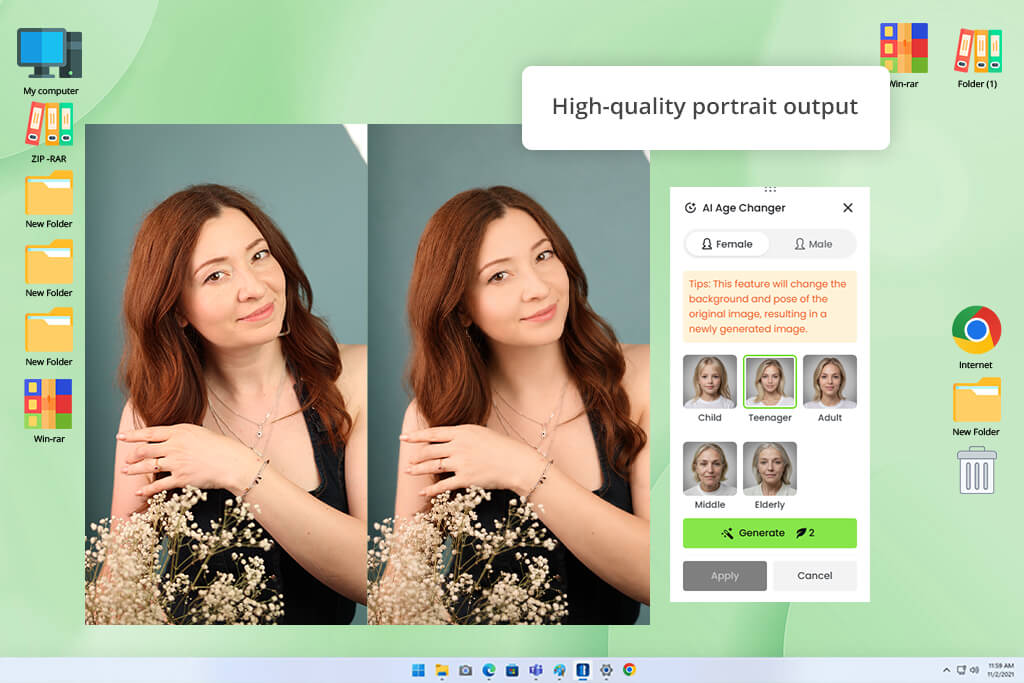
Rather than just visualizing an older look for your face, Fotor acts as an AI age progression generator that allows you to experiment with multiple life stages including Child, Teenager, Adult, Middle Aged, and Elderly. I uploaded images in several formats, chose the gender and preferred age stage, and received the results within seconds. The AI did a great job keeping the original facial structure and expressions while creating appropriate wrinkles, grey hair, and subtle age-related details.
I particularly enjoyed looking at multiple life stages side by side without having to make manual edits. In addition to age progression, I used Fotor's AI Enhancer and AI background remover tool to enhance the final photo before saving it. That said, some generations suffered from unnatural skin textures or facial blending, and I ran out of free credits after just a couple of generations.
Price: Free (5 credits per month) or from $10/month
Availability: Web
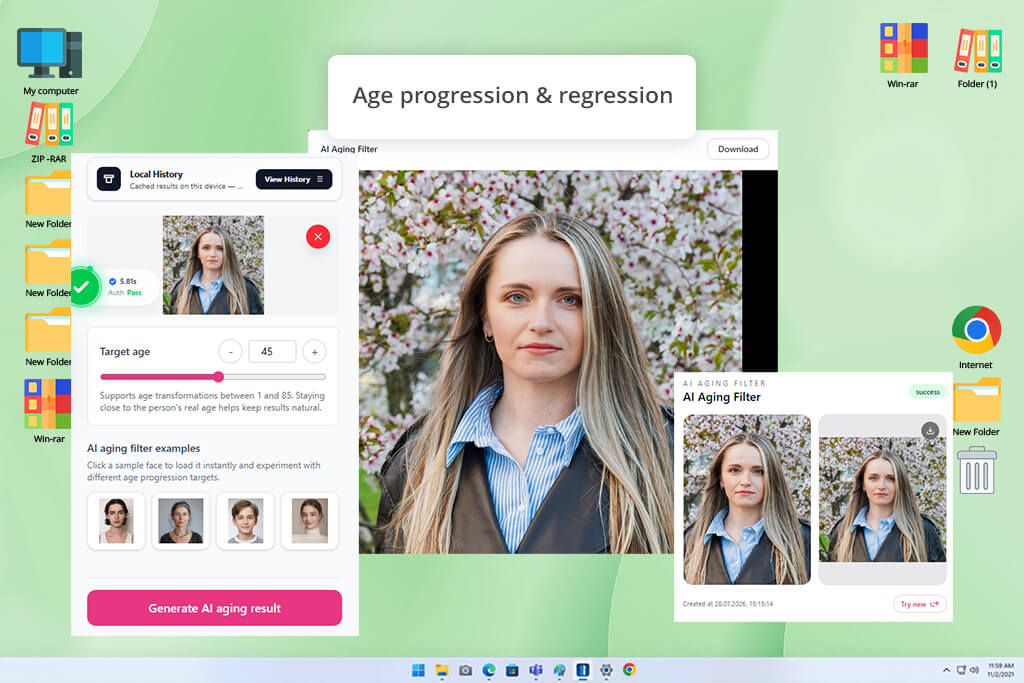
AILab Tools is a highly versatile AI age progression generator that allows you to set any age between 1 and 85. I imported a front-facing portrait, chose the desired age with the slider, and received the result within seconds. The AI managed to maintain the original expression, lighting, skin tone, and hairstyle while applying natural-looking wrinkles, aged skin texture, and facial contour transformations. I could freely go from childhood to teenage years, to adulthood, and elderly settings instead of being forced to pick between just a couple of presets.
This platform can also provide before-and-after comparisons that were simple to download and share. In addition to age progression, I experimented with AI photo enhancement, which enhanced facial details, boosted clarity, and delivered a cleaner output. The drawback of this option is that it requires you to make an account before you can save the results, and you need to import a front-facing portrait under 5MB in JPG, PNG, or BMP format.
When trying to find the best age progression app, my colleagues from FixThePhoto and I checked out a wide range of AI tools while using the same selfies and portrait pictures to evaluate their precision, user-friendliness, and general image quality. Additionally, we reviewed a variety of applications that failed to make our list, including Media.io, Remini, Higgsfield, Pixlio, Dreamina, ByloAI, Extrapolate, FaceLab, AgingBooth, Future Self, HeyPhoto, Agerfun, Filterly, YouCam Makeup, and Age Face.
“The age slider in AILab Tools helped me personalize the result with more freedom than I got in tools with fixed presets. If only I wasn’t forced to sign in before downloading the result.”

Some solutions were excluded since they couldn't deliver consistently realistic outputs, didn't have proper age controls, locked essential tools behind expensive subscriptions, or we felt that the overall image quality was lacking.
For our test, we focused on:
“The generations in Dzine looked very realistic in most tests, particularly when making smaller age adjustments. For drastic aging, it’s usually better to make multiple versions.”

I received the most believable results from tools that maintain the original facial structure while applying appropriate age transformations. Pick the option that offers the level of realism and personalization you need while also accounting for the bonus AI tools that you can take advantage of.
During my test, solutions that maintain the facial structure rather than just apply wrinkles deliver the most believable results. Prompt-focused editors like Adobe Firefly provide more control, while dedicated tools are quicker and more intuitive.
Yes. Most AI age progression tools like AILab Tools let you do age regression, meaning you can produce child, teen, or young adult versions of a portrait.
In most cases, it’s recommended to upload a clear, front-facing portrait with proper, even lighting. Don’t use photos with sunglasses, hats, heavy filters, or faces that are partially obscured.
Yes, some solutions can handle group pictures, but you’re likelier to receive realistic results on single-person portraits where facial details are clearly visible. During my test, Adobe Firefly, and Fotor managed to process group images better than the majority of specialized age progression platforms.
Bad lighting, low-resolution source image, side-profile portrait, or dramatic age changes can confuse the AI and result in distorted facial features or unrealistic skin textures.
Most solutions prioritize the face by adding wrinkles, aged skin texture, hair color, and facial contours. That said, tools like Adobe Firefly, ImagineArt, Dzine can also adjust the hairstyles, outfits, accessories, backdrops, or even add the aged portrait to an entirely different scene.




![Photoshop App on Android [NEW Release] {{%year}} Update](http://fixthephoto.com/blog/images/gallery/news_main__preview_29048.jpg)
![9 Best Higgsfield Alternatives [{{%year}} FixThePhoto Choice]](http://fixthephoto.com/blog/images/gallery/news_main__preview_29303.jpg)


![7 Best Photo Grid Makers [No Design Skills]](http://fixthephoto.com/blog/images/gallery/news_main__preview_29018.jpg)
![7 Best Free Pokémon AI Generators [{{%year}} FixThePhoto Choice]](http://fixthephoto.com/blog/images/gallery/news_main__preview_29022.jpg)

















