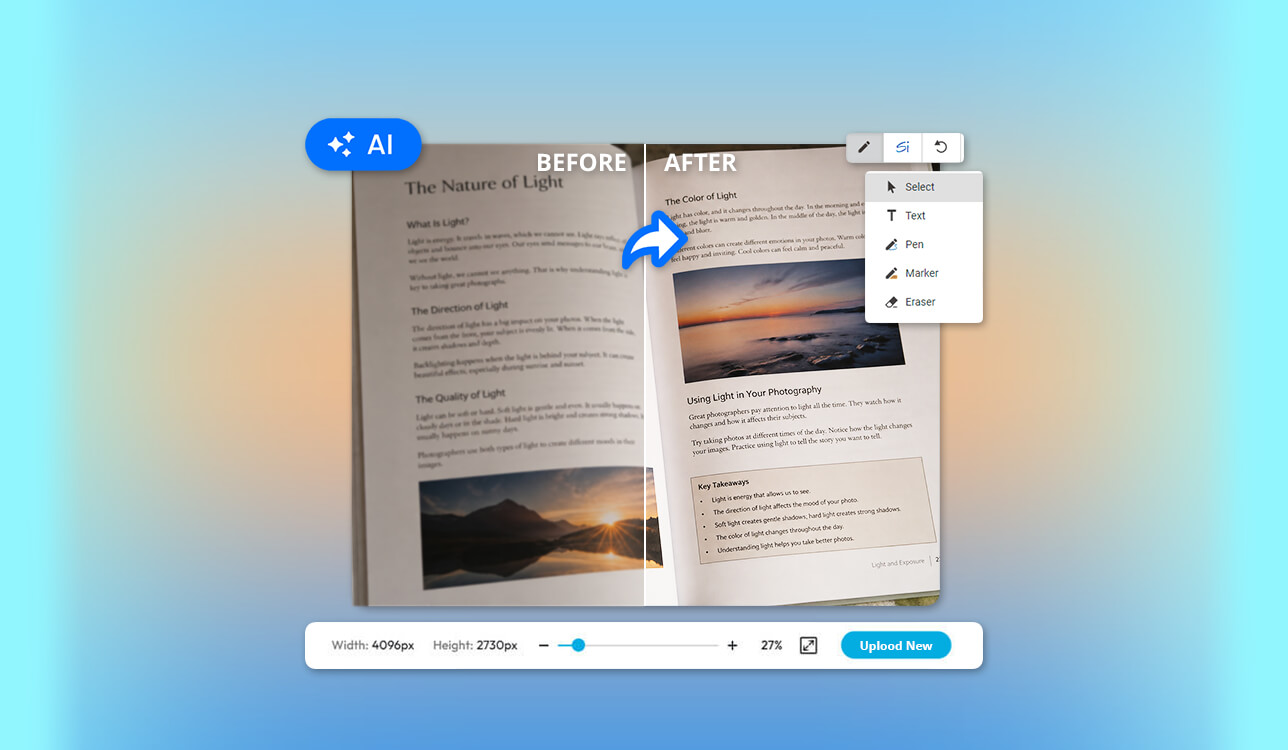
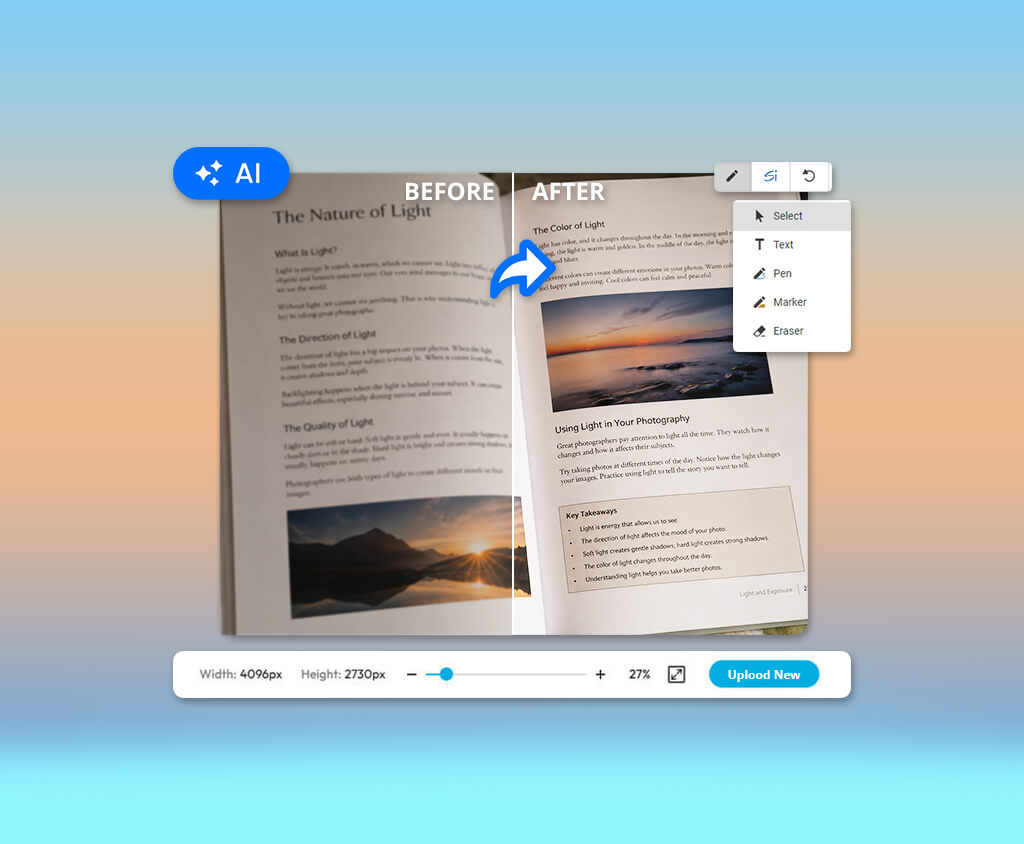
One file pushed me to start testing scanned PDF enhancers: an old product manual I needed for a FixThePhoto software guide. At first it looked fine, but once I opened it on a bigger screen, I saw gray pages, blurry letters, dark scanner borders, and a few pages that were slightly tilted. I could not copy the text, and OCR made too many mistakes.
My first move was the obvious one: turning up contrast and sharpness. The page looked better when looking from far away, but the filter also added bright outlines around the letters and nearly wiped out a few thin symbols. That's when I understood that enhancing a scanned PDF is not the same job as sharpening a normal photo.
For this comparison, I tested 25+ scanned PDF enhancers, including desktop programs, online services, OCR tools, scanner software, and AI enhancers. I ran them on contracts, receipts, instruction manuals, old book pages, handwritten notes, and documents photographed with a phone. I also paid attention to tools that keep showing up in American Google results and get recommended for fixing blurry, photographed, or image-only PDFs.
A good scanned PDF enhancer should offer:
| Software | Best for | Platform | OCR | Scan cleanup | Free option |
|---|---|---|---|---|---|
|
Adobe Acrobat
|
Complete PDF restoration
|
Windows, macOS, web, mobile
|
✔️
|
Advanced
|
Trial and online tools
|
|
LightPDF
|
Fast online enhancement
|
Web, Windows, macOS, mobile
|
✔️
|
Automatic
|
Limited
|
|
ABBYY FineReader PDF
|
Accurate OCR and archiving
|
Windows, macOS
|
✔️
|
Advanced
|
Trial
|
|
ScanTailor Advanced
|
Books and complex page layouts
|
Windows, Linux
|
❌
|
Advanced
|
Yes
|
|
NAPS2
|
Scanning and searchable PDFs
|
Windows, macOS, Linux
|
✔️
|
Basic
|
Yes
|
|
HitPaw FotorPea
|
AI sharpening and upscaling
|
Windows, macOS
|
❌
|
AI-based
|
Trial
|
|
Foxit PDF Editor
|
Office documents and batch OCR
|
Windows, macOS, web, mobile
|
✔️
|
Moderate
|
Trial
|
|
PDFelement
|
Editing scanned documents
|
Windows, macOS, mobile
|
✔️
|
Moderate
|
Trial
|
|
UPDF
|
Multilingual OCR
|
Windows, macOS, iOS, Android
|
✔️
|
Basic
|
Limited
|
After comparing all nine tools, Adobe Acrobat gave me the fullest workflow for fixing scanned PDF, combining page correction, background cleanup, OCR, editing, compression, and export tools, which makes it a good fit for professional and multi-page documents.
Before I tested these programs, I thought scanned-document enhancement was mostly useful for office staff and archivists. After working with different file types, I saw that almost anyone can benefit from making scanned PDFs clearer, searchable, and easier to edit.
If you are preparing restored scans for printing, it is also worth checking what is the best image format for printing. This can help you pick between TIFF, PNG, JPEG, and PDF based on the quality, file size, and page layout you need.
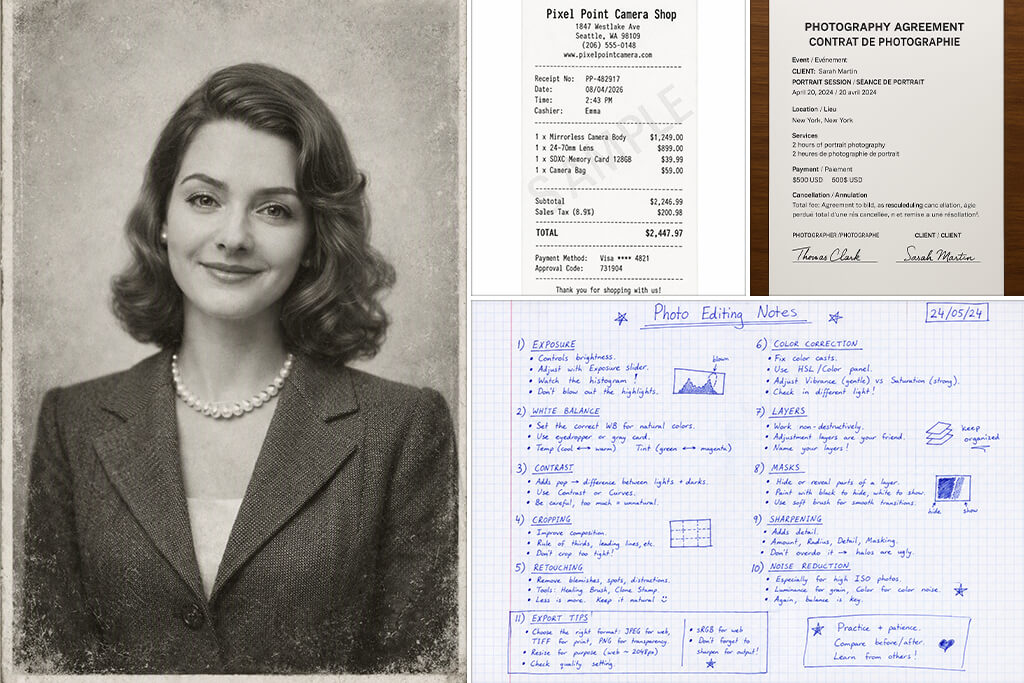
For students and teachers, PDF enhancers can help clean up lecture notes, copied textbook pages, worksheets, research material, and old academic files.
A cleaner background makes long files easier to read, and OCR lets you search for specific terms instead of scrolling through every page yourself.
For business users, scanned PDFs often are invoices, receipts, contracts, reports, certificates, signed forms, and customer records.
Here, improving visual quality alone is not enough. You might also need editable text, redaction, password protection, electronic signatures, compression, or conversion to Word and Excel.
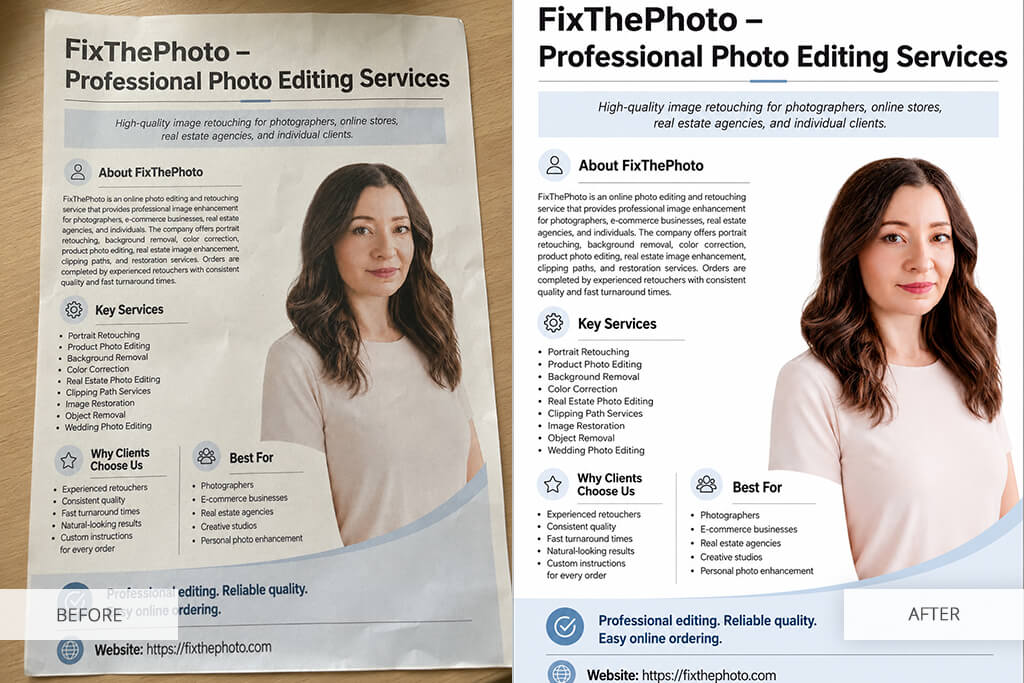
People who work with archives, libraries, or historical research often deal with documents that are much harder to scan than normal papers: old pages may have uneven edges, stains, curved lines of text, faded printing, pages with different sizes, or two-page scans that need to be separated.
Home users usually need a scanned PDF enhancer for everyday documents like receipts, warranties, certificates, handwritten notes, family records, or printed instructions.
Designers and photographers often work with PDFs that contain scanned photos, mood boards, contact sheets, artwork, or printed portfolios.
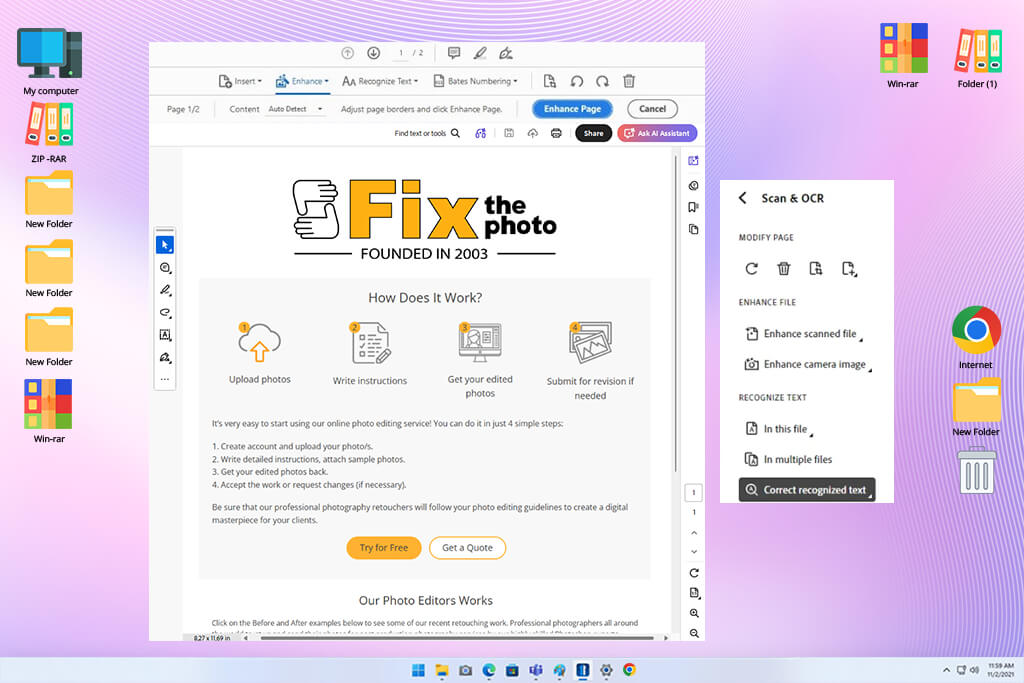
Adobe Acrobat became my favorite option because it offers a strong mix of scan improvement, accurate OCR, editing features, and professional PDF tools.
While working on contracts, instruction manuals, receipts, and scanned image-only documents for FixThePhoto projects, I needed software that could do much more than a simple online enhancer but without spending time editing every page manually.
The thing I liked most about Acrobat was that it felt like a complete document restoration program, which includes everything needed to clean, improve, and prepare scanned documents.
“Always clean and straighten scanned pages before running OCR. This helps the software recognize the text more accurately and reduces mistakes in small and faded letters.”

That is also why I would recommend Adobe Acrobat as one of the best PDF editors. Besides improving scanned files, it also lets you edit PDFs, convert them into other formats, compress file sizes, add electronic signatures, organize pages, and protect documents.
My recommendation is to use Adobe Acrobat for free when your scanned PDF needs to be easy to read, searchable, editable, and ready for professional use. Clean up the pages first, run OCR after that, and always check names, dates, prices, and document numbers before saving the final file.
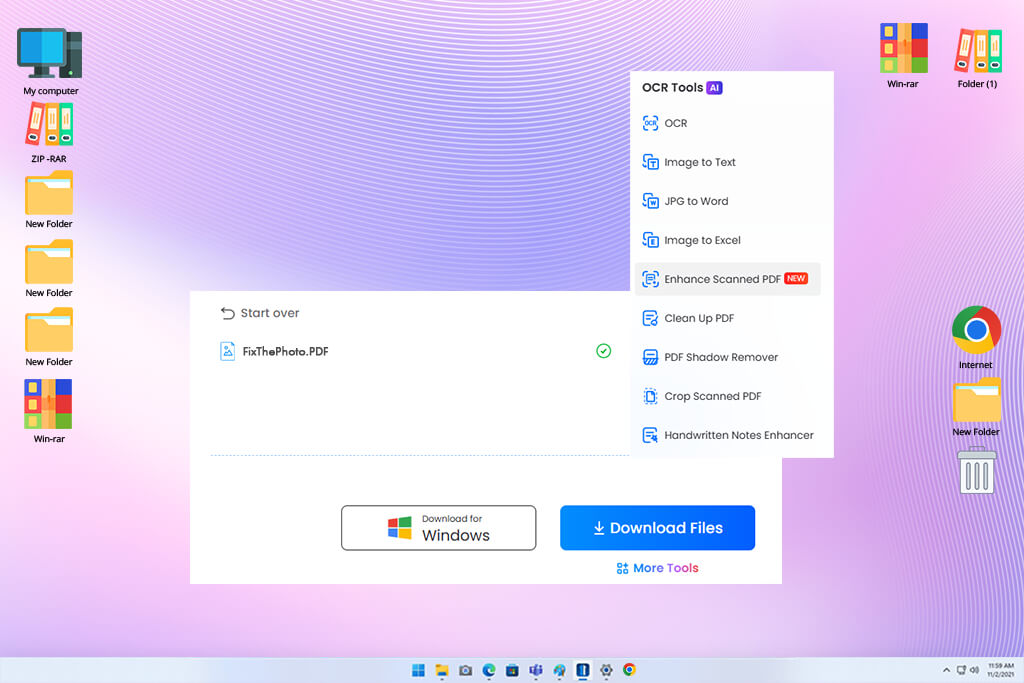
I used LightPDF when I wanted to improve several scanned receipts quickly without installing another desktop application. The receipts had uneven lighting, gray backgrounds, and text that looked slightly blurry because they were scanned with a phone.
The process was straightforward. I uploaded the PDF, started the enhancement, and downloaded the improved file. The scanned PDF enhancer automatically brightened the background and increased the contrast between the paper and the text, making the receipts easier to read and helping OCR recognize the text more accurately.
LightPDF also includes separate tools for removing shadows, cleaning page backgrounds, cropping scanned pages, and recognizing text. Because of these features, it also deserves a place among the best document scanning apps, especially for users who take photos of documents with their phones and improve them afterward.
My advice is to use LightPDF for quick cleanup of documents that do not contain private or sensitive information. Keep the original copy and compare a few pages before deciding to use the enhanced version as your final document.
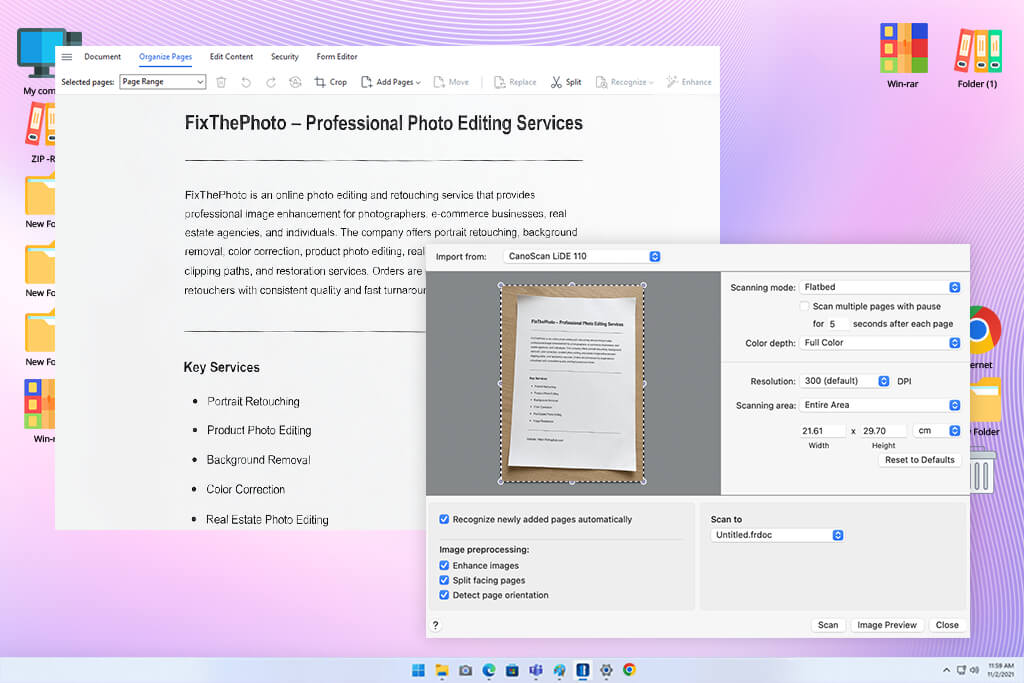
I tested ABBYY FineReader PDF with a scanned business report that contained narrow text columns, tables, page numbers, and small captions. Quite often, these details create problems for basic OCR software, especially if the scan is faded or saved with heavy compression.
What impressed me the most is how well it kept the document organized. ABBYY FineReader PDF is not only designed to make scanned pages look clearer. It focuses on turning scanned documents into digital files that you can search, edit, copy, convert, and store while keeping their original layout.
“Choose the correct language before starting OCR. This can improve text recognition, especially when the document has small text or includes more than one language.”

I would also suggest ABBYY FineReader PDF for people who often convert scanned PDFs into Word or Excel files. It performs especially well with business reports, research papers, invoices, legal paperwork, and archived documents where preserving the original formatting is important.
The main disadvantage is that FineReader can feel too advanced if you only want to improve a single blurry page. Its strongest features are designed for people who work with structured documents, perform OCR regularly, or manage large document archives.
My recommendation is to choose this scanned PDF enhancing tool if accurate OCR, keeping the original layout, and creating editable files are more important to you than simple one-click image enhancement.
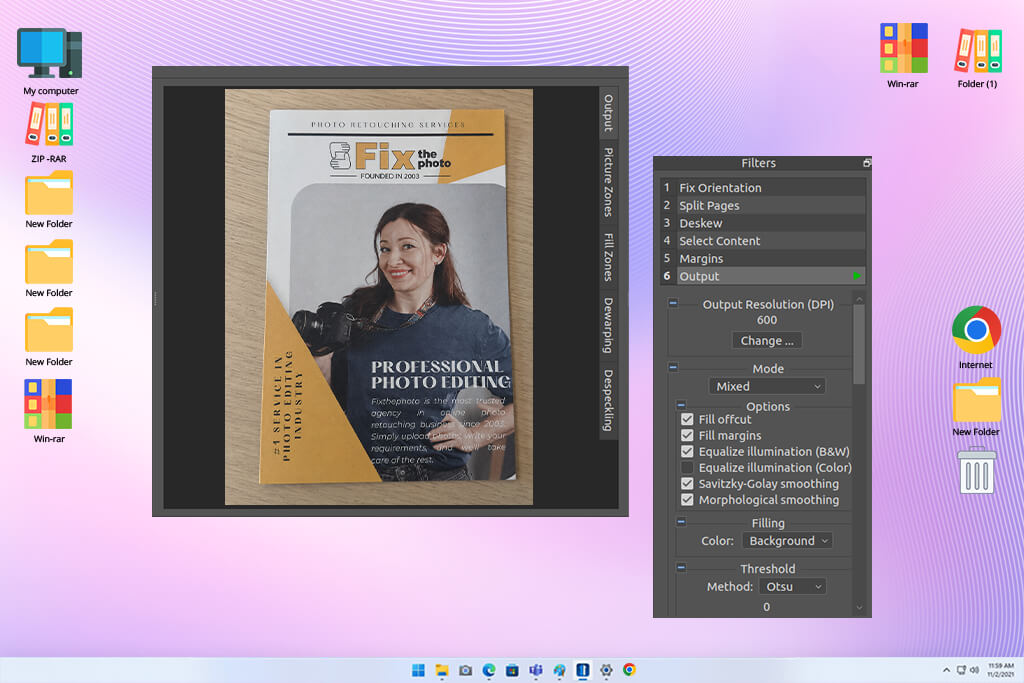
ScanTailor Advanced became one of the most helpful programs during my work on a scanned photography book. Every scan included two pages side by side; the center of many pages had dark shadows, and some pages were scanned at different angles.
I first tried a simple PDF enhancement tool, and although it improved the contrast, it did not solve the biggest layout issues. ScanTailor Advanced gave much better results because it allowed me to fix the page layout before starting OCR or creating the final PDF.
Because of this, ScanTailor Advanced deserves its place among the best document scanning software for anyone working with books, magazines, newspapers, instruction manuals, or historical documents. It deals with difficult page layouts much better than many standard PDF editors and helps keep large scanning projects organized from start to finish.
The biggest drawback is that ScanTailor Advanced is made for preparing scanned pages, not for complete PDF editing. If you want OCR or to create a searchable PDF, you still need another program such as NAPS2, Adobe Acrobat, or ABBYY FineReader PDF.
My recommendation is to use ScanTailor Advanced whenever your scans need page splitting, straightening, or margin corrections. It works best before OCR because it helps create a clean and well-organized document for the next steps.
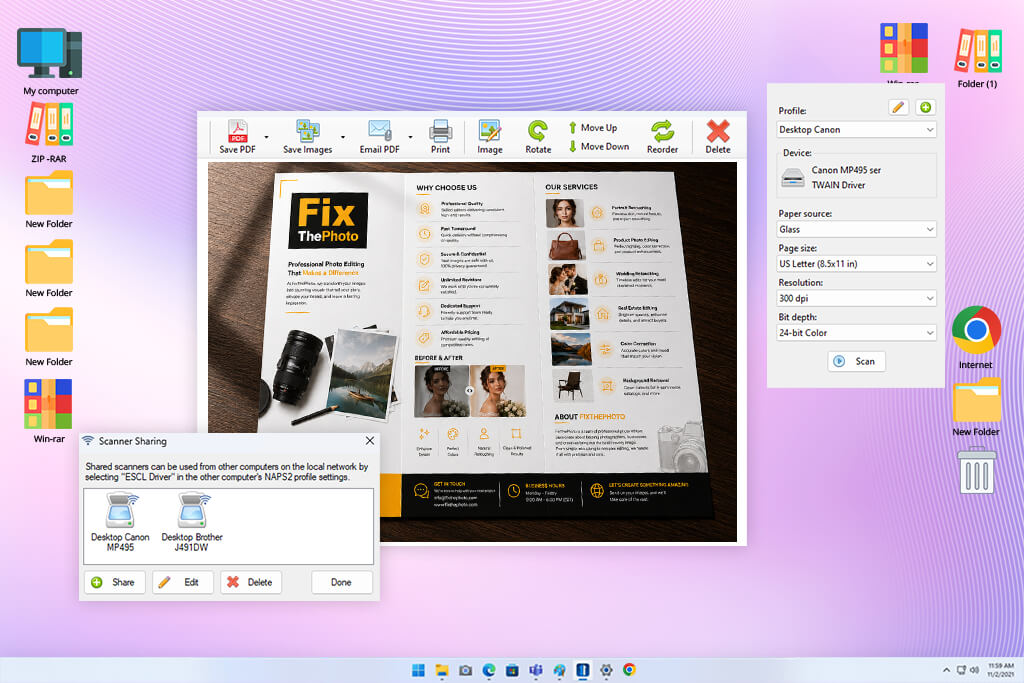
NAPS2 became one of the most useful programs I tested when I needed to scan several paper documents and save them as searchable PDFs without paying for a subscription. It recognized my scanner immediately, and I could create different scanning profiles for text documents, color pages, and files that included photographs.
The feature I found most useful was the ability to save settings such as resolution, color mode, paper size, and output format. Since everything was stored in separate profiles, I could scan new documents much faster without changing the settings every time.
“Create a separate profile for text documents and scan at about 300 DPI. This usually gives OCR enough detail while keeping the PDF size reasonable.”

NAPS2 is a good choice for scanning receipts, invoices, certificates, contracts, school notes, and personal records. Before saving the finished PDF, I could easily rotate pages, delete unnecessary ones, and arrange them in the correct order.
The main weakness is that NAPS2 is designed to create clean scans from paper documents, not to repair damaged or poor-quality PDFs. It does not include advanced tools for fixing backgrounds, removing shadows, or repairing pages like Adobe Acrobat or ScanTailor Advanced.
My suggestion is to use this scanned PDF enhancer when you still have the original paper document and want to create a clean, searchable PDF from the beginning. If the file is already blurry or damaged, combine it with a separate cleanup or enhancement program.
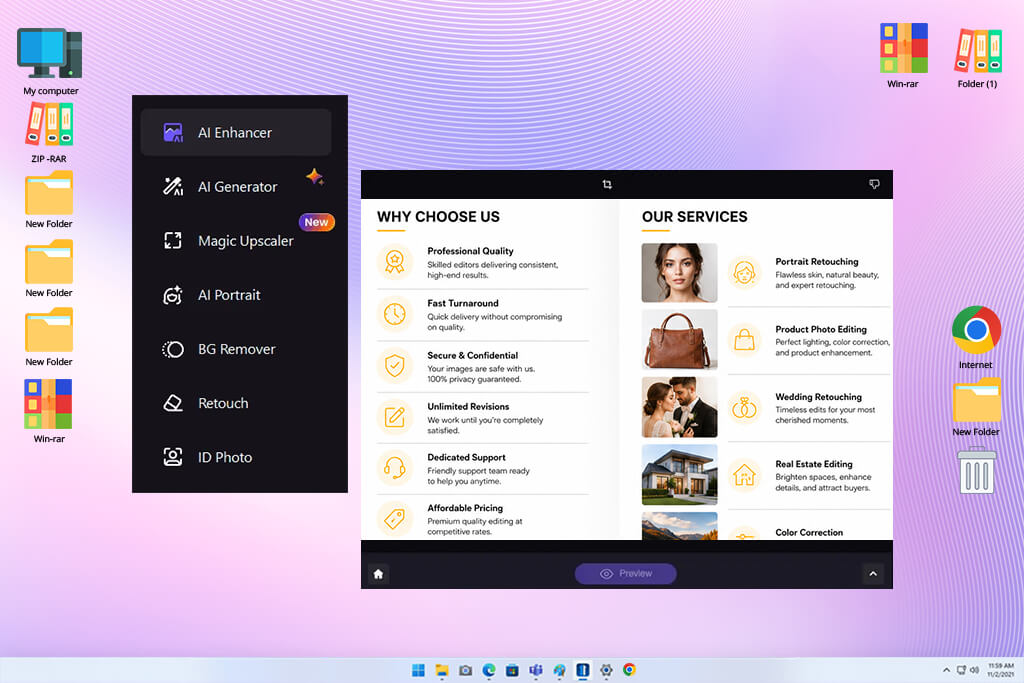
HitPaw FotorPea impressed me when I tested it on scanned PDFs that contained more than plain text. One of my sample files was an old product catalog filled with low-quality photos, faded illustrations, and compressed images. Regular PDF editing programs improved the page background, but the pictures still looked faded and lacked detail.
This software works differently from a standard PDF enhancement tool. FotorPea improves each page as an image, so it does not make the text searchable or editable on its own. After enhancing the images, I still had to rebuild the PDF and use another program to perform OCR.
“Choose a moderate AI enhancement mode for pages that contain text. Strong image upscaling can slightly change small letters, which may reduce OCR accuracy.”

That is also why FotorPea works well alongside the best JPG to PDF converters. After improving the exported JPG images, I could combine them into a new PDF and then use a dedicated OCR program to make the document searchable.
The main disadvantage is that the process takes several extra steps: you need to export the PDF pages as JPG or PNG images, enhance them, combine them into a new PDF, and then run OCR in another application if you need searchable text.
My advice is to use gentle enhancement settings on pages with a lot of writing. Before running OCR, check the text carefully to make sure the letters still match the original document.
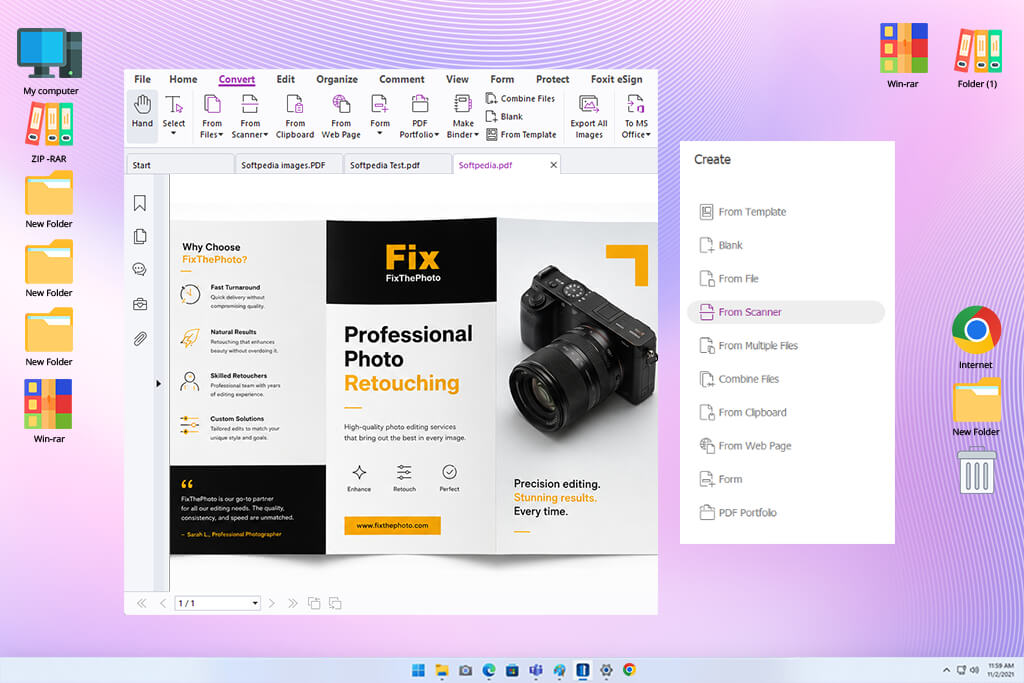
I used a folder full of scanned invoices to test this scanned PDF Editor. The documents were clear enough to read, but the text was locked inside images, so I could not search for dates or invoice numbers. To find specific information, I had to open each PDF one by one.
Foxit PDF Editor became much more useful after the OCR process was finished. Once the text could be recognized, I was able to hide private details, leave comments, move pages into a different order, convert files into other formats, and protect the finished PDFs without using another program.
That is also why Foxit PDF Editor is a good choice among the best OCR scanners. It is especially useful if you need to change scanned pages into searchable and editable files that are easier to manage later.
My suggestion is to choose Foxit PDF Editor if you often work with office documents, searchable archives, files that need sensitive information hidden, or PDFs that must be converted into other formats. Before running OCR, enhance difficult scans first, then carefully check prices, dates, and reference numbers to make sure they were recognized correctly.
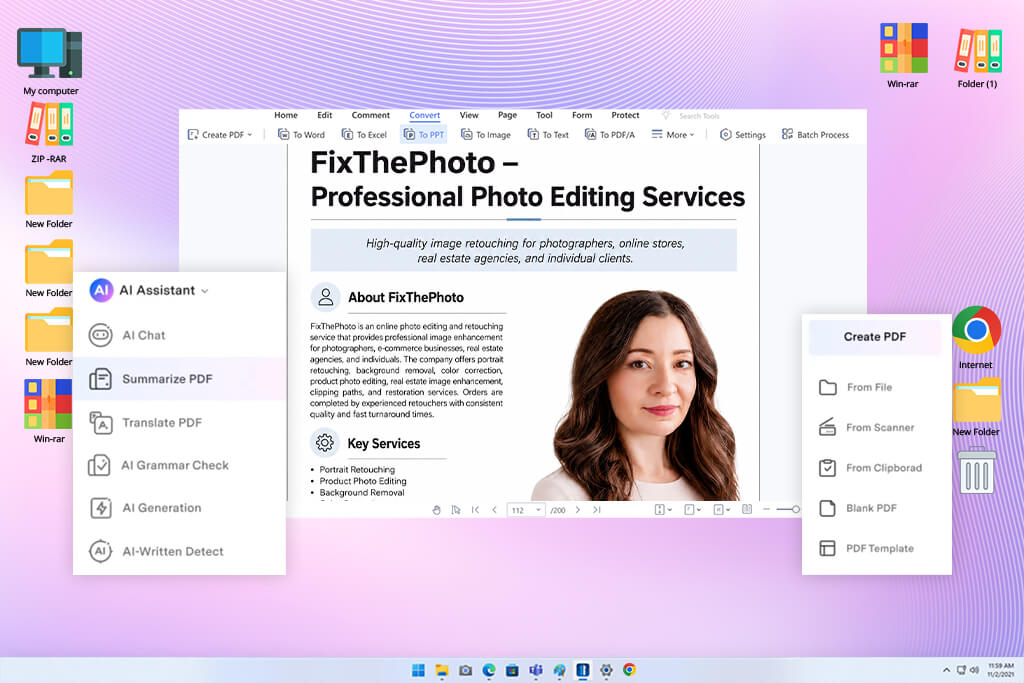
A scanned application form was the main file I used to test Wondershare PDFelement. It included printed text, tables, checkboxes, and handwritten notes, so I needed more than a tool that only improved image quality.
The part I found most useful was having OCR, editing, file conversion, comments, and page management all inside one program. Once the scan became searchable, I could edit text, leave notes, rearrange pages, and save the finished document without opening another application.
“Before exporting the file, check tables and form fields carefully, as these areas often need more manual corrections.”
For my projects, PDFelement worked best with forms, study materials, reports, and office documents that needed both OCR and editing. I think it is easier for new users than Adobe Acrobat while still providing enough features for everyday PDF tasks.
The batch OCR option also saved time when I had several scanned files to process. I could process multiple PDFs at once and then only spend time checking the pages where the software was less confident.
My advice is to repair poor-quality scans before using OCR. After that, review tables, numbers, and form fields carefully to make sure everything was recognized correctly.
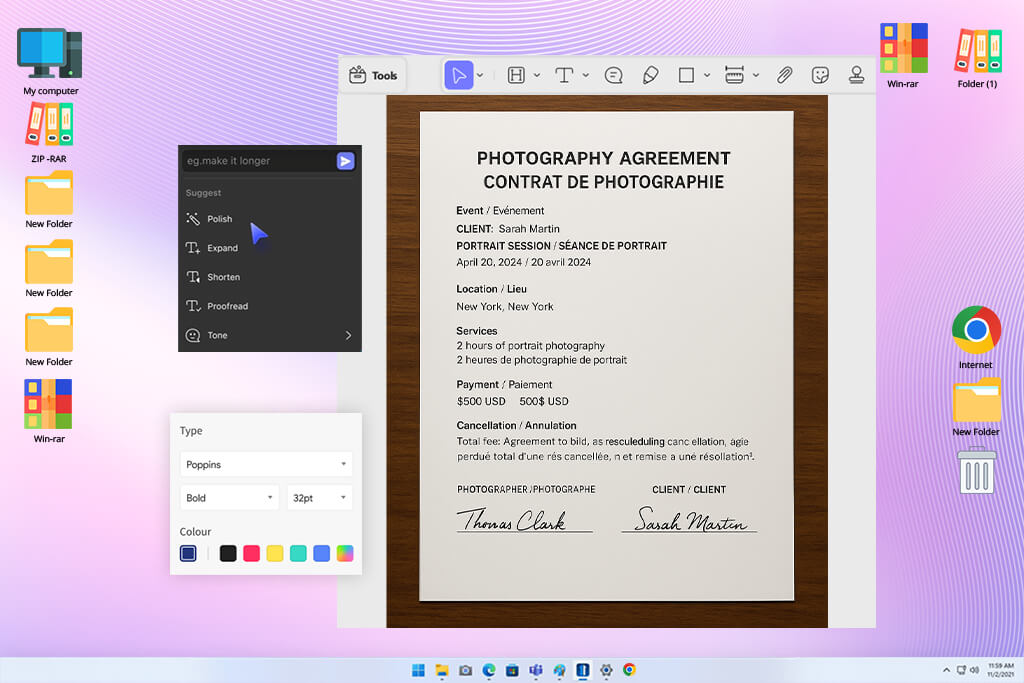
A bilingual research paper helped me see where UPDF performs best. The PDF contained both English and German, but every page had been saved as an image, so I could not search for words or copy any text.
The UI made everything easier to understand than many older OCR tools. I quickly found the recognition settings, selected the pages I wanted to process, chose the output format, and continued editing the document without moving to another program.
Besides OCR, UPDF also allowed me to rearrange pages, write notes, convert the document into other formats, and use AI tools to create short summaries of long sections. This combination makes it useful for students, researchers, international teams, and anyone who often works with documents written in different languages.
UPDF also works well together with the best PDF repair tools when a damaged PDF can still be opened but needs OCR, page organization, notes, or file conversion. Nevertheless, it is better at recognizing and editing text than repairing badly damaged scanned documents.
My recommendation is to improve poor-quality pages before starting OCR. After recognition is complete, carefully check names, numbers, and letters with accents to make sure they match the original document.
Trying out scanned PDF enhancement software became much more than a simple comparison: together with the FixThePhoto team, I turned it into a full document testing project. Since we often work with contracts, instruction manuals, reports, screenshots, scanned guides, and other reference files, I wanted to see which programs could improve poor-quality PDFs and make them easier to read and work with.
To prepare this guide, I tested more than 25 different scanned PDF enhancement programs. The list included desktop PDF editors, online tools, OCR software, scanner applications, open-source programs, and AI-powered image enhancers.
Some programs, including PDFgear, PDF24 Tools, Nitro PDF Pro, Smallpdf, iLovePDF, Soda PDF, OCRmyPDF, Online2PDF, i2PDF, FunPDF, Microsoft Lens, Adobe Scan, and CamScanner, were not included in the final recommendations because they had fewer useful features or offered almost the same functions as stronger alternatives.
To test every program fairly, I used several real-world test documents during the review process:
Each program performed well in different areas. Some were better at cleaning the page background, while others focused more on OCR, scanning, editing, or AI image improvement. Because of this, I did not judge the software only by how clear the finished PDF looked. I also checked whether it made the document easier to search, edit, print, share, and archive.
Scan cleanup. I looked at how well every scanned PDF enhancer removed gray or yellow backgrounds, scanner marks, dark borders, stains, and shadows caused by phone cameras. The best programs cleaned the page while still keeping important details such as signatures, punctuation marks, handwritten notes, thin table lines, and photographs.
Page correction. I tested features like automatic page rotation, straightening, perspective correction, page splitting, border removal, and margin adjustment. These tools were especially useful for scanned books and documents that had been photographed from an angle.
Text quality. I checked every improved PDF at 100%, 200%, and 400% zoom. My goal was to see whether faded letters became easier to read without creating thick outlines, broken characters, or letters that looked too bold.
OCR performance. I compared the recognized text with the original document. I paid close attention to names, dates, prices, invoice numbers, accented letters, decimal points, and characters that often get mixed up, such as 0 and O or 1, I, and l.
Batch processing. Many people scan large manuals, contracts, or folders full of documents, so I also tested whether one group of settings could be applied to many pages or files at the same time. Adobe Acrobat, ABBYY FineReader PDF, Foxit PDF Editor, PDFelement, and ScanTailor Advanced offered the most practical batch processing features.
Price and free versions. I checked whether the free versions and trial editions were useful for proper testing or if they only showed the interface without allowing meaningful work. I also considered whether the paid versions offered enough extra features to be worth paying for if you work with documents regularly.
Before processing a full PDF, I always tested one sample page first. This made it easy to see if strong cleanup settings removed small details by mistake and whether OCR could still recognize tiny text, numbers, and other important information correctly before I processed the entire document.





![9 Best AI Audio Silence Removers [{{%year}} FixThePhoto Choice]](http://fixthephoto.com/blog/images/gallery/news_main__preview_29189.jpg)



















