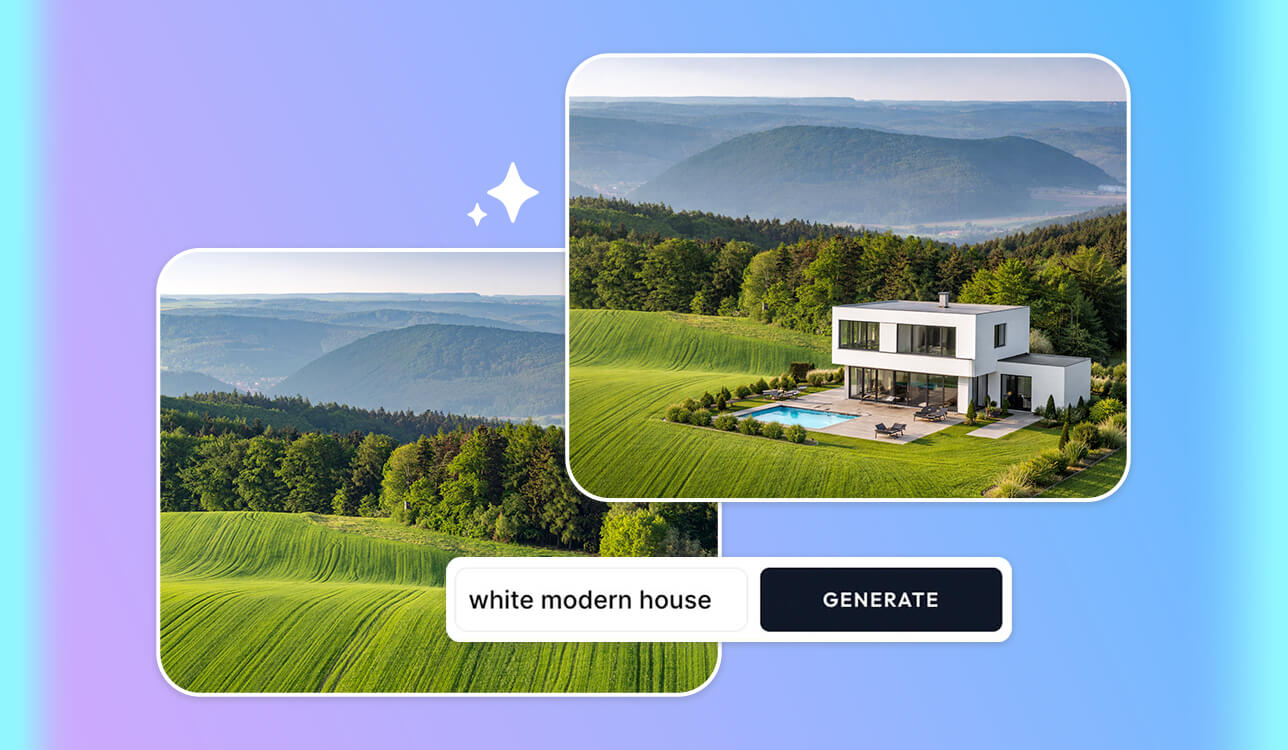
I started looking for the best AI generative fill tools when I was struggling to meet a deadline on a retouching project for a fashion retailer client. At FixThePhoto, we were dealing with hundreds of photos that suffered from busy backgrounds, missing parts, and damaged areas that had to be recovered, and manual editing required too much time.
Initially, I thought any popular AI solution was fit for the job, but my tests quickly proved me wrong. For professional work, you need tools that can ensure the original skin texture, fabric detail, shadows, and lighting are untouched, since otherwise the results can look artificial.
The project benefited from the use of AI generative fill tools across different scenarios that included deleting tourists from fashion photos, expanding backgrounds for banners, reconstructing cropped body parts, and swapping out scenery affected by poor weather during the photoshoot.
To evaluate each option properly, I prioritized multiple essential factors – realism, high-resolution support, texture rebuilding, and versatility of editing features. When testing 60+ AI generative fill tools, I saw immense differences between options.
Some platforms produced visually stunning edits upon first impression, but upon closer inspection, details like hair, jewelry, or clothing folds looked ruined or distorted. Others did a great job preserving textures and lighting, but lacked versatility or support of professional Photoshop-focused editing workflows.
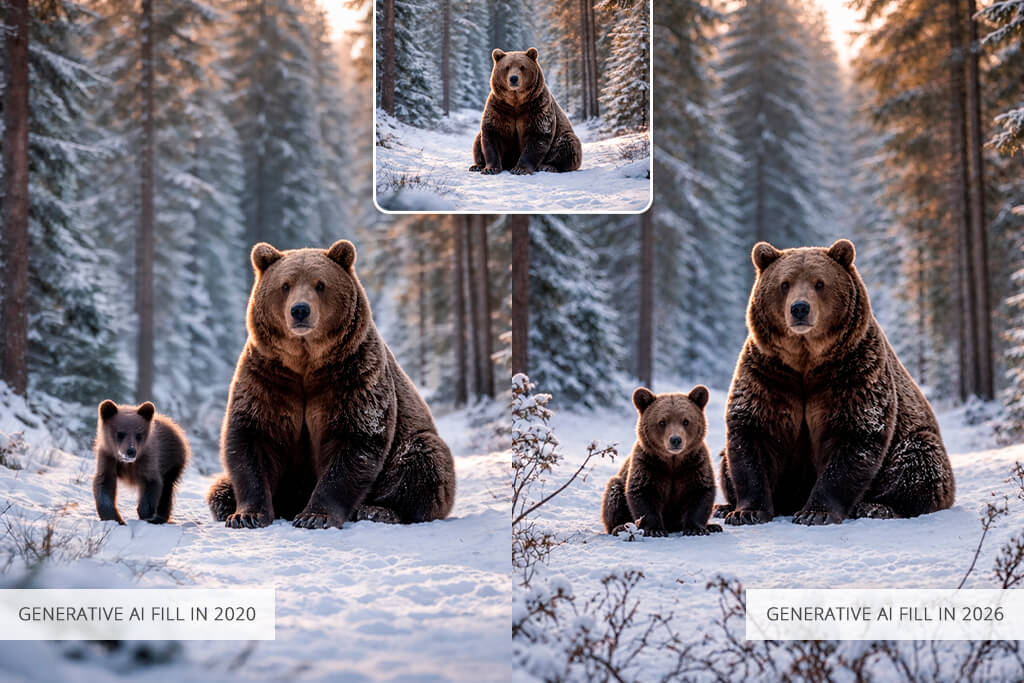
Generative fill tools were primarily created to correct, expand, or creatively reconstruct specific image areas that would usually demand manual involvement. For professional photography workflows like the one we have at FixThePhoto, such platforms are particularly helpful when we’re facing a tight deadline but can’t compromise on quality.
The most common action you’ll have to perform is object removal. This feature lets you get rid of distracting elements like bystanders in the background, power lines, dust specs, or random elements in an environment, and the AI rebuilds what should realistically be behind them. You’ll frequently employ it for portrait, street, and real estate photography.
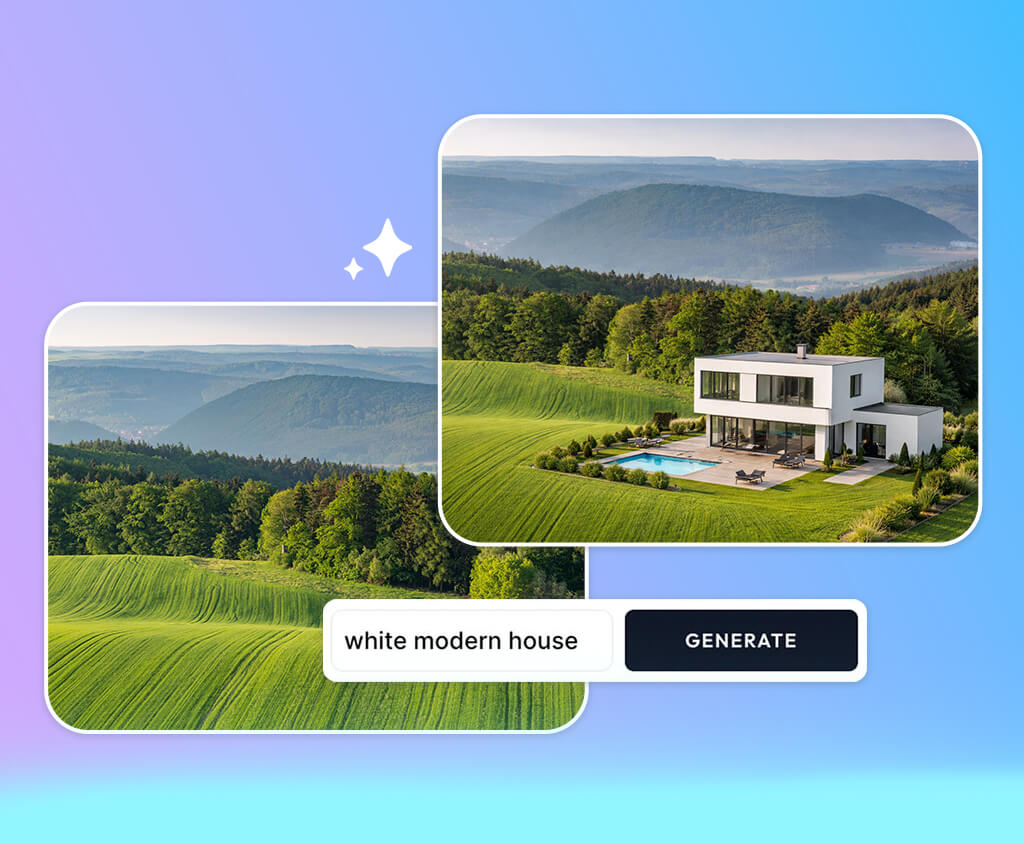
Such platforms are also often used for background extension and outpainting. When an image is overly cropped, or you need to tweak it to accommodate specific formats (like banners or social media ads), generative fill can smartly extend skies, walls, landscapes, or studio backgrounds while accounting for the lighting and perspective.
AI generative fill also excels at object reconstruction and repair. If a specific photo area is missing or damaged, be it a cut-off hand, torn fabric edge, or incomplete product detail, you can use such a tool to recreate it in a visually cohesive manner. Such functionality is particularly relevant for commercial product photography.
Lastly, generative fill can help with creative scene editing and conceptualization. Rather than simply fixing photos, you can drastically transform scenes, apply atmospheric effects, or produce new visuals that match the style and mood of the original image. In practice, you can turn a regular photo into a flexible foundation for marketing, storytelling, or creative design.
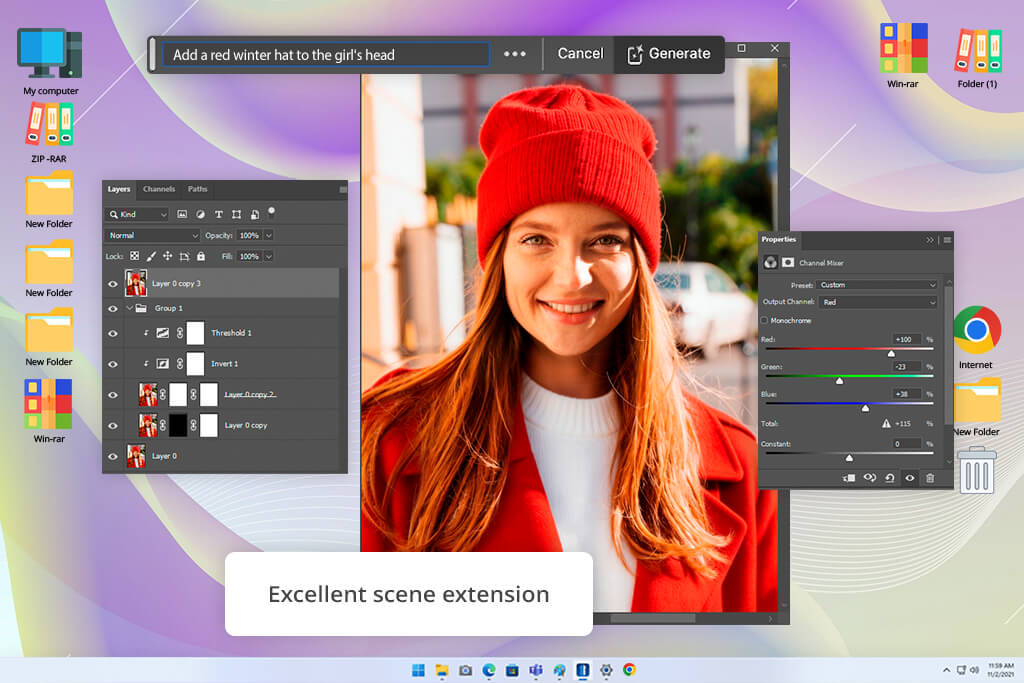
I was already using Photoshop generative fill AI tool for my retouching work, so it felt natural to try to import high-res RAW photos with complex backgrounds, missing edges, and distracting elements. I liked how realistically the AI processed the lighting direction and skin texture. Even challenging edits, like rebuilding cropped clothing elements, looked realistic after just a couple of generations.
I dedicated multiple days to examining how generative fill acted when used for a professional project rather than casual social media editing. I primarily focused on expanding studio backgrounds, reconstructing hair strands, and getting rid of unwanted bystanders from outdoor shoots.
This free Adobe software tackled shadows and reflections a lot better than I thought, particularly when handling glossy elements and reflective surfaces. Moreover, Photoshop allowed me to adjust masks manually instead of having to depend exclusively on automation.
“By far the most robust option on the market. The generative fill is highly realistic when used properly.”
The key defining feature is the layer-based non-destructive AI editing. I could generate several variations without ruining the original photo, which made it simpler to handle client revisions for commercial projects.
The ability to utilize RAW processing, smart objects, and color management ensures this photo editing software for PC has an edge over simpler generative fill tools. I was never forced to accept a specific result since all generations remained editable.
The main reason why Photoshop is my mainstay tool is consistency. Some alternatives can regularly generate impressive photos, but only Photoshop provides dependable quality across portraits, product photography, and marketing assets. Even if the AI makes an error, I can fix it manually thanks to the inclusion of professional retouching tools.
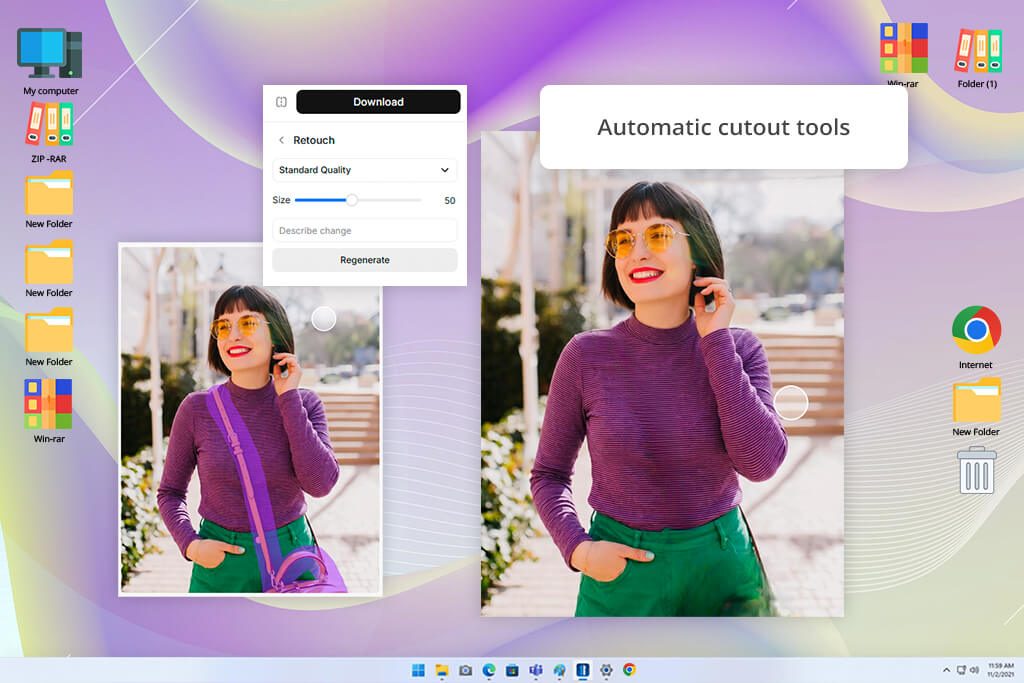
I first tried Pixelcut when looking for a quick way to use AI generative fill online when working on eCommerce product photos. The UI is a lot more intuitive compared to more advanced solutions. In just a couple of minutes, I could generate professional product images without dealing with complex retouching menus.
For my test, I imported jewelry photos, cosmetics pictures, and isolated fashion accessories from past FixThePhoto projects. Pixelcut delivered impressive results when it came to fast scene cleanup and instant background generation for marketplace listings.
The AI was efficient at generating polished, minimalistic surfaces and soft shadows that matched studio lighting. That said, some of the highly detailed textures risked becoming too smooth when performing high-resolution exports.
The best part of Pixelcut is the automation speed. Rather than having to choose each object edge manually, I could generate pro-quality marketing visuals nearly instantly. The template-based workflow also allowed me to prepare different versions of our photos for social media in addition to regular product images.
Pixelcut isn’t suitable for advanced beauty retouching or expansive commercial print campaigns, but it’s a lifesaver when it comes to quick eCommerce production, so I can confidently recommend it as photo editing software for beginners with AI-based generative fill functionality.
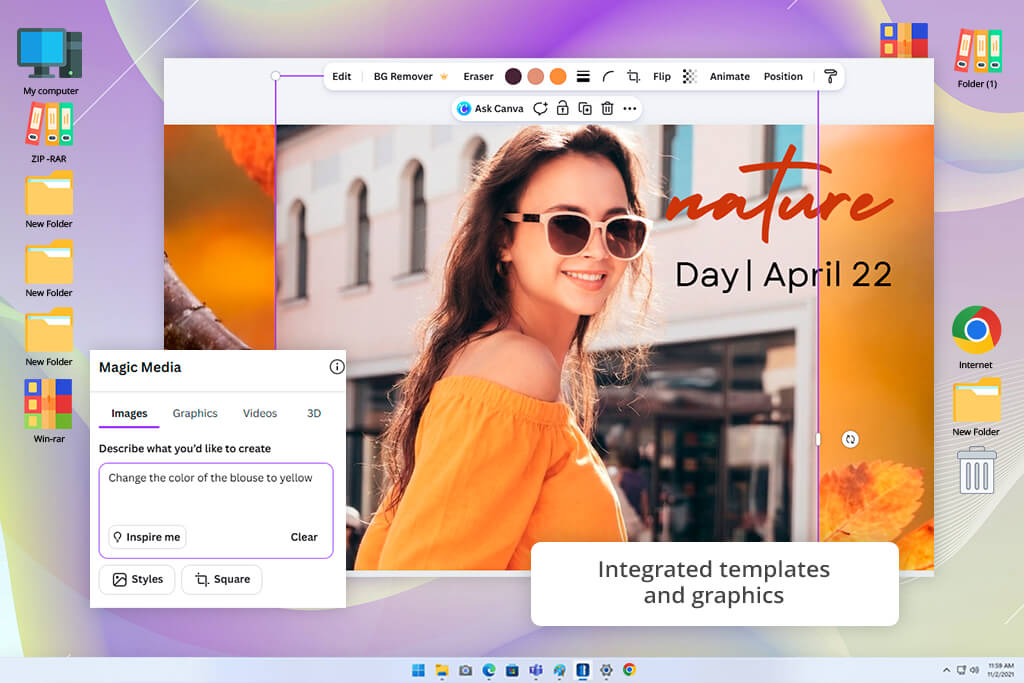
I chose to try Canva out after multiple clients began asking for quick promotional assets alongside edited photos. Initially, I didn’t know if a design-oriented platform could be used as a free generative fill tool.
Thankfully, its AI functionality was a lot more practical than I expected. I primarily leveraged it for expanding backdrops, getting rid of distractions, and optimizing portraits for banner-friendly layouts.
My test focused on speed and accessibility instead of going for pixel-perfect retouching. I imported portraits from outdoor photoshoots and tried expanding compositions for website headers and Instagram ads.
Canva’s AI did a great job performing sky expansions and background replacements as long as the original photos had predictable lighting conditions. The results were of high enough quality to be used for digital marketing without demanding advanced retouching skills.
“Intuitive solution for quick designs. Generative fill offers solid results for basic tasks, but it underperforms if you’re dealing with realistic details or complex scenes.”

What I liked about Canva was the combination of AI functionality and integrated design tools. It let me generate new background areas and instantly add text, branding assets, and graphics for my images. This helped me streamline my content production pipeline when working on social media campaigns.
The drawbacks of this AI generative fill solution became evident once I zoomed in on the skin texture and fabric details. Canva values usability more than retouching precision. That said, I think Canva is a fantastic option for users interested in getting quick visuals without dedicating hours to learning and using professional software.
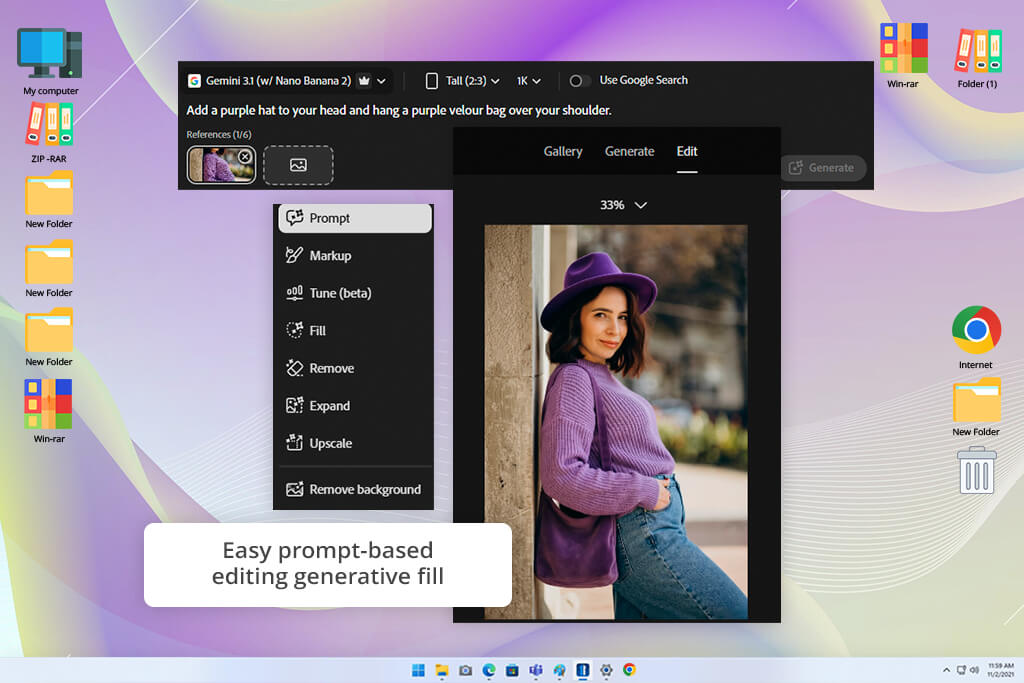
I expected a lot from Adobe Firefly since I already know how reliable Adobe software usually is. I wanted to check if Firefly’s AI photo editing generative fill feature could create realistic environments for existing portraits from FixThePhoto’s portfolio.
I instantly appreciated how imaginative the generations were compared to regular editing tools. Firefly excels at generating cinematic scenery, atmospheric lighting, and coherent textures by following user prompts. I used it for fashion portraits, travel pictures, and conceptual ads images to examine its consistency. In many scenarios, the generative fill results blended smoothly into the original photo.
I also liked the prompt-driven workflow. Rather than depending on selections and masks, I could guide the AI by using descriptive instructions. The process resembled working with an art assistant rather than doing classic retouching. The efficiency of Firefly motivated me to experiment with a variety of visual styles without having to reconstruct entire scenes from scratch.
Even though this tool is a lot more creative compared to most AI generative fill alternatives, it can still fail to deliver realistic results when handling detailed commercial projects. Hands, jewelry, and fine clothing patterns occasionally demanded manual edits afterward. That said, Firefly is still among my favorite solutions for visualizing concepts and generating complex compositions.
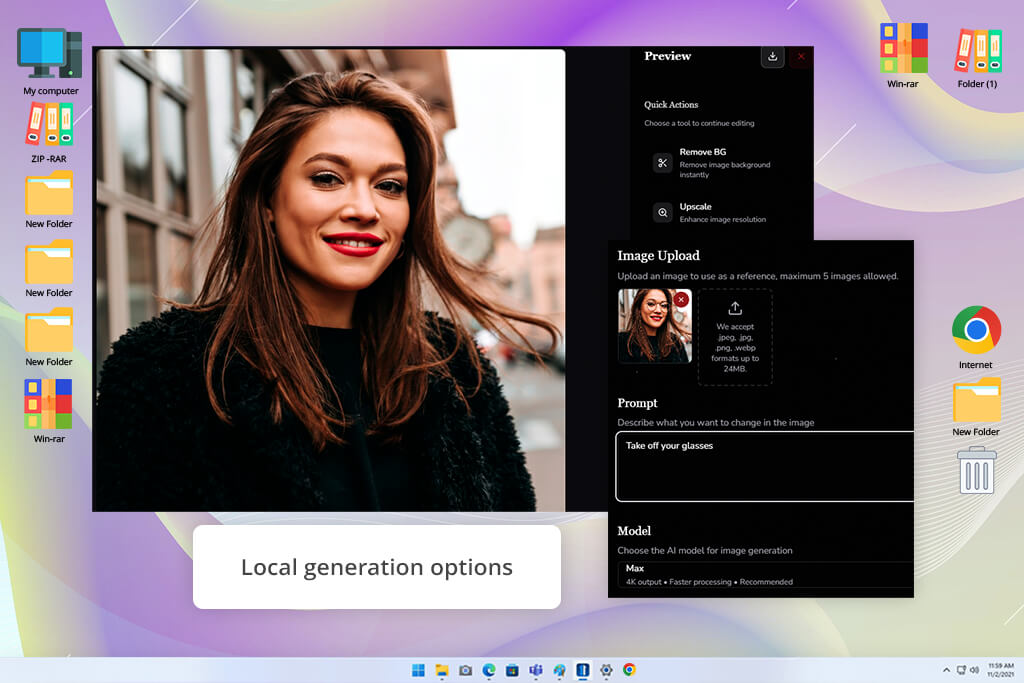
I started wondering if I could use Krita AI Diffusion as an AI fill image tool when I saw it mentioned in different digital art communities. The process of setting up and configuring this solution takes a lot of time and patience, but you get an immense amount of creative freedom as a reward. It’s aimed at people who love experimenting with image generation settings.
I employed generative fill for portrait reconstruction, fantasy-style composites, and texture regeneration for damaged photo areas. I dedicated a lot of effort to tweaking prompts, denoising strength, and generation settings to figure out how my changes would affect the diffusion system.
In contrast to simpler AI apps, Krita promotes iterative experimentation rather than relying on single-click results. The challenge of learning this platform actually became quite fun for me.
“Great option for creative projects as long as you know how to use it. It’s highly advanced but has a steep learning curve and requires quite a bit of setup and patience.”

My favorite aspect of this free AI generative fill tool is how flexible the local AI generation is. It lets me personalize the results a lot more than the average cloud-based solution, particularly when creating stylized artwork or handling advanced compositing.
The biggest drawback is the learning curve. Inexperienced users will likely feel overwhelmed by the setup and parameter tuning requirements. However, if you’re a seasoned creative who wants to control every step of the generation process, Krita AI Diffusion should be right up your alley. It’s a particularly great fit for conceptual images and experimental visuals.
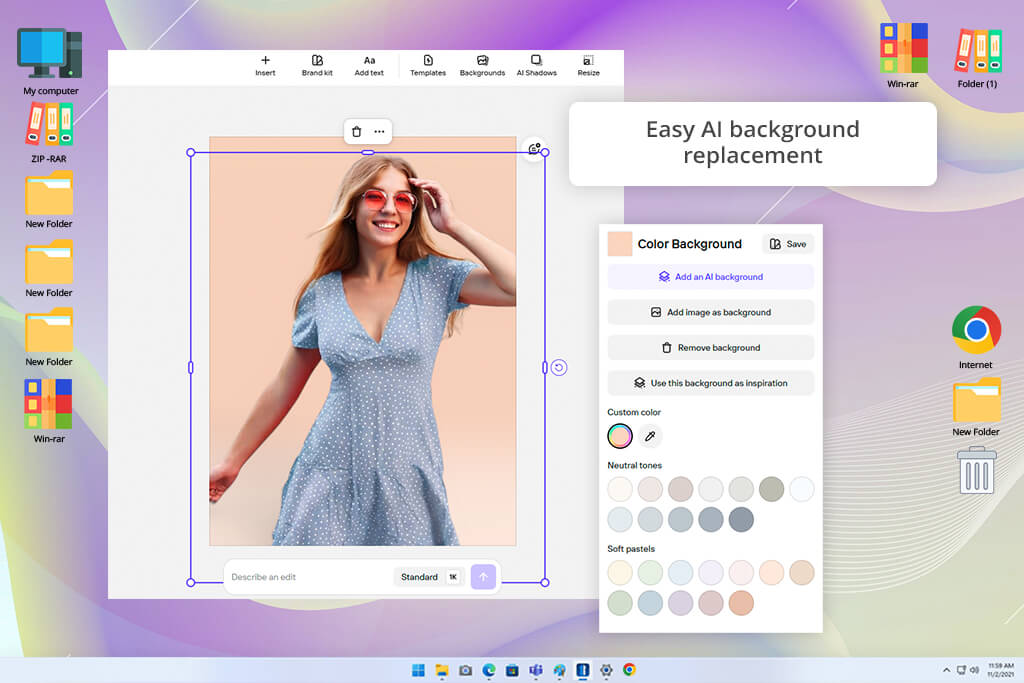
Photoroom is a great online generative fill platform if you value speed more than perfection. It helped me go through a week that involved dealing with endless batches of catalog photos that had to be delivered quickly.
My goal was to check how reliable the AI was at isolating products and generating cleaner commercial backgrounds. It only took me a couple of minutes to figure out why Photoroom is so beloved by eCommerce sellers.
The background removal quality is backed by an impressive generative fill feature that is great at tackling even reflective surfaces and complex object edges. I used Photoroom on pictures of shoes, handbags, and cosmetic packaging in different lighting conditions to check if I could get consistent results.
The AI-generated backgrounds looked refined enough for digital marketplaces without forcing me to do any manual adjustments. I particularly enjoyed the speed with which I could generate several variations for advertising formats.
I also greatly enjoyed how mobile-friendly this AI background remover tool is. It allowed me to review edits and generate new variations straight from a tablet while talking to my clients remotely.

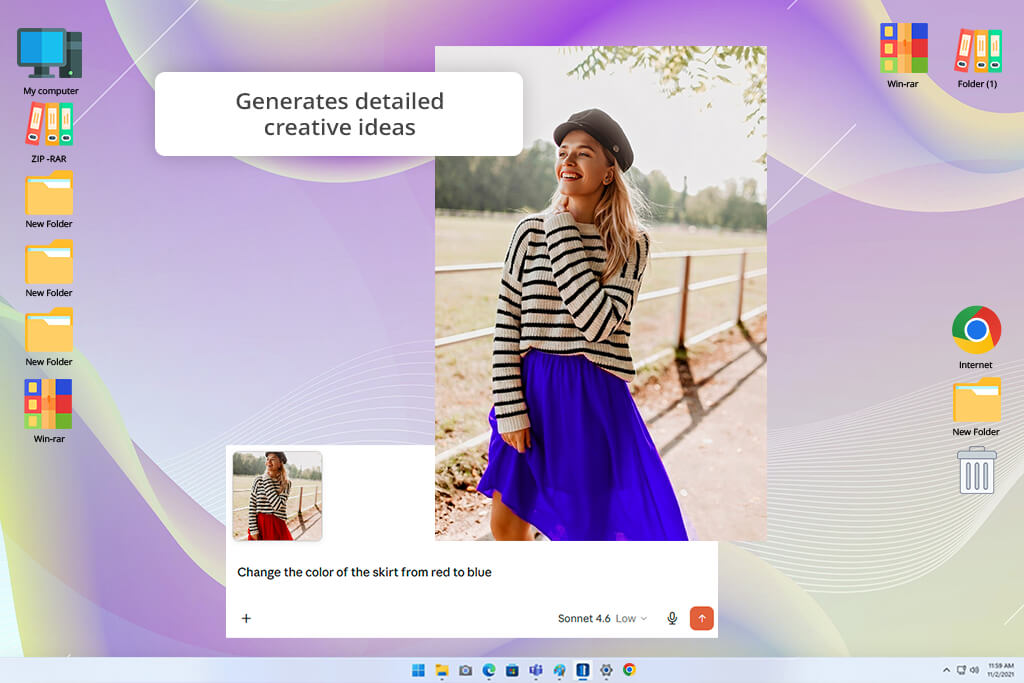
I approached Claude differently from most other AI photo fill tools since I wanted to check if it could help me generate detailed editing prompts and creative scene ideas. When working on an expansive FixThePhoto campaign, I frequently had issues describing complex background swaps properly for AI image tools.
Claude is a great assistant for handling this task. It can’t edit photos directly, but it did a wonderful job assisting me with structuring visual concepts. I provided descriptions of portrait shoots, product photos, and environmental scenery to check how precisely it would generate prompt ideas.
The results were detailed and usually provided lighting recommendations, stylistic references, and composition enhancements that I didn’t come up with myself. As such, I could receive higher-quality results in other AI generative image fill tools.
“Great at allowing me to prepare prompts for AI images. It can’t edit photos, but it’s very helpful for planning what I will generate afterward.”
I liked the provided conversational depth. I managed to iterate on my ideas naturally rather than being forced to write isolated prompt commands repeatedly. Claude did a great job accommodating my eCommerce photography goals, desired fashion branding aesthetics, and cinematic color moods.
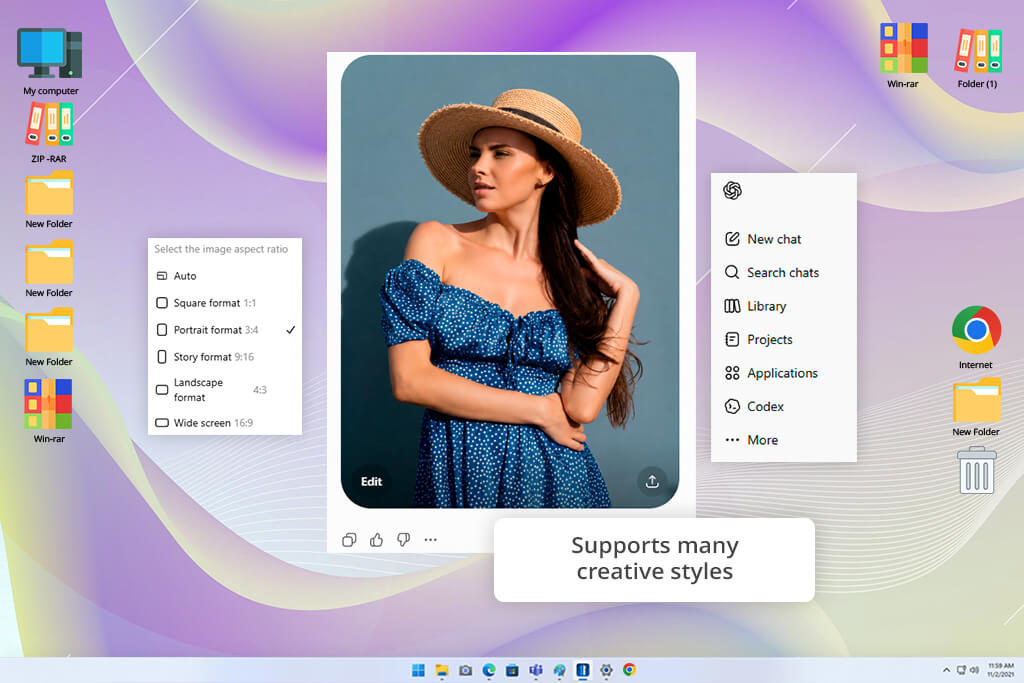
After testing a variety of paid and free online generative fill tools, I began testing ChatGPT to check if it would help me organize retouching ideas. When working on a FixThePhoto campaign, I leveraged ChatGPT to generate concepts for background swaps, color schemes, and ad compositions.
I described challenging editing tasks that dealt with damaged portraits, fashion photos with missing parts, and product pictures with distracting environments. This AI tool for content creation impressed me with its practical editing suggestions and well-written AI prompt structures for various software platforms.
Additionally, it helped me prepare cinematic lighting descriptions and natural scene expansions. I managed to get significantly better results when providing photography-specific details.
I really liked how flexible the interaction system is. ChatGPT let me refine instructions using natural language, explain visual issues, and easily get alternative ideas. Rather than forcing me to stick to a single creative direction, I could explore various visual approaches within minutes. Such brainstorming sessions were especially useful when handling client revisions.
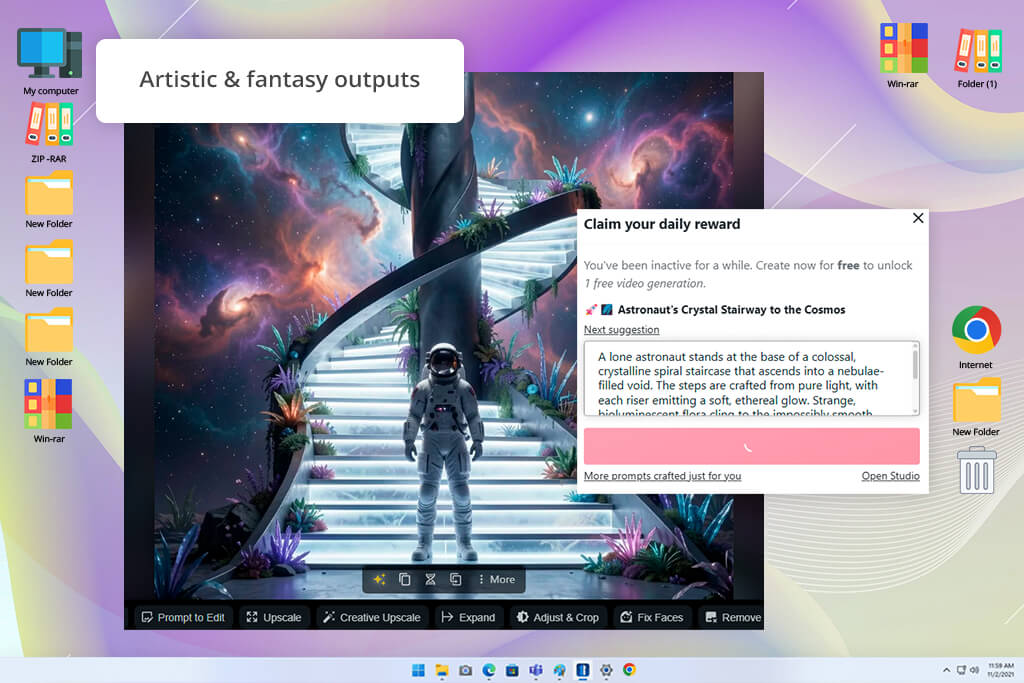
I decided to try this generative AI image editor to receive more experimental, artistic, and stylized AI-made backgrounds. I imported portrait pictures from past FixThePhoto photoshoots and generated surreal environmental expansions around them. Most outputs felt more cinematic than realistic.
I enjoyed this AI image editor with generative fill since each attempt delivered surprising artistic variations. I tried generating fantasy scenery, cyberpunk cityscapes, dreamlike skies, and painterly textures for existing images. Some results looked like a poor fit for eCommerce projects, while others were impactful enough for campaigns.
“Good option for generating AI art and experimenting with styles. Generative fill is more artistic than precise. The results can be cool, but occasionally feel random.”

I also appreciated the wide range of artistic generation styles, which is why NightCafe Creator is a great AI tool for designers and artists. It doesn’t try to go for photorealism, but rather promotes creative interpretation and experimentation.
When trying to find the best AI generative fill tools, my FixThePhoto colleagues and I prioritized handling real-world editing projects rather than basic benchmark tests. We wanted to check how each option acts in actual workflows, particularly for object removal, scene expansion, and realistic rebuilding of missing photo areas.
The testing team included Vadym Antypenko, Ann Young, and Tata Rossi. Vadym prioritized evaluating the technical precision when it comes to lighting, shadows, and perspective consistency. Ann examined the workflow speed and usability, while Tata focused on realism and how the generated areas blended into images.
We selected a variety of challenging test photos that could reflect real professional work. We imported crowded street portraits with pedestrians walking behind the model to test object removal, fashion pictures with distracting elements in the backdrop for cleanup, and landscape scenery like beaches, city skylines, and mountain ranges that could benefit from natural skies or edge extension.
Additionally, we used these photo editors with generative fill on indoor pictures of cafés with mixed lighting to evaluate how well they could process warm artificial light compared to daylight, as well as product photos with missing edges or reflections that required realistic inpainting.
Each platform was tested with identical prompts like “remove people from background,” “extend sky naturally,” or “rebuild missing background with realistic lighting” to ensure the comparison was fair.
Adobe generative AI tools delivered the most realistic results for complex cases, preserving shadows and lighting direction with more precision.
Pixelcut and Photoroom offer significantly higher speeds and are perfect for fast commercial edits, though they would occasionally simplify the textures in detailed urban backdrops. Canva did a good job performing basic object removal, but this AI replace tool had trouble processing reflections and overlapping elements.
If you want an online photo editor with generative fill functionality that can handle more creative tasks, NightCafe Creator delivered visually captivating artistic results, while Krita AI Diffusion provided in-depth customization but demanded a lot more setup and manual involvement.
ChatGPT and Claude are primarily used for generating and refining prompts, which can help you receive better results in software like Photoshop and Firefly.
Our tests have taught us that the market doesn’t offer a single perfect AI generative tool. Users who value speed would benefit from different solutions than those who prioritize quality or in-depth customization. Overall, we recommend combining AI assistants for prompt generation with more robust editing platforms for final image generation.


![7 Best AI Quote Generators [People Actually Save & Share]](http://fixthephoto.com/blog/images/gallery/news_main__preview_28979.jpg)

![9 RunwayML Alternatives [Better, Faster & Cheaper]](http://fixthephoto.com/blog/images/gallery/news_main__preview_28969.jpg)



















