

I believed that it would be easy for me to remove a watermark from a PDF until I had to work with documents where the watermark was blended with the content or background instead of being added as a separate layer that was easy to edit.
Some documents I received had a half-transparent “DRAFT” label put behind the text, so I needed to remove watermark from PDF online or offline. Others had a company logo placed diagonally across every page. In addition, I worked with some scanned PDFs where the watermark was flattened and merged with the image. When dealing with each type of watermark, I had to choose a different approach.
At FixThePhoto, I often need to work with visuals, retouched files, or documents with complex layouts, which is why I focus on maintaining high quality. I do not want to use a free online PDF watermark remover that would try to hide a watermarked area underneath a white rectangle or convert every page into a low-resolution picture.
I wanted to ensure that the edited document will stay almost the same. I need to ensure that the fonts will remain consistent, the text will be possible to select, hyperlinks will stay clickable, and the page dimensions won’t get distorted.
When I was working on a 24-page presentation that had a large semi-transparent watermark with the word “SAMPLE” on every page, I decided to test different tools to compare their functionality. I was granted permission to create an internal copy without a watermark but realized that it might take me a while to delete the mark manually from every page.
Using Adobe Acrobat, I was able to remove watermark from PDF free of charge in a few clicks because it was added as a separate PDF element. However, when I tried removing a flattened background watermark, Acrobat failed to delete it automatically. That was when I discovered that there is no all-in-one solution for removing PDF watermarks from all types of files.
| Software | Best for | Text watermark | Image watermark | Flattened watermark | Registration |
|---|---|---|---|---|---|
|
Professional editing
|
Excellent
|
Excellent
|
Limited
|
Required for Pro
|
|
|
Quick online AI removal
|
Good
|
Good
|
Good
|
May be required for full export
|
|
|
Desktop editing
|
Excellent
|
Excellent
|
Limited to moderate
|
Required for full version
|
|
|
Cloud document workflows
|
Good
|
Good
|
Limited
|
Required
|
|
|
Free local editing
|
Good
|
Good
|
Limited
|
Not normally required
|
|
|
Scans and flattened marks
|
Good
|
Good
|
Very good
|
Preview may be free
|
|
|
Manual free conversion
|
Moderate
|
Moderate
|
Poor
|
Google or Microsoft account
|
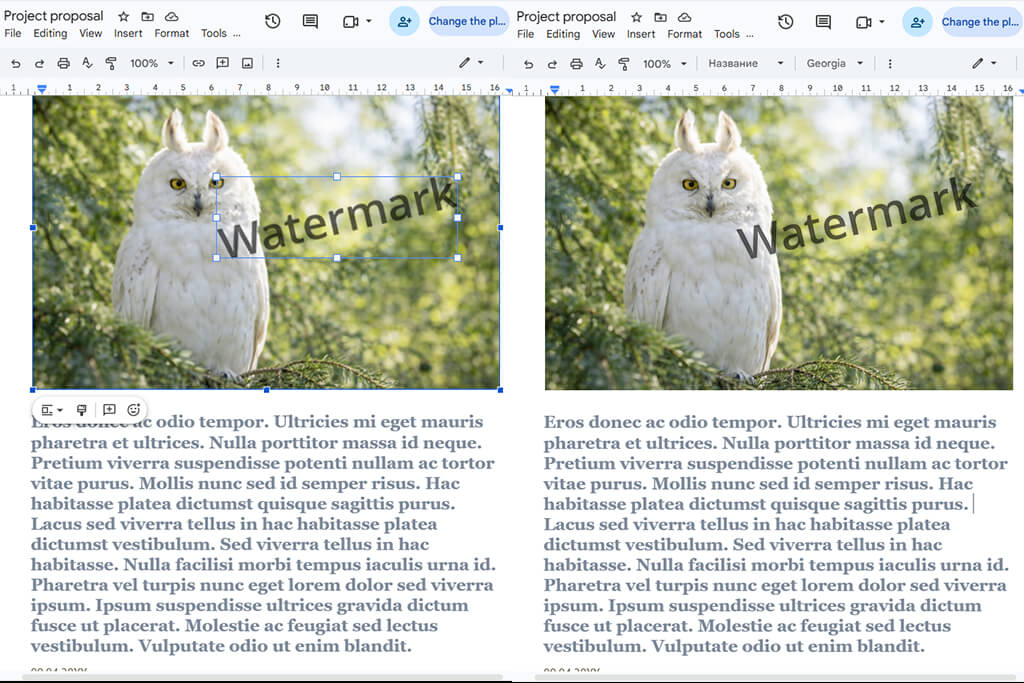
Before I started testing these solutions, I mistakenly believed that every watermark was the same. Soon enough, I discovered that there are three main types of them.
This is one of the easiest types of watermarks to delete. Many PDF editors add text or image watermarks to the outputs.
Adobe Acrobat, PDFelement, Foxit, and other similar desktop programs detect such watermarks with ease and delete them from the whole document. Some free PDF editors allow users to achieve the same result as well, especially if a watermark was saved as a separate object. In such cases, it’s possible to remove the watermark without impacting the content of a document.
Some services fail to recognize a logo or text mark as a watermark. However, it might still be possible to select such objects when editing a PDF.
In such situations, I open a document in editing mode, select the object, and delete it manually. I can remove watermarks in such a way when using Acrobat, PDFelement, and pdfFiller. When I work with multi-page documents, it might take me a while to delete watermarks manually from every page.
Documents with such watermarks are the most challenging to work with. When a mark is merged with the page background or a scan, the software considers the page as a single image.
In such cases, it’s impossible to use the Remove Watermark button to delete the mark from the document itself. I typically either use an AI PDF watermark remover to reconstruct the background automatically or edit the whole page as an image.

Because of this difference, some users may consider specific services excellent solutions to their needs, while others may decide that the same solutions are of no use to them at all. However, it simply means that these tools were designed for processing different types of documents.
I also discovered that many free online services that can be found when one searches for the phrase “remove watermark from PDF” do not allow me to fully delete the mark. They may require me to convert my PDF to a Word file or delete the watermark using manual editing tools.
Such solutions may still be handy. However, reconstructing text or visuals covered by a flattened watermark is extremely difficult without the right tool.
While working with a PDF with a complex layout, I prefer to use a dedicated PDF editor. It allows me to achieve polished outputs and avoid impacting text and image quality.
I prefer to use AI tools when a watermark has already been flattened into a scan or image. Be sure to double-check the outputs because the AI might have issues with reconstructing letters, lines, signatures, and table borders.
The easiest cases are:
The most difficult cases are:
After deleting a watermark, I occasionally use an online PDF compressor to optimize the file size. It’s especially important when the output files become too large after AI processing or editing. I normally opt for light compression and compare the output with the source file to ensure that text and graphics do not lose their quality.
When I work on regular presentations, worksheets, personal documents, or files authorized for use within our team, this tool allows me to expedite my workflow.
Best for: Business files, multi-page PDFs, professional editing
Platform compatibility: Windows, macOS, web, iOS, Android
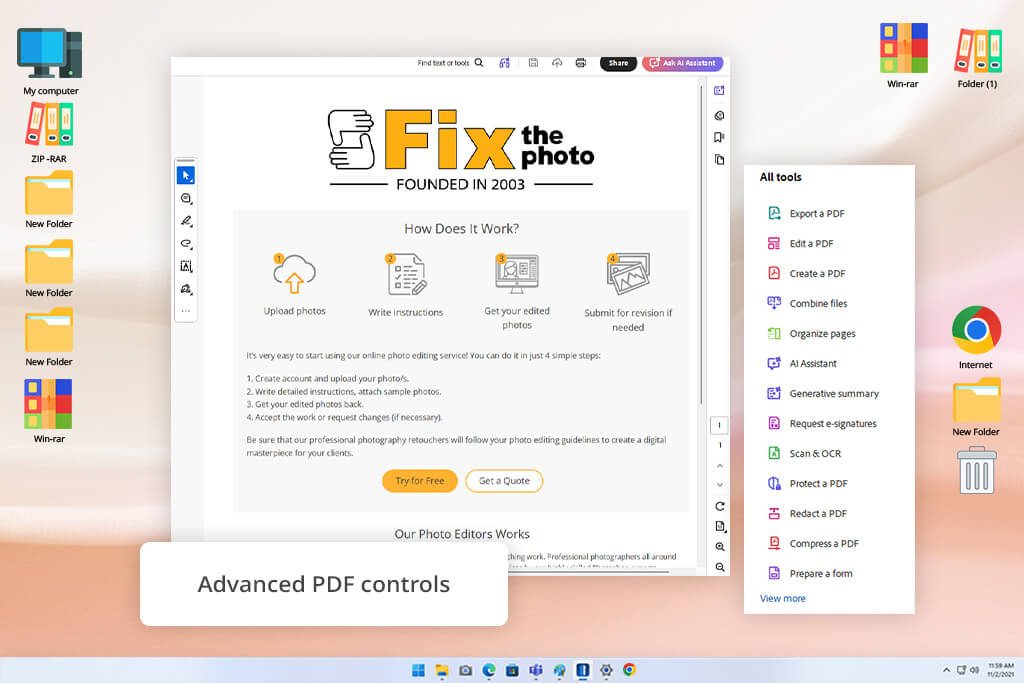
Adobe Acrobat Pro was the first solution I decided to test, as I consider it the best solution for working with PDF documents at a professional level. As a result, I realized that it is the best free PDF watermark remover I’d tested.
Acrobat allows me to remove watermarks from multiple documents at once. It makes it especially useful for situations when I receive a lot of reports or drafts with similar watermarks. Adobe has a tutorial for its desktop version, where it is stated that one can easily delete multiple watermarks by going to the Watermark menu and choosing the Remove option.
I achieved a polished output with a transparent PNG logo that had been added with the help of a PDF editor. Acrobat detected it as a watermark and removed it without impacting the graphics.
“I discovered that Adobe Acrobat can quickly remove a watermark that was added as a separate PDF element. It deleted such watermarks automatically without affecting the layout.”

However, I was a bit disappointed to discover that Acrobat delivered worse performance with scanned text documents. The mark has been merged with the page image, which is why I saw a message stating that Acrobat failed to detect an added watermark to delete it automatically.
It was possible to open the page in Edit mode and test out other features. However, the dedicated removal tool was not suitable for such a task.
My verdict: Adobe Acrobat is the most reliable option to choose when I need to find a service that supports PDF editing, batch removal, and format preservation. I liked its Remove tool, as it allows me to achieve better outputs than when I convert my documents into another format.
Adobe can also be used as document management software.
It supports OCR, allows users to change page order, has redaction tools, facilitates creating fillable forms, allows adding eSignatures, and enables users to protect their documents with passwords. I need to work with PDFs often, which is why I consider the price of its subscription reasonable.
Pricing: Acrobat Reader is free; Acrobat Pro costs $19.99/mo
Best for: Fast browser-based removal, flattened marks
Platform compatibility: Web, Windows, macOS, iOS, Android
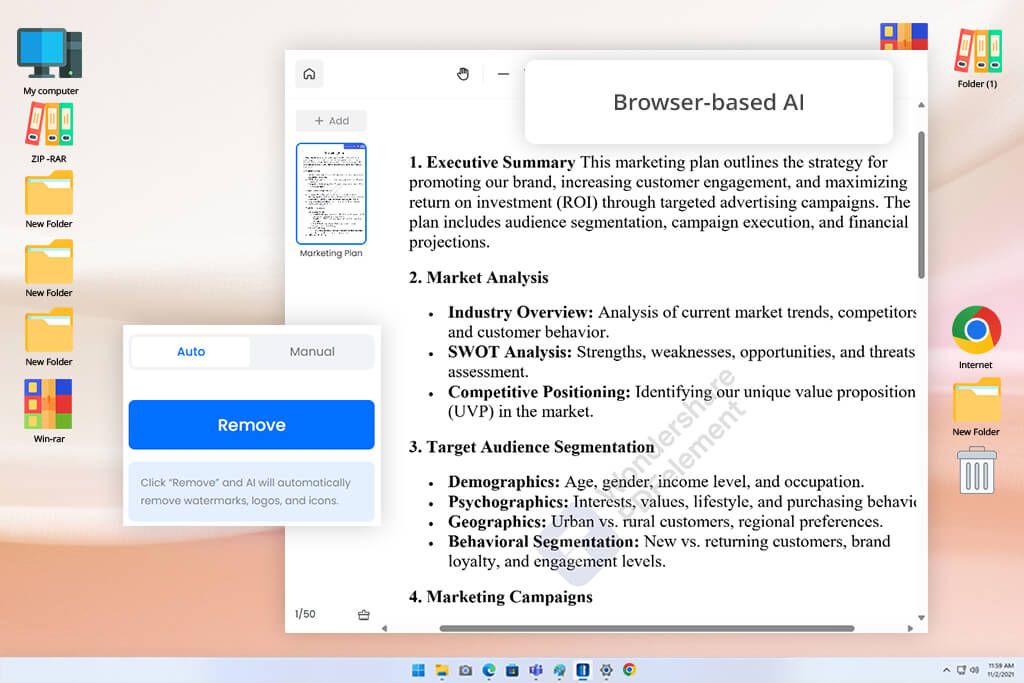
When I started to test LightPDF, I was pleased to discover that it was extremely convenient to use. With it, I could delete a watermark from a PDF online without selecting it manually.
This platform does not focus only on separate layers that might contain watermarks in PDF documents. It analyzes the whole page to detect a watermark automatically.
LightPDF comes with an AI-driven tool for removing text watermarks, logos, objects, and full-page elements without distorting the original layout.
“When using LightPDF, I prefer to check whether it can handle the most complex page first. It allows me to test the accuracy of its AI tools and see whether they can restore text and graphics underneath the watermark.”

I uploaded the scanned document with a pale diagonal “ARCHIVE COPY” watermark. It took me longer to remove the watermark because the AI tools had to analyze the page to detect it.
The quality of the output was lower when the mark was put directly over small body text. Some letter edges looked a bit blurry. At regular viewing size, I did not pay much attention to the difference, but it became obvious at 400% zoom when I previewed the file using a free PDF reader.
In addition, I used it to remove watermarks from a brochure where a logo was placed over photos. LightPDF reconstructed the sky and the flat wall in the background perfectly. However, it has issues with reconstructing more detailed textures of clothing pieces. It was easy to spot that the areas underneath the watermark were AI-generated.
What struck me: LightPDF supports automatic detection, quick browser access, and background reconstruction better than many similar web-based tools. As it supports batch processing, I did not need to convert the document or edit every page separately.
This solution is also quite useful when I need to use a PDF watermark remover without registration to perform extra tasks. After removing watermarks from my files, I can edit text, add pictures, save the document in another format, or change the page order without leaving this platform.
I would use it for:
I believe that one should carefully consider the platform’s current privacy and data retention policies before uploading documents that contain sensitive info, such as private contracts, IDs, tax records, medical files, or confidential client documents.
I recommend trying to remove a watermark from the first page before purchasing a premium version for processing the whole document. LightPDF has a convenient interface and helpful documentation that explains how to use its AI tools for quick watermark removal. This solution supports batch processing. However, the output quality may vary depending on the watermark position and page layout.
Pricing: Limited online use is available for around $19.99/mo or $49.99/year
Best for: Beginners, frequent office work
Platform compatibility: Windows, macOS, web, iOS, Android
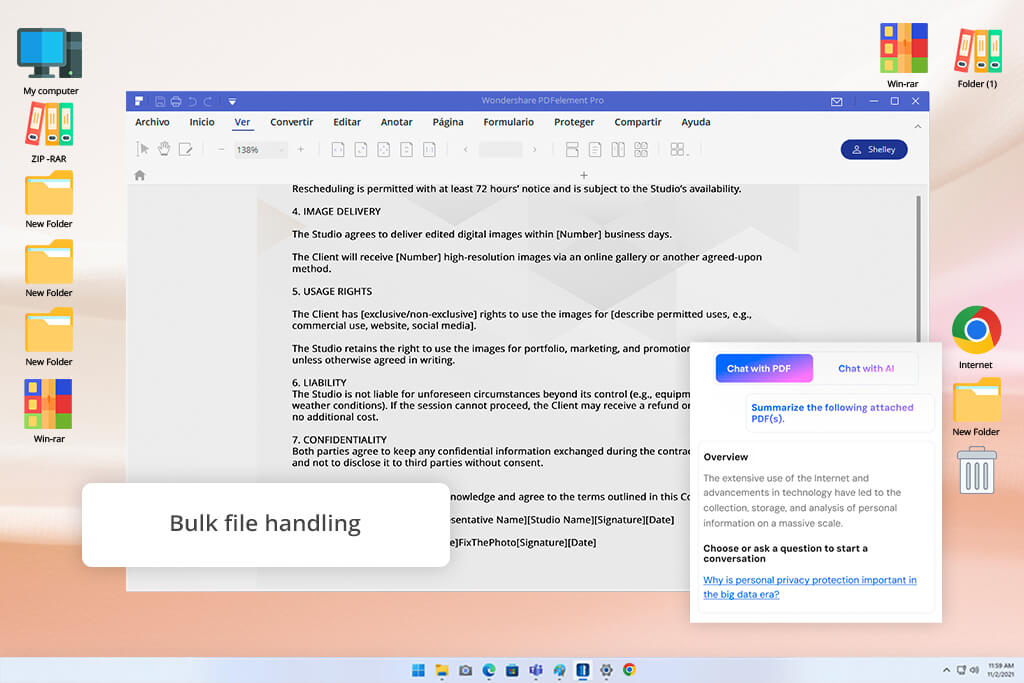
I mastered PDFelement with ease. Its interface is somewhat similar to Microsoft Office, making it more intuitive than professional design software. It allowed me to find most tools quickly without reading documentation.
When I needed to delete a regular watermark, I found the Watermark feature in the Edit section. Wondershare has an official guide that explains how one can use PDFelements to remove watermarks with ease.
I was especially pleased to discover that it was possible for me to use a PDF watermark remover without losing quality and continue editing my file straight away. After deleting the watermark, I fixed a typo, replaced a picture, and performed OCR on one page without switching to another software. The integrated PDF to Word converter was especially handy when I decided to make complex text edits before exporting the document in PDF format.
When I opened the scanned document, I discovered that PDFelement did not put the watermark in a separate layer. It allowed me to edit the whole page as an image or convert it and perform OCR.
“I prefer to use PDFelement when working on daily office tasks. I found its watermark removal tool quickly and used it to give my documents a polished feel, even though I did not have any prior experience with editing PDF files.”

When using PDFelement, I was especially pleased with its intuitive functionality and useful controls. It’s easier to use than Acrobat but is more similar to a desktop PDF editor than a simple watermark eraser available online.
The main problem with this solution is that its trial version is limited. If you don’t have an account or use the trial version, it might add watermarks to exported PDF files. The free version will allow you to test the UI, but you won’t be able to get a clean output unless you pay for the premium version.
Before editing a large file, be sure to read the export conditions carefully if you use a free version of this PDF watermark remover.
I highly recommend using the desktop version when working with large documents. It will allow you to get consistent outputs and store your files on your computer.
Pricing: Free trial with export limitations; in the US, you can currently pay less for annual and perpetual plans during the promotional campaigns. The discount depends on the platform. At checkout, the Windows page allows you to choose between plans that cost from $31.99/year and a perpetual license from $51.99.

Best for: Forms, team workflows, documents stored online
Platform compatibility: Web, iOS, Android
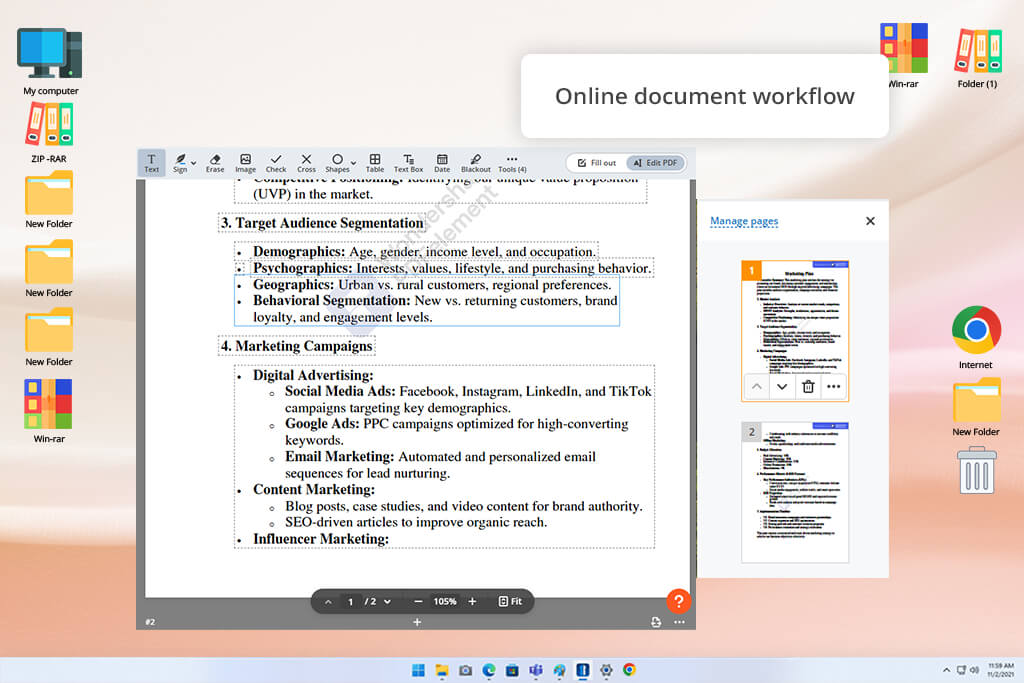
pdfFiller is not a dedicated PDF watermark remover, as it was built as a cloud environment for working with documents.
After uploading my document, I found the editing features I needed, selected the visible watermark, and deleted it. pdfFiller supports a streamlined workflow and has a streamlined UI, making it easy to access the Watermark feature and editing tools. When you remove text watermark from PDF, you just need to save the output.
When trying to remove an image logo, I had to select it manually for higher accuracy. After I selected it, this service removed it without any trace.
“I often use pdfFiller when I need to get outputs with forms that can be filled. This web-based solution allows me to get documents that can be signed or shared online.”

However, I noticed that pdfFiller delivers a worse performance when I use it to remove watermarks from flattened scans. This service is mostly suitable for editing PDF elements, forms, text, and annotations. Unlike dedicated AI-based PDF watermark removers, it does not reconstruct backgrounds.
My practical conclusion: pdfFiller is most suitable for those who want to remove a watermark and keep working with their document in a cloud environment. It supports form filling, e-signatures, sharing, and online collaboration.
I would choose it when:
You can also integrate it into workflows that involve AI to PDF converters. I often use it when I need to generate or convert a document and then edit fields, add signatures, change the page order, or share the output online.
I highly recommend zooming in to select an object with high accuracy. Otherwise, if there are many text boxes on the page, you might incidentally choose another element instead of the watermark.
Pricing: You might be able to access the free trial version. At the moment, individual plans start at about $8/mo when billed annually, with more expensive Plus and Premium tiers.
Best for: Free local editing on a computer
Platform compatibility: Windows, macOS, web, iOS, Android
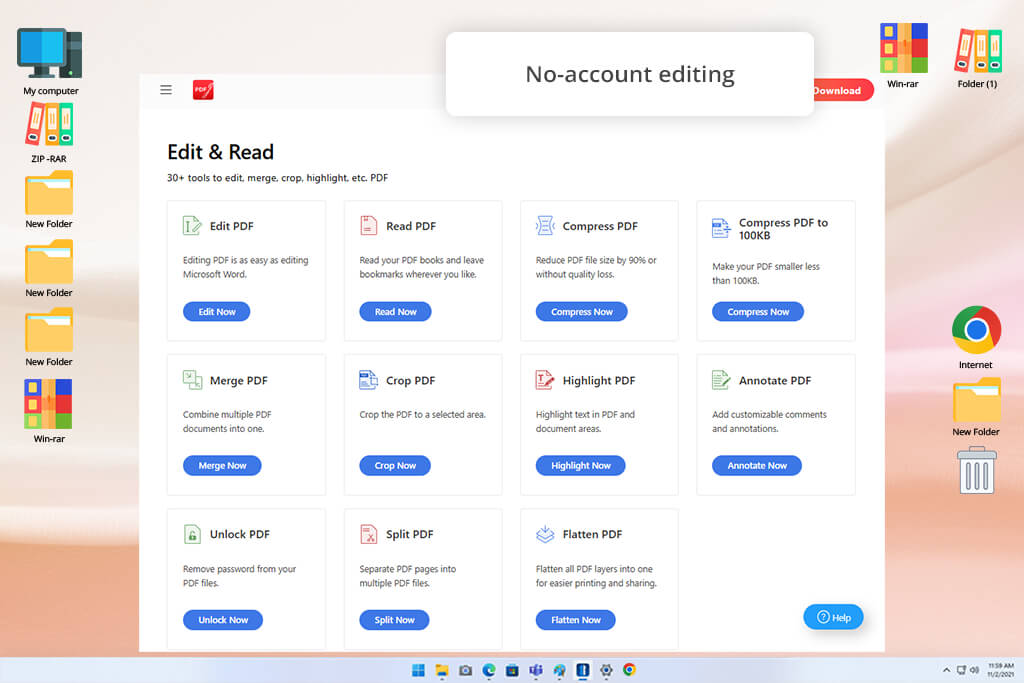
PDFgear exceeded my expectations when I started to test it. I was worried that its free version might have limited functionality or some restrictions, but this desktop PDF editor was quite convenient to use. I was not pressured to pay for a subscription.
I could easily find the Delete Watermark feature both on Windows and macOS. PDFgear allows users to remove watermarks that function as PDF elements. However, this tool is less suitable for removing watermarks that are merged with the page content.
This service also helped me remove an image-logo from a PDF because the watermark had been added as a recognizable object. The output has the proportions of the source file and maintained the initial text quality.
However, I noticed some limitations of this service when I used it to remove image watermark from PDF that was created from a scanned file. It failed to detect the pale mark and separate it from the image. If you decide to use a PDF flattening tool before removing a watermark, it might complicate the situation even further because annotations, watermarks, and other elements will be merged with the main text.
“PDFgear is an excellent solution for removing watermarks from PDF documents. I especially like the fact that it does not require subscription and registration.”

PDFgear has an online-based and desktop version. You can use this free software without signing up. It does not add watermarks to outputs.
I highly recommend downloading this solution from the official platform and reading its terms of use carefully. It’s free software, so its usage policies change often.
The desktop and mobile versions have slightly different features. PDFgear representatives state that the desktop software can be used for adding and removing watermarks, while the Android version has more limited functionality.
I recommend using the desktop version to remove watermarks. It will allow you to use the available editing and page management features to achieve better results.
Pricing: Free.
Best for: Background marks, scanned PDFs, automatic detection
Platform compatibility: Web
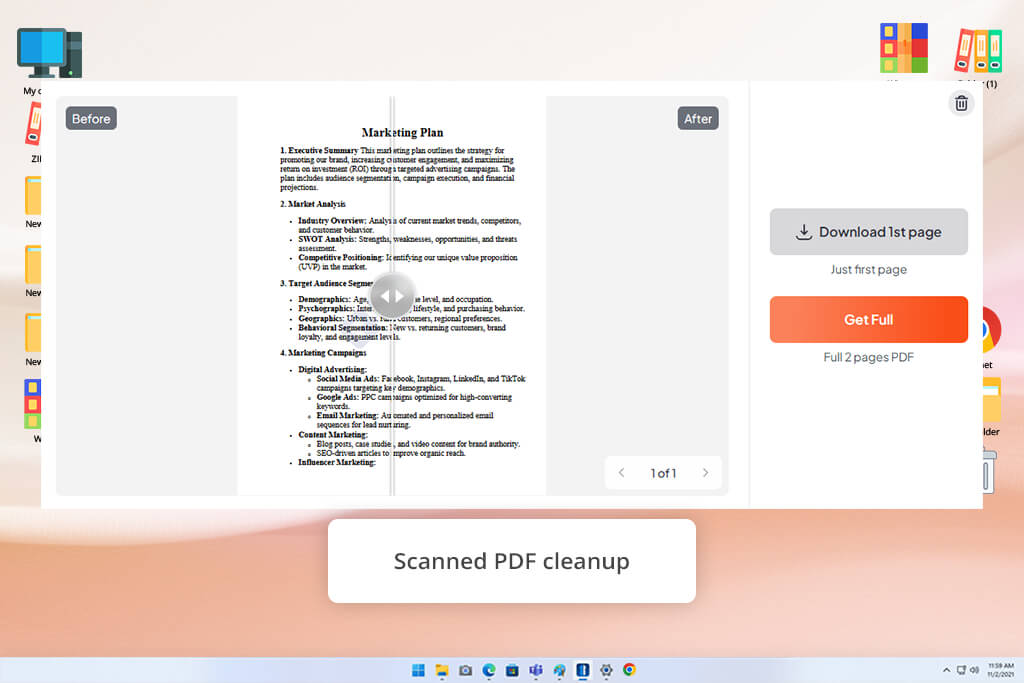
DeWatermark AI stands out among many other similar PDF editors, as it processed flattened documents better.
This solution analyzes the whole rendered page instead of trying to find only one watermark element. It automatically discovers and deletes watermarks while maintaining the original layout, fonts, and resolution. Besides, it allows users to preview the first page before processing the whole document.
The output became less impressive where the watermark was put over small serif text. Several characters were still readable, but their edges looked a bit off.
“I use DeWatermark AI when I need to perform automatic visual detection instead of using regular object deletion tools. It is best suited for documents with basic backgrounds, pale text, corner logos, and simple repeating marks.”

This service helped me achieve better results when I used it to remove watermarks from a brochure with a plain background. However, it’s less suitable for processing photos. Even though it reconstructs smooth gradients in a realistic way, it’s possible to notice the effect of AI tools on detailed fabric patterns.
I prefer to compare the processed page with the source file. AI tools may change:
When working on business documents where high accuracy is crucial, I prefer to double-check the numbers instead of trying to achieve visual perfection. This solution is less suitable for those who want to remove background watermark from PDF.
I typically preview pages with the watermark put over important content. It’s not enough to check only the first page, as it normally has a lot of empty space, so it’s impossible to understand whether the watermark was removed from all the pages without any issues.
Pricing: You may be able to preview the first page for free, but you will have to pay to process the whole file and use advanced tools.
Best for: Simple text PDFs, people who do not have a dedicated PDF editor
Platform compatibility: Web, Windows, macOS, Android, iOS
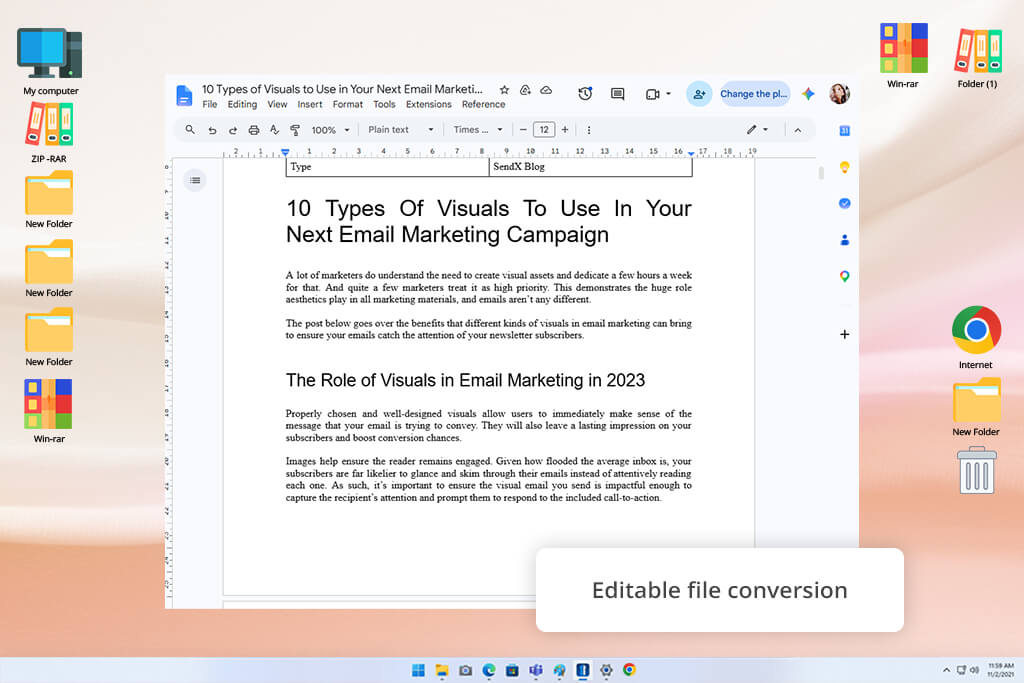
Google Docs and Microsoft Word can hardly be considered dedicated PDF watermark removers. However, they allow users to delete watermarks from simple files.
When using Google Docs, I uploaded a PDF document to Google Drive and opened it as a Google document. Next, Google can extract and convert the text. If it turns a watermark into a text block or image, it becomes possible to delete it and download the document in PDF format without the watermark.
“When I use Word or Google Docs to remove watermarks for free, I carefully consider every page to see whether there are any changes with fonts, images, and page breaks.”

Microsoft Word functions in a similar way. When I open a PDF using this software, it turns it into an editable file, which allows me to remove the watermark and export the output.
However, I discovered that some line breaks became wider after conversion. Besides, one font was replaced by another one, while a footer was moved to the next page.
When I tried removing a watermark from the brochure, the output was even more distorted. Pictures changed their positions, table widths did not stay the same, and the order of the text boxes changed.
I believe that this solution is mostly suitable for emergency situations, when one does not need to focus on quality. It’s mostly suitable for those who work with simple text documents, but I do not use it when working on PDF files with complex designs.
Before exporting your converted document, be sure to always compare it to the original. I prefer to thoroughly check page breaks, lists, tables, footnotes, and headers to maintain consistency.
Pricing: Google Docs is available for free, but you need to have a Google account. You will need to use Microsoft 365 or pay for a desktop license to use Microsoft Word, even though this software supports limited web access.
Testing these services tool me a while, because many platforms add different types of watermarks. First, I created a list of over 25 programs and web-based platforms. I discovered some of them on Google. In addition, I included the options I found in software reviews, official documentation, forum threads discussing PDFs, Reddit forums, and YouTube tutorials. Some options were recommended by my colleagues who often need to edit documents.
I decided to exclude the tools that added watermarks, covered parts of content with white shapes, or compressed pages. Together with other members of our FixThePhoto team, I tested these services on PDF documents, scans, presentations, forms, and documents that included both text and images.
We started by assessing the usability of each service. I checked whether it would be possible to upload or open a document quickly. Then, I tried finding the watermark removal tool, as I wanted to know whether it would be easy to access.
Some solutions had the Remove Watermark button that was easy to find. While using others, I had to switch to a general editing mode or choose the object manually. Even though I did not exclude manual services automatically, I ranked them lower if I noticed that they made it impossible for me to streamline my workflow when I was working on multi-page documents.
Next, I decided to compare these services in terms of output quality.
I examined:
When creating the final version of this list, I decided to include only the solutions that I can use for specific practical tasks. Adobe Acrobat delivered the most reliable performance overall. LightPDF and DeWatermark AI were best suited for performing AI cleanup. PDFelement was the most intuitive alternative to desktop software. pdfFiller was perfect for tasks that required me to use the cloud. PDFgear has the most powerful free version, while Word and Google Docs were suitable for quick tasks.



![7 Best iPhone Mockup Generators [{{%year}} FixThePhoto Choice]](http://fixthephoto.com/blog/images/gallery/news_main__preview_29335.jpg)


![7 Best AI Voice Designers [{{%year}} FixThePhoto Choice]](http://fixthephoto.com/blog/images/gallery/news_main__preview_29367.jpg)


![7 Best AI Fraud Detection Software [{{%year}} FixThePhoto Choice]](http://fixthephoto.com/blog/images/gallery/news_main__preview_29429.jpg)

















