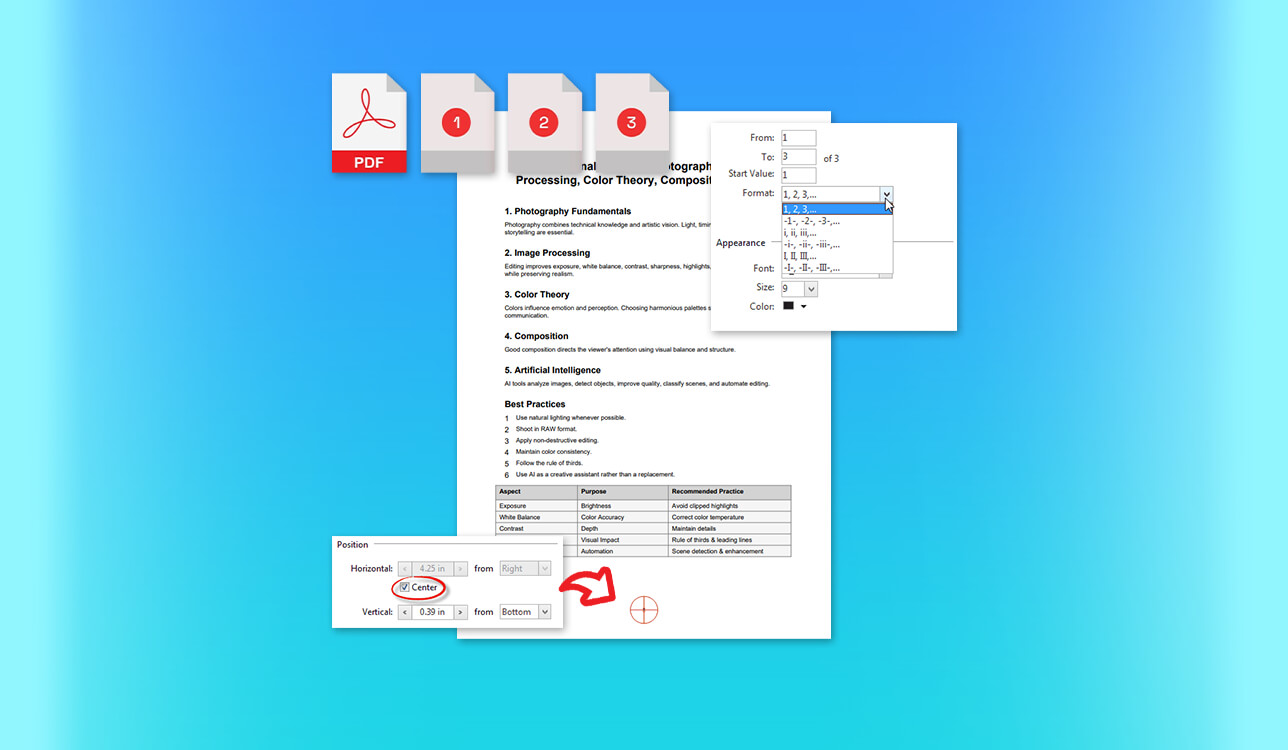
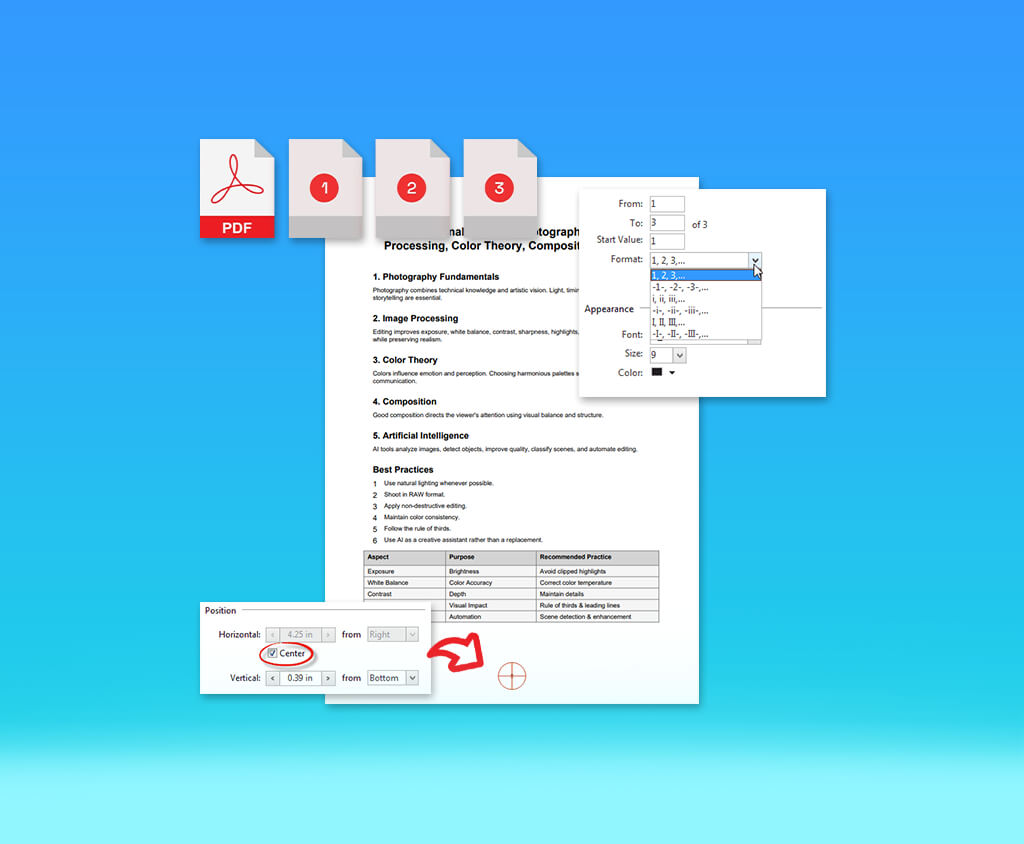
I decided to find a PDF page number editor because I needed a reliable solution for working with large discovery sets, contracts, and multi-document filings at FixThePhoto. At first, I would just add numbers manually, but when I started to remove some pages, I quickly noticed that it broke down the whole page number sequence, and I had to spend an hour fixing this issue.
As I often need to access my documents from different devices, I started to look for solutions that have both desktop and web-based versions. Together with my colleagues, I managed to test more than 30 tools that were often mentioned on Reddit, YouTube, and online forums.
My colleagues who often work with documents focused on consistency, features for working with document sections, and intuitive numbering. The rest tested the usability of these tools. Here are the main features I wanted to see in a reliable PDF page numbering software:
Many people do not consider page numbering a serious step until they actually try doing it. However, if your document includes multiple sections and pages in different formats or requires quick finishing touches, adding page numbers can turn into a real issue.
While working on our projects, I’ve seen many issues with the layout of finished legal documents that were merged in the wrong order. Adding page numbers is easy. However, when performing such tasks, one should choose the right number to be displayed on a certain PDF page and indicate the section where numbering should start.
For a shift of several pages, focus on two values before fixing the issue:
For instance, if I have a document where the first three pages are front matter, I start numbering from the physical page 4 while displaying the number 1. PiliApp allows one to specify the first page that should have a number. Acrobat supports page ranges, different numbering formats, and starting-number options.
For different document sections, use different numbering sequences. I prefer to use the following ones:
When using Acrobat, you can use page labels to indicate a new section, continue a sequence, choose another numbering style, or add a prefix.
If merged documents have duplicate numbers, I choose between such approaches:
I prefer to save a copy of my document before replacing numbers or rearranging PDF pages in Adobe Acrobat. It might be much more challenging to remove a wrong footer later than inserting a new one when you flatten numbers into scanned pages.
Best for: Legal, compliance, and finance teams
Platform compatibility: Windows, macOS, web, Android, iOS
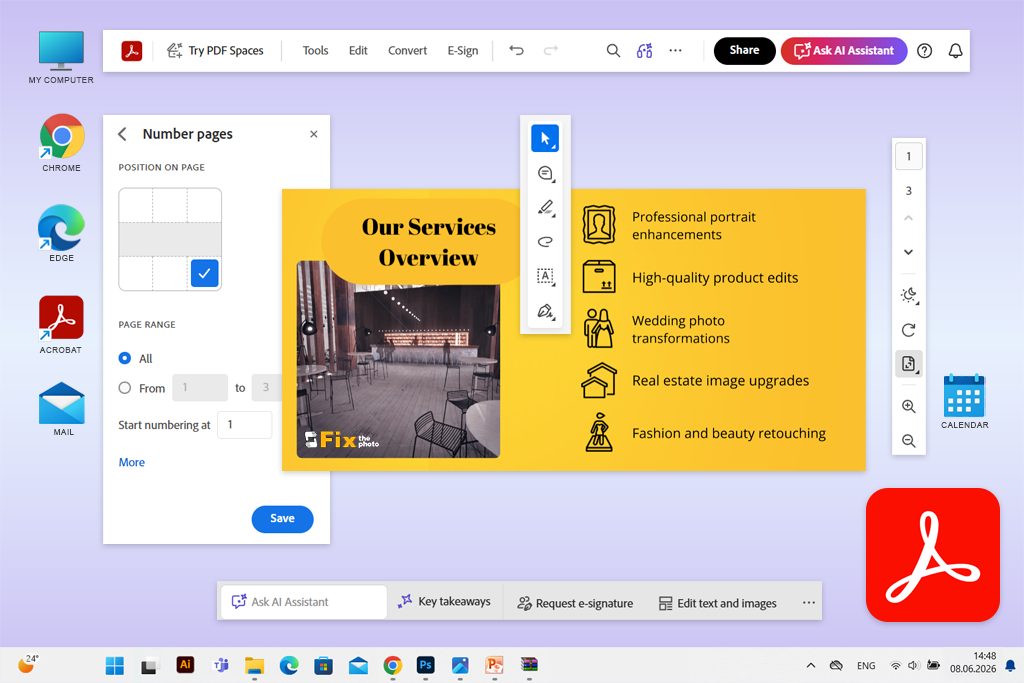
When I was looking for a solution that would allow me to change page numbers in PDF files, I noticed that many Reddit users recommend Acrobat for long, merged documents. Many people mentioned that this software allowed users to simplify their workflow by using Edit > Header and Footer menu instead of adding a number manually to every page.
I decided to test this software on a 70-page contract package. The document included a cover, contents page, landscape spreadsheets, and multiple exhibits. I went to the Edit menu, selected Header and Footer, and inserted the page number. It took me longer than in some web-based editors, but I could access a quick preview and formatting controls.
“I believe that Acrobat is the best option for teams that need to access redaction and comparison features, signatures, and compliance tools to streamline their workflows.”

Acrobat stands out among the rest, as it allows users to add visible numbers and Page labels. I could create sections using All tools > Organize pages > Page labels and choose Roman or Arabic numerals for them. This allows me to indicate a starting value, add a prefix, or continue the sequence from the previous section. Page labels streamline navigation, while Header and Footer allow me to add numbers to my docs.
Such functionality makes Acrobat perfect for a filing where the introduction has the i–iv range, the contract starts at 1, and exhibits require labels. Acrobat supports Bates numbering, Action Wizard tools, OCR, rotating PDF pages in Acrobat, redaction, document comparison, PDF/A validation, and batch processing.
Using the AI tools, I can get document summaries and receive answers to my questions. However, I still check page ranges manually.
My advice is to change page order and rotate or delete pages before numbering. Be sure to preview the visible footer and thumbnail labels. The subscription may seem pricey for occasional tasks, but this software has great value for the money.
Pricing: Free online page-numbering tool; 7-day Pro trial; from $19.99/mo with an annual commitment; from $239.88/year. AI Assistant Plus costs extra.
Best for: Students and quick browser workflows
Platform compatibility: Web; Windows, macOS, Android, iOS
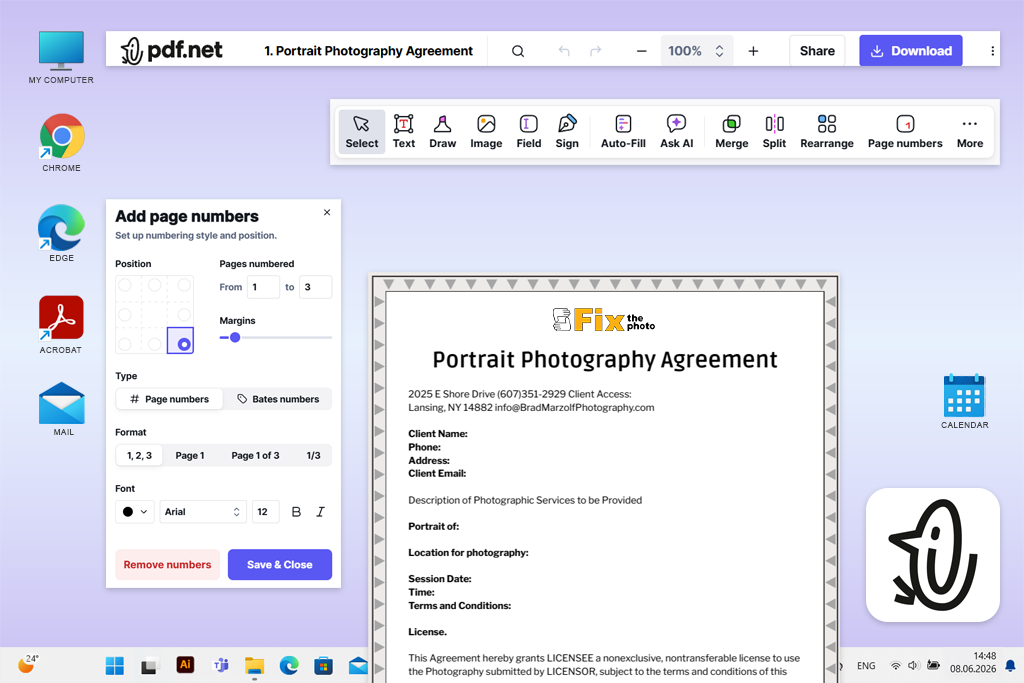
My sister, who is currently a student, told me that she prefers to use PDF.net while working on her assignments. It helps her combine documents from different devices. She can access it from a browser without installing dedicated PDF page numbering software. This is why I decided to give it a try as well.
After opening the Add Page Numbers page, I uploaded my document quickly. Next, I selected the number position and format, specified margins and font settings, indicated which pages should be numbered, and then downloaded the output. It was one of the most intuitive solutions I tested because its interface is streamlined and easy to navigate.
While testing this online PDF page number editor, I uploaded a student report after using a tool to delete pages from PDF on it first. I adjusted the available controls to change page numbers. I could choose a specific page range and specify where the sequence should start. In addition, I used it to process scanned and image-based PDF files without performing OCR first.
“I prefer to use PDF.net when I need to add or change page numbers in a PDF document online while using my colleague’s computer or tablet. I like its intuitive tools.”

What makes this solution stand out is that it has a standalone Bates Numbering tool. It allows me to choose a prefix, suffix, starting number, placement, and numbering style. Such functionality makes it extremely convenient to use PDF.net while working on contracts, financial records, and small discovery sets. Its streamlined interface makes it easier for users to find the tools they need.
I also liked features for merging documents, extracting pages, comparing files, adding eSignatures, protecting documents with passwords, converting files to other formats, and creating form fields automatically. Besides, it has AI Chat and an AI PDF Generator. You can access this platform from desktop computers, tablets, and smartphones without distorting document formatting.
My main advice is to choose the right page order before adding numbers and preview landscape pages to avoid possible issues. This service is more intuitive than Acrobat, even though it’s hardly suitable for complex section labeling and advanced offline workflows.
Pricing: Free document building and access to simple tools; downloads or access to premium features may require paying for a subscription; 14-day access from $0.95; full 14-day access from $1.95; annual plan from $24.95/mo or $299.40/year.
Best for: Beginners, students, and short business documents
Platform compatibility: Web, Windows, macOS, Linux, Android, iOS
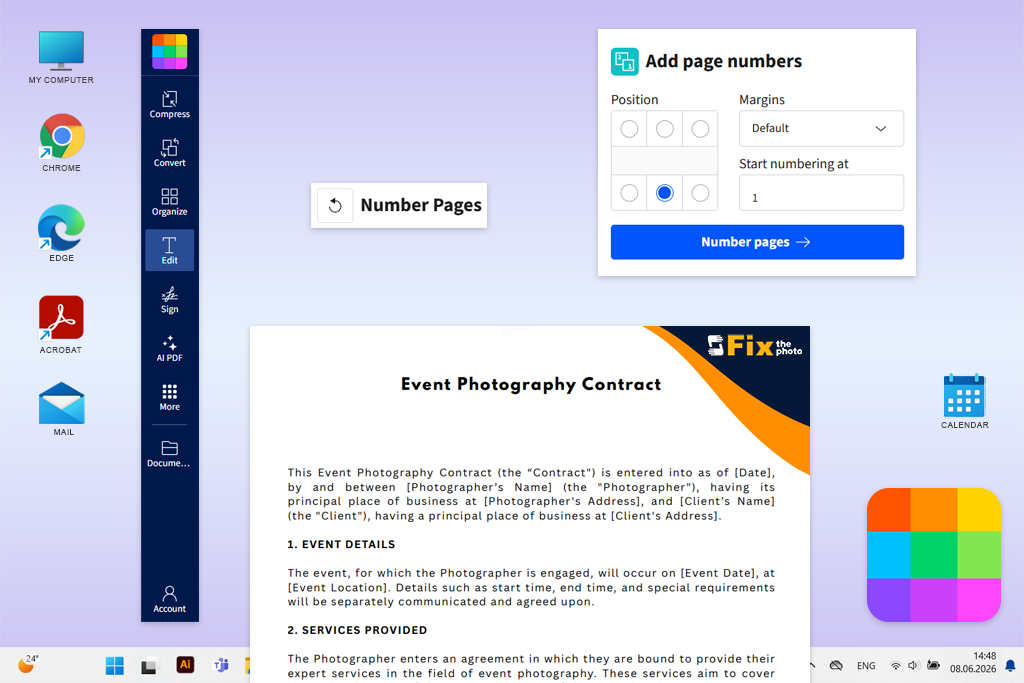
I became curious about testing Smallpdf when I created a Facebook poll and asked my followers about intuitive solutions for working with PDF files. Several people mentioned that they often used this service when they wanted to add page numbers to small documents without using professional software.
The Number Pages feature can be accessed from any browser as a separate tool. After uploading a 35-page internal report, I selected a suitable number position, customized the margins, and clicked Number pages. This service supports custom PDF page numbering and allows me to add numbers to the top, bottom, and corners of the page. I can choose any starting number I need.
“I was pleased to discover that I can use this solution without paying a dime. I did not need to sign up to add page numbers. However, the free version supports a limited number of downloads.”

It can hardly be considered the most advanced solution for those who need to add custom page numbers to their PDFs. I did not find a way to create separate Roman and Arabic sections or add complex Bates-style sequences. Nonetheless, this software is perfectly suitable for beginners as it allows them to quickly access the settings they need.
This solution is extremely intuitive, so even novices will be able to use it if they do not know how to proceed after inserting an image in PDF with Adobe Acrobat. After adding page numbers to a merged report, I could compress it, add or request eSignatures, remove the pages I did not need, or convert the output to Word without downloading it to my device and reuploading the file.
Smallpdf also supports OCR, redaction, flattening, AI summaries, PDF chat, translation, and using AI for generating questions. Despite the advantages of this service, I still prefer to use Smallpdf for certain types of files, including reports, assignments, meeting materials, and other documents that do not include any sensitive data and need only regular sequential numbers.
My advice is to merge the pages into one document and choose the right page order first. Then preview pages in landscape orientation before exporting your file.
Pricing: Free with daily download limits; page numbering is included, but batch processing requires Pro; from $10/mo billed annually; from $120/year.
Best for: Form-heavy business and legal workflows
Platform compatibility: Web, Windows, macOS, Android, iOS
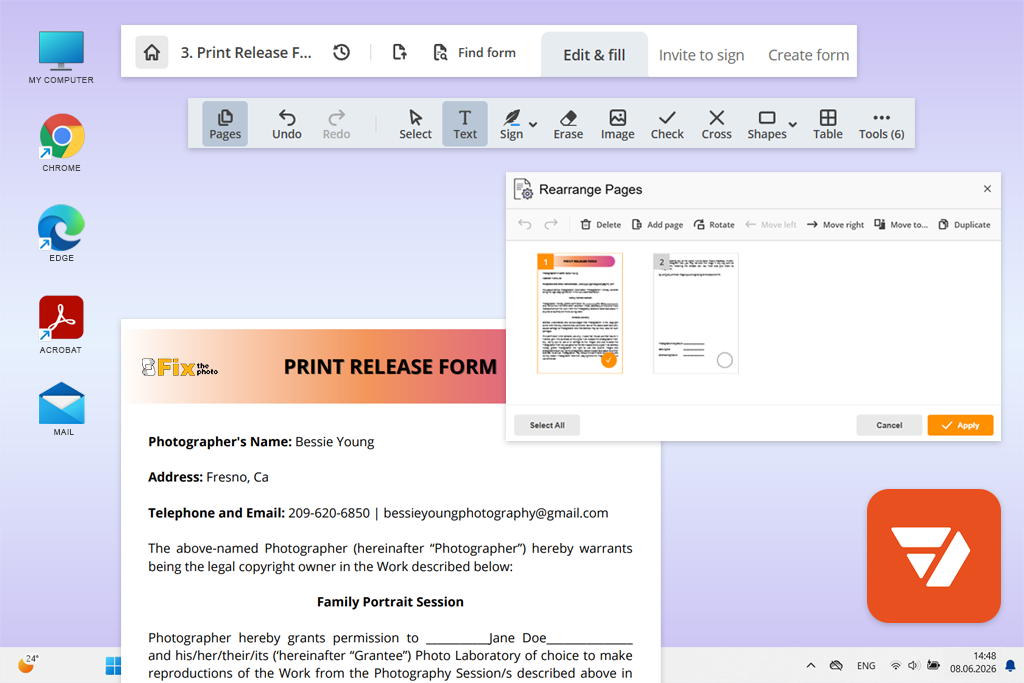
The first time I heard about pdfFiller was when I was watching a YouTube tutorial about preparing contracts for signing. I uploaded a contract, chose the Edit menu in the toolbar, and found the page-numbering feature. This service allows me to add numbers at the top, bottom, or side of a page and choose a custom font, size, style, and color.
When previewing my file, I noticed that one footer was positioned too close to legal text. I could adjust numbering settings for standard contracts, invoices, reports, and manuals. With it, I could insert fillable fields, redact text, request signatures, restore a previous document version, share my file to get feedback from colleagues, and use a convenient workspace.
“I like using pdfFiller when I also need to use forms or add eSignatures to my files besides inserting page numbers. However, its interface may seem more convoluted than Smallpdf.”

I checked whether its AI tools were suitable for working on long agreements. This service has helpful summarization tools, an online PDF translator, chat feature, AI search, assisted editing, and form filling. I do not blindly trust AI outputs and prefer to check pagination manually, but this solution came in handy when I needed to find clauses before sending my file for review.
The only shortcoming of this PDF page numbering editor is that it does not have a permanent free version. However, the annual Basic subscription has great value for money for those who need to work with forms, cloud storage, eSignatures, sharing tools, and conversion features.
My practical tip is to change the page order in Manage Pages before numbering, then save a copy before continuing to edit a document.
Pricing: No lifetime free plan; eligible users can access a 30-day free trial, with limitations depending on the chosen plan; from $8/mo billed annually or $96/year; month-to-month Basic costs $20/mo.
Best for: Cost-conscious users and routine office PDFs
Platform compatibility: Web on Windows, macOS, Linux, Android, and iOS; PDF24 Creator for Windows
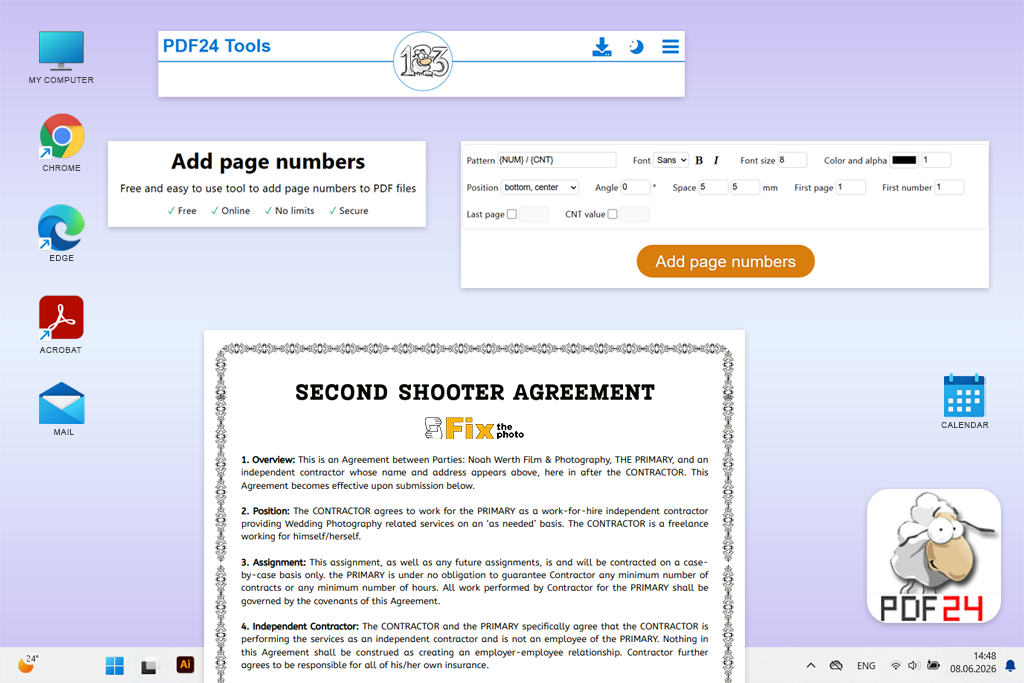
I discovered PDF24 Tools on Google when I was looking for a completely free PDF editor that supports page numbering. Many similar solutions claim to have free versions but have download restrictions. Unlike them, PDF24 does not charge any hidden fees, require a subscription, add watermarks, or have usage limits.
I could access the numbering tool under All Tools > Add Page Numbers. After uploading a merged set of invoices, I specified the pattern, font, size, color, transparency, position, angle, and spacing. Besides, I could choose the first physical page, first displayed number, and last page.
“I prefer to use PDF24 while working on regular reports and documents that do not contain any confidential info. However, PDF24 claims that it uses SSL encryption to safeguard uploaded files and deletes them after one hour.”

As a result, I discovered that PDF24 was even easier to customize than I thought. For instance, I skipped the cover and started the number sequence at 1 on the second page. Using the pattern field, I experimented with different formats besides a plain digit.
This solution has great value. It comes with free merging, rearranging, OCR, redaction, and comparison tools. Besides, I can use it to add watermarks and overlays or perform page-size correction. I prefer to use the Rearrange PDF Pages feature before numbering documents that were put together by my FixThePhoto colleagues.
My main tip is to choose the right order and format for mixed page sizes first and then increase the spacing from the edge. PDF24 does not have advanced section labels available in Acrobat and does not support audit workflows, but its free version has impressive functionality.
Pricing: Free with limitations regarding page number, usage, registration, or watermark; $0/month, $0/year.
Best for: Branded reports, guides, and portfolios
Platform compatibility: Web, Windows, macOS, Android, and iOS
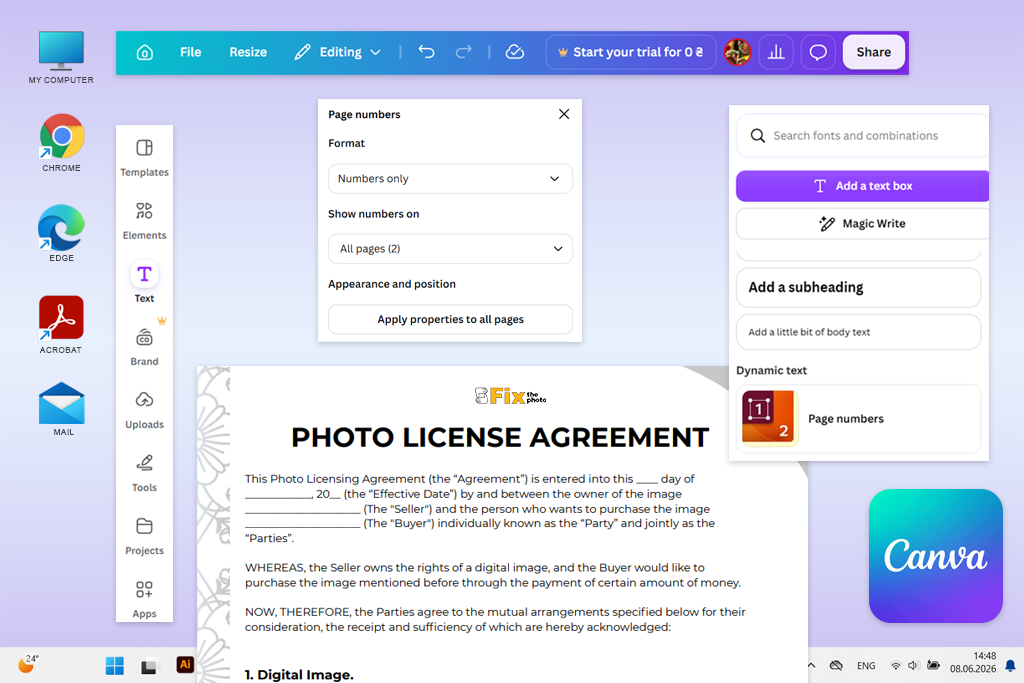
A designer from our team recommended Canva to me. Until then, I had never seriously thought about using a dedicated PDF page numbering software. However, I still decided to give it a try to check whether its visually centered UI would allow me to fix layout issues that were difficult to solve when using regular utilities.
After importing my document, I accessed the Text menu in the editor side panel and found the Page numbers option under the Dynamic text tab. I could drag the number box to any position and choose a custom font, size, style, and color.
“I often use Canva when I need to add numbers to media kits, training materials, portfolios, and reports that do not require much editing.”

What makes Canva stand out is that it considers the number as a design element. When choosing its style, I made sure it matched the report’s typography, checked its alignment with decorative footer lines, and previewed every page on the canvas. I was pleased that dynamic numbering was updated automatically when I added, deleted, or rearranged pages.
In addition, Canva made it easy for us to add comments to our files, tag our colleagues, and edit the PDF together with other members of our team. We used features such as the Brand Kit, PDF Translator, Magic Write, Magic Media, and the JPG to PDF converter when working on our PDFs at the design stage.
The free version of this PDF page numbering editor has an extensive choice of features and supports page numbering, editing, document sharing, and exporting files in PDF format.
My advice is to analyze the imported document to check whether fonts, line breaks, and charts stay consistent, and only then add page numbers. I noticed that when I convert documents with complex layouts into editable Canva pages, they might get slightly distorted.
Pricing: Free page numbering for PDF documents with up to 300 pages or 100 MB; Canva Pro from about $15/month or $120/year, depending on the region; free Pro trial available.
Best for: Private offline numbering on Windows
Platform compatibility: Windows
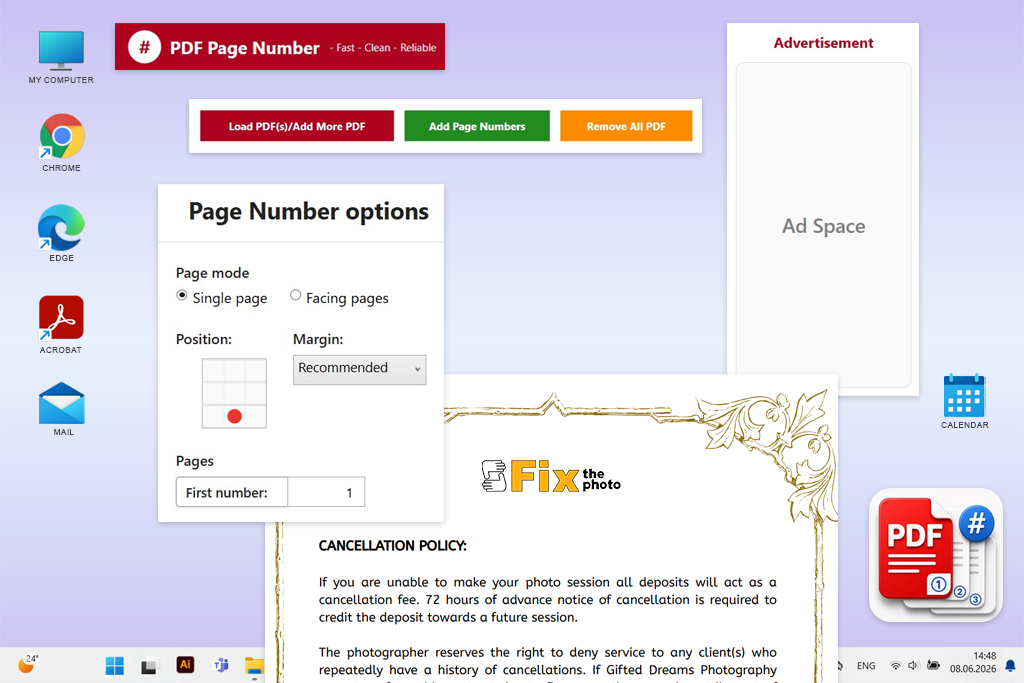
I discovered Add Page Numbers to PDF when I was reading a forum thread about lightweight desktop solutions. As I often need to work with legal and financial documents that contain sensitive info, I wanted to discover desktop software that won’t require me to upload my files to third-party platforms.
This dedicated Windows software was created specifically for working with documents. After importing a PDF, I previewed its pages, selected the page range I needed, specified the number position, chose the right margins and text styling, and saved a copy of my file.
This solution helped me expedite my workflow because its interface is less convoluted than in professional editors. It was easy to access the numbering controls without looking for them in a large menu.
“I use this software when I work with confidential PDF documents, and I need to change page numbers without using Acrobat.”

Even though it is lightweight, it allows users to adjust a lot of custom settings. I could choose between header and footer placement, opt for left, center, or right alignment, specify a custom starting value, choose between regular or Roman numerals, and select a suitable format, such as a plain number or “Page X of Y.” Iit allows me to choose fonts, HEX colors, and text style.
The key advantage of this solution is that it does not require me to upload anything online. While testing it, I was working on a draft contract containing confidential info. My laptop wasn’t connected to the internet, but I was still able to add numbers. This solution also supports a live preview and allows me to save a history of processed files.
The only shortcoming of this software is that it has a narrow area of application. It does not have general editing features, OCR support, AI tools for PDF, collaboration options, or advanced Bates numbering tools.
My tip is to keep your files in a separate folder and analyze the preview at high zoom before exporting your documents.
Pricing: Free download from Microsoft Store; no paid monthly or annual subscription is currently listed; $0/month, $0/year.
When I decided to test PDF page numbering editors, I realized that it would take me a lot of time. Together with the FixThePhoto team, I fully dedicated myself to this project, hoping that we would discover the services that would help us work with contracts, financial documents, internal reports, and multi-file submissions.
I started by creating a long version of a list that included 30+ solutions that I discovered on Google, Reddit threads, specialized forums dedicated to working with PDF documents, in YouTube tutorials, through Facebook recommendations, and in Microsoft Store listings.
My colleagues helped me narrow down the selection by eliminating the apps that are no longer updated, removing the solutions with suspicious download pages, and excluding the options that did not have practical tools for adjusting numbering.
We excluded the following tools from the final version of our list:
Together with my colleagues from the FixThePhoto team, we followed the standard testing process for every service:
Setup and usability. I assessed the upload speed and checked how much time it would take me to find the numbering features, learn how to use the controls, and export the output. My colleagues who do not edit documents often helped me a lot during testing because they immediately noticed when it was too difficult to navigate the interface.
Custom numbering settings. I examined starting values, considered page ranges, skipped covers, prefixes, Roman numerals, “Page X of Y” formats, and Bates-style sequences. Besides, I checked whether there are any tools for working with fonts, features for adjusting margins, and other options for customizing number placement.
Practical features for working with documents. We uploaded the same documents when using each editor, including a contract with an unnumbered cover, a multi-page discovery set, a student report, and a PDF file that included pages in different sizes and formats, including portrait, landscape, A4, and large pages.
Editing precision. I inserted, deleted, and rotated pages. In addition, I changed their order to understand whether it would be necessary for me to fix any numbering issues. My colleagues also checked the outputs in various PDF viewers.
Privacy settings and integration into our workflow. I compared the performance of web-based services with desktop software and checked whether it was necessary to upload confidential documents. In addition, I tested merging, redaction, collaboration, and AI document analysis tools. Besides, I checked whether it was possible to add eSignatures.
Free access and overall value. Finally, I tested the free versions to see whether they allow users to access page numbering features and export files. The best options we choose support extensive customization, help users streamline their workflows, come with improved privacy features, and have better value than their alternatives.
While viewing numbered PDFs, I check whether they meet the following criteria:
By thoroughly checking the outputs, I managed to avoid many errors that may still remain in PDFs even if I use advanced settings. Even though I normally preview my files as well, I still believe that it’s necessary to examine the output as well, instead of focusing only on the version that can be previewed inside the editor.