I often work with PDFs when preparing social media campaigns, whether it's content plans, creative briefs, media kits, or reports. Sometimes, I need to add new information or extra pages without messing up the original layout. The problem is that not all PDF page adders online handle this well.
Some limit how many pages you can add, ask you to create an account, or change the formatting. To find tools that actually work well for different tasks, I consulted my colleagues and tested over 15 tools, looking at how easy they were to use, what features they offered, and how well they preserved the original files.
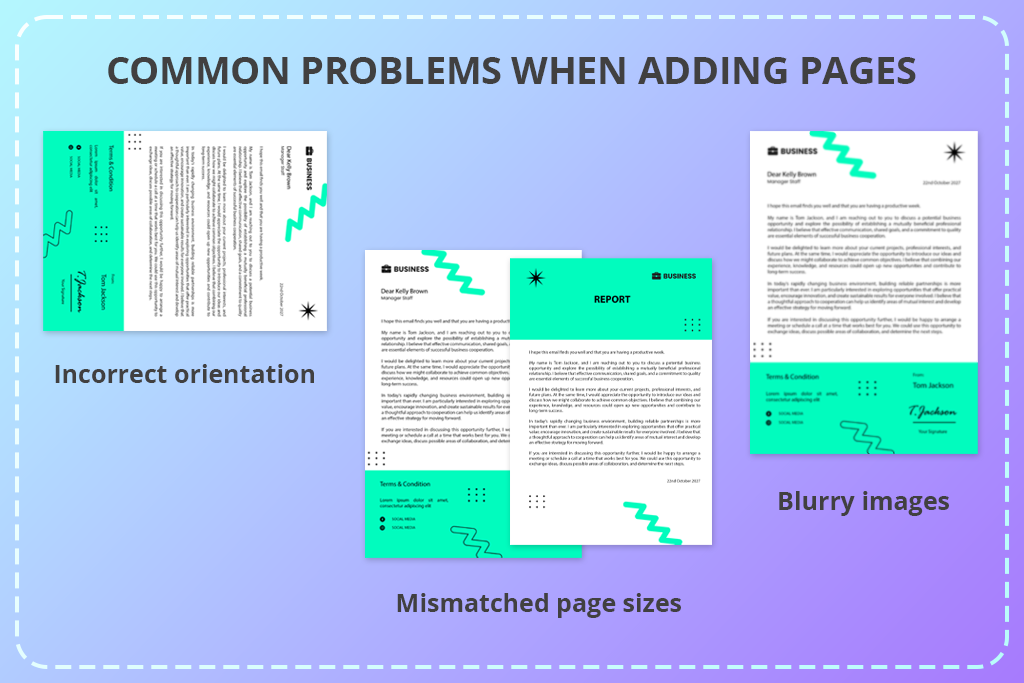
Adding pages to a a PDF is usually simple, but things don't always go as planned. Here are some common issues you might run into and how to deal with them.
Price: Free
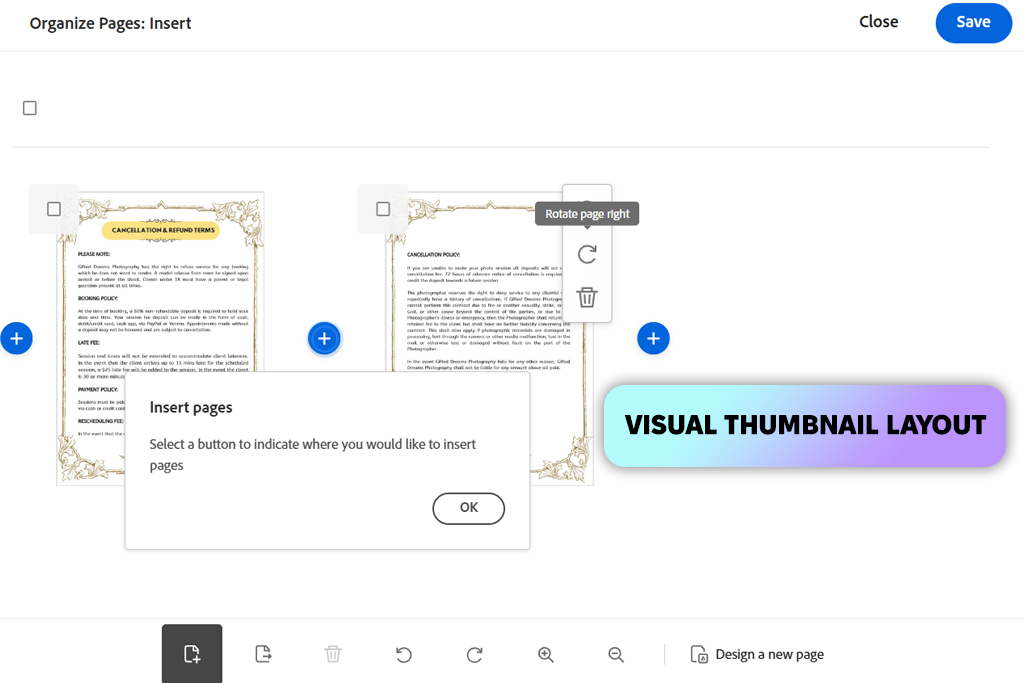
Adobe Acrobat makes it easy to add pages to a PDF online without starting over. I used it to insert extra pages into a campaign brief, placing supporting information between existing sections rather than adding everything at the end.
To add pages to a PDF using Adobe Acrobat, I uploaded the original file, chose where the new pages should go, and selected pages from other PDFs. The page previews helped me check the order, while the drag-and-drop controls made it easy to move pages around, rotate them, or delete the ones I didn't need before saving.
Acrobat supports PDFs with up to 1,500 pages and a file size of 100 MB. Each PDF you add can have up to 500 pages. After editing, you can download the finished file or share it through a link. If you save it to your Acrobat account, you can open it on other devices later. You can also share the document with others to collect their feedback.
One downside is that you need an Adobe account to save and download the edited PDF, which can be inconvenient if you only want to make a quick change. For more advanced editing, Adobe Acrobat Pro offers extra tools for editing text and images, recognizing text in scanned documents with OCR, converting PDFs, removing sensitive information, and adding electronic signatures.
Price: Free
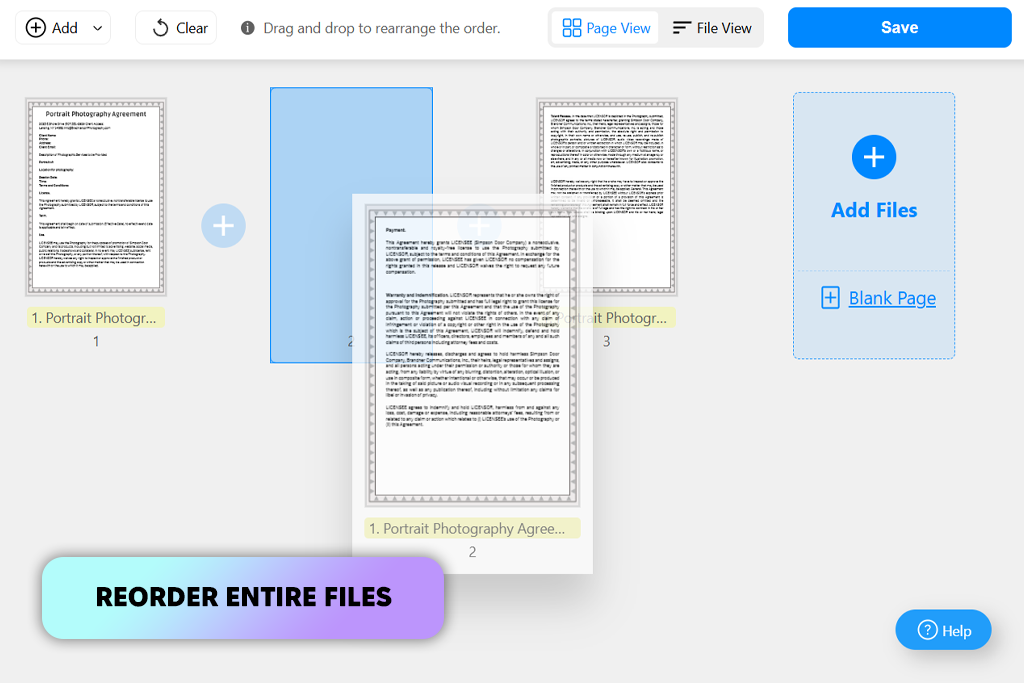
PDFgear is a free online tool that lets me add content to a PDF without limiting me to pages from other PDF files. While updating a social media campaign report, I added pages from other PDFs, inserted JPG, PNG, and HEIC images, and created blank pages for extra content, all in one session.
The process was simple: I uploaded the files, chose where to insert the new pages, and dragged the thumbnails into the right order before exporting the document. For longer reports, I could switch between page thumbnails and File View, making it easier to move entire files rather than rearrange pages one by one.
The tool lets you add pages to PDF online for free, and I don't need to create an account or enter payment details. It also states that files stay in the browser instead of being uploaded to its servers, which is useful when working with unpublished campaign plans or internal documents. I can use it in a browser on Windows, macOS, Linux, iOS, or Android. However, the online tool mainly lets me add and arrange pages. For advanced text edits or other specialized features, I'll need a more complete free PDF editor.
“PDFgear came in handy when I needed to add a few pages to a document. I liked being able to insert images too, but the editing options are limited if I need to make more detailed changes.”

Price: Free
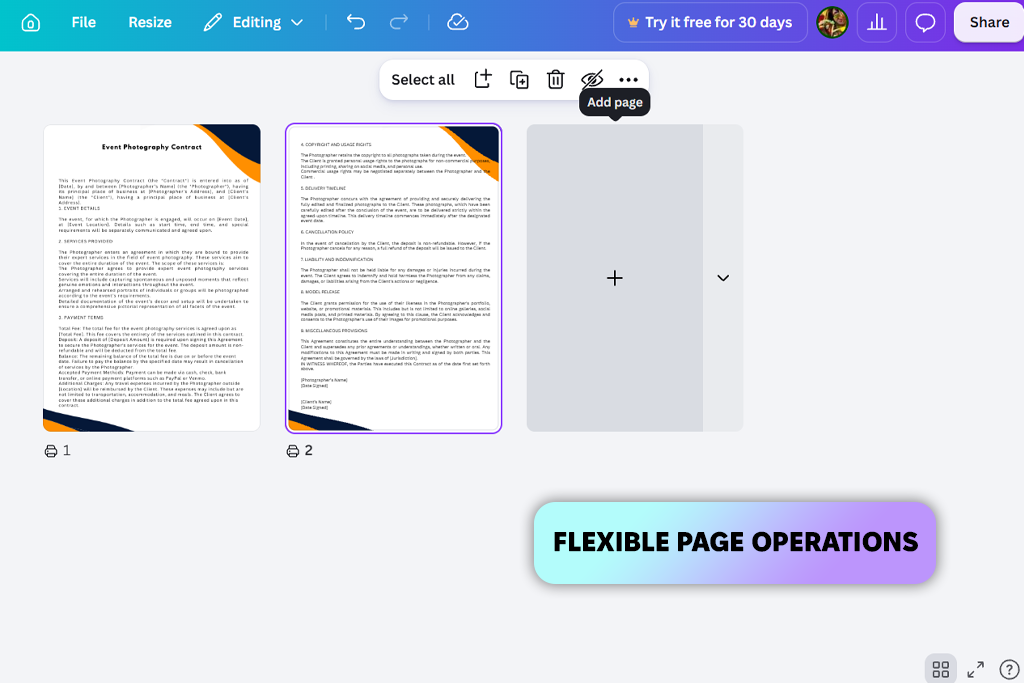
Canva is useful when I want to add pages to a PDF online for free and improve its appearance at the same time. I used it to update a social media campaign report by adding a new page and rearranging sections to make the content easier to read. The page controls made it easy to move pages, delete the ones I didn't need, and add new ones with a click. I could also edit text, change fonts, replace images, and use design elements from Canva's media library.
I also used Canva as an online PDF compressor to compress a PDF when I needed a smaller file to share with colleagues. Once I finished editing, I could download the document or share it by link, email, or social media. Canva offers more ways to customize a PDF than a basic page merger, but its interface can feel like too much when I only need to add one page. Files are also uploaded to Canva's cloud, so I wouldn't use it for highly confidential documents.
Price: Free or from $8/mo.
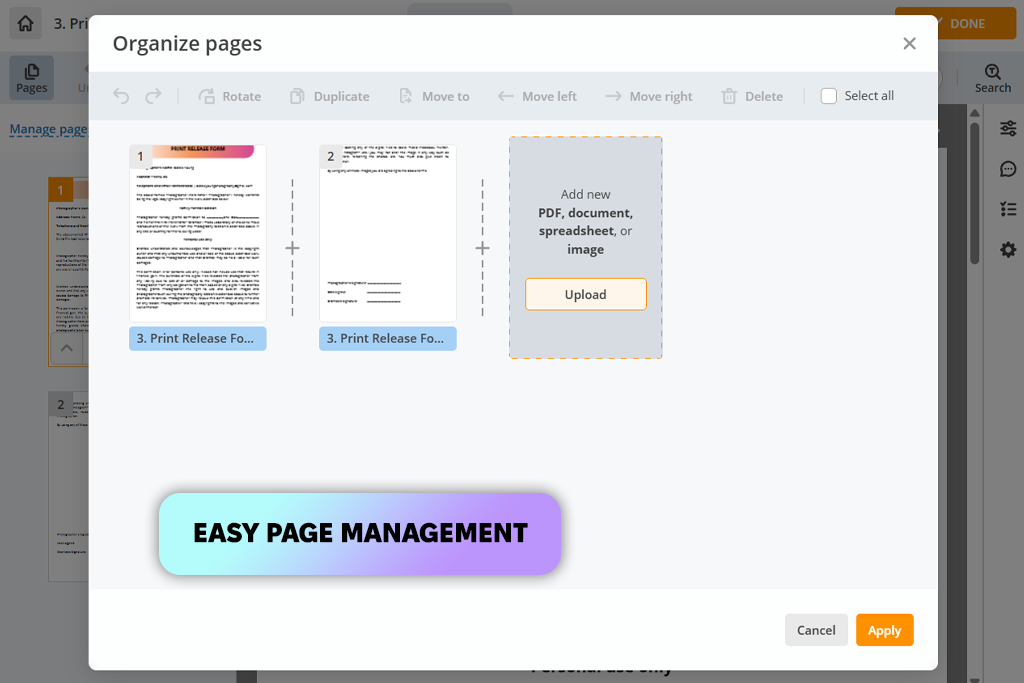
pdfFiller works well as a PDF organizer when a document needs extra pages or a few edits. I tried it with a campaign report and could add pages, delete unwanted ones, change their order, and duplicate existing pages without switching between tools. I could also import content from Word files, images, and other PDFs, which was helpful because the campaign materials were saved in different formats.
PDFs can be up to 100 MB, while most other formats, including DOCX, PPTX, JPEG, and PNG, have a 25 MB limit. Besides inserting pages into PDF online, the tool lets me edit documents, create fillable forms, and add electronic signatures. Once everything is in order, I can share the document by email or link and access saved files from different devices through cloud storage. The interface can feel cluttered at first, and finding the page-management tools takes some time. The free version also has limits, so it may not be enough if I need to work with lots of documents.
Price: Free
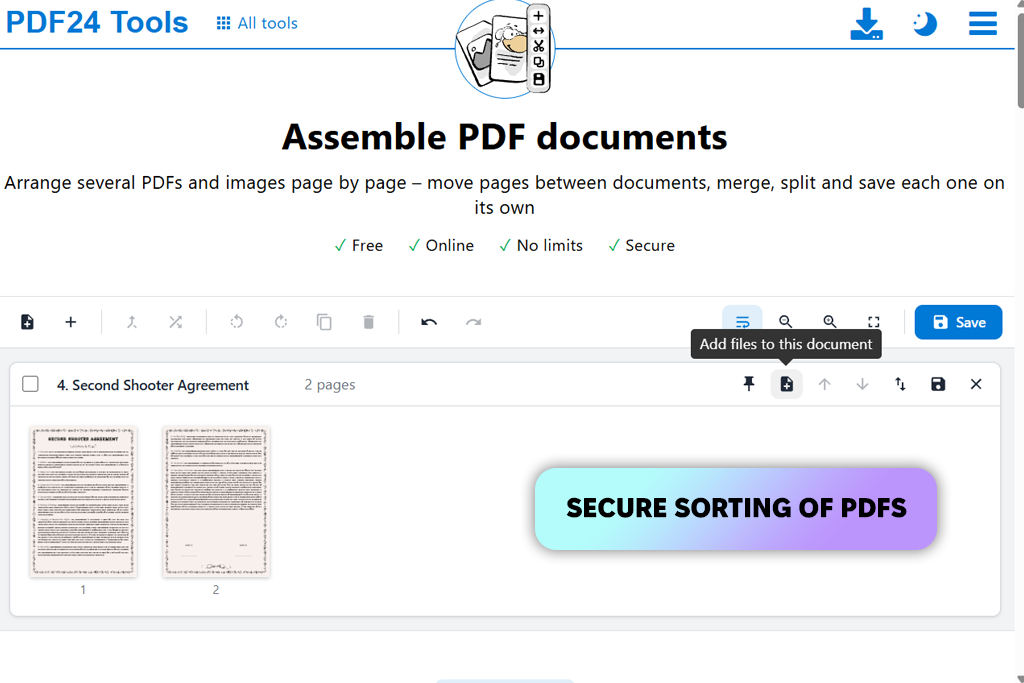
PDF24 Tools is a handy choice when I need to add pages to a PDF online without installing anything. I can drag existing pages into a new order or reverse the sequence. The merge tool also lets me combine separate PDFs, which comes in handy when campaign briefs, reference sheets, and reports are saved in different files. If I only need certain pages from a document, I can use a PDF splitter software to extract them before adding them to another file, leaving out anything I don't need.
I like that PDF24 keeps things simple. I upload the files, arrange the pages, and download the finished PDF without signing up or installing anything. It works in a browser on Windows, macOS, Linux, and mobile devices, and moving pages around doesn't affect their quality. However, adding new pages requires the merge tool, as the page organizer only changes their order. The site also has ads, and large files can take longer to process.
Price: Free or from $15/mo.
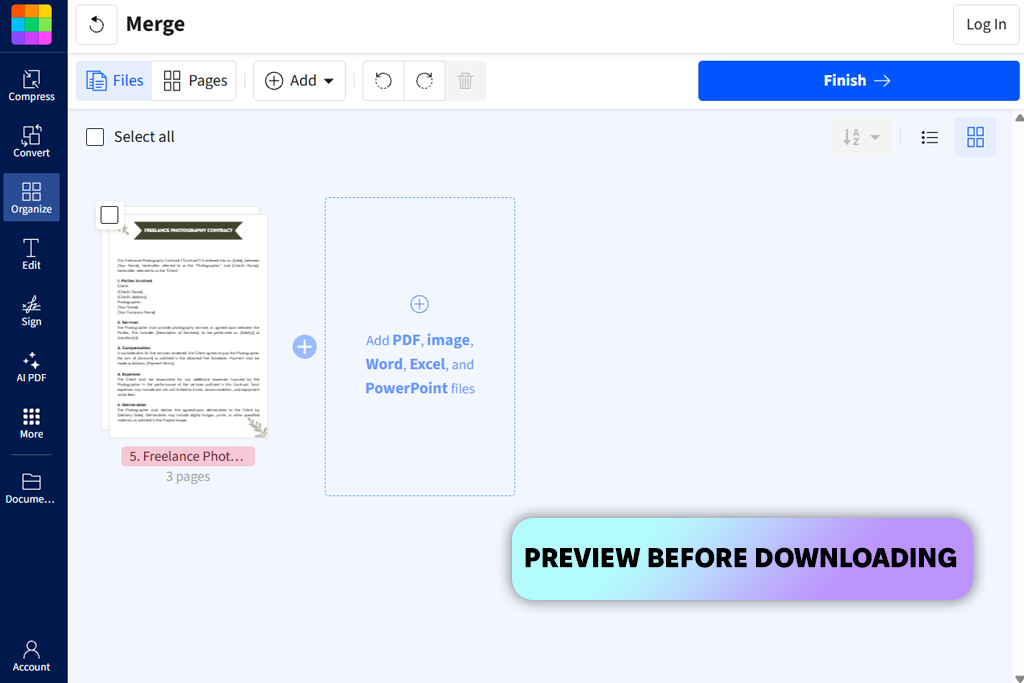
I used Smallpdf to add pages to a social media campaign report by combining it with a separate PDF containing supporting materials. After merging the files, I checked the page order and moved a few pages around before downloading the final document.
The thumbnail-based interface made it easy to see all the pages at once and remove anything I didn't need. Smallpdf also has other tools built in, including a free PDF filler that lets me add text, dates, checkboxes, and digital signatures.
Smallpdf is handy for everyday PDF edits. I can merge files, rearrange pages, compress PDFs, and convert documents without installing anything. Although it's a handy PDF page adder online, I have to use its free PDF merging tool to insert pages from another file, as there's no separate page-insertion feature. The free plan also limits the number of tasks I can complete, which can be frustrating when I need to edit several documents at once.
“Smallpdf made it easy to add pages from another PDF and delete the ones I didn't need. However, the free plan has usage limits, so I wouldn't choose it for regular PDF editing.”

Price: Free or from $7/mo.
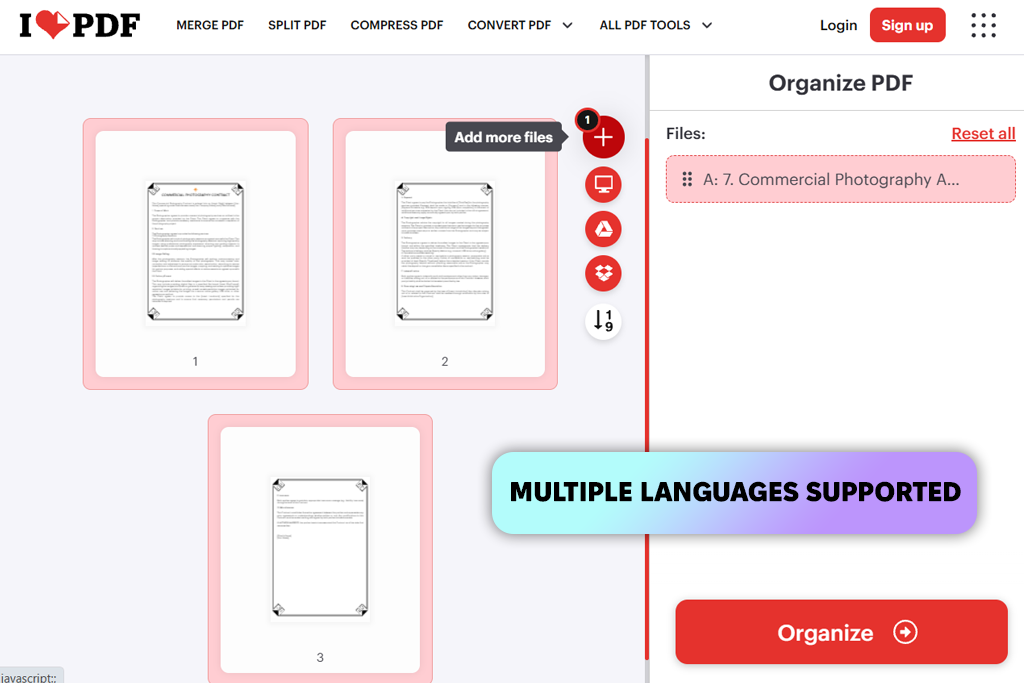
iLovePDF makes it easy to add blank pages, merge PDFs, and rearrange content in a browser. When I tested it, I added three blank pages to a campaign report and combined it with a separate five-page PDF of supporting materials. The page thumbnails let me drag pages into place and delete the ones I didn't need. It's a practical way to update a media kit or campaign brief without having to create the whole document again.
With Google Drive and Dropbox integration, I can import files and save the finished document without downloading and uploading everything manually. I can add blank pages or merge existing PDFs, depending on what the report needs.
After inserting the pages, I can reorder or delete them and use other tools, such as an AI PDF editor to make further changes. Everything works in the browser, so there's no need to install software. The main downsides are the free plan's file and size limits, as well as ads.
Yes. Tools like Adobe Acrobat and PDFgear let you choose exactly where to place new pages. You can add a section between chapters, include references in a report, or update a campaign brief without having to create the whole PDF again.
Yes. PDFgear supports inserting JPG, PNG, and HEIC images, as well as blank pages. iLovePDF also lets you add blank pages, while tools such as PDF24 Tools can help you combine image-containing PDFs with existing documents.
Adding or rearranging PDF pages usually doesn't affect their quality. Adobe Acrobat and PDF24 Tools let you organize pages while keeping them clear. However, converting images or compressing a PDF can reduce image quality, so check the finished file before sharing it.
It depends on the tool. Some process files directly in your browser, while others upload them to their servers. Before adding confidential contracts, financial records, or private business documents, check how the service handles your files and whether it stores them after processing.
Yes. Smallpdf, iLovePDF, and PDF24 Tools let you combine several PDFs into one file. This comes in handy when putting together reports, contracts, presentations, or media kits saved as separate documents.
If the file is too large, compress it before uploading or try a tool with a higher size limit. You can also split the PDF into smaller files, add the pages you need, and combine the files again when you're done.
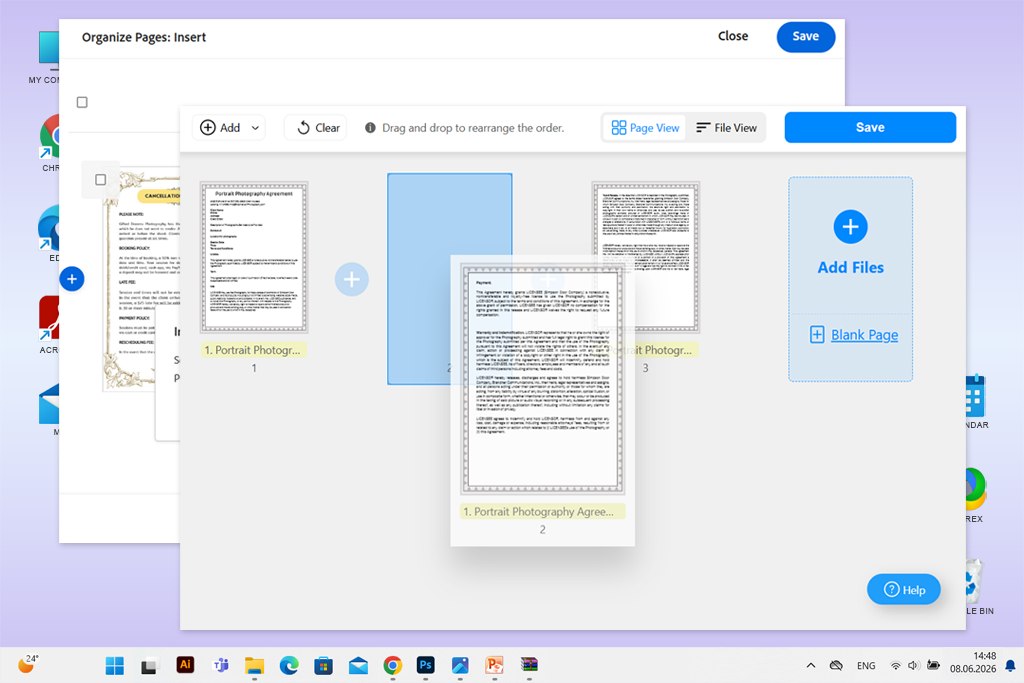
To find the best online PDF page adders, I tested several tools with my colleagues Ann and Kate. While testing, we added blank pages, imported pages from other PDFs, and reorganized documents such as campaign briefs, reports, and media kits. We looked at how simple each tool was to use, whether it preserved the original layout, and how easily we could download the completed PDF.
“With Adobe Acrobat, I could place pages wherever I needed and fix their orientation by rotating them. However, I had to sign in before I could save or download the updated PDF, which was a bit inconvenient.”
We left out tools such as PDFChef, Online2PDF, Drawboard, CamScanner, Foxit, PDFConverter, PDF2Go, UPDF, getPDF, Sejda, PDFsam, and Lumin because their main features were geared toward conversion, scanning, annotation, or desktop document management rather than adding pages online. Some also had restrictive free plans, required software installation, or made inserting and rearranging pages less convenient.
We used the following criteria to assess each tool:
“PDF24 was convenient because I could use it directly in my browser without installing software. It worked well for basic page management, although it lacked some of the advanced features available in full PDF editors.”
Our top three online PDF page adders are Adobe Acrobat, PDFgear, and Canva. Adobe Acrobat stands out for its simple page reordering and rotation tools, making it a good option for managing long documents.
PDFgear lets users insert blank pages, pages from other PDFs, and images without creating an account. Canva is ideal for those who want to add pages and customize the document with different layouts, fonts, images, and branding elements. Each tool serves a different purpose, whether you need precise page management, flexible insertion options, or a more polished design.