While working on a concept presentation for a small interior design project, I needed to produce sketches based on my rough idea to ensure that our client would understand and approve the main concept before we started producing more detailed designs.
I didn’t want to produce overly polished renders with a high degree of realism. Instead, I needed to create sketches that would look as if they were drawn manually and still allow me to see the shapes, proportions, furniture pieces, and details clearly.
When I started looking for the best AI sketch generators, I realized that the tasks could prove to be more challenging than I expected. Some generated outputs looked visually appealing, but the room’s layout looked different. Others produced polished results that did not even look like sketches.
During the testing stage, I decided to consider whether these solutions would follow my guidelines with high accuracy, whether it would be possible to control the output style, how long it would take them to produce results, and whether I could upload reference pics. I wanted to discover the services that would allow me to switch between pencil, ink, and architectural drawing styles without writing a new prompt from scratch.
Besides, I was interested in the pricing policies of these solutions. During the early stage of working on my projects, I did not want to pay for a costly subscription without understanding whether a specific service could be integrated into my workflow. I wanted to find options with a free plan or a trial version that would allow me to export outputs in good resolution. I also checked how many tries it would take me to generate a sketch I liked.
My colleagues from the FixThePhoto team helped me test these services, as they also wanted to find reliable AI sketch generators. This is why we created a list of highly recommended tools and started testing them.
| Generator | Free access | Main styles | Quality | Distinctive features | Price |
|---|---|---|---|---|---|

Adobe Firefly
|
✔️
|
Pencil, ink, concept art, architectural
|
★★★★★
|
AI generation and editing; Adobe app integration
|
Free limited plan; paid plans available
|

Midjourney |
Generally no free trial
|
Artistic, pencil-like, stylized, architectural concepts
|
★★★★★
|
Detailed compositions and strong artistic styles
|
From about $10/mo
|

FLUX |
Depends on platform
|
Realistic sketches, ink, concept art, line drawing
|
★★★★☆
|
Flexible models and advanced image-generation options
|
Free local use for supported models; hosted access may cost extra
|

Canva |
✔️
|
Simple illustrations, line art, concept visuals
|
★★★★☆
|
Easy editing and presentation design workflow
|
Free plan; paid plans available
|

Nano Banana Pro |
Depends on platform
|
Detailed concept art, stylized drawings, image transformations
|
★★★★☆
|
Instruction-based image editing and detailed refinements
|
Depends on the service or API
|

Ideogram |
✔️
|
Illustration, ink, stylized line art
|
★★★☆☆
|
Useful text rendering and creative design tools
|
Free plan; paid plans available
|

DALL-E 3 |
Depends on current service access
|
Pencil, cartoon, illustration, concept art
|
★★★☆☆
|
Natural-language prompts and accessible image creation
|
Availability and pricing depend on the current service
|

Leonardo AI |
✔️
|
Sketch, fantasy illustration, concept art, line art
|
★★★☆☆
|
Multiple models and creative controls
|
Free tier; paid plans available
|

Stable Diffusion |
✔️
|
Pencil, ink, technical drawing, architectural line art
|
★★★☆☆
|
Extensive model, style, and image-to-image customization
|
Free local use; hosted platforms may charge
|
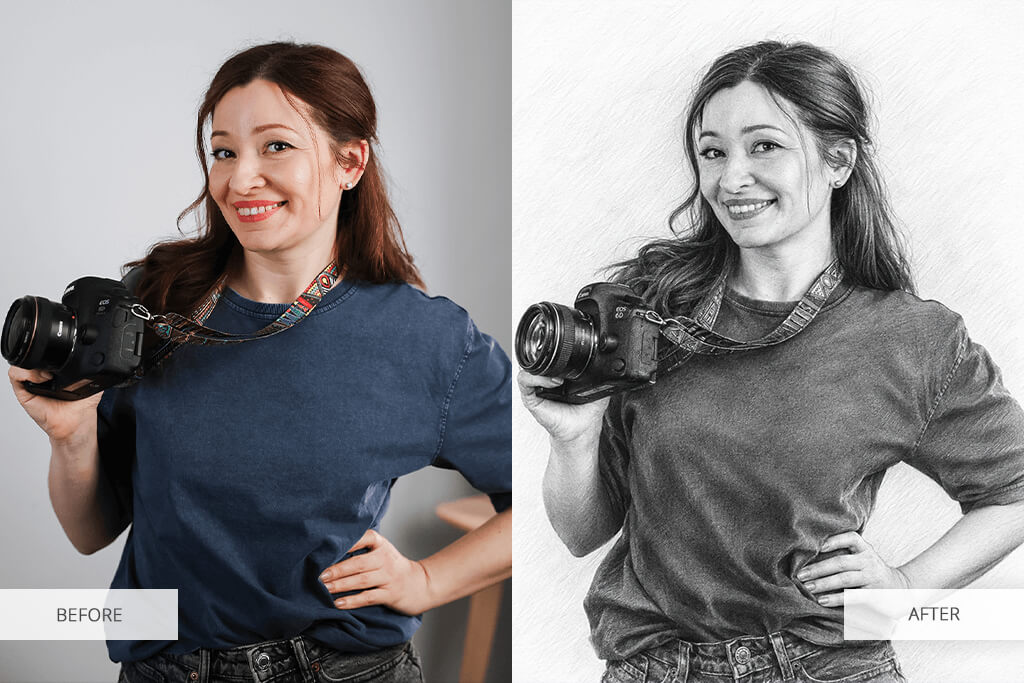
Write a detailed prompt. Specify the main idea, composition, proportions, and other essential details. Instead of using a generic prompt like “a living room sketch,” try “hand-drawn sketch of a small modern living room with a sofa against the right wall, a coffee table in the center, and a narrow window on the left.”
Choose a suitable sketch style. Indicate whether you need a pencil drawing, ink outline, charcoal sketch, or architectural concept drawing. Describe other details like subtle shading, construction lines, loose strokes, or accurate contours.
Upload a reference image. If you have a picture you would like to use as a reference, upload it to get more precise results while using the AI image generator. This approach will allow you to produce outputs with the right composition and proportions.
Tweak the output gradually. Instead of rewriting the whole prompt, change one small detail during each iteration step. Be specific and ask the AI to “make the outlines thinner” or “keep the furniture in the same places.” This way, you can improve the result while following the original idea.
Review the details and export quality. Check whether there are any distorted shapes, perspective issues, missing details, and unwanted elements. If you want to use a sketch for a presentation or print, check whether it supports the resolution and export format you need.
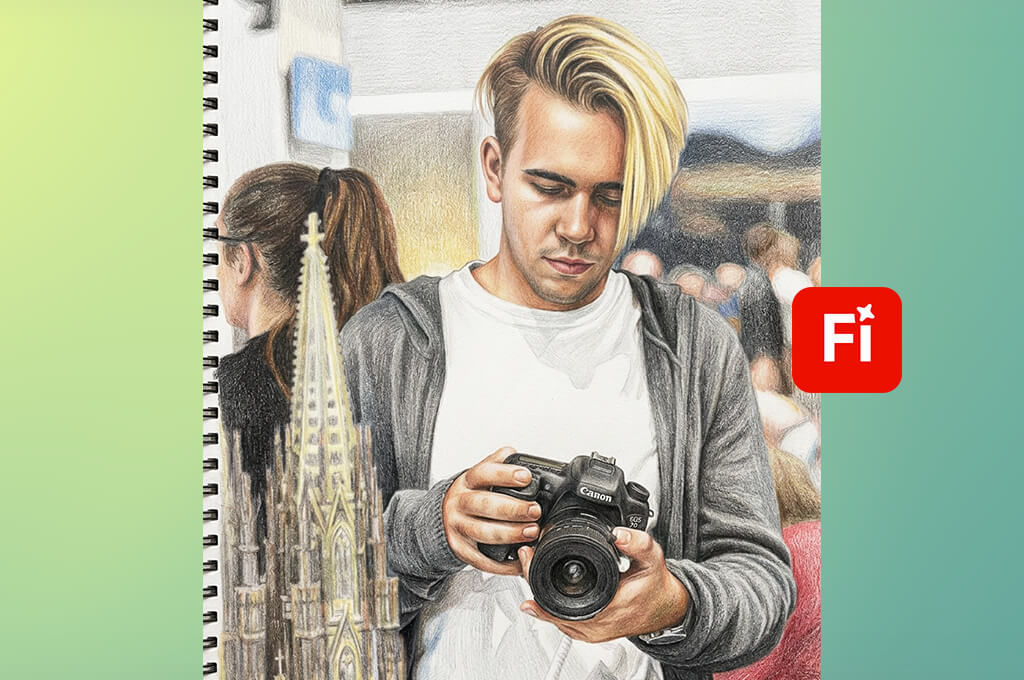
I became curious about Adobe Firefly when I was looking for a reliable solution that would allow me to produce polished results based on my rough interior design ideas.
I could describe the output I wanted to achieve in detail while writing a prompt. For instance, I would specify that I wanted to create a minimalist living room with a large window, a basic sofa, and wooden furniture. I could also upload reference images instead of using only a text prompt.
While working on my project, I uploaded a file with a rough room layout and experimented with different styles, from loose graphite to precise architectural line art. I considered whether Firefly would keep the window and furniture in the places I needed. I did not want to generate a nice sketch only to discover that the AI changed the whole layout.
“I tried creating pencil sketches based on some reference photos and was satisfied with the outputs. This platform is quite intuitive, and I was pleased to discover that I could use the generated images while working on other design projects. However, I still occasionally need to refine the outputs manually.”

I especially liked using the Composition Reference and Style Reference tools. The former allows me to produce visuals with the right structure. The latter impacts the visual look of the output. These tools allow me to try out different ideas using the same concept. I still prefer to review the perspective and furniture proportions before adding the resulting images to a presentation.
Firefly is the best AI sketch generator for my needs when it comes to producing a finished visual based on an early sketch. It does not require complex setup. While testing it, be sure to try out the free version first. I recommend producing multiple variations, experimenting with different illustration styles, and trying to tweak the concept before paying for a subscription.
At the moment, Adobe offers a limited number of free daily generations. The Firefly Standard plan costs US$9.99 per month and includes 2,000 monthly credits. The exact number of sketches I could produce depends on the models I use and the tools it allows me to access.
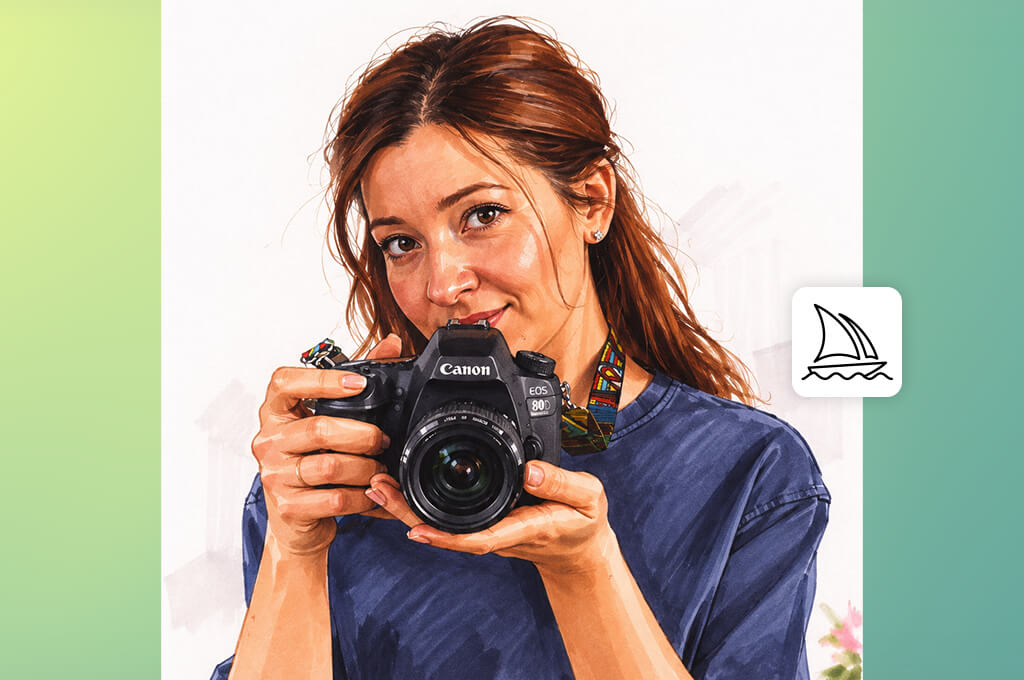
I wanted to create sketches based on my interior concepts that would be worthy of an architect's notebook. I decided to give Midjourney a try. I could specify that I needed loose pencil lines, cross-hatching, and rough shading to achieve an artistic output. I also uploaded a Style Reference image to ensure that it would produce visually similar sketches.
I wanted to create an image based on a simple living room concept. Midjourney generated several versions in different drawing styles. When examining the outputs, I considered furniture placement, window proportions, and perspective. Besides, I tried tweaking the prompt subtly instead of rewriting it from scratch.
The Style Reference helped me produce several pictures in a consistent visual style. For instance, I could use the same soft graphite look while visualizing ideas for a living room, bedroom, and kitchen. It doesn't guarantee that I would be able to achieve consistency in every case. This is why I would still examine the outputs, as I know that Midjourney might prioritize visual appeal over layout accuracy.
I believe that this AI sketch generator could be the perfect choice when you are looking for a source of inspiration and want to produce concept art that could be used at the early stages of a project. However, I would not expect it to produce outputs with exact measurements or generate technical drawings.
I'd still consider its subscription requirements before deciding to use it on a daily basis. The average price starts at $10 a month, which might make it too expensive for your needs if you want to occasionally produce a single sketch. What I like the most about it is that it allows me to achieve the right mood, style, and atmosphere without drawing sketches manually.
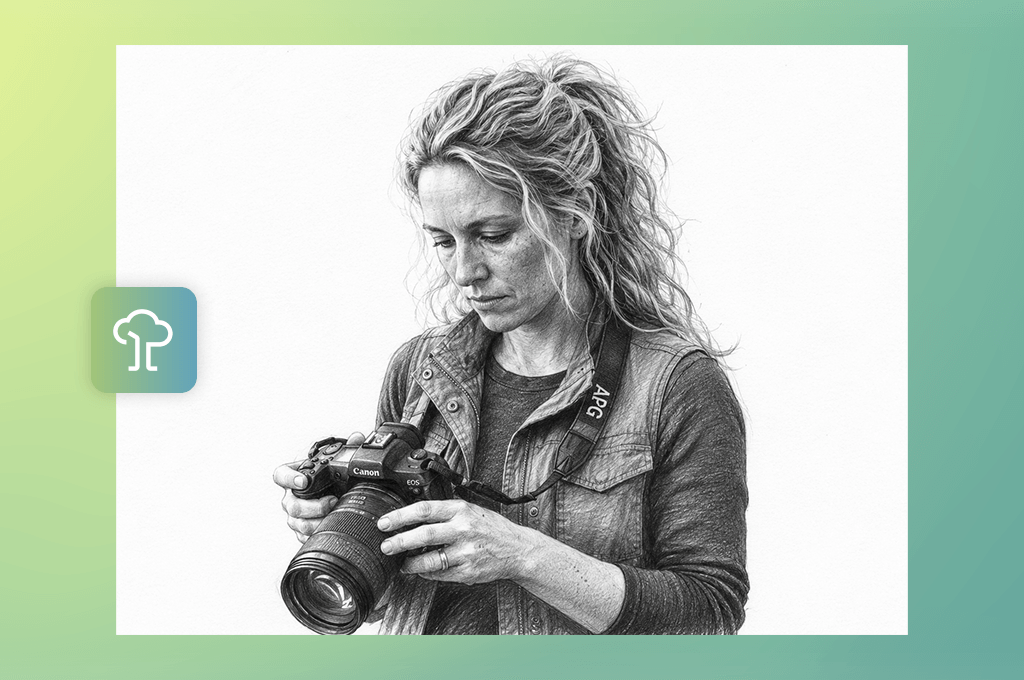
I became curious about FLUX after hearing that its AI tools could produce outputs based on detailed descriptions of a room with high precision. While testing it, I would ask it to add a curved sofa, replace a bookcase, edit window frames, or add a wooden coffee table. It draws sketches in a simple pencil style.
FLUX is not a standalone AI app. It’s a name for a family of image-generation models, which means that the choice of available controls depends on the platform I'm using.
While testing this AI sketch generator online, I used the same room description and reference picture as before. I wanted to see whether the position of the sofa would remain the same and whether it would generate realistic windows and shelves. I also tried using a simpler version of the prompt to see whether it would still allow me to get a polished result.
“I was pleased to discover that it produced perfectly detailed sketches. It followed my guidelines with high precision. Besides, I could experiment with different looks. The only shortcoming is that it might be challenging to get a polished result with clean linework.”

I was especially interested in the flexibility of the available FLUX-based tools. While using this service, I can perform image-to-image generation, upload references, or configure extra settings to achieve the desired result. This approach allows me to produce a polished sketch based on a rough layout. However, one should be aware of the fact that not every platform has the same controls.
FLUX might be an excellent option to consider if you need to try out different prompts and experiment with all sorts of reference images instead of using the same preset. The only shortcoming is that it might take you some time to experiment with different AI models until you produce the version you like. When assessing this service, I focused on whether it followed my guidelines closely instead of trying to judge it based on one polished visual it produced.

I became interested in Canva when I was looking for a generator that would allow me to draw a room interior and get polished results ready for a client presentation. I was impressed by its Magic Media tools, as they helped me generate pictures based on prompts and continue working on my presentation without switching to a different platform.
While testing this AI sketch generator from text, I used AI to generate a pencil sketch of a minimalist living room and added it to a slide with notes regarding the furniture, materials, and color palette. I experimented with different visual styles and aspect ratios to choose the best option for my layout. I also considered whether the resulting sketch would have enough space for annotation without becoming too cluttered.
What makes this platform especially suitable for my workflow is that it comes with a set of image generation and design tools. I can use them to add headings, shapes, color swatches, and labels to my sketch, which facilitates communication with my clients. Before sending the output to clients, I still pay attention to the drawing quality and check whether the furniture pieces and perspective look realistic.
I choose Canva when I need to produce a full concept board without delays. It’s especially suitable for creating mood boards and the initial versions of proposals.
Consider the current free-plan limitations for AI generation and check how many images or video clips you can generate daily. Besides, it’s important to clarify whether reference-image uploads and high-resolution exports are included, and whether editing or regenerating pics costs extra credits. I don't want to rely too much on the platforms that require me to pay for a subscription once I start producing more content.

When I generate AI sketches, I often like the outputs but need to refine a couple of things until I am fully satisfied with them. For instance, even if I like the room layout, I may need to add a slimmer armchair or make a window taller. I liked using Nano Banana Pro because it understands detailed instructions and allows me to upload reference images, which facilitates producing multiple iterations.
When I started testing this AI sketch generator from photo, I uploaded a rough sketch of a living room and asked it to produce a monochrome architectural sketch with noticeable pencil strokes and subtle shading. Next, I asked it to make one specific edit during each iteration, such as adding a new coffee table or making the bookshelf look more elegant. I compared each output with the source image to check whether the AI model followed my initial guidelines closely and kept the layout of the room the same.
“I used this platform to produce professional concept sketches based on rough ideas. It followed my requirements perfectly. It was also convenient that I could access image editing tools. Some subtle details did not turn out the way I expected, but I managed to fix them in time, as I normally preview the outputs before sending them to clients.”

I wanted to check whether this solution delivers consistent performance. This is why I tried out using separate references for the layout and the visual style. This approach helped me specify what result I wanted to achieve and how I wanted it to draw a sketch of the room. I used labels while working on the final version of the concept sheet. I performed text rendering separately and was fully satisfied with the outputs I got.
This artificial intelligence software helped me to improve the project concept I already had in my head and avoid recreating the sketch from scratch multiple times. However, I still prefer to review the geometry after each regeneration. Pricing and access to tools depend on the platform and plan you choose. Be sure to consider the current limits if you work on a project that requires a lot of edits.
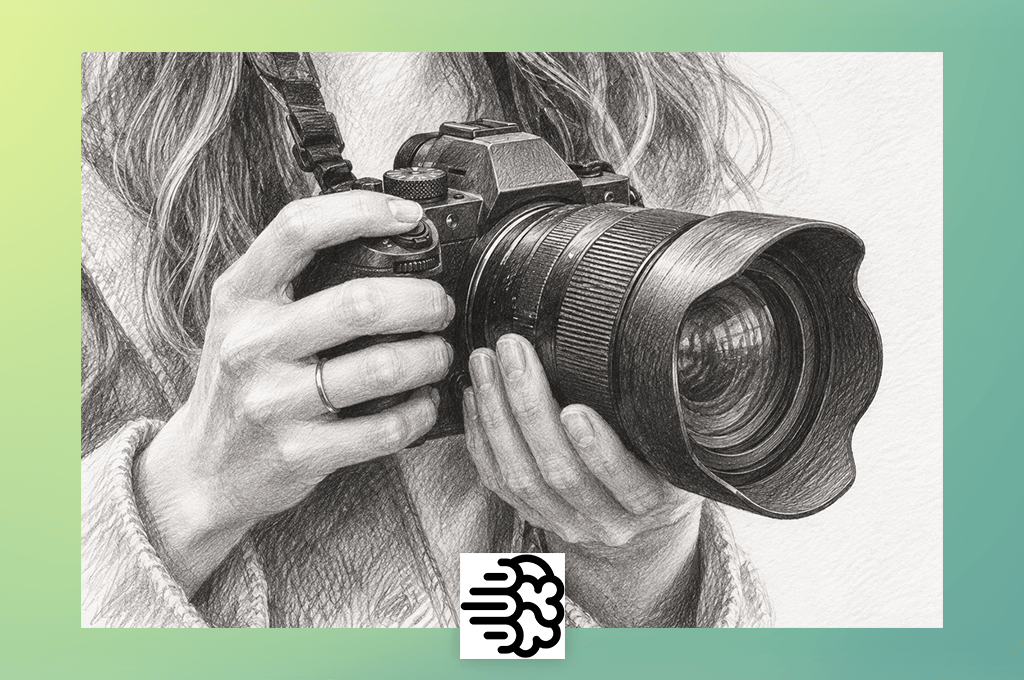
I discovered Ideogram when I decided to find an architect AI tool that would allow me to fine-tune a sketch without regenerating the whole image whenever I needed to make some edits.
I was especially pleased with the Canvas workspace because it includes selective editing tools, features for filling masked areas, and options for extending a picture. These tools are especially useful when I need to change a specific detail in a room or add some extra space.
After producing a living room sketch, I checked whether I would be able to edit a specific area with the help of Magic Fill. For example, I used this feature to replace a side table. Besides, I tried using the Extend feature to expand the composition and ensure that there is enough free space for notes on a presentation board.
In addition, I tested Ideogram’s text-generation tools to see whether they would be suitable for adding titles, labels, or annotations to a concept board. After generating text, I would still read the output carefully to eliminate spelling mistakes and ensure accuracy. During the testing stage, I also considered whether edited areas blended perfectly with the original drawing.
Summing up, this free AI sketch generator turned out to be the perfect option for producing a complete concept board with sketches, annotations, and different visual styles. What I like the most about it is that it allows me to improve my ideas and edit the result multiple times. However, I still prefer to check the room’s proportions carefully to maintain architectural accuracy.
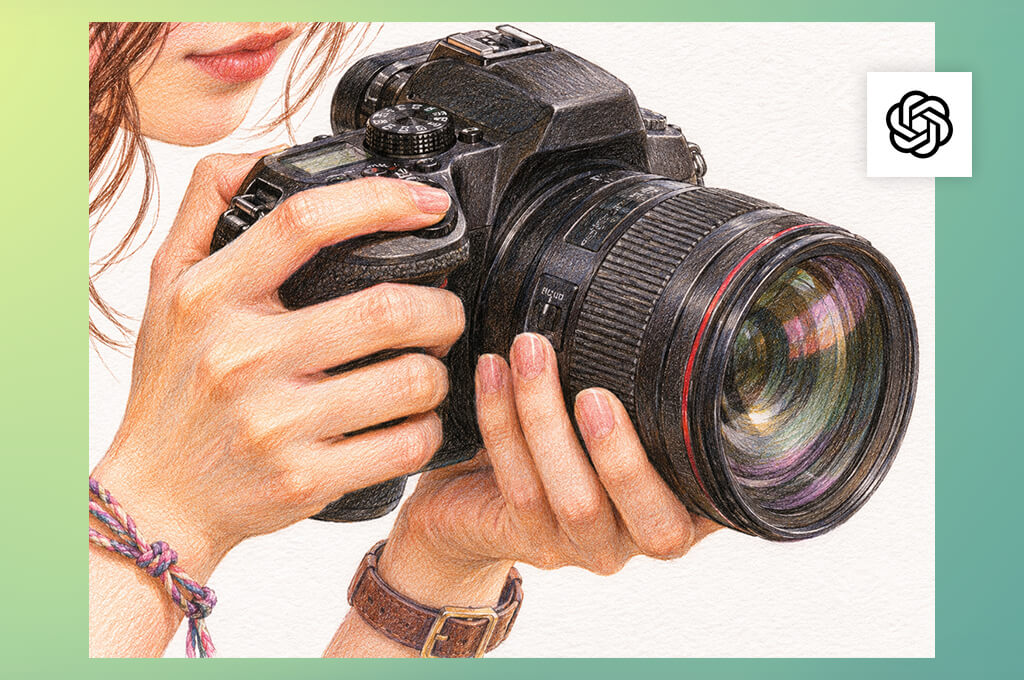
When I know what interior design I want to create but do not know how to draw it, I use DALL-E 3. This text to sketch AI tool allows me to describe the furniture, lighting, materials, and drawing style using simple prompts. I do not need to learn how to configure complex settings, as it allows me to produce polished designs based on my concepts with ease.
I used a prompt to produce a design of a Scandinavian living room with a low sofa, a round coffee table, a tall window, and a built-in bookshelf. Next, I asked this AI tool for designers to produce several variations in loose graphite, clean line art, and lightly shaded pencil styles. I checked whether the outputs had the requested layout and whether the furniture looked realistic.
“My goal was to create some quick pencil-style illustrations without drawing everything manually, and this service helped me achieve the results I needed. It understands complex prompts well. However, I occasionally needed to make several generation attempts to get the layouts I wanted.”

While testing DALL-E 3, I was especially impressed by the fact that it allows me to write prompts in conversational language to produce sketches. I do not need to customize every detail manually. It allows me to describe what things I need to edit and get another version. For instance, I could ask it to make pencil strokes rougher or use lighter shading and clearer outlines to make a room brighter. It allows me to experiment with different sketch styles.
However, I always check the outputs to see whether the revisions include the original details.
I would use DALL-E 3 to brainstorm new ideas. It allows me to experiment with different design styles before choosing the final concept. I could produce several variations to compare layouts and visual styles. However, I carefully inspect the outputs before sending them to clients. It allows me to notice issues such as distorted furniture, wrong proportions, and inconsistent perspective.
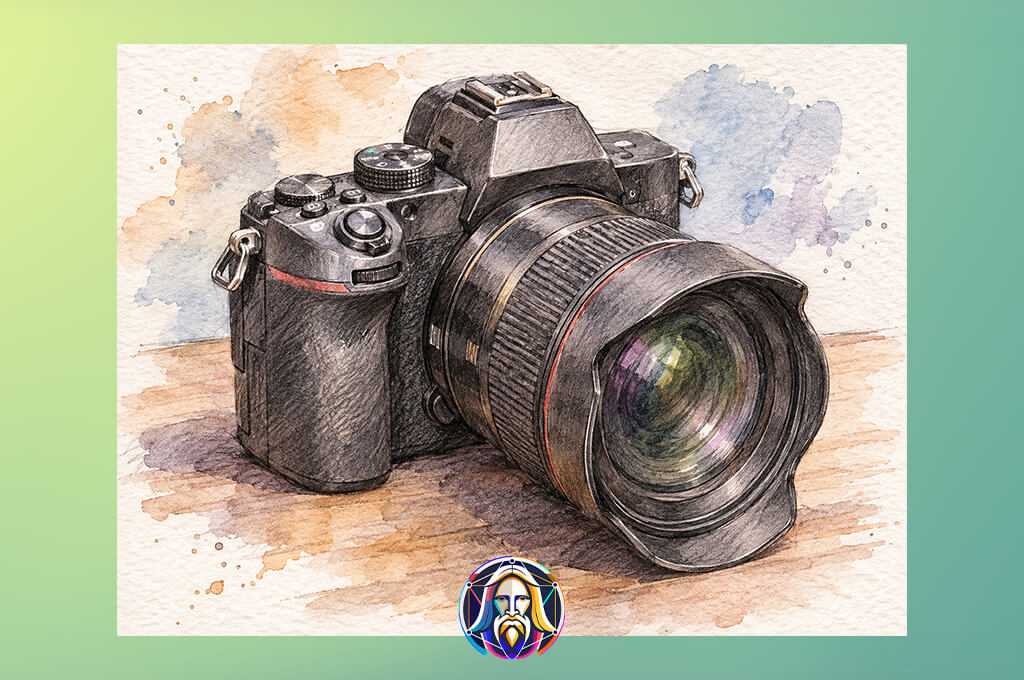
I did not want the AI to create a new interior design from scratch whenever I wanted to try out a different sketch style. I wanted to use a rough layout and see whether the AI would help me to generate polished results based on it.
Leonardo AI was especially suitable for my needs because it comes with handy Image Guidance tools that allow me to upload references to get the right composition, style, edges, and other visual elements. It supports different AI models and allows me to choose different settings.
I started by uploading a drawing sketch of a living room. Next, I asked this AI art generator to produce a polished architectural sketch based on it. Then I tried out different guidance options to check whether the sofa, window, and shelving would stay where I needed them.
While writing a prompt for the second version, I asked for ink outlines instead of graphite shading to check whether it would produce a new output without distorting the layout.
I was especially impressed with reference-guidance tools. A rough drawing allows me to convey the layout idea I want to implement.
A prompt helps me specify the materials, atmosphere, and finish. Using different types of inputs helped me avoid writing long descriptions of every object. However, I still carefully examine the resulting images to avoid unnecessary changes.

What struck me about Stable Diffusion is that it allows me to maintain full control over the generation. Unlike a basic web-based platform, it uses multiple models that can be used via different interfaces, including local setups. I can choose a suitable workflow and configure the settings the way I see fit.
While testing this AI generative fill tool, I used the same rough living room drawing to produce a graphite sketch, a technical line drawing, and a concept illustration.
My interface supports ControlNet, which allowed me to experiment with edge or sketch guidance.
This approach helped me produce outputs that followed the main contours of a reference image. I then examined the outputs to see whether the furniture and window placement remained the same across different versions.
“I was pleased to discover that I can control the output to such an extent. It helped me experiment with various sketch styles. There are many models to test out, but it took me a while to configure them. After I set them up, this service has significantly expedited my creative workflow.”

The main advantage of this service is that it allows me to customize my workflow. Depending on the interface, I can choose specific models, configure image-to-image settings, and use guidance tools to specify whether the output should follow the source closely. This solution can be especially useful when I need to use text prompts to change the main parts of my design. However, I had to spend a lot of time to learn how to use the available settings.
After testing Stable Diffusion, I realized that this AI sketch generator could be perfect for working on projects that require many sketch concepts. The only shortcoming of this service is that it has strict hardware requirements. I had to meet them or use a web-based version to avoid installing it on my device.
Before using the outputs for commercial purposes, I would also check the model's license carefully. Summing up, Stable Diffusion is an excellent choice for repeated sketch generation, but some users might be better off using a more basic online service if they are interested only in occasional use.
Together with my colleagues from the FixThePhoto team, including Tetiana Kostylieva, Nataly Omelchenko, and Eva Williams, we thoroughly tested the best AI sketch generators while working on an interior design project. Our goal was to discover the solutions that would help us produce hand-drawn-style sketches for client presentations based on our ideas. We wanted to get the outputs that followed the original concept closely.
We tested each generator using similar prompts. We wanted to see whether they would help us design the interior of a small living room with furniture pieces, windows, shelving, and lighting. We considered whether these services followed our instructions accurately, preserved proportions, and chose the right object placement. For instance, we would ask it to put a sofa along the right wall and check whether the AI would use the suggested layout.
We also experimented with customization options by creating pencil sketches, ink drawings, and architectural-style illustrations. Where it was possible, we uploaded reference pictures to check whether these services would follow the original composition and improve the sketch style. We also compared these tools in terms of generation speed and checked whether it would be possible to tweak prompts to get the outputs we needed.
“I used Adobe Firefly to generate several AI sketches and was impressed by how easy it was to choose between pencil, ink, and architectural styles. I used a reference image to get the output that met my requirements. However, this service does not always follow my guidelines perfectly. I had to edit my prompts several times, but other than that, this solution was quite intuitive.”

In addition, we compared these AI sketch generators in terms of practical criteria to see whether there are free or trial versions, generation limits, and output resolution restrictions.
We wanted to test these services without paying for a subscription to see whether they would allow us to produce clear images suitable for client presentation. We ranked solutions lower if they produced visually appealing sketches but did not take into account the reference or generated outputs that required too many edits.
During our testing, we were especially interested in prompt accuracy, sketch quality, style control, reference image support, speed, cost, and export options. We discovered that the best AI sketch generator should not necessarily produce the most visually appealing image.
However, it should visualize the main idea accurately, facilitate creative edits, and implement a design concept so that we spend less time on further edits. We concluded that it’s always necessary to test each solution instead of relying on ranking and performance claims.