I’ve used iLovePDF for many everyday PDF tasks, particularly when I need to combine files, shrink a document, or convert it quickly without downloading an app. However, it doesn’t suit every type of work, which is something our readers often ask about. Some want fewer restrictions for regular tasks, while others need deeper editing, better conversion quality, offline access, or more control over files they prefer to keep off online platforms.
So, I started looking beyond the tools I already use to find the best iLovePDF alternatives for different needs. To make the comparison more objective, I asked my colleagues from the FixThePhoto team to help with the testing. Together, we evaluated how these alternatives handled common PDF tasks, focusing on ease of use, available features, output quality, limitations, and how well each tool fit into a real workflow.
The alternatives to iLovePDF I selected each bring something useful rather than simply copying the same features. Depending on the service, this may include stronger PDF editing, more generous free access, better conversion tools, offline use, or a workflow that works better for regular document tasks. This makes it easier to choose a tool based on your actual needs instead of changing from iLovePDF just to use something different.
Not at all. iLovePDF works well for many everyday PDF tasks, and I still use it myself. Choosing an alternative usually makes sense when I run into a specific limitation or need a tool that fits a particular workflow better. Based on our readers’ questions and what we found during testing, these are the main reasons to consider another option:
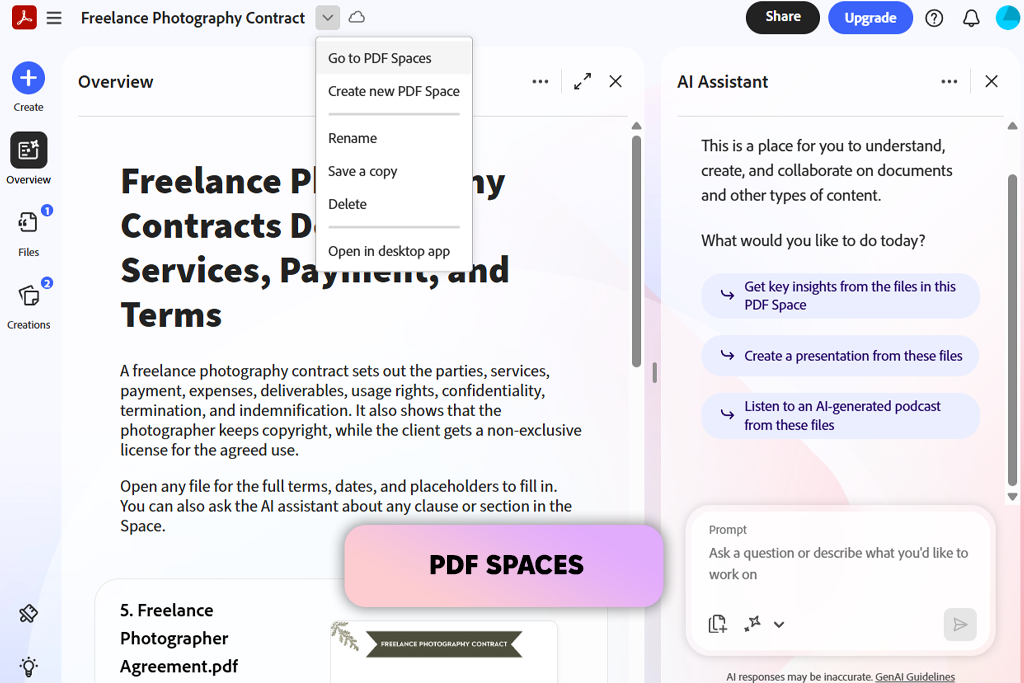
Adobe Acrobat is my top pick among online iLovePDF alternatives because I’ve used it for years and know how it handles different types of documents. I’ve also been using the web version more often when I don’t want to open the desktop app.
For quick conversion or compression, it feels similar to iLovePDF, but I still prefer iLovePDF for simple jobs like combining a few files or splitting a PDF because those tasks feel quicker there.
“I turn to Acrobat when I need to edit the contents of a PDF rather than simply convert or compress it. Changing existing text and replacing images feels much easier there than in iLovePDF.”

The advantage became more obvious when I tested heavier editing. I opened a PDF that needed text corrections and an image swap, and Acrobat let me change the original elements directly with Edit PDF. I also turned a layout-heavy PDF into Word to check the result. The document kept its structure well enough for further work, so I didn’t have to rebuild the formatting from scratch. That’s why I would choose Acrobat over iLovePDF when a file needs more than basic processing.
I noticed the same benefit when working with documents that contain private information. Instead of placing a shape over text to hide it, I can use Acrobat’s Redact tool to remove the selected content permanently. It also offers password protection, encryption, and digital signatures. The interface feels heavier than iLovePDF as a result, and some features take an extra click or two to find. That doesn’t bother me much when I’m handling contracts or preparing documents for signing, because those tasks require more control.
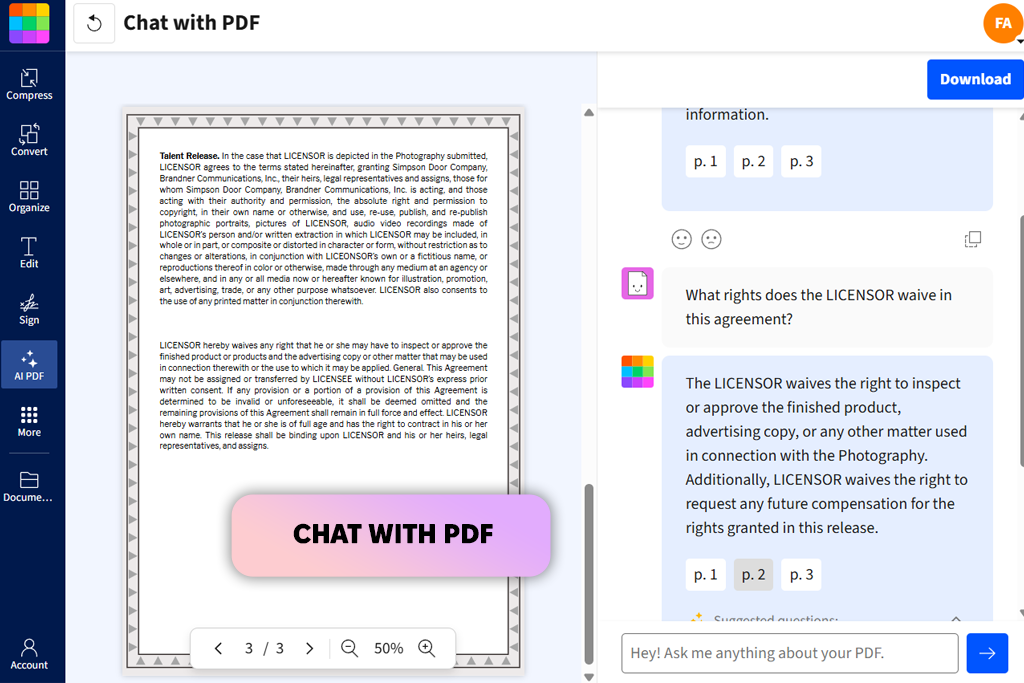
Smallpdf is my favorite online iLovePDF alternative on this list, especially when I want to handle a PDF without installing software or spending time looking for a specific tool. I tested it with some of the same routine tasks I use in iLovePDF: compressing a graphics-heavy file, combining several PDFs, and converting another one to Word.
The main difference for me was the overall experience. Smallpdf feels cleaner and less crowded, so I could upload a file, choose what I needed, and move to the next task without dealing with extra controls or distractions.
“I usually choose this one for browser-based work because the interface feels easier to scan than iLovePDF. I can upload a file, make the needed change, and move to another tool without much searching.”

The simple interface became even more noticeable when I used Edit PDF to add text and annotations, then opened Organize PDF to move and delete pages. Large page previews made it easy to track the changes, and I rarely had to guess what each button did. iLovePDF is also easy to use, so I wouldn’t call one difficult and the other simple; Smallpdf just felt smoother when I had several steps to complete. I also liked its Google Workspace and desktop integrations because I don’t always keep my files in one place.
The main drawback became clear when I ran several tasks one after another. Smallpdf’s free limits started to matter sooner than iLovePDF’s, so I wouldn’t choose it if my goal were to handle a large batch without paying. For one-off jobs, though, I still prefer the cleaner experience: open a file, make a small edit, compress or convert it, use an AI PDF editor, and move on without dealing with a crowded interface.
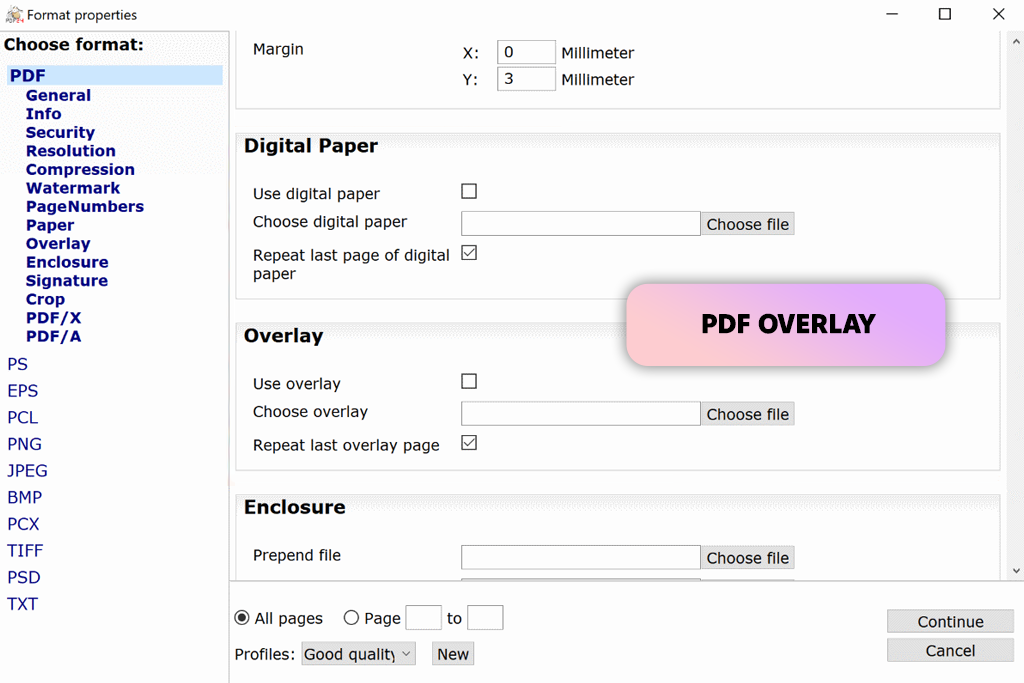
My colleague Robin was the one who introduced me to PDF24, and his main suggestion was to try PDF24 Creator rather than judge the service by its website alone. I installed it on a Windows PC and tested it with a folder of PDFs I would normally handle through iLovePDF, including merging several files and compressing a larger document.
The local setup made a noticeable difference because I could work with the files directly on my computer instead of uploading each one to a cloud service. This was especially useful for documents I would rather keep offline.
“I can merge, split, or compress files on my computer without worrying about daily limits. iLovePDF is more convenient when I’m not at my main PC, but for offline work, I prefer PDF24.”

I then tried more desktop features by dividing a long PDF, saving separate pages, and creating a PDF from another program with the virtual printer. This made PDF24 stand out for me as an iLovePDF replacement because I could handle several jobs in a row while keeping the files on my computer. The main drawback was the less refined Creator interface, which took some time to get used to.
I also tested PDF24 Tools online to see how well it worked when I wasn’t using my Windows PC. The browser version still covers merging, converting, compressing, and organizing files, so I could handle a quick task without switching to another service. iLovePDF felt more polished for browser and mobile use, while PDF24 was a better fit when I had many files, needed a PDF encryption tool, or wanted to keep everything on my computer. That combination made Robin’s recommendation much easier to understand.
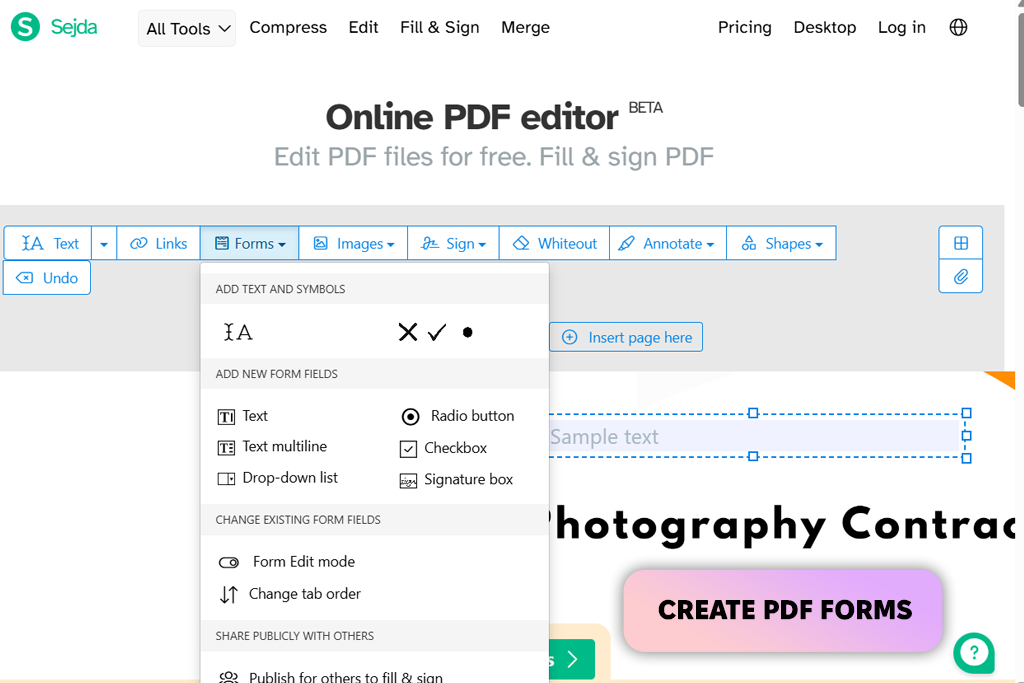
I first tried Sejda as a fillable PDF creator rather than for the basic file tasks I usually handle in iLovePDF. I uploaded a basic form, opened PDF Forms, and placed text boxes, checkboxes, and a dropdown for recipients to complete. I could move the fields around the existing design and adjust their settings as needed. I also liked that I could begin right away in the browser without signing up, which worked well for preparing a single form to send.
After that, I tested Sejda with common PDF tasks from my FixThePhoto work, such as editing text, combining files, and reducing the size of the final document. With 30+ tools available, it is a solid iLovePDF alternative, but I found it especially useful when I needed to make changes inside a document rather than simply process it. Sejda also says uploaded files are automatically removed after two hours. The policy is not more generous than iLovePDF’s, but I like that the deletion period is stated clearly.
The free limit affected my experience with Sejda more than any single feature. With three free tasks per day, I could use all three on one document, such as editing it, merging it with another file, and then compressing the result. For several small tasks in a row, I found iLovePDF more convenient, while Sejda worked better when I had one specific job to complete. I also tested the desktop app for Windows, Mac, and Linux, which let me use the same tools without relying on the web limits.
I started testing Foxit with a 40-page file containing text, product images, and several scanned pages. Instead of converting the document first, I used Edit Text to correct paragraphs and reposition an image directly on the page. This felt more like working in a standard document editor than using iLovePDF, which I find better for quick PDF tasks.
I also used Foxit as a PDF reader, so I could review, add annotations, and continue editing the same file without switching between programs.
“Foxit works better for me when I need to make several changes to the same PDF. I can correct text, move an image, run OCR on a scanned page, and keep editing the file without switching tools.”
The scanned pages let me test OCR, so I converted the text into searchable content and copied several passages into another file to check the accuracy. Clear business documents came through with little need for correction, while faded photocopies produced more errors, especially around unclear characters. This may matter more if you regularly work with older or poor-quality scans. For typical office PDFs, though, Foxit gave me much more control over the document content than iLovePDF.
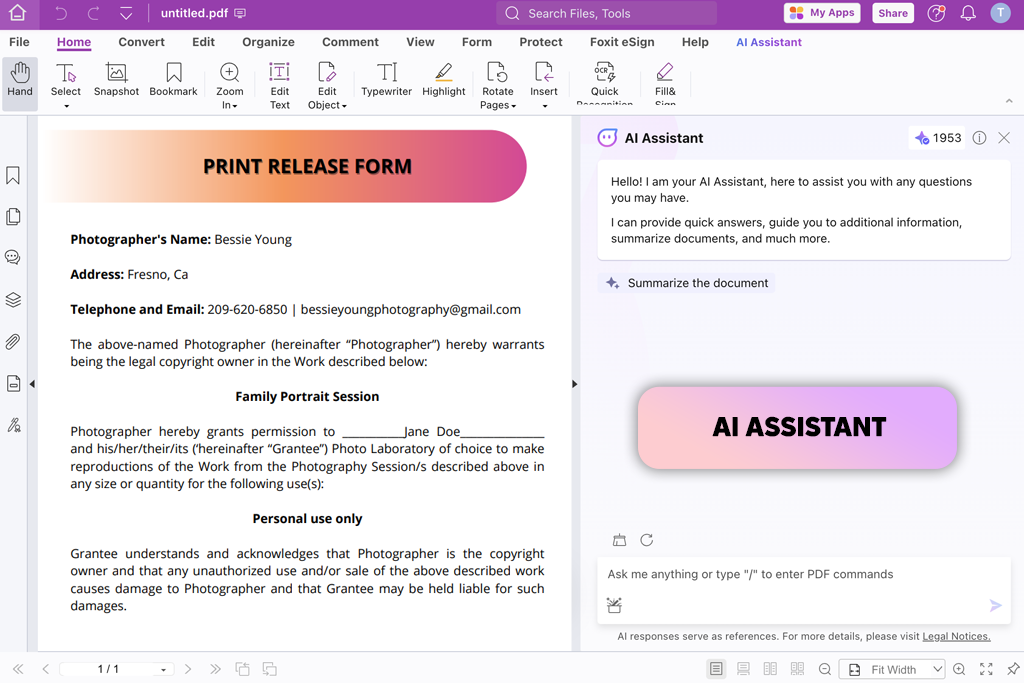
I also tried the AI Assistant on a longer report, using it to get section summaries and clarify specific points in the file. It helped me understand the document first and decide where to look more closely. Because Foxit is subscription-based, I wouldn’t choose it just for occasional merging or compression. When one file needs reading, editing, OCR, and information extraction, keeping those functions together saves me from converting or uploading it repeatedly.
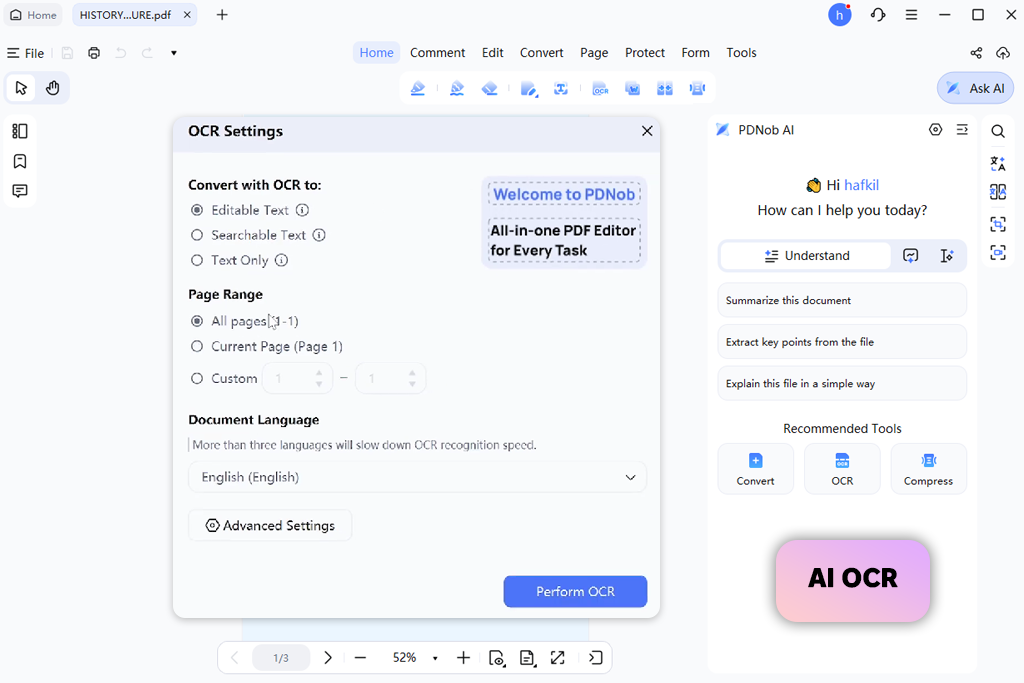
I came across PDNob PDF Editor while looking for an iLovePDF alternative that lets me work with files directly on my computer. I opened a document with text, images, and pages I wanted to remove, then made the changes in the desktop app. I liked that I could do everything locally without uploading the file first. Compared with iLovePDF, the workflow felt more private and less dependent on separate online tools.
“I ran OCR on a scanned file and then corrected the recognized text in the same app, which worked well for that type of task. iLovePDF is still more convenient for quick conversions, especially when I’m working from my phone.”
I was especially interested in the bundled AI OCR, so I tested PDNob with a scanned PDF where the text could not be selected at first. After processing it, I searched for several names and copied text from different pages to check how well the recognition worked. Clean scans needed very little correction, and I could keep editing the file in the same app. I also tested the same workflow on Windows and Mac, and the tools worked consistently on both. This made PDNob more practical for desktop use than iLovePDF.
PDNob also stands out because you can buy it with a one-time payment instead of keeping a subscription active. It doesn’t offer a native mobile app, and iLovePDF has more specialized tools, so I’d still use iLovePDF for unusual conversions or quick work on my phone. On a computer, though, PDNob is convenient for making edits, running OCR, and keeping the file on the device.
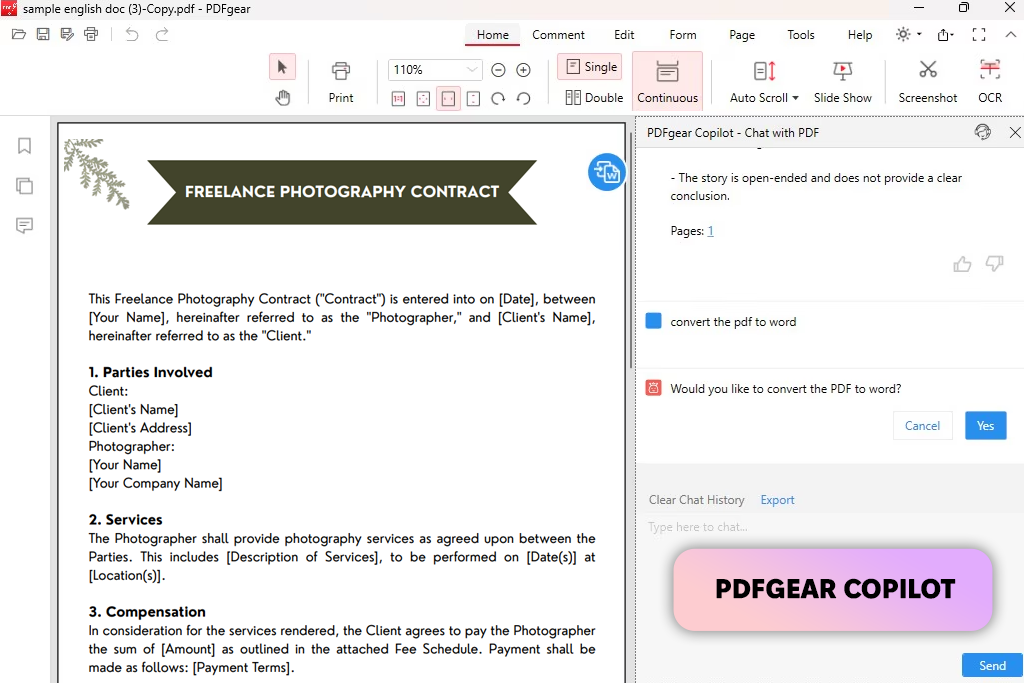
I opened a PDF report that needed several changes, including correcting text, replacing an image, moving two pages, and adding a signature. I liked that I could complete all of this without constantly being asked to upgrade. With iLovePDF, I usually switch between separate web tools for each task, while PDFgear lets me handle everything in one desktop app. The main drawback is that PDFgear is not an online iLovePDF alternative.
Next, I checked the free OCR with a scanned file to see how well it handled real-world pages. I compared names and numbers with the source document and corrected the converted text afterward. I also used PDFgear Copilot to summarize a long section and find details without manually searching through every page. Having these editing, OCR, and AI functions together without extra paid tiers made PDFgear feel like a stronger all-in-one option.
I repeated several of the same tasks on Windows and also tested the iOS and Android apps so the review covered more than desktop use. On Windows and Mac, PDFgear works with files stored locally, so I can edit a document without uploading it first, unlike when I use iLovePDF in the browser. I also wouldn’t assume the current free model will remain unchanged, since the company has indicated that paid features could be added later. Compared with Adobe and Foxit, PDFgear is also a much newer product.
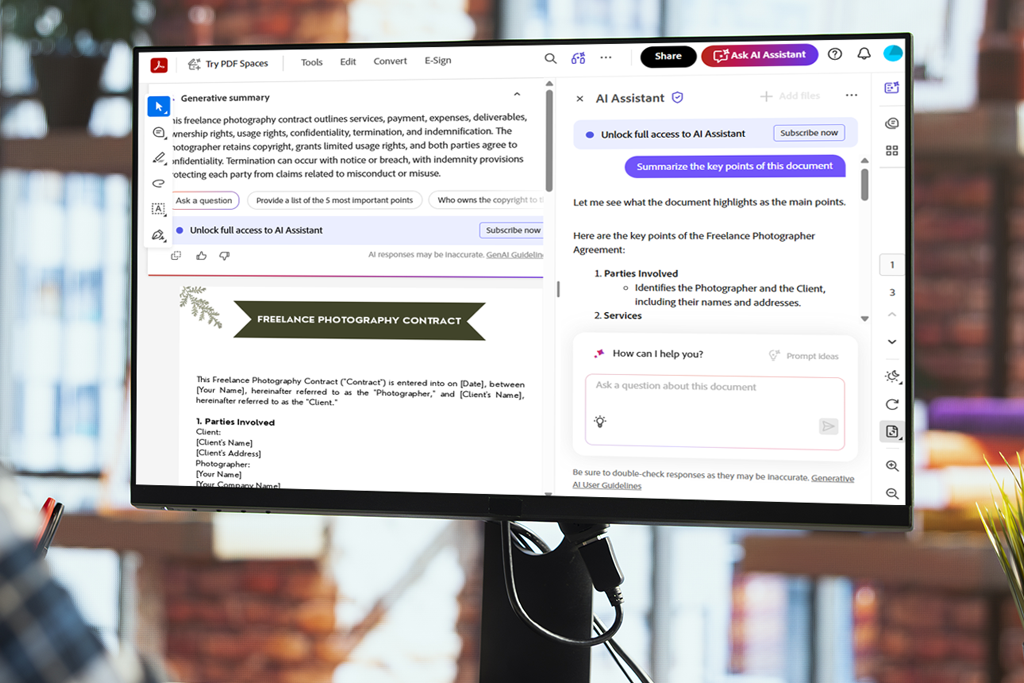
For professional PDF work with complex documents, I’d start with Adobe Acrobat. It makes more sense when I need to edit existing content, remove sensitive information, prepare files for signatures, or handle more complicated PDFs instead of just merging or converting them. For these tasks, I find Acrobat’s deeper tools more useful than iLovePDF’s faster browser-based workflow.
For users who mainly want a convenient browser-based option, I’d choose between Smallpdf and Sejda. Smallpdf is my choice when a simple interface matters most, while Sejda is useful for tasks such as creating fillable forms and starting basic online work without signing up. Both limit free usage, so I’d check those limits first if I work with PDFs every day.
When offline work is the main priority, I’d consider PDF24 or PDNob. PDF24 is especially useful for Windows users who want a free desktop toolkit for handling several files. PDNob is a better fit for users who want a standard desktop editor on Windows or Mac, especially when local processing, OCR, and a one-time purchase matter more than a wide range of browser tools.
For more advanced editing and OCR, I’d put Foxit PDF on my shortlist. It makes more sense when I expect to spend time editing a document, such as correcting text, moving images, processing scanned pages, adding annotations, or using AI tools with longer PDFs. It would be more than I need for occasional compression, but the extra editing capabilities can be worthwhile for regular PDF work.
Finally, if you’re looking for a free iLovePDF alternative with editing, OCR, and AI tools, I’d try PDFgear. Its Windows and Mac apps work well for local desktop use, while the iOS and Android apps cover mobile tasks. The main thing to consider is whether you’re okay installing software. If you prefer iLovePDF’s instant browser access, Smallpdf or Sejda may suit you better.
We used iLovePDF as the reference point throughout the test, while the FixThePhoto team and I repeated the PDF tasks we handle regularly. These included merging and splitting files, reducing large PDFs, converting them into editable formats, rearranging pages, and changing existing content. We also tracked how many steps each task took and whether the final result needed further corrections.
“I focused on what happened with an actual PDF after uploading or opening it: whether the formatting stayed intact, how easily I could change existing content, and whether the file needed extra fixes afterward. Running the same tasks in iLovePDF gave us a helpful benchmark.”
Editing was one of the main areas we compared because the differences between these tools become much clearer here. I checked whether I could change existing text, replace or move images, add annotations, create or complete forms, and insert signatures. For tools with OCR, I tested on both clear scans and lower-quality documents, then searched and copied the extracted text to see how practical the results were.
Vadym also compared how well each site like iLovePDF handled file conversion and general PDF processing. For PDF-to-Word tasks, he checked not only whether the DOCX file was created but also whether headings, images, spacing, tables, and the overall page structure stayed intact. For compression, he compared the smaller file with the original to see whether the size reduction noticeably affected image or text quality. He also used longer, multi-page PDFs to see how comfortably each service handled more demanding work.
Another part of our testing focused on how each service handled the file itself. Robin checked whether documents stayed on the computer or had to be uploaded, whether browser use required registration, how quickly free limits appeared during repeated tasks, and whether desktop or mobile versions were available. He also reviewed security options such as password protection, redaction, signing, and published policies for deleting uploaded files when relevant.
Finally, I looked at whether each option gave me a clear reason to choose it instead of iLovePDF. A longer list of features was not enough. I focused on benefits I could actually notice, such as stronger editing, fewer limits, offline use, better OCR, improved support for complex PDFs, or an easier workflow for a specific task. This helped us distinguish useful alternatives from tools that mostly offer the same experience as iLovePDF.





![7 Best Free Online Video Prompter [{{%year}} FixThePhoto Choice]](http://fixthephoto.com/blog/images/gallery/news_main__preview_29369.jpg)

![7 Best AI Voice Designers [{{%year}} FixThePhoto Choice]](http://fixthephoto.com/blog/images/gallery/news_main__preview_29367.jpg)


















