
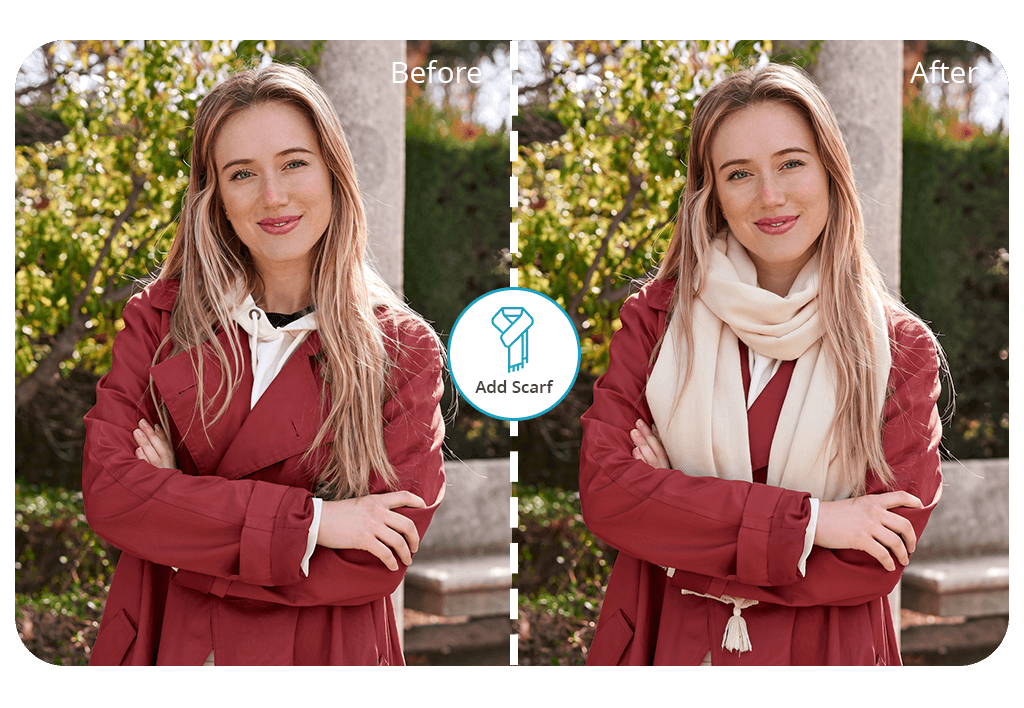


The “Scarf” or “Accessories” features let you add a scarf to photos while picking between neck, shoulder, head, and hair options. You can ask for a light silk scarf for a classy portrait, a knitted model for wintertime photoshoots, a vibrant neckerchief for a casual look, or a lengthy scarf that you can wear over a coat.
You can receive the first edit entirely for free. AI technology takes care of the initial placement, while experienced retouchers fine-tune the edit by hand. They ensure the scarf is positioned naturally on your neck or shoulders, add realistic folds, tweak the lighting, and create the necessary shadow to ensure the added item looks natural.


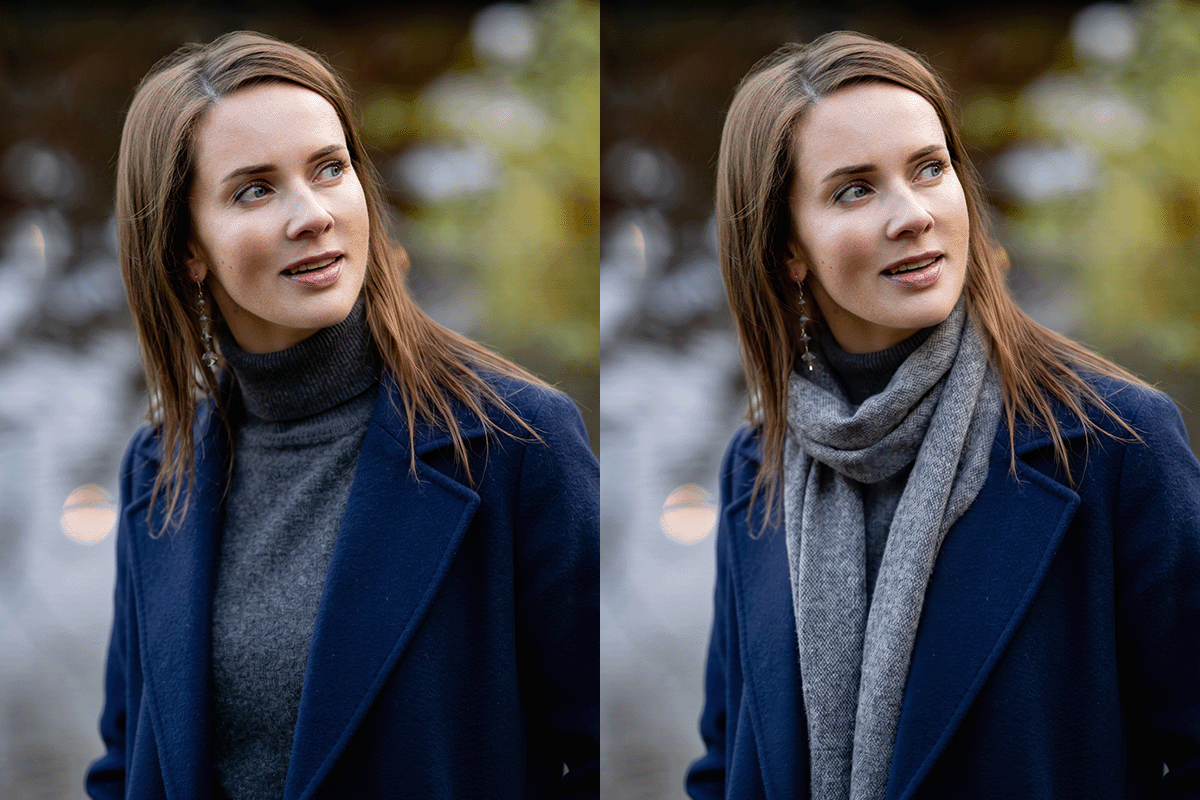
Silk scarves: A tasteful silk scarf can ensure a regular shirt, blazer, or dress looks more refined. It can be added to the neck, styled with loose ends, or even featured as a hair accessory.
Knitted scarves: Large knitted scarves are a great fit for winter and outdoor portraits. When they add a scarf in a picture editing app, retouchers can create soft folds and shadows that match the lighting in the original photo.
Blanket scarves: Such big accessories cover most of the shoulders and chest, which is why they’re often used for fall and winter looks. Moreover, they can add visual weight to outfits that otherwise look too plain.
Neckerchiefs: A vibrant neckerchief can be an appropriate addition to casual, retro, Western, or festival-themed pictures. It introduces an eye-catching accessory without obscuring most of the clothes.
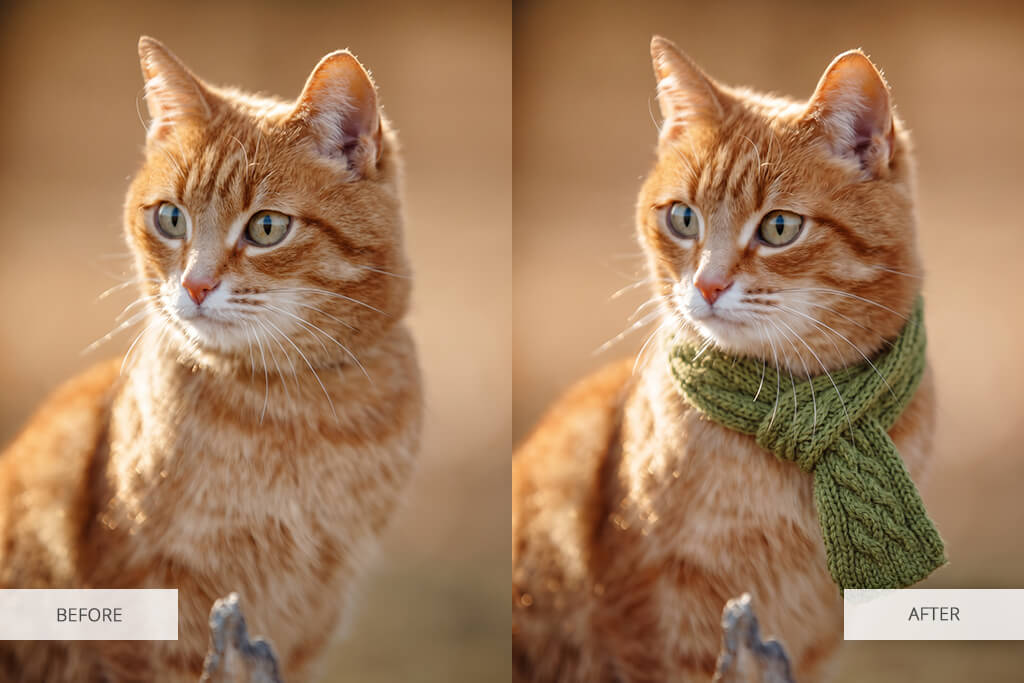
Headscarves: You can apply a scarf tied under the chin, wrapped around the head, or worn as a bandana. This approach can fit vintage portraits, vacation photos, and creative fashion projects.
Long fashion scarves: A narrow or flowing scarf can make the portrait look more dynamic. It can be added over one shoulder, wrapped loosely around the neck, or look like it was being blown by the wind.
When you add a scarf to an image, it's vital to pick one that won't obscure important details or distract from the model's face. Even if you decide to add a scarf to photos with AI, it’s still essential to account for the color, material, and style of clothing in the original image.
For neutral attire, I tend to pick a scarf in a contrasting hue. Burgundy, dark green, or navy is a great fit for beige coats, while red or pastel accessories help black and grey clothes stand out. If the clothes have multiple bright colors or prints, a plain scarf might work better.
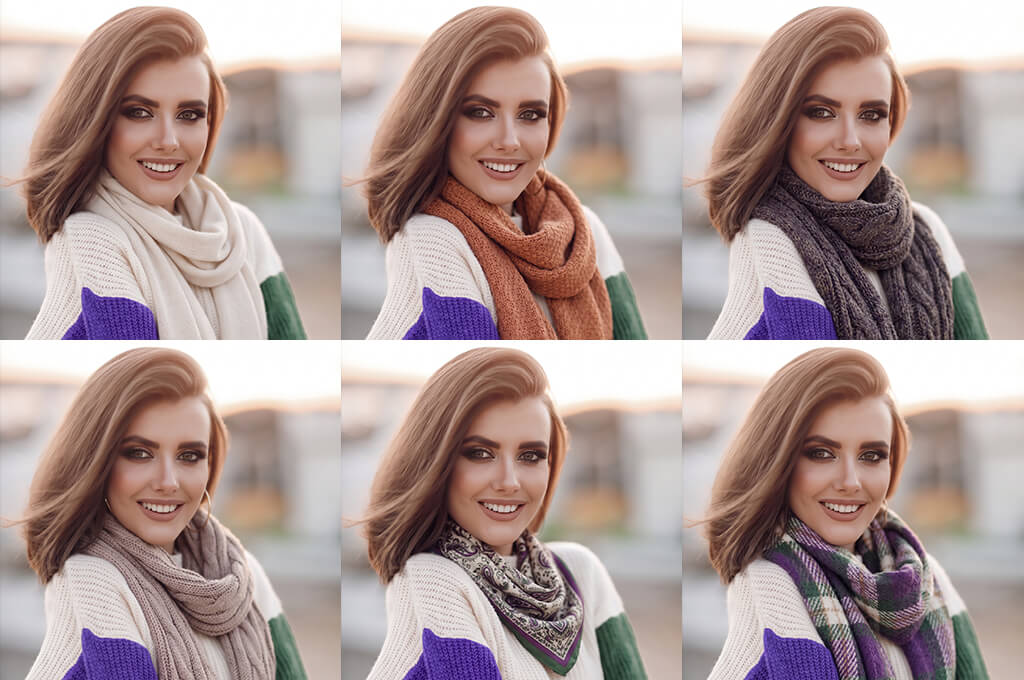
The material has to be fitting for the season. Thick knitted scarves pair well with winter coats, sweaters, and puffer jackets. Silk scarves look nice with shirts, blazers, dresses, and trench coats. For denim or festive outfits, I tend to pick smaller cotton neckerchiefs.
The size of the scarf also has an impact on the composition. An oversized model can obstruct the collar, jewelry, or most of the body in a close-up photo. When asking a retoucher to add a scarf to an image online in such situations, I specify that it should be placed lower or tucked under the coat. A smaller model is the way to go if you want the emphasis to be on the original clothes.
When you add a scarf around the neck in a photo app, you have to consider the original lighting and pose. The folds and shadows have to match the position of the neck and shoulders. If you’re interested in a specific pattern, knot, or fabric, it’s a good idea to prepare a reference image and provide it to the retoucher.
A platform that lets you add a scarf to a photo online can come in handy if you love the original image but feel like it’s missing a single styling detail. This way, you don't have to recreate the makeup, go to the same location, and hope the lighting is similar. Instead, you can just import a photo, describe the desired scarf type, and include a reference image if your request is highly specific.
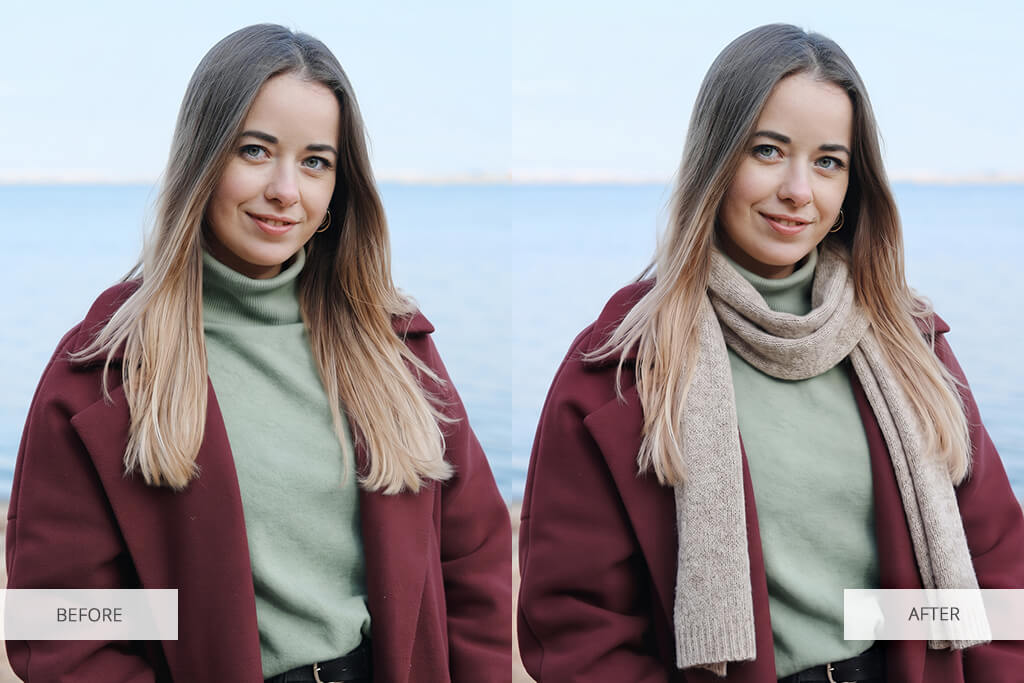
For my case, I asked for a burgundy knitted scarf to ensure it stood out against a beige coat. The initial version looked impressive, but I needed the scarf to be placed lower so that it didn’t cover the collar. I said this in the instructions, and the position was edited without affecting my face, hair, or the shape of the coat.
The added scarf can be paired with other solutions. Employ a clothes editor to edit your outfit, a makeup editing app to create a beauty portrait, or add sparkles to photo by requesting a dedicated service for festive content.
Such functionality is also very useful for trying on an accessory before purchasing it. If you don’t know if you should go for a vibrant print, bulky knit, or unusual tying style for your coat or dress, a realistic edit will help you decide.
To add a scarf to a photo, you simply need to:
Before you add a scarf to a picture online, it’s important to pick a fitting photo. The neck and shoulders have to be clearly visible and not obstructed by hair, hands, or other elements. This makes it a lot easier to place and fold the scarf realistically.
Additionally, I suggest providing a highly detailed description of the scarf, covering its color, fabric, length, pattern, and tying style. For example, you can ask for “a long scarlet knitted scarf wrapped loosely around the neck”. A clear description means you won’t have to go through countless revisions later.
The scarf has to match the direction of the lighting and cast suitable shadows on the clothes and skin. Its folds need to fit the subject’s pose. For instance, a flowing scarf can’t look straight in a windy outdoor photo. If you're unsatisfied with the initial result, you can request a revision, and the retoucher will adjust the scarf’s size or positioning without affecting the rest of the portrait.
Fix The Photo Editor & Retouch doesn’t just use AI to add a scarf to a photo. Instead, it relies on a combination of AI-based functionality with manual editing performed by experienced professionals. That’s why you can expect a highly realistic result regardless of the pose, body angle, hairstyle, coat collar, existing accessories, and lighting in the original picture.
The retouchers will resize, recolor, wrap, fold, and position the scarf as you see fit. They can even recreate a specific model from a reference photo while accounting for its fringe, embroidery, patterns, and fabric texture.
The app also lets you provide custom descriptions. For instance, it allows you to request a thin silk scarf that won’t obscure a necklace, a cozy plaid scarf tucked under a coat, or a headscarf that is added below several strands of hair.
To enhance the entire picture, you can take advantage of the blur background feature or the add bangs to photo service. If the original result doesn’t completely satisfy your needs, specify what further edits need to be made and ask for an adjustment.




![Viral Funny AI Photo Ideas + Copy-Paste Prompts [{{%year}}]](http://fixthephoto.com/blog/images/gallery/news_main__preview_29736.jpg)
![What is a Pixel in Photography [Full Guide]](http://fixthephoto.com/blog/images/gallery/news_main__preview_29737.jpg)


![7 Best Free Online Video Prompter [{{%year}} FixThePhoto Choice]](http://fixthephoto.com/blog/images/gallery/news_main__preview_29369.jpg)



















