
I’ve been searching for a truly usable Adobe Capture alternative for years, mainly because it’s one of the few mobile tools that fits smoothly into my everyday creative workflow as a graphic designer at FixThePhoto.
I work daily in Illustrator, InDesign, Fresco, and Photoshop, but Capture (especially when used alongside Adobe Fresco on my phone) has been a lifesaver when I’m on the move. It lets me grab textures while scouting locations, create color palettes from a sunset during a real estate shoot, or turn a quick hand sketch into vectors right before a client call.
When I shared this recommendation with our audience, the feedback was mixed. Some freelancers explained that an Adobe subscription was too expensive for their needs. Beginners, in particular, said Capture felt confusing and too tightly tied to the Adobe ecosystem, since many of its strongest features work best when used together with Illustrator, Photoshop, or Fresco.
I decided to fully test other apps like Adobe Capture with my team. I asked my coworkers for ideas, read discussions online, watched review videos, and had the whole FixThePhoto team help me test 50+ apps like Adobe Capture. We wanted to find the best tools for different types of people.
Spoiler alert: we didn’t find one single app that could perfectly replace Adobe Capture. No other tool has all of its features in one place - like turning images into vectors, creating color palettes, capturing shapes and textures, identifying patterns and fonts, and syncing with Creative Cloud.
However, we did find several great apps. Each one is excellent at a specific thing. By using a few of them together, you can do almost everything that Adobe Capture does. Here’s what I look for in a good Adobe Capture replacement:
Although they didn’t make it into the main list, these Adobe Capture similar apps still impressed us during testing:
FontVision is the best standalone font identification app we tested. It’s faster and more accurate than many popular apps.
Patternator is great pattern creator alternative. It’s not professional-grade, but it’s very enjoyable to use.
ColorGear is a color palette generator for Android that works better than expected and gives very accurate results.
AutoVectorizer Pro is an underrated vectorizer app alternative that produces very clean and sharp line results.
Fabrica Patterns is a small, niche tool, but it’s a neat editor for creating pattern tiles.
Each of these tools works extremely well in its own small area, but none of them have enough features to compete directly with Capture.
After trying dozens of apps like Adobe Capture, one thing became clear: for professional graphic designers, especially those managing branding, illustration, marketing, and digital content, nothing matches the power and convenience of the full Adobe ecosystem.
Yes, you can combine different tools to replace what Capture does, but the smooth workflow using Capture, Illustrator, Photoshop, and Fresco is very hard to beat. After many years at FixThePhoto, I’ve learned that the real advantage of Adobe is how much faster you can work when everything is connected and works together seamlessly.
Branding & logo designers. If you regularly create logos, patterns, or visual identities:
Real estate & marketing designers. Your work often requires:
Social media creators and content marketers. Your day-to-day work often includes:
Illustrators and concept artists. If you enjoy working with brushes, textures, and mixed media:

Best for: Illustrators, concept artists, branding designers
Compatibility: iPad, iPhone
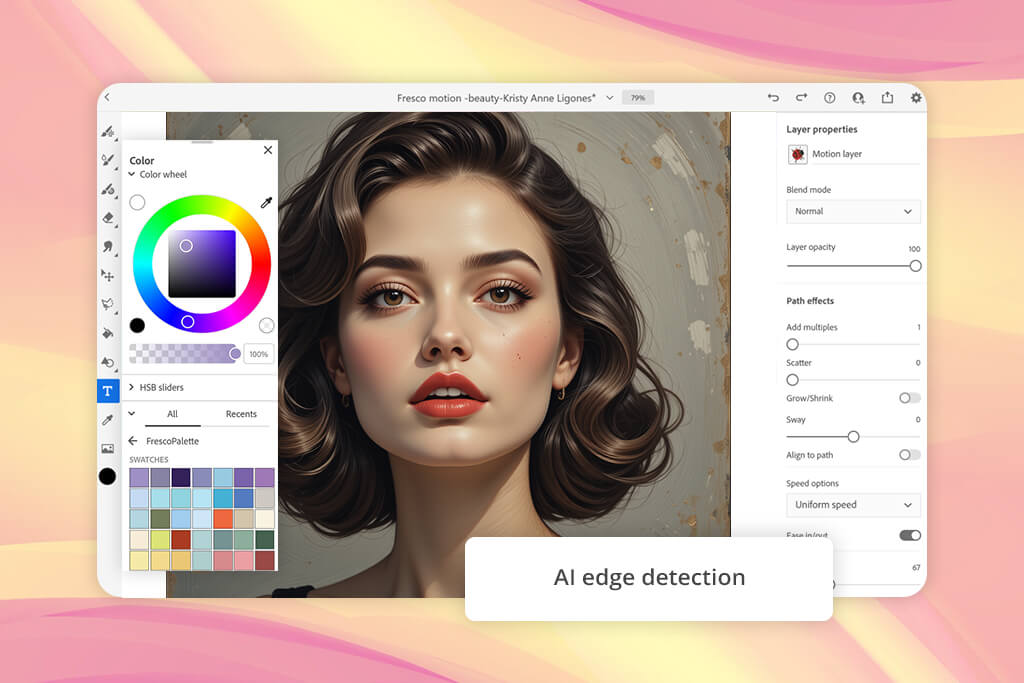
I’ve used Adobe Fresco for years because it’s one of the few drawing apps that truly mimics the feel of real brushes and pencils. I started using it during a busy time at FixThePhoto, when I began sketching branding ideas between photoshoots. Since then, it has become my primary mobile studio for drawing.
What makes Fresco special for my work is how well its brush system works with the materials I create in Capture. When I turn a texture into a custom brush in Capture, Fresco is where I can truly use and perfect that brush.
During testing, I tried to create brushes from textures without using Capture. I imported photos directly into Fresco and used tools like vector conversion and AI edge detection. While this method isn’t as quick as Capture’s one-tap vectorization, Fresco does provide more detailed control, allowing you to adjust the texture and build a more expressive brush.
Fresco isn’t meant to replace Capture. They work best together: Capture collects the materials, and Fresco uses them to create.
“If you need a tool for making vector shapes or custom brushes, Fresco can handle these tasks. However, you should be prepared to do more manual editing compared to specialized apps.”

I liked Fresco for how expressive it feels, how natural the real-media brushes are, and how smoothly you can switch between vector and raster. My only issue is that this Adobe Capture competitor works best inside the Adobe ecosystem, so freelancers who want to avoid subscriptions may feel a bit restricted.
Key features:
Pricing: Free (limited brushes, no premium assets); from $9.99/mo via Adobe plans; included in Creative Cloud All Apps
Best for: Logo designers, illustrators, vector artists
Compatibility: iPad
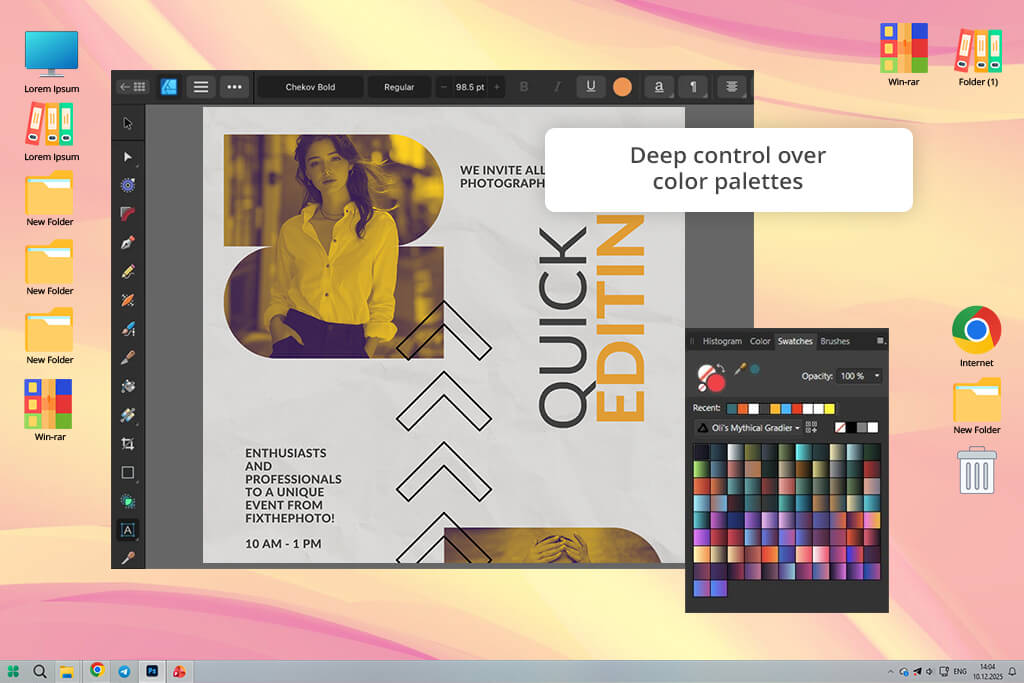
I was introduced to Affinity Designer for iPad by a colleague who was convinced it offered desktop-quality vector tools on a tablet. Designer handles vector creation in a completely different way than Capture. While Capture focuses on instant results (like turning a photo into a vector with one tap), Affinity is built for detailed, precise editing.
While testing, I brought in hand-drawn sketches, texture photos, and rough scribbles. Affinity doesn’t automatically convert these to vectors like Capture does. Instead, its Pen and Node Tools give you complete control to manually redraw and refine each shape.
For projects like logos, this meticulous manual approach often produced cleaner results than the automatic tracing in Capture and other Affinity Designer alternatives.
“Even though it doesn’t have Capture’s one-tap palette tool, its live color picking and swatch system give you more control and more professional color-matching options.”

The standout feature of this color palette generator alternative for me was the dual “Pixel Persona” and “Vector Persona” workflow. I could use the Pixel Persona to tidy up a scanned sketch, then switch to the Vector Persona to redraw it with sharp, polished lines. This replaced about 80% of my work in Capture, offering greater craftsmanship in exchange for fewer one-click shortcuts.
The export options are also much more flexible if you work outside Adobe’s ecosystem. The main drawback is that the interface can feel overwhelming for beginners. When comparing Adobe Capture vs Affinity Designer, it’s clear that the latter is not designed for quick, immediate results.
Key features:
Pricing: One-time purchase from $12–$17
Best for: Professional designers, logo creators, pattern artists
Compatibility: iPad
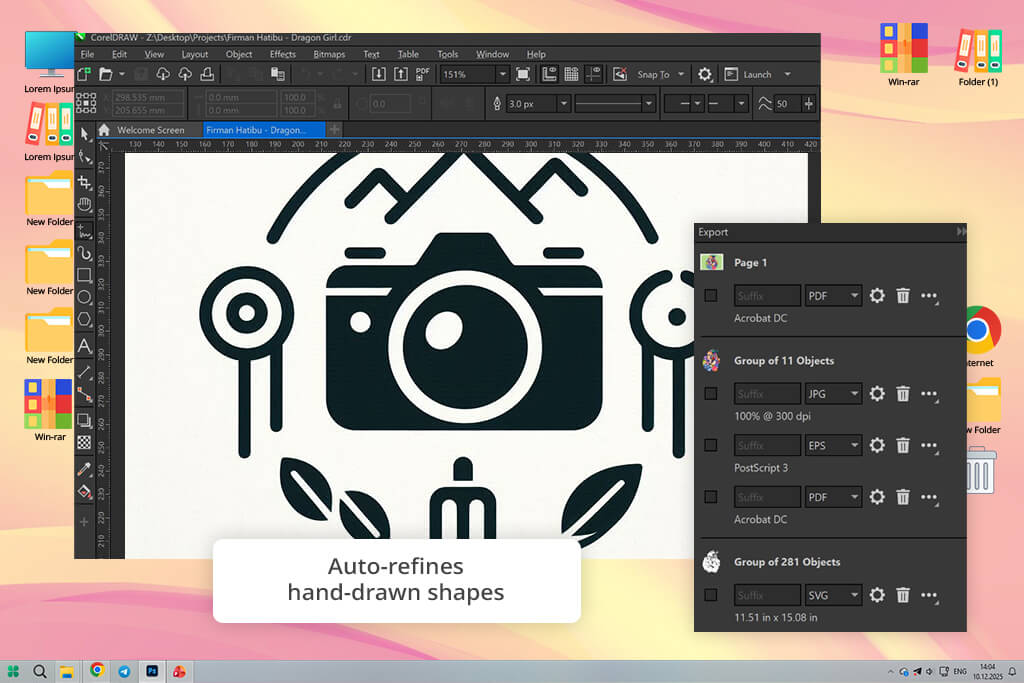
I learned about CorelDRAW for iPad from several recommendations on Reddit. Designers who were tired of Adobe subscriptions but still wanted professional tools praised it. I was immediately impressed by CorelDRAW mobile - it felt polished and very similar to a desktop program. This isn’t a basic vectorizer app alternative; it’s a complete vector design suite adapted for a tablet.
During our testing, I tried to replicate Capture’s workflows, photographing hand lettering, rough sketches, and textured surfaces. CorelDRAW doesn’t have an immediate “convert to vector” button like Capture, but its PowerTRACE tool (accessed through cloud sync) creates very clean and accurate vectors once the images are imported into its system.
The editing of nodes is also extremely detailed and offers more customization than some other CorelDRAW alternatives. I was also impressed with its symmetry tools, which are great for designing mandalas and patterns.
“Unlike Capture’s tile-based patterns, CorelDRAW provides mirrored, radial, and kaleidoscopic tools that feel more freeform and encourage creative exploration.”

What really impressed me about CorelDRAW was its shape recognition. The Smart Drawing tool takes rough hand-drawn sketches and automatically smooths and refines them. It’s not the same as Capture’s instant tracing, but it offers a similar level of convenience, especially useful for quickly drafting logos or icons while you’re on the move.
The drawbacks? The user interface feels more cluttered than many other iPad design apps, which can be challenging for new users. Also, while the app itself is free to download, you need a subscription to access most of its advanced tools.
Key features:
Pricing: Free download (limited); From $9.99/mo; From $99/year
Best for: UI/UX designers, branding designers, icon creators
Compatibility: macOS, iOS
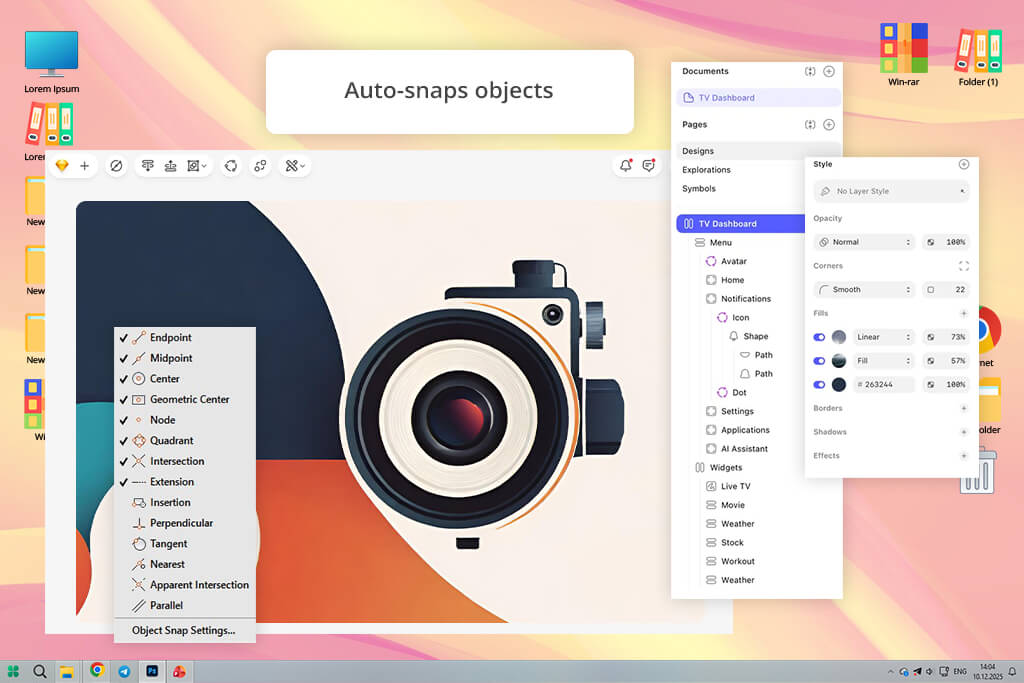
A colleague at FixThePhoto first suggested I try Sketch. I had always thought of it as just a tool for UI/UX design, not as a replacement for Adobe Capture. Sketch doesn’t aim to copy Capture’s quick “photo to vector” approach. Instead, it provides a very precise workspace for creating shapes with exact, pixel-perfect accuracy.
When I brought in reference images like textures, hand lettering, and sketches, Sketch didn’t try to turn them into vectors. Instead, its snapping, smart alignment, and very light node system made redrawing shapes surprisingly fast and almost relaxing. The whole experience feels very smooth and simple, especially when compared to more complex vector apps.
“If you’re building icons, polished vector assets, wireframes, or brand systems, Sketch is honestly one of the most intuitive Adobe Capture alternatives out there.”

One unexpected highlight was Sketch’s Color Variables. While it doesn’t auto-create palettes like Capture, it lets you save picked colors into reusable, synced systems that stay consistent throughout an entire project, which is incredibly useful for branding work.
Sketch also features one of the cleanest interfaces I’ve used. The design is unobtrusive and intuitive, like a designer’s thought process made visual. However, because it lacks any built-in tracing or texture conversion tools, you have to manually recreate every element. If you need the kind of automation that Capture provides, you should explore Sketch alternatives for Windows and Mac.
Key features:
Pricing: No free version; From $9/mo; From $99/year
Best for: Beginner designers, open-source fans, budget-conscious freelancers
Compatibility: Windows, macOS, Linux
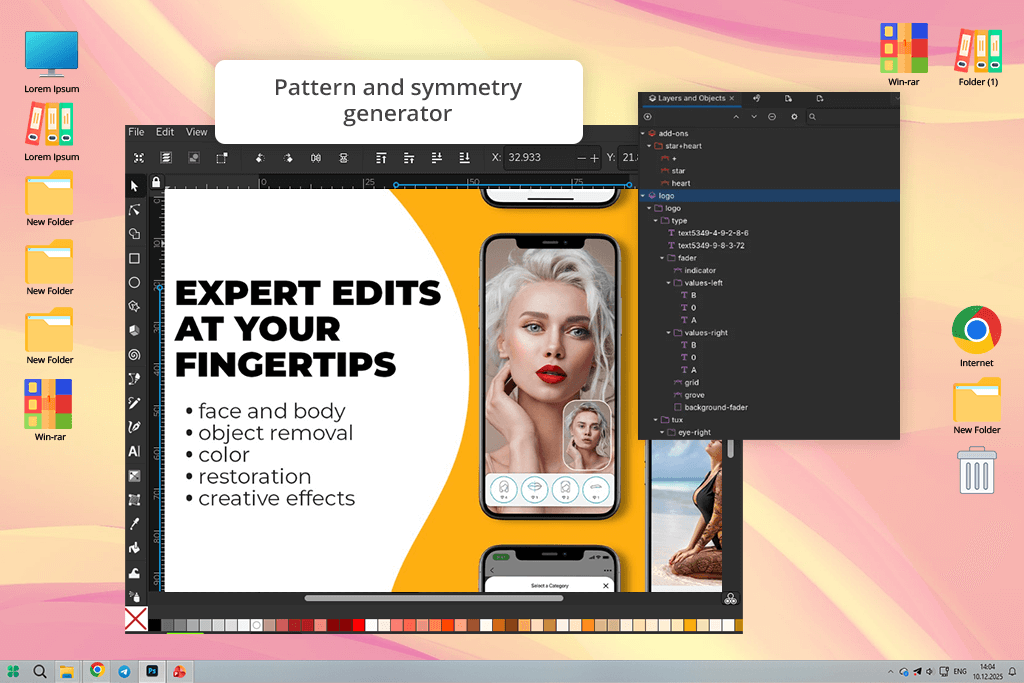
Inkscape was the first serious vector tool I used when I was new to design. This time, I looked at it again with a fresh perspective, focusing on how well it works as an Adobe Capture substitute. The biggest benefit is clear right away: it’s completely free, open-source, and surprisingly powerful for custom vector editing - more so than many other Inkscape alternatives.
Inkscape has a built-in tracing tool called Trace Bitmap, which handles some of the same photo-to-vector tasks as Capture. When looking at Adobe Capture vs Inkscape side by side, Inkscape’s vector results feel more technical than artistic. It performs best with simple, clean visuals like logos, posters, and flat shapes, but it struggles with detailed textures or natural, hand-drawn strokes.
“I really liked how much control it gave me over settings like thresholds, smoothing, and segmentation. It lets you fine-tune details that Capture doesn’t even allow you to change.”

I was surprised that Inkscape remains excellent for making patterns. Its Tiled Clones tool is like a strange but capable relative of Adobe Capture’s pattern maker - it offers more control, but it’s not as easy to figure out. The main drawback is still there: the interface can feel overwhelming, and it can run slowly when working with very large documents.
Key features:
Pricing: Free forever
Best for: Logo cleanup, decals, product mockups, commercial vectorization
Compatibility: iPad, iPhone
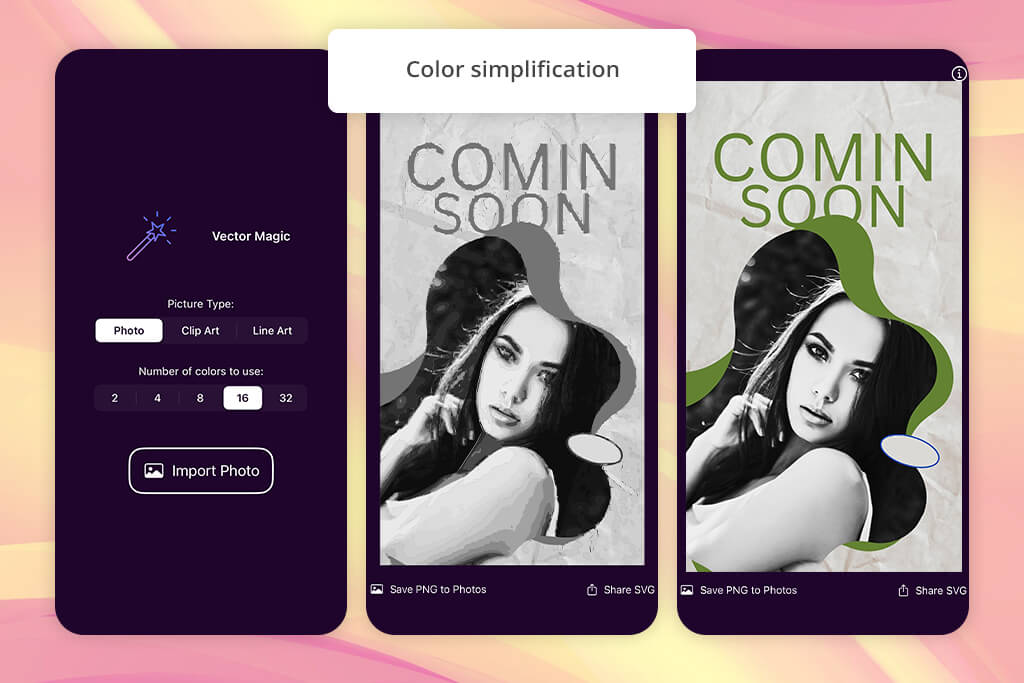
When I searched online for Adobe Capture replacement, Vector Magic was one of the first apps I found. It truly specializes in just one task: converting photos into vectors with incredibly clean and smooth results.
Unlike other programs that try to do everything, Vector Magic is focused on just one job. I tested it with many different images, from product pictures and handwritten text to rough sketches, fabric textures, leaves, and even screen captures. Its ability to automatically trace and convert these to vectors was, by far, the closest match to Adobe Capture of any tool I tried.
What’s really impressive is how smart it is at separating colors. While other programs make messy, over-detailed shapes, Vector Magic simplifies the image but keeps the edges sharp and natural. This made it perfect for cleaning up logos and creating simple, bold graphics.
“The app guides you through improving the vector one step at a time. Capture simply gives you the vector, but Vector Magic gives you the result and shows you what it changed to create it.”

When you compare Adobe Capture vs Vector Magic interfaces, the latter feels very basic and practical. It isn’t designed as a creative workspace - you can’t paint, add effects, or make patterns with it. The process is simple: you vectorize an image and then export it.
However, this level of quality costs money. The app isn’t free and doesn’t really offer any other features beyond its main purpose.
Key features:
Pricing: From $7.99/mo
Best for: Creators, marketers, small businesses, mobile designers
Compatibility: iOS, Android, Web
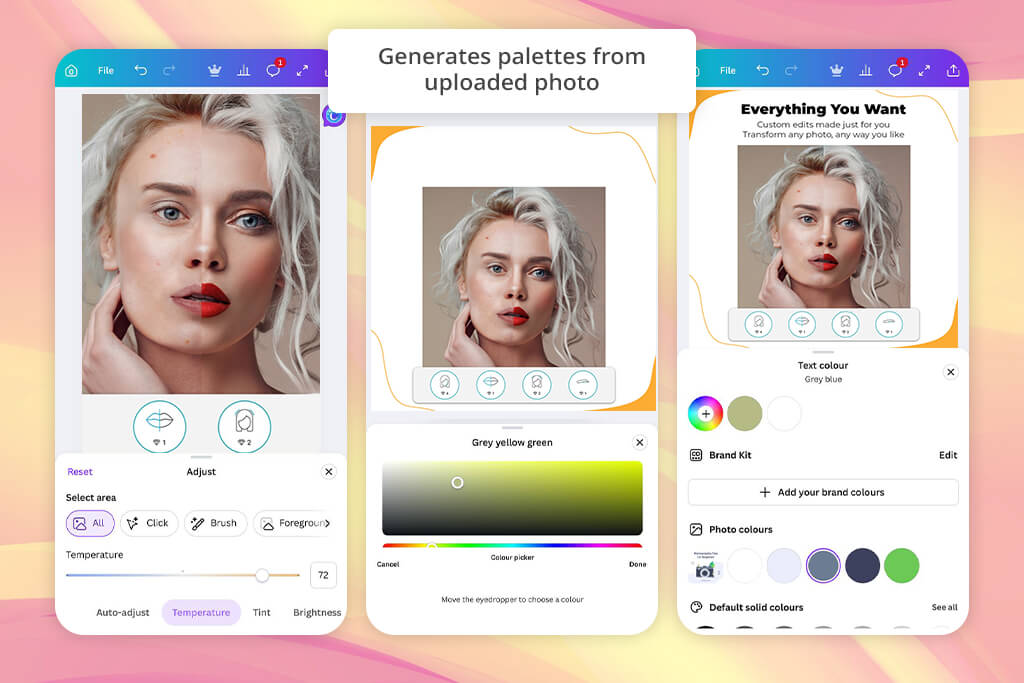
Since I already knew Canva was great for templates and branding, I tested it specifically for the tasks I use Adobe Capture for: making color palettes, creating shapes, vectorizing images, and designing quickly on the go.
I was most surprised by Canva’s recent move to focus more on creators. Rather than copying Adobe Capture directly, it gives you a huge, open workspace where useful design elements come to life naturally as you work on a project.
For example, during my test, I made a quick color palette from a backstage photo I took at a dance show. Canva’s “Extract Colors” tool created a perfectly organized palette right away.
“Its Brand Kit made it easy to keep designs consistent across many layouts, which is something Capture doesn’t really focus on.”

Another great moment was when I tried Canva’s SVG editing on my iPhone. Adobe Capture is best at making vectors from photos, but Canva allows you to import an existing SVG file, adjust its points, change its colors, and export it back out. It’s not as perfectly accurate, but it’s extremely handy when you’re away from your desk and need to quickly adjust a logo version for a client.
Still, Canva is very template-based. If your work depends on custom vector shapes or detailed cutouts, Capture or a more technical Canva alternative will give you better results.
Key features:
Pricing: Free (limited assets, export restrictions); From $14.99/mo, $119.99/year
As someone who uses vectors, color palettes, textures, and shapes every day, I was very thorough when testing alternatives to Adobe Capture. I worked with colleagues at FixThePhoto, and we personally tried and reviewed more than 50 different tools, including desktop programs, mobile apps, and online platforms.
Our goal was straightforward: to find tools that truly let you capture ideas, turn them into useful design elements, and smoothly add them to your actual creative process.
To pick which tools to test, I used three sources: my own ten years of experience in design software, suggestions from my FixThePhoto colleagues, and the top-rated apps from Google Play, the App Store, and Google search results.
Some tools seemed good initially, but were not chosen for the final list. For example, Vectorizer.ai, Vector Ink, Sketchbook, Linearity Move, and Imaengine were eliminated early. They either were not easy to use on mobile, produced poor-quality vector conversions, or didn’t have a strong enough unique feature to truly rival Adobe Capture for professional work.
I used the same clear steps to test every tool. First, I checked how easy it was to get started and set up, including how quickly I could begin making assets. Some apps required long registrations or had unclear menus. Others, especially the ones my team suggested, were far easier and more straightforward to use.
Next, I tested the tools on real projects. I captured textures from stage photography sessions, pulled color palettes from RAW backstage images, turned hand-drawn sketches into vectors, and tried creating reusable assets for branding work. My team did the same types of tasks so we could compare our experiences and results.
We also checked how well each tool worked on different devices, since many designers switch between phones, tablets, and computers. Slow performance, imprecise editing, or inconsistent export results were instant reasons to reject a tool.
A key part of our testing focused on precision and result quality. If a tool said it could generate color palettes, I challenged it with complicated concert lighting images. If it promised vector conversion, I fed it rough pencil drawings and strong-contrast objects to test how well it found edges. Many tools over-smoothed important details or produced shaky, unreliable shapes.
We also checked how well each tool fit into our workflow. We looked at whether it could export clean SVG files and if assets could be easily moved into Illustrator, Procreate, or Affinity without problems. Some apps worked very smoothly, while others had unexpected compatibility issues.
Lastly, my team and I reviewed pricing and usage limits. Many Adobe Capture alternatives claim to be “free,” but then restrict exports, vectors, or high-resolution downloads. For us, any tool that locks important features behind a paywall quickly loses value.
This testing routine helped us find tools that are not only functional but truly easy to use. It showed which options work well for real creative professionals who need a smooth, Capture-style workflow without unnecessary frustration.
If you’re just starting out or creating casually, these Adobe Capture alternative apps can work very well.
If you’re a freelancer who doesn’t want to pay monthly subscriptions, you can put together a strong toolkit using Inkscape, Affinity, Canva, and Vector Magic.
However, for experienced designers, illustrators, or members of a professional creative team, as we have at FixThePhoto, Adobe remains the smartest option for long-term efficiency. It provides:
Capture becomes much more powerful when used together with Illustrator, Photoshop, and Fresco.





![7 Best ODT to PDF Converters [{{%year}} FixThePhoto Choice]](http://fixthephoto.com/blog/images/gallery/news_main__preview_28601.jpg)
![9 Best AI News Generators [{{%year}} FixThePhoto Choice]](http://fixthephoto.com/blog/images/gallery/news_main__preview_28524.jpg)



















