Every day, I retouch portraits, improve client photos, and prep images for both print and digital platforms. So, when a batch of iPhone shots landed in my inbox as HEIC files, I was worried because my editing tools handle that format inconsistently. I needed a solid HEIC to PNG converter app. But instead of grabbing the first result on Google, I ran a proper test.
I pulled in colleagues from the FixThePhoto team. They are editors working across different software and operating systems, and we evaluated multiple converters together. We didn't just click buttons. We measured conversion speed, scrutinized output quality, stress-tested batch processing, and flagged any privacy red flags. We also checked how well each tool preserved fine details after export. Our team was determined to find tools that work in real professional workflows, not just what looks good on a feature list.
Each converter earned its spot for a specific reason. Some handle batch files without issues. Others showed amazing color accuracy, preserved transparency, or kept metadata intact. Need a quick HEIC to PNG converter free of charge and hassle? Several options here cover exactly that. I also included desktop tools for offline security and specialized picks for photographers, designers, and casual users alike.
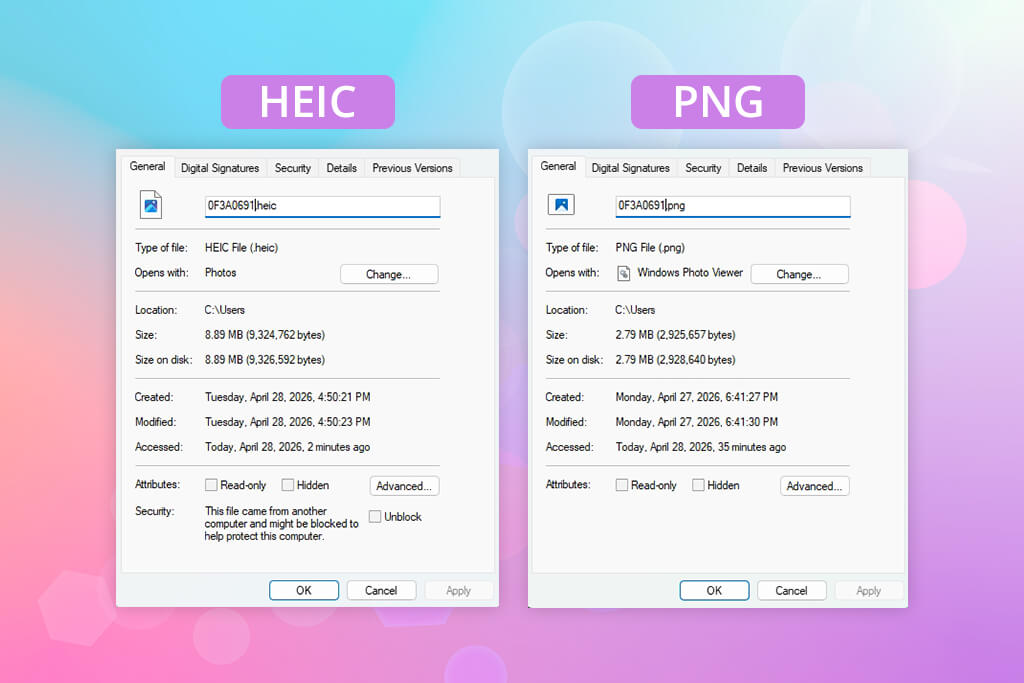
PNG is a go-to image format for users, who prioritize quality and compatibility. HEIC does one thing well. It shrinks file size on your iPhone. But the moment you move that file into a professional workflow, you’ll notice the cracks. Editing apps behave inconsistently with it. Older devices ignore it entirely, while websites often reject it. PNG, by contrast, opens anywhere without special plugins or workarounds.
Quality is the second big win. PNG compresses nothing. Every edge stays sharp and every detail survives intact, no matter how many times you export or re-edit the file. That makes it the smart choice for product photos, text graphics, screenshots, and anything destined for heavy retouching.
As for transparency, PNG truly pulls ahead. Most HEIC files are straightforward photos, but once you strip away a background, you need a format that handles transparent layers cleanly. PNG does exactly that. Cut out a portrait, a product shot, or a logo, save it as PNG, and it drops onto any website, banner, or marketing layout without dragging an ugly white box along with it.
Another thing to consider is workflow efficiency. Clients often shoot photos on iPhones and send HEIC files your way, but not every tool handles them well. Designers working in Photoshop, Canva, or Windows-based software hit roadblocks fast. Converting to PNG eliminates such issues, so you spend less time troubleshooting and more time creating.
PNG also earns its place when it's time to share your work. Uploading to a website, handing assets to a developer, or scheduling social media visuals is easier with PNG. This format works in all browsers, platforms, and apps without complaint. Though the file size runs slightly larger, it is not a problem in a professional setting.
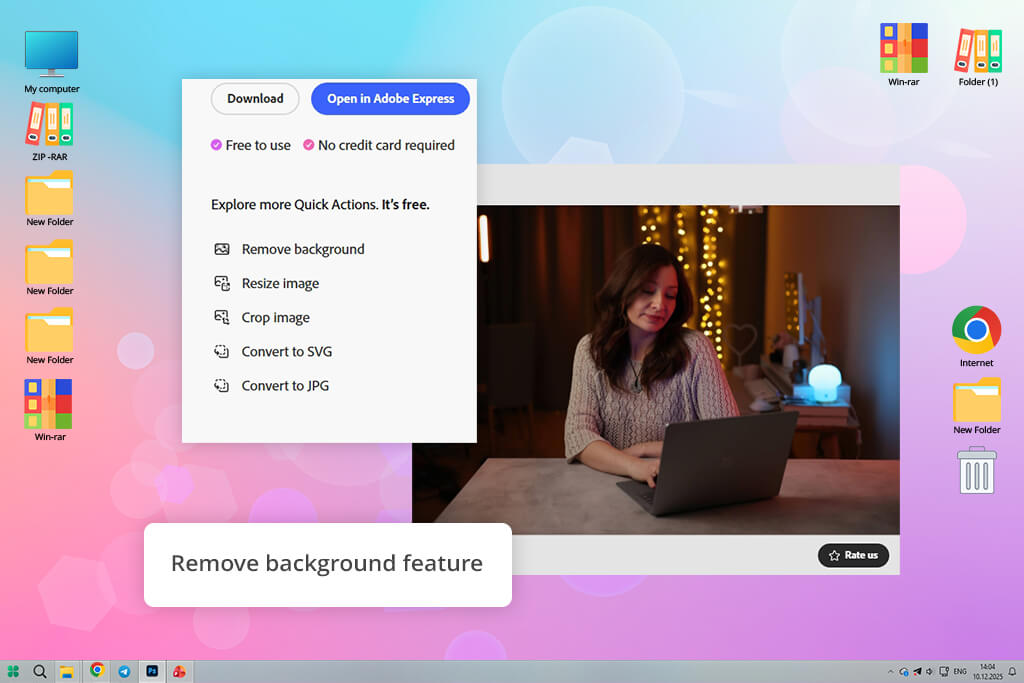
Most conversion tools do one thing – convert. Adobe Express does five. I already work inside the Adobe ecosystem daily, so testing Adobe Express as an HEIC to PNG converter was a natural starting point. But even after trying several competing tools, it held its ground as the strongest option for my workflow.
“I just export to PNG, remove the background, and resize it all in one go. No need to jump between apps. And if you're already using Adobe tools, you'll feel at home instantly.”

Getting started takes seconds. Open Adobe Express in your browser, drag your HEIC files into the upload zone, and the conversion starts instantly. The familiar interface alone saves meaningful time.
The built-in editor deserves special praise. After converting a portrait shot, I jumped straight into the same tab to remove the background, adjust the exposure, and resize the image for a social media banner. I didn’t have to re-upload something or switch apps. For client-ready deliverables, such a connected workflow is genuinely valuable.
Output quality held up well, too. PNG files came out sharp and clean. Fine details like hair edges stayed crisp, and transparent backgrounds exported correctly. That last part matters more than people realize. Plenty of converters quietly mess up transparency.
The only honest drawback is that if you just need fast bulk conversion, the design-forward layout adds visual noise that simpler tools avoid. But if you want one tab to handle conversion, editing, and resizing without compromise, Adobe Express earns its place as the best HEIC to PNG converter for creative professionals. The all-in-one approach is the whole point.
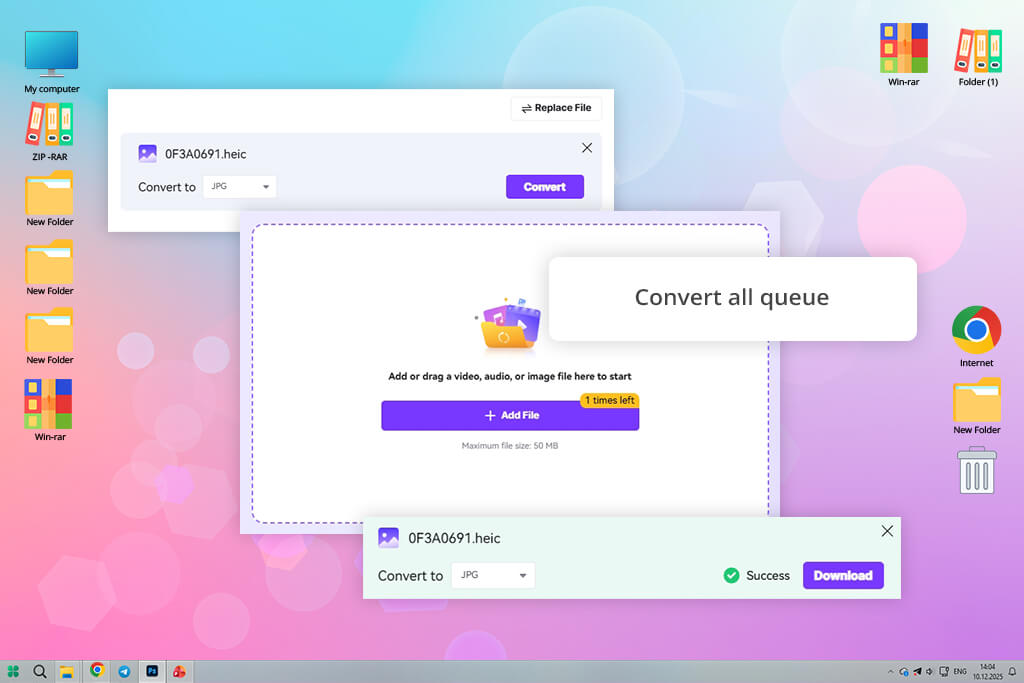
When I mentioned I was testing HEIC converters, Eva pointed me straight to Wondershare UniConverter. I started with the desktop version to analyze its batch processing mode. Installation was quick, and the Converter tab made sense at first glance. I clicked the + icon, imported a full folder of HEIC images, and started the conversion process.
“Had a whole folder of HEIC photos from an event, so I just dumped them all in and let UniConverter do its thing in the background. Everything came out clean and consistent. Super handy when you're dealing with a big batch.”

Selecting PNG as the output format took two seconds. Hitting Convert All took one more. UniConverter processed every file cleanly, preserving skin texture, shadow detail, and sharp edges across the board. I also ran a few quick crops and resizes directly inside the app before converting. That way, I avoided jumping between tools. For photographers or designers handling large client folders regularly, such an integrated setup is very beneficial.
I also tested it as a HEIC to PNG converter online for quick one-off jobs, and the browser version handled those well. It's noticeably lighter than the desktop app, so power users will want the installed version for more demanding tasks. But having both options available in one product is great. The browser version comes in handy when you need speed, and you can switch to the desktop when you need control.
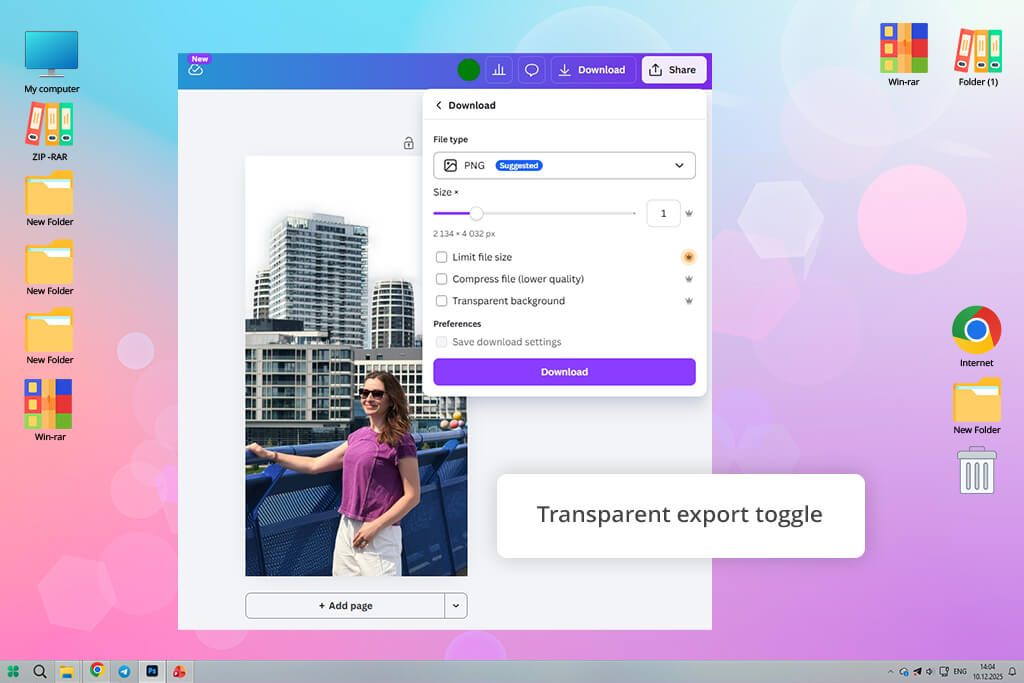
If you already live inside Canva, this may be the smoothest conversion experience you'll find. Our team relies on Canva for shared design work, so testing its HEIC conversion made practical sense. I uploaded several HEIC images into an active project and exported them as PNGs straight from the Download menu. I didn’t need to use separate tools or head to extra tabs.
"I just drop the image in, export it as PNG, and keep going. If you're using shared workspaces, the Canva flow makes it really easy."

The output quality impressed me, as well. Edges stayed sharp, colors looked natural, and highlight detail survived the conversion without flattening. Cheaper tools often get those wrong. I also ran larger iPhone photos through it, and Canva handled every one without odd resizing or quality loss.
For anyone looking to convert HEIC to PNG free without downloading software or signing up for a separate service, Canva covers the basics confidently. The real advantage shows up during active projects. You can convert, crop, drop into your design, and download without switching apps.
However, if you only need a single quick conversion, launching a full design workspace seems to be overkill. A dedicated converter moves faster for isolated jobs. But for team-based creative workflows, Canva removes confusing steps in a way most standalone tools simply can't match.
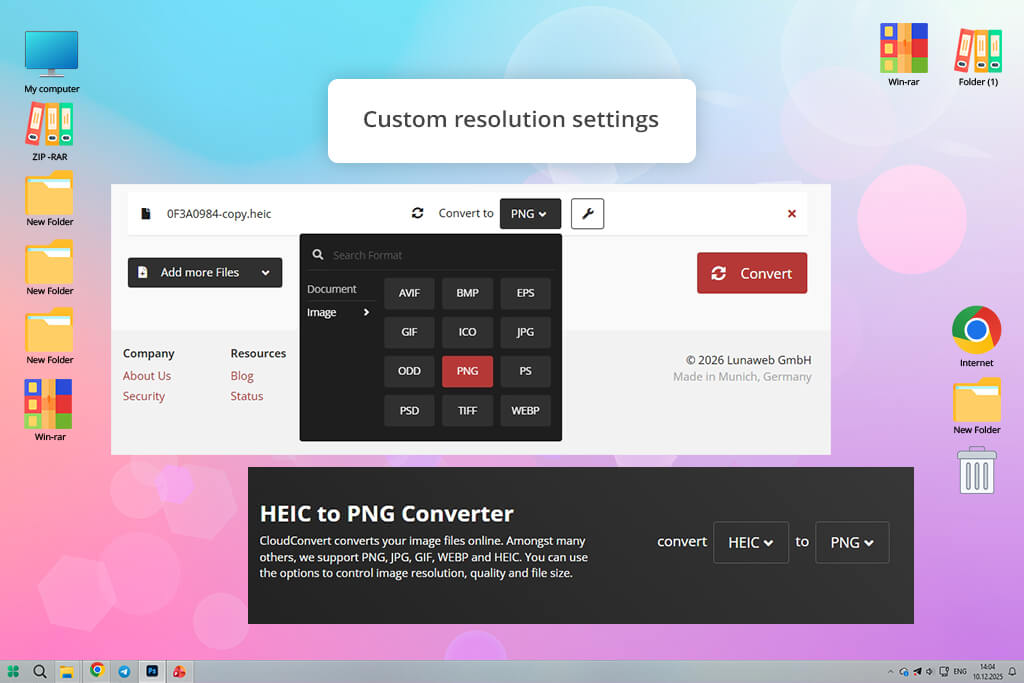
While most converters give you one button, CloudConvert offers you a whole settings panel. I've relied on CloudConvert as a go-to free image converter, for years, so testing it for HEIC conversion was like revisiting familiar ground. The setup stays entirely in the browser. Click Select File, import your HEIC images, and you're moving. I also connected it to Google Drive during testing, which proved useful for skipping local downloads altogether.
The output control is amazing. Before converting, I opened the settings panel and manually adjusted resolution and quality levels. Most tools don’t offer this. Such flexibility makes CloudConvert a strong HEIC to PNG converter without losing quality, especially for print assets, detailed retouching work, or high-resolution web graphics where precision is paramount.
Batch mode worked reliably, too. Multiple files processed consistently, with filenames intact and proportions unchanged throughout. The exported PNGs came out sharp with accurate colors, clean edges, and no compression softness creeping in. But keep in mind that free usage limits show up faster with larger batches, so heavy users may hit a ceiling sooner than expected. Still, for anyone who needs a dependable browser-based converter that goes beyond a single Convert button, CloudConvert earns its place as a serious, professional-grade option.
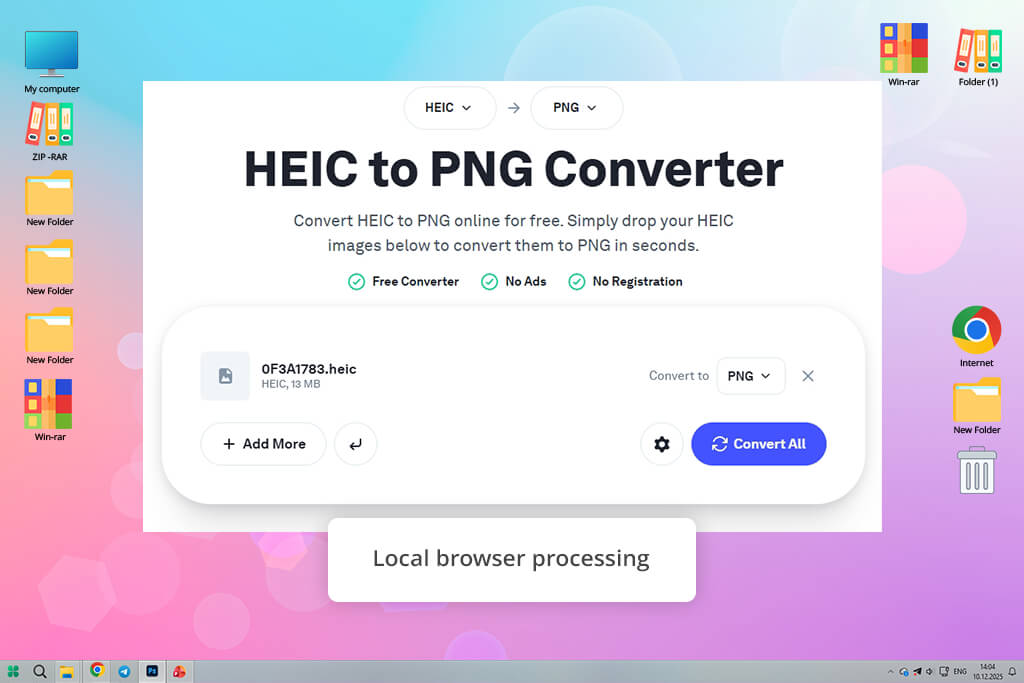
I stumbled across Picflow while digging past the usual top lists for lesser-known HEIC tools. The page loaded almost immediately, skipped every registration prompt, and sat ready to convert before I even finished reading the interface. I dropped several HEIC files in and started testing immediately.
“I always keep Picflow bookmarked for those moments when I just need one HEIC converted to PNG fast. Since it works locally in the browser, it doesn't feel heavy like other online tools. It's my go-to when I just want the quickest, simplest fix.”
Privacy caught my attention first. Since I regularly handle client images, knowing where files travel matters. Picflow runs the entire conversion locally inside your browser. Nothing touches an external server. That single detail makes it a genuinely trustworthy fast HEIC to PNG converter for sensitive or confidential material.
Speed backed that up in practice. Single images finished nearly instantly, and small batches moved through without the lag that cloud-based tools often introduce. I also ran this file converter on an older laptop, and it handled the workload smoothly. Output quality didn’t disappoint. Full-size PNG files showed accurate colors, clean edges, and no unexpected resizing. However, when you push too many large files at once, the browser slows noticeably. Picflow performs best in sensible batches.
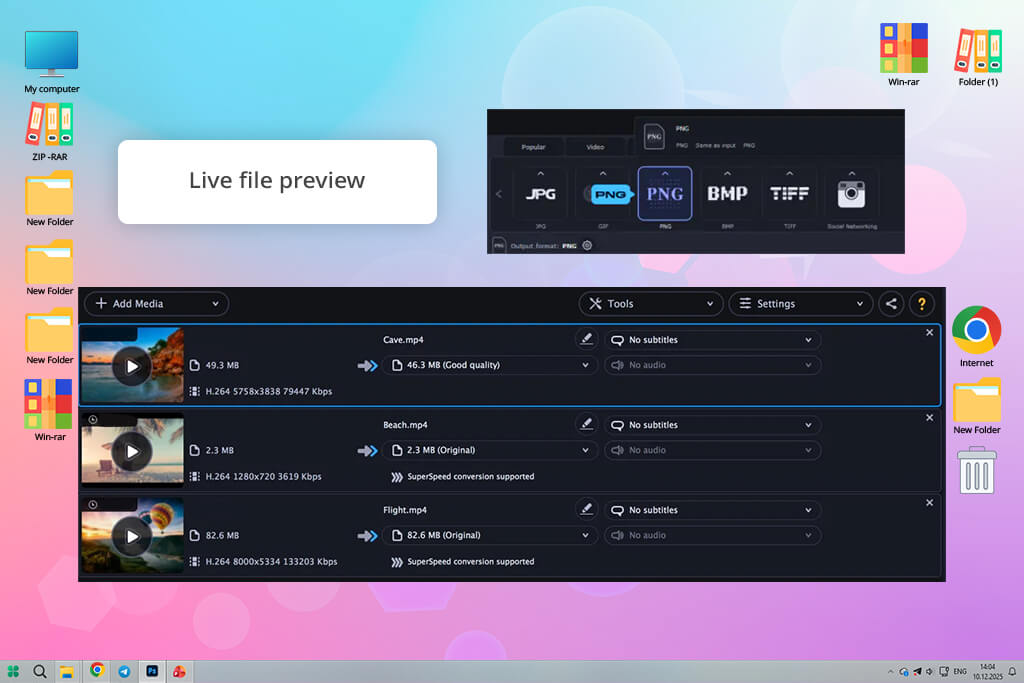
A colleague's offhand comment sent me back to Movavi. This is the tool I'd always trusted for video editing, but rarely used for image conversion. Curious, I tested it with a client's folder packed with HEIC files. Getting started took seconds. I hit Add Media, selected Add Images, and pulled in the entire folder. Movavi generated previews almost instantly, letting me verify every file before touching a single setting. Such immediate feedback builds confidence, especially when handling someone else's project files.
“Movavi apps are pretty reliable, and the converter was no different. I threw a huge folder of HEIC images at it, and it powered through without any hiccups. The interface is simple, so I didn't have to dig around figuring out where everything is.”
The batch performance impressed me a lot. I loaded over 100 images, and the interface never flinched. Inside the Images tab, I picked PNG as the output format and let it run. If you need a batch HEIC to PNG converter that handles large packages without freezing or corrupting files, Movavi is worth checking out.
Export controls stay minimal, so power users may want more granular options. But the output quality speaks for itself. I received sharp details, accurate colors, and zero visible degradation across every single file. The best part is that you can jump straight into Movavi's editing suite the moment conversion finishes.
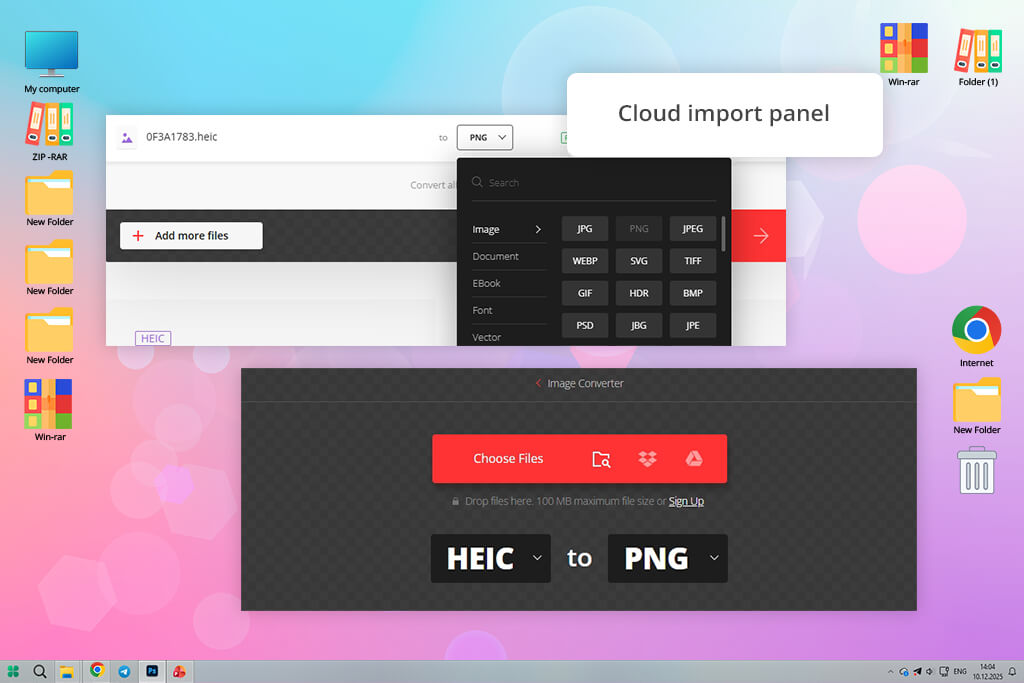
Drop a HEIC file onto Convertio, and the site gets to work immediately. I selected PNG from the output list within seconds, and the whole process was understandable from the very first click. I think such a friction-free experience is exactly what a browser-based tool should deliver.
To push it further, I ran several files, namely, large iPhone shots, standard photos, and one image pulled directly from cloud storage, though it. Convertio lets you import from multiple sources, so I tested both local uploads and cloud transfers back to back. Neither required re-downloading files first. I also applied the resize option before exporting one image, trimming it down for web use without any extra software.
For anyone searching for a secure HEIC to PNG converter that works entirely in the browser, Convertio checks that box confidently. The downloaded PNGs looked clean. They had sharp edges, smooth gradients, and eye-pleasing tones. I didn’t spot compression artifacts. Free-tier limits appear with very large or high-volume files. But for everyday conversions, Convertio moves fast and consistently delivers solid results.
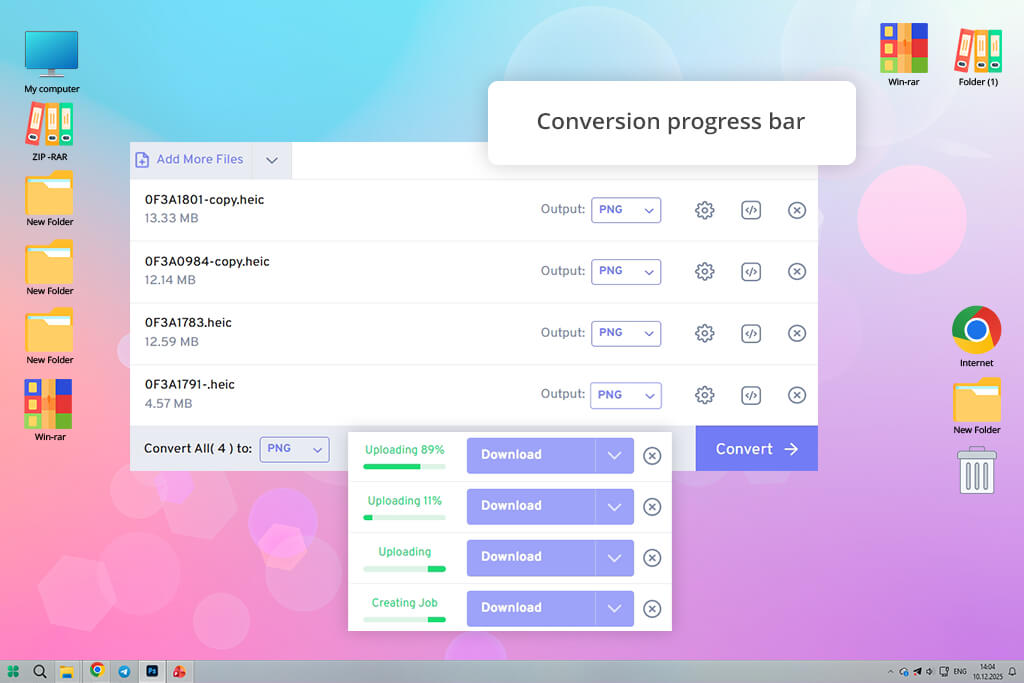
Photographers on Reddit kept recommending FreeConvert whenever image conversion came up, so I took their word for it and ran my own HEIC files through the program. Getting started required zero effort. I dragged files straight onto the page without any configuration before the upload began. The interface strips everything back to the essentials, which I appreciate greatly.
“Uploaded my HEIC file, hit convert, and had my PNG in no time. You don’t need to master any confusing tools. The program is great for a simple one-off task.”
The converted PNGs impressed me at full resolution. Colors held their balance and the edges remained sharp. I didn’t see any slight softening that plagues many quick online converters. I even processed a HEIC file containing multiple embedded frames, and FreeConvert handled it without any errors or surprises.
Security-conscious users should note one thing. Files travel through an external server, even with HTTPS in place. That makes FreeConvert a confident choice for everyday images but a questionable one for sensitive client work. Anyone who specifically needs a HEIC to PNG converter offline will also hit a hard wall here. The tool lives entirely in the browser and offers no desktop or offline alternative.
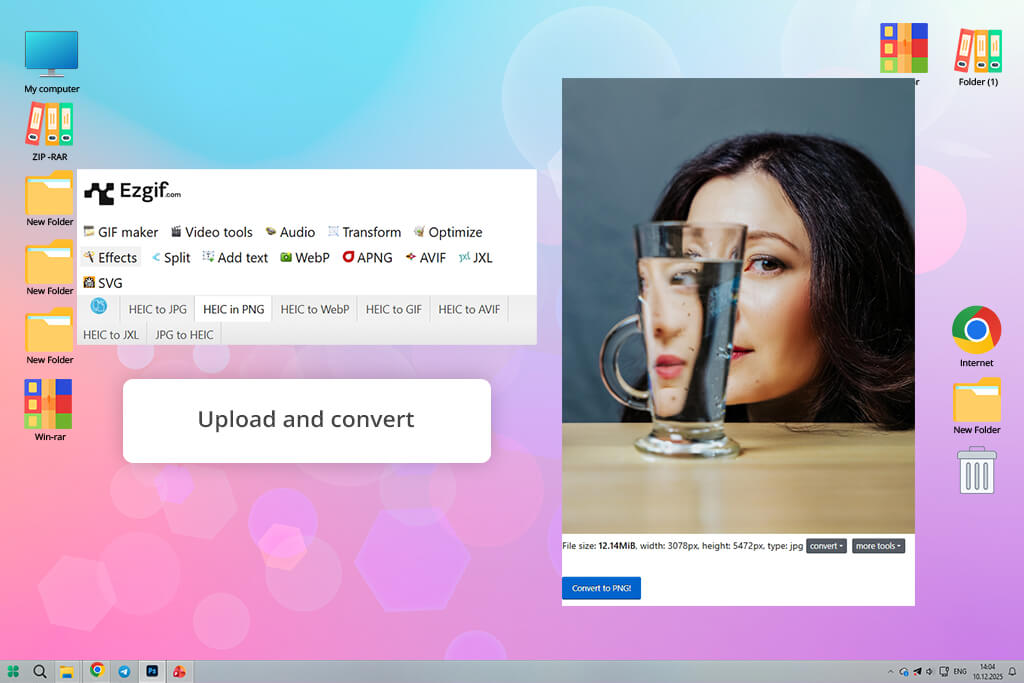
Ezgif skips the flashy design and delivers flawless results. The moment you land on the site, the upload button stares right at you. You don’t need to create an account or load anything. Just click Choose File, pick your HEIC image, hit Upload, and the tool moves straight into action.
Selecting Convert to PNG triggered an almost instant output. The converted file held strong color accuracy and sharp detail. I think such qualities matter more than a polished interface. To stress-test it further, I threw in a heavier photo. This HEIC to PNG converter for Windows handled the load without flinching.
Keep in mind that ads live around the edges of the page. But they stay out of the way and never disrupt the actual process. More importantly, your outputs have no watermark. Plus, no hidden usage caps showed up during repeated tests. Such transparency makes Ezgif genuinely useful for quick and easy conversions. The one real limitation is clunky batch downloading. When testing multiple files, saving them one at a time slows things down compared to newer platforms that bundle exports together.
Finding the best HEIC to PNG converter takes more than running a single photo through a tool. We built a diverse test folder, featuring iPhone portraits, fine hair details, product shots on white backgrounds, text-heavy screenshots, and images with soft gradient skies. Real-world variety exposed weaknesses that simple test files never would.
Image quality came first. Eva placed every converted PNG directly beside its original HEIC file and examined both at 100% zoom. She checked sharpness, color accuracy, highlight recovery, shadow depth, and edge definition. Areas like skin texture, readable small text, and smooth background blurs received extra attention, because that's exactly where weaker tools quietly introduce damage.
Workflow speed came second. We tracked how fast each tool accepted uploads, processed conversions, and returned the final file. Every unnecessary step counted against a tool's score. Vadym pushed desktop tools through large batch jobs and monitored for crashes or slowdowns. For browser-based options, he ran repeated uploads, tested oversized files, and triggered multiple conversions within a single session to see where performance broke down under pressure.
We also looked at the offered features. Our team checked for batch processing, transparent background support, resize controls, drag-and-drop imports, cloud storage integration, and offline capability. We also confirmed that converted files preserved correct dimensions and that filenames stayed clean and organized after export.
Privacy was no less important. Tools that process files locally earned more trust than those routing images through external servers. Free-tier limits, hidden friction, and intrusive ads all factored into usability scores, too. Consistency stood above everything else. Any converter can produce a clean PNG once. The tools worth recommending delivered the same reliable output across repeated sessions, large batches, and varied file types every single time.





![11 Best AI Tools for Content Creation [Free & Simple]](http://fixthephoto.com/blog/images/gallery/news_main__preview_28962.png)

![7 Minecraft Banner Makers [Design Examples]](http://fixthephoto.com/blog/images/gallery/news_main__preview_28947.jpg)
![9 Best AI Label Generators [{{%year}} FixThePhoto Choice]](http://fixthephoto.com/blog/images/gallery/news_main__preview_28972.jpg)



















