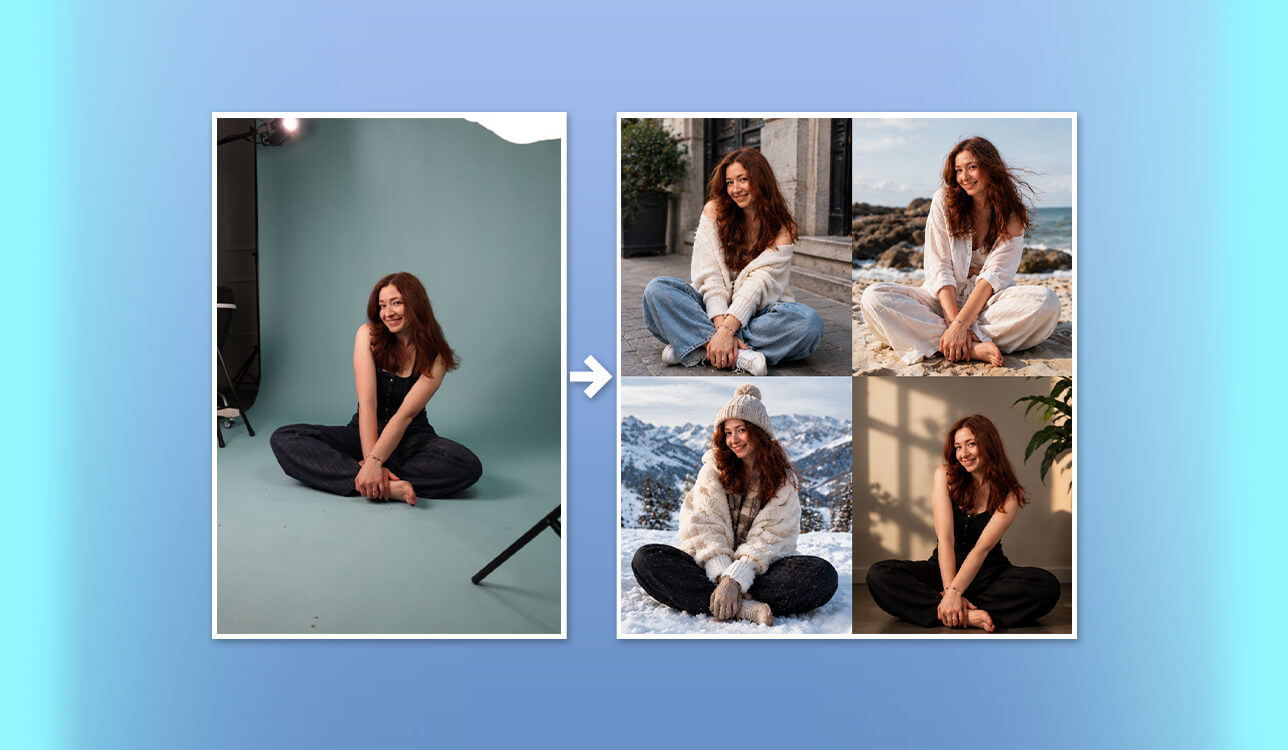
The social media content moves at a rapid pace, and the same photos can support only a few campaigns before becoming stale. It's impossible to reshoot everything, and manual editing takes too much time. Therefore, I decided to discover the best AI image restyle tools that can bring new life to the existing images.
It shocked me to learn that most tools either distorted the original photo so much that even faces and backgrounds changed or created a boring and generic output. In order to find the best platform, I tested 30+ AI image restyle tools and involved colleagues in the experiment.
For my research, I considered the quality of restyling, the range of styles, prompt specificity, the degree of user control and the processing of key details. I also took into account the available functionality on free plans and the limits of each tool to choose the best option that will be suitable for your workflow. While testing the tools, I tried to answer several main questions:
The final result provided by any AI image restyle tool does not depend on the platform only. Your prompt, reference photo and restyle strength also play a significant role in the output quality. A few tweaks can help you to achieve the desired style without losing important features of the original image.
I tested various AI image style transfer tools and noticed that the prompt plays the same crucial role as a reference photo and restyle intensity. Even a single word can significantly impact the output. Below are the techniques that helped me to explore different visual styles without losing the highlight of the original photo:
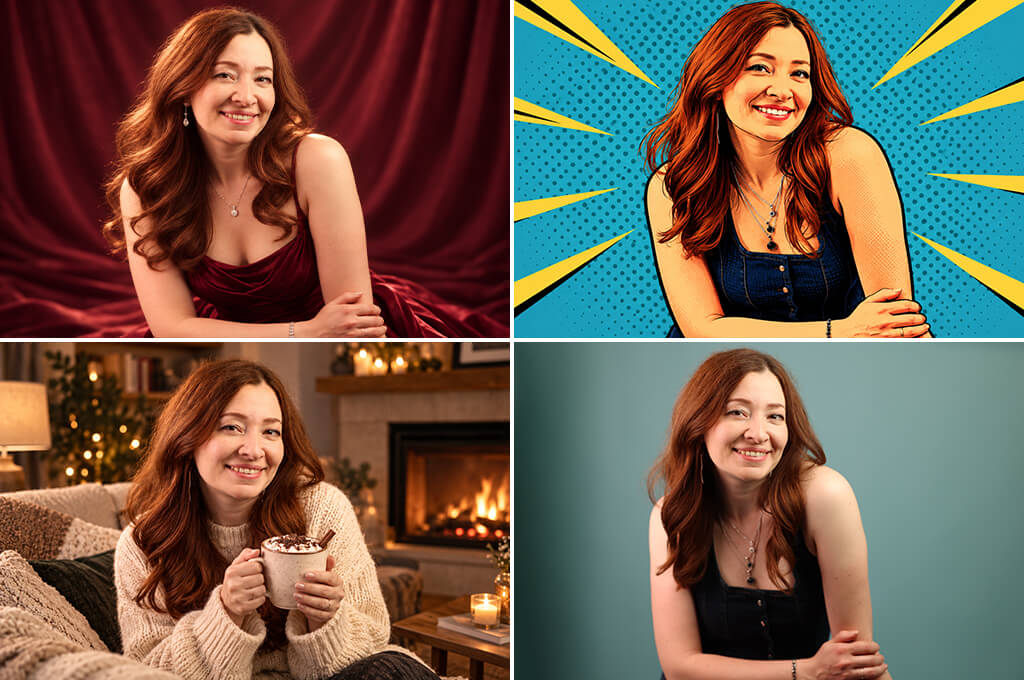
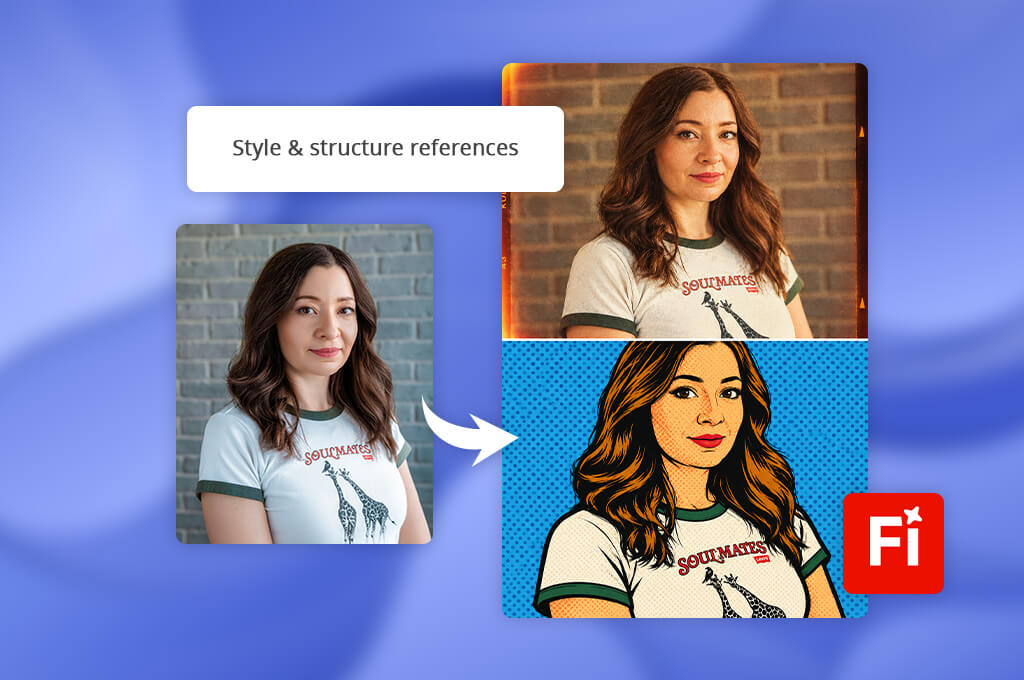
The approach to the restyling provided by Firefly is pretty simple. All you need to do is to upload your photo, write a prompt and wait for the result. I clicked on New and then on Image. After that, I uploaded my photo. The tool accepts files in the JPEG, JPG, PNG, and WEBP format with 100 MB file size limit.
Then, I described in my prompt what my final photo should be. I wrote something like "restyle this portrait as vintage film photography with warm tones and subtle grain" or "transform this image into colorful pop art with bold outlines". The more specific your prompt is, the more flexibility you will have to generate high-resolution images in Firefly.
After the prompt was entered, I chose one of the available AI models from the dropdown. Firefly's models coexist with GPT Image, Gemini with Nano Banana and FLUX. General Settings panel had a Strength slider to adjust how deep the restyle will be and also separate options to customize Visual Intensity, Effects, Color and Tone, Lighting, and Camera Angle.
The drawback is that Firefly occasionally touches some details in the original image even if you did not ask it to, so it is useful to compare a few variations before choosing the final one.
After finding the desired result, Firefly provided me with a set of convenient options. I could easily download the photo, send it to my colleague or open it in Photoshop or Illustrator for further editing. For those who already uses other Adobe tools, this is the best AI image restyle tool.
However, to get the precise result, it may require multiple rounds of adjustment. Besides, this free Adobe software does not allow many generations.
Price: Free (limited credits) or from $11.99/mo
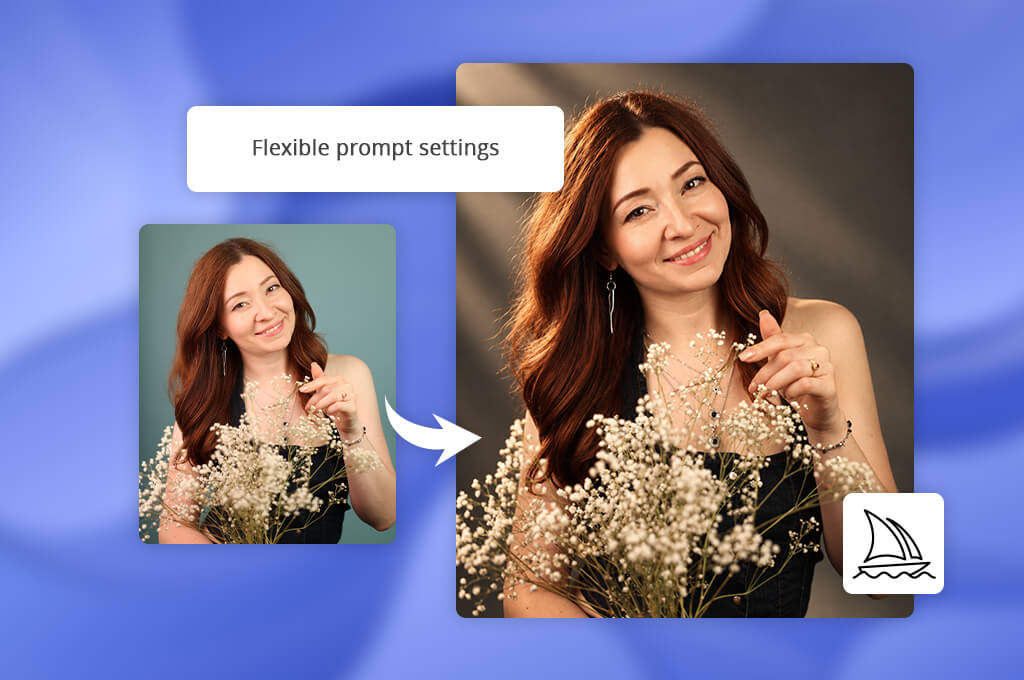
Midjourney quickly took its rightful place among the best AI image restyle tools. If a picture is worth a thousand words, then this tool says much more. Upload your photo, write the descriptive prompt and watch the magic.
I tried "editorial fashion photography with dramatic studio lighting, muted colors and subtle film grain". It provided me with a variety of detailed and visually impressive images in a different style with a different atmosphere, tones, textures and cinematic effect.
However, in the process, Midjourney makes its own artistic choices and sometimes face and layout details change slightly comparing to the original photo.
Besides, the AI image restyler offers a range of features to explore. The style reference parameter (--sref) serves as a guide for your outputs, the Remix Mode helps to adjust prompts when generating variants. And the Blend tool combines separate images into one cohesive concept.
These options add the new dimensions to the process of creation. It can come in handy when you need moody portraits, fantasy or eye-catching product visuals. But it requires fine-tuning of control and even a subscription.
Price: From $10/month
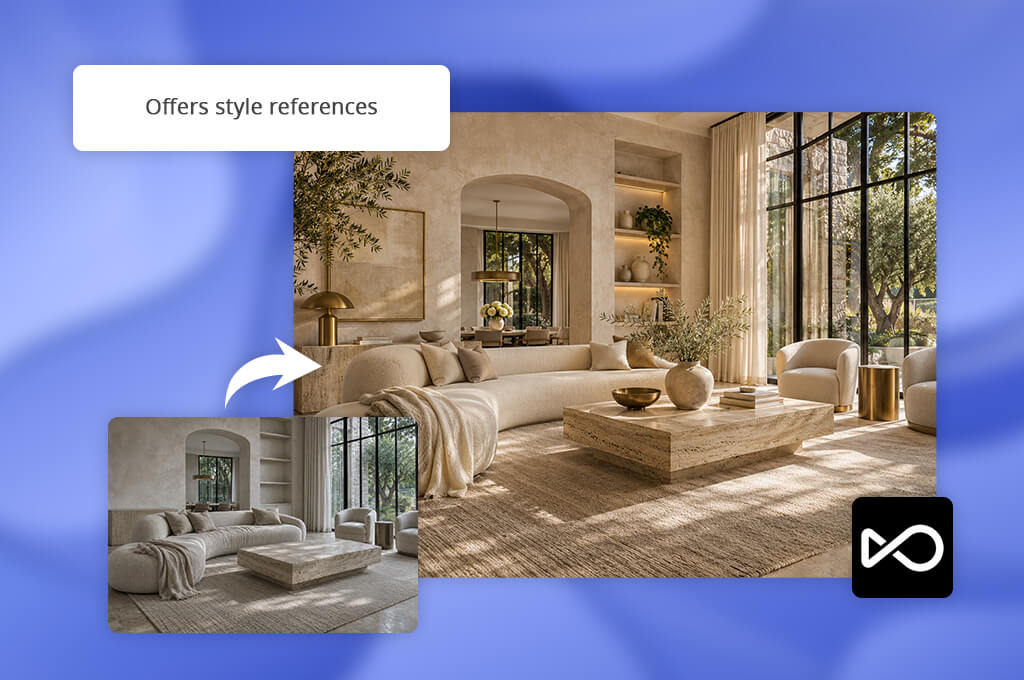
OpenArt is a pretty easy-to-learn AI image restyle tool. I ran it on a real estate photo of a living room using the prompt "modern luxury interior, warm beige palette, soft natural light, elegant furniture, realistic property photography". The output turned out to be more bright and polished, with the luxurious atmosphere which is effective for a property listing or promotional post.
The interesting feature was the strength slider. When turned down, it preserves the original photo, and when turned up, it gives freedom to transform it. A small option, but it puts control in the user's hands.
In addition, OpenArt allows switching between models like Flux and SDXL without exiting the platform and testing different directions of restyling in just a few minutes. This makes it convenient for product photos, marketing visuals and creative projects.
It was not always efficient in handling details, sometimes furniture and interior details were transformed in a way I did not want. Credits are also depleted faster than I thought when switching between models, and anyone used to the detailed manual editing in Photoshop will find it limited.
Price: 40 one-time trial credits plus limited daily credits or from $14/month
"OpenArt made it fun to try different styles. I enjoyed the simplicity of exploring new styles, but sometimes AI added something that I wanted to stay the same."
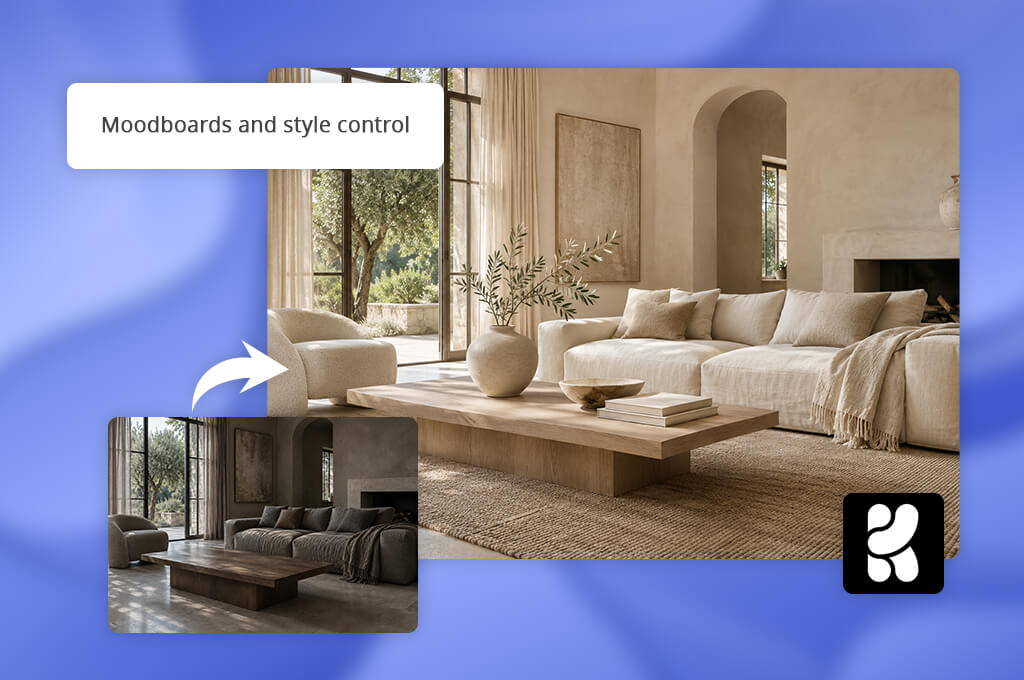
Krea AI allows you to make many creative decisions yourself. I uploaded an interior photo with the prompt "warm minimalist living room, natural daylight, soft beige tones, linen textures, editorial interior photography". The result became brighter and more polished with a modern atmosphere.
The special attention I would like to pay to the strength of stylization control. Instead of rewriting the entire photo, I could determine how far the restyle would go. Also, Krea Edit proved to be very useful. It allows selecting any object, for example, a sofa, a wall or any other element, change its texture and the rest of the photo remains intact.
However, sometimes surrounding details were also adjusted, which means that verification of the result after each generation became a routine process.
There are several options to work with this AI image restyler. You can use reference images to direct the output towards the desired mood, color story or lighting style. Or you can use Krea Realtime, which updates the preview in real time when prompts and sliders are adjusted.
Together, these features make Krea an excellent AI image generator and restyler for interior concepts, product visuals and creative projects where the direction may change suddenly.
The in-built upscaler is quite useful for those who need high resolution images. However, dark or cinematic styles turned out to be a weak spot of the tool – it sometimes produces results where subjects look more like a composition than natural. The free plan also does not include commercial rights, so before delivering generated images to your client you should check the license conditions.
Price: Free (100 units/day) or from $9/mo
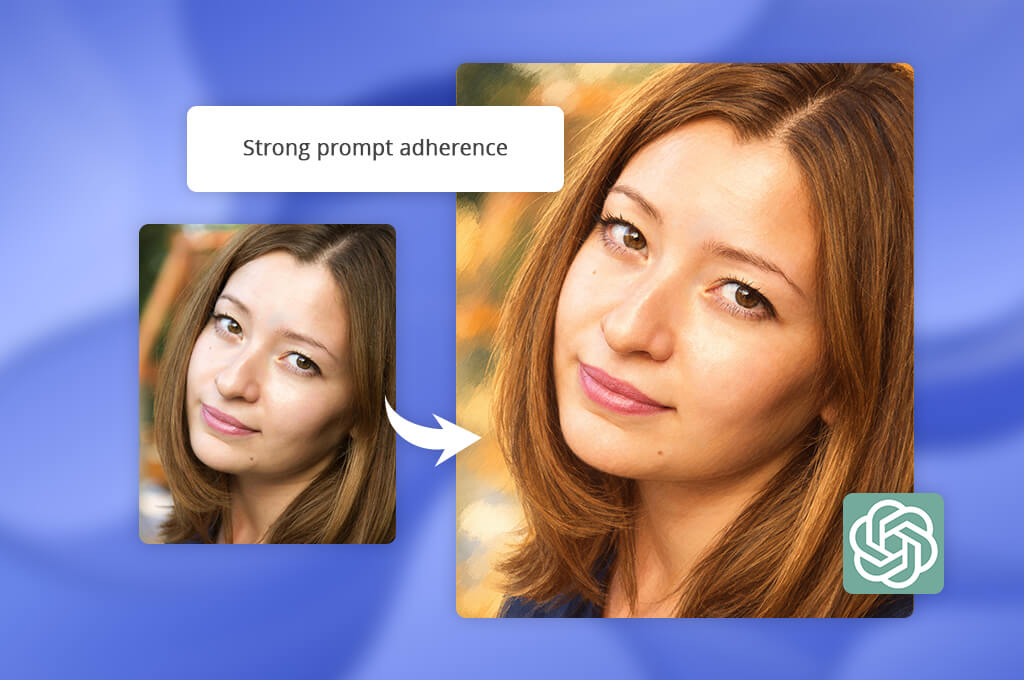
ChatGPT turned out to be a great AI image restyle tool working on the basis of plain text prompts. I uploaded a portrait and wrote the following prompt: "turn this photo into a soft editorial illustration with warm colors, subtle grain, natural facial features and gentle lighting". The result turned out to be quite artistic without losing the face recognition.
A few follow-up requests, like lighter color palette or more watercolor style, produced noticeable changes immediately. However, some skin textures and facial details were not always preserved by the AI, and some changes spilled to areas I did not want to modify.
The advantage of this generative AI tool is that the whole process is pretty intuitive. There is no need to fiddle with sliders or menus. Just tell the AI what you want and you'll get it. Soften the tones? Sure thing! More of a watercolor feel? Got it!
The drawback is that the precision of the control is not included in the offer. A tiny adjustment of one detail may cause the interpretation of the entire image.
Price: Free (2–3 images per day) or from $8/mo
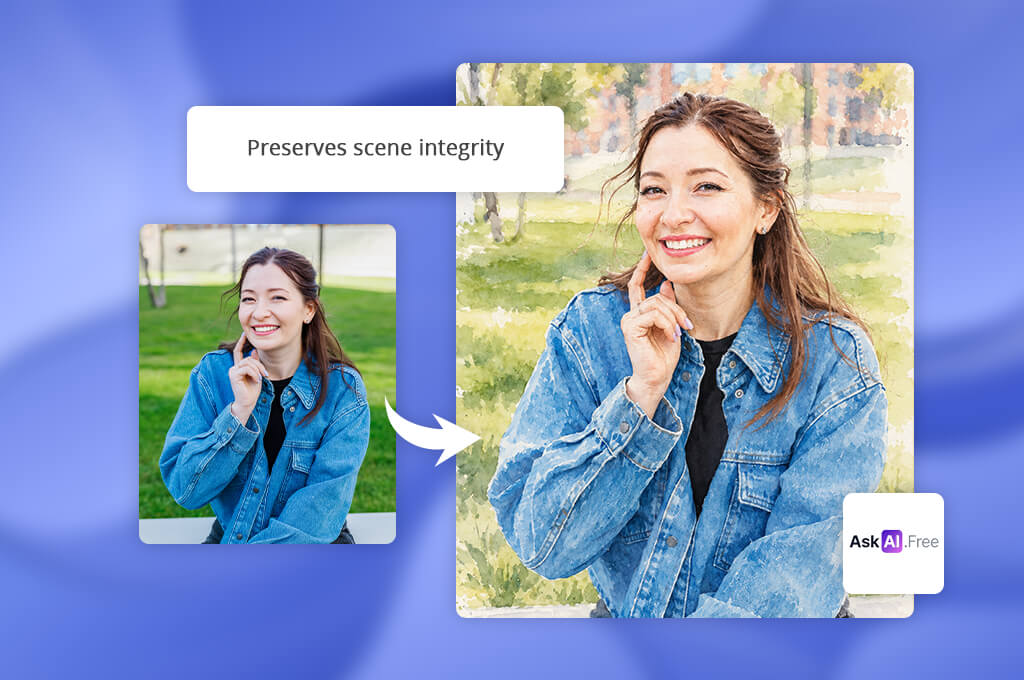
AskAI strips the restyling process down to the bone. Choose a particular style (painting, anime, watercolor, 3D rendering, cyberpunk, sketching) or type your own style prompt, set the intensity level to 0.2-0.9, upload the photo and let the tool work its magic.
I applied the following prompt to a portrait in this AI image restyler: “watercolor painting, pastel colors, delicate brushwork, and natural features of the face.” The result looks like hand-painted but still maintains the pose and overall composition.
Strength control is one of the best features in this AI image restyling tool. With a lower setting, the photo will preserve most of the original characteristics. Increase the strength, and the artistic style will dominate. You have great control over the final result. But some details could be lost in the process and the interface has some glitches that can slow you down.
But the biggest issue here is advertising. Free versions will contain a watermark and can't be used for professional projects. Except for that, AskAI does a good job. This AI tool for designers provides visual assets for social media, creative thumbnails, stylized portraits, and customized prints without complicated set up.
Price: Free (with watermark) or from $14.99/mo
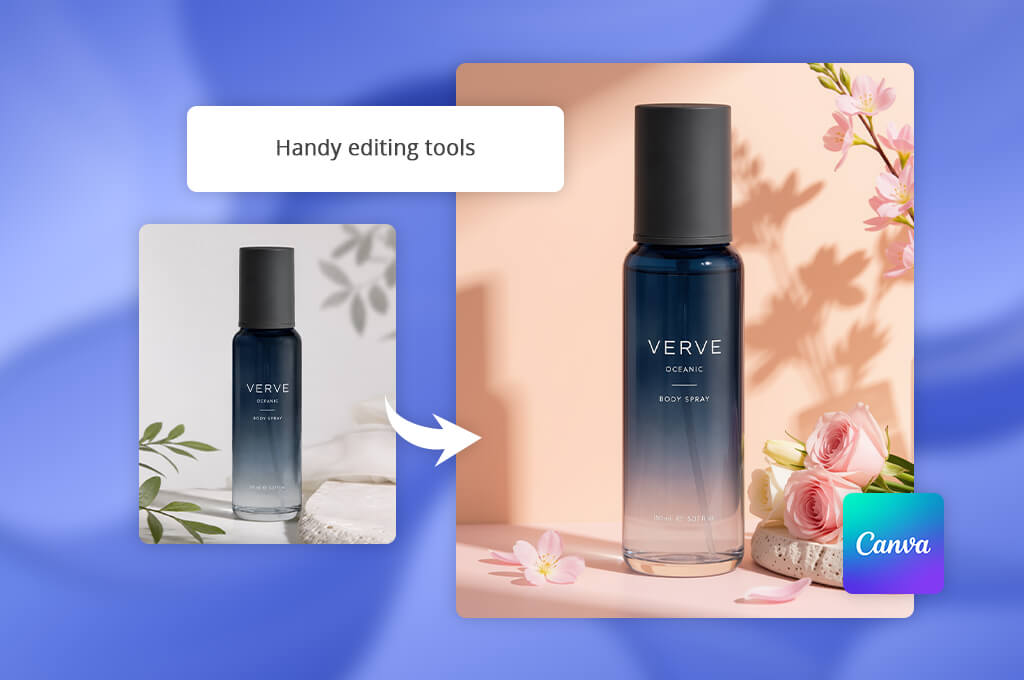
If you've ever wanted to restyle images with AI without recreating them completely, then Magic Edit in Canva is worth trying. Consider it as a special touch-up tool rather than a complete re-design. You choose which area you want to transform, describe it and give the task to AI.
It's quite a simple workflow. Upload the photo, brush the necessary part, write a prompt, click on "generate" button and enjoy the result. I tried this tool with a product image and asked to replace it with “soft pastel environment with peach-colored background, delicate shadows and fresh spring style”. As the result, the photo became much brighter and campaign-ready.
I appreciate the opportunity to describe the mood instead of manual changing of the separate elements. Together with the AI Generative Fill tool in Canva, you will be able to add, replace or modify particular elements in the photo without changing the others. When you approve the preview, you'll be able to download the result or continue editing in Canva adding text and graphics elements to complete the picture.
However, it's not ideal. Some details may be transformed not accurately and modification of one part sometimes may influence on another. For marketing visual content, when the general atmosphere is important, it works very well.
Price: Free or from $12/mo
“I used Canva to create a product visual, and the editing was quick and straightforward. The downside is that some AI features cost extra, and I didn't always get the result I expected on the first try.”

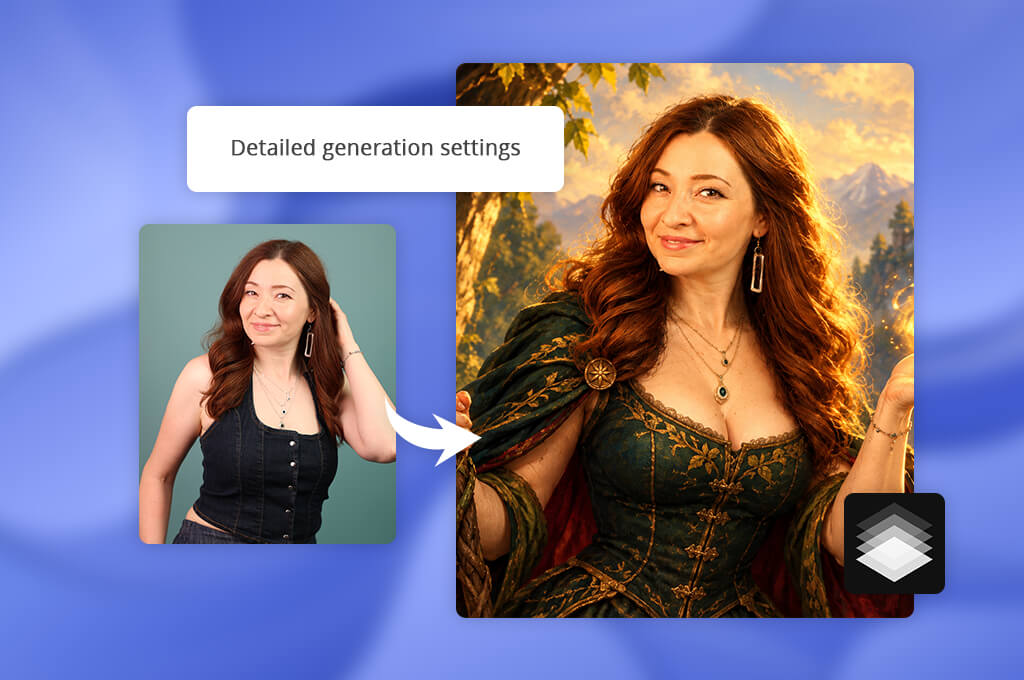
If one-prompt AI restyle tools are too easy for you, Scenario is probably exactly what you need. Instead of giving a full control to a prompt, Scenario allows to control the result with a number of dials. I tried to transform a portrait with a prompt “fantasy illustration, soft golden lighting, rich colors, painterly details and expressive features”.
The result was quite illustrative but still preserved the pose and general composition. The strongest feature in Scenario is the Influence slider. It allows to control how strictly AI will follow the original composition, so you are not just guessing about it.
Further, I played with the Style Fidelity slider and pushed the reference style further in the result. Some details of the face were changing during the iterations, but the degree of control in Scenario is much higher than in the majority of AI image restyle tools.
This AI software provides a toolkit with style reference uploads, Balanced or Creative presets, Prompt Spark to give additional directions to the result and negative prompts to exclude undesired elements. This tool is great for stylized portraits, fantasy artwork, and other projects that require consistent results.
Except for that, free version of the tool can be used only for personal or evaluation purposes. So if you are working on projects for the clients, consider the plan options first.
Price: Free (50 free daily credits) or from $15/mo
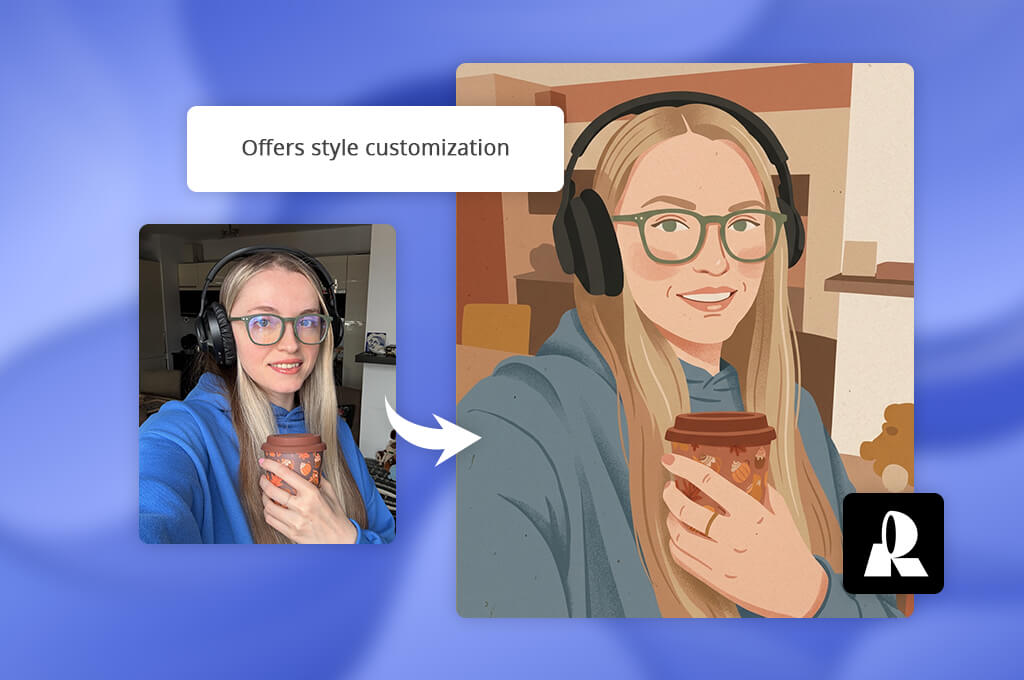
If you need visual consistency of the set of photos, Recraft can become one of the best AI image restyle tools. I used the product photo and asked to create a "minimalist editorial illustration with muted terracotta colors, soft shadows, clean shapes and paper texture".
As a result, I got an illustration-like photo that preserved the product. There was a problem with some details but for promotional graphics and creative projects it works well enough.
Inside Recraft Studio, the process is quite easy. This AI art generator allows to save custom styles based on reference images or defined color palette and use it for multiple photos.
This freedom also has some drawbacks. Sometimes the prompts are not processed correctly and complex edits may have background problems. Free version has a limit on the amount of credits, so if you plan to do many experiments, you may feel limited very soon.
Price: Free (limited credits) or from $12/mo
It is a service which reinterprets an existing image to create an illustration, painting, cartoon, or another style.
No, they are two different processes. Restyling involves an image you already have. Generation means creating something new from scratch based on a prompt.
Write a detailed prompt. Mention colors, textures, lighting, and an art style you are going to apply. In case the first result fails to deliver what you've asked, modify your description or decrease style intensity.
Write a detailed prompt. Mention colors, textures, lighting, and an art style you are going to apply. In case the first result fails to deliver what you've asked, modify your description or decrease style intensity.
Yes, it is possible. Some AI image restyle tools such as Adobe Firefly and Canva have selective editing functions (brushes or selection tools). You can replace a background, adjust colors of clothes, or transform an object without altering other photo elements.
Yes, some tools allow you to do that. For instance, Recraft and Krea AI provide a possibility to upload a reference image so the colors, textures, and general look of the resulting image would match your style.
It depends on the tool. Some of them have built-in upscaling function. However, others restrict output image resolution. Therefore, if you need a high-quality image for print purposes, it is necessary to check the exporting settings beforehand.
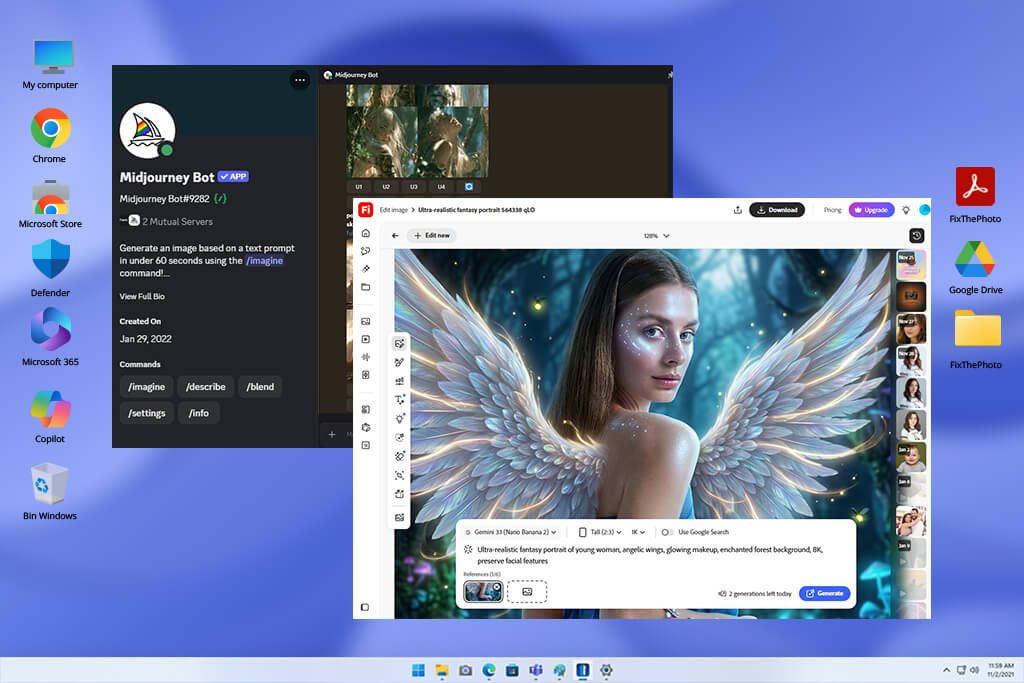
To choose the best AI image restyle tools, we conducted thorough testing of several services. Our teammates Ann, Eva, and Robin joined me in the process. We uploaded real images, created prompts in different art styles and analyzed how each tool processed them. Along with the output quality, we examined interfaces, level of customization possibilities, and any limitations that could influence usability of a particular tool.
“Used Firefly to edit a product photo recently. The background and color changes were super simple to make, and I was happy with how it turned out without a ton of extra work.”
The longlist was significant. ComfyUI, Recraft, Magic Hour, Prisma, MyArchitectAI, Photoleap, PromeAI, NightCafe, Neuralstyle, Ideogram, FLUX, Envato, Wireflow, Fotor, Leonardo AI, Freepik AI, and Picsart were considered. Not all of them passed to the next stage.
They are good tools but don't fit this review because of their limited functionality (for example, they are used mainly for image generation, architecture visualization, or editing processes in general). As for the tools that have passed, we evaluated the following parameters for each of them:
“I asked ChatGPT to transform a portrait into a soft editorial illustration. Warm tones and lightening have added so much pleasantness to the picture. The face remained unchanged but with some smooth details.”
The table below shows the advantages of each platform. You can find a suitable tool for yourself right away.
| Tool | Ease of use | Output quality | Best for | Free plan |
|---|---|---|---|---|

|
Easy
|
★★★★★
|
Selective edits and polished visuals
|
✔️
|

|
Moderate
|
★★★★☆
|
Creative and cinematic restyling
|
❌
|

|
Easy
|
★★★★☆
|
Restyling photos with different AI models
|
✔️
|

|
Moderate
|
★★★★★
|
Real-time edits and style control
|
✔️
|

|
Very easy
|
★★★★☆
|
Conversational image restyling
|
✔️
|

|
Easy
|
★★★★☆
|
Quick transformations with preset styles
|
✔️
|

|
Very easy
|
★★★★☆
|
Product photos and social media graphics
|
✔️
|

|
Moderate
|
★★★★★
|
Consistent styles and creative assets
|
✔️
|

|
Moderate
|
★★★★☆
|
Brand visuals and consistent illustrations
|
✔️
|