While working at FixThePhoto, I often need to create photo editing tutorials, educational videos, and other types of content. Recently, I decided to create a video lesson based on a tutorial saved in PDF format. This is when I started looking for a PDF to video converter to produce engaging video content with well-organized scenes automatically.
I decided to thoroughly test the available options to choose the best solutions for creating polished video editing lessons based on PDF documents. Together with my colleagues from the FixThePhoto team, we tested the popular tools to create an unbiased comparison.
We wanted to know whether these services were suitable for working with PDF files, assess the amount of manual editing required after generating a draft, and consider whether the output could be used for educational purposes.
The PDF to video converters included in this list have extensive functionality, making them more useful than the platforms designed for producing simple slideshows based on text documents. While using these services, I could use AI to generate voiceovers, scripts, and avatars. Some of them have collections of templates, allow users to add transitions, and support various customization options.
I ranked tools higher if they helped me streamline my PDF-to-video workflow and control the outputs better. The best solutions allow me to produce engaging video lessons with ease.
During the testing stage, I wanted to check how many tasks each AI PDF to video converter could help me automate. AI tools can analyze a PDF document and create a video that won’t look like a presentation with static pages. They allow me to make my video lessons easier to comprehend and minimize the amount of manual editing and preparation. Here are the main tasks I can achieve with the help of such tools.
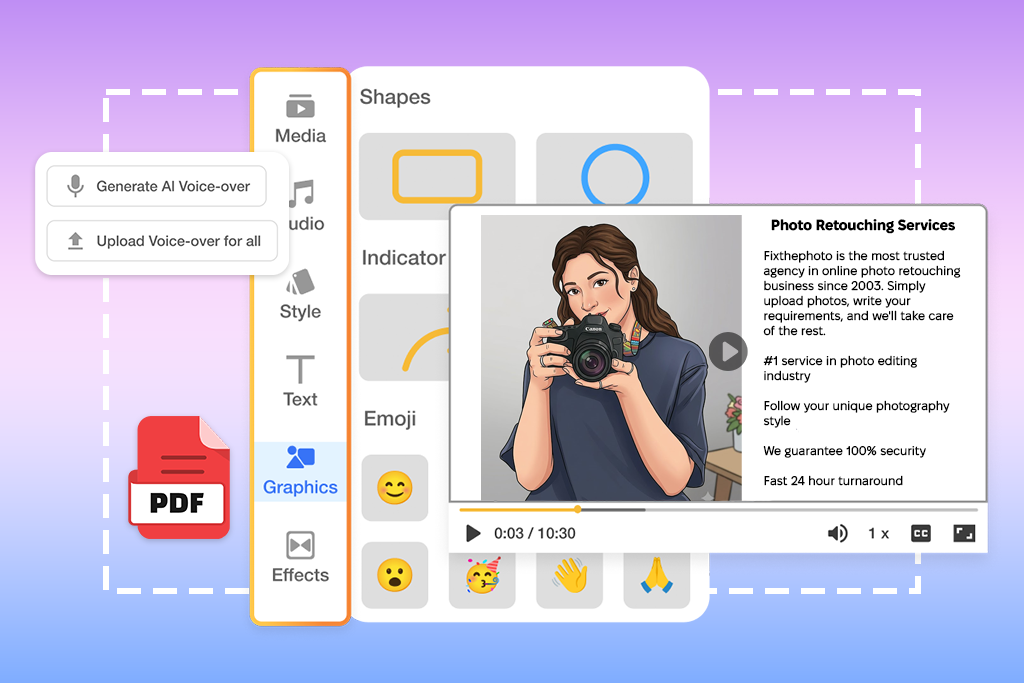
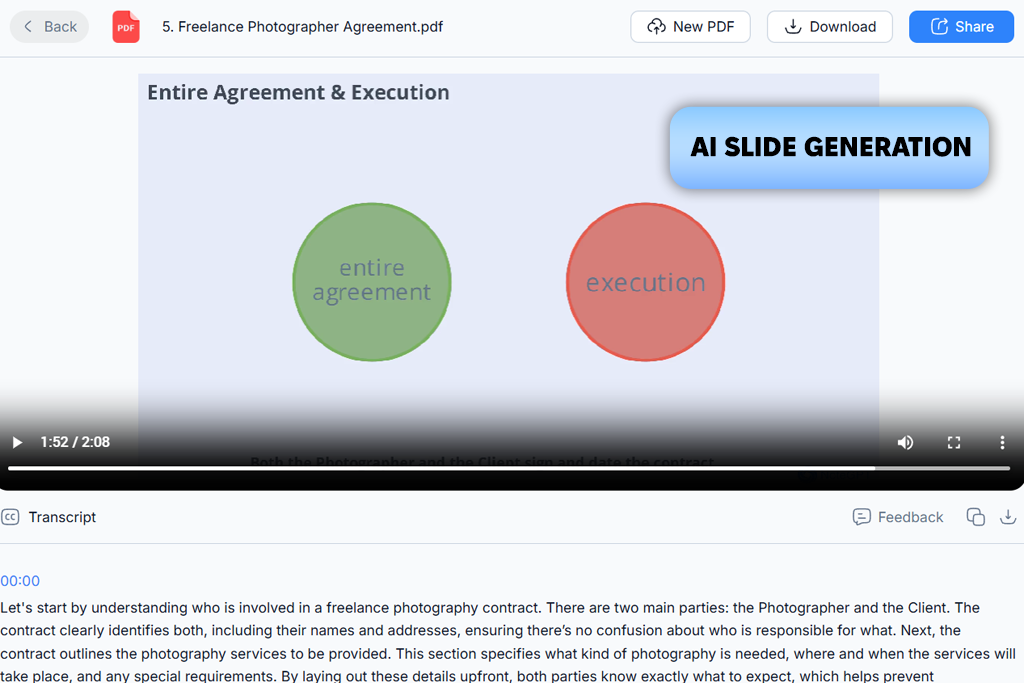
After testing this PDF to video converter online, our team concluded that NoteGPT was one of the best solutions out there. I uploaded my editing tutorial in PDF format without changing its structure. This service created a well-organized sequence of scenes. I could perform simple conversion tasks without creating an account.
It makes it easier to test this service. I dragged and dropped my document, checked the output, and decided whether the resulting video was worth further editing. I did not need to create the whole project and configure every detail to understand whether the result was what I needed.
“I uploaded a couple of PDF documents with some formatting issues to see whether this service would be able to handle them. I achieved better results with more polished documents, but I could produce decent outputs even when using messy files. This solution saved me a lot of time when I needed to create repetitive training materials.”

I selected a suitable option from the collection of AI voices and waited until NoteGPT added narration, adjusted slide timing, and inserted transitions. This converter helped me create a tutorial based on a lesson in a PDF format. As my source document was well organized, I did not need to edit the script using third-party tools or use slides to change the order of the sections.
The automated slide generation feature converted the main points into scenes quickly. This service automated most of my workflow. The only downside is that it supports limited style adjustments. It was more challenging for me to change colors, layouts, and aspect ratios than in dedicated video editing software.
I wanted to check whether the source document was important. This is why I uploaded PDFs with a lot of text and complex page layouts. NoteGPT has an in-built AI document reader that delivers better performance when one uploads well-structured pages without any defects. It is more challenging for this service to handle documents with tiny fonts and small margins.
In such cases, the results could be less consistent. This is why I made sure to upload high-quality PDFs without any formatting issues. When the quality of the source file was good enough, I could create a narration in MP4 format based on my document. This service generated a voiceover, adjusted the timing of individual slides, and created a lesson scene by scene automatically.
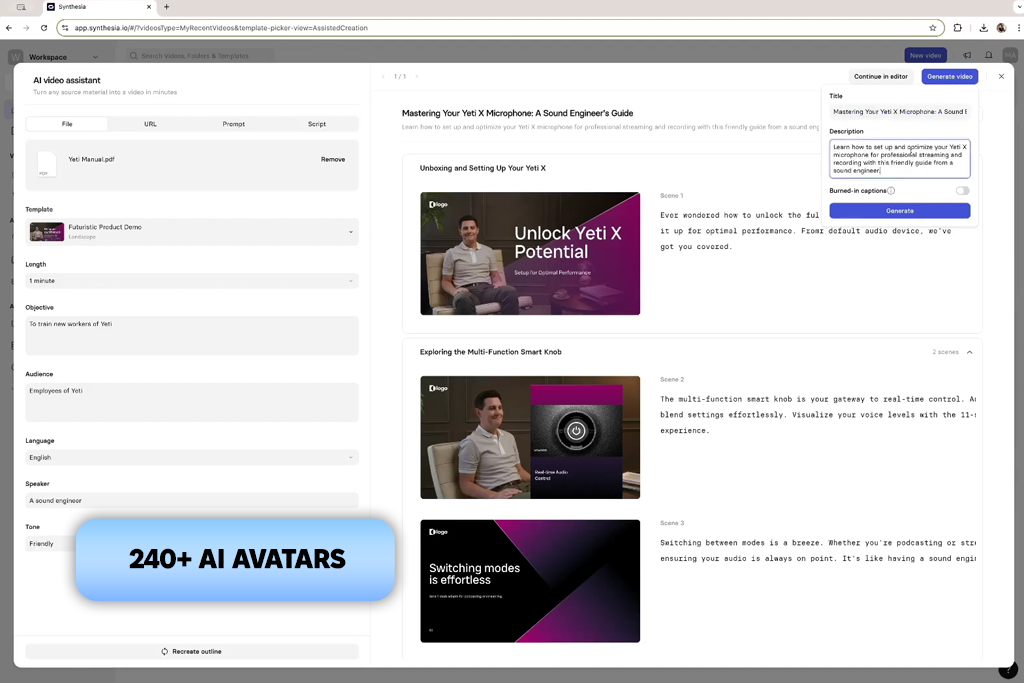
I highly recommend Synthesia for those who want to use PDF to video converter free of charge, as it allows me to turn my documents into engaging lessons. I imported my file and used the AI Script & Scene Generation feature to divide the script into separate sections.
Then, I further improved the draft. I edited some lines, changed the order of the scenes, and made other edits without regenerating the whole video. It was especially useful when I discovered that some instructions from my PDF were too long and it was impossible to explain them in detail in one scene.
“I spent more time improving the script than regenerating scenes, which makes this solution perfect for my needs. Once I was satisfied with the structure, it was easy for me to edit sentences and recreate the segments of my voiceovers.”

I was mostly interested in trying out various presets and visuals. Synthesia has a collection of 240+ stock AI avatars, which is why I could experiment with different presenter layouts and backgrounds before adding the avatar to my video. While working on video segments with a lot of text, I could write a text prompt and create suitable visuals or b-roll to make the content easier to understand. I liked the available customization options.
However, I do not think that it would be a smart idea to use an AI presenter for every type of video. The outputs occasionally lacked natural emotion, making them less suitable for personal or marketing content.
What makes it stand out among many Synthesia alternatives is that it allows me to edit the initial draft and adjust it to my liking. I could edit any part of the script to make my lessons easier to comprehend. Synthesia would regenerate the narration instantly.
It supports 160+ languages with lip-syncing, which allows me to create different versions of my videos quickly. With it, I can localize my tutorials quickly. Even though I had to clean up some segments of AI voiceovers to fix the cadence, it was easier to fix these sections instead of re-recording the whole voiceover.
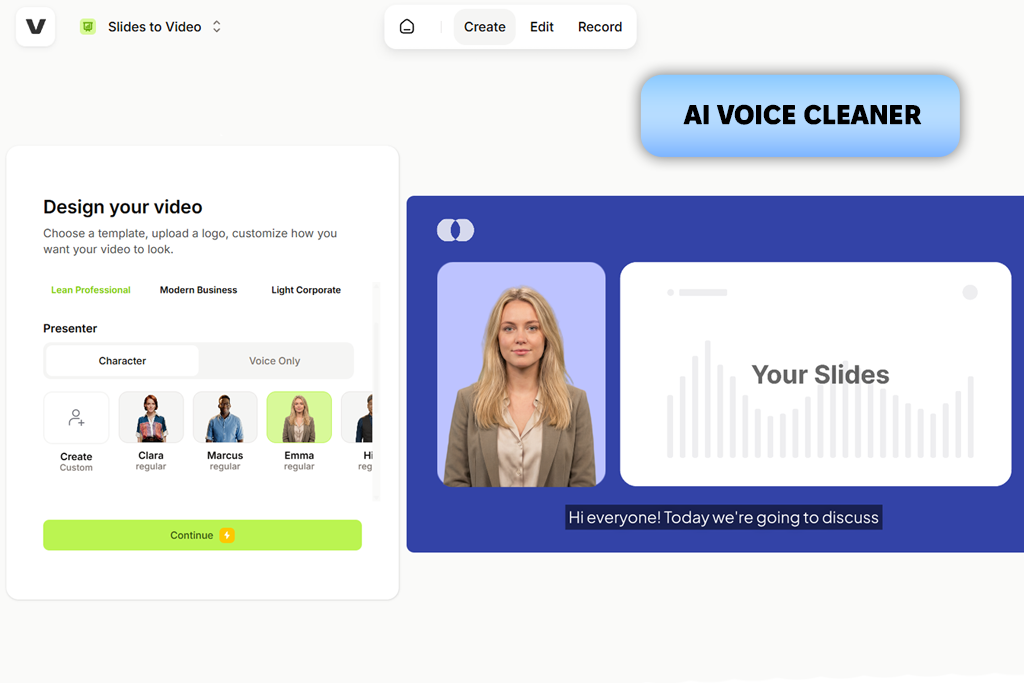
I use VEED whenever I need to create a video quickly. This is why I decided to check whether it will help me produce videos based on PDF documents without delays. I uploaded my editing tutorial and automatically generated a script.
Then, I could use an AI presenter or record a voiceover. I opted for the latter because I wanted to explain every step myself. I used the integrated screen recorder and teleprompter to create an audio. It allowed me to make my video tutorial more comprehensive and show how particular editing techniques could be used.
“It was quite convenient that I did not need to leave the editor after creating a video based on my PDF. I could trim the output or replace some scenes using the tools I could access from my browser. I switched to another software only when I needed to edit my video at a more professional level.”
I was especially pleased by the fact that this free PDF to video converter is suitable for other tasks besides conversion. I could further edit the draft it generated, trim the segments I did not need, add stock footage or music, and change the script without using third-party software. I used the AI voice cleaner to make my recording more polished and achieve consistency when editing the spoken part. I can access this service from any browser. However, it’s less convenient for working with large files, especially when the Internet connection is slow.
In addition, I tested the translation tools, as I wanted to reach out to a wider audience. VEED automatically translates subtitles into 100+ languages, which allowed me to publish my content in multiple languages. After creating a lesson, I could export it as an MP4, share it via a URL, or embed it on our website.
The free version allows users to test the available tools. However, it’s less suitable for working on client projects because the outputs include watermarks. Besides, there are video length and resolution limits. Using it, I could create a draft based on a PDF and decide whether it was worth further editing.
My colleague Nataly advised me to use HeyGen when I told her that I was looking for practical solutions for creating videos based on PDF tutorials. It stands out among many HeyGen alternatives due to its automated tools.
I did not need to create a storyboard before uploading the document. HeyGen extracted the main points from the PDF and created scenes based on individual pages. As a result, it automatically created a well-structured video. I previewed the scenes carefully and changed the segments with editing instructions as I wanted them to be more detailed.
“I like the way it automatically creates scenes. This service makes it easier for me to work with longer documents. I changed the order of several sections, but I did not need to create the whole video from scratch. I also discovered that it was easier to review the output scene by scene instead of editing the whole timeline.”

I thoroughly enjoyed experimenting with AI narration because HeyGen allows users to choose from hundreds of AI voices and 177+ languages and dialects. I adjusted the pace and tone to make my instructional video more engaging. Besides, I turned on captions to ensure that my explanations would be easier to follow even if a person watches my videos without sound.
The automatic lip-sync looked quite realistic. I wasn’t distracted by the presenter’s mouth and could focus on the lesson. However, I noticed that movement looks less natural in long and complex sequences. This is why I prefer to preview the outputs before sharing them.
HeyGen also added B-roll, animations, and transitions to the sections with a lot of text, but I could decide which elements I needed. When editing the segments where I was showing how to use specific editing techniques, I replaced generic clips with my own footage and used AI-generated visuals only for more explanatory segments.
When exporting my file in MP4 format, I can add SRT captions. Besides, I can save my videos in vertical formats for Reels or TikTok. The free version of this PDF to video AI tool has strict time restrictions and adds watermarks to outputs. This is why I used it to test this service before purchasing credits to create my tutorial.
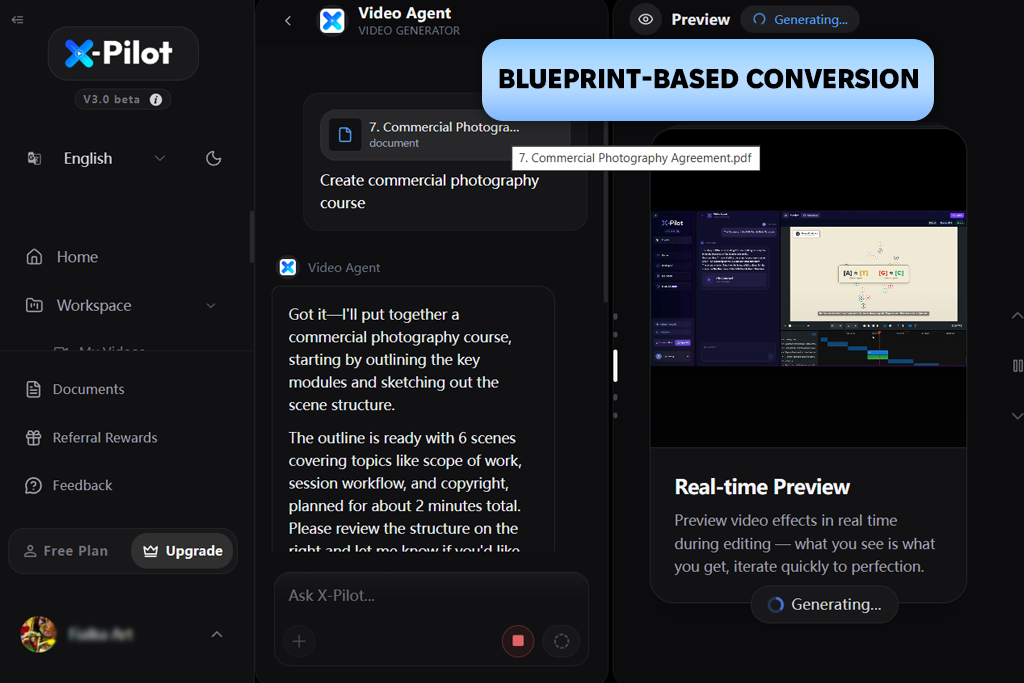
I discovered X-Pilot while looking for dedicated PDF to video converters on Google. It stands out among regular AI video generators for its narrow focus on educational and training content. It facilitates creating videos based on lesson plans, textbooks, research papers, certification materials, and SOPs.
I followed the lesson-plan approach when working on my editing tutorial because I wanted to generate narration that would follow my original document closely. I liked the fact that X-Pilot kept using the original vocabulary and examples.
I was also pleased with the way X-Pilot processed long articles. It did not create one generic presentation based on a large PDF. Instead, it produced a series of trained materials based on the chapters of my document. I discovered that it’s perfect for creating long educational courses on editing techniques.
I use one PDF as a reference document and create separate lessons dedicated to separate topics. It keeps the original formulas, citations, and policy text. This platform is perfect for producing technical and educational content.
X-Pilot is extremely easy to use. I could produce content even without a lot of video-editing experience. Besides, it allows me to use its entry-level plan to create outputs without watermarks. Its narrow focus does not allow me to experiment with designs much, making it more limited than the services that allow me to use avatars, templates, and other assets. However, I liked the fact that it helped me remain faithful to the source PDF file I used.
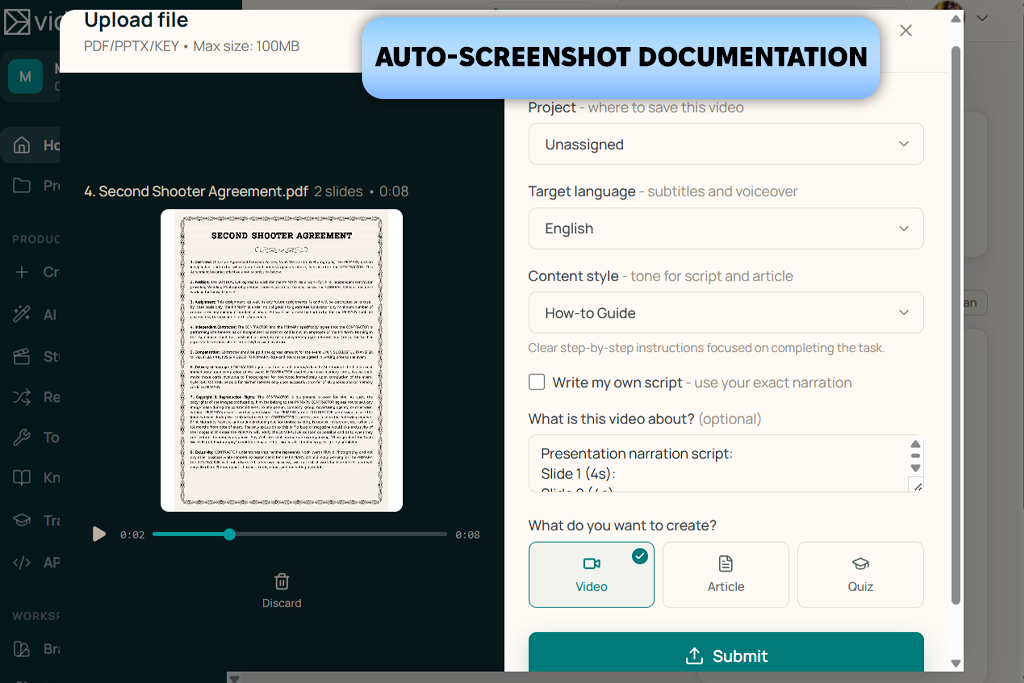
I chose a different approach when testing Vidocu, as I wanted to understand whether I would be able to further edit my file after creating a video based on a PDF. After uploading my editing guide, I used this service to generate the initial draft and then used the platform to trim some scenes, add annotations to describe keyboard shortcuts, add subtle zoom effects, and replace background music.
This solution feels less like a basic converter, as it supports the whole production workflow and allows me to edit my outputs without using third-party apps.
“This platform helped me create a video based on a help article and add subtitles without switching to other solutions. It’s perfect for our workflow, as it allows us to publish tutorials quickly. I did not need to create multiple versions separately.”
While working on my project, I could use Vidocu to convert PDF to video online, create subtitles in 100+ languages, generate AI voiceovers, and create a written how-to article with screenshots. While working at FixThePhoto, we prefer to publish our tutorials both in text and video formats.
Some of our readers prefer to use written guides, so we make sure to publish them in multiple languages to reach out to a wider audience. Here, I could use one source file and create various types of content based on it.
The UI is quite streamlined. I saved the video in 1080p MP4 format and was pleased to see that it looked polished enough to be shared without extra editing. I discovered that the free version was mostly suitable for assessing the workflow because it does not allow you to export videos with AI narration unless you pay for the premium subscription.
Vidocu allows users to produce content in different formats within one project instead of creating videos or articles manually. I discovered that this solution could be pretty useful for creating a documentation package.
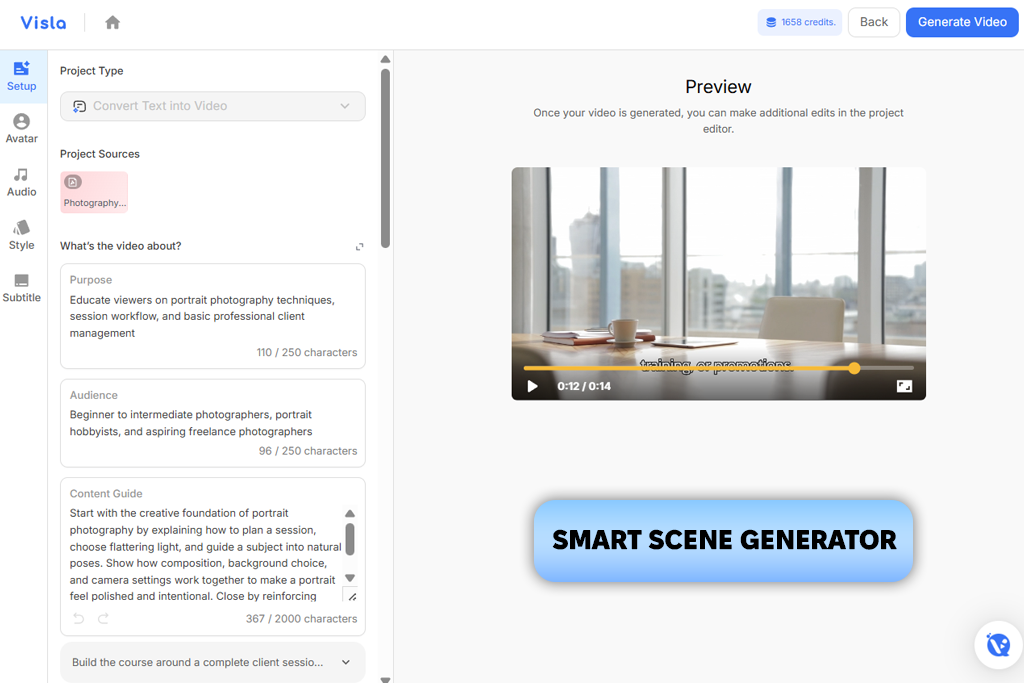
When I uploaded my how-to guide, this service automatically split the content into short segments, selected stock footage, added transitions, and subtitles. I did not need to create a video from scratch, as everything was done automatically.
I could focus on reviewing scenes and replacing stock footage that did not match the topic I was covering. With it, I could convert PDF to video free of charge. It helped me expedite my workflow and control the output better.
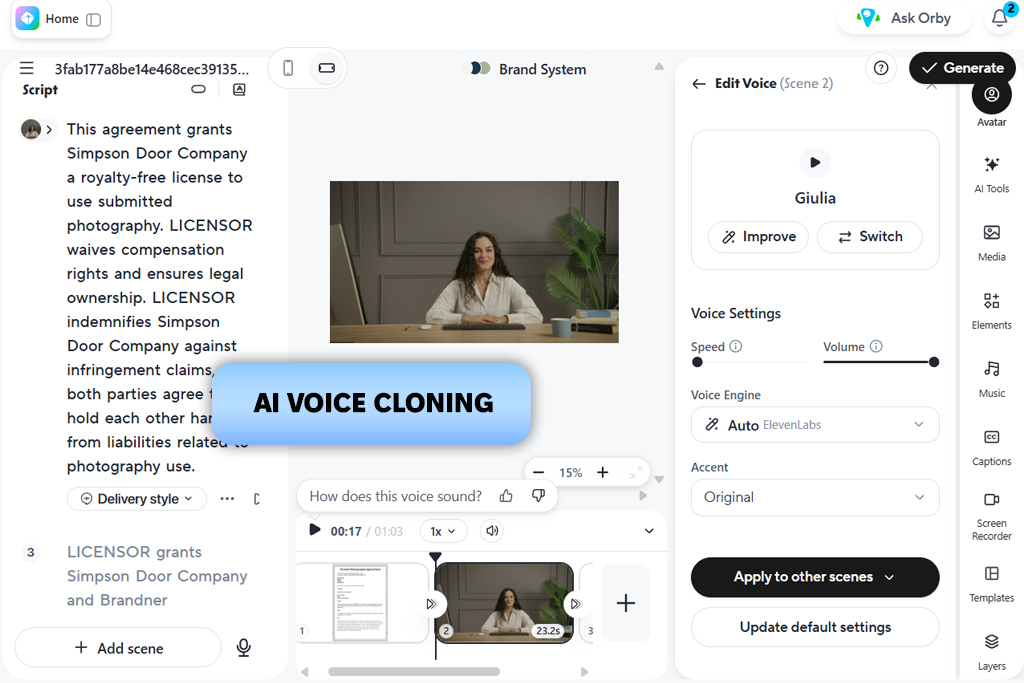
In addition, I tested different narration options because Visla allows users to generate AI avatars and perform voice cloning. I wanted to use my own voice for educational videos to make them similar to the tutorials I’d already created. This service generated subtitles automatically. I could choose relevant presets for exporting my files to social media. It allowed me to quickly create several short videos based on a longer article in PDF format.
However, I noticed some delays when the AI tried interpreting broader sections of the document. It failed to choose matching visuals for some scenes. In other cases, I had to replace some generic footage. Besides, I had to be careful with spending the available credits on generation attempts.
We wanted to achieve consistent results when comparing these platforms, which is why we tested every service using the same type of material instead of uploading different files. We used a tutorial saved in PDF format, as we often use such guides at FixThePhoto. This document included detailed instructions, screenshots, headings, callout boxes, and longer text sections, which helped us understand whether each service was suitable for working with educational content people often use to produce videos.
Our main goal was to test the quality of the conversion. I considered whether these services interpreted documents with high accuracy, checked whether they followed the structure of the original document, and assessed the way they used the content to create scenes. In addition, I wanted to see whether it was easy to understand instructions, as I did not want them to be shortened to the point, they might become incomprehensible.
“Everyone agreed that we would not focus solely on conversion speed, as we wanted to get the video outputs we could actually use. We spent a lot of time checking whether the AI kept the original order of the tutorial and explained each step in detail. It was no less important than checking editing tools.”
Vadym also decided to assess the editing workflow after converting a document into a video. We wanted to find a PDF-to-video converter that would allow us to edit the initial AI-generated draft.
This is why Vadym checked whether it would be easy to change the order of the scenes, replace visuals, edit scripts, change narration, add subtitles, and make other subtle edits without recreating the whole project from scratch. As we often need to update the content of our tutorials, we were interested in both flexibility and automation.
Many people generate video tutorials that can be used for training, online education, or onboarding. This is why Nataly was interested in presentation quality. She considered AI voiceovers, generated subtitles, scene transitions, stock visuals, language support, export options, and the viewing experience. Instead of focusing on producing cinematic results, Nataly wanted to get videos that conveyed our ideas clearly and were as easy to follow as the initial documents.
Finally, I decided to check whether these platforms could become a part of our daily workflow. I wanted to know whether the available free versions have limited functionality. Besides, I wanted to check whether these platforms supported high output quality, extensive customization, and high rendering speed.
I needed to discover the services that produced videos that did not require much manual editing. I concluded that the best solutions do not necessarily have extensive lists of features. However, they allow users to spend less time on production and generate videos that would be as comprehensible as the original PDF files.


![7 Best Free Monogram Makers [{{%year}} FixThePhoto Choice]](http://fixthephoto.com/blog/images/gallery/news_main__preview_29343.jpg)

![7 Best AI Article to Video Generators [100% FREE & ONLINE]](http://fixthephoto.com/blog/images/gallery/news_main__preview_29363.jpg)
![9 Best AI Picasso Generators [{{%year}} FixThePhoto Choice]](http://fixthephoto.com/blog/images/gallery/news_main__preview_29366.jpg)



















