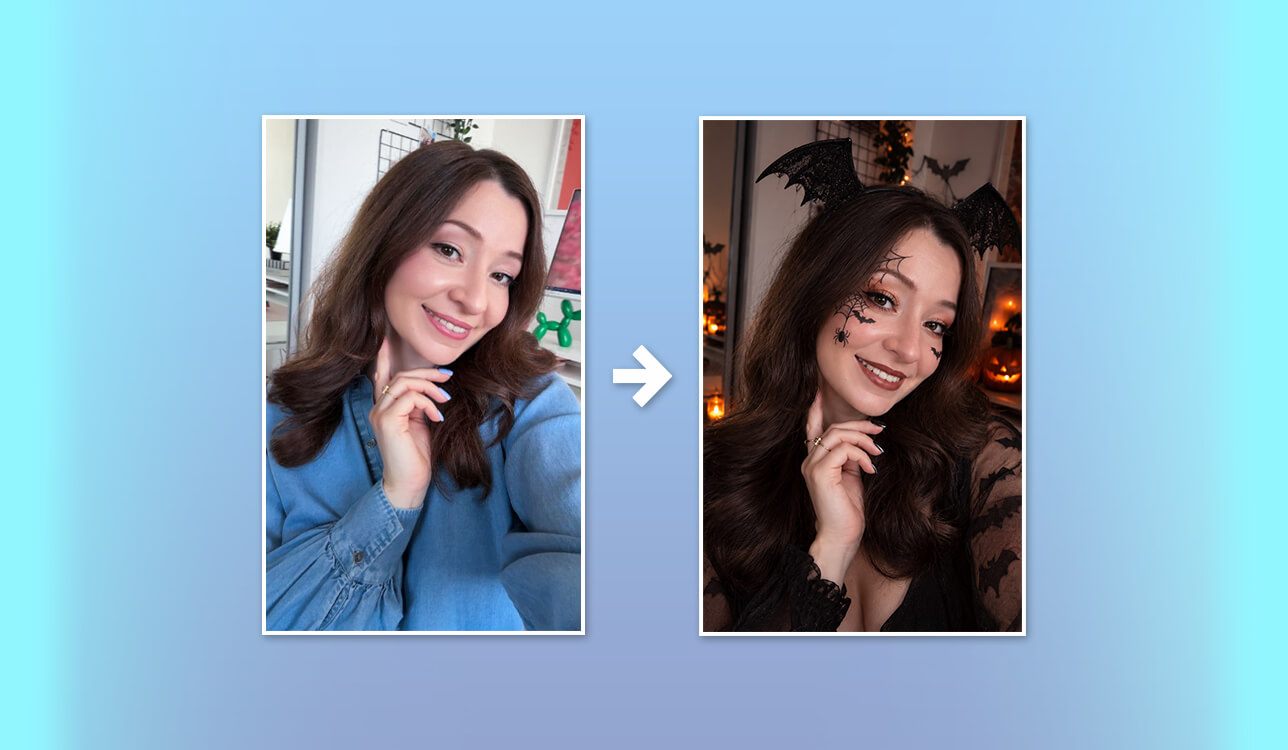
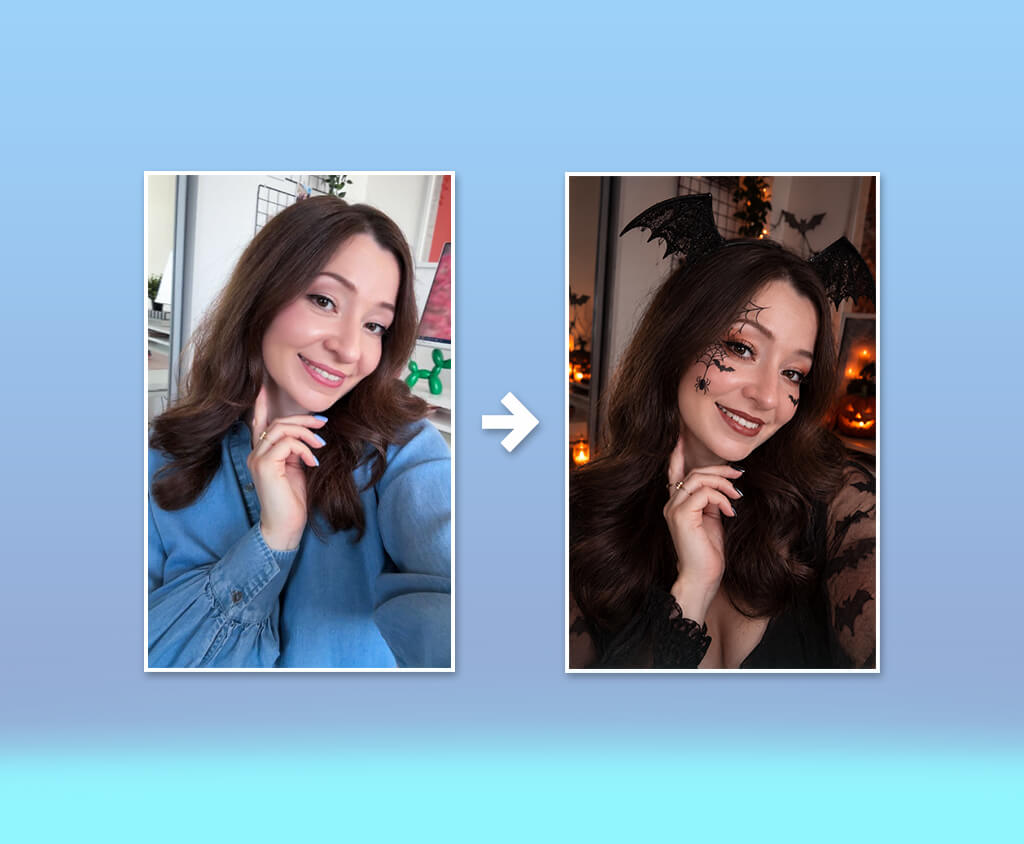
My colleagues and I wanted to give our office a Halloween makeover, including some fun themed photos for the party. Since we hadn't planned anything in advance, putting together a proper photoshoot felt like too much hassle. We decided to look for a simpler way to play around with different Halloween looks, from vampire makeup and witch costumes to creepy, haunted settings, without spending time and money on costumes or props.
We decided to try AI Halloween photo generators, but the results weren't always what we hoped for. Some tools changed faces beyond recognition, while others made costumes look fake or failed to follow our instructions. To find the options that worked best, I tested over 15 tools with help from my colleagues.
We looked at the quality of the images, the editing options, how easy each tool was to use, and how long it took to get a result. Here are the tools we liked most for creating Halloween portraits, social media content, and decorations for the office.
AI tools give you plenty of ways to explore Halloween photography ideas, whether you want a convincing vampire portrait, zombie makeup, a spooky costume, or a haunted background.
Still, the results don't always look right on the first try. Facial features may come out distorted, props can look unrealistic, and lighting that doesn't match the scene can make the whole photo feel fake.
Expert tip: If something looks wrong, there's no need to redo the entire photo. A good AI tool for designers lets you edit specific areas with inpainting or selective editing. This way, you can fix the problem without changing the parts of the image that already look good.
Price: Free (limited credits) or from $11.99/mo.
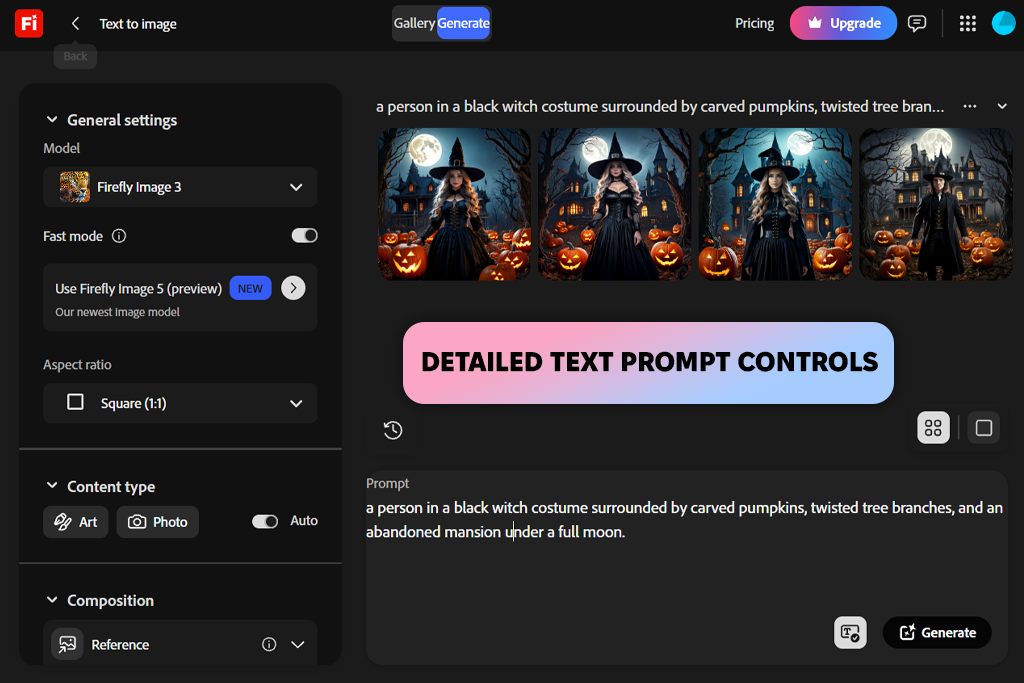
Adobe Firefly is a useful AI Halloween photo generator for creating spooky portraits and gothic scenes from text prompts or reference images. Its web interface is easy to navigate, with settings for lighting, composition, image style, and aspect ratio.
I tested it by creating a scene with a person in a black witch costume, carved pumpkins, twisted tree branches, and an abandoned mansion under a full moon. The result had rich Halloween colors and eerie shadows, but I needed a few attempts to get the costume details right.
Firefly can also generate high-resolution images that work well for printed Halloween posters, office decorations, and detailed social media graphics. I also tried making vampire portraits, adding creepy makeup, and creating haunted forests and foggy graveyards.
The style controls and reference-image options helped me keep a similar look across different images. Another plus is that Firefly works with Photoshop, so I can make further edits without starting over in another tool.
I used Generative Fill to add things like floating ghosts, glowing candles, and extra pumpkins to my photos. Generative Expand was useful when I needed more space for a Halloween poster. Firefly gives me more freedom to change a photo than a basic filter app, but some edits still needed fixing, especially hands, costume details, and decorations that overlapped. The free Adobe software also comes with a limited number of generative credits, so creating several versions can use them up quickly.
Price: Free (limited credits) or from $19.99/mo.
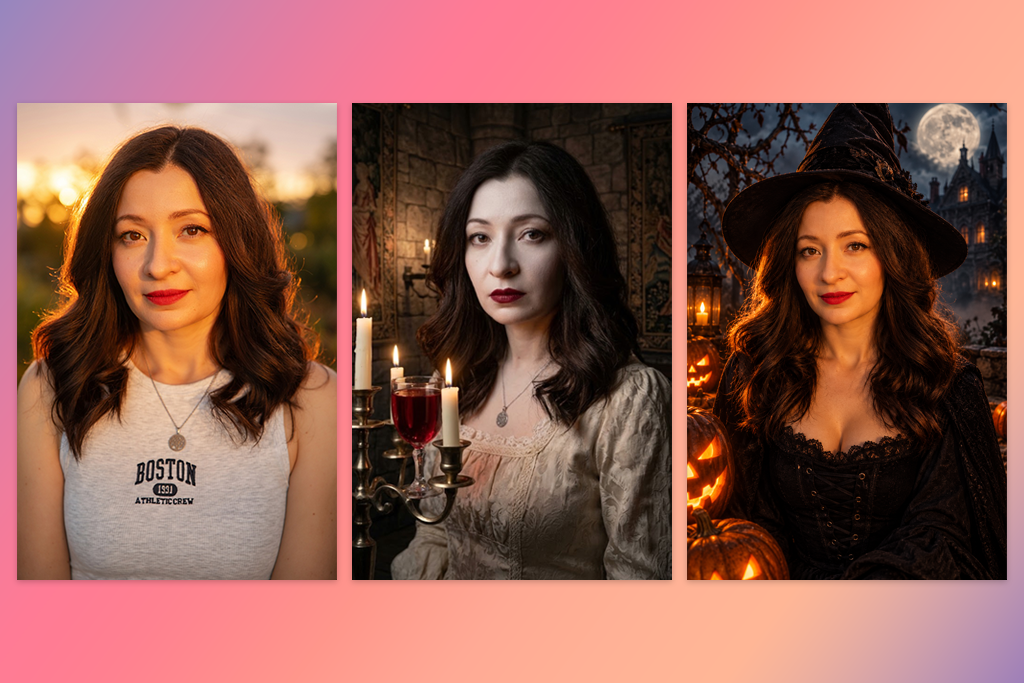
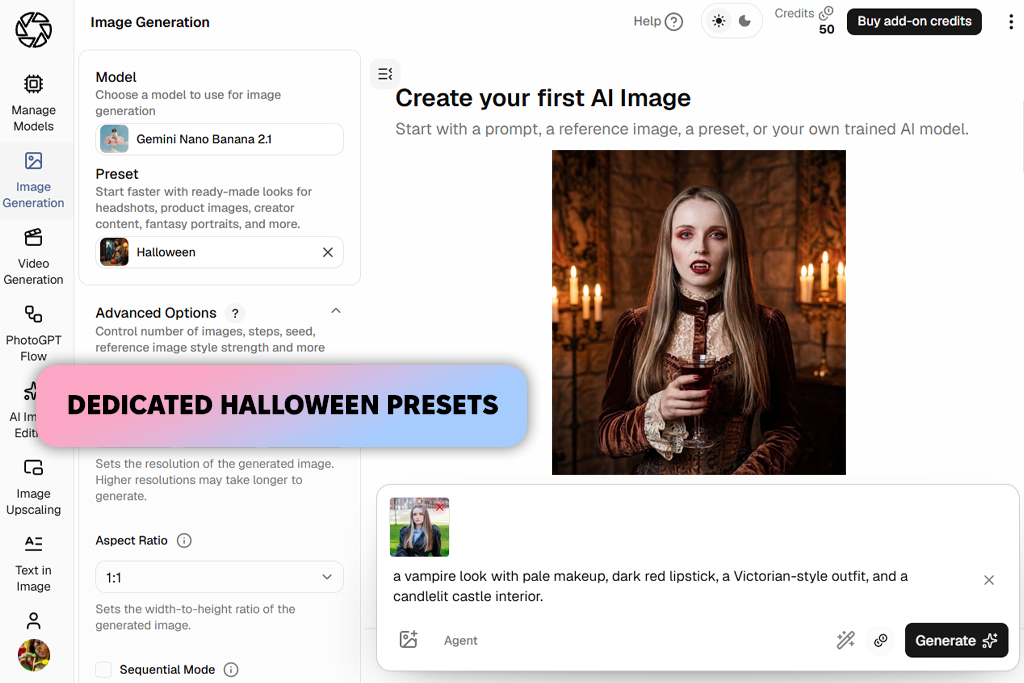
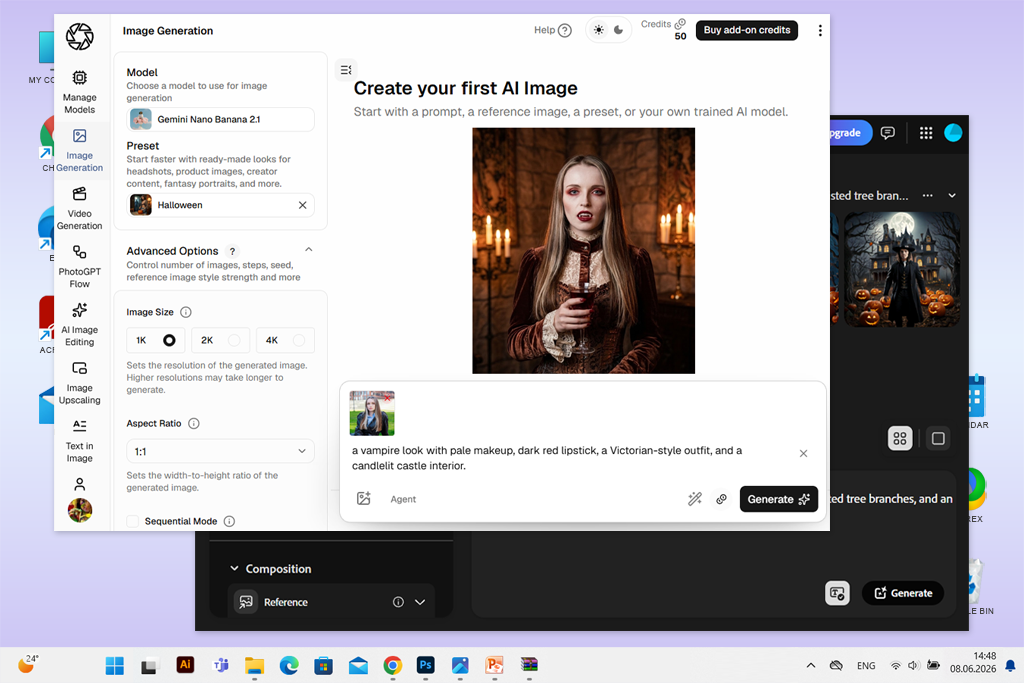
PhotoGPT lets me give a regular selfie a Halloween makeover with different costumes, makeup, and spooky backgrounds. I could upload a reference image or describe the look in a text prompt. I tried a vampire style with pale makeup, dark red lipstick, a Victorian outfit, and a candlelit castle in the background. The lighting and fabric details looked good, but I had to adjust the prompt a few times to get the face and costume right.
Another thing I liked about this free online Goth AI generator was its collection of ready-made Halloween prompts. I could use them as they were or change the details to suit my idea.
Some examples included a dark bedroom with vintage '90s posters and a masked figure standing in the doorway, a Joker-inspired look with smeared makeup and a creepy grin, and a gothic princess in a black lace dress inside a candlelit castle.
One feature I liked in PhotoGPT was the personal model, which helped keep my appearance consistent across different Halloween looks. I could try witch makeup, gothic outfits, or haunted forest backgrounds without changing the person in the photo. This AI Halloween photo editor also supports HD images and lets me turn them into short videos for Halloween Reels.
Setting up a personal model takes a little effort, though: I needed 12-15 selfies, and the process took about 30 minutes. Some images also had strange-looking fingers or unreadable text on background objects. Free credits are available, but more advanced features and additional generations require a paid plan.
“I used PhotoGPT to try a gothic witch look, and the result worked well as a Halloween profile picture. Some details, especially the hands, didn't look quite right, though.”

Price: Free (10 free credits) or from $15/mo.
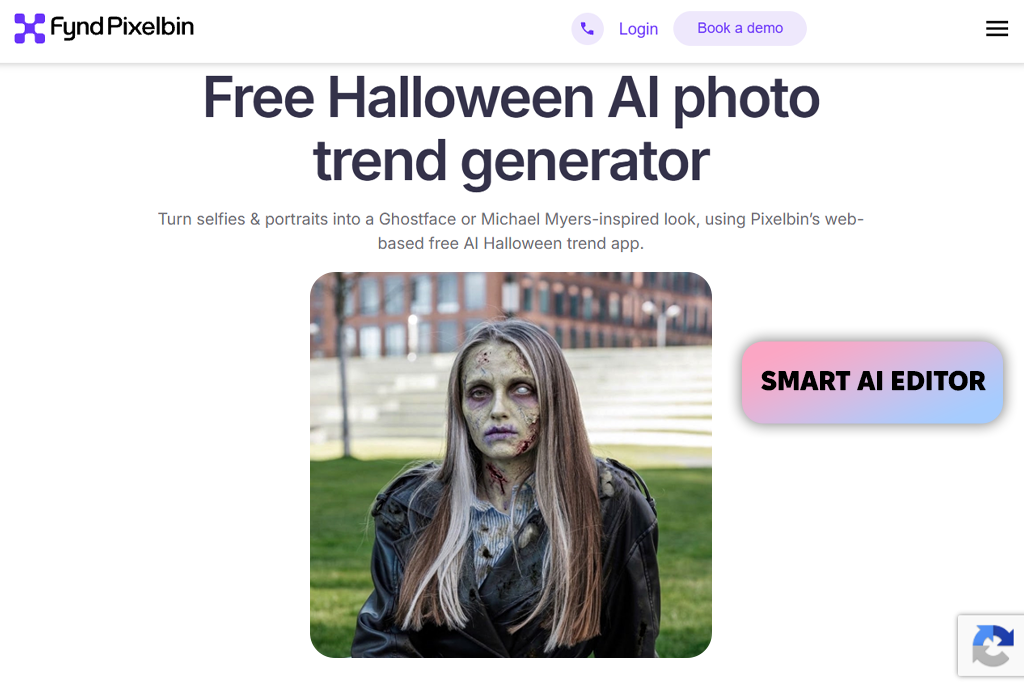
Pixelbin is a handy option for trying popular Halloween looks without spending time on manual edits. I used its AI Ghostface generator, then tried vampire makeup, ghostly fog, and zombie effects.
With the Smart AI editor, I could upload a photo and describe the changes I wanted, leaving the tool to apply the effects. I also tried adding details like glowing pumpkin light, skull makeup, and a spooky witch-inspired look.
The results looked suitably spooky, although some facial features lost their natural appearance when I tried more elaborate effects. Pixelbin is also convenient because this free AI Halloween photo generator works in a browser without requiring an account. It supports JPG, JPEG, PNG, and WEBP files, and I could download the finished images in HD without watermarks.
Pixelbin has plenty of other effects to try, including a Ghibli AI generator and filters that give photos an anime look. However, the results weren't always great with group shots, unusual angles, or tricky lighting.
Faces could look distorted, and some edits didn't blend well with the original photo. The free version is fine for occasional Halloween pictures, but you'll likely need a paid plan or extra credits if you want to edit lots of images.
Price: Free (40 trial credits) or from $14/mo.
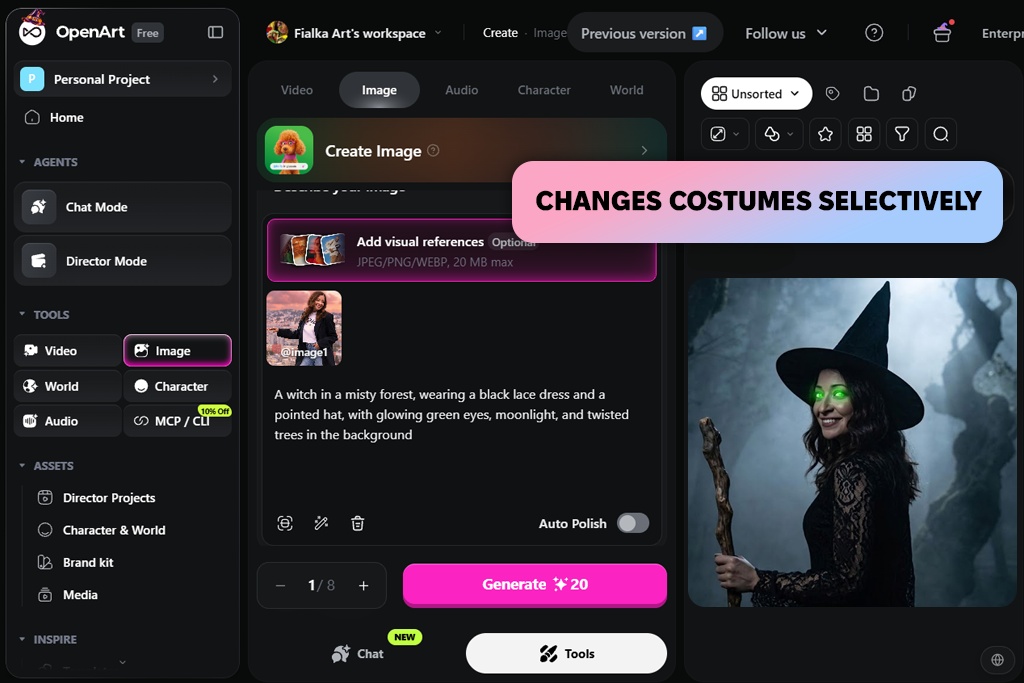
OpenArt is a versatile generative AI tool for creating Halloween portraits, with more editing options than a basic filter app. I uploaded a selfie and used the Create Image tool to turn it into a witch portrait with a black lace dress, a pointed hat, glowing green eyes, and a misty forest under moonlight.
I could adjust the prompt, aspect ratio, and resolution to try different looks.
For edits to my original photo, Edit Image lets me describe changes, such as replacing my jacket with a black lace dress. With Area Edit, I could select a specific part of the image to change, add a witch's hat, or swap the jacket for a vampire cape without affecting my face or the rest of the background.
I also tried the ready-made Halloween AI video templates, which let me turn a finished portrait into a short clip. For example, I could describe how the mist should drift through the trees or how the cloak should move in the wind. Another useful feature creates prompts from reference images, so I could upload a Halloween picture and use it as inspiration for other costumes and backgrounds.
The main downside of this online Halloween photo editor is that getting the details right can take a few attempts. The free plan is limited, too, so trying lots of different ideas may require a paid subscription.
Price: Free (limited credits) or from $9.99/mo.
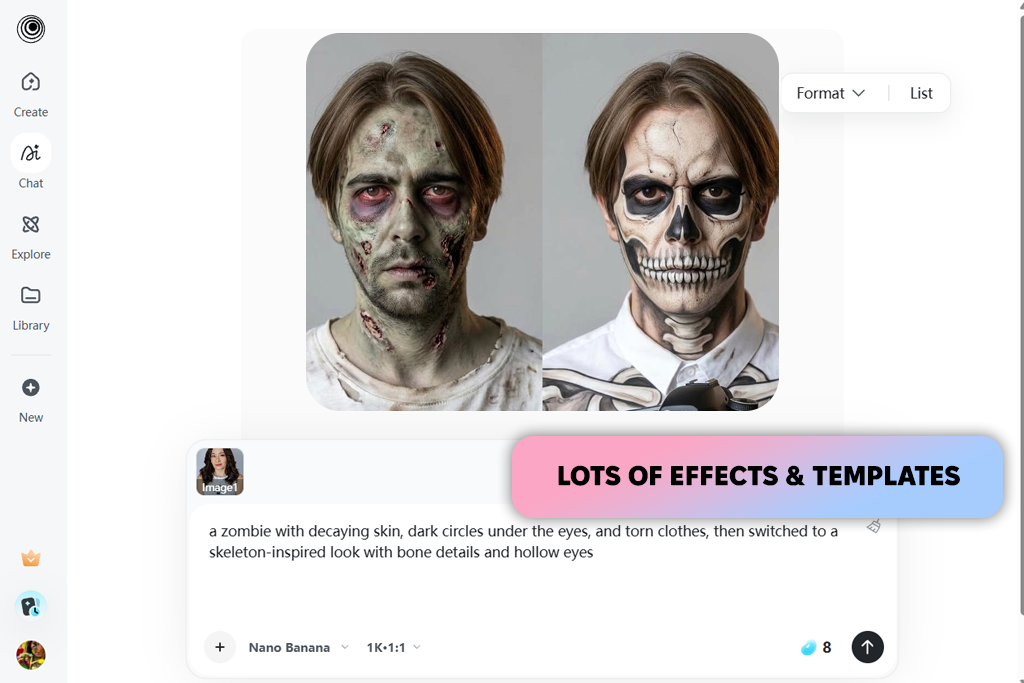
With insMind, I could turn a regular photo into an AI Halloween portrait in just a few steps. I first tried a zombie look with damaged skin, dark circles under the eyes, and torn clothes, then switched to a skeleton effect with hollow eyes and bone details. I only had to upload my photo and describe the look I wanted. The results weren't identical every time, though, and the original photo made a difference in how well the effects turned out.
insMind has a good selection of Halloween effects, including witch looks, zombie makeup, misty backgrounds, and pumpkin-themed edits. This AI software also lets you edit pet photos, so you can give your cat or dog a Halloween makeover, too.
It's a handy Halloween profile picture maker for creating themed images for Instagram, TikTok, Snapchat, or Discord. However, most edits use preset effects, so you can't adjust every detail as precisely as you could in a full photo editor. Some effects also change facial features or make the photo look too heavily filtered.
Price: Free (5 credits per day) or from $29.99/year
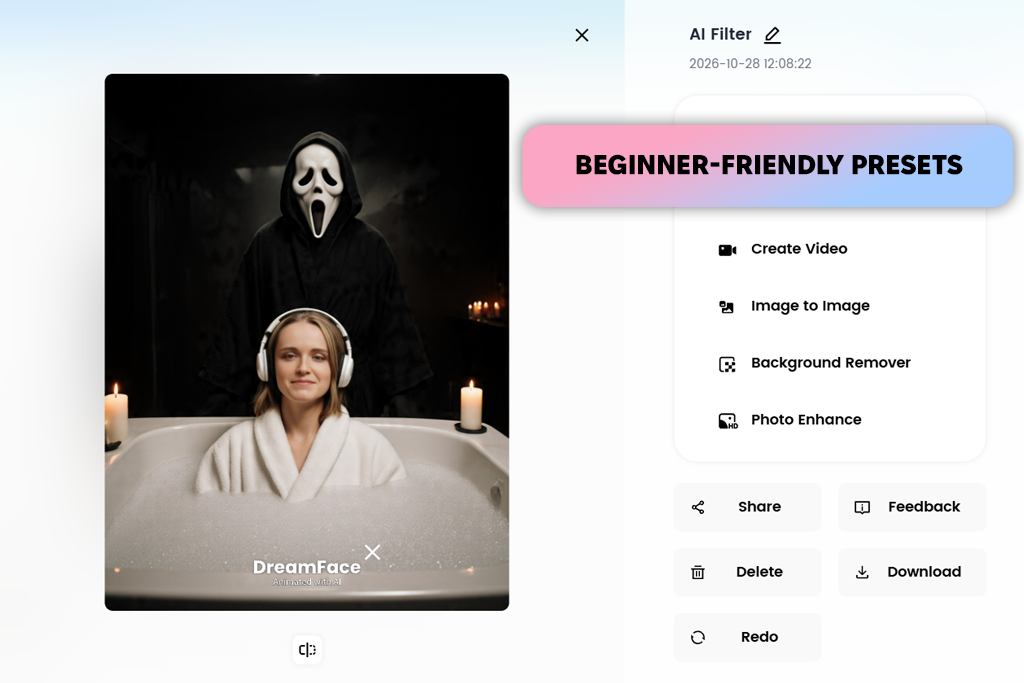
DreamFace has several Halloween styles to choose from, so I tried Dark Bathroom, Horror Y2K, Midnight Zombie, and Threat in the Mirror to see how each one looked. I used a clear selfie and compared the changes to the makeup, lighting, and background, while checking whether my face still looked like me.
Dark Bathroom gave the photo a creepy feel, while Midnight Zombie went for a classic undead look. Threat in the Mirror stood out for its unsettling effect. This Halloween AI photo maker also has Halloween Pumpkin and Jokester styles for anyone who prefers fun, playful edits over full-on horror.
With DreamFace, I could turn a regular selfie into a Halloween portrait with spooky lighting, bold makeup, costume details, and horror-inspired effects. The results would work well for Instagram profile pictures, TikTok posts, party invitations, or a fun surprise to share with friends. Some effects made facial features look a little strange, though, and changing specific makeup or costume details was harder than in a full AI photo editor.
“DreamFace changed my selfie in seconds, and I didn't have to write any prompts. The preset styles were easy to use, but I couldn't customize every detail.”
Price: Free (200K AI chat tokens per day) or from $19/90/mo.
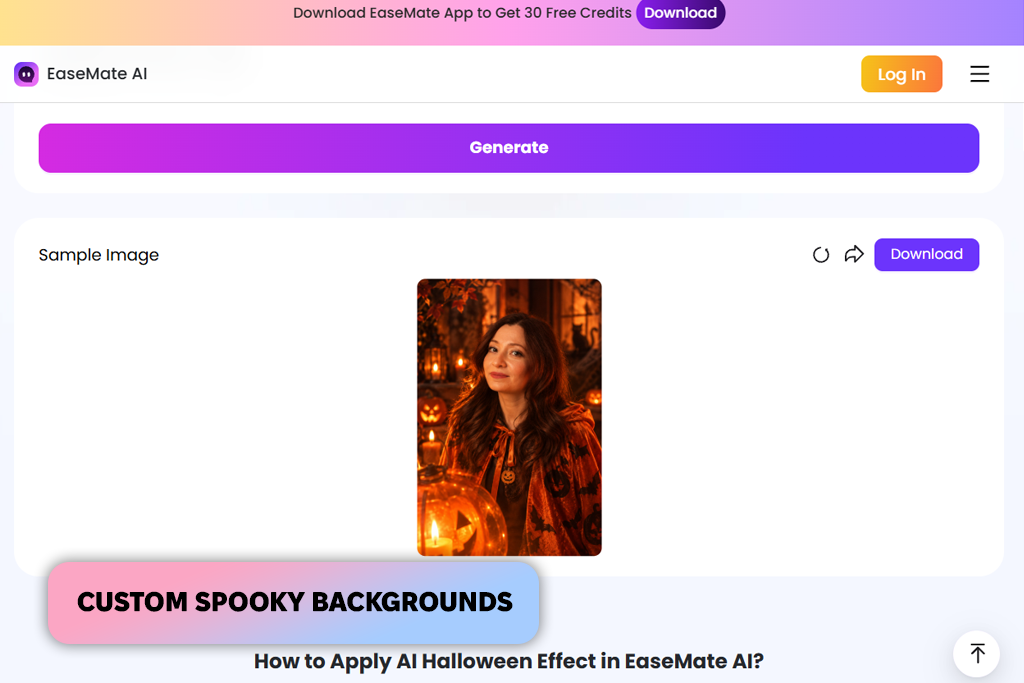
EaseMate AI works as an AI Halloween costume generator, offering ready-made looks and a prompt box for custom ideas. I uploaded a portrait in JPG, PNG, JPEG, or WEBP format (up to 20 MB) and tried styles like Dead Nurse, Skeleton, Witch, Mummy, and Horror Movie. Switching between looks was quick, thanks to the one-tap costume and makeup effects. I liked the Skeleton and Witch versions, although some facial features looked a little distorted in the final images.
You can use pet photos and landscapes as well as selfies, so there's more to try than just Halloween portraits. I could create a witch-themed image, make a skeleton profile picture, or add a spooky background to a social media post. This AI image generator lets you do this for free online, without signing up, and download images without a watermark. However, the results can vary. Faces may look different from the original, and the tool sometimes misses details in more complex prompts. The free plan also has usage limits.
An AI Halloween photo generator lets you give a regular photo a spooky makeover. Just upload a selfie, pick a look like a vampire, witch, zombie, or skeleton, and the tool adds matching makeup, costumes, lighting, and a Halloween-themed background.
Choose a clear photo with good lighting and your face fully visible. A selfie taken straight on usually gives the best results. Blurry pictures, deep shadows, or anything covering part of your face can make it harder for the tool to get the details right.
The right tool depends on the look you're going for. Adobe Firefly gives you more freedom to create a detailed Halloween scene, while EaseMate AI lets you try different costumes using ready-made templates. DreamFace is a good choice when you want a quick spooky portrait without having to write a prompt.
Yes. EaseMate AI lets you create Halloween-themed pictures of pets, too. You can try a pumpkin costume, a ghost effect, or a witch-inspired look. For the best results, start with a clear photo where your pet's face and body are easy to see.
Hands, teeth, faces, and costume details can sometimes look unnatural, especially in busy scenes. If the result isn't quite right, try a clearer selfie, use a simpler prompt, or choose a preset that matches the Halloween look you're after.
Some tools let you bring Halloween photos to life. With DreamFace, you can turn a still image into a video, while OpenArt lets you animate images you've created. For example, you could make a vampire portrait move, add fog drifting through a haunted forest, or create flickering candlelight. The available features and free credits depend on the platform.
If the result doesn't look right, try another style, simplify the prompt, or use a clearer photo with better lighting. If the zombie effect changes your face too much, start with subtle makeup and add details like blood, scars, and dark shadows gradually. Some tools also let you fix specific areas without changing the entire photo.
I worked with my teammates, Robin and Tetiana, to test different AI Halloween AI photo makers. We tried a range of looks, from vampire portraits and zombie makeup to witch costumes, skeleton effects, and spooky backgrounds. We paid attention to how well each tool kept facial features intact, how easy it was to create the desired look, and whether the finished images were good enough to share.
“Adobe Firefly lets me create my own Halloween scenes rather than stick to preset filters. It's great for detailed edits, although getting everything just right can take a few tries.”
We also tried YouCam Online, Flyne.ai, Spooky AI, Fotor, Pincel AI, Bylo.ai, FlexClip, VisualGPT, Recraft, and PhotoGPT. Some weren't designed specifically for Halloween, while others had similar features or fell short in image quality, ease of use, or variety of Halloween effects.
What we focused on during our testing:
“OpenArt did a good job of adding fog and dramatic lighting to my Halloween scene. A few details still looked off, though, and trying again used up more credits.”
Adobe Firefly is the best choice for creating Halloween images from scratch, with detailed costumes, spooky settings, and carefully adjusted lighting. PhotoGPT is better suited to personal portraits, letting you try vampire, witch, and other Halloween looks while keeping your face recognizable.
For quick edits, Pixelbin offers popular effects like Ghostface, zombie makeup, and glowing pumpkins without much manual work.