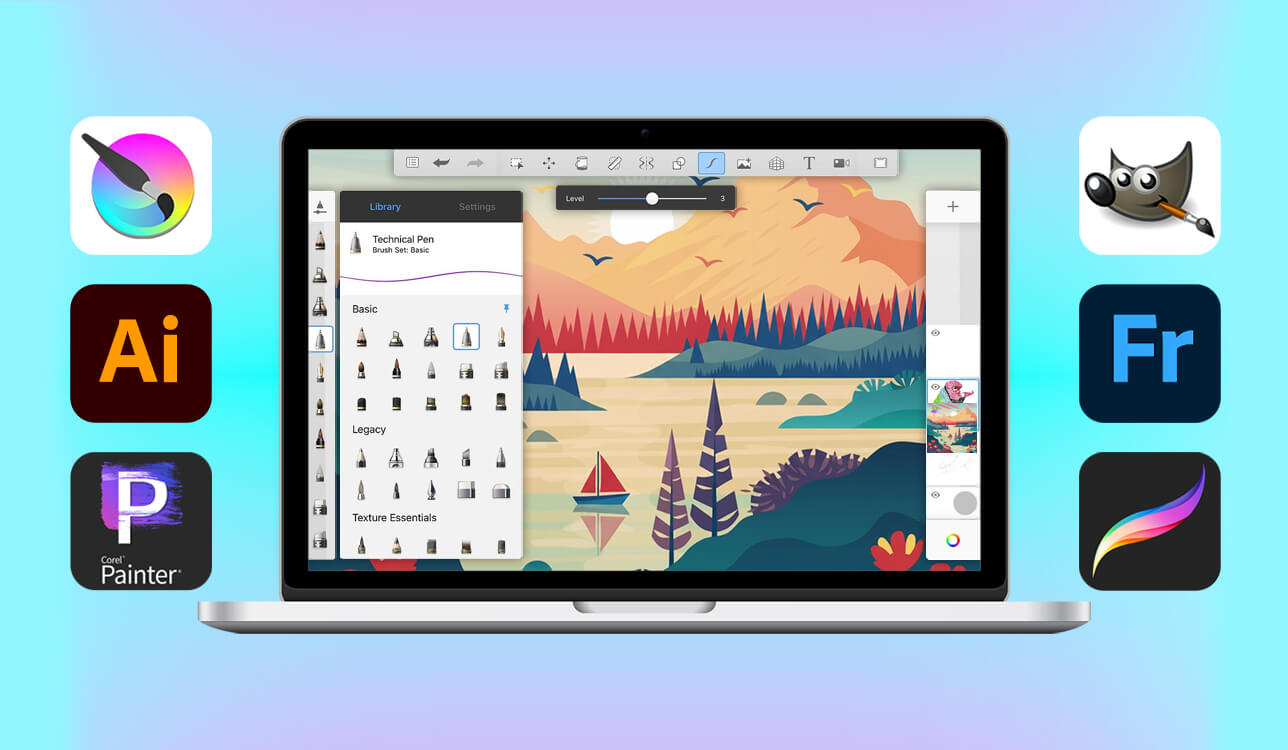
For many years, I have been considering Sketchbook an integral part of my professional workflow. This lightweight and intuitive software is best suited for creating quick sketches, but I can also use it for producing more complex illustrations when I need to work with a clean canvas without getting distracted by many unnecessary tools.
However, recently, many of my readers started to ask me about apps like Sketchbook that could potentially replace that software. Some people wanted to control layers with higher precision, while others were looking for animation tools. Many users were interested in discovering a cross-platform solution with tablet and desktop versions that synchronize with each other perfectly.
When I started to receive these types of questions more often, I realized that it was a good time to test out the available alternatives that are somewhat similar to Sketchbook. I created a list that could potentially replace it and tested them to compare them in terms of brush quality and responsiveness.
Besides, I wanted to check how easy it would be to integrate them into my workflow. I asked my colleagues from the FixThePhoto team to help me with testing. Together, we have compared these programs in terms of their functionality and analyzed our drawing experience.
When testing Sketchbook alternatives, I had several specific things in mind. I wanted to discover the apps that would allow me to create sketches with ease. Besides, I needed to streamline my workflow using professional brushes, animation tools, and vector files. Finally, I was looking for a cross-platform solution with a convenient file management system.
When looking for the best Sketchbook alternatives, it’s important to focus on your workflow instead of a particular program. I decided to test a variety of apps that can serve as replacements for Sketchbook. As a result, I discovered that each of these solutions has its unique advantages. Below, we have briefly outlined the main things you should consider to make the right choice.
If you create sketches quickly and want to find a lightweight program, choose a solution that allows you to open the canvas and create a drawing without delays. Sketchbook is an excellent solution for that. However, if you want to find a solution that is simple but also allows you to work on more complex projects, consider switching to Procreate and Adobe Fresco.
In case you are interested in scalability and want to design posters, logos, stickers, and UI icons, be sure to choose software with vector tools. You may enjoy using Adobe Illustrator and Inkscape when working on such projects. While it might be more challenging to master them, you won’t need to worry about resolution when you master vector graphics.
If you need to create paintings and use brushes with a physical feel, try using Corel Painter or Fresco. Painter will allow you to feel as if you were using real oil and pastel texture, while Fresco’s Live Brushes enable you to enjoy the experience of using real wet paint.
If you are interested in advanced functionality and do not want to spend money on new software, consider using Krita and GIMP. These are the best free Sketchbook alternatives for those who want to edit their images and create illustrations.
If you do not know which option to choose, consider the features that you would like to use. When you understand Sketchbook limitations, it will become easier for you to find a suitable alternative. On this list, you will find a lot of programs with an extensive brush feel, higher texture realism, vector support, animation tools, and scaling capabilities.
I’ve always liked using Adobe software, which is why I decided to test Illustrator to see whether it can be considered a Sketchbook alternative. After importing a drawing I had previously created in Sketchbook, I adjusted its size and then recreated the illustration using vectors.
It allowed me to scale up my illustration to poster size without any sign of pixelation. Sketchbook is more suitable for creating sketches in raster formats. However, Illustrator helps me exploit the possibilities opened by infinite scaling.
Then, I decided to compare brushes side-by-side. Both solutions allow users to customize brushes and use a pressure-sensitive stylus. While Sketchbook allows you to enjoy a more natural drawing experience, Illustrator requires users to make additional adjustments to make it feel as if they were using a real pencil.
When I decided to focus on precise linework instead of freehand sketching, I noticed that Illustrator coped with such tasks much better. I also enjoyed using guides, rulers, and high-precision stroke tools, and blend-mode layers, as they allowed me to control my projects at a professional level.
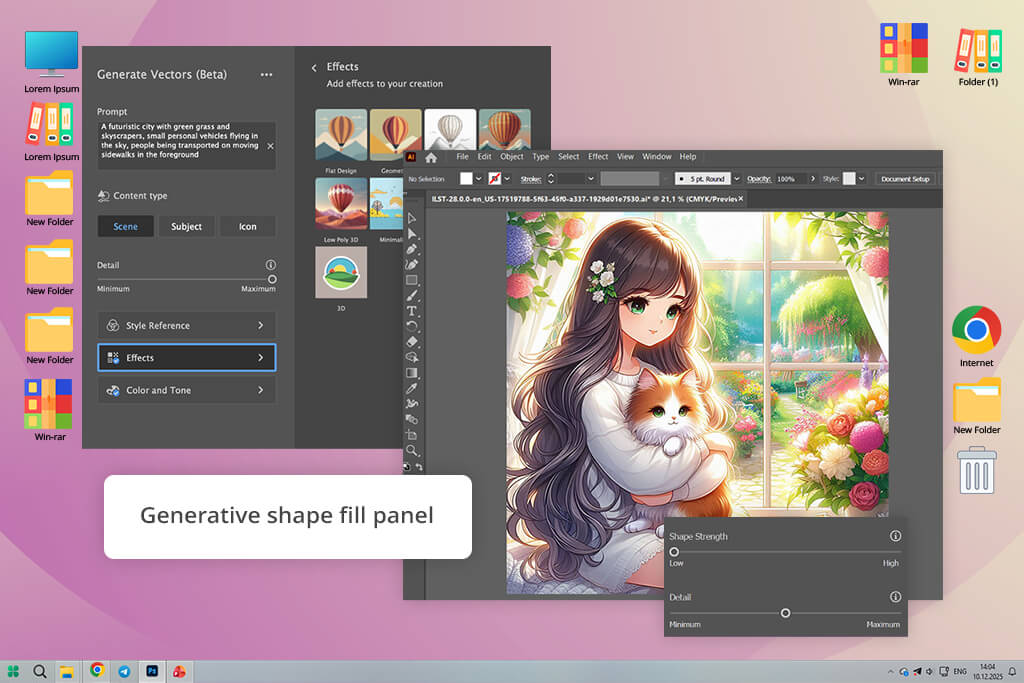
What makes this Sketchbook competitor different is that it has many helpful features that aren’t available in other similar programs. Using the Generative Shape Fill tool, I was able to outline a shape and fill it with detailed patterns. I have never been able to complete the same task so quickly in Sketchbook. However, when I need to quickly implement some concepts and ideas, I still like using Sketchbook, as it has a simple interface.
I prefer to use Procreate on the iPad, as it was designed specifically for such devices. The first thing that I did was to create a character sketch with the help of my Apple Pencil. I was pleased by how natural and realistic my workflow felt. The stroke response was more similar to Sketchbook than Illustrator.
Besides, it was much smoother. I decided to use this Sketchbook alternative for iPad to layer colors, blend shadows with the help of the smudge tool, and use textured brushes to edit hair. I discovered that while Sketchbook was suitable for implementing ideas quickly, Procreate made me feel as if I was painting something.
I decided to recreate the same simple portrait I had drawn with the help of Sketchbook. I noticed that while Sketchbook helped me draw smooth sketch lines, Procreate made it easier for me to experiment with different ideas using a variety of brushes. I was able to control colors with higher precision as well.
With the help of this drawing app, I was able to customize individual strokes, add grain to shadows, and try out different palettes without impacting the original drawing.
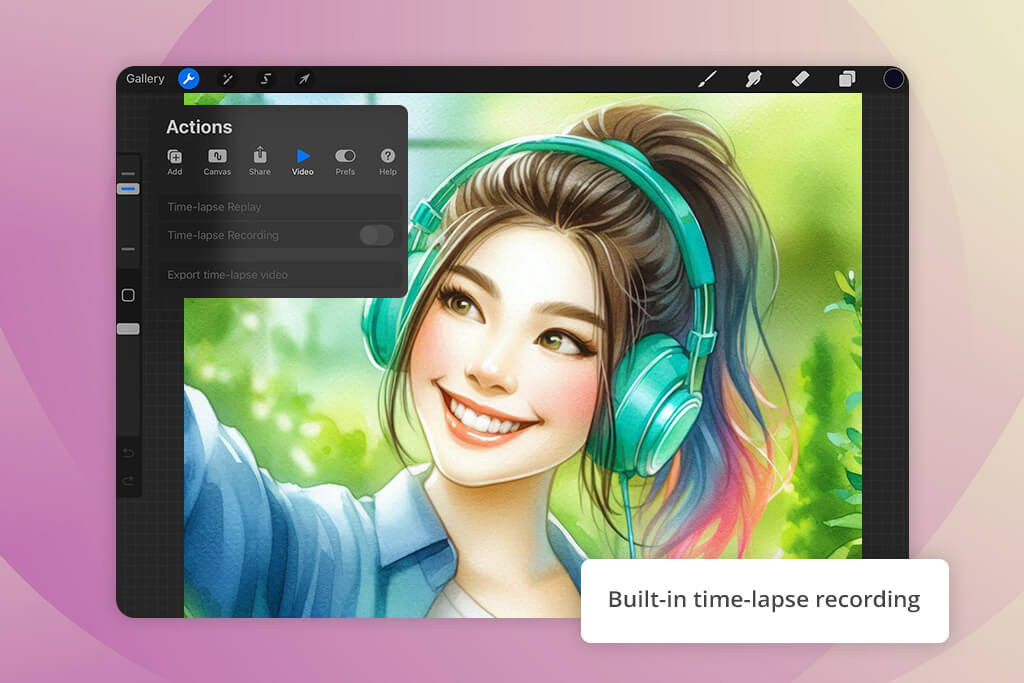
I was extremely pleased to discover that Procreate had some features that weren’t available in Sketchbook at all. It supports time-lapse recording, has animation assist tools for streamlined motion sequences, and allows one to access brush packs online. I used some brushes recommended by the community members and was impressed with their stylization options.
Unlike Sketchbook, Procreate is not free. Besides, it’s available only on Apple devices. However, if you already prefer using the iPad ecosystem, you will enjoy using Procreate, as it is similar to a full studio.
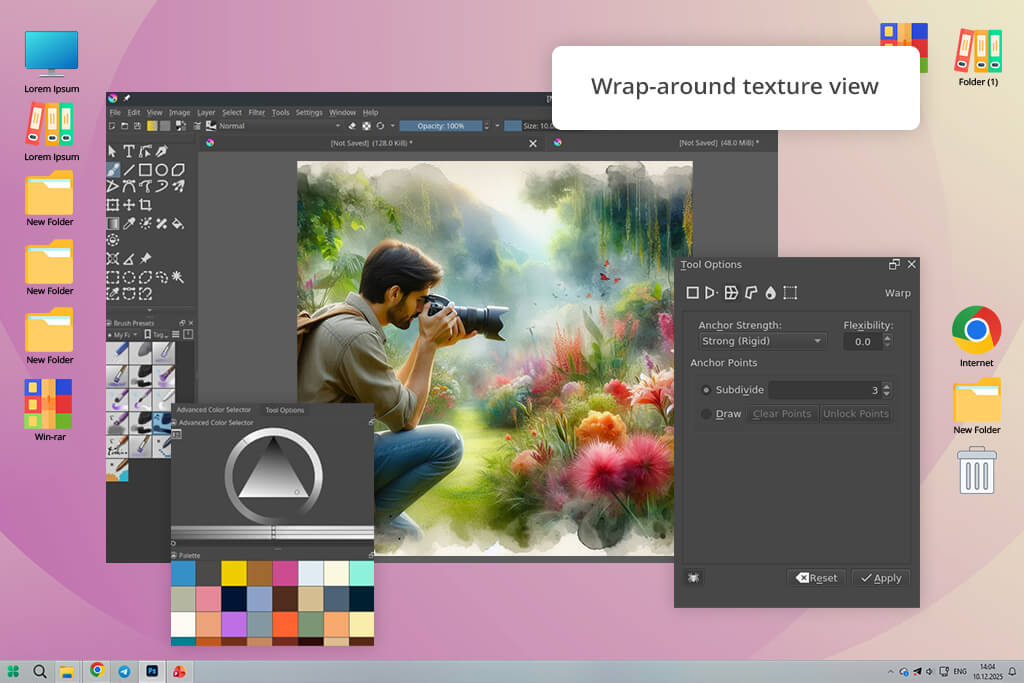
I have always been perplexed by the fact that such advanced software as Krita could be completely free. When I started to test it, I decided to perform complex tasks to see whether it would be able to handle them. I experimented with different colors when editing landscape pics, used textured brushes to create foliage, and added some depth to lighting with the help of overlay layers. After half an hour, I was able to see that Krita had the functionality of paid software. In contrast, Sketchbook is more basic, making it suitable for implementing simple ideas.
At some point later, I dedicated a whole evening to testing its brush engine. This software supports extensive customization. Unlike Sketchbook, it has stabilizers for drawing smooth lines and comes with a variety of sliders.
Besides, unlike some other Sketchbook free alternatives, it supports color spaces like Adobe RGB. While I had to spend some time adjusting the settings of my brushes, they helped me to control my workflow much better. In addition, I tested the wrap-around mode to create tiled textures within seconds. It was impossible to achieve a similar effect in Sketchbook so quickly.
I was also interested in animation features. While this software does not have tools that allow one to achieve a cinematic-level effect, one can use its tools without adding any plugins. Sketchbook does not have any animation features. Krita allows users to add masks to edit their images in a non-destructive way. However, whenever I need to create a quick sketch using a program with a streamlined UI, I prefer to use Sketchbook.
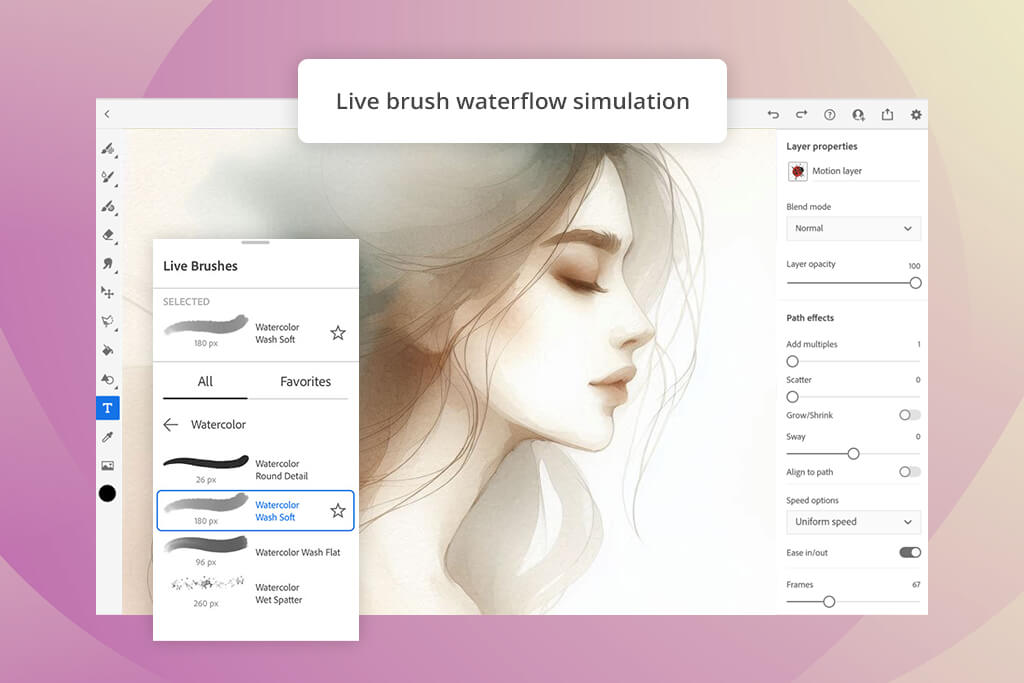
This Adobe software is different from other programs from the same ecosystem and can also be considered an excellent Sketchbook alternative. I decided to test Fresco on my tablet, knowing that this software was built specifically for touch and stylus input. The first thing I decided to do was to test a watercolor brush.
It reacted like a natural wet pigment when I applied it to the paper texture. Colors were blending seamlessly, which allowed me to achieve the desired effect with little to no effort. While Sketchbook is perfect for creating drawings, its tools cannot compare with Fresco’s Live Brushes.
I used this Sketchbook replacement to recreate the same ink drawing I created in Sketchbook. Its performance is more consistent, and it allows me to perform linework faster. Due to this, I was able to complete my sketch faster. Fresco requires me to focus on my workflow more and pay attention to my gestures and brush strokes.
However, when I started to perform watercolor shading, I was happy with its flawless performance. It was satisfying to see my strokes blend like real paint. I was able to draw several layers of blues, use water to soften them, and then add some details using an oil brush.
What I liked most about Fresco was that it helped me significantly simplify my workflow. I exported my image to Photoshop to perform color correction. I did not need to worry about format compatibility or any other issues. Sketchbook is less suitable for those who need to switch between different apps. However, this standalone software is more suitable for those who are looking for a budget-friendly solution with a streamlined interface available on different devices.
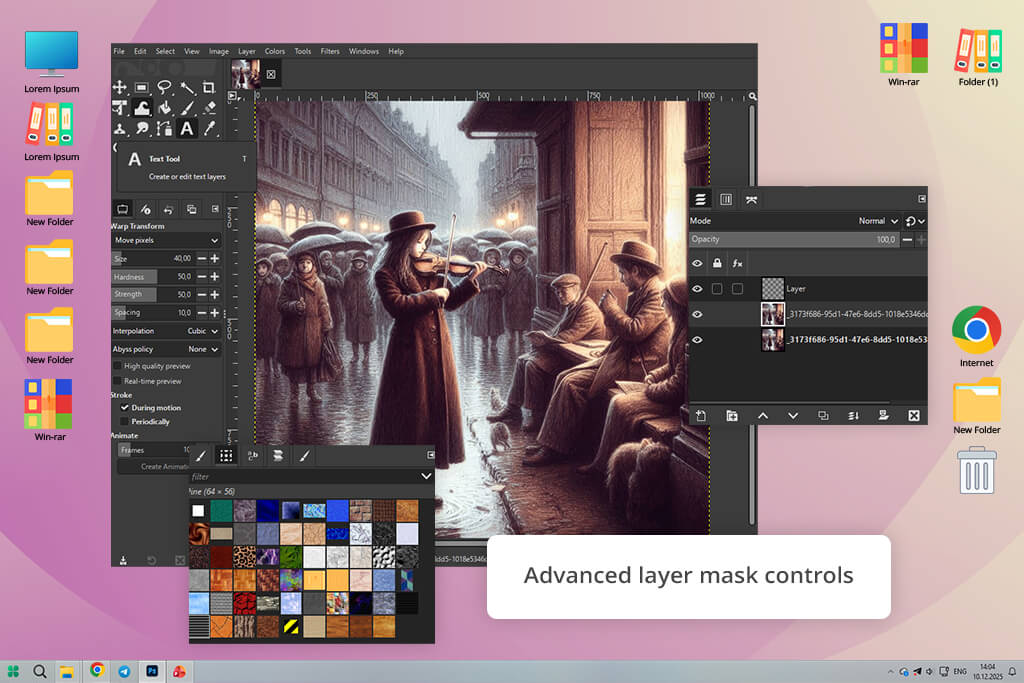
GIMP was one of the first services for creatives that I started to use at the beginning of my career. I used it to perform a variety of tasks, from creating digital doodles to editing poorly cut-out images. At that time, I was highly pleased with this free drawing software, as it helped me perform every task with ease. While it felt a bit nostalgic to use it again after testing Sketchbook, I noticed some important differences between these two solutions.
I decided to paint a simple still life using both software. Using Sketchbook, I was able to create a quick sketch with smooth lines. I liked the brush pressure and enjoyed the fact that nothing distracted me from sketching.
However, when I decided to subtly change the shadows, adjust the highlights, and add realistic textures, GIMP was more suitable for the task. This software allows users to work with masks and layers, apply filters, and perform blending. In this regard, it’s more similar to Photoshop than Sketchbook.
Unlike some other digital drawing apps like Sketchbook, GIMP delivered a powerful performance. With it, I was able to install brushes and plugins as well as edit RAW images and paint over them. Sketchbook is not suitable for this type of hybrid workflow. Despite this limitation, Sketchbook is more suitable for situations when I need to create a simple digital sketch without navigating a convoluted UI. GIMP is more technical, making it suitable for complex tasks.
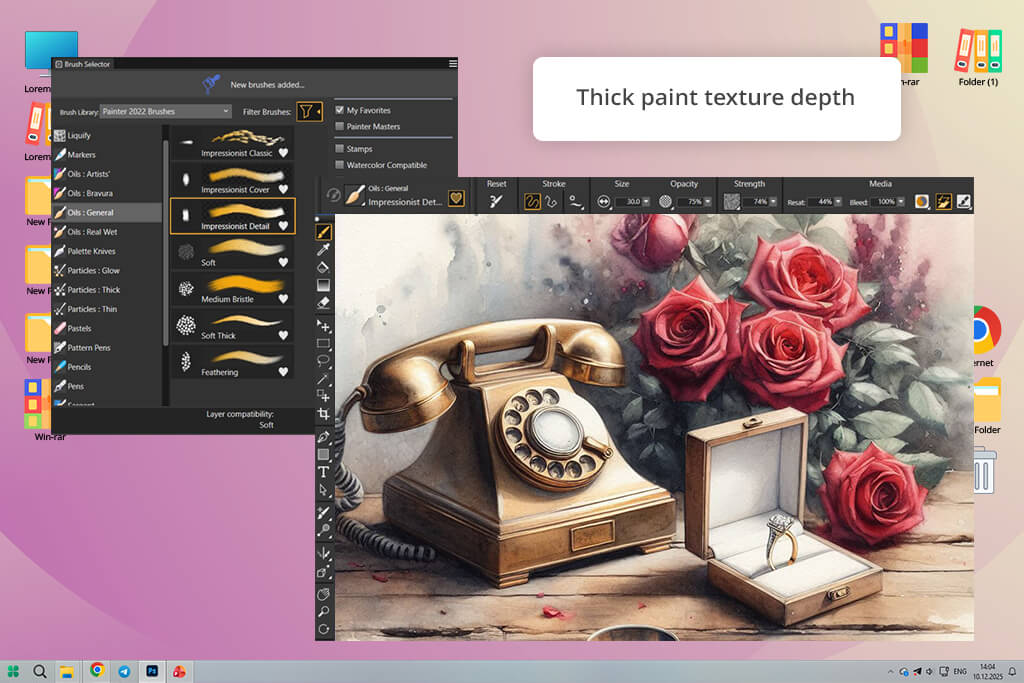
I have always wanted to master Corel Painter, especially because my colleague Kate used it to create oil-style portraits that look like real paintings. When I decided to give it a try, I wanted to check whether it could potentially replace Sketchbook. I wanted to understand whether Painter delivers a seamless and fast performance.
This is why I opened a canvas and selected an oil brush. I thought that it would be easy to make a digital stroke. Instead, I was surprised when I noticed that the brush dragged like thick paint and responded to pressure perfectly. In addition, it helped me create a realistic texture.
As I wanted to see the difference between Sketchbook and Painter clearly, I tried recreating a small still life that I once created in Sketchbook. It was a simple picture of apples and a ceramic mug. The colors looked simply, the outlines were accurate, and the shading was casual. When working in Painter, I used layers to apply wet oil paints, blended reds to create yellows, and added textured brush marks to create an effect of paint ridges. While it took me a lot of time to complete the project, the result did not look as if it were a digital painting.
The only shortcoming was that I was struggling to master this software. Unlike some other apps similar to Sketchbook, it has a convoluted UI. It was difficult to learn how to navigate its menus, choose the right brush, and avoid ruining excellent strokes by accidentally moving the canvas texture.
The interface is quite convoluted, making it more challenging to master than Sketchbook’s minimalist UI. However, if you want to achieve an authentic paint effect, Painter will help you to elevate the quality of your projects.
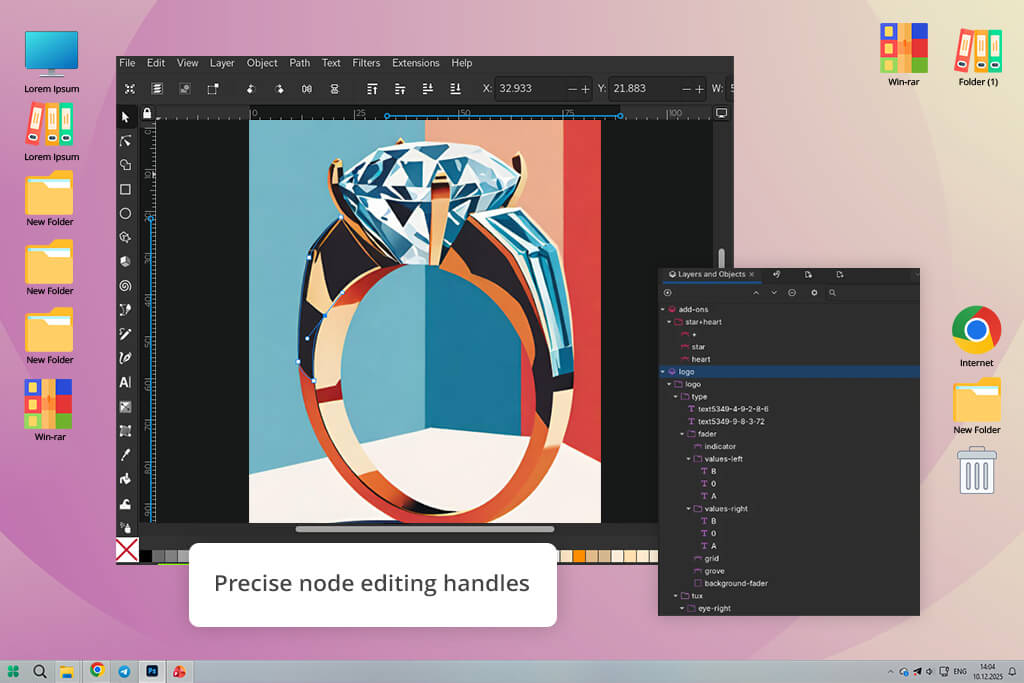
The first thing I did when I started testing Inkscape was importing a drawing and trying to convert it into vector shapes. Using Sketchbook, I noticed that the badge became distorted when I tried enlarging it to prepare it for merchandise mockups.
Its pixels acquired a soft look, and the edges started to look blurry. When using Inkscape, I traced the lines with the help of the pen tool and edited the curves using nodes. This approach helped me create a version that I was able to enlarge to billboard size without quality loss.
Then, I decided to create a sketch inside Inkscape. Sketchbook handles this task better, as it allows me to use a pencil, scribble some ideas, and perform block shading, which makes it similar to a real sketchpad. When using Inkscape, it was difficult for me to stop turning every stroke into a shape, a path, or a calculated line. While such functionality and high precision may be useful for creating logos, icons, typography elements, and illustrations, it’s less suitable for situations when I need to perform painterly shading or soft bending.
The main advantage of this Sketchbook Pro alternative that I discovered when working on my project is that it allows me to export my vector designs in different sizes. I was able to save them as stickers or large posters without making them blurry. There was no need to perform cleanup afterward. However, when I used Sketchbook, I had to redraw details or upscale images with lower quality.
Instead of opening each application and taking a brief look at the menus, we decided to work on the same project using different platforms to understand what makes them unique. The first thing that I did was to choose a pencil portrait I had created in Sketchbook and recreate it using other services. I wanted to compare stroke sensitivity, delay, and how the brushes performed when I increased pressure or changed the tilt of the stylus. If it was difficult to draw a line, I ranked a program lower.
Next, Kate performed a color-based test. She used a picture of a landscape with layered foliage and lighting. When she used Sketchbook, the output looked simple and minimal. Then, Kate tested art apps like Sketchbook to understand whether they were suitable for performing blending, working with wet edges, and using canvas texture.
She checked how quickly she could add some depth to her artwork without making it look unprofessional. If, after performing blending, Kate saw that the output looked natural, she ranked a program higher. She stopped using the services that produced artificial outputs.
When testing vector-focused software, Nataly conducted her own experiment. She used a raster drawing, enlarged it with the help of Sketchbook until she saw some signs of pixelation, and recreated the same picture when using Illustrator and Inkscape. She wanted to see how fast she could replicate the same curves with the help of the pen tool.
Besides, she was interested in the behavior of nodes and wanted to assess the exported file after printing it in different sizes. Some of these programs scaled images flawlessly, while others failed to perform the task.
I wanted to test whether these programs would be able to handle small things that are especially important for our workflow. I tested how long it took them to open a canvas, checked whether the interface disappeared when I started sketching, and tried exporting the output images to Photoshop or printing them. I wanted to know what animation features were available. Besides, I used the available wrap-around tools to create textures. I also checked how long it would be possible to continue drawing until facing an obstacle disrupting my workflow.
Summing up, instead of comparing feature lists, I wanted to understand whether a program could become a part of my workflow. If it caused delays, we noticed. We wanted to create a list of Sketchbook drawing software alternatives that could help us perform a variety of tasks, use pencils and brushes, work with layers, save our files in a variety of export formats, and turn our sketches into artworks.





![9 Best Online PDF Translators in {{%year}} [Reviewed & Tested]](http://fixthephoto.com/blog/images/gallery/news_main__preview_28499.jpg)

![7 Best YouTube to MKV Converters [{{%year}} FixThePhoto Choice]](http://fixthephoto.com/blog/images/gallery/news_main__preview_28907.jpg)
![9 Best DALL-E Alternatives in {{%year}} [100% FREE]](http://fixthephoto.com/blog/images/gallery/news_main__preview_28491.jpg)

















