I ran into a problem while working on a recent project. People had sent me YouTube videos that I needed to edit, and at first glance, they seemed perfectly fine for watching. But as soon as I brought them into my video editing program, things fell apart. The original file format just wasn't up to the job. Some videos looked terrible when I tried adjusting the colors, others made my computer slow down and freeze up, and a few wouldn't even save properly when I tried to finish the project.
That's why I switched to MKV files. Working with this format, it is easier to cut videos, adjust colors, and maintain high quality even after editing multiple times. Since I wanted to work faster, I needed dependable tools that could download YouTube videos as MKV files. I started searching for programs that worked with different video resolutions, didn’t squash the file size unnecessarily, and produce videos ready for professional editing. To make sure I was fair in my testing, I also had my coworkers from the FixThePhoto team download these same tools on their computers and tell me what they thought about them.
The moment I started using MKV for my YouTube downloads, I noticed a big change right away. MKV files are different from MP4 and similar video formats because they're not as restrictive. They let you pack in several audio tracks, text captions, chapter markers, and even better-quality video in one file without slowing down your editing program. Since I regularly handle videos from various sources, it is important to keep everything organized in a single file.
I also stick with MKV because it keeps video quality intact. When you're adjusting colors or saving your project multiple times, you need every bit of clarity you can get. Most YouTube videos are already reduced in quality when downloaded, so you definitely don't want to lose more. MKV files let you save videos in better quality without crushing them further. It means I have more freedom to fix lighting problems or make details crisper without creating ugly distortions or blurriness.
MKV is also built to last. You can save large, lengthy videos with various technical formats in one file, then open it again years down the road without running into problems. When I'm handling ongoing FixThePhoto assignments or saving materials for tutorials I'll make later, I want file types that won't cause me trouble in the future. MKV does this job better than nearly any other option out there.
The last big advantage is that MKV makes editing easier. No matter what program I'm using, be it professional software like Premiere Pro and DaVinci Resolve, or simpler tools for quick projects, MKV files just work better. They're more reliable when I'm jumping around the video, cutting clips, or pulling out specific parts. I run into fewer problems and weird bugs compared to MP4. That means I spend more time creating and less time fixing technical issues. Any video maker will tell you it is a huge win.
The best YouTube to MKV converter does more than just rename your file. It can grab videos straight from YouTube links, lets you pick different quality levels, keeps all the audio intact, save subtitles if you need them, and turns everything into MKV format without making it look worse. Some tools even let you convert multiple videos at once or do simple edits right there. This makes them perfect whether you're just starting out or you've been doing this for years.
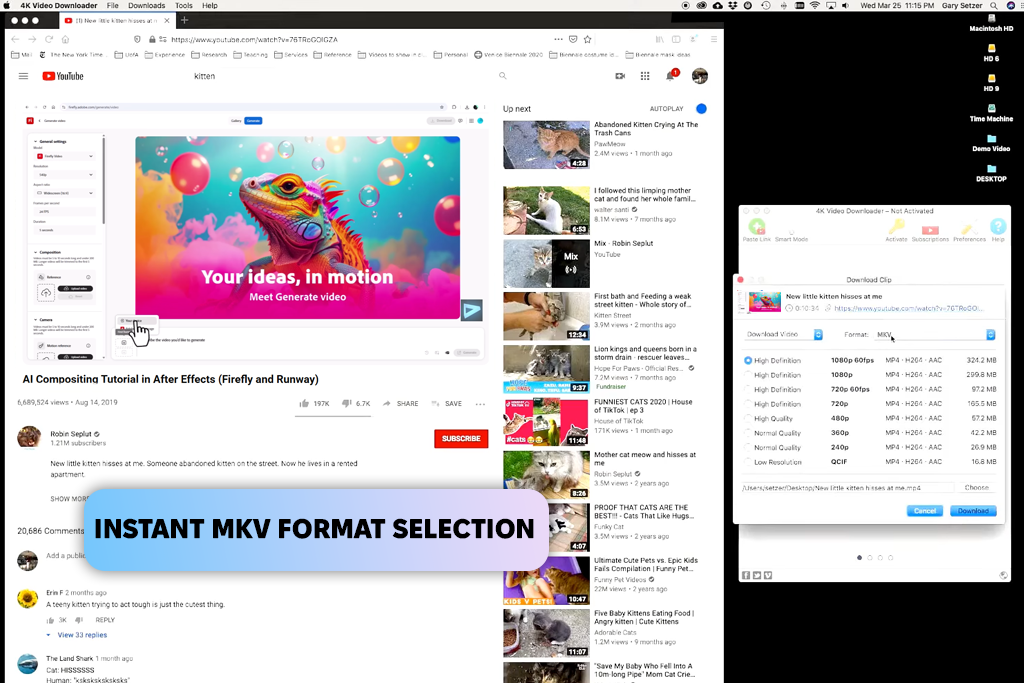
I expected Youtube4KDownloader to outperform most desktop programs to convert YouTube to MKV, and it did. Since it's designed exclusively for YouTube downloads, it was naturally the easiest choice right from the start. During my initial test, I copied the URL of a 20-minute clip I wanted in MKV format. The software detected it right away and displayed all the available formats, including MKV. Everything worked without issues.
The speed impressed me the most. I downloaded various videos, some 720p how-to guides and a few 1080p personal blogs, and each one finished downloading in just seconds. There were no frozen progress bars stuck at 98% and no odd error messages. Besides, I didn’t have to deal with pushy prompts trying to sell me extra features. It was genuinely simple: paste the link, choose your format, and you're finished. That's exactly the workflow I need when I'm gathering video clips for my editing projects.
The only downside I noticed was handling multiple videos from a playlist. I needed to process each link one at a time instead of downloading them all together. However, given how reliable and quick this free video converter was, doing the steps repeatedly wasn't really frustrating. When it comes to straightforward YouTube to MKV downloads, this tool turned out to be one of the best YouTube to MKV tools I discovered.
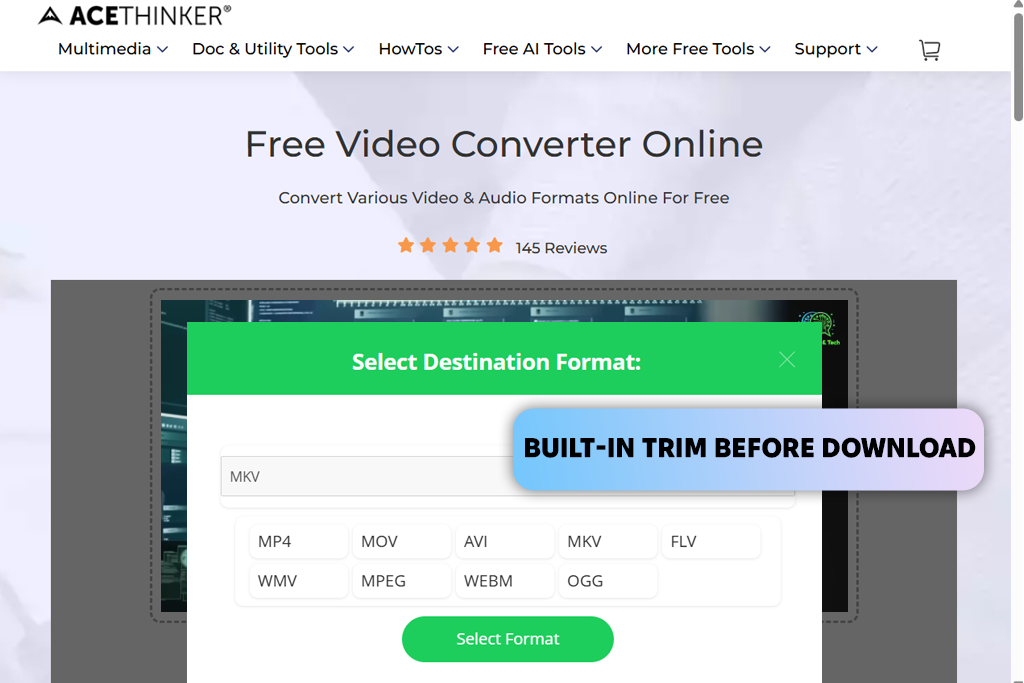
AceThinker impressed me a lot. I've tried a lot of YouTube to MKV online converters, and most of them just download and convert. So, I didn't think much of AceThinker at first. But when I started using it, I noticed there were editing tools built right into the program. I could trim videos and improve their quality with AI features. That's not something you usually see in these types of programs. It felt more like a video editing program with tools from a YouTube playlist downloader, rather than just a basic converter.
I decided to test it with an 8K nature video because I wanted to see if it could actually handle something that big and if it was really as quick as people said. It worked perfectly. I just pasted the link, picked MKV as my format, and the download began immediately without any waiting around. Then I tried something else. I took a long tutorial video and used the trimming feature to cut out the parts I didn't need before downloading it. I wanted to see if editing the video first would actually save time or make things easier. Turns out, it did.
While testing it, there were neither limits on how many videos I could convert, nor surprise charges popping up. Plus, I didn’t see any restrictions on video quality. I downloaded several videos one after another, including some really long ones. The tool handled everything smoothly without slowing down or stopping. The only time things took longer was when my own internet speed couldn't keep up. Bigger files naturally take more time to download. But for a free YouTube to MKV converter that supports 8K videos, that's a small price to pay.
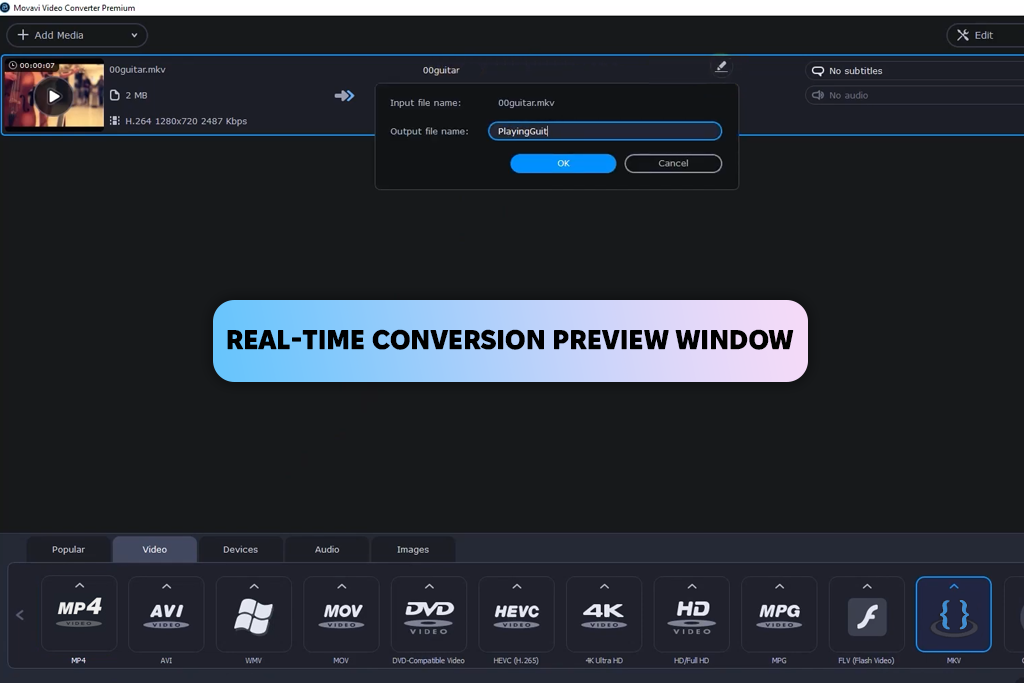
I'd used Movavi Video Converter before writing this review, so I knew what to expect and my hopes were high. In previous work, I'd relied on it to get video files ready for teaching materials. This time around, I wanted to test how it performs as a YouTube video to MKV converter. As soon as I opened the program again, it reminded me exactly why it's still on my computer. The interface is so straightforward that I can jump right into converting videos without learning the tools.
For my test, I loaded up a variety of files, including quick clips plus an entire playlist I'd bookmarked previously. Movavi dealt with everything smoothly. The batch processing feature was particularly helpful. Rather than converting videos one at a time, I simply lined them all up, chose MKV as my format, tweaked a few quality options, and let it run. This video grabber software worked amazingly fast. I've tried many converters that were annoyingly slow, but this software zipped through each file remarkably quickly.
I also decided to revisit the built-in editing features while I was at it. I cut down one of the longer videos, made a small adjustment to the contrast, and saved it straight to MKV. Plus, I used the preview screen to check my work before finalizing anything. The main drawback is a familiar one. Movavi's trial version gives you just enough to see what it can do, but not the complete experience.
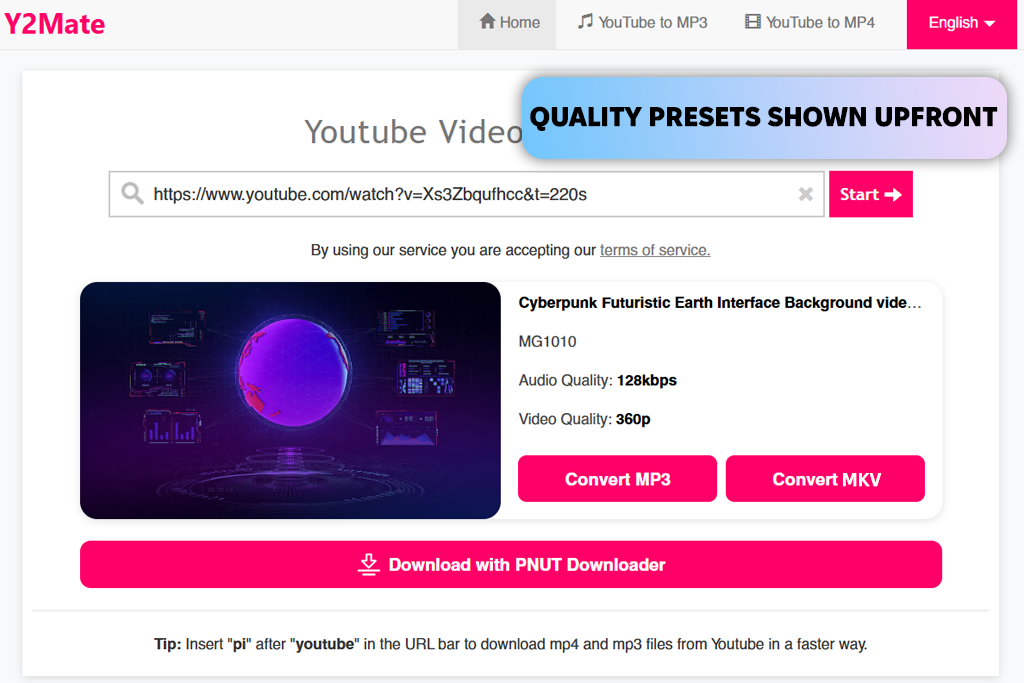
My coworker Tati recommended Y2Mate when I was looking for the top YouTube to MKV converter software. I'd heard of it before, as it's a popular converter that most people come across at some point. However, I'd never really used it for MKV files until she brought it up. When I opened it, I was ready for a basic, no-frills setup, but I was pleasantly surprised to find it had more features than I thought.
I started by testing a short tutorial video to see how well it would convert to MKV format. The link loaded right away, and I liked that it showed me multiple quality choices from the start. I even checked the preview function a few times to confirm I was getting the right part of the video, and it performed better than expected from an online tool. Just for fun, I experimented with MP4, MP3, and WebM formats. The converter handled everything without any issues.
However, the program struggled when I uploaded longer content. Some videos that were an hour or more wouldn't go through on the free version, so I had to either cut them down or use shorter clips instead. The advertisements can also break your focus when you're trying to work fast, though they didn't stop the tool from actually working. Even with those limitations, Y2Mate turned out to be a handy choice when I needed to quickly convert YouTube to MKV format.

I discovered Online Downloader by chance while browsing Reddit. I was reading a discussion where people were recommending straightforward YouTube to MKV downloaders, and several commenters kept bringing it up as their favorite tool.
When I first opened the site, it looked incredibly basic. But it appeared to be very efficient. You just paste your video link, select MKV as your format, and hit download. I liked that the tool automatically adjusted the video settings for me. I didn't need to deal with complicated menus or technical settings. The MKV files came out looking great, and they weren't huge in size either. I tested it a few more times with different types of videos, including a music video and an instructional video. Each time, the conversion happened quickly.
The drawback is that this tool is almost too simple. You don't get many options to customize your downloads. If you want to choose a specific video quality or adjust technical details, you'll need to look elsewhere. Moreover, when I tried using it during busy evening hours, the download took longer than usual. It was obvious that many people were using the service at the same time.

I've been using AnyVideoConverter for years, but mainly just as a quick image converter. However, for this review, I decided to try out its ability to download YouTube videos and save them as MKV files. Since I was already comfortable with how the program works, switching over to the video download feature was pretty easy, even though I'd barely touched that section before.
I grabbed a few YouTube videos that I needed for a little personal project. The process was very simple. I just needed to copy the video link, select MKV as the format, add them all to the download list, and hit start. What impressed me most was how well it managed several files at the same time. I queued up five different videos, each with different lengths and quality settings, and the software handled everything without making my computer lag or crash.
Next, I explored the editing tools to see what they could do. I was able to cut clips, adjust the frame size, and even tweak colors. These features are rarely available in free YouTube to MKV converters. The only downside is that the layout can look confusing at first, especially if you're not sure where all the buttons and options are located.
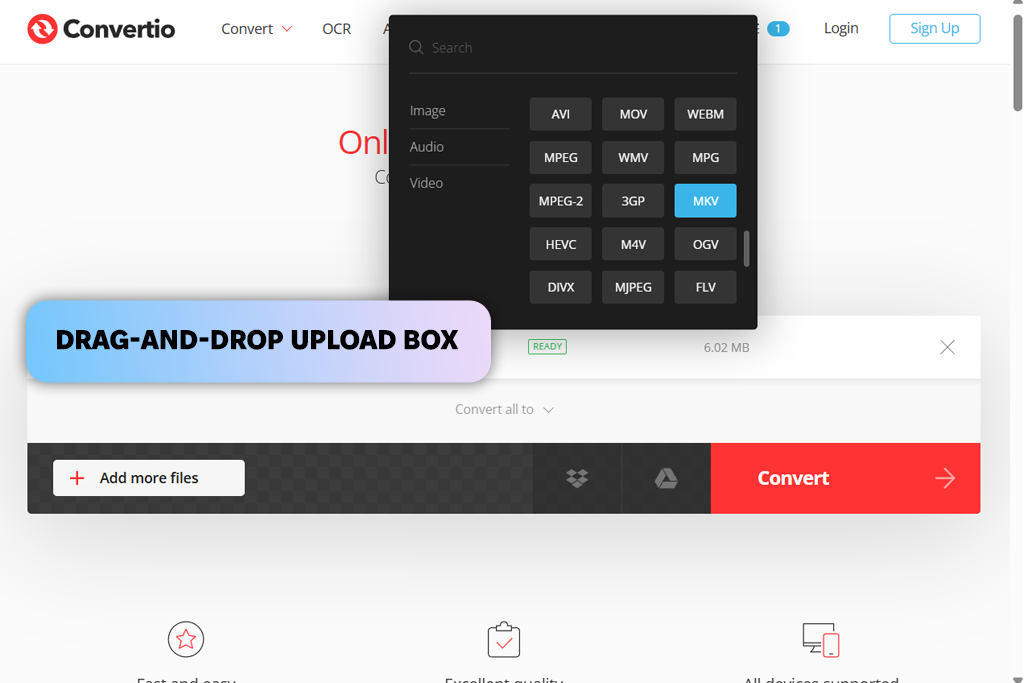
I'd tried Convertio in the past for various file formats, but I had no idea how it worked as an online YouTube to MKV free tool. Because everything happens directly in your web browser, I figured it would either work really fast or have major restrictions, which is the case with such instruments. To give it a fair shot, I grabbed an MP4 file I'd saved earlier and dropped it into Convertio's upload area. The file went up without any issues, even though it wasn't particularly small.
Convertio figured out on its own that I probably wanted MKV format, but I poked around in the options anyway to see what was available. There are features for adjusting bitrate, picking different codecs, and some simple file compression settings. After confirming everything looked good, I started the conversion and waited. It finished surprisingly fast, and when I checked the resulting MKV file, it looked identical to what I started with. There was no blurriness, weird colors, or quality loss.
If you are in a hurry, the download-and-wait workflow may cause annoyance. If you have slow internet or you're working with a big file, you'll definitely feel the delay. Still, for a web-based tool that handles occasional file conversions, Convertio proved to be more dependable than I thought it would be.
At first, we gathered different types of YouTube videos, including tutorials, reviews, nature footage, and 4K travel clips. Some we downloaded as MP4 files, while others we converted directly using their URLs. Thus, we could see how each YouTube to MKV HD converter handled the same content.
Right away, we looked at speed and ease of use. Then we considered the real MKV output. Tati opened each converted MKV file in Premiere Pro and DaVinci Resolve. She watched for problems like choppy playback, audio issues, or quality drops. This step was crucial, as a converter isn't worth using if it creates files that bog down your editing workflow.
We also evaluated how each converter managed larger workloads, namely, processing multiple videos or full playlists. Robin loaded up 5 or6 files at once to see how they organized in the queue, how fast they converted, and if the program stayed stable throughout. We discarded tools that required constant attention, since MKV files tend to be quite large.
Next, we tested conversion accuracy. While MKV works with many programs, not every converter handles it equally well. I verified that details like file tags, subtitle tracks, and audio stayed properly intact. Several YouTube to MKV converter apps scrambled the audio or deleted important file information entirely. The best converters kept everything from the original file unchanged, simply rewrapped it. This is exactly what you need when prepping videos for editing projects.
Finally, we put each tool through everyday challenges like shaky internet connections, switching between browser tabs during downloads, converting files during busy times, or using incognito mode. Thus, we saw which converters stayed reliable and which ones struggled when conditions weren’t perfect. Some tools practically froze when the connection wavered even slightly, while others kept working smoothly no matter what.




![7 Best AI ASMR Video Generators in {{%year}} [100% WORKING]](http://fixthephoto.com/blog/images/gallery/news_main__preview_28804.jpg)
![9 Best DALL-E Alternatives in {{%year}} [100% FREE]](http://fixthephoto.com/blog/images/gallery/news_main__preview_28491.jpg)
![5 Best EML File Converters to PST in {{%year}} [Windows & Mac]](http://fixthephoto.com/blog/images/gallery/news_main__preview_28894.jpg)
![9 Best YouTube Transcript Generators [{{%year}} FixThePhoto Choice]](http://fixthephoto.com/blog/images/gallery/news_main__preview_28474.jpg)
![7 Best HEIC to PDF Converters in {{%year}} [Windows, Mac & Online]](http://fixthephoto.com/blog/images/gallery/news_main__preview_28447.jpg)
![7 Best CDA to MP3 Converters in {{%year}} [100% FREE]](http://fixthephoto.com/blog/images/gallery/news_main__preview_28878.jpg)
![7 Best TXT to PDF Converters [Free Desktop, Online & for Mobile]](http://fixthephoto.com/blog/images/gallery/news_main__preview_28480.jpg)

















