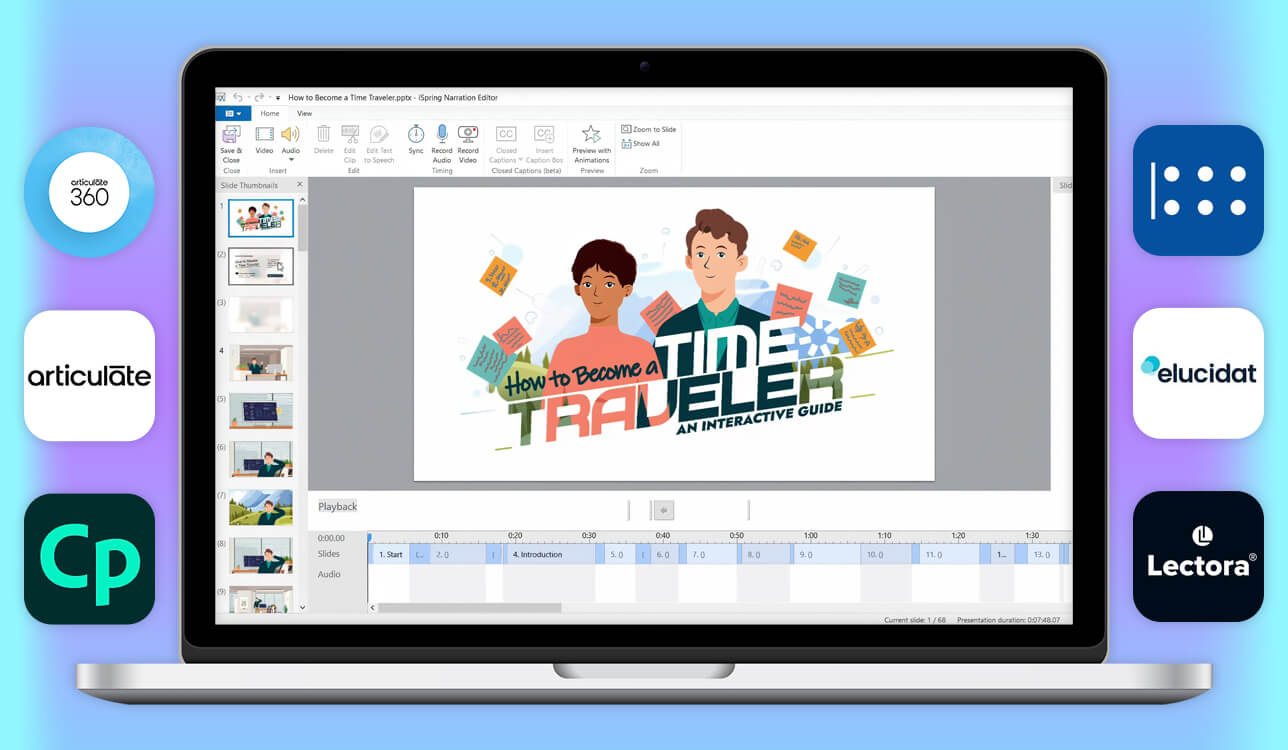
Finding iSpring Suite alternatives wasn’t just about exploring new tools - it became something I truly needed. As head of the retouching department, I’m also in charge of training: onboarding new retouchers, updating skills for current team members, and managing online courses for our subscribers.
For a long time, I used iSpring Suite as my main tool for turning presentations into eLearning content. But over time, it began to feel a bit restrictive - mostly because the design options weren’t very flexible and it didn’t handle larger or more interactive courses very well.
Rather than picking a new tool without much thought, I asked my coworkers for advice, read through Reddit discussions, watched detailed videos on YouTube, and got my team to help test 50+ iSpring Suite competitors. We looked at how each one performed in different situations - like internal company training, organized onboarding programs, and online courses for clients.
We weren’t simply searching for software like iSpring Suite. The real aim was to find eLearning authoring tools that improve the daily workflow - tools that are quicker, more adaptable, and built with long-term use in mind. Before reviewing the platforms themselves, here are the key criteria that mattered most during testing and the areas where many iSpring-style tools fell short:
Flexible interaction design. I need course authoring tools that do more than just linear slides - ones that support branching paths, realistic scenarios, and quizzes that feel integrated rather than tacked on.
Strong SCORM support. Reliable SCORM-compatible authoring tools are essential for the corporate LMS platforms we use both internally and for delivering training to clients.
User-friendly without oversimplification. The tool needs to be simple enough for new instructors to learn quickly, yet powerful enough not to limit more advanced course creators.
A modern approach to eLearning content creation. Focusing on responsive design, intuitive interfaces, and interactive experiences rather than old-style slide decks.
AI features (where they make sense). AI should be a practical tool - helping draft scripts, create quizzes, check accessibility, and handle repetitive tasks faster. It needs to provide real value, not just be a marketing feature.
Ability to scale for both corporate programs and public online courses. Whether we’re training internal employees or launching public courses similar to iSpring, the platform needs to expand alongside our needs and support long-term growth.
| Tool | Key features | SCORM support | Price | Ease of use | Best for |
|---|---|---|---|---|---|

iSpring Suite
|
PPT-based workflow, quick course launch
|
✔️
|
From $770/year
|
5/5
|
Simple slide-based courses
|

|
Pro-level interactions, VR & simulations
|
✔️
|
From $39.99/mo
|
5/5
|
Technical & software training
|

|
Deep customization, powerful triggers
|
✔️
|
$1,749/user/year
|
4/5
|
Complex interactive courses
|

|
Fully responsive design, speed
|
✔️
|
$1,749/user/year
|
5/5
|
Modern online courses
|

|
Accessibility control, scripting power
|
✔️
|
Custom
|
3/5
|
Corporate compliance training
|

|
Collaborative workflows, AI assistance
|
✔️
|
From $1,997/year
|
4/5
|
Team-based authoring
|

|
Brand control, enterprise scaling
|
✔️
|
From $1,650/user/year
|
5/5
|
Large corporate teams
|

|
Cloud-based, responsive first
|
✔️
|
Custom
|
5/5
|
Fast cloud authoring
|
If you’re still trying to choose between iSpring and other options, here’s my honest take: if your courses are becoming more complex, reaching more people, or growing in size, you’ll likely find iSpring limiting before long. The tools I’ve mentioned aren’t just slightly different - they’re part of a newer wave of corporate eLearning platforms designed to meet modern standards.
I didn’t test these tools as a marketer - I tested them as someone who really does create, update, and manage courses every week. And looking at it from that side makes a big difference.
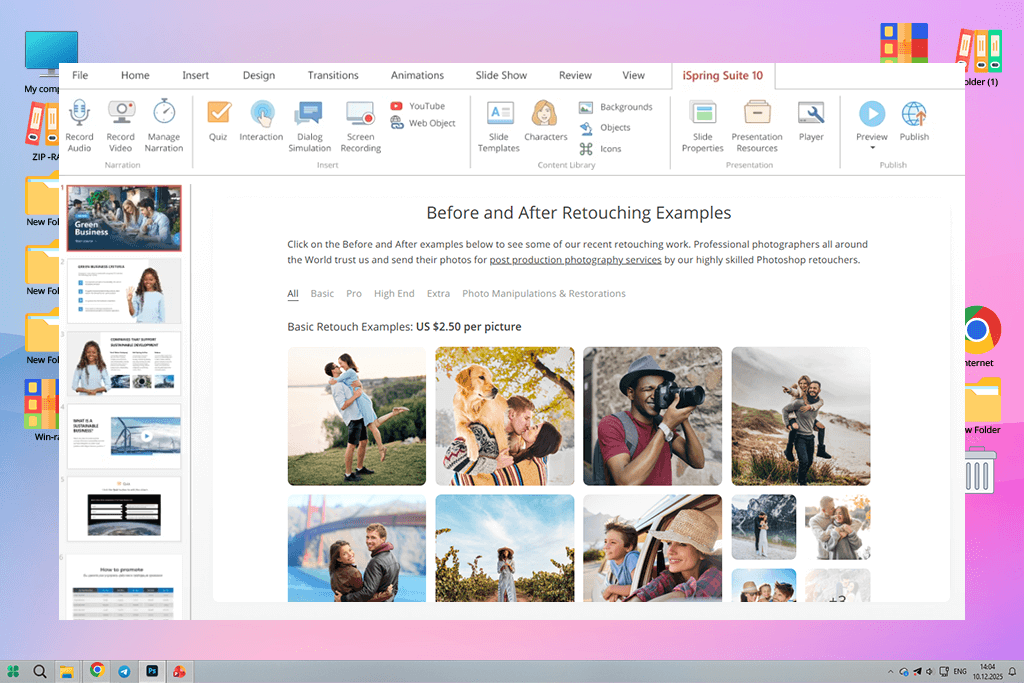
iSpring Suite is an eLearning authoring tool that runs inside PowerPoint as an add-in. You design your slides in PPT, insert quizzes, voiceovers, and screen recordings, then publish the course as a SCORM package for your LMS. For small teams or beginners, it’s an easy entry into course creation - especially if PowerPoint is already familiar and part of your regular workflow.
And to be honest, it worked well for me for quite a while. But as training at FixThePhoto expanded - more retouchers joining, more niche skills to teach, more frequent updates, and more client-facing courses - its limitations became noticeable. Over time, it simply stopped meeting all our needs. Here are the specific reasons why iSpring Suite was no longer enough for us:
“No matter how you try to improve it, it’s still PowerPoint. And when the course gets more complex, it becomes hard to manage and grow.”

“It feels like corporate training from 2012 - okay for compliance, but boring for learning real skills.”

“This is one of the most common complaints among corporate users - especially teams.”

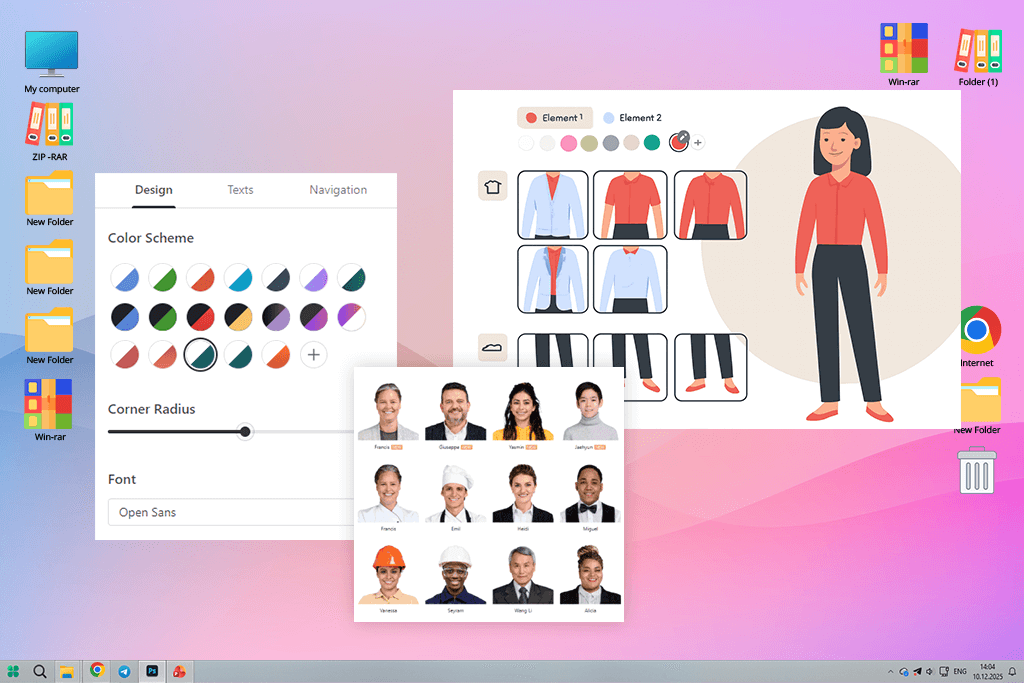
“For in-house training, it’s acceptable. But for materials shown to clients, I was looking for a more refined and professional finish.”

Best for: Mid-to-large teams (30–500+ learners), technical training, corporate education, software-based courses.
Integrations: SCORM LMS platforms, Adobe Creative Cloud, xAPI, AICC, Microsoft tools, enterprise LMS systems
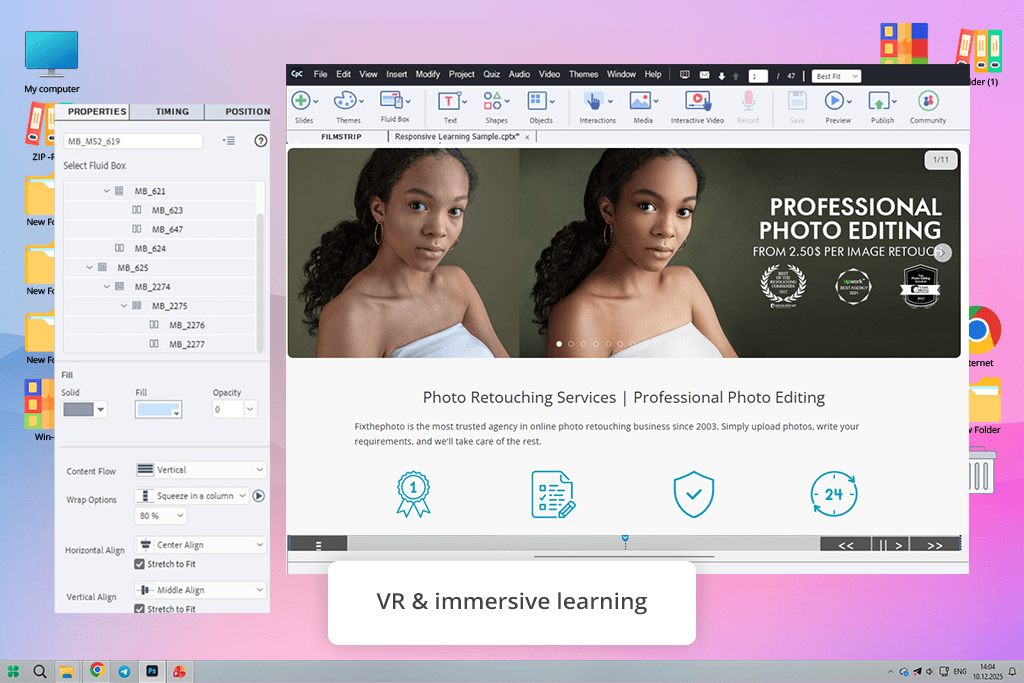
I had heard of Adobe Captivate long before I started comparing tools. It’s one of those names that keeps appearing in Reddit threads and YouTube reviews whenever someone is looking for a real iSpring Suite replacement. Most people describe it as “too much” for beginners, which made me wonder - is it genuinely that hard to use, or does it just have a reputation that isn’t quite fair?
My team and I tested Captivate while updating one of our internal training courses - the kind with screen recordings, simulations, and real-life scenarios. Right away, it felt totally different from iSpring and other Captivate alternatives. It doesn’t try to work like PowerPoint. Instead, it feels like a real production tool built for eLearning.
“When comparing iSpring Suite vs Captivate, it felt more focused on the future. Responsive design, VR support, and complex branching are part of the core system.”

What impressed me most was how smoothly Captivate manages software demos and guided actions. For retouching lessons, this was especially important. I was able to rebuild real Photoshop processes where learners click through tasks, make mistakes, try again, and receive feedback that explains what happened - not just a simple “right” or “wrong” response.
That said, it’s not easy at the beginning. Some of the junior instructors on my team felt confused and overloaded during their first few days using it.
My advice: Captivate works best when you see it as a full production tool, not just something for making slides. It helps to map out your course structure in advance, start with templates, and use variables and object states instead of copying and pasting slides. That’s when you really start saving time and working more efficiently.
Key features:
Pricing: Adobe Captivate free trial with restrictions; From $39.99/month
Captivate vs iSpring Suite at a glance:
| Parameter | Adobe Captivate | iSpring Suite |
|---|---|---|
|
Authoring approach
|
Standalone eLearning tool
|
PowerPoint-based
|
|
Interactivity depth
|
5/5
|
3/5
|
|
Software simulations
|
5/5
|
Limited
|
|
Responsive design
|
Native
|
Partial
|
|
Ease of use
|
4/5
|
5/5
|
|
Best use case
|
Technical training
|
Simple courses
|
Best for: Professional course creators, agencies, and teams training 50–1,000+ learners.
Integrations: SCORM LMS platforms, xAPI, AICC, Articulate Review, Microsoft tools, enterprise LMS systems
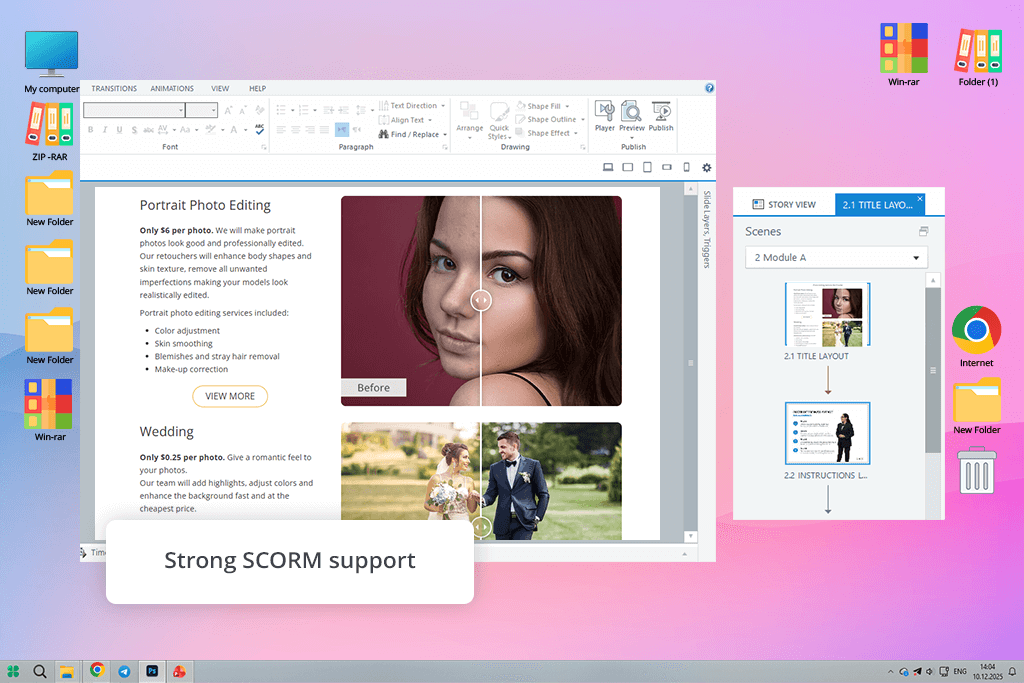
Whenever people on Reddit asked for an interactive course authoring tool similar to iSpring Suite but with stronger capabilities, Articulate Storyline 360 was mentioned again and again. After trying it myself, I understood the hype. It has a kind of devoted fan base among instructional designers - and now I see why.
I tried Storyline while rebuilding a QA and retouching standards course that had been difficult to manage in iSpring. The improvement was obvious right away. With Storyline, you get full control over how everything behaves. Triggers, variables, layers, and states connect clearly and logically - they feel like part of one system, not temporary fixes.
“Compared to iSpring, Storyline focuses less on doing things quickly and more on getting them exactly right. You waste much less time troubleshooting or correcting broken interactions.”

What I liked most is that Storyline feels familiar at first, especially if you’ve used slide-based tools.
But once you go deeper, it’s far more advanced. Conditional logic, adaptive feedback, and scenario-based learning feel built in - not forced.
The drawback is the cost. When you compare Articulate Storyline vs Adobe Captivate and iSping, it’s clearly the more expensive option, which can be tough for small teams. Another limitation is responsiveness. It doesn’t automatically adjust to different screens, so you have to create and manage layouts yourself.
My advice: If you decide to use Storyline, start learning how variables work as soon as possible. That’s where its real strength is. Understanding them is what turns a basic course into something polished and professional.
Key features:
Pricing: Free trial; From $1,749/user/year
Storyline 360 vs iSpring Suite at a glance:
| Parameter | Storyline 360 | iSpring Suite |
|---|---|---|
|
Interaction complexity
|
5/5
|
3/5
|
|
Ease of use
|
4/5
|
5/5
|
|
Scenario design
|
Native & flexible
|
Limited
|
|
Collaboration tools
|
Via Review 360
|
Minimal
|
|
Pricing
|
High
|
Medium
|
|
Best use case
|
Complex training
|
Simple PPT-based courses
|
Best for: Small to mid-sized teams (10–300 learners), online courses, onboarding, knowledge-based training.
Integrations: Articulate Review 360, SCORM LMS platforms, xAPI, AICC, Microsoft tools, enterprise LMS systems
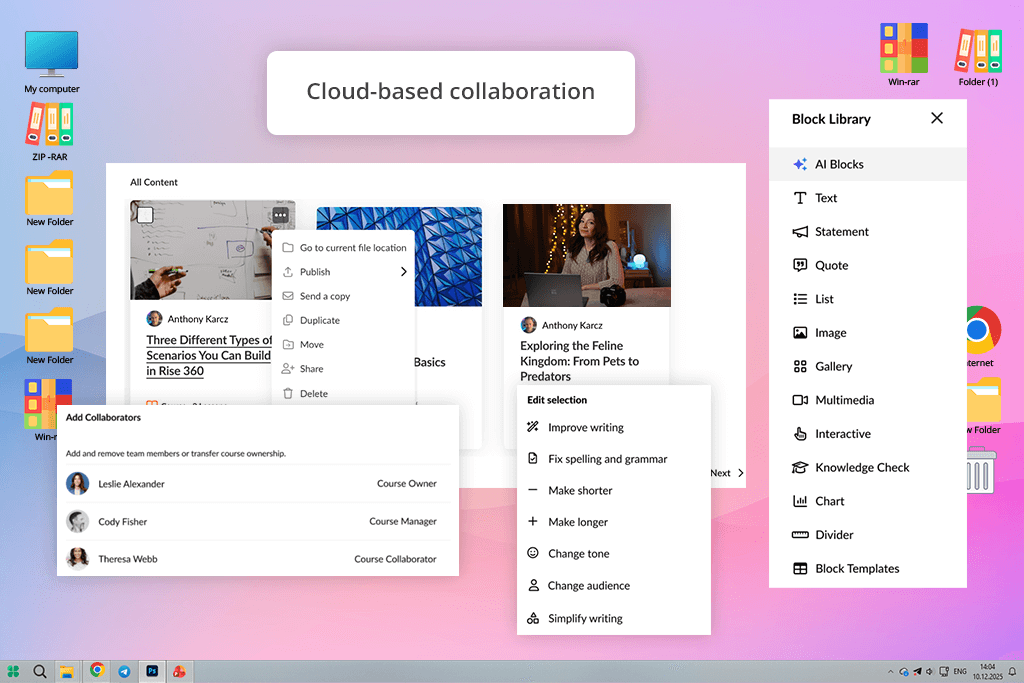
I first came across Rise 360 on YouTube, mainly through creators who were frustrated with traditional slide-style courses and wanted something more modern and streamlined. At first, Rise seemed almost overly simple. But that first impression quickly changed once I started exploring it more deeply.
I tried Rise by recreating a client-facing “Retouching Basics” course that I had originally built in iSpring. With Rise, you don’t think in terms of slides. Instead, you build with content blocks like text sections, image groups, timelines, flashcards, quick quizzes, and more. That different way of building immediately changed how I organized and presented the material.
“Rise stands out because it’s fully responsive. I didn’t need to adjust or test mobile versions separately - the course automatically worked well on phones and tablets.”

When you compare Articulate vs Captivate and iSpring, Rise prioritizes quick results over detailed control. Complex course designs aren’t possible, but you can finish sleek lessons in record time. Tasks that once took my team days now take just hours. The catch? Flexibility is limited. You follow Rise’s structure - you don’t reshape it.
My advice: Use Rise for basic training like teaching new info, welcoming new hires, or refreshing skills. Switch to Storyline when you need more advanced features and interactivity.
Key features:
Pricing: Free trial; Included in Articulate 360 from $1,749/user/year
Rise 360 vs iSpring Suite at a glance:
| Parameter | Rise 360 | iSpring Suite |
|---|---|---|
|
Authoring style
|
Block-based, cloud
|
Slide-based, PPT
|
|
Mobile responsiveness
|
Native
|
Limited
|
|
Speed of creation
|
5/5
|
3/5
|
|
Advanced interactions
|
3/5
|
3/5
|
|
Design polish
|
5/5
|
3/5
|
|
Best use case
|
Online learning
|
Presentations to eLearning
|
Best for: Medium to large organizations (100–5,000+ learners), compliance, corporate training, regulated industries.
Integrations: SCORM LMS platforms, xAPI, AICC, Learning Management Systems, enterprise HR platforms
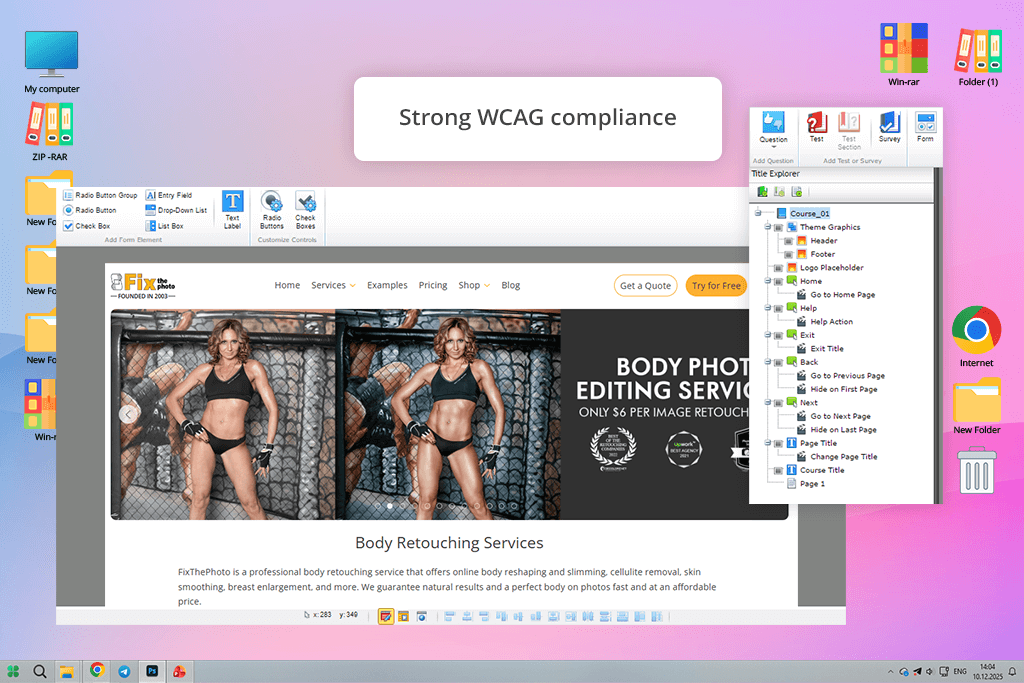
A friend who works in corporate compliance training told me about this online learning platform. Now I see why people in that field love it. It doesn’t try to be fancy - it’s just really good at what it does.
It sounds like you’re trying to find the right tool for your training projects. If you tell me more about the courses you build, I can help you compare your options.
I tried out Lectora by redoing one of our internal courses focused on policies and quality control. This type of training needs clear navigation rules, accessibility standards, and a tight logical structure. Right away, online course creation software felt more like building a website than designing slides, which made it feel completely different from iSpring Suite.
“With Lectora, you control every detail of navigation, accessibility, and how things work. Lectora feels completely open - nothing is tucked away or automated behind the scenes.”

Compared to iSpring, Lectora takes more time to set up at the start. But that effort pays off with steady performance and room to grow. Courses hold up well, even after many updates. The trade-off? The interface isn’t beginner-friendly, and making things look polished requires extra work.
My advice: Think of Lectora as a system, not a quick fix. Plan how everything will work first, then worry about how it looks - that way, you won’t have to go back and redo things later.
Key features:
Pricing: Free trial; Custom pricing (enterprise-focused)
Lectora vs iSpring Suite at a glance:
| Parameter | Lectora | iSpring Suite |
|---|---|---|
|
Learning curve
|
4/5
|
2/5
|
|
Accessibility control
|
5/5
|
2/5
|
|
Navigation logic
|
Fully customizable
|
Limited
|
|
Visual flexibility
|
5/5 (manual)
|
3/5
|
|
Best for
|
Corporate training
|
Quick slide courses
|
|
Scalability
|
Excellent
|
Limited
|
Best for: Mid to large teams (50–1,000+ learners), corporate training departments, collaborative course creation.
Integrations: SCORM LMS platforms, xAPI, AICC, enterprise LMS systems, HR platforms
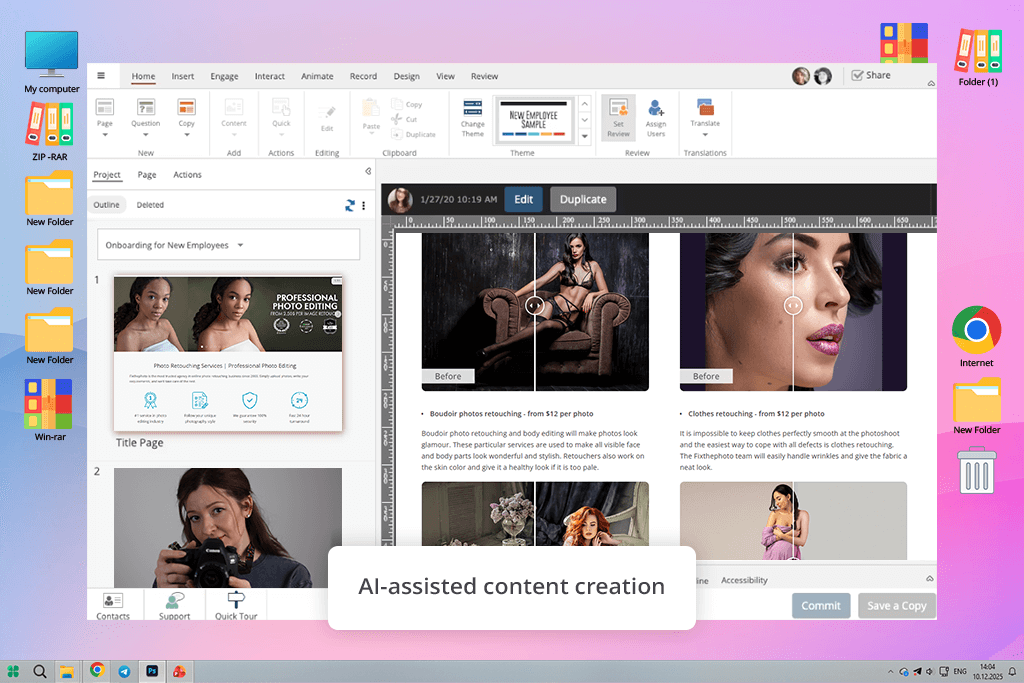
One of our FixThePhoto community members first told me about dominKnow. After finishing our course, they shared that their team had moved away from iSpring to dominKnow - mainly for better teamwork tools and smart automation. That really sparked my interest.
I tested this eLearning software while updating an internal retouching course - a project that usually needs input from several senior team members. Right away, it felt different from iSpring. dominKnow is built for teamwork. Multiple people can work on the same course without getting in each other’s way - something iSpring just can’t do.
“dominKnow’s AI handled tasks like creating quiz questions, rewording explanations, and suggesting better layouts. This saved time, especially when making routine updates.”

Unlike iSpring, dominKnow doesn’t revolve around slides - it’s built around a system. You set up the structure, reuse pieces across projects, and keep everything consistent. That makes a big difference for teams that are scaling up. However, it’s pricey, and new users might feel overwhelmed at the start.
My advice: Pick dominKnow when consistency and teamwork matter more than speed. Invest in reusable templates early - that’s where the real value comes in.
Key features:
Pricing: Free trial; From $1,997/year per author
dominKnow vs iSpring Suite at a glance:
| Parameter | dominKnow | iSpring Suite |
|---|---|---|
|
|
Native
|
Very limited
|
|
AI features
|
Built-in
|
None
|
|
Content reuse
|
5/5
|
3/5
|
|
Learning curve
|
3/5
|
1/5
|
|
Scalability
|
High
|
Limited
|
|
Best for
|
Teams
|
Solo creators
|
Best for: Large organizations (200–10,000+ learners), corporate academies, brand-sensitive training.
Integrations: SCORM LMS platforms, xAPI, enterprise LMS systems, HR tools
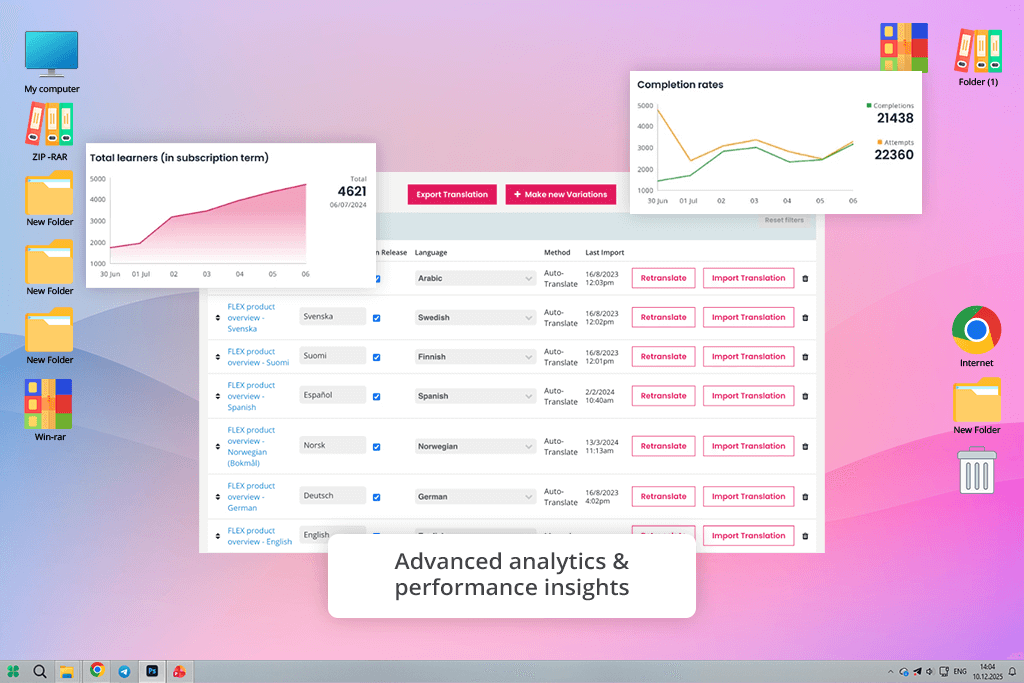
A colleague who handles big corporate training projects suggested Elucidat to me. Their reason was straightforward: “If you care about brand consistency and scaling up, this is the one to use.”
I tried this instructional design software on a client course that needed a consistent style across multiple sections. Its brand control stood out immediately - you set the rules once, and everything follows automatically. No need to build each course from scratch.
“Compared to iSpring Suite, Elucidat feels much more enterprise-oriented. It’s not about speed or experimentation - it’s about control, consistency, and analytics.”

What I really liked was that it’s nearly impossible to mess up the look of a course. New team members can add content without harming the layout or brand. The downside is cost and flexibility. You give up some creative freedom in exchange for that structure.
My advice: Elucidat works best when you have a large team contributing, but only a few people in charge of the look and feel. Just set your brand guidelines upfront, and everyone else can focus on writing the content.
Key features:
Pricing: Free demo; From $1,650/user/year
Elucidat vs iSpring Suite at a glance:
| Parameter | Elucidat | iSpring Suite |
|---|---|---|
|
Brand consistency
|
5/5
|
Manual
|
|
Collaboration
|
5/5
|
2/5
|
|
Analytics
|
5/5
|
3/5
|
|
Flexibility
|
4/5
|
4/5
|
|
Learning curve
|
3/5
|
2/5
|
|
Best for
|
Enterprises
|
Small teams
|
Best for: Small to mid-sized teams (20–500 learners), quick updates, mobile learning.
Integrations: SCORM LMS platforms, xAPI, enterprise LMS systems
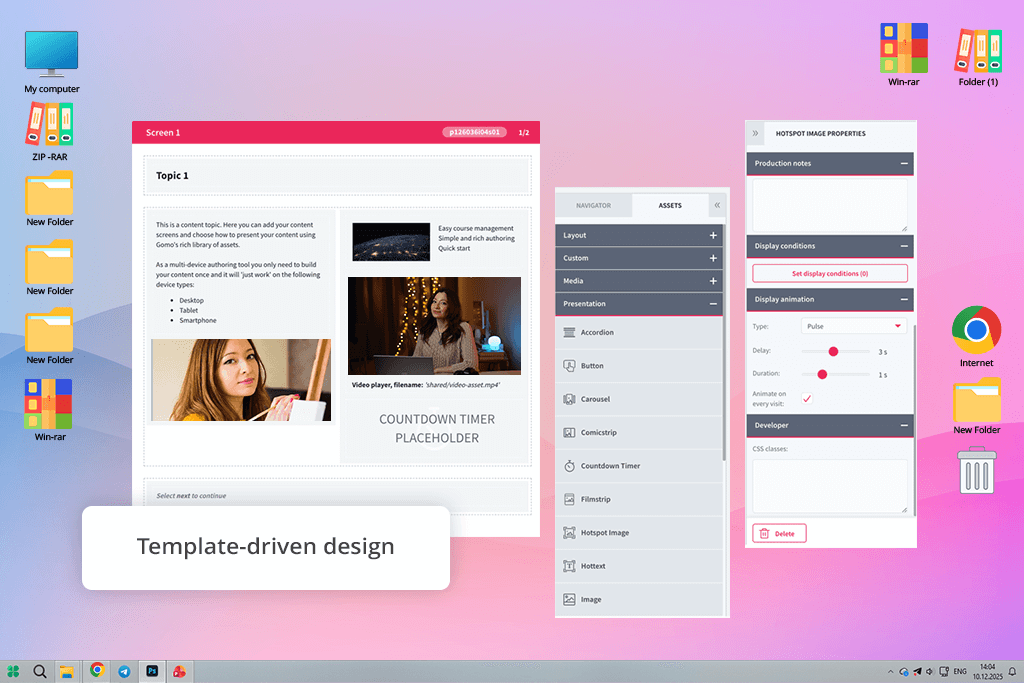
I came across Gomo Learning on an eLearning forum while looking into online course creation software. People kept describing it as “simple, but smart,” and that made me want to learn more.
I tried out Gomo by updating a short, free online photography course for our subscribers - something simple, mobile-friendly, and easy to change. Gomo’s main advantage is that it’s built for the cloud from the ground up. No software to install, no files stored locally, and no confusion over different versions.
“Gomo feels more modern than iSpring, but also less flexible. You work within its system - which is built for speed and mobile-friendly design.”

What I really liked was how simple it was to make updates - change it in one place, and it updates everywhere instantly. However, you can’t build complex interactions. This isn’t the right tool for complicated branching scenarios.
My advice: Gomo is great for quick, large-scale content updates. Don’t try to work around its limits - just embrace how simple it is.
Key features:
Pricing: Free trial; Custom pricing
Gomo Learning vs iSpring Suite at a glance:
| Parameter | Gomo Learning | iSpring Suite |
|---|---|---|
|
Deployment
|
Cloud-based
|
Desktop
|
|
Mobile support
|
Native
|
Limited
|
|
Speed
|
5/5
|
3/5
|
|
Interactivity
|
Basic
|
Basic
|
|
Maintenance
|
Easy
|
Manual
|
|
Best for
|
Updates
|
Presentations
|
As the head of retouching at FixThePhoto, I don’t test software just by reading about it or in theory. Training tools have a real impact on how quickly new retouchers improve, how consistently our senior team performs, and how well we explain things to clients. That’s why I tested presentation to eLearning software like iSpring Suite with real challenges and high-pressure situations.
I teamed up with my FixThePhoto team throughout this process. Some helped redo existing courses, while others focused on testing how user-friendly the tools were, how easy they were for new people to learn, and how well they worked with our LMS.
Before testing even began, I gathered suggestions from Reddit conversations, watched YouTube reviews, read posts in eLearning forums, and also listened to feedback from our subscribers and coworkers. I ended up with a long list of more than 50 tools. Each one claimed to be a good alternative to iSpring Suite or offered a way to turn presentations into eLearning courses.
After that, we removed any tools that didn’t handle SCORM well, hadn’t been updated in a while, or just felt old. The ones left we tested ourselves - and I personally spent time working inside every single one.
We tested every platform on real FixThePhoto projects:
I focused on how each tool managed course layout, interactive features, updates, and growth. We pushed slide-based tools beyond basic presentations. For cloud tools, we tested teamwork and version tracking. We also looked at how simple it was to fix errors - because in reality, courses are never truly finished.
A few tools didn’t make my final list. Easygenerator looked clean, but felt limiting as courses got bigger. CourseLab had an outdated design and didn’t flow well. ActivePresenter was powerful, but awkward for collaboration. Adapt Learning needed too much technical work to set up. And H5P-based tools were flexible, but keeping courses consistent across the board became a real headache.
I looked beyond just what each tool claimed to do. Instead, I focused on things that only become clear when you actually use them - not during polished demos.
Learning curve. I didn’t just ask myself, “Can I learn this?” - I also asked whether a new instructor or retoucher with no eLearning experience could actually build a working course without needing constant help.
Some tools were very powerful, but they took days to learn, needed outside guides, or required technical skills - things that just don’t work in a busy team. If a tool slowed down training instead of speeding it up, it lost points right away.
Collaboration. I made sure to include my team in testing because training at FixThePhoto is never a one-person job. We looked closely at how each tool handled things like multiple people editing at once, giving feedback, tracking versions, and setting different permission levels.
Working with files quickly got messy, especially when multiple people needed to update content at the same time. Tools that let teams collaborate in real time (or at least have solid version control) felt much more manageable over the long run.
I didn’t stop at basic quizzes when testing interactivity. Instead, I explored branching scenarios, conditional feedback, retry options, and learner-controlled navigation.
Plenty of software like iSpring Suite said they supported “interactive learning,” but most only offered linear courses with decorative extras. We gave preference to platforms where interactions actually changed how learners moved through the content - not just how it looked.
Performance and stability. Real courses change over time - they’re not just created once and forgotten. So, we put each tool to the test by updating courses multiple times, republishing them, and reuploading them to our LMS. Some platforms couldn’t handle it. After a few revisions, triggers broke, layouts shifted, or SCORM errors appeared. If a tool felt fragile after updates, we saw that as a major red flag.
Pricing vs long-term value. I’m happy to pay for software that saves time, prevents mistakes, or grows with my team. But if a tool hid key features behind pricey upgrades or charged more without actually making work easier, it wasn’t worth it. The best tools weren’t always the cheapest - they were the ones that made everything smoother, month after month.
Only the tools that held up under real-world conditions, with busy teams, constant updates, and changing course needs, made it into this list.




![11 Best Split Screen Video Editors [PC, Mac & Online]](http://fixthephoto.com/blog/images/gallery/news_main__preview_28892.jpg)

![7 Best Loom Alternatives [{{%year}} FixThePhoto Choice]](http://fixthephoto.com/blog/images/gallery/news_main__preview_28902.jpg)
![Add Skeleton Filter on Photo Online [FREE]](http://fixthephoto.com/blog/images/gallery/news_main__preview_28921.jpg)
![5 Best EML File Converters to PST in {{%year}} [Windows & Mac]](http://fixthephoto.com/blog/images/gallery/news_main__preview_28894.jpg)
![5 Best Real Estate Datasets for Machine Learning [{{%year}} FixThePhoto Choice]](http://fixthephoto.com/blog/images/gallery/news_main__preview_28903.jpg)


















