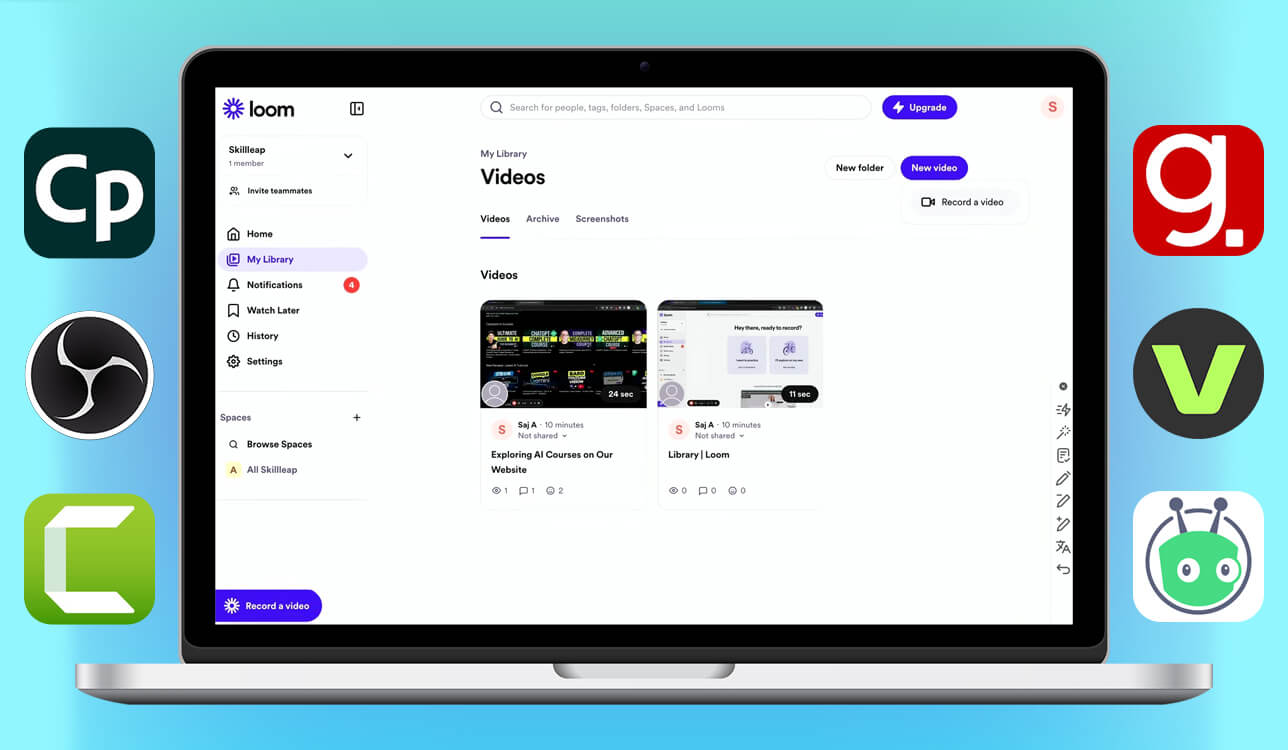
Loom is a fantastic option for creating quick screen recordings, sharing them, and communicating with other users, but it comes with several limitations that prompt users to seek Loom alternatives. Its free version imposes strict video caps, and the paid plans feel too expensive for what they offer.
I also noticed performance issues when handling complex projects. Having heard so much negative feedback, I wanted to find some Loom alternatives that can be a good fit for various workflows and budgets.
As someone who does a lot of retouching work, I often need to make screen recordings to produce walkthroughs or internal tutorials for my colleagues. To ensure this review is as objective as possible, I collaborated with several FixThePhoto team members to test 30+ Loom alternatives on different devices.
| Recording style/Editing level | Instant share link | Multi-source recording | Captions & text | Interactivity / CTA | |
|---|---|---|---|---|---|
|
Loom |
Quick screen + bubble/Basic trimming
|
✔️
|
❌
|
❌
|
❌
|
|
Responsive guided recording/Advanced interactive editing
|
❌
|
✔️
|
✔️
|
✔️
|
|
|
Scene-based capture/Effects & transitions
|
❌
|
✔️
|
✔️
|
❌
|
|
|
Browser step recording/AI-generated text overlays
|
✔️
|
❌
|
✔️
|
❌
|
|
|
Personalized sales videos/Light trimming
|
✔️
|
❌
|
❌
|
✔️
|
|
|
High-resolution multi-track/Full timeline editor
|
❌
|
✔️
|
✔️
|
❌
|
|
|
AI-generated branded videos/Plain-language editing
|
✔️
|
❌
|
✔️
|
❌
|
|
|
Browser capture + webcam/Template-based editing
|
✔️
|
❌
|
✔️
|
❌
|
|
|
Select area recording/Basic editor
|
❌
|
✔️
|
✔️
|
❌
|
To find the best free alternatives to Loom, I focused on several key aspects: efficient, fast screen and webcam recording, intuitive sharing, high video quality, versatile editing tools, reliable cloud storage or export parameters, and a pricing model that doesn’t scare away users on a limited budget. If some software failed to deliver on these expectations, I didn’t include it in this list.
If most of your needs are limited to making quick explainers for clients and coworkers, and you don’t want to waste hours of your time on editing, you should go with a lightweight and straightforward option like Movavi Screen Recorder or Veed, which allow you to press record, share the file, and move on without having to do anything else.
If you’re interested in free Loom alternatives that can be used to teach processes, onboard new staff, or create structured training material, pick a solution that provides annotations, cursor control, step-based guidance, and interactive modules. Adobe Captivate and Guidde are perfect for ensuring the viewers follow along without having dozens of questions about the recording afterward.
If you need to capture several sources or are looking for a pro-grade output, then choose software that supports 4K capture, scene switching, webcam layering, and timeline editing. I recommend Camtasia and OBS Studio, particularly if you’re making a tutorial that has a lot of small screen details.
If you find yourself talking to leads and clients often and need your content to drive action, pick one of the Loom competitors that allows including landing pages, CTAs, booking buttons, or viewer analytics. Vidyard is an appealing option since it helps you make your content a lot more engaging compared to what you can do in Loom.
Lastly, if you often need to make short branded clips, social media-ready explainers, or videos that require captions and visual polish, consider choosing solutions that come with templates, overlays, and automatic subtitles. Veed meets this description perfectly, as it’s a time-efficient tool that allows you to preserve a consistent visual identity across all your projects.
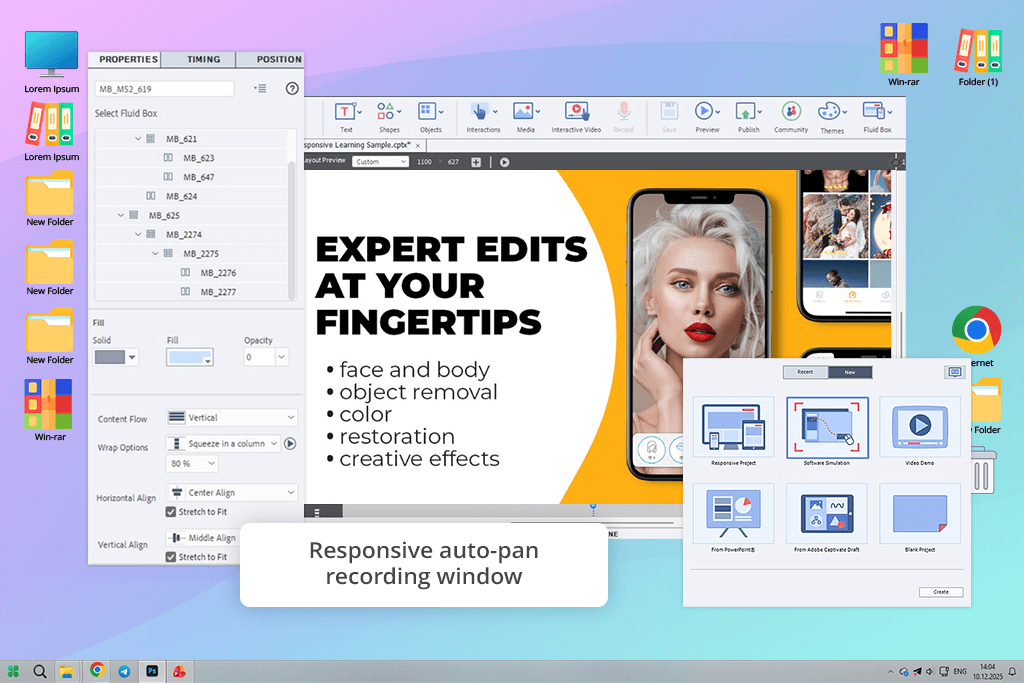
Adobe software is always dependable, and Captivate isn’t an exception. I initially used this eLearning software to make a client tutorial that required responsive recording, and I was impressed by how professionally it tackled various screen sizes compared to Loom. The auto-panning to active areas is time-efficient, and this feature is sadly missing from Loom and most of its replacements.
I like how this alternative to Loom records full-motion interactions. When I filmed a retouching guide with fast tool switches, subtle cursor motion, and keyboard shortcuts, the playback depicted all my actions perfectly. Loom compresses these micro-actions or reduces clarity, while Captivate preserves sharpness and ensures the audio produced by my device is in sync with the visuals.
I liked how convenient it was to transform a single video into a demo, training, and assessment module. Captivate is a great choice for producing corporate training content, as Loom is incapable of structuring footage in a similar way, lacking interactive overlays, which can be essential for covering intricate editing steps.
Best for: Producing interactive training modules, intricate software tutorials, and multi-device recordings that Loom isn’t versatile enough to handle.
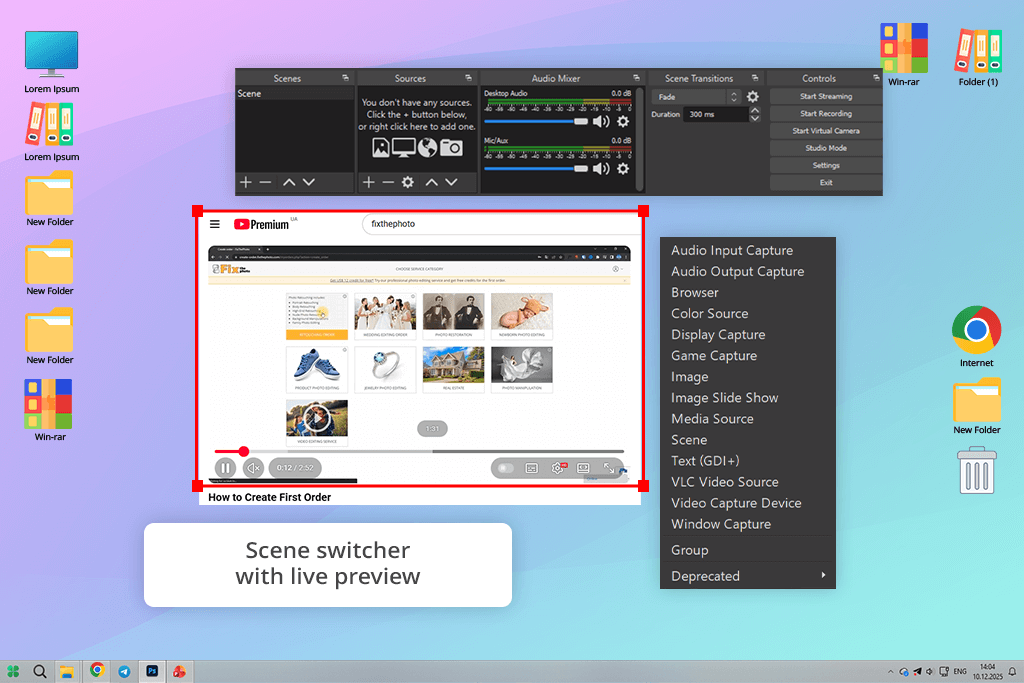
I was impressed that I can get this HD screen recorder completely free. Its UI is very different from Loom. The latter has a basic 3-button layout, while the former introduces you to scenes, sources, mixers, filters, transitions, and much more.
But once I got accustomed to the interface, I managed to record a 40-minute retouching session, and the visual quality is higher than what I got from Loom. I’ve put together a layout where I could switch between my webcam, screen, and a small text overlay with a single hotkey press. I also created a watermark and fade transition to make my videos more professional.
The biggest weakness of this solution is audio capture. This Loom alternative requires you to install extra plugins, while Loom records sound automatically. Even though it has a rather complex UI, OBS has the advantage of being a multiplatform solution that runs equally smoothly on Windows and Mac devices.
Best for: Professional tutorials, streaming-style content, multi-source videos, and workflows that require more complex tools than the ones found in Loom.
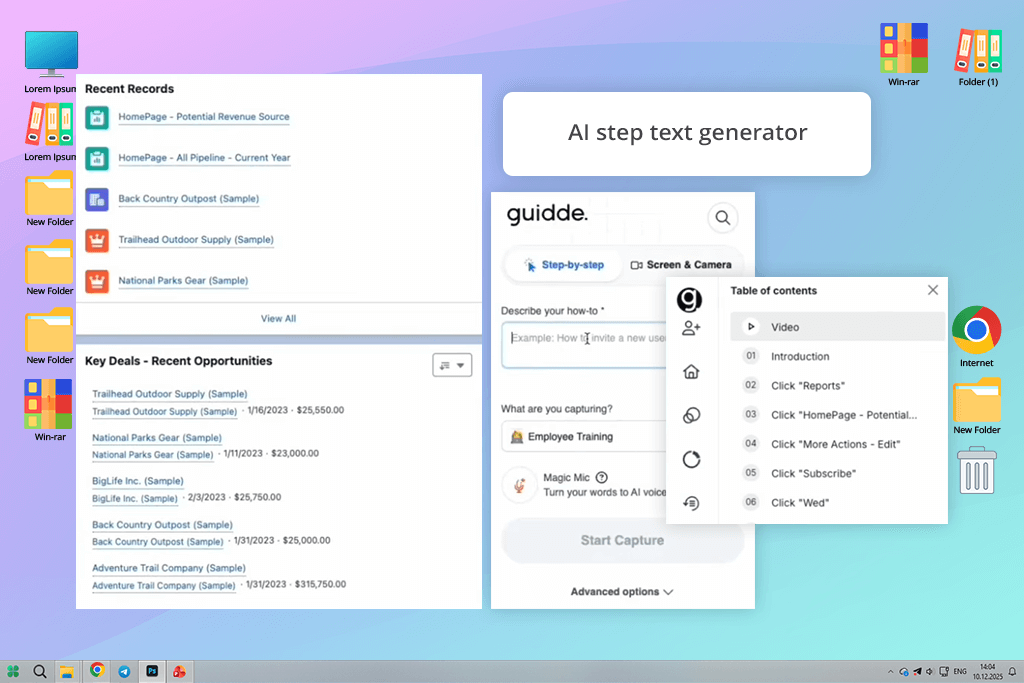
Guidde is one of the best Loom alternatives that I was lucky to test. I first used it to transform a 30-minute retouching explainer into a polished onboarding guide, and the relevant AI-generated text was created within seconds. Loom offers solid recording functionality, but it can’t present your actions in the shape of structured documentation while automating the entire process.
I enjoyed how simple it was to make product demos and software tutorials. When filming a screen capture of a color-grading project, the generated AI text added the missing context, and I didn’t even have to edit the suggested phrasing. Loom’s voiceover had me constantly re-recording different parts, while Guidde’s multilingual text-to-speech functionality streamlines the entire process.
While you can employ Guidde as free screen recording software, its free version is browser-exclusive, and it applies watermarks to all produced videos despite the video editing features falling short compared to professional software. However, Guidde is still one of the better Loom free alternatives when it comes to producing internal training, onboarding, or explainer videos.
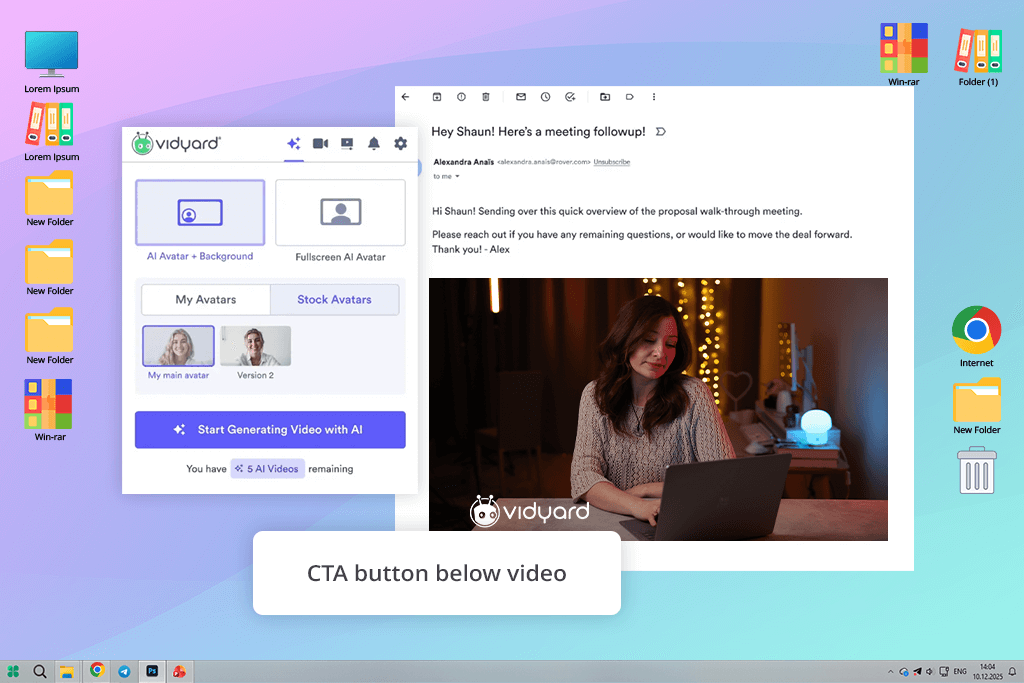
My coworker Kate uses this free Loom alternative for outreach, so I wanted to check if it would let me prepare a customized walkthrough for a client, and the response rate has proved to be surprisingly high. Rather than simply watching a video, the recipients land on a branded webpage that allows them to reply, comment, and continue interacting with the sender.
I was impressed by how easily Vidyard slides into existing client-acquisition workflows. I added a video to an email, and I received a client booking, as the recipient clicked on the call-to-action button right under the video, which isn’t something you can add in Loom. Vidyard can also be integrated with CRMs and chatbots, making it a lot easier to monitor engagement.
This Loom competitor doesn’t offer anything special when it comes to video editing features, but as a solution for targeted communication, it's unmatched. It’s not my go-to choice for internal retouching tutorials, but if I need to reach out to a client, Vidyard offers the personal touch I need.
Best for: Client outreach, lead cultivation, and interactive video messages, as Loom doesn’t have conversion-focused functionality.
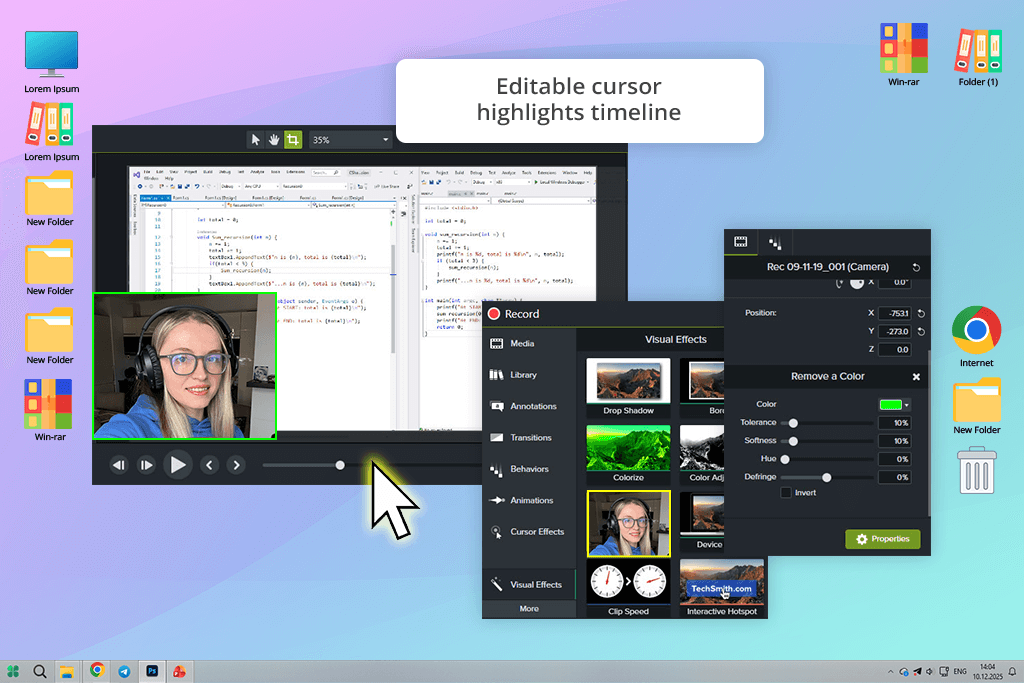
I used Camtasia in the past to edit some of my videos, so now I wanted to test its screen recording functionality. I employed it to capture a multi-track retouching session in 4K resolution, and the output looked more professional than any content I created in Loom.
The editing functionality is incredibly useful. Rather than having to start the entire video over when I selected the wrong tool, I simply edited the highlight and moved on. I produced a branded layout for educational videos that I shared with my coworkers. Reusing it for multiple projects allowed me to save a lot of time.
Loom is more efficient when it comes to basic video production, but it can’t match the versatility and level of control provided by Camtasia, which even lets you feature your webcam, mic, and screen in a single timeline. Sadly, Camtasia is inferior compared to most free alternatives to Loom when it comes to pricing, as it requires a single-time purchase, and it doesn’t even provide cloud storage.
Best for: Professional educational content, multi-track recordings, and projects that require more intricate editing.
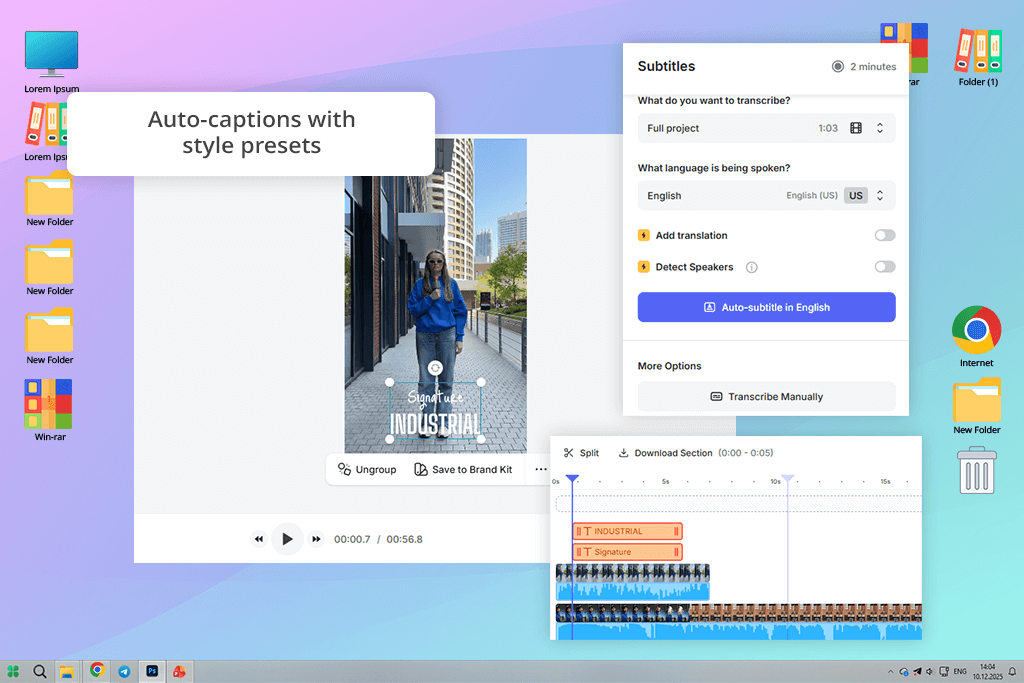
I initially stumbled upon Veed in a Reddit thread that was discussing websites like Loom, so I wanted to try it. It helped me record a short walkthrough of a portrait retouching session straight in the browser, while adding captions and text overlays in just a couple of clicks, which isn't possible in Loom. The provided templates also ensure the tutorial looks professional instead of basic and bland.
It’s also one of the most appealing Loom video capture alternatives for users who aren’t particularly tech-savvy. I suggested it to a marketer on our team, and they didn’t have any issues using Veed on their own. Loom is even more straightforward, but it’s not as robust editing-wise, and makes it hard to combine screen recordings with short talking-head clips.
The issues started popping up when my internet slowed down, and every step started taking up more time than it should. Additionally, I don’t like the yearly billing approach, and the free plan’s recording length limitations are way too strict.
Best for: Brief branded videos, captioned walkthroughs, and browser-based recordings that require visual quality that can’t be achieved in Loom.
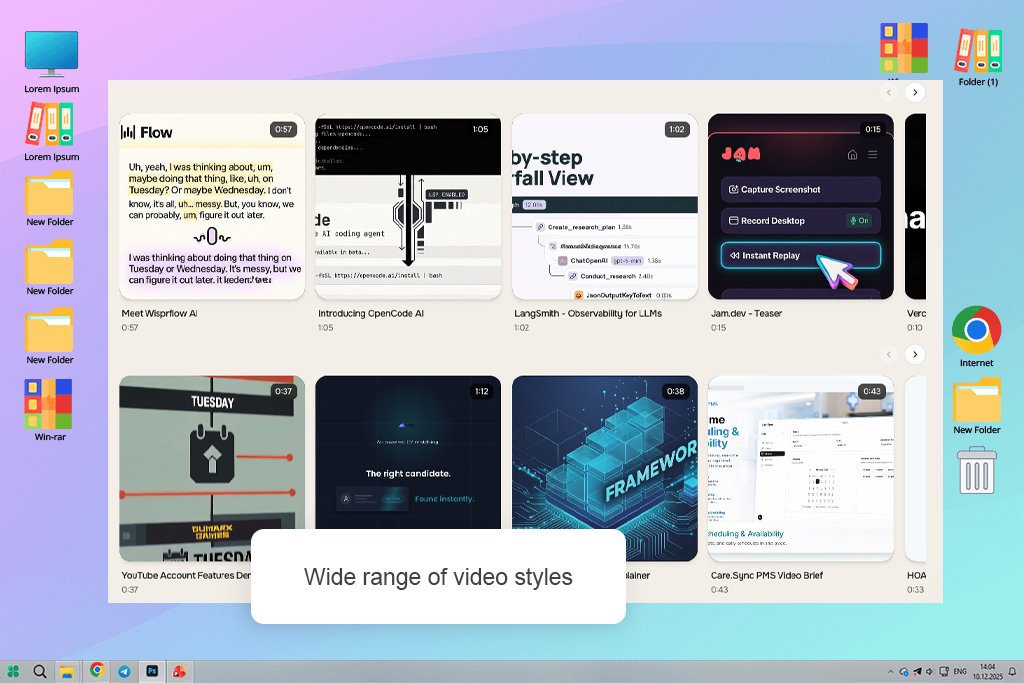
I created a brief product announcement using a release letter in order to test ngram. The platform created the research, narrative, storyboard, voiceover, and visuals once I chose the audience, aim, style, and duration. While ngram creates a more organized and sophisticated video, loom is quicker for recording a simple message.
In order to make an onboarding movie, I also submitted a document, a few pictures, and a product URL. I was able to edit the storyboard using straightforward commands like "shorten scene 2" thanks to this AI movie generator, which arranged the pieces into a cohesive narrative. It was nice to be able to go over the structure before creating the finished video.
Best for: Creating branded product announcements, release-note videos, onboarding materials, and explainers that require more structure and visual polish than standard Loom recordings.
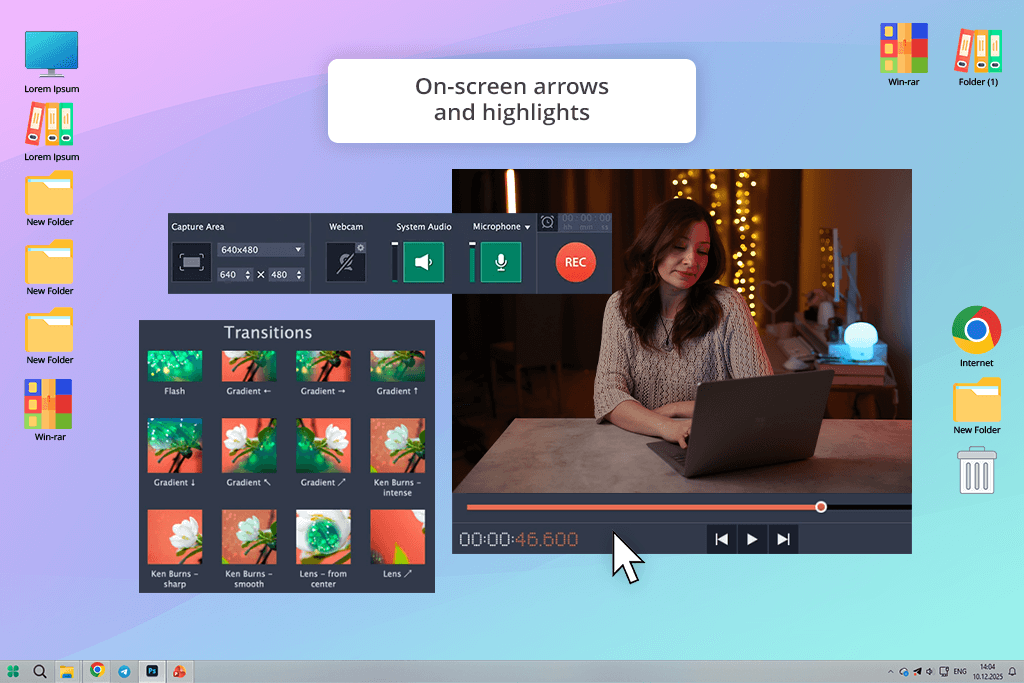
I tend to use Movavi for editing videos, so I was interested in seeing how it fares against other alternatives to Loom when it comes to screen recording. I used its selective recording feature to capture only a portion of my screen. Loom lacks such functionality.
Additionally, Movavi offers annotation tools (arrows, highlights, text) that allow me to focus the viewer’s attention on subtle adjustments during the recording rather than afterward. The UI is straightforward, and I liked the ability to juggle several audio sources, as I could conveniently switch between my microphone and system sound depending on my needs.
Sadly, it also doesn’t support live streaming, which is why Loom is a better fit for real-time walkthroughs. The free plan is rather limited and applies a watermark to your creations.
While you can get plenty of Loom alternatives for free, we wanted to ensure you only consider the best options, which is why we tested each one in real-life scenarios that people usually employ Loom for.
The process usually involved capturing short retouching walkthroughs for clients, lengthier step-by-step tutorials for new employees, and brief feedback clips where I would share my screen and voice without having to do any editing in post-production.
I focused on how many clicks it required to begin recording, whether I could swap between webcam and screen capture conveniently, and how user-friendly the software felt compared to Loom.
We also checked how each option tackled intricate cursor movements, since in retouching solutions, subtle actions matter. Some software compressed motion or blurred brush strokes, while others recorded them well enough for a beginner to track them.
Kate examined whether cursor highlighting, zooming, or panning was automatic or demanded additional steps, since Loom isn’t great when it comes to high-precision maneuvers.
Sharing was another important factor. Nataly shared links with real clients and internal coworkers to evaluate the loading speed, playback quality, and whether recipients had to make an account. She monitored where viewers dropped off, how simple it was to add a comment, and whether the software provided calls to action, captions, or interactivity features that are missing from Loom.
Our FixThePhoto team also ventured into rarer scenarios, capturing lengthier videos, saving in higher resolutions, juggling audio sources, and evaluating how free versions handled actual projects.
Some apps like Loom applied watermarks, some imposed time caps, and others struggled to provide stable performance when the file size got bigger. This helped me determine which software is a complete Loom replacement and which is only suitable for specific scenarios.
Lastly, we checked how every solution fits into various workflows: onboarding, client tutoring, sales outreach, internal feedback, and professional content creation. Rather than evaluating them based on their feature sets, we focused on how each app performed when I needed efficiency, quality, and interactivity. This helped me find full Loom replacements amidst a sea of more casual alternatives.





![7 Best TXT to PDF Converters [Free Desktop, Online & for Mobile]](http://fixthephoto.com/blog/images/gallery/news_main__preview_28480.jpg)
![7 Best ODT to PDF Converters [{{%year}} FixThePhoto Choice]](http://fixthephoto.com/blog/images/gallery/news_main__preview_28601.jpg)

![9 Best DALL-E Alternatives in {{%year}} [100% FREE]](http://fixthephoto.com/blog/images/gallery/news_main__preview_28491.jpg)
![9 Best Ghibli AI Generators in {{%year}} [100% FREE]](http://fixthephoto.com/blog/images/gallery/news_main__preview_28431.jpg)

















