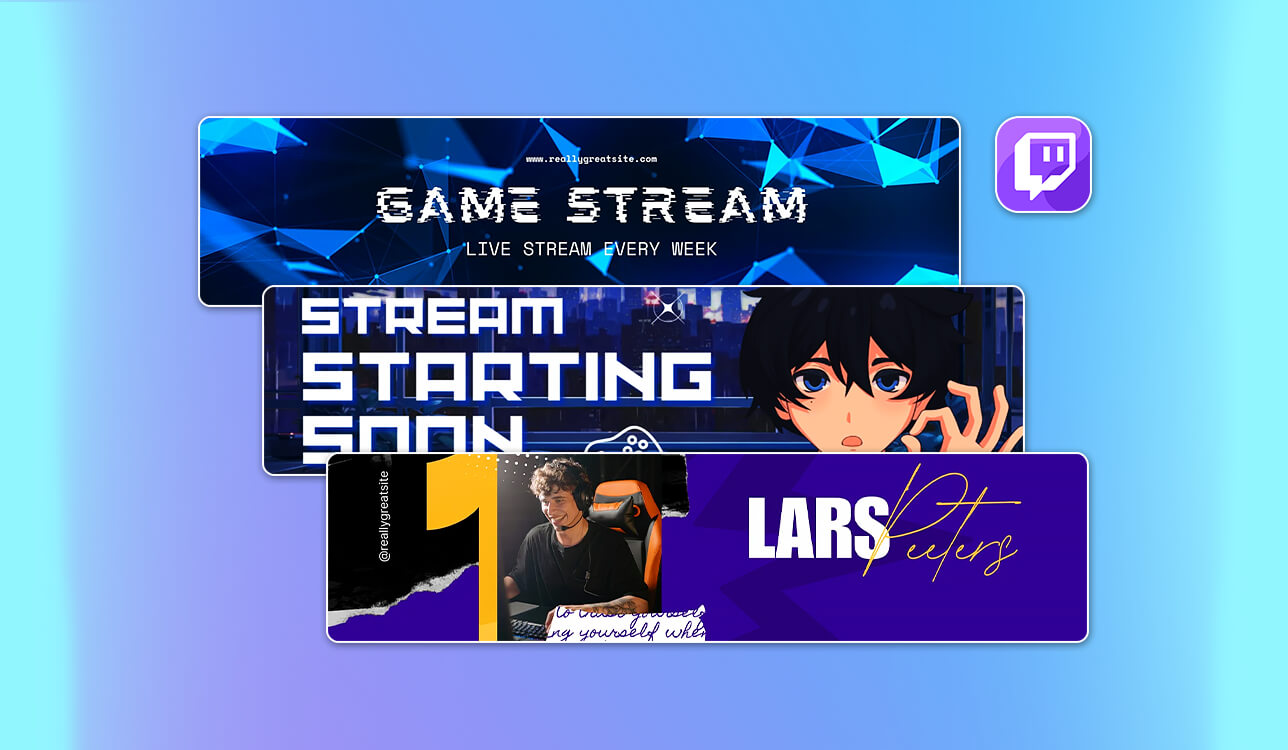
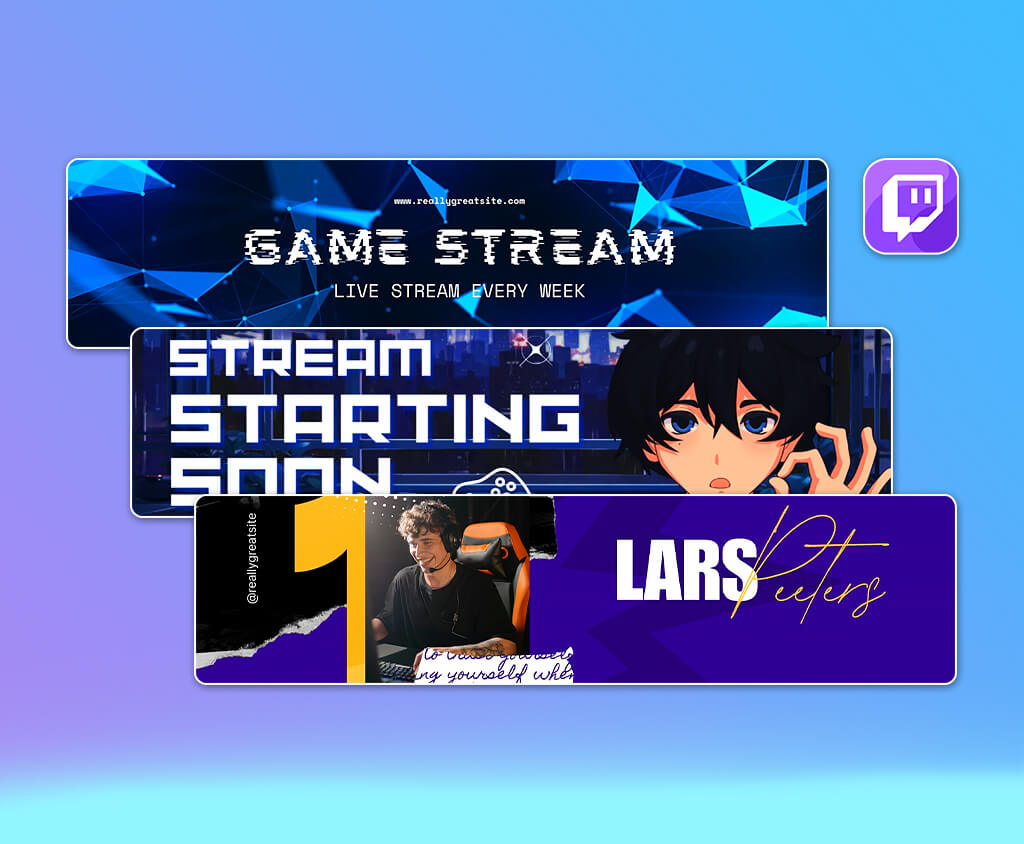
Working in social media design at FixThePhoto, I see firsthand what different platforms require. Lately, I've been getting more requests from streamers and content creators wanting help picking Twitch banner makers. My old method was hand-designing everything in Photoshop, which produced good results but was slow and clunky. My clients asked for quick changes like updating their schedule, announcing collaborations, switching to seasonal themes, or refreshing their branding. So, I started to look for tools that could handle these requests faster while keeping the quality high.
I reached out to designers I work with, checked what people were saying on Reddit and Quora, and evaluated those tools. I tested over 25 tools in total. I looked at dimensions, image sharpness, the variety of templates, and control over the results. I felt a bit disappointed because of weak guidance about safe zones, overuse of templates, limited editing options, and quality that suffers when you export.
Your Twitch banner should do two things: look great and actually represent you. It needs to show your personality and the kind of content you make, but it also has to be readable everywhere, including big screens and small screens. The strongest banners stand out because of the following aspects:
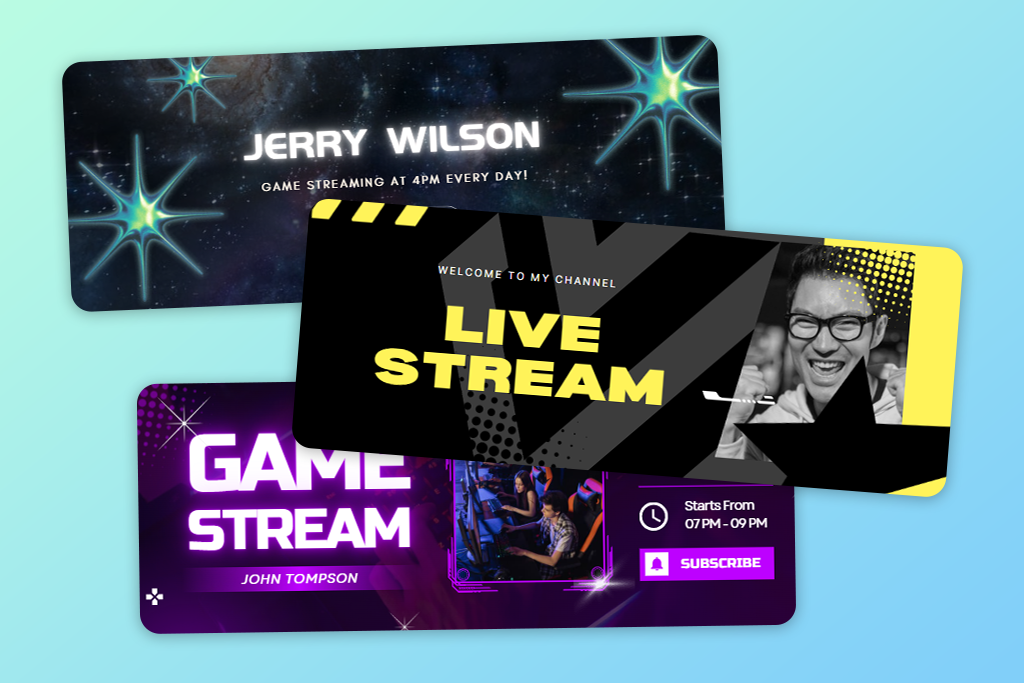
Price: Free or from $9.99/mo.
Availability: Web, Windows, macOS, iOS, Android
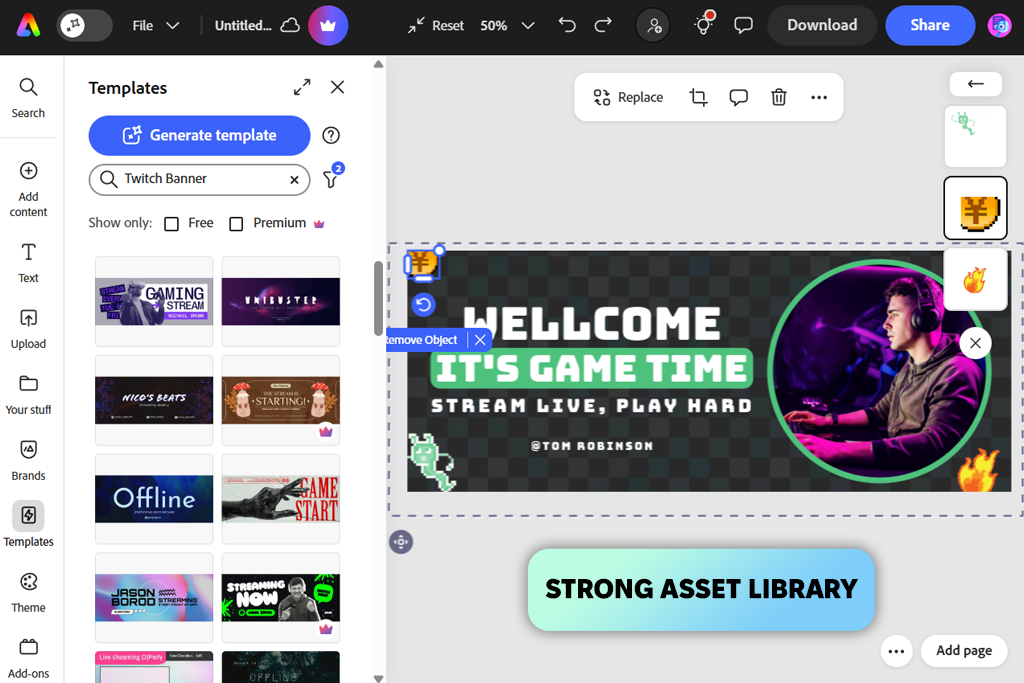
If you're a streamer looking for a quick way to make solid banners, Adobe Express is a great option. I tested it thoroughly, playing around with ready-made templates and building custom designs from scratch. I created gaming headers, banners for when you're offline, and stream promotion graphics.
This Twitch banner maker is packed with streaming-specific templates, so you don’t have to dig through general social media templates. Everything you need is right there – swap backgrounds, add your brand logo, tweak the colors, and pull in images without jumping around different apps. I like how smoothly I can mix and match design pieces together. In minutes, I layered icons, shapes, gradients, and text effects exactly how I wanted them. If you're someone who likes to change your stream's vibe regularly, this tool will definitely speed up your workflow.
The resize tool turned out to be more useful than I thought. Since I was mainly working on Twitch banners, it was very convenient to instantly adapt designs for other social media stream announcements. Plus, I took advantage of the asset library when clients showed up without their own graphics. I could quickly pull backgrounds, icons, and effects to round out the design.
With this program, you can turn a completed banner into a template you can reuse. Streamers love this. You keep your design consistent but just change the schedule or event info each week. The AI features are very helpful. Automatic background removal and an AI image generator let me create custom visuals much faster, especially when I didn't have great source images to work with.
Banners exported cleanly and stayed crisp even after Twitch's compression did its thing. Text remained legible, colors held up well, and everything looked genuinely professional. Stacked against other online banner makers, Adobe Express produced top-notch designs rather than basic templates.
Price: Free or from $15/mo.
Availability: Web, Windows, macOS, iOS, Android
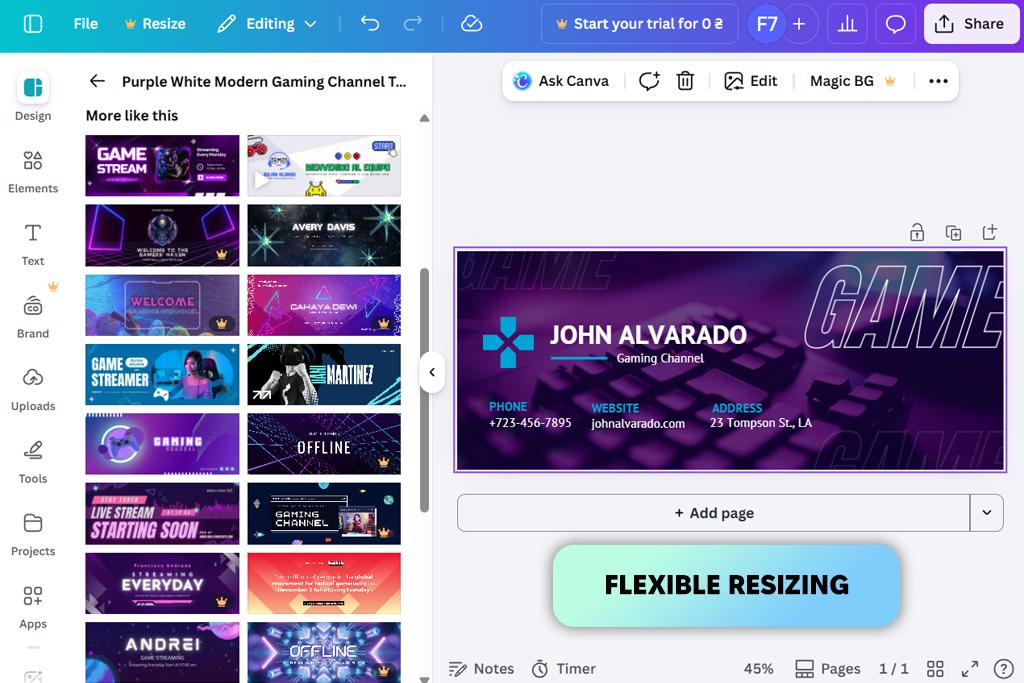
Making a Twitch banner with Canva (https://fixthephoto.com/canva-photo-editor.html Complete Canva Review) turned out to be really easy and enjoyable. Starting with a ready-made template, I customized every part to match my channel's vibe. Dropping in graphics, writing text, adjusting colors, and stacking elements was intuitive. I played around with animations to create a bespoke banner. I could adjust sizes, throw in my social media info, and make sure all my banners looked consistent and professional.
Canva is a handy free Twitch banner maker. I could bring in my own images, play around with different fonts, and choose from loads of design elements already there. In other words, I didn't have to start completely blank. Another advantage is that I could work with my team at the same time and just send them a link to look over and comment on. The built-in AI tips and matching fonts made picking design options easier, particularly when I had a bunch of banners to create.
Everything looked sharp when I downloaded it. The problem is that a lot of cool graphics and fonts cost extra, and the app can get laggy when you're working on bigger, more detailed projects.
“I prefer Canva for making Twitch banners when I need quick results that still look good. Once, I spent just 20 minutes making a pastel-themed banner for a cozy lifestyle streamer. The result was amazing.”

Price: Free or from $5/asset
Availability: Web
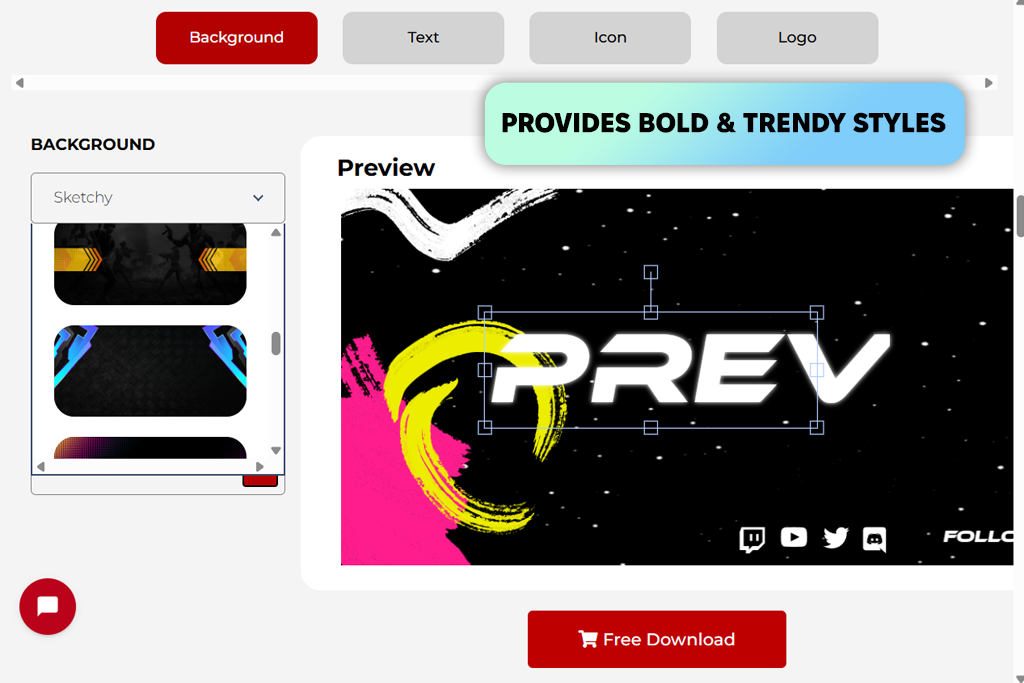
If you want a unique Twitch banner, GamingVisuals has your back. It's made specifically for streamers, so it doesn't waste time with stuff you don't need. This free graphic design software is built around gaming vibes. Pick from pre-made layouts with striking backgrounds and bold fonts that actually look good for gaming. There's already space for your name and social links built in. Designing banners here is streamlined, not like fighting with a clunky tool.
To test this custom Twitch banner maker, I decided to create banners for different stream types –a hardcore FPS one, a relaxed chatting layout, and a neon offline banner. It was very easy. You pick a template, type in your name, drop your logo in, and throw some icons around. GamingVisuals handles the tedious tasks, so your banners instantly look like they belong on a gaming channel. My test banners turned out great immediately. The text stood out, the backgrounds looked dramatic, and they all fit Twitch's size requirements perfectly without any fiddling required.
The biggest advantage is having lots of pre-designed templates and examples to choose from. When time's tight, using a design that already matches what's trending in streaming saves you hours. However, there is a downside. Since it's all about gaming, it's not great if you want something different. Also, banners can be repetitive if you don't put in effort to make yours unique. Plus, the best-looking assets and backgrounds aren't free. You get basic options without paying, but if you want the really one-of-a-kind assets, you need to spend money.
Price: Free or from $7.47/mo.
Availability: Web, Windows, macOS, iOS, Android
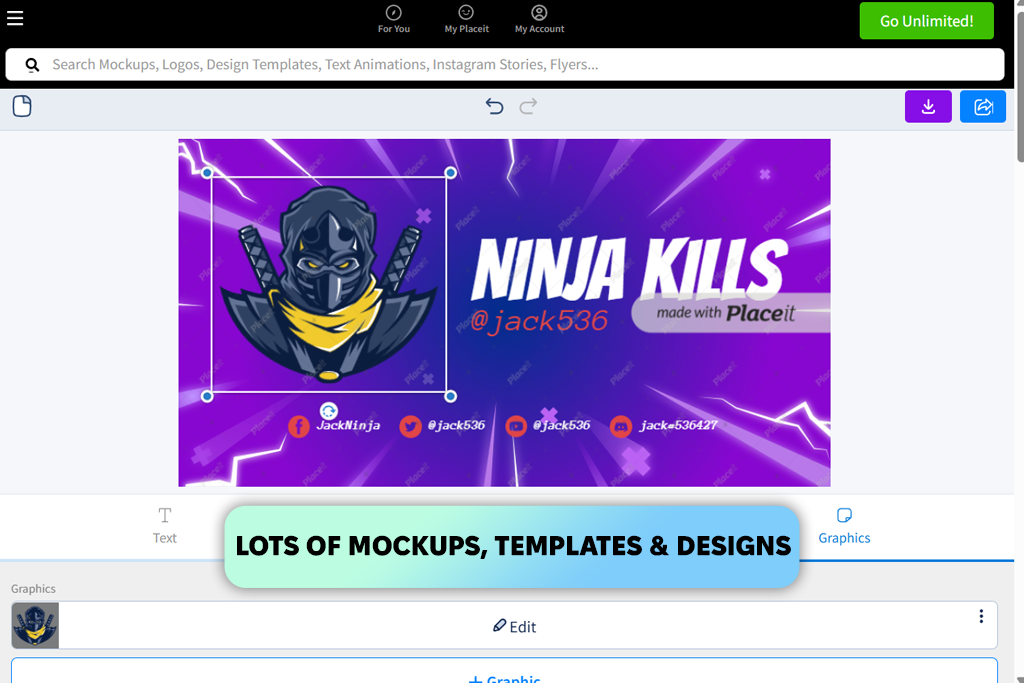
I'd tried Placeit before as a free logo maker, so I already knew how it worked. When I came back to make a Twitch banner, I was impressed by something different. The program includes many gaming-themed layouts. Unlike typical social media templates, these designs genuinely looked like actual streamer channel art.
I tested this Twitch banner generator by creating three designs. One had an intense esports vibe with huge typography. Another was a gentle pastel look for cozy gaming sessions. The third was a standout offline screen. Working with it was easy. Pick your template, update text and colors, swap backgrounds, insert logos, and layer on graphics. Since templates came pre-sized for Twitch, I didn't have to fiddle with dimensions or spacing.
The designs were ready quickly and looked professional, especially for gaming content. If you're in a rush and want something that fits the streaming vibe, Placeit will satisfy you. However, since so many creators use this platform, designs start looking repetitive. On top of that, the editor occasionally slowed down on me, and I discovered that the really cool templates and premium design elements aren't free. You have to pay for them.
“I used Placeit to make a banner for a last-minute Twitch collaboration. I selected a suitable template, added the logo and text, and received a nice result straight away.”

Price: Free or from $5/mo.
Availability: Web
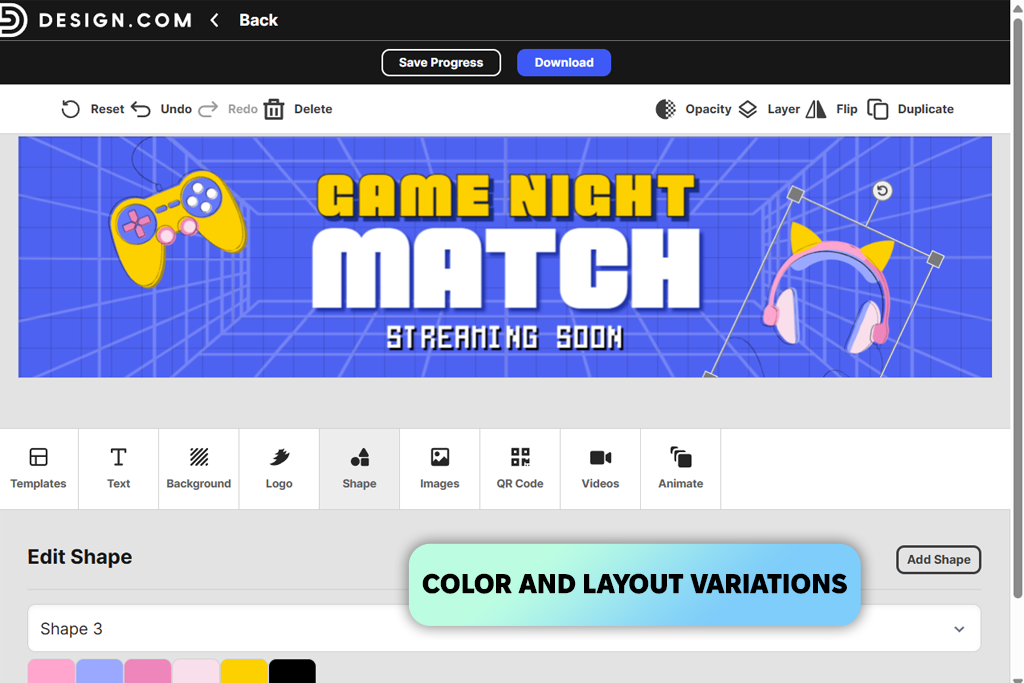
I was on the hunt for a Twitch channel banner maker that could handle both static and animated designs in an easy way. Design website checked every box. The moment I landed on the platform, I was impressed by the template collection. There were lots of well-designed options.
The editor was natural to navigate, and I had full control over fonts, colors, shapes, layouts, curved text, and gradients. Adding my own logo took seconds, as well as tweaking the details. When it came to downloading, I had plenty of file format choices, including vector files, which are great for both digital and print use. The instant preview feature was incredibly helpful.
Testing went well overall. The designs came out looking sharp and polished. But it wasn't perfect. Large file exports took longer than expected, and a few customization options were restricted if you're used to professional design tools. I didn’t expect that this platform would be so versatile. It also works as free business card software.
Price: Free or from $9.99/mo.
Availability: Web, Windows, macOS, iOS, Android
If you're looking to design a Twitch banner, Pixlr makes the whole process rather straightforward. It gives you the choice to tweak an existing template or go full creative mode on a blank canvas. I tried both and had a lot of fun customizing graphics, colors, and text. I even built out three different styles – an FPS banner, a minimal streamer header, and an offline layout.
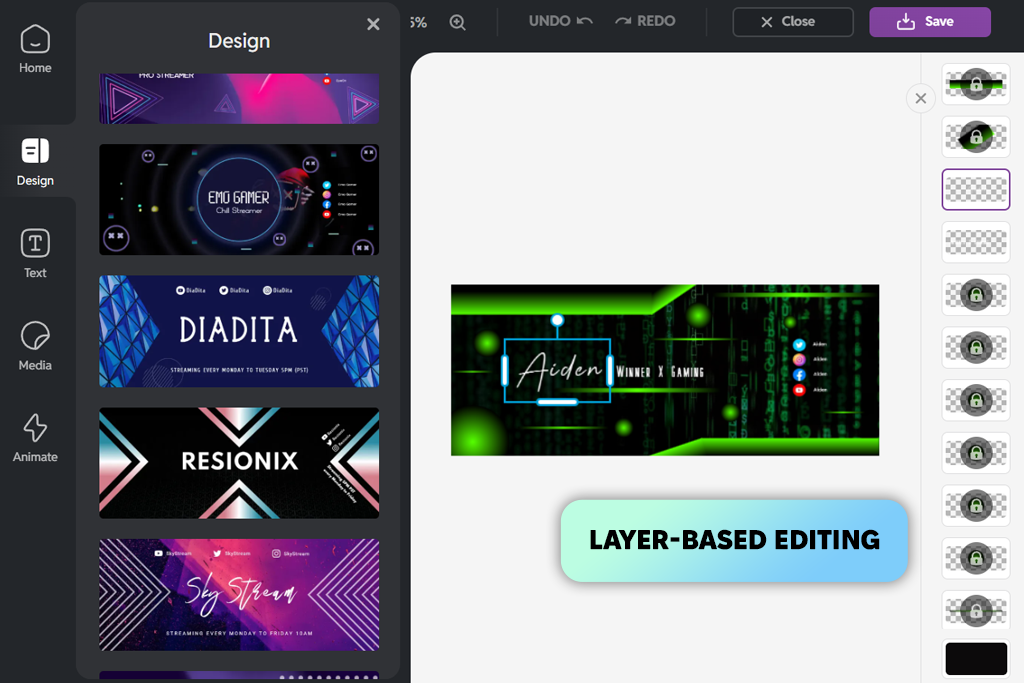
The layer system in this online Twitch banner maker lets me edit one element at a time without touching anything else. Resizing for different platforms like YouTube and Twitter was quick and didn't throw off the layout at all. Pixlr has a built-in library with different stickers, backgrounds, and text effects. I could add shadows, upload logos, and stick to a consistent color palette, so my final designs looked put-together.
The banners looked great and were ready to upload straight to Twitch. But the free plan does have its limits. Ads pop up, downloads are restricted, and certain AI tools aren't accessible. The layer-based editing can take some getting used to if you're new, and large file exports sometimes impact performance.
“Last week I wanted to create a streamer’s dark-fantasy banner and spent several hours layering textures and neon effects. It was time-consuming, but the result exceeded my expectations.”

Price: Free or from $10/mo.
Availability: Web, iOS, Android
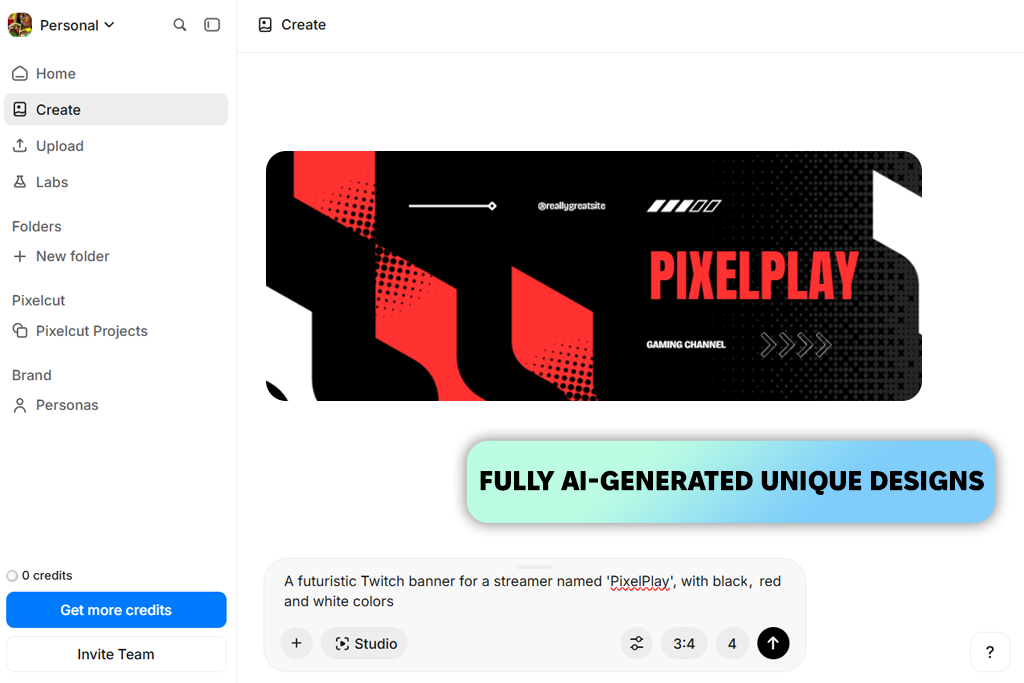
Most AI Twitch banner makers encourage you to start with a template. Pixelcut does the opposite. You describe what you want, and the AI figures out the rest. I ran a few tests using three different channel ideas, including a warm pastel cozy gaming aesthetic and a moody dark fantasy RPG layout with glowing text effects. Each concept came together in seconds without manual tweaking needed. This AI software is great for people who want to go from a rough idea to a real visual as quickly as possible.
I was stunned by how detailed you can get with just words. Color palettes, lighting, mood, game genre, text placement – I could spell it all out in the prompt and the AI actually grasped my idea. Whenever a banner didn't quite hit the mark, I adjusted my description and tried again. That back-and-forth was more like creative direction than typical design work. Exported files came out as sharp, high-resolution PNGs that looked clean and clear even after being uploaded to Twitch.
Don't have any assets ready? That's not a problem with Pixelcut. The AI handles backgrounds, lighting, and overall atmosphere by itself, which makes it a solid Twitch banner design tool for streamers chasing a more illustrated or cinematic feel without needing advanced editing skills. But it's not perfect. Vague prompts lead to inconsistent results, and if you need something very specific, you may find yourself regenerating a few times. Manual editors still have the edge for detailed layout work.
Yes, you can. Most banner tools, including Canva and Adobe Express, let you bring in your own images and logos. Adjust the size, crop it, and apply some effects. A few tools even help you build cool overlays, giving your banner a signature branded touch.
Go with 1200 x 480 pixels. If you want sharper results on high-res screens, bump it up to 1920 x 480. Just keep your file under 10MB so it uploads and loads without any issues.
Keep your colors, fonts, and visuals consistent. Use white space wisely and stick to simple layout rules. A logo or mascot goes a long way in making your channel memorable. Most importantly, let it show who you are and what your channel is about.
PNG and JPEG are your go-to formats for regular banners. All professional Twitch banner makers support these formats. If you want something animated, use a GIF instead. Keep things under 10MB so it loads smoothly. Keep in mind that plenty of viewers are on mobile, so clarity and readability should always come first.
Your banner should show your streamer name, your brand colors, and images that match what you stream. Want to go further? Add your schedule or social media handles. A few small icons can really help your audience stay connected with you beyond Twitch.
Yes, you can do that. Canva, Adobe Express, Pixlr, and Placeit let you take your Twitch banner and resize it for YouTube, Twitter, or Discord in just a few clicks without quality loss. It's a simple way to keep your branding consistent across every platform.
It really comes down to how active your channel is. Lots of streamers swap out their banners for seasonal events, collabs, or big announcements. There's no strict rule, but updating it every now and then is advisable so that your channel looks fresh and interesting to new and returning viewers.
Finding the best banner maker for Twitch isn't as easy as it sounds. I personally tested over 25 options, including Canva, Pixlr, Adobe Express, Placeit, Recraft, Kittl, GIMP, and more. Plenty of them work fine for casual tasks, but when it comes to professional-quality banners, most have deal-breaking limitations.
I teamed up with my colleagues from FixThePhoto, people who live and breathe social media design, to figure out what actually matters: proper sizing, legible text, fast edits, quality exports, and solid templates. We tested across multiple channel types, both animated and static.
To find truly worthy tools, we tested every major use case – templates, blank canvases, animations, AI graphics, and logo uploads across gaming, lifestyle, and creative channel types. Cross-platform resizing for YouTube, Discord, and Twitter was part of the checklist, too.
Some Twitch banner creators were super quick but creatively limiting. Others gave full control but took longer to learn. After hands-on testing combined with our design experience, we narrowed it down to the tools that consistently deliver banners that look great and actually work for streamers.



![5 Best EML File Converters to PST in {{%year}} [Windows & Mac]](http://fixthephoto.com/blog/images/gallery/news_main__preview_28894.jpg)


![Fish Eye Filter Online [FREE]](http://fixthephoto.com/blog/images/gallery/news_main__preview_28873.png)
![9 Best Runway Alternatives [{{%year}} FixThePhoto Choice]](http://fixthephoto.com/blog/images/gallery/news_main__preview_28896.jpg)

![Golden Hour Filter Online [FREE]](http://fixthephoto.com/blog/images/gallery/news_main__preview_28916.png)

















