Managing social media content means dealing with a lot of documents. Campaign briefs, content calendars, client feedback, and performance reports pile up fast. At some point, sending five separate attachments to a colleague is not practical. A single, well-organized PDF is a cleaner version. That’s what sent me searching for the best online PDF merger tools.
But not all tools deliver on that promise. Free plans often cap how many files you can combine, or how large they can be. Some programs make it oddly hard to reorder pages. Others hold your finished document hostage behind costly subscriptions.
To find satisfying options, I tested over 15 tools and looped in colleagues for their real-world takes. We focused on ease of use, processing speed, file limits, output quality, privacy practices, and capabilities available in a free plan. We wanted to make a shortlist of tools that fit into a busy content workflow.
The best PDF merger tools are fast, reliable, and handle multiple files without issues. Formatting should survive the process intact. Text, images, and layout should be identical to the source file. Before merging, I want to preview files and reorder pages if needed. Such control matters.
Free plans vary more than you’d expect, so file size limits and feature restrictions are worth checking. Privacy policies deserve attention, since uploaded documents can be sensitive. We also considered page removal, compression, and format conversion. They are not obligatory, but having them in one place saves time and keeps the workflow simple.
Keeping documents organized becomes simpler when you can combine them into a single file. Online PDF merging tools make that possible without any software to download or settings to configure.
The real value here is simplicity. A couple of quick steps replace a scattered collection of files with one well-structured document that’s easy to store, share, and come back to.
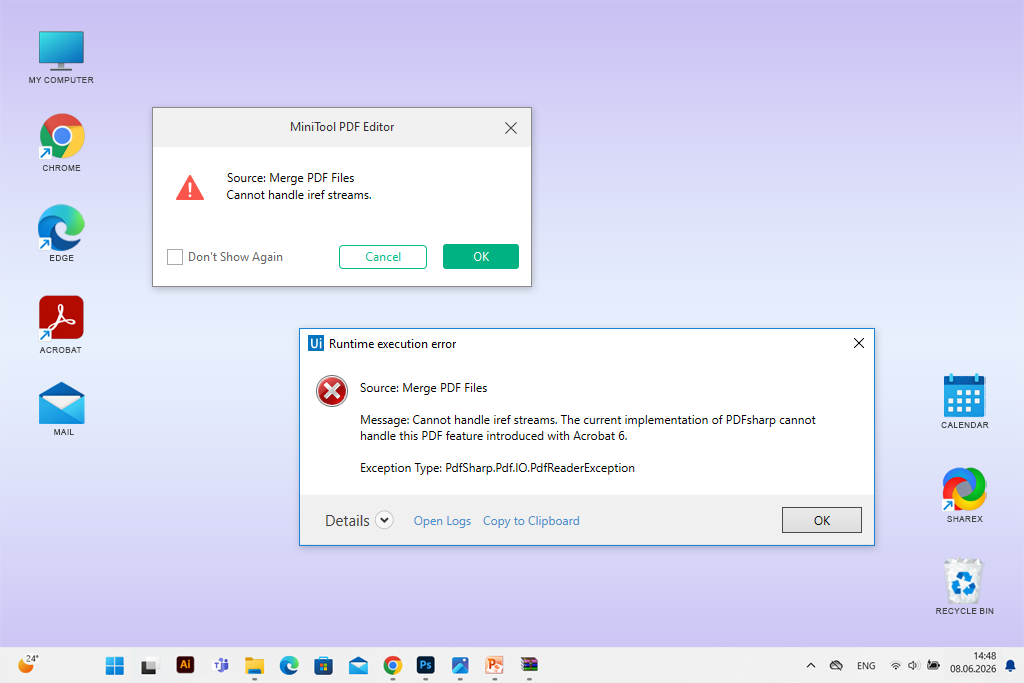
Online PDF mergers are generally reliable, but they can run into trouble sometimes. Users may face a frozen page, a failed upload, or an unexpected error due to file size limits, a poor internet connection, a corrupted PDF, or a browser conflict. Try these steps before you give up on the tool.
When nothing works, free PDF merge software for desktop can be a more stable choice for large files or regular use. Just remember to review the privacy policy of any new service before you upload sensitive documents.
Price: Free
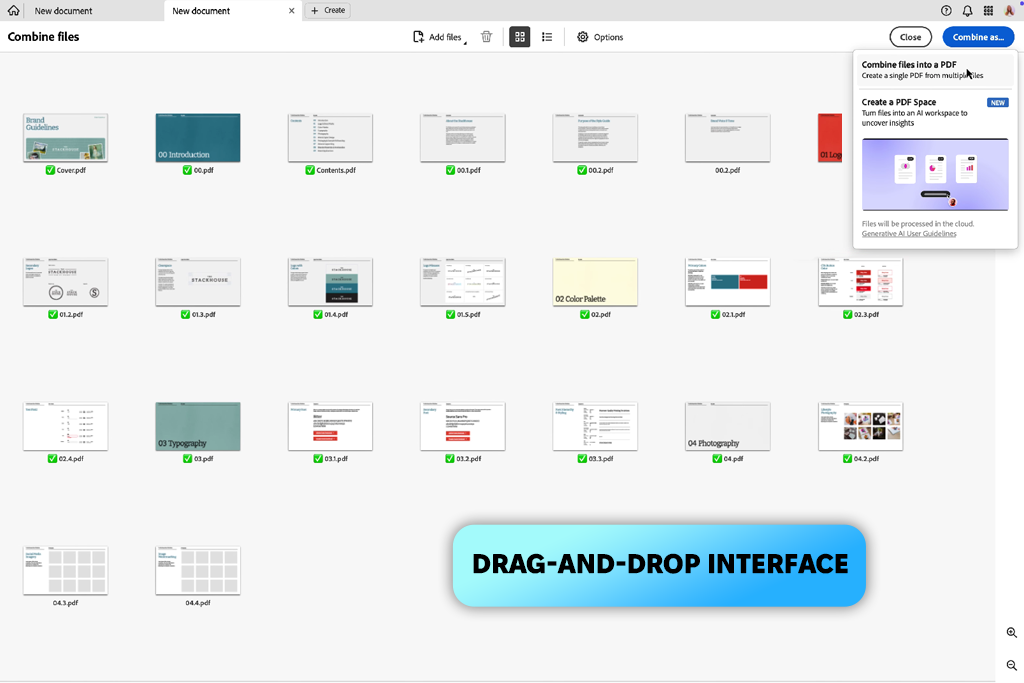
Adobe Acrobat turned a tedious task into a natural part of my content workflow. The setup is minimal. You drag your files into the browser window, put them in the order you want, and hit merge.
I used this Adobe PDF free tool to pull together campaign briefs, content plans, and reference docs into one clean PDF. Sharing a single file with colleagues is more practical than sending a stack of separate attachments.
One thing worth noting is the file capacity. This free Adobe software lets you combine up to 100 files into one PDF, with a total limit of 1,500 pages and up to 500 pages per individual file. That covers most real-world use cases without any trouble.
Browser compatibility is another strong point. Adobe Acrobat works in Chrome, Edge, and other major browsers across Windows, Mac, Linux, and mobile, so you’re not tied to a specific device or setup.
Before you combine PDF files online, you can drag them into exactly the sequence you need. Once the document is ready, you can download it or sign in to share it through a link. The tool also includes page organization, conversion, and other PDF utilities, which is handy when you need to do more than just combine files.
The main catch is that options like rotating or removing individual pages after a merge require an account. More advanced features may also come with a cost.
Price: Free or from $9/mo.
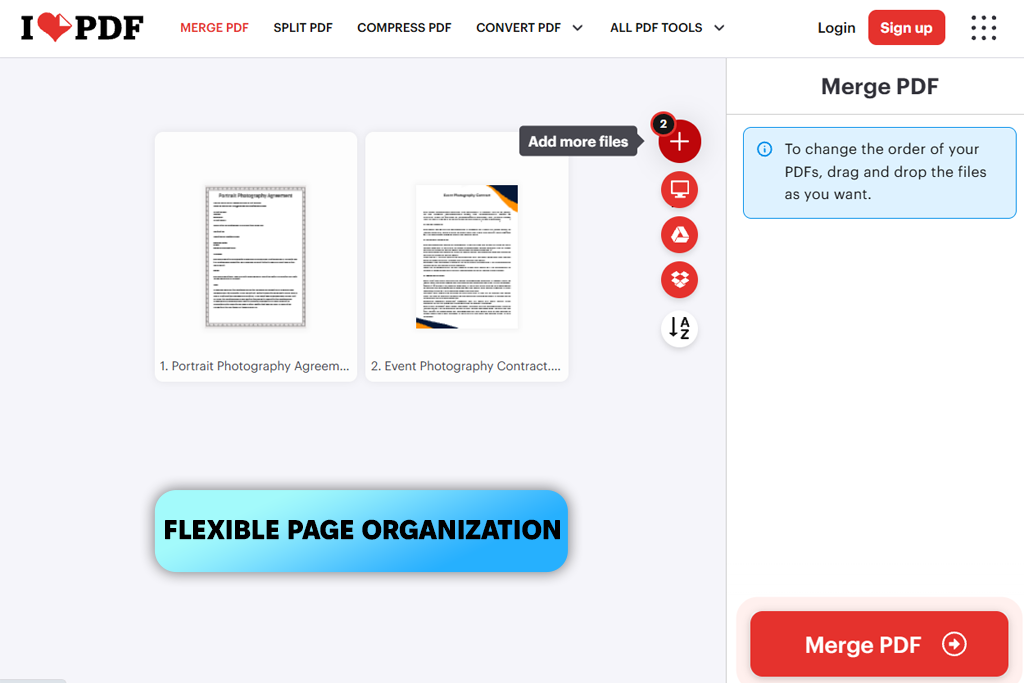
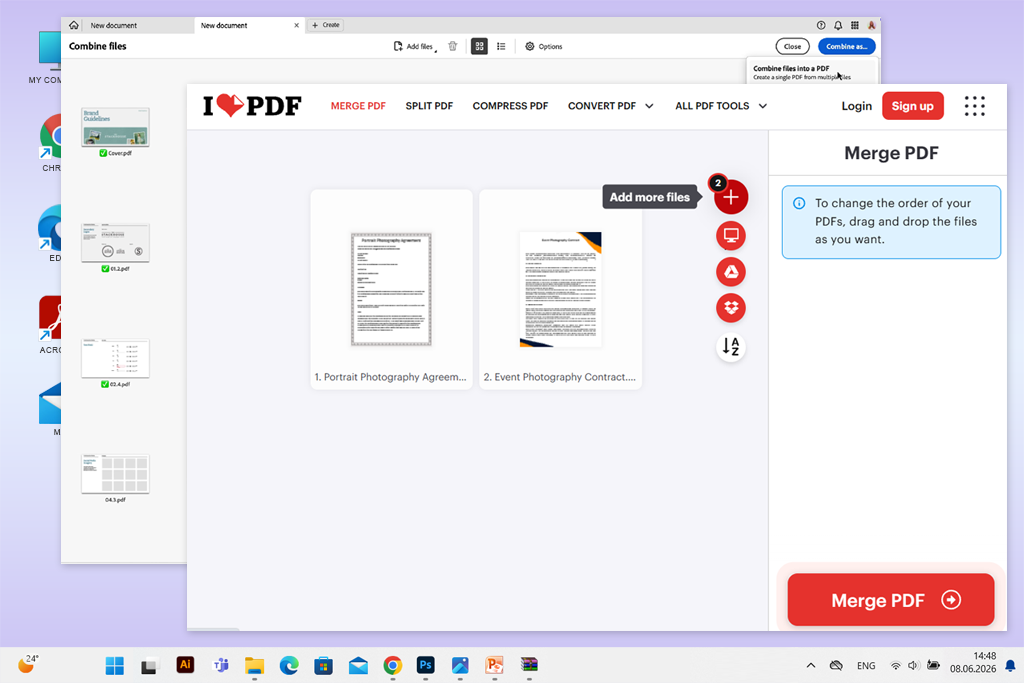
iLovePDF proved to be a solid choice when I needed to pull several campaign briefs and reference documents into one file. The interface is straightforward. I combined 7 files totaling 46 pages in about a minute, with no software to install and no settings to figure out. This free online PDF merger tool allows up to 25 PDF files per batch, which covers most everyday tasks without any issues.
I like that this tool offers a lot of features beyond a basic merge. You can compress large PDFs, use it as PDF splitter software, rotate pages, add page numbers, convert files to other formats, and add password protection. It works as a small but capable PDF toolkit, not just a merger. The file order preview before a merge was a nice touch. A quick check, one click, and the document was ready to send to colleagues.
Still, the free version does have its limits. Large PDFs or back-to-back batches can slow things down. The ads add some visual noise to the interface, and the whole process depends on a reliable internet connection for uploads, processing, and downloads.
“Combining multiple files into one is effortless with iLovePDF. My only gripe? The constant ads and free-tier restrictions. Does the job well, but you’ll feel the nudge to upgrade pretty fast.”

Price: Free
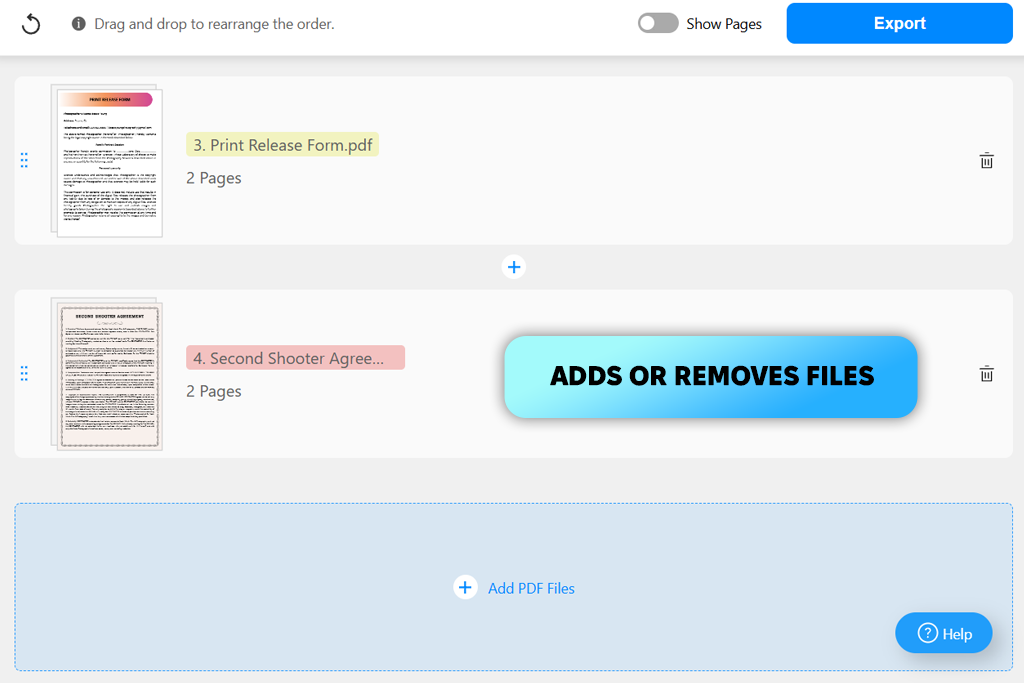
PDFgear has one feature that sets it apart from most other free online PDF merger tools. It handles everything right in your browser, without ever uploading your files to a server. That’s a real privacy win if you work with sensitive documents.
To test it, I loaded a few PDFs, put them in the right order, and used the page view to cut out anything I didn’t need. I did not have to create an account or fill out payment details. The final PDF came through clean, with no watermarks, no quality loss, and all the searchable text still intact.
What I appreciated most is the control you get before you hit that download button. You can add or remove files, rearrange them, and fine-tune individual pages. It runs in a browser on both desktop and mobile, so there’s nothing to set up.
For anything beyond basic merging, the separate free PDF editor covers extra ground. The trade-offs are worth mentioning. The online version needs a stable internet connection, and it can feel slower than a desktop app. It also doesn’t match some other tools when it comes to advanced editing or cloud workflow options.
Price: Free
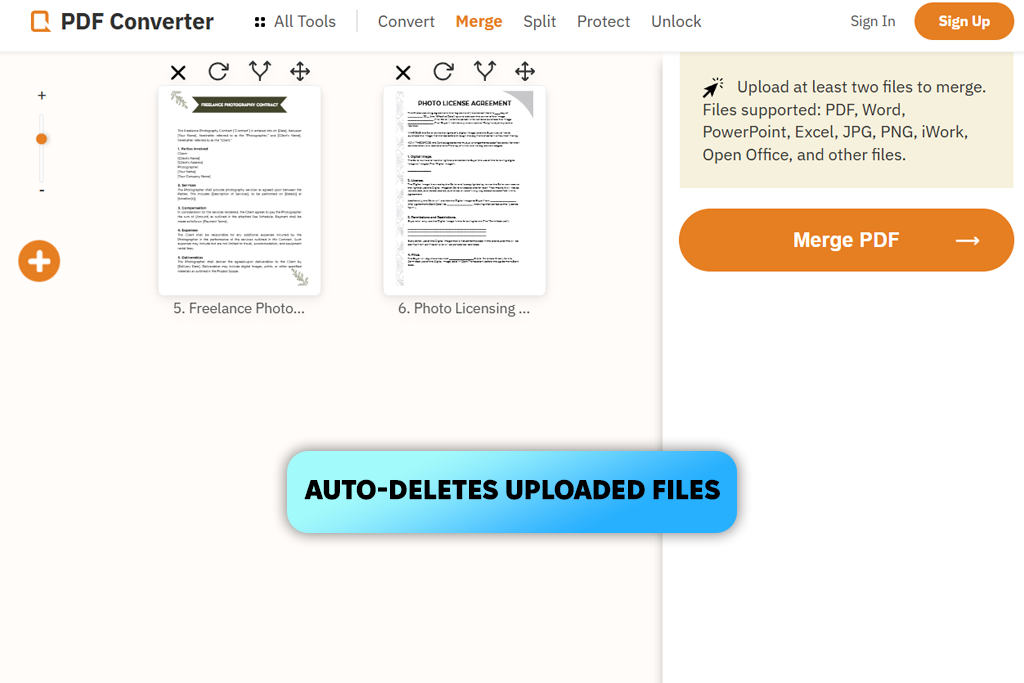
FreePDFConvert is a good pick when you need more than just a merge button. The format support is amazing. You can work with Word documents, spreadsheets, PowerPoint files, and images without converting anything to PDF first. The output looks clean, with sharp text and clear images.
Beyond merging, the platform covers a solid range of tasks. You can split, rotate, convert, compress, and add password protection without switching to another tool. I also used it as an online PDF compressor to trim file sizes before sharing. That flexibility is useful when you handle a variety of documents on a regular basis.
On the privacy side, FreePDFConvert uses 256-bit encryption during processing and deletes uploaded files afterward. It runs in a browser on Windows, Mac, Linux, and mobile, so there is nothing to install.
The weak spots of this online PDF merger show up with larger files. Batch jobs can slow the browser down or fail partway through, so it is worth a quick check before you send anything important.
Price: Free or for $6mo.
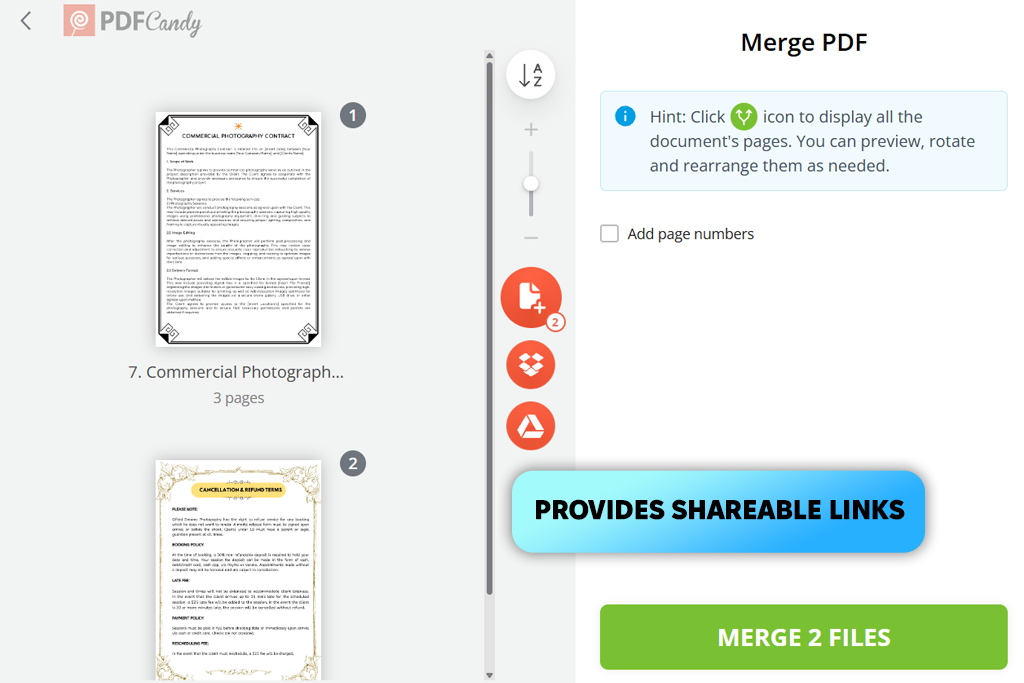
PDF Candy brings more to the table than a basic tool to merge multiple PDF files. Before combining anything, you get a file preview. It is handy for catching a misplaced page or a wrong document before it ends up buried in the middle of a finished PDF.
A sort-by-name option keeps things orderly when you’re juggling multiple files, and the tool handles up to 100 PDFs per session with a 200 MB ceiling per file. Page numbering can be applied to the merged result, and cloud imports from Google Drive or Dropbox mean you’re not stuck dragging files from your desktop.
Once the merge is done, the output is ready to download or pass along via a shareable link. Think of PDF Candy less as a single-purpose tool and more as universal file converter software.
The same platform handles converting, compressing, and splitting, so there’s no need to jump between sites for different tasks. It also connects to FixThePhoto’s roundup of file converter software for users who need broader format support.
However, the number of utilities on the platform can make it feel disorganized on first visit. You’ll need a moment to find your bearings. The free tier also has daily task limits, so it’s better suited to occasional use than a high-volume workflow. As for privacy, uploaded files are wiped automatically within two hours.
“Love that you can pull files straight from cloud storage. The feature set is huge, so expect a bit of digging before you find what you need.”

Price: Free or from $4.19/mo.
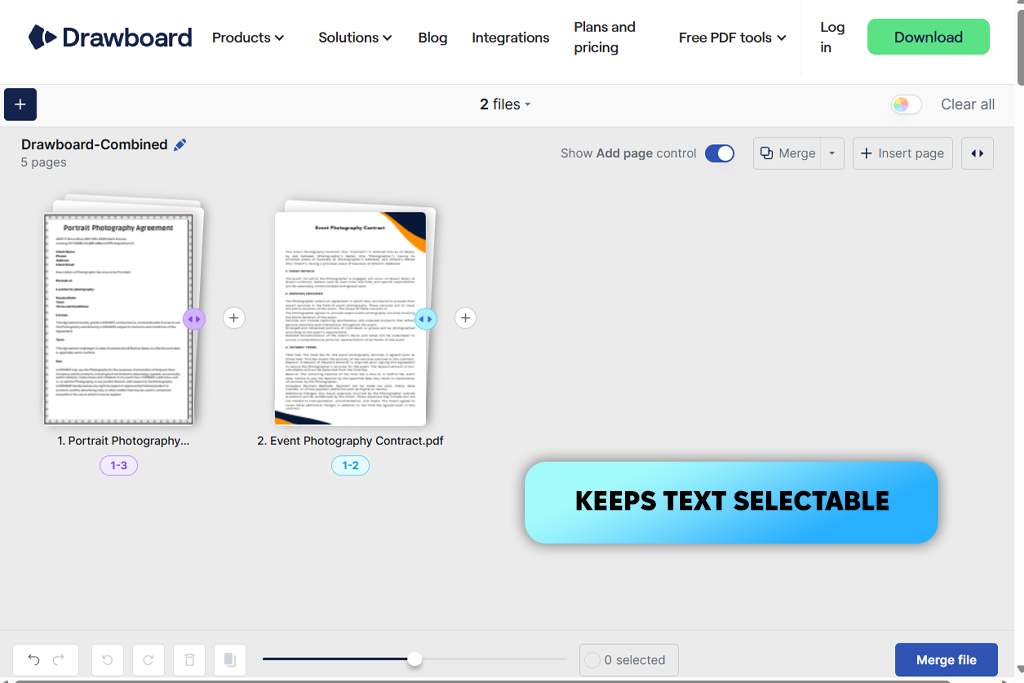
Drawboard handles everything inside the browser, so there is nothing to install and no account to create. You drop in your files, set the order, and check each page in the preview before the merge starts. If a page does not belong, you can cut it out before the final document is even created.
This online PDF merger tool keeps the original resolution and selectable text intact, with no extra compression applied. There are also no hard limits on file count or size. What matters is the memory and processing power of the device in front of you.
One practical detail worth noting: once the tool loads, the merge can continue without an internet connection. Files never leave the device, since the whole process runs locally rather than on a remote server.
Beyond merging, Drawboard’s Quick Tools cover splitting, compression, and conversion. You can also use Frawboard as a PDF flattening tool. The interface has a lot going on, which can feel like overkill for a quick two-file merge. Larger or more complex PDFs may also slow things down.
Price: Free
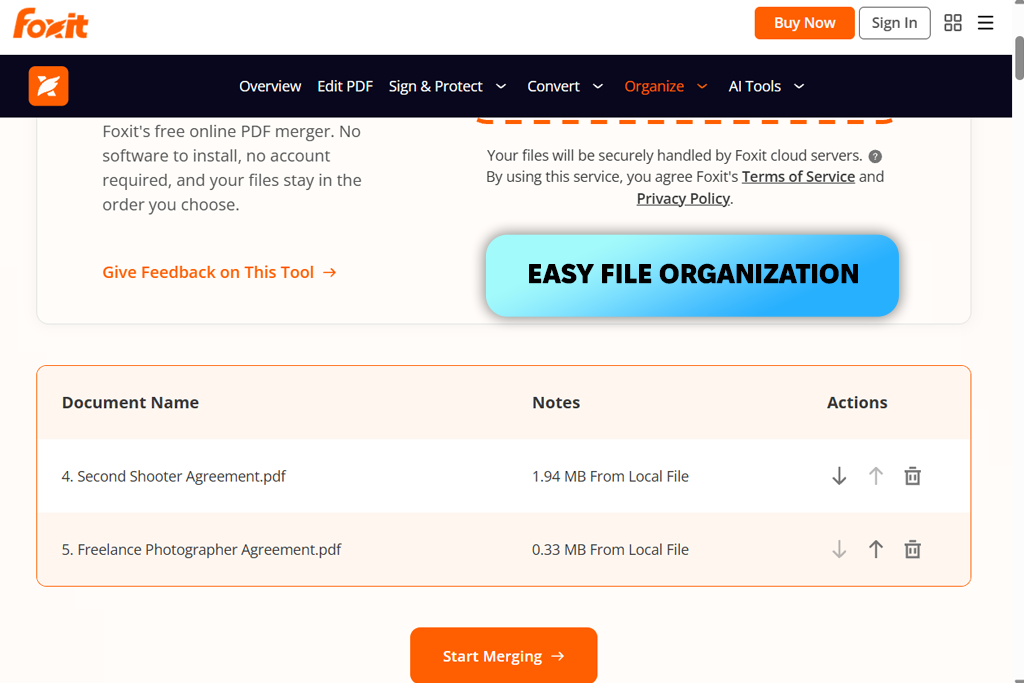
Foxit keeps the whole PDF merging process simple. There is no account to set up and no software to download before you can start. The tool accepts files up to 20 MB each, lists them on screen, and gives you arrow controls to set the order or drop any file you do not need. One click on “Start Merging,” and the combined PDF is ready to save.
The original layout, images, and text come through without changes, since the tool skips recompression. Foxit also states that both the source files and the merged result are deleted from its servers after the process is complete. For anyone who handles sensitive work documents, it can be the best online PDF merger.
There is also more to Foxit than a basic merger. The wider software suite covers OCR, digital signatures, and password protection. Moreover, it works as an online PDF redaction tool.
Cloud connections to OneDrive, Dropbox, and Google Workspace are available for teams that want a smoother document flow. Keep in mind that not all of these features are part of the free online version. The 20 MB file limit can also be a problem with large scans, and prompts to upgrade show up often enough to get distracting.
Absolutely. Several browser-based tools handle this task without any software setup. Adobe Acrobat, iLovePDF, and Foxit let you upload and combine files directly from your browser tab.
Not at all. Foxit, PDFgear, and PDF Candy work without registration. Just open the site, upload your files, and get the result. These are especially handy for one-off tasks.
Some tools support mixed file formats. PDF Candy and FreePDFConvert both accept PDFs alongside common image and office document formats, so you can pull everything into a single file at once.
It depends on the online PDF merger tool you use. Before you upload anything sensitive, check whether the service processes files locally in your browser, uses encryption, and has a clear policy on file deletion. When in doubt, skip the upload and look for a more trusted option.
Yes. Adobe Acrobat, iLovePDF, and PDF Candy are mobile-friendly. Open them in your phone’s browser and combine documents without a desktop in sight.
Open it and go through it carefully. Check the page order, look at the images, and read through a few sections to catch any formatting issues or missing pages. For anything important, also test any internal links and confirm the text is fully searchable.
To find the best online PDF merger tools, I invited my colleagues, Nataly and Kate, to test a wide range of services. Our testing process covered merging features, file limits, usability, and the quality of the output files.
A few popular tools came up during research but didn’t make the final cut. These are Smallpdf, Soda PDF, open-source PDF editor like PDFsam Basic, PDF Converter, Apple Preview, PDF24 Creator, FileReadyNow, Jotform, and BoldSign. Most of them are desktop applications, or their core focus is document workflows, broad PDF editing, or e-signatures.
“Merging PDFs with Adobe Acrobat was surprisingly painless. Everything stayed formatted exactly as it should. Took maybe two minutes total.”
Our team from FixThePhoto focused on the following criteria during evaluation:
“I used it to merge some PDFs and cut unwanted pages. Editing features are solid, but the app is more complex than it needs to be for basic tasks like this.”
Our tests pointed to three standout options. Adobe Acrobat leads on output consistency, iLovePDF is the go-to for speed and reliability, and PDFgear offers the most hands-on editing control. The right pick comes down to whether you prioritize document quality, a quick process, or greater flexibility over your files.