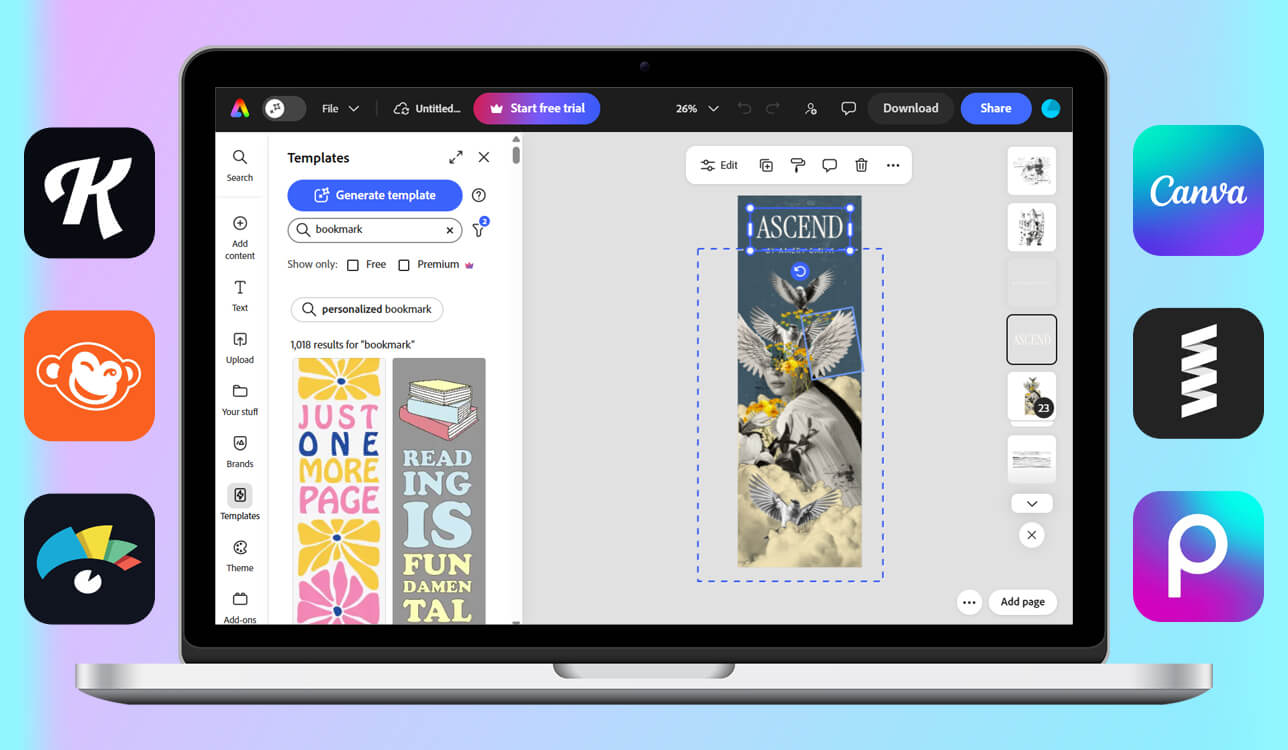
Bookmark makers slowly became an important part of our daily routine at work, since many people on our team enjoy reading. Some read while traveling to the office, others read during breaks, and some read when traveling for filming or project work.
After some time, we thought it would be a nice idea to make custom bookmarks for everyone on the team. We wanted something simple but personal that showed our team spirit and our shared interest in books.
Soon, this idea turned into a practical assignment. We needed to find a bookmark maker that worked properly and was easy to use. Our team began testing different tools together. We compared how simple it was to change layouts, edit text, add images, prepare designs for printing, and export bookmarks as digital files.
During this process, we tested 12+ bookmark makers. Our testing focused on several important points: the quality of templates, how accurate the designs were when printed, how flexible the layouts were, and how the bookmarks looked both on paper and on a screen.
| Tool | Best for | Free plan | Printable bookmarks | Who it’s for |
|---|---|---|---|---|
|
Printable & custom bookmark designs
|
Limited
|
✔️
|
Teams & creatives
|
|
|
Template-based bookmark layouts
|
Limited
|
✔️
|
Beginners
|
|
|
Photo-based bookmark designs
|
Trial
|
✔️
|
Photo-focused users
|
|
|
Aesthetic & typography bookmarks
|
Limited
|
✔️
|
Design enthusiasts
|
|
|
Creative & artistic bookmarks
|
Limited
|
❌
|
Social creators
|
|
|
Simple graphic bookmarks
|
Limited
|
✔️
|
Small teams
|
|
|
Branded & informational bookmarks
|
Limited
|
✔️
|
Business users
|
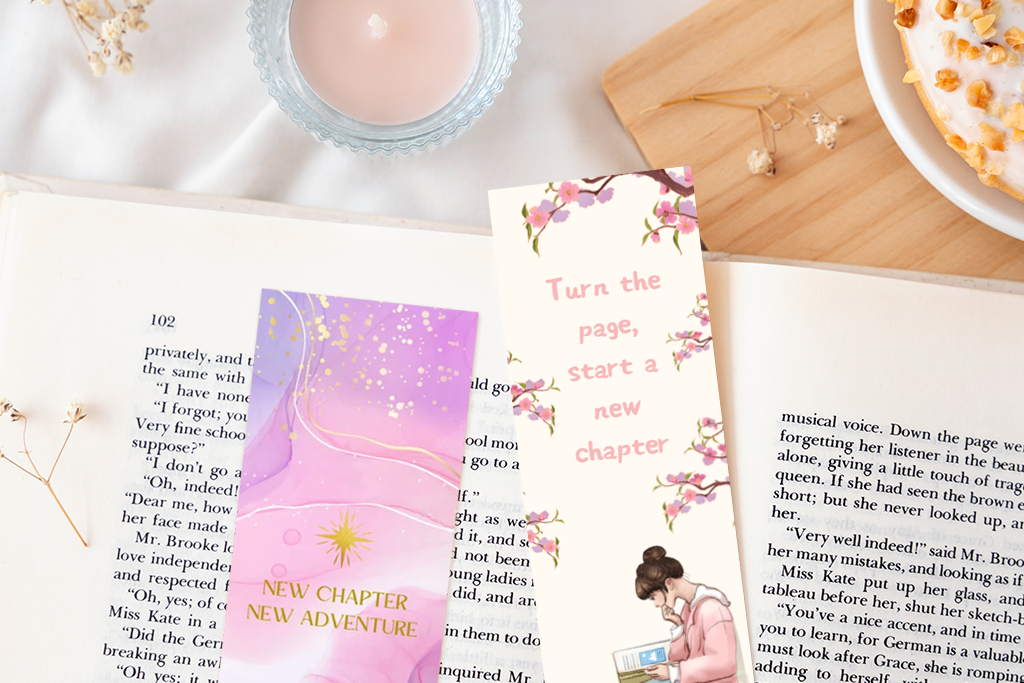
Bookmark design is often made more difficult than it needs to be. Some tools include many visual effects, complex editing panels, and advanced options. These may look impressive, but in everyday use, they slow down the work.
While testing bookmark creators, we noticed that the simplest tools produced the most clear and reliable results. This is especially true for people who treat bookmarks as part of normal reading culture, like the one supported by the Library of Congress:
From our experience, the best bookmark makers are the ones that allow you to complete the design quickly and don’t cause file problems when printing later.
Best for: custom, print-ready bookmarks
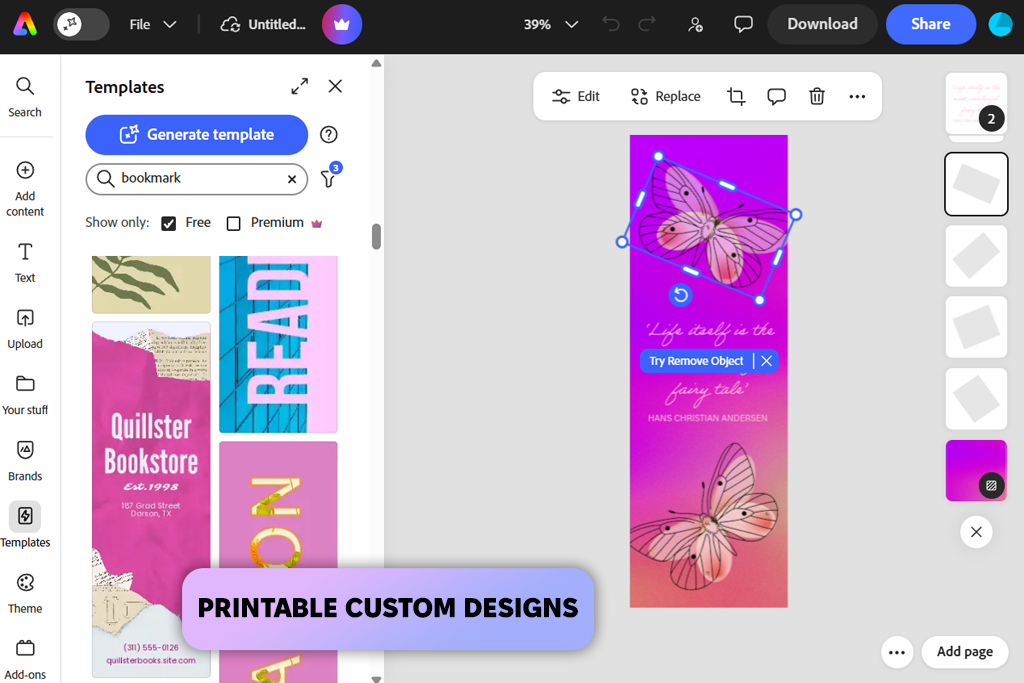
Adobe Express free version became the main tool I used when our team decided to design bookmarks for everyone instead of using standard templates. With it, I could choose the exact size for each bookmark, set the margins, and build layouts that would stay neat after printing and trimming.
One of the biggest strengths of Adobe Express for bookmark design is the layout freedom it gives. Because the editor uses layers, I could move or edit text, icons, and background parts separately without changing the rest of the design.
After finishing one layout, I could copy it and create several versions. I would change the quote, adjust colors, or add small graphic details while keeping the main structure the same across all bookmarks.
“Adobe Express worked well for precise canvas sizes, organizing layers, and exporting files for printing. This reduced the need to fix problems after cutting the bookmarks.”

Adobe Express works best when bookmarks are treated like a small design project instead of a quick template edit. It may take beginners a little longer to learn, but it gives stable and professional results when print quality is important, and you want full control over the design instead of relying on presets.
Price: Free plan; paid from $9.99/month
Best for: fast, template-based bookmarks
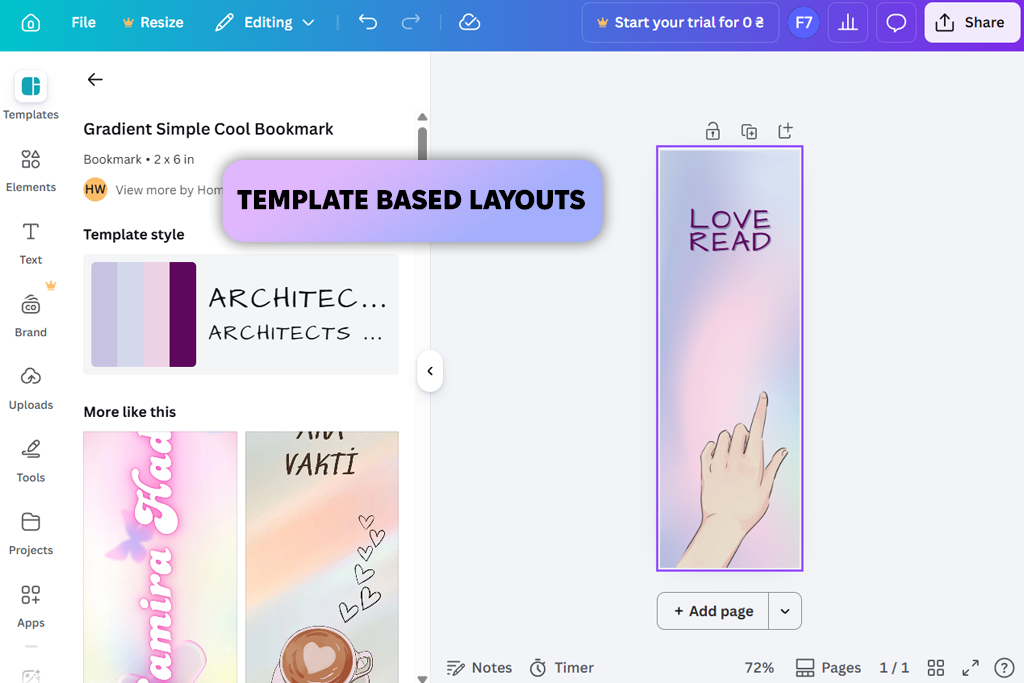
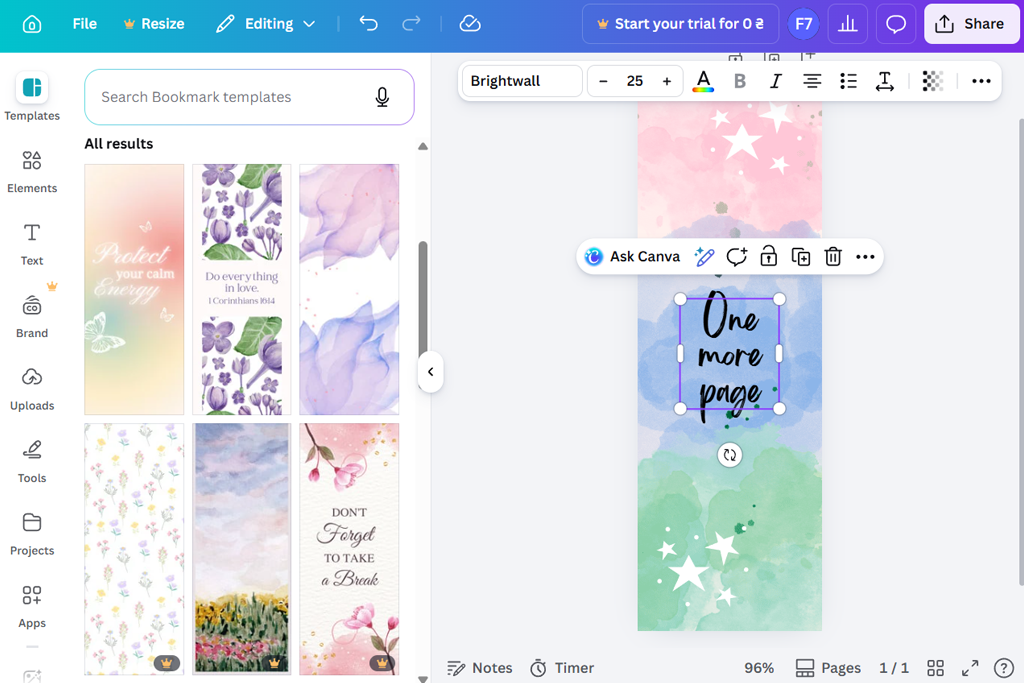
Canva turned out to be the most practical tool when we needed to make many bookmarks quickly. I used it for the batches where the basic layout stayed the same, but small details such as names, quotes, or colors needed to be changed in each version. This approach works well for team bookmarks, book clubs, and event materials, where every bookmark needs to look similar.
The biggest advantage of this bookmark maker is that the process feels simple and predictable. The templates use correct proportions, spacing is balanced, and alignment tools help prevent common layout problems. Even when I replaced fonts or images, the layout usually stayed stable. Because of this, Canva is easy to use even for people without experience in design or printing.
Canva is the best bookmark layout creator when speed and consistency are the main goals. It is not ideal for experimenting with complex layouts. However, if you need dependable results quickly, it is one of the easiest tools to work with.
Price: Free plan; paid from $12.99/month
Best for: photo-based bookmarks
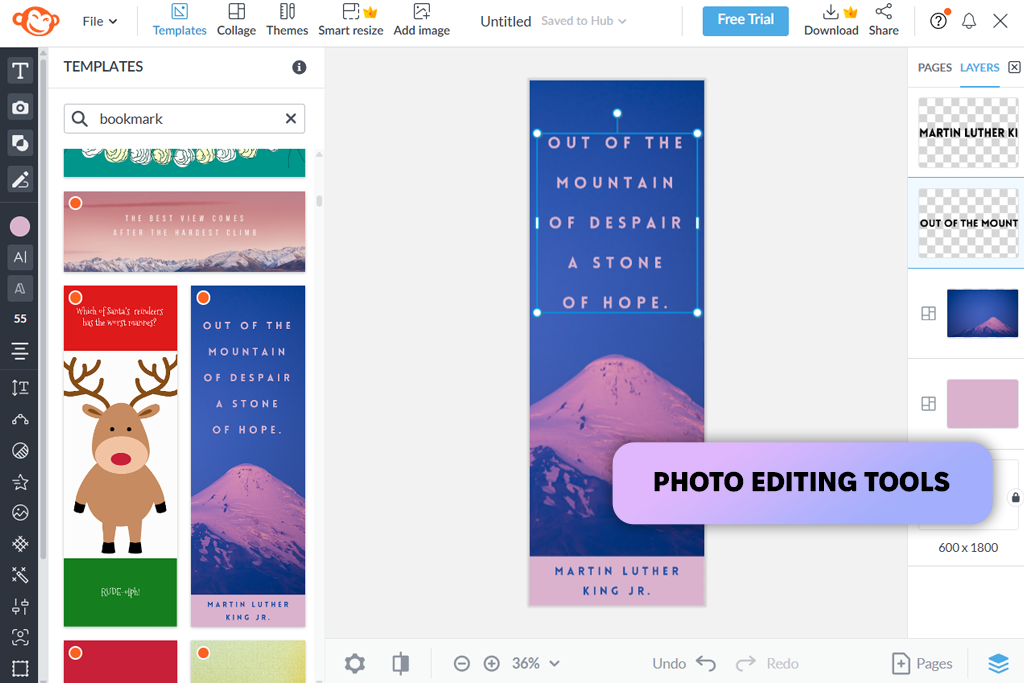
I used PicMonkey mainly for bookmarks built around images, where the mood of the picture was more important than detailed text placement, for example, travel photos, artistic images, or lifestyle pictures, where the photo creates the main impression and the text only adds a small message.
What helped the most was the ability to improve image quality. Before exporting the bookmark, I could adjust sharpness, brightness, and contrast. These changes made a clear difference after printing, especially because small bookmarks often reduce the detail of photos when they are scaled down.
PicMonkey sits somewhere between simple layout editors and next-level apps like Picsart: it does not provide fixed printing sizes, but it offers more visual freedom than tools that rely heavily on templates. Because of this, it works well for creative bookmark ideas, experimental designs, or small batches where the look of the image is more important than strict print standards.
Price: Trial available; paid from $7.99/month
Best for: aesthetic & typography bookmarks
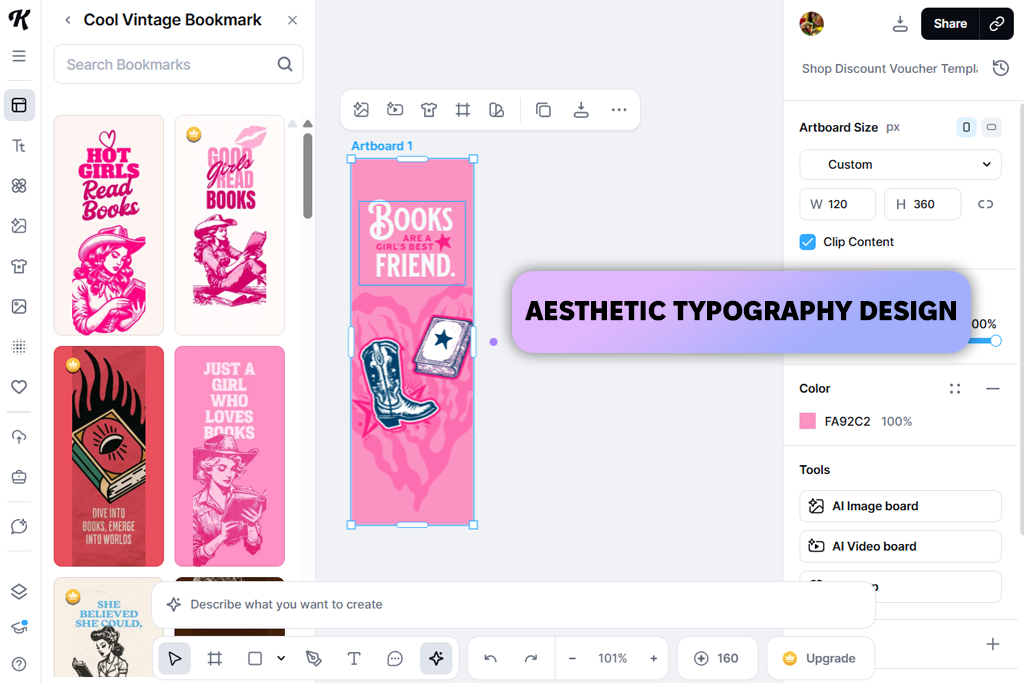
Kittl became my preferred bookmark layout tool that focuses on text, especially when typography is the most important part of the design. I used it for bookmarks with quotes, book-themed messages, and gift-style designs where the fonts needed to look intentional instead of basic.
It worked well for projects where the bookmark should feel like a small, designed item rather than just something used to mark a page.
The main advantage of Kittl is how much control it gives over typography. You can adjust spacing between letters, apply decorative effects, and balance the layout so that the bookmark looks carefully designed instead of built from a template. This works well for clean or minimal designs.
“Kittl helped me adjust fonts, spacing, and alignment on bookmarks with quotes so the text stayed clear and easy to read within the narrow shape.”

Kittl delivers the best results when you spend time working on details. It is not made for quickly producing large numbers of bookmarks. However, it gives strong results when design style, typography, and presentation are more important than speed.
Price: Free plan; paid from $10/month
Best for: creative & digital bookmarks
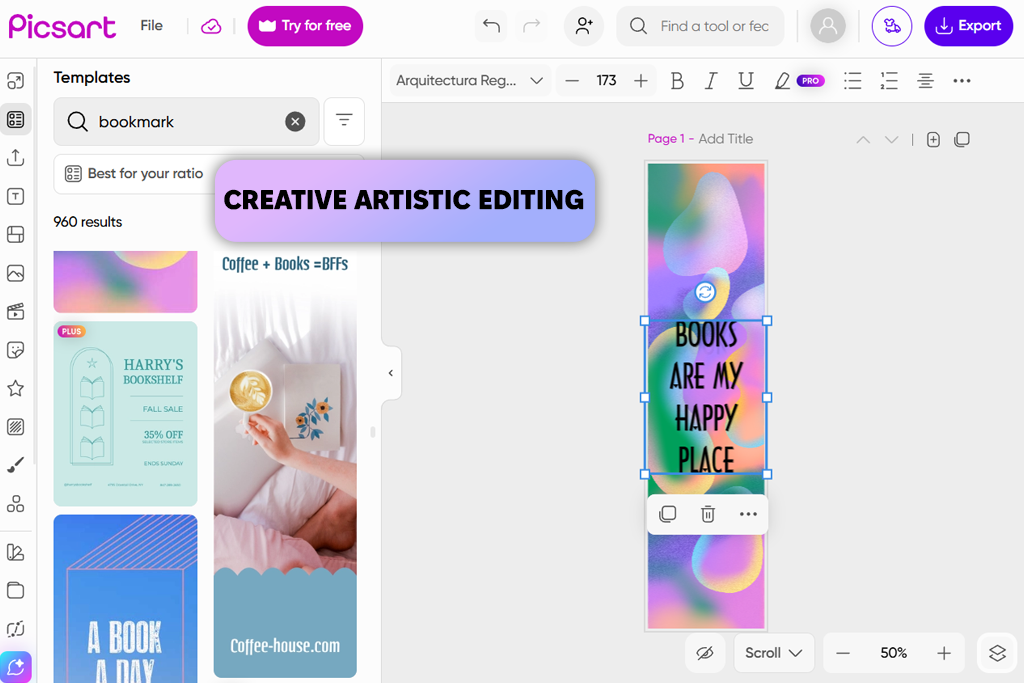
Picsart worked best when I wanted to make bookmarks that felt creative and casual. I used it mainly for experimental designs instead of precise layouts. It was useful for digital bookmarks and styles that included textures, stickers, and layered graphics.
The platform focuses on creativity, so it is easy to try different design ideas quickly. It also connects well with the free AI text effect generators, which can turn simple titles or short quotes into visual text styles automatically. This helps when the bookmark needs to look bold, modern, or similar to social media designs.
However, Picsart does not provide strong control over exact sizes or margins. Because of that, designs may need adjustments before they can be printed correctly. For this reason, it works better for digital bookmarks or casual creative projects.
Price: Free plan; paid from $7/month

Best for: minimal graphic bookmarks
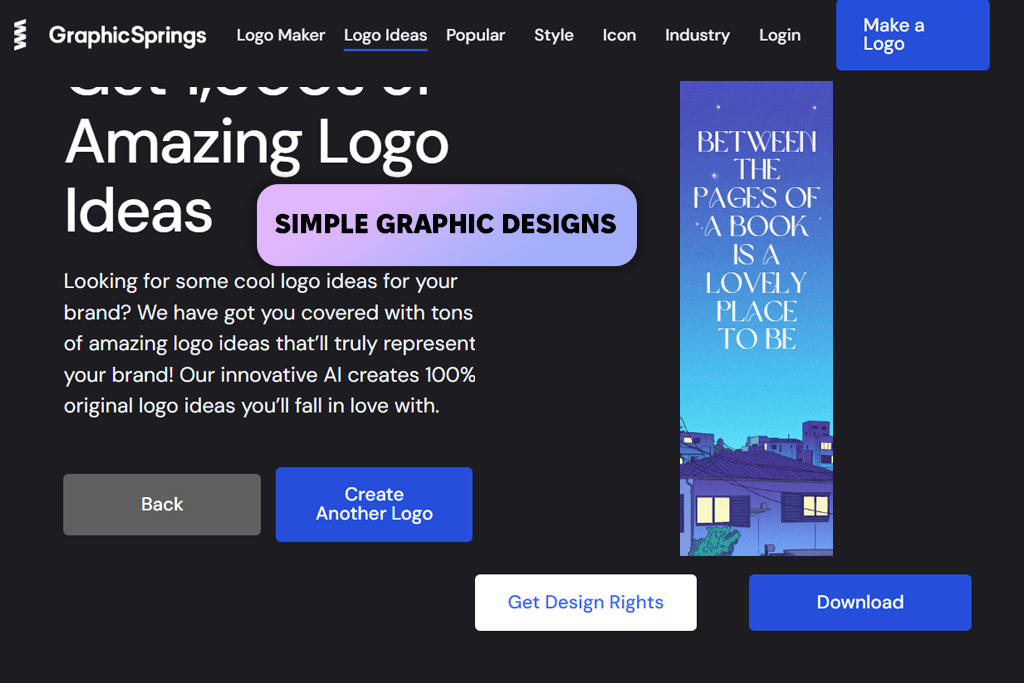
GraphicSprings is a useful option for simple bookmarks that rely on shapes, icons, and short text instead of photos or detailed typography. I used it for bookmarks that needed to look clean and organized without decorative elements. The style is similar to designs created with free logo makers.
The bookmark maker works best when the layout stays simple. Adding icons, adjusting text size, and keeping elements centered feels easy and natural, preventing clutter in the design. Because of this, it is helpful for bookmarks where clarity matters more than decoration.
GraphicSprings is not built for creative experimentation. It offers fewer customization options compared with other design tools, and exporting files ready for printing requires a paid plan. Even so, when the goal is a simple bookmark with a strong graphic structure, it provides stable and predictable results without extra complexity.
Price: Free preview; paid exports available
Best for: branded & informational bookmarks
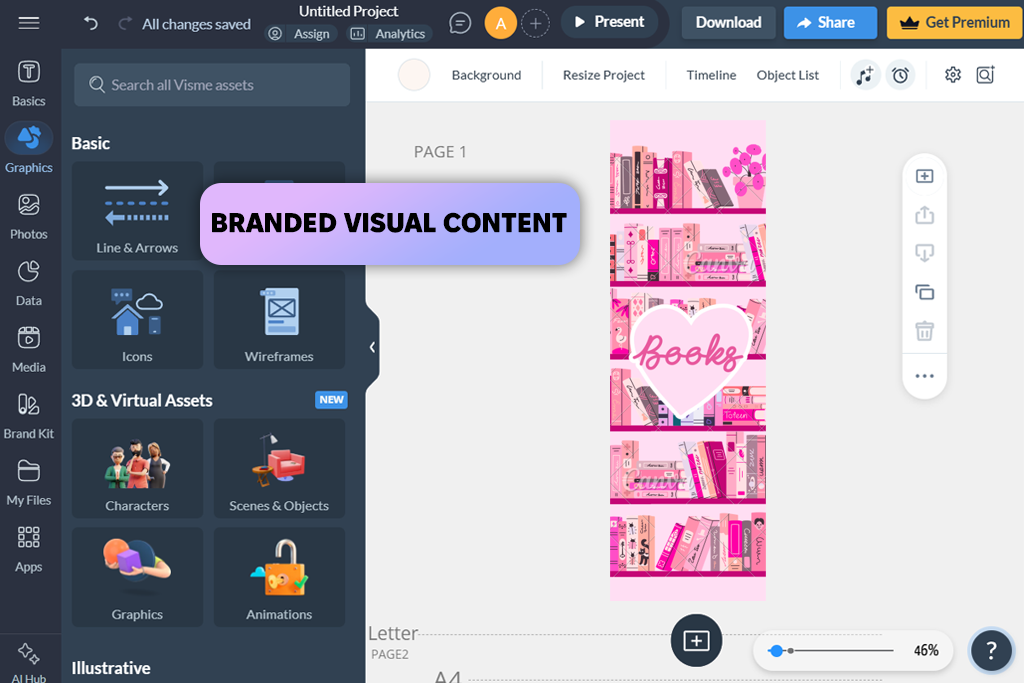
Visme worked best for bookmarks that needed to share information or follow a brand style. I used it for designs that included short descriptions, company colors, and logos. In these cases, keeping the right balance between text and visual elements was more important than decoration.
The platform organizes content clearly: text sections, headings, and spacing feel planned and structured. This makes it easier to design bookmarks that look professional and are easy to read instead of being purely decorative. Because of this, Visme works well for educational materials, company projects, and promotional bookmarks.
“Visme helped me organize informational bookmarks by using content blocks, controlled color choices, and dependable export formats.”

At the same time, the platform can feel too large for something as small as a bookmark. The UI includes many tools that most bookmarking projects do not require, which can make simple tasks slower. Nevertheless, when the goal is a structured design that follows brand guidelines, this bookmark creator produces reliable results and good-quality export files.
Price: Free plan; paid from $12.25/month
At first, many bookmark layout makers appear almost the same. They all have templates, tools for adding text, and buttons for exporting the design. Because of this, it can seem like any tool will work.
The real differences become clear only when you try to finish a bookmark and prepare it for actual use: this might mean printing it or following guides on how to create a bookmark in Adobe Reader for digital documents.
Some tools are excellent for quick digital designs, but do not work well when you try to print the bookmark. Other tools manage print sizes properly but feel slow or limiting when you need to create many versions of the same design.
Because of this, choosing a bookmark maker depends less on how the interface looks and more on how you plan to use the final bookmark. To explain this more clearly, we grouped bookmark makers based on real situations where people use them, instead of only comparing their features.
| Your goal | What matters most | Tool type that works best |
|---|---|---|
|
Printing bookmarks at home
|
Exact sizing, clean PDF export
|
Design-first tools (Adobe Express, Visme)
|
|
Creating many similar bookmarks
|
Templates, duplication
|
Template-based tools (Canva)
|
|
Photo-based bookmarks
|
Image quality, contrast control
|
Photo editors (PicMonkey)
|
|
Quote or aesthetic bookmarks
|
Typography, spacing
|
Typography tools (Kittl)
|
|
Creative or digital bookmarks
|
Effects, flexibility
|
Creative editors (Picsart)
|
|
Simple, minimal bookmarks
|
Icons, clean structure
|
Graphic tools (GraphicSprings)
|
Sometimes, a tool that looks basic at first can save a lot of time. At the same time, an editor with many advanced features can make small projects slower. The best bookmark creator is the one that fits the way you plan to use the bookmark, not the one with the most impressive interface.
To review bookmark makers properly, we followed a practical testing process based on everyday use. Our FixThePhoto team created bookmarks for personal reading, internal team use, and small printing batches. Every tool was tested using the same tasks so the results could be compared fairly.
Besides the tools that appear in the final list, we also tried several other design platforms such as VistaCreate, Fotor, DesignCap, Snappa, and FotoJet. These programs could create simple bookmark layouts, but they were not included in the final list because of weak print controls, limited export options in free plans, or layouts that became less stable after several edits.
During testing, we focused on several key points:
After finishing these tests, we selected bookmark layout makers that performed well for both printable and digital bookmarks. Our main focus was reliability and ease of use rather than flashy visual effects.
A common size is about 2 × 6 inches (around 5 × 15 cm). Some people prefer 2 × 7 inches if they want to include more text. No matter the size, leaving enough margin around the edges helps avoid cutting mistakes when trimming the bookmark.
No. Most bookmark makers provide ready-made templates and fixed layouts. These templates automatically manage spacing and proportions, so basic editing of text and images is usually enough.
A high-resolution PDF is the safest format for printing. PNG files can also work, but PDFs usually keep text sharp and preserve margins more accurately.
Yes, many tools offer free plans. However, free versions may include watermarks, limited export options, or a smaller selection of templates.
They can work well if the tool supports correct sizing and high-resolution exports. Some online editors focus more on digital designs, so checking print preview and export settings is important.
Printable bookmarks are made with fixed dimensions, proper margins, and high resolution so they print correctly. Digital bookmarks focus more on visual style and can be more flexible, but they may not print as cleanly.
Choose a tool that allows easy duplication. You can copy a finished layout and only change the text or colors. This saves time and keeps all bookmarks looking consistent.



![7 Best YouTube Shorts to MP4 Converters [Fast & Free]](http://fixthephoto.com/blog/images/gallery/news_main__preview_28927.jpg)
![5 Best EML File Converters to PST in {{%year}} [Windows & Mac]](http://fixthephoto.com/blog/images/gallery/news_main__preview_28894.jpg)
![Fish Eye Filter Online [FREE]](http://fixthephoto.com/blog/images/gallery/news_main__preview_28873.png)



















