I watch HEVC videos constantly, whether I’m editing projects at my job with FixThePhoto or just relaxing at home. Most video files I receive are in H.265 format, especially clips from drones, phones, and other high-resolution sources, such as 4K or 8K. For a long time, VLC was my go-to because it always worked.
However, I recently decided it was time to explore other HEVC video players. I chatted with coworkers, browsed discussions on Reddit, checked out YouTube reviews, and got my FixThePhoto team involved in testing 20+ HEVC players. We tried them on Windows PCs, Android devices, and even web-based options to see which ones actually perform best.
I wasn’t just searching for the best HEVC player or the one everyone talks about. I needed something reliable that shows colors accurately for professional work, runs well even on slower computers, and is pleasant to use every single day.
During my tests, I discovered huge differences in how these programs actually perform when you use real-world video files, namely, large file sizes, inconsistent frame rates, footage from multiple cameras, precise color settings, and videos shot on cameras like the Sony A7 IV, DJI Mini 4 Pro, and newer iPhones. Here’s what matters most to me when choosing the best H.265 player:
| OS | Streaming / AirPlay | Video resolution | Free plan | Best for | |
|---|---|---|---|---|---|
|
Windows
|
No native AirPlay, DLNA
|
Up to 8K HDR
|
✔️
|
Power users on Windows, 4K HDR
|
|
|
Win, Mac, Linux, iOS, Android, Online
|
✔️
|
4K UHD, HEVC
|
✔️
|
Cross-platform, streaming, customization
|
|
|
Win, Mac
|
✔️
|
8K UHD
|
✔️
|
AirPlay users, online video download
|
|
|
Windows
|
❌
|
4K
|
✔️
|
Lightweight Windows users
|
|
|
Win, Mac, Linux
|
❌
|
4K
|
✔️
|
Advanced users, Linux platform
|
|
|
Win, Mac
|
❌
|
4K
|
✔️
|
Encoding focus users
|
|
|
Android
|
❌
|
HD / 4K limited
|
✔️
|
Basic Android playback
|
H.265 (sometimes called HEVC or x265) is a new video compression standard. It squashes videos down to half the size of older formats like H.264, but the picture quality stays just as good.
This means that you can fit twice as many videos on your hard drive and finish uploads quicker. Besides, you can work with crystal-clear 4K or 8K footage without your computer choking. That’s why almost every phone, drone, and modern camera uses it. HEVC makes huge video files actually usable.
Advantages:
Disadvantages:
When we tested these players, the problems jumped out fast. We used all kinds of video: drone clips shot in flat color profiles, iPhone videos with that blurry background effect, grainy security camera footage, and even a bizarre 10-bit file from a no-name action camera. That last one instantly crashed three different programs before we could even hit play.
A coworker sent me a messed-up 4K drone video from a crash. The file was partially broken. Nearly every player I tried just gave up on it completely. But MPV loaded the intact portion without complaining and let me pull out the frames I desperately needed for the insurance claim. I never imagined a basic media player could rescue a damaged file like that.
If video is part of your daily work, H.265 shapes how you get things done. Picking the right player matters more than you’d think. It directly impacts whether you can trust what you’re seeing on screen before you drag that footage into Premiere or DaVinci Resolve.
Platforms: Windows
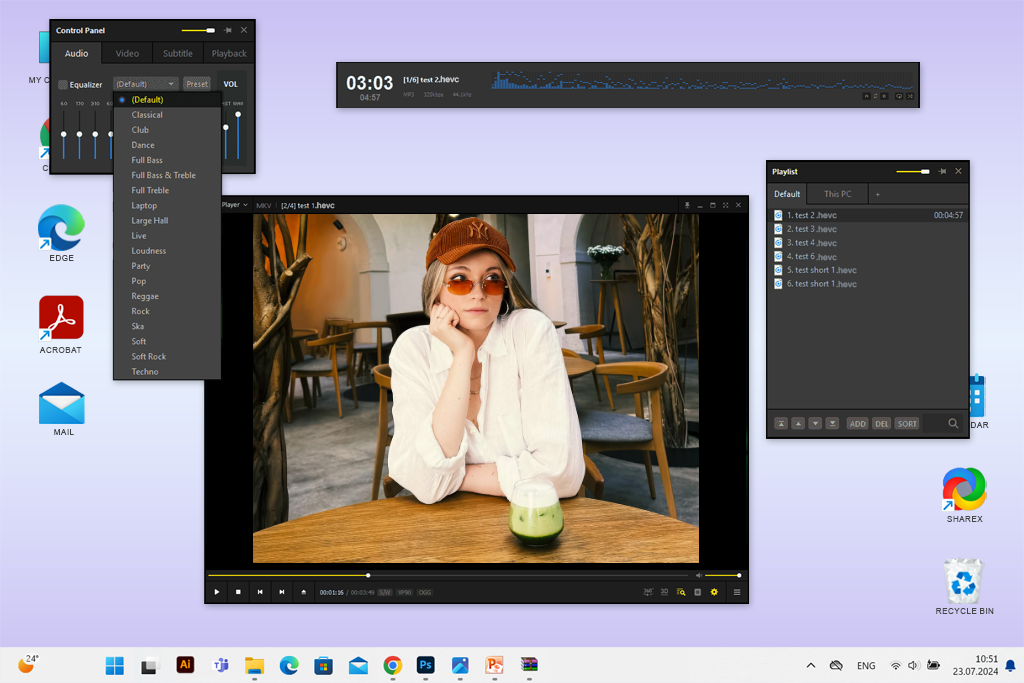
PotPlayer kept popping up on Reddit whenever someone asked for the best HEVC video player for Windows. Users kept calling it “perfect for people who love to customize everything,” which got me interested.
“Other players bury settings in confusing menus, but PotPlayer puts everything right in front of you. There are video renderers, hardware decoders, chroma upscaling, color spaces, etc.”

Now I use it for two things: double-checking color problems in videos from clients and watching high-quality 4K/8K videos on my backup computer, which usually struggles with these large file types.
I appreciate madVR integration. The color quality improved so impressively that I had to go back and recheck some of my recent work because my old video player had been showing slightly wrong brightness levels.
Still, this HEVC movie player can feel like too much when you first open it. I spent about thirty minutes turning off stuff I didn’t actually need.
Quick tip: Change to either “Enhanced Video Renderer” or madVR, turn on DXVA Copy-Back for playing H.265 videos, and save these choices as your personal setup. Your videos will run much better and more reliably right away.
Pricing: Free
Platforms: Windows, macOS, Linux, Android, iOS
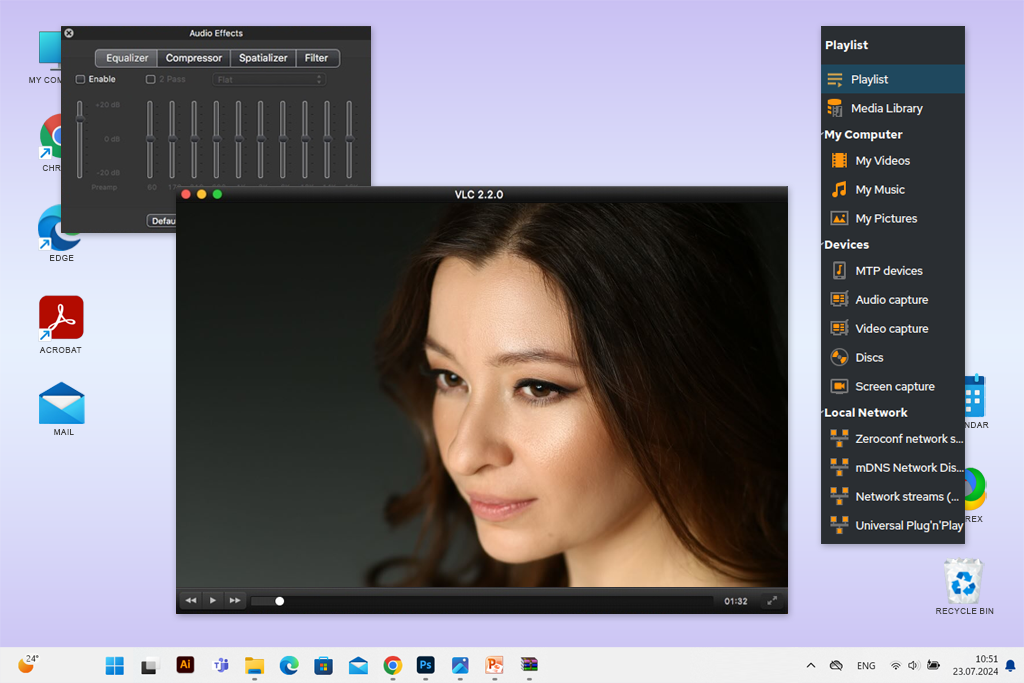
I kept seeing people on Reddit recommend VLC for Android devices, so I wanted to see if it really lives up to the hype. The first thing I noticed is that VLC plays any video file without problems.
I tested 4K HEVC videos from Sony cameras, DJI drones, and iPhones, and it played them all smoothly. Even tricky phone videos with changing frame rates, which usually cause problems in other players, worked perfectly without any audio sync issues.
VLC differs from other players with its impeccable performance across all devices. Whether you’re using it on Windows, Android, or Mac, everything works the same way. This helped me a lot when I needed to quickly check drone videos on my phone while filming on location.
“VLC can easily open files and lets you fix exposure and motion blur with ease.”

Still, it can’t be called the best HEVC video player if you need to work with heavy 10-bit HEVC files. Plus, sometimes the colors look a bit washed out or dull. But considering it’s a completely free open source video player, it’s still remarkably dependable.
Quick tip: if you’re on Windows, enable “Direct3D11 video output” and “DXVA 2.0 decoding” in the settings. This solves most playback stuttering problems about 90% of the time.
Pricing: Free
Platforms: Windows, macOS
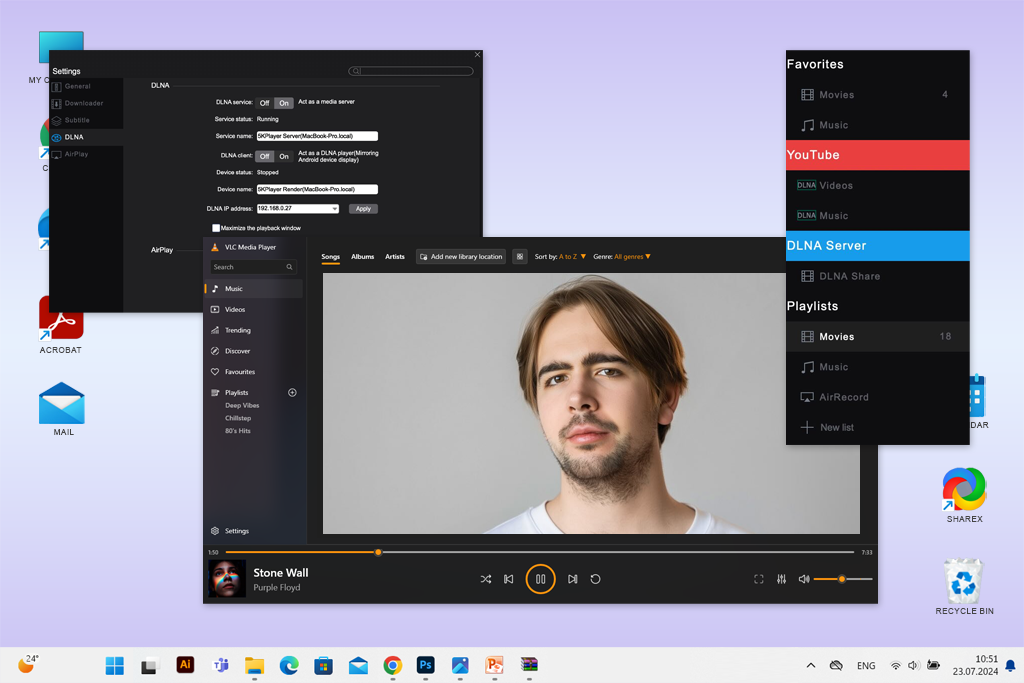
A coworker convinced me to try 5KPlayer because she regularly uses it for wireless streaming in her studio and thinks it’s her best H. 265 video player. It became one of the most useful programs I tried, particularly for playing high-quality HEVC videos while also streaming content.
The program handles huge 4K videos at 60 frames per second, while sending that same video to another display through my network. When I need to compare two different edits of a client’s video side-by-side, I send one version to my second screen and keep the other on my primary display. Everything runs smoothly without any delays.
“I recommend you switch on NVIDIA or Intel acceleration manually in the settings. Besides, keep your audio renderer on “System Default” to prevent sync drift.”

This media player for Mac and Windows shocked me with how well it uses your computer’s graphics card to play videos. In some situations, especially when playing lengthy videos recorded on phones, it works better than VLC.
The most disappointing thing for me is that the program includes ad elements in its design. Also, you can’t customize it as much as you can with other players like MPV or PotPlayer.
Pricing: Free (with promotional modules)

Platforms: Windows
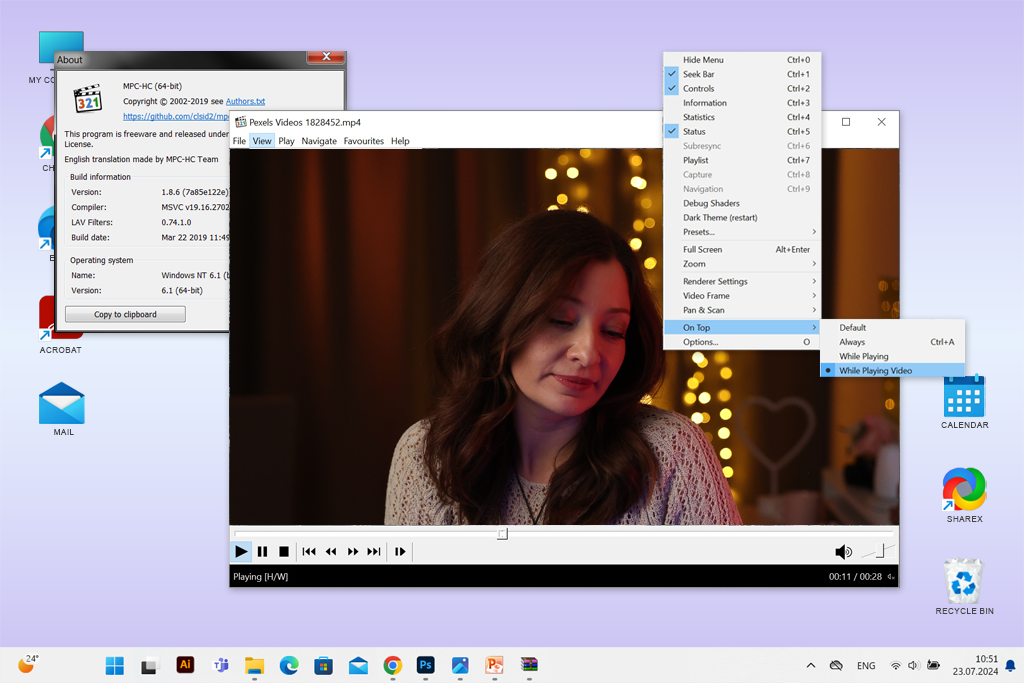
I found out about MPC-HC and MPC-BE from a discussion on Reddit where video professionals were debating which one displays HEVC footage more accurately. Because they’re both built from the same original media player, my colleagues and I decided to compare them directly. We used the same HEVC video files from Sony, Panasonic, and DJI cameras, plus some phone recordings.
MPC-HC is like the traditional, no-frills HEVC player for PC. It’s clean, runs smoothly, uses minimal resources, and does exactly what it’s supposed to without adding extra features. MPC-BE is more like an upgraded version. It has a fresher look, comes with more playback options, lets you adjust more settings, and in our testing, it worked a bit better when playing 10-bit videos.
During my testing, I used MPC-BE more often because it displayed HDR video samples better on my second screen. But I still prefer MPC-HC when I just want something that opens immediately and works without any distractions.
“My tip: switch to MPC Video Renderer in BE to get smoother HEVC videos.”

Both versions of this 4K video player show colors very accurately. When I needed to verify brightness curves and how dark the blacks looked in videos from clients, both MPC players gave me a clean, unaltered preview that matched what I saw in my professional editing software. Still, some of the advanced options are hidden too deep in the menus and take extra clicks to find.
Pricing: Free
Platforms: Windows, macOS, Linux
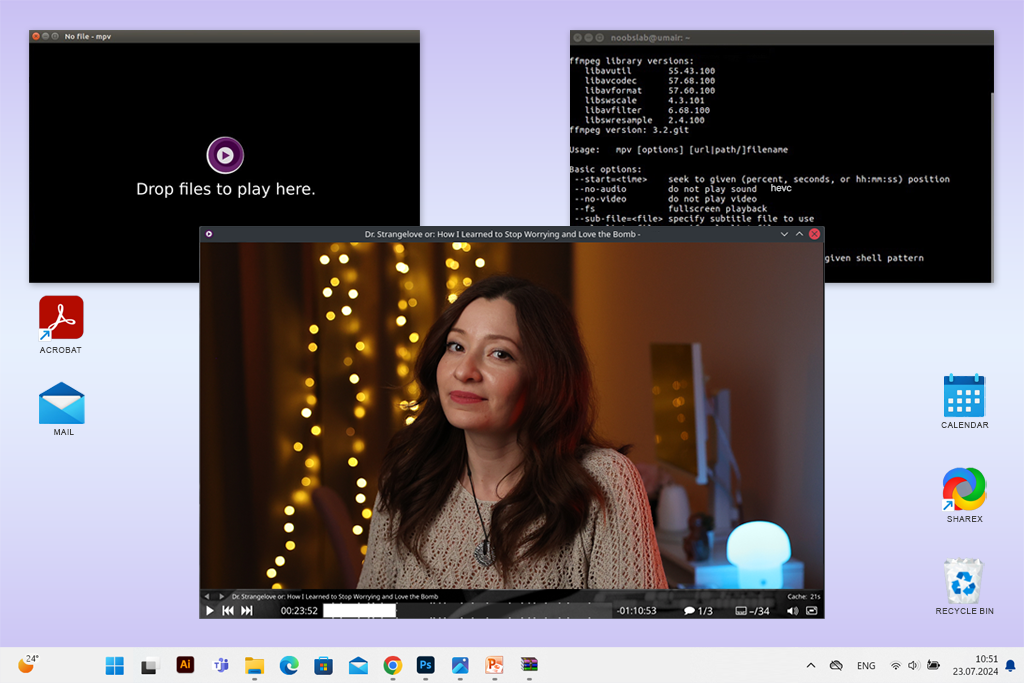
I discovered MPV through a Reddit discussion that was split down the middle. One group kept saying, “MPV is the best x265 player, but only if you understand how to use it,” while newcomers were confused about UI. This contradiction made me curious enough to try it myself.
I wanted to see if a player that relies on keyboard shortcuts and manual setup files could actually work for watching HEVC videos every day. To my surprise, it absolutely could.
This free video player is more powerful than it first appears. I was stunned by the HDR quality, as videos looked incredibly crisp. MPV displayed color and brightness adjustments more realistically than several other players I compared it against.
“To get smooth HEVC playback, I paired it with GPU-accelerated APIs, namely, Vulkan and Direct3D11. It worked even better than many popular players.”

I began using MPV mainly to quickly check raw HEVC video files from my drone. Using keyboard commands and custom scripts, I could instantly switch between different color settings, adjust playback speed, or view file information. I even set up an automated script that loaded custom color filters. I never imagined a video player could handle this.
Still, MPV isn’t the best HEVC video player free for new users. If you dislike manually adjusting settings through text files, you’ll likely give up right away.
I think it is better to grab a ready-made configuration file from GitHub, turn on hardware acceleration for better performance, and memorize just three basic controls: 1) Press “9” or “0” to change volume, 2) Press “Ctrl+h” to see technical details, and 3) Press “Shift+>“ to speed things up.
Pricing: Free
Platforms: Windows, macOS
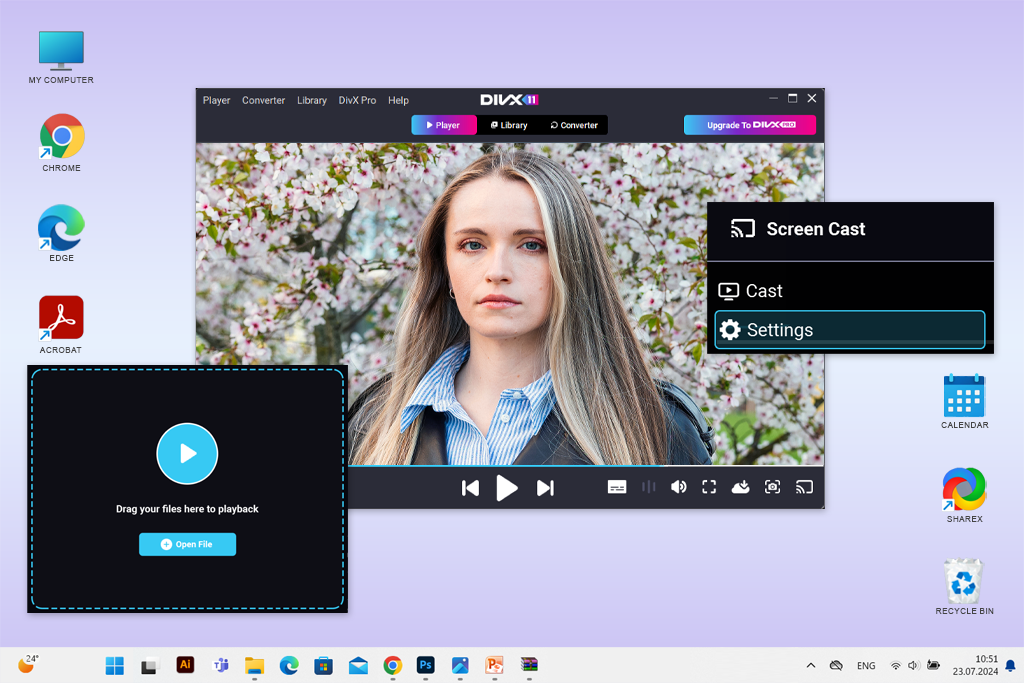
I decided to test DivX Player because a coworker of mine still relies on it to check H.265 video files before sending them to clients. This video encoding software plays high-quality, compressed video formats amazingly. DivX handles HEVC videos particularly well, especially when they’re already edited and exported, not so much for unprocessed footage straight from a camera.
“I typically rely on DivX for delivering finished reviews. It’s not a universal player, but it comes in handy if you need to assess the quality of the resulting videos.”
To see whether it was the best HEVC player for Windows 10, I played some professionally edited 4K HEVC video ads. Everything ran perfectly. The colors also appeared more vivid and eye-catching compared to programs like VLC or MPC. So, I think it is great to do a final quality check on contrast, color intensity, and image sharpness before sending videos to clients.
Another feature I appreciated was the ability to stream videos to other devices. During my tests, I sent a finished HEVC video to a TV in our break room to see how it would look on a typical home screen. DivX did this better than most other players I tried, except for 5KPlayer.
However, DivX doesn’t work as well with unusual or newer video formats. Some HEVC files recorded on smartphones played with noticeable lag and choppy motion.
Pricing: Free (Pro features locked)
Platforms: Android (phones & tablets)
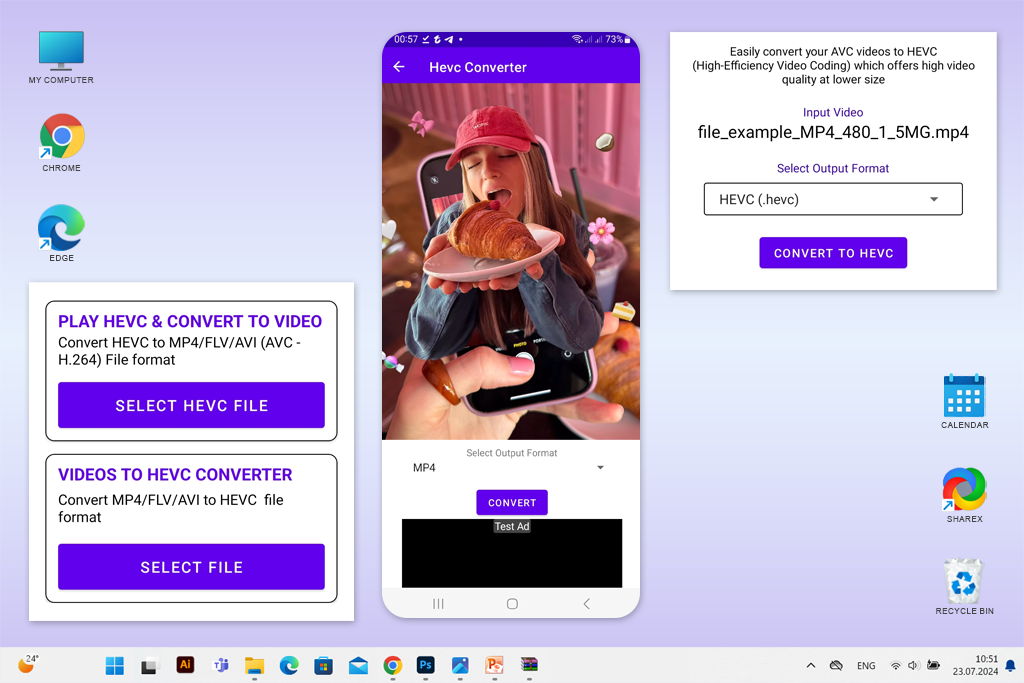
I stumbled upon HEVC Player & Converter through Google’s suggestions, and I wasn’t expecting anything special. Usually, apps that handle HEVC videos on phones feel like watered-down versions of computer programs. This one was different.
It is the best HEVC player for Android for people who work with or watch compressed videos while they’re out and about or those who handle HEVC and HEIC files from their smartphones and cameras.
The design looks straightforward and clean. I like how it plays heavy 4K HEVC videos, even on my aging Android tablet. I regularly use it whenever someone sends me a video file in HEVC format and I’m away from my main computer.
“It is a fast program with responsive playback controls. It handles high-bitrate footage similar to how many Android players do it.”

The conversion feature turned out to be surprisingly handy. I put it to the test with some video clips I’d recorded for a laptop review project, and it changed HEVC files into MP4 format quicker than I thought possible. Still, it isn’t a suitable tool for professional-level editing work, but when you need something ready to post on social media fast, it does the job perfectly.
There aren’t any annoying ads constantly popping up or confusing button layouts to figure out. The main drawback is the lack of detailed settings. If you like to fine-tune everything, you may feel limited.
Quick tip: keep your videos short, and only use the converter when you need something done quickly rather than perfectly. For people, who create content primarily on their phones, it’s a genuinely useful app.
Pricing: Free (basic features)
I work with video files every day, so I joined forces with my colleagues at FixThePhoto to test HEVC players thoroughly. We wanted to find out which ones actually work well with modern video formats, particularly on older computers, phones, and different systems like Windows, Android, and smart TVs.
I began by gathering recommendations from users, Google Play, and forums. Several apps seemed great but failed our tests, including KMPlayer, MX Player Pro, RealPlayer, GOM, Elmedia, and ACG. The common problems were unreliable HEVC playback, shaky 4K performance, suspicious privacy settings, or outdated technology that couldn’t handle newer HDR videos properly.
My team and I put each player through our typical working process:
Playback quality. We ran 1080p and 4K HEVC videos at various bitrates, watching for stuttering on both powerful and basic devices.
File compatibility. We tested HEVC 8-bit, 10-bit, HDR10, and HEIC formats since we regularly receive different file types from clients.
Ease of use. A simple, clean design is essential when reviewing videos quickly. We ruled out any apps with hidden menus or annoying ads.
Conversion quality. For players that convert files, we checked whether colors stayed accurate, brightness remained consistent, and processing was fast.
Security and reliability. We examined what permissions each app requested, whether it worked offline, and how it handled network connections.
Through this detailed testing process, we found the best HEVC players that work smoothly, look good, and handle HEVC videos well whether you’re using them for work or just watching movies at home.



![7 Best ODT to PDF Converters [{{%year}} FixThePhoto Choice]](http://fixthephoto.com/blog/images/gallery/news_main__preview_28601.jpg)
![13 Best AI Character Generators [Free & Easy-to-Use]](http://fixthephoto.com/blog/images/gallery/news_main__preview_28476.jpg)


![7 Best HEIC to PDF Converters in {{%year}} [Windows, Mac & Online]](http://fixthephoto.com/blog/images/gallery/news_main__preview_28447.jpg)


















