Kling AI Motion Control in Adobe Firefly
I like employing Kling AI Motion Control in Adobe Firefly when the situation demands more control over the movement of a character or an object in a generated clip. It helps me avoid depending solely on prompts, as I can import a reference video to determine the action instead. This is particularly great if your goal is to produce a specific pose, gesture, or body motion.
Another benefit that Kling AI brings to the table is the ability to leverage cutting-edge Kling models while remaining within the Adobe ecosystem. Firefly offers a variety of AI models, including Kling 3.0 and Kling 3.0 Omni, providing more tools for AI video generation within the same platform. Kling 3.0 allows writing prompts in English, Chinese, Japanese, Korean, and Spanish, which makes it a great choice for multilingual video projects.
Learning how to use Kling AI motion control in Adobe Firefly lets you bypass the more complex route of jumping between multiple AI platforms. Rather than juggling different tools, saving the generated footage, and moving it to another editor, I could continue refining my project with the help of free Adobe software like Photoshop or Adobe Express.
This approach is also refreshingly transparent. Everything you produce using Adobe Firefly automatically has Content Credentials with data on how the content was created, including the employed model. I used Kling AI Motion Control straight in Adobe Firefly while pairing it with various images and reference videos to check how precisely it recreates motion and how naturally the output fits the general Firefly workflow.
You can access Kling AI Motion Control in the Firefly video model using the free plan, which offers 25 monthly generative credits. If you want to use it more often, you can get Firefly Standard for $9.99/mo and receive 2,000 generative credits, while Firefly Pro is priced at $19.99/mo with 4,000 credits. For beginners, the free plan is a solid starting point, while Standard should satisfy most users interested in regular video generation.
“I greatly appreciated the mix of motion control and Firefly’s native functionality. I could try out different movements without having to switch to other solutions.”

Let’s begin this Kling AI Motion Control guide by inspecting its most important features. It allows you to manage character movement by copying motion from reference footage. It can replicate full-body movements including walking, dance moves, turning, and posing, as well as individual gestures.
I greatly enjoyed having Kling AI built into Adobe Firefly to tackle most of my video generation tasks without ever leaving Adobe’s ecosystem. I could produce the visuals, adjust the audio, and polish the result without ever disrupting my workflow.
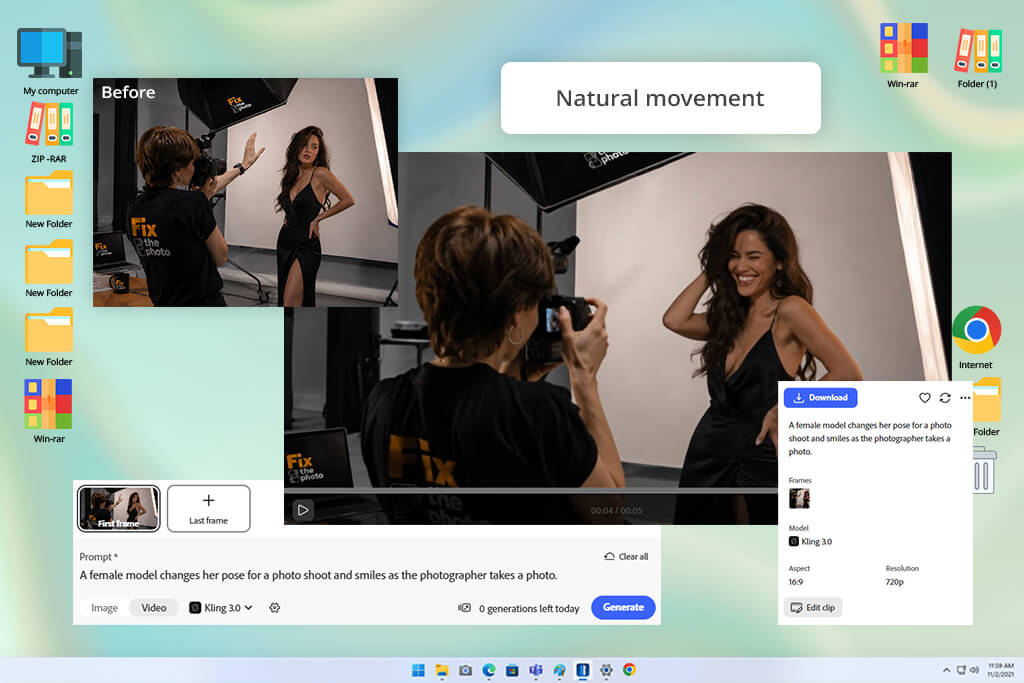
Kling Video Motion Control is the first tool I turn to whenever my project involves more complex movement. This generative AI tool can copy the motion from a reference clip and add it to my character, while recreating the body dynamics, hand gestures, facial micro-expressions, and lip movements. You can even use it on static images to breathe life into them without having to spend hours animating it manually.
For instance, I imported a clip where the model turns to the camera, moves their hands, and talks. The generated clip copied the main body motions and gestures with impressive accuracy. Additionally, I tried replicating a brief dance and basic waving movement, and both looked a lot more realistic compared to results I got based on just typing in prompts. Lip motion is generated with a high level of precision as well, even if I occasionally needed to regenerate the clip multiple times to get the finer facial details right.
Another handy inclusion is the custom duration control. Videos made using Kling 3.0 in Adobe Firefly can be up to 15 seconds long, so I could set a duration that matches the scene instead of being forced to use a predetermined length.
“I experimented with multiple angles for the same character, and the face remained recognizable across most of the video. Such consistency is a huge selling point of this tool.”

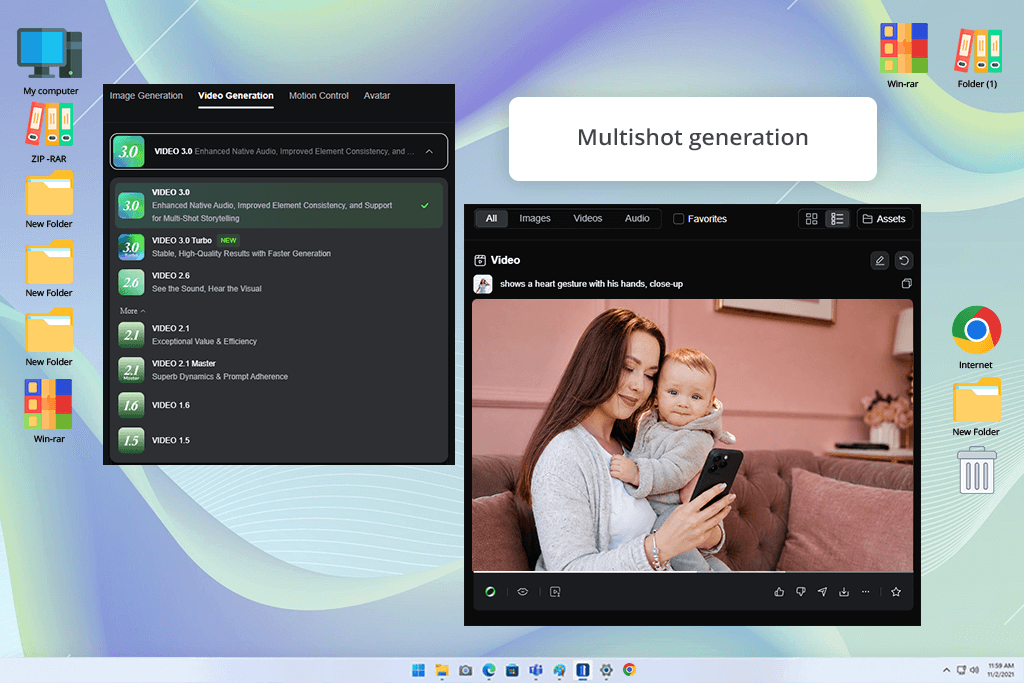
I leveraged Multi-Shot Generation for cases where I needed the AI footage to resemble a cohesive sequence instead of a bundle of separate clips. By leveraging Kling 3.0 and Kling 3.0 Omni in Adobe Firefly, I could generate up to six consecutive shots based on one prompt, which allows me to avoid generating each scene separately.
I tested this AI video generator by generating a brief sequence where a character entered a room, took an object from a table, and then walked toward a window. The clips adhered to the requested order, while the character and room remained fairly consistent across the generated scenes. Additionally, I appreciated the natural camera motion when the scene featured physical actions like the object being picked up or the character crossing the room.
Such functionality is essential for short storytelling, product videos, and social media content where several connected shots are needed. You still might have to examine and regenerate specific clips, but the amount of time you can save on multi-shot sequence generation can’t be ignored.
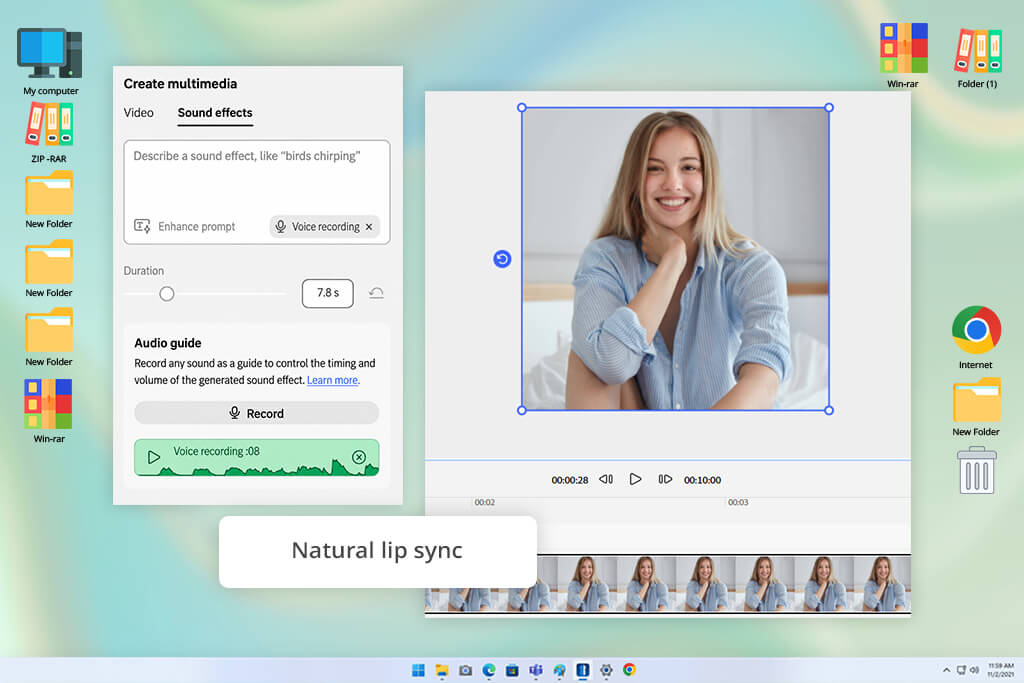
One aspect that impressed me when I was preparing this Kling Motion Control tutorial was how efficiently this tool combines motion and sound generation instead of acting like they are completely separated. As such, I could generate a clip with dialogue and sound that already matches the character’s actions, which helps avoid wasting time on manual syncing.
I used this with a talking character, and the generated speech matched the lip motion frame by frame near perfectly. The character’s voice also remained cohesive across the video, while the pacing could be tweaked to match the scene. I managed to get the best results when working on brief cinematic videos where dialogue, facial expressions, and movement had to feel coherent.
What I appreciate about the ability to use Kling AI Motion Control within Adobe Firefly is the fact that I can continue to enhance a scene instead of having to regenerate it over and over again. I can write prompts aimed at specific elements, extending a scene, or tweaking one or two details instead of recreating everything from the ground up.
Additionally, I can alter the resolution, aspect ratio, and shot duration, while references allow me to determine the visual style and look. During my testing, I would focus on getting the main movement right and then adjust the behavior of specific elements or extend the scene. Once generated, I could download it as is, or make further edits using Adobe software like Premiere Pro or After Effects, enjoying a convenient transition from AI generation to regular video editing.
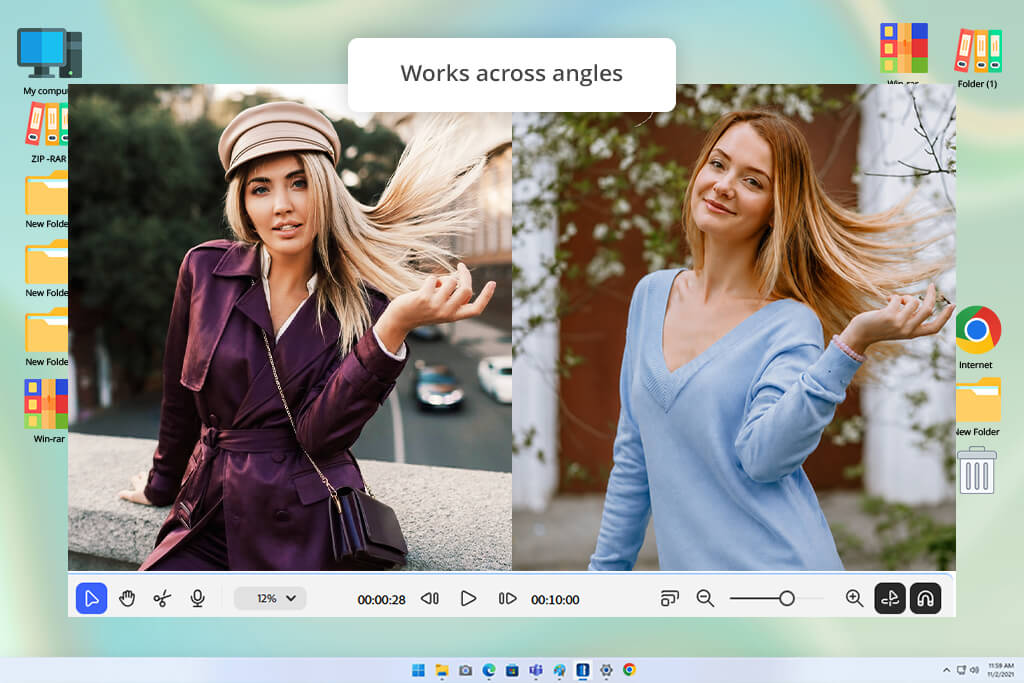
When working on a project with multiple scenes, ensuring characters, objects, or locations remain consistent can be incredibly difficult. Kling AI in Adobe Firefly helps mitigate that issue with Elements, which allow you to establish how a character, object, or place needs to look and act throughout the clip. This ensures you can use this platform as an AI motion graphics generator for videos that involve recurring visual elements across several scenes.
To add an Element, I can import up to four reference images, assign it a name, and provide a brief description. I can then tag the Element in my prompts whenever I need to include it. In my tests, this was especially helpful when featuring recurring characters and props, as Kling preserved their crucial visual details from one shot to another instead of completely regenerating them in each scene.
My brief Kling AI Motion Control tutorial:
After spending time with both workflows, I can see the benefits of the different approaches. As a standalone platform, Klink Motion Control lets me copy specific movements from a reference video to a character. Meanwhile, Kling inside Firefly is better suited for creating entire multi-shot stories, preserving character and object designs, and continuing the creative process without having to use multiple different solutions.
While Kling AI Motion Control provides a lot more customization freedom when it comes to character movement, it still has its flaws. My test showed that the output quality is largely determined by the reference videos, and elaborate motions can still create problems with hands, fingers, facial details, or body proportions.
It’s also highly recommended to use clear footage with a fully visible subject, meaning unconventional camera angles, heavy obstruction, or fast actions can hurt the consistency of the output.
“Complex motions were more challenging to transfer accurately. I recommend beginning with a simpler reference and gradually building up to more dynamic movements.”

Kling AI Motion Control offers the most impressive results when the reference footage is clear and simple to replicate. During my test, more intricate actions like quick dancing, quick turns, jumping, or movements with multiple overlapping body parts were more difficult to recreate with sufficient precision. When examining the results of this AI clip maker, I would occasionally see warped hands, shifted finger positions, or small changes in the character’s body proportions.
The problem became especially apparent whenever the subject moved fast or temporarily left the shot. For more dependable results, I tried importing reference videos with a clearly visible full body and motions that are easily distinguishable when processed frame by frame.
One restriction I noticed when preparing this Kling Motion Control complete guide is that while I can set the overall movement via reference videos, the finer details of how those movements are performed are out of my control. For instance, I could pick a video with a specific hand gesture, but I couldn’t determine the exact finger placement or subtle facial movement afterward.
Prompts allow me to describe the environment, lighting, or visual style, but they don't provide control over separate body parts since the motion is determined by the reference video. As such, I would have to make edits to the reference file or regenerate the video entirely instead of being able to tweak one or two smaller details at a later workflow stage.
Firefly is that generation time can be highly relevant when a project requires multiple versions of the same video. Each generation requires credits, meaning each attempt can quickly drain your balance.
The time is also determined by the complexity of the task and the chosen Kling model. Basic clips are usually produced faster, while more intricate or lengthier footage can be more time-consuming. I suggest examining the initial output diligently before making a second version, especially if you’re very limited in credits.
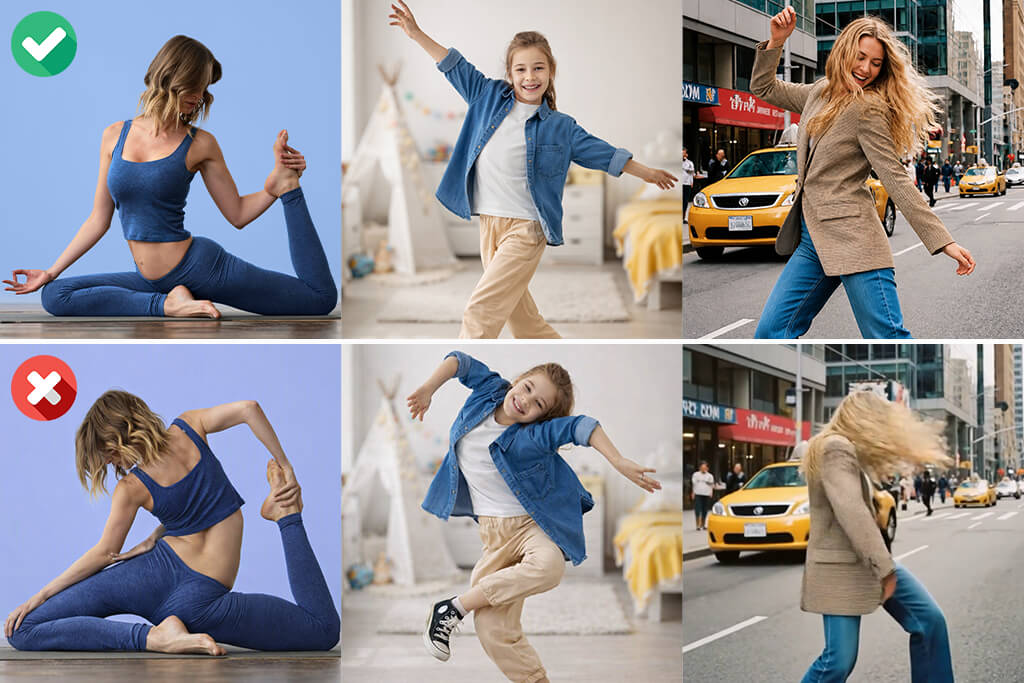
Before I began experimenting with Kling AI Motion Control in Adobe Firefly, I discovered that picking the optimal reference asset has a huge effect on the final output. The asset features the motion Kling has to inspect, so I suggest focusing on the following:
My tests prove that a clear and well-chosen reference asset has a huge effect on the output and is often more important than a highly detailed prompt.
I evaluated Kling AI Motion Control in Adobe Firefly along with my colleagues from FixThePhoto to check how much it can offer outside of basic demo examples. We imported different character images and reference videos to generate walking, dancing, turning, facial expressions, hand gestures, and more intricate full-body movements.
For our test, we checked how precisely Kling copied the reference motion and examined character consistency, facial details, hands and fingers, body proportions, and stability across different angles and distances. We tested different types of reference videos to ensure the results remained reliable across a wide range of scenarios.
During the test, we also evaluated how Kling 3.0 and Kling 3.0 Omni function within the Adobe Firefly ecosystem. We checked how well they were integrated with Firefly’s multi-shot workflow, reference images, Elements, scene consistency, and refinement. This approach helped us understand whether these models are a natural fit for the wider Adobe Firefly video generation workflow.
✔️ Yes, if you’re interested in having more freedom when adjusting the character movement, want to animate still images using reference clips, or if Adobe Firefly is already a part of your workflow.
❌ Not if you’re just interested in basic text-to-video generation, need frame-by-frame control, or are used to handling highly complex choreography that requires precise animation.





![7 Best Free Online Video Prompter [{{%year}} FixThePhoto Choice]](http://fixthephoto.com/blog/images/gallery/news_main__preview_29369.jpg)



















