I recently needed to find the best AI female voice generator for a FixThePhoto project, and I soon realized that natural-sounding voices weren’t the only thing that mattered.
For our FixThePhoto project, I needed a female AI voice for tutorials, promo videos, and short social media posts. We wanted to avoid recording every script ourselves, but finding a voice that worked well across different formats was harder than I expected. It had to sound natural and expressive, not like the usual computer-generated speech.
When comparing the tools, I looked at more than just how pleasant the voices sounded. I paid close attention to clear pronunciation, natural pauses, changes in tone, and how well each voice conveyed emotion. This mattered because our scripts ranged from simple step-by-step instructions to more lively promotional content.
I also compared the range of voices, available accents and languages, editing options, sound quality, and how quickly each tool could generate audio. I checked whether I could control the delivery, such as the tone and speaking pace. Because the recordings were intended for professional FixThePhoto projects, I also looked at licensing for commercial use, pricing, and how easily I could save the final audio files.
For the test, I used the same scripts with each female voice generator to keep the comparison fair. The set covered a quick how-to, a product intro, a relaxed social media post, and a longer passage containing numbers and technical terms. This helped me see how well each voice worked across different kinds of content.
I paid attention to how each voice handled pronunciation, breathing, pauses, and changes in tone. When possible, I ran the same script several times to check whether the results stayed consistent. This made it easier to tell which tools delivered reliable results instead of getting one unusually good take.
Together with my colleagues from the FixThePhoto team, we selected some of the most popular tools for creating female AI voices. Once we had our criteria and testing plan ready, we got started right away, so we could compare the options without wasting time.
Start with a clean script. Cut unnecessary symbols, avoid awkward abbreviations, and keep the sentences short and easy to say out loud. The text should sound natural when spoken.
Choose the voice for the content. A gentle, reassuring tone suits instructional videos, while a lively delivery can make ads and short-form posts more appealing.
Use punctuation to control delivery. Punctuation and spacing can help the voice flow better. Add breaks around technical words or key points when the tool supports it.
Adjust speed and pitch carefully. Make small tweaks instead of changing everything at once. I’d keep the original voice first, then adjust it little by little until the result sounds right.
Add emotion and emphasis. If the AI voice generator lets you adjust emotion or delivery style, try different options instead of keeping the voice flat. Putting extra emphasis on key words can also make ads and casual content feel livelier.
Test difficult words separately. AI voices often struggle with figures, proper names, shortened terms, company names, and industry-specific words. Test a few lines first and fix any mispronunciations before creating the full track.
Generate several versions. Even with identical settings, the results can vary a little in pace and tone. I usually generate a few versions, compare them, and keep the one that sounds most natural.
“Create a clear, confident female voice for tutorials and educational content. Keep the delivery friendly, natural, and easy to follow, with a steady pace, smooth pauses, and a touch of emotion. Avoid a flat, robotic, or overly dramatic sound.”

“Warm, approachable female voice with the feel of a relaxed conversation. Keep the delivery soft and pleasant, with natural breaths, flowing intonation, and light emphasis on important words. It should sound genuine and inviting, not like standard computer-generated speech.”

“Energetic, confident female voice for ads and promotional content. Keep the delivery upbeat and convincing, with expressive intonation, natural changes in pace, and extra emphasis on key phrases. Make it attention-grabbing without sounding pushy or exaggerated.”

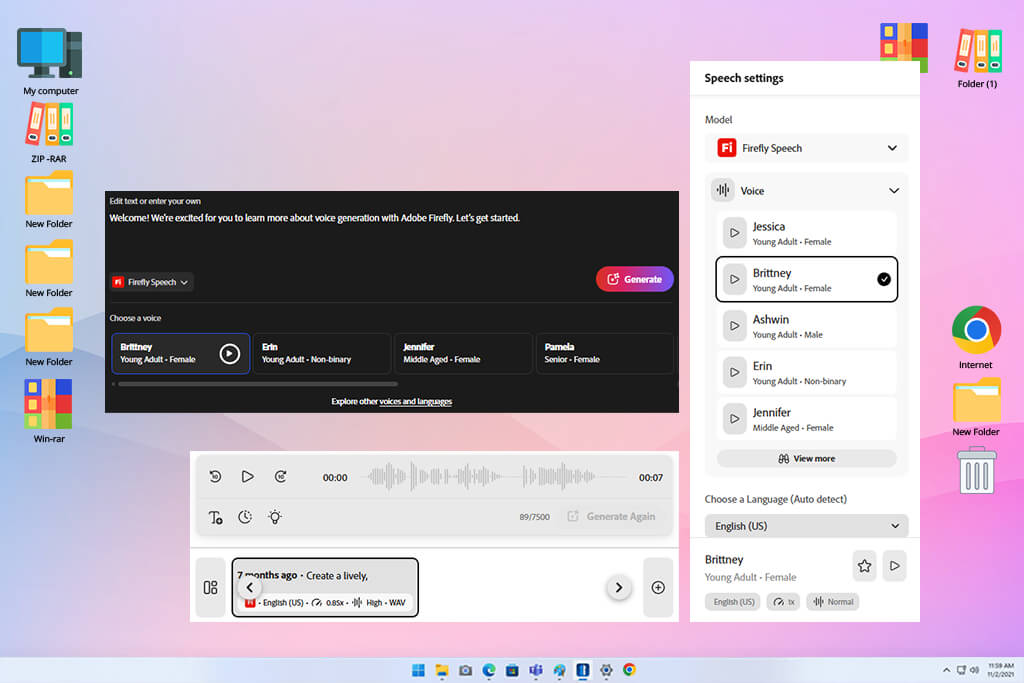
I started with Adobe Firefly because I wanted to check if it could deliver a professional female voice for FixThePhoto videos without making the process too complicated. I used the same tutorial and promotional scripts in Generate Speech, tried several female voices, and compared their pronunciation, pauses, pitch, and overall delivery.
The first thing I liked was how easy it was to shape the voice. Firefly lets you change the speed, pitch, pauses, pronunciation, and tone. You can even tweak certain words or phrases without having to run the entire script again.
I also liked the variety of female voices this AI woman voice generator has. Instead of getting the same typical AI voice, I could choose from different ages and styles. Firefly’s Speech workspace also includes partner voices like ElevenLabs Multilingual v2, giving me even more options.
This made it easier to pick a voice that suited each type of video, from calm tutorials to more upbeat promotional content. I also tried a few languages since FixThePhoto content is aimed at an international audience. Firefly supports over 20 languages and offers several accent options.
“I tested a few female voices on a short video and liked how natural they sounded. The delivery was clear, but I had to tweak a couple of lines to get the tone just right.”

The most useful part for me was being able to fine-tune individual words and phrases. If a technical term didn’t sound quite right, I could fix just that part instead of starting over. I could also add emotion or pauses to make the delivery feel more natural.
I also liked that I could preview the result before exporting the audio as a WAV file. After that, I could easily use it in other free Adobe applications, such as Premiere Pro or After Effects. This made Firefly feel like part of a larger editing process rather than just a basic AI female voice generator.
What stood out to me was how well Firefly handled regular narration. After trying different scripts, I found that it works better for clear, polished female voiceovers than for character-style voices. The controls for pitch, speed, and pronunciation were useful, and the support for different languages and Adobe apps made the whole process easier. Overall, I got a good amount of control without having to deal with complicated settings.
For professional projects, I also paid attention to the usage rights. Adobe states that speech created with Firefly Speech models is safe for commercial use. Since I was working on tutorials, promotional videos, and educational content, this was another reason Firefly stood out to me as one of the better options overall.
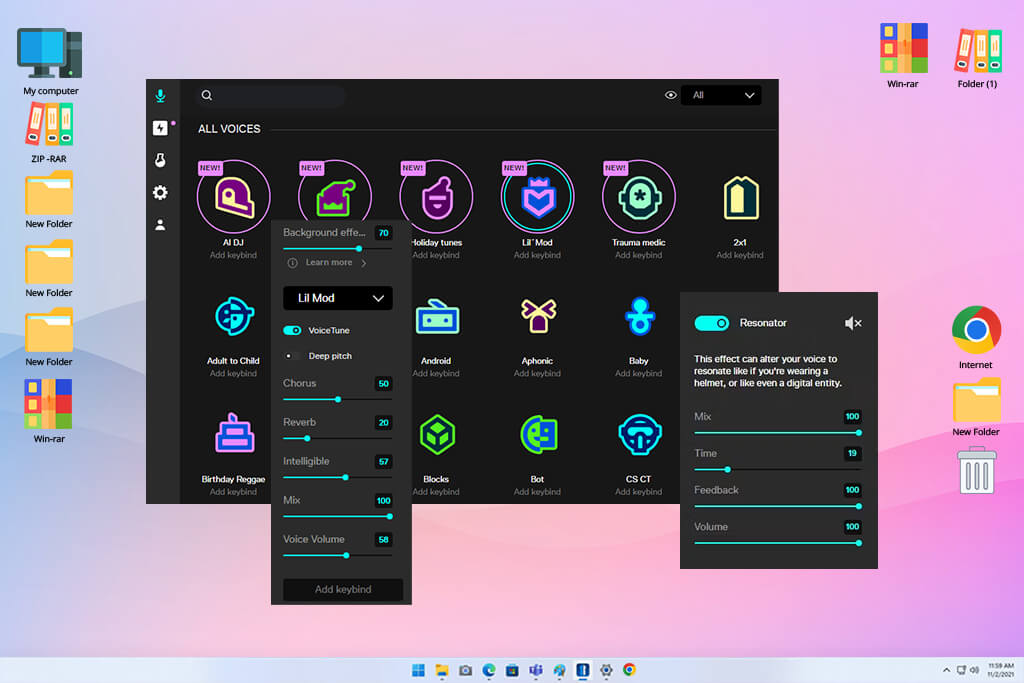
Voicemod was a little different from the other AI female voice generators I tested because it changes your voice as you speak instead of turning text into narration. I read the same short lines I used for the other generators and listened to how each AI voice changed my recording. Then I compared the results with my original voice to see how natural the changes sounded.
What I noticed right away was that Voicemod changes the voice itself, rather than just adding a basic effect. Because the changes happen as you speak, it works well for live content such as streams, conversations, and presentations where you want to keep your natural timing and energy.
For female voices, I tried several character-style options rather than sticking to standard narration. This AI accent generator includes over 200 voices, and I could also use Voicelab to create or adjust voices. There are also extra options shared by the community, which gave me even more voices to try.
I found it a better fit for creative content than business-style voiceovers. I could play around with different personalities and character voices to see what worked best. Depending on the voice, I could also tweak the pitch, reverb, and speed.
I noticed that the quality of my recording made a real difference. Voicemod works best when you speak clearly and keep background noise to a minimum. English also gave me the best results, which makes sense since the AI was trained mainly on professional English-speaking voices. I tested both a clean recording and a more casual one, and the clean version sounded much better after the voice change.
For my FixThePhoto projects, I’d choose Voicemod when I already had a natural recording and wanted to give it a different voice. It wasn’t my first choice when I needed to turn a written script into a complete voiceover.
Overall, I found Voicemod most useful when I wanted to change my voice without losing the way I naturally spoke. It worked especially well for live communication, streaming, gaming, and character-based content. Compared with a standard text-to-speech tool, it also gave me more room to experiment with different voices and styles.
I wouldn’t choose it for long tutorial scripts over a dedicated TTS tool. But for short social videos, it can be a great fit. The real-time voice changes make it easy to keep your own way of speaking while adding more personality to the content.
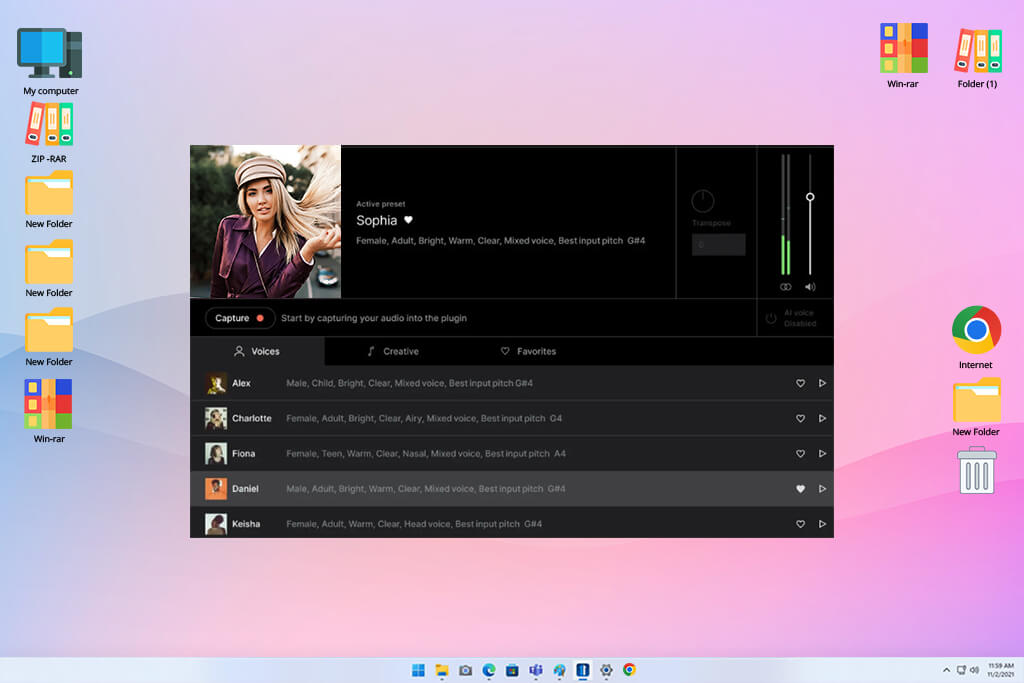
VoiceAI was interesting because it can change an existing voice instead of just turning text into speech. I tried both the live voice changer and the online audio tools, using the same short phrases as with the other generators.
The AI voice designer gives me access to thousands of voices in Voice Universe, including female voices created by other users. I could also create new voices or clone existing ones. With so many options to try, it offered much more freedom than a typical voice changer.
I started with a female voice from the library and used it on a clear recording. Then I changed the pitch and tried a different voice to compare the results. What I liked about Voice.ai was that it kept the timing and much of the original delivery, instead of starting from scratch with text.
The online converter also lets you upload a short MP3 or WAV file, choose a voice, adjust the pitch, and convert it directly in the browser. This makes it useful for quickly testing different voices with existing audio.
“The female option worked well for calls, and switching between voices was quick. A few sounded off, so I tried several before finding one that gave my speech a believable result.”

What I liked most was Voice Universe. There were so many voices to browse through, including ones made by other users. It was easy to try different female voices and pick one that fit the type of content I was working on.
VoiceAI also lets you build a voice from an audio sample. The cloning feature was useful when I needed a voice with a more specific sound instead of a typical young female narrator.
I’d choose this female voice generator when I already have a recording to work with or need to change a voice live, rather than generate a long voiceover from text. It worked especially well for female character voices, social media clips, streams, and casual conversations.
It also works in real time with apps like Discord, Zoom, games, and other communication platforms, so it offers more than a basic TTS tool. For polished FixThePhoto tutorials, though, I preferred regular text-to-speech tools because they gave me better control over the script.
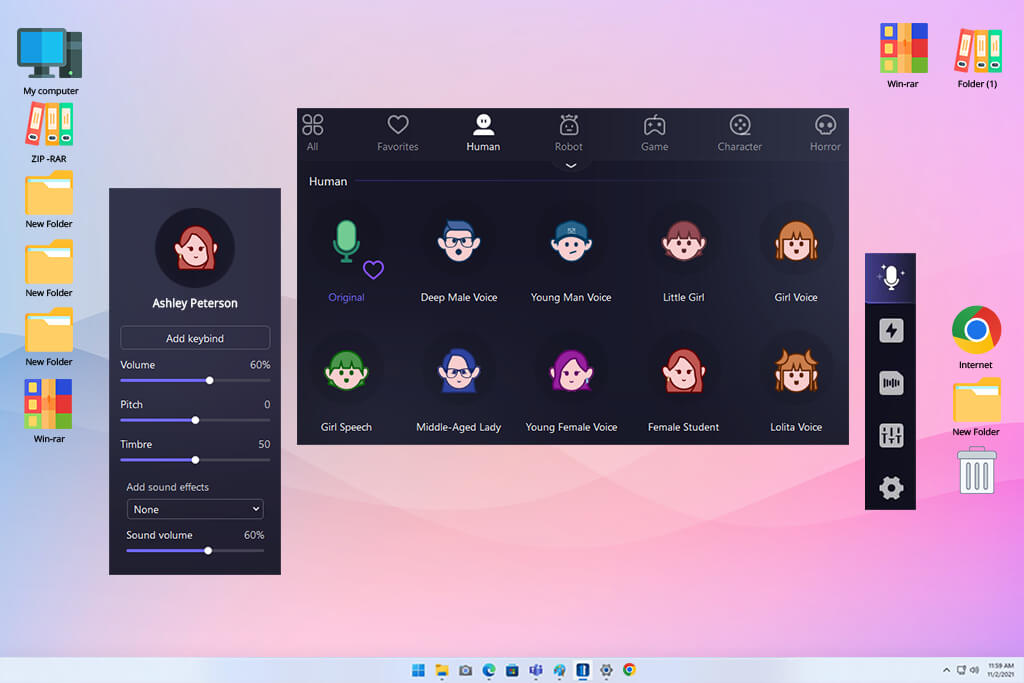
I tested EaseUS VoiceWave more as a voice changer than a standard AI female voice generator. Instead of just entering text, I recorded a few short voice clips and tried different female voice effects while speaking.
VoiceWave supports more than 100 real-time voice-changing effects and can also modify prerecorded video and audio files. That made it easy for me to compare different female-sounding transformations without setting up a complicated audio-editing workflow.
One thing I liked was that I could record my voice and change it in the same app. I could adjust the pitch and speed, save the result as an MP3, and use AI-based noise reduction to clean up recordings with some background noise. For short social clips and casual voiceovers, having all these tools in one place made the process much quicker.
I also tried the soundboard, which made VoiceWave feel quite different from tools like Firefly or ElevenLabs. It has hundreds of sound presets and effects, so I could add extra sounds to a female voice and try out different combinations for more playful content.
I wouldn’t pick these effects for a serious FixThePhoto tutorial, but they can be a good fit for social posts, gaming videos, memes, or just trying out something different. Since the program is mainly built for Windows and live voice changes, that also limits where I’d use it.
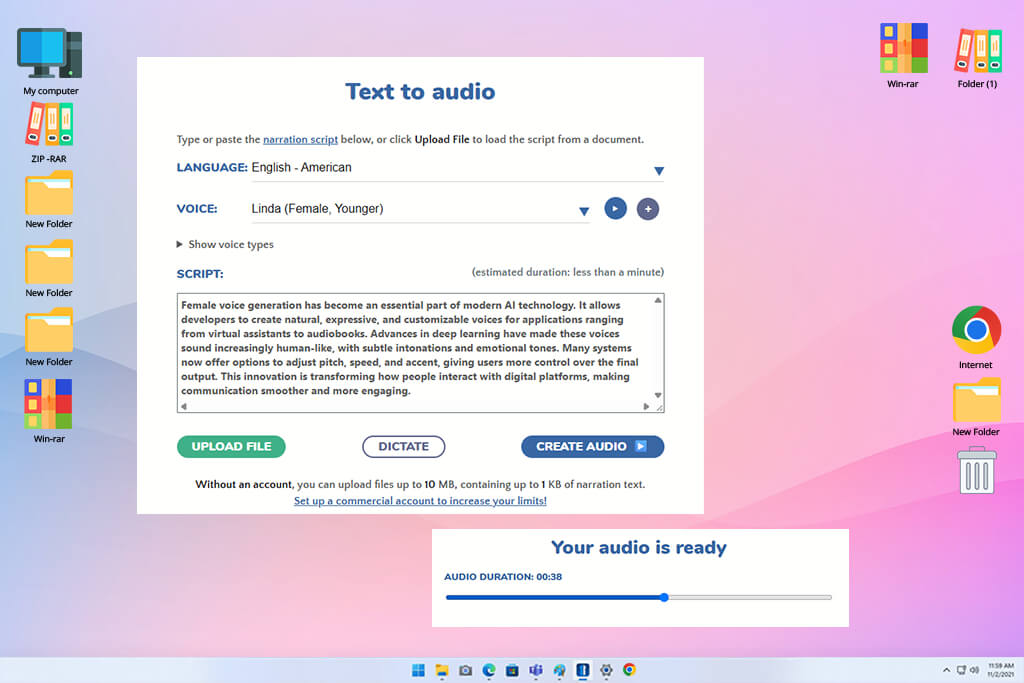
Narakeet was very easy to use. I just pasted my text, picked a voice, listened to it, and tried another one if I didn’t like the result. I tested the same tutorial, product intro, social post, and technical text as with the other tools. This helped me quickly find out which female voices sounded good with numbers, technical words, and longer sentences.
The wide choice of voices was one of the things I liked most about this realistic female AI voice generator. It has more than 900 voices in 100+ languages, so I had plenty of female voices to choose from and compare.
I didn’t just pick the first voice I liked because some voices pronounced certain words much better than others. The AI sound effect generator itself recommends trying several options, especially when working with technical terms, brand names, or unusual pronunciations. That matched what I noticed during testing.
“I used it to create a female voiceover for a tutorial. It was easy to use, and the words came out clearly for the most part. The only thing missing was a little more feeling in the voice.”

I also liked that Narakeet gives me more control over the script itself instead of just changing voice settings. I could use stage directions to switch voices, adjust pronunciation, or create dialogue. There were also separate controls for speaking speed and volume.
I also played around with pauses and different reading speeds, since even small changes in pacing could make the same female voice feel more natural or completely change its delivery. For longer scripts, I liked that I could upload a Word or text file instead of pasting the whole text into the editor.
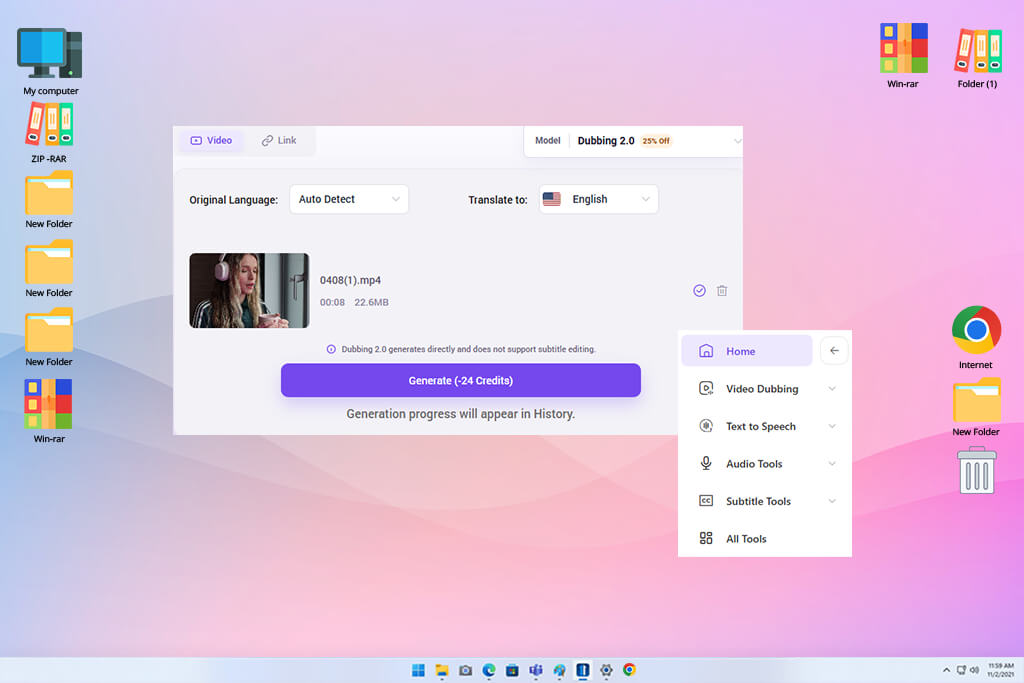
I tested AI Dubbing a bit differently because it works with existing videos rather than creating a voiceover from text. I uploaded a short talking-head video, picked another language, and compared the dubbed version with the original to see how natural it sounded.
The process was straightforward: I uploaded the video, selected a language, and let the tool handle the dubbing. What I wanted to see was whether the new female voice would still follow the original speaker’s timing and sound like the same person, rather than turning into a generic voiceover.
What I liked most was the voice preservation. The translated version delivered by this AI dubbing software still keeps the speaker’s vocal character and follows their mouth movements, so it feels much closer to the original recording.
For my tests, this mattered more than having a huge library of female voices. The main benefit was being able to adapt an existing video for a new audience without asking the presenter to record it all over again. I found this especially useful for tutorials, educational videos, and social posts that need to be released in several languages.
I also looked at how well this setup would fit a professional content workflow. Instead of handling the script, voice selection, recording, and syncing as separate steps, the tool combines the translation and new voice track in one process.
This also meant less editing work for a multilingual project. Still, I would check the plan limits and the length of the video first, since these can affect what you can use and how much content you can process.
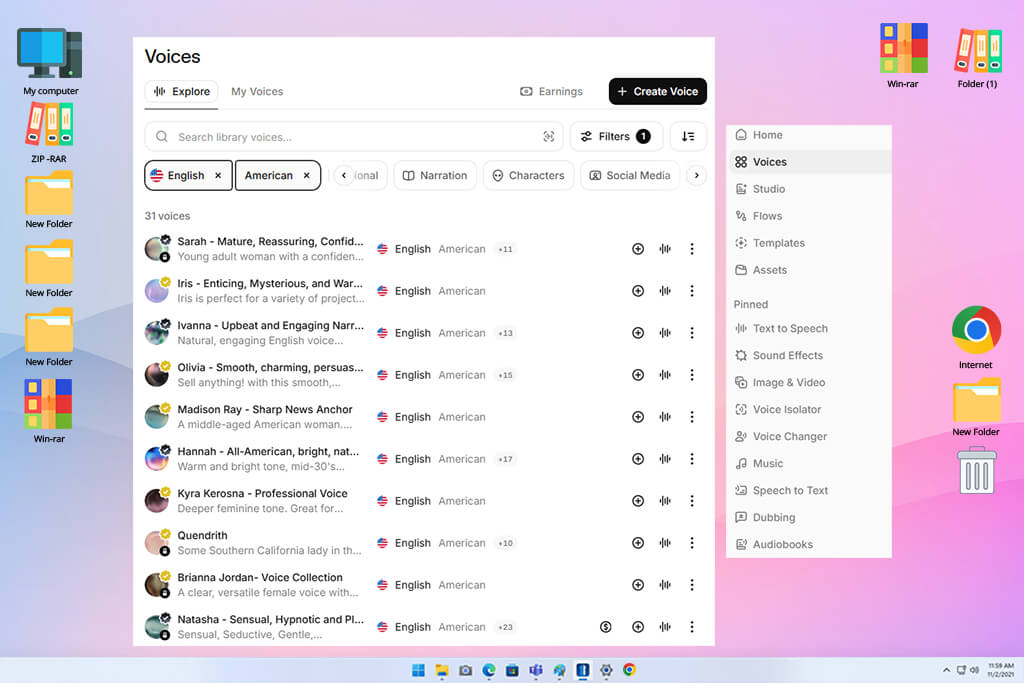
ElevenLabs was one of the AI female voice generators I spent the most time with. I wanted to see how well its female voices could handle different types of content, so I tested the same scripts across several options. Some voices sounded much more natural than others, especially when the script included emotion, numbers, or technical terms.
I also tried different speaking styles, from a calm voice for tutorials to a more energetic delivery for promotional content. This AI voice cloning software offers text-to-speech tools for web and mobile, along with APIs and SDKs, which could be useful if the workflow later needs to be automated.
I also spent time testing voice customization. ElevenLabs offers a large selection of voices, and I could use Instant Voice Cloning to create a digital copy of a voice from a short audio sample. This gave me a way to work with a specific voice instead of choosing only from the available options.
Consistency is especially useful when creating multiple videos. Using the same female narrator across different projects can help build a familiar sound for a website, YouTube channel, or educational series.
“The female voice worked really well for a longer narration and sounded more expressive than I expected. It felt natural overall, although I had to correct a couple of words that were pronounced incorrectly.”
I also tried ElevenLabs for multilingual work, since FixThePhoto content may need to be available in different languages. Its dubbing feature can translate audio and video into more than 90 languages while keeping the speaker’s emotion, timing, tone, and identity.
Dubbing v2 was one of the more interesting features I tested because it works from the original recording, not just the written transcript. It handles the translation, voice cloning, dubbing, and timing automatically, while keeping the feel of the original performance. That made the result quite different from a standard translated female TTS voiceover.
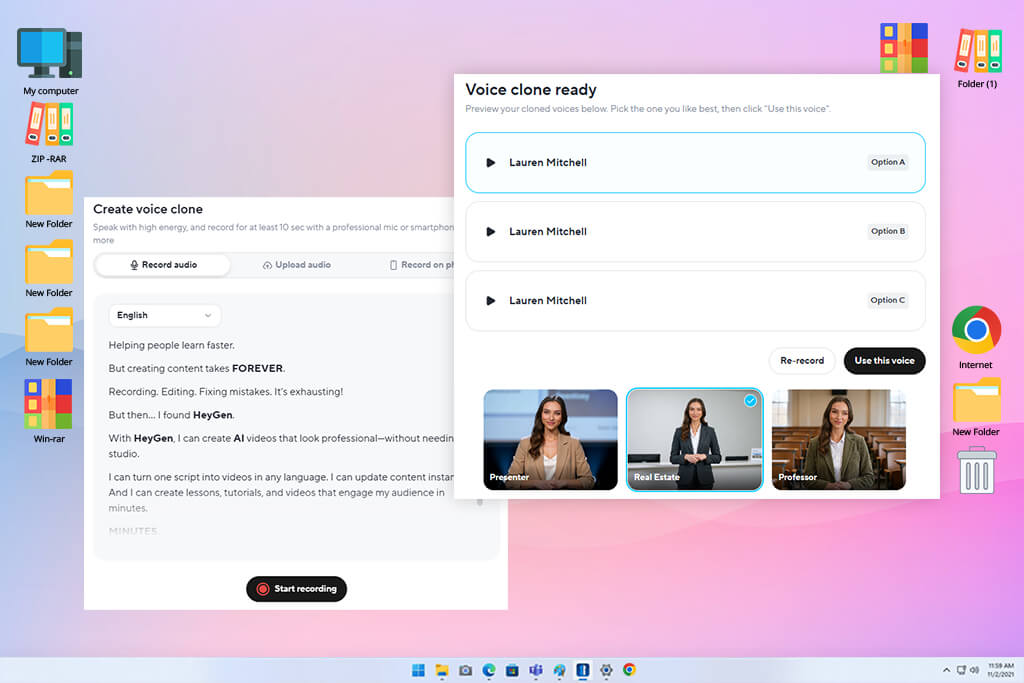
I tested HeyGen as part of a video workflow rather than using it only for voice generation. I created a few short scripts and tried different female voices with promotional, instructional, and conversational text.
This online female voice generator lets me adjust the tone, pace, stress, and intonation, so I could fine-tune how each line was delivered instead of using the same reading throughout. This was helpful when I needed a more energetic female voice for an ad and a calmer delivery for a tutorial.
Voice cloning was another feature I wanted to try. HeyGen can create a voice clone from a short sample and use it as the same narrator across videos, courses, and podcasts. This seemed useful for the FixThePhoto workflow, where keeping one voice throughout a series can make the content feel more consistent. Rather than using a different female AI voice for every project, I could choose one recognizable voice and use it again across multiple videos.
What made HeyGen stand out was how closely its voice features were tied to video creation. I could add the generated voice directly to its AI video editor alongside visuals, subtitles, and other elements. This meant I didn’t have to switch between as many different tools while putting a video together.
I also tested the multilingual dubbing feature, which supports more than 177 languages and dialects, including AI dubbing and lip-sync capabilities. For international campaigns, being able to translate the content, generate the new voice, and sync it with the video in the same place can make the whole process much faster.
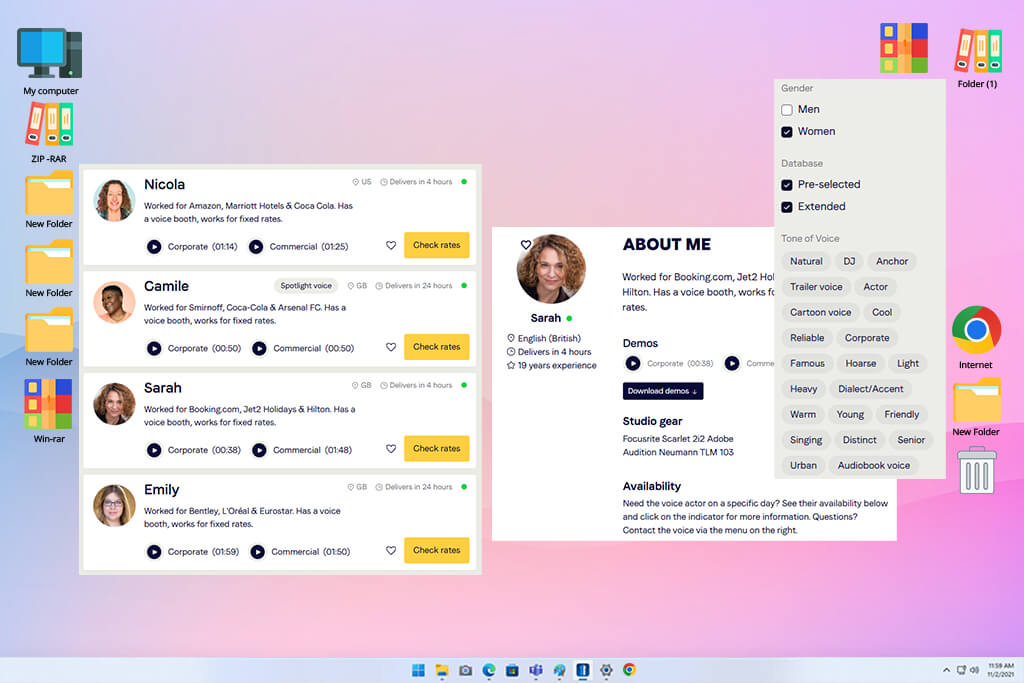
Voicebooking stood out because it takes a more hands-on approach to voice-over work. I used its free AI Voice Generator to add my scripts, try different voices, and see which ones worked best for pacing and the overall feel.
The platform has 575+ voices in over 55 languages, including both female and male options. Having so many choices made it easy to try several voices and find one that suited each video.
I also looked at how much I could change the way the voice sounded. Voicebooking’s paid plans offer options for pauses and emphasis, which helped make the reading more lively. I tested the same promotional text with and without these settings and found that even small changes to the pauses could improve the delivery. There are also effects that make it easy to add more emphasis without editing each line by hand.
“I wanted a more polished female voice for a project, so having several options to choose from was helpful. The quality was noticeably better than the basic AI voices I had tried, although it took a little longer than using a fully automated tool.”

I also included Voicebooking because it lets you test voice-over scripts before starting production. The generator is made for checking timing and impact in videos, test projects, and storyboards, which matched one of the main things I wanted to check during the FixThePhoto evaluation.
The free version also lets you try voices from the library on your first project, but it comes with limits on characters, projects, and downloads. This made it easy to check whether the script was too long, if the female voice fit the topic, and whether the pacing sounded right.
We started with a short photo-editing tutorial and tested how each voice handled instructions, numbers, software names, and technical terms. Tetiana Kostylieva focused on the pronunciation, noting any awkward pauses, strange emphasis, or words that made the voice sound too much like a computer.
Kate Debela focused on emotional delivery, checking whether a voice sounded calm and informative in one script and more lively in a promotional one. Vadym Antypenko looked at the technical side, such as generation speed, audio quality, language options, export options, and how easily the recordings could fit into our workflow.
We also used a few harder tests instead of checking just one short paragraph. For example, we gave the generators a social media script with short, conversational sentences. Then we tried a longer text with percentages, dates, product names, and photography terms.
For another test, we used two styles: a warm, upbeat voice for an ad and a more neutral one for a tutorial. The shorter scripts sounded good across most tools, but longer ones exposed a clear difference. Some voices lost their natural sound, while others stayed steady and clear from beginning to end.
After that, we tested the customization features available in each AI woman voice generator. I changed the speed, pitch, pauses, emotion, emphasis, and delivery style to see how easily one female voice could work for different types of FixThePhoto content. For tools with language support and voice cloning, I also tested these options to check whether the same voice could stay consistent across different videos and languages.
Our tests showed that a large voice library means little if there are not enough settings to shape the way a voice reads the script.
In the end, the results were not quite what we had expected. ElevenLabs and Adobe Firefly delivered some of the strongest results for professional voiceovers. They handled pronunciation and pauses well and gave us more control over the way the speech sounded.
“I tested these tools on different projects, and HeyGen was the best fit when I needed both a female AI voice and video creation in one place, especially for multilingual projects. Narakeet worked well when I needed to create a lot of narration quickly in several languages. Voicemod, VoiceAI, and EaseUS VoiceWave were better suited to changing an existing voice or experimenting with character voices than creating standard voiceovers.”

We chose the winner based on more than the size of the voice library or the quality of the demos. We ran the same practical scripts through each tool and looked at pronunciation, control, performance with difficult words, and whether the final audio was good enough for professional video work.
We also checked how fast each generator worked, how good the audio sounded, which languages it supported, how much it cost, and what the licensing allowed. These things made a real difference when we actually used the tools. In the end, we found not only our top pick, but also which generators worked best for tutorials, ads, social media, multilingual videos, and more creative projects.




![9 Best AI Reference to Video Generators [Top Picks]](http://fixthephoto.com/blog/images/gallery/news_main__preview_29461.jpg)
![7 Best Free Online Video Prompter [{{%year}} FixThePhoto Choice]](http://fixthephoto.com/blog/images/gallery/news_main__preview_29369.jpg)


![7 Best AI Accent Generators [{{%year}} FixThePhoto Choice]](http://fixthephoto.com/blog/images/gallery/news_main__preview_29428.jpg)

















