At FixThePhoto, I have to work with PDF files daily. I need to save software tutorials as PDFs, use invoices, create media kits, prepare research papers, create comparison sheets, save guidelines for clients, ask clients and contractors to sign contracts, and review drafts carefully before printing them or sharing them online.
I have been using Smallpdf for a while, as it allows me to compress PDFs or save them in another format instantly. I was pleased to discover that I did not need to install it on my device. Its interface is extremely intuitive, which allows me to access the tools I need from the homepage.
However, when I started to work on more complex projects, I discovered some limitations of this platform. I would need to edit text documents, work with scanned files, compare different versions, add and fill forms, clean up large documents, and perform other tasks without worrying about the restrictions associated with free software.
I did not want to replace Smallpdf with another widely used online PDF editor, which is why I asked other members of our FixThePhoto team, which includes content writers, photographers, designers, photo and video editors, and software testers, recommend some Smallpdf alternatives.
My colleagues and I tested a variety of web-based platforms, desktop programs, and mobile apps on the same set of PDFs. I wanted to see whether these solutions could fully replace Smallpdf and be used for handling several tasks, as I did not want to include alternatives with a narrow area of application.
For me, the best Smallpdf alternatives should have the following features:
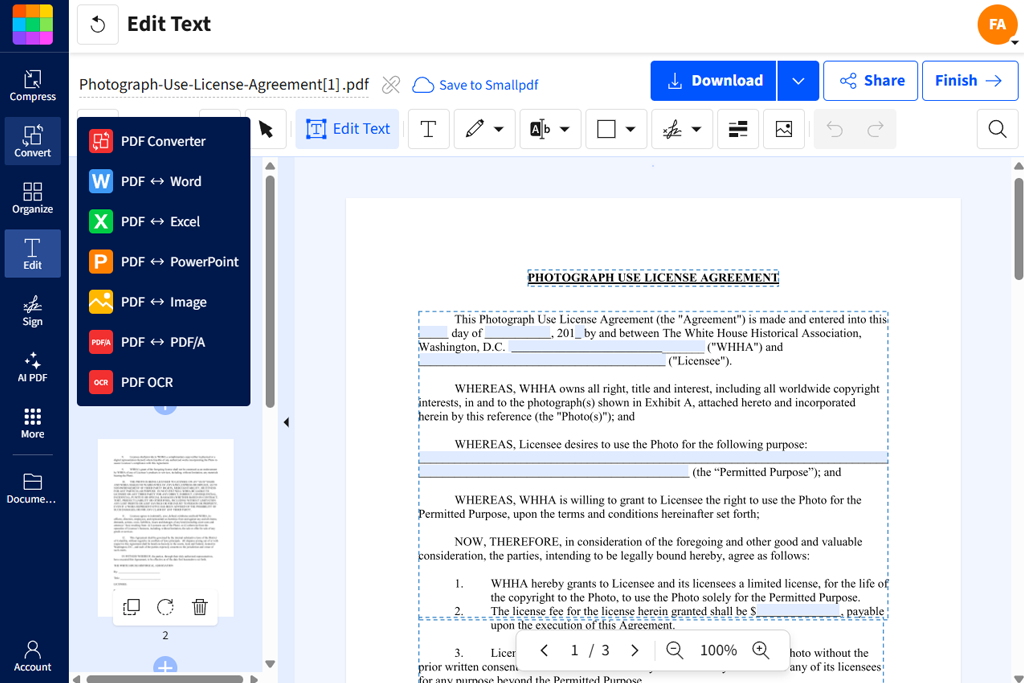
Smallpdf is a web-based service for working with PDF documents. It allows users to perform tasks with PDFs quickly. With it, I can compress, convert, split, merge, and edit PDF files as well as add eSignatures. It allows users to work with PDF files without mastering dedicated desktop software.
Due to its intuitive functionality, I believe that Smallpdf will come in handy for many people.
Nonetheless, when I started to work on more advanced projects and use PDF editing software, I discovered the main limitations of this service.
Why it is better than Smallpdf: Advanced control over the actual contents of a PDF
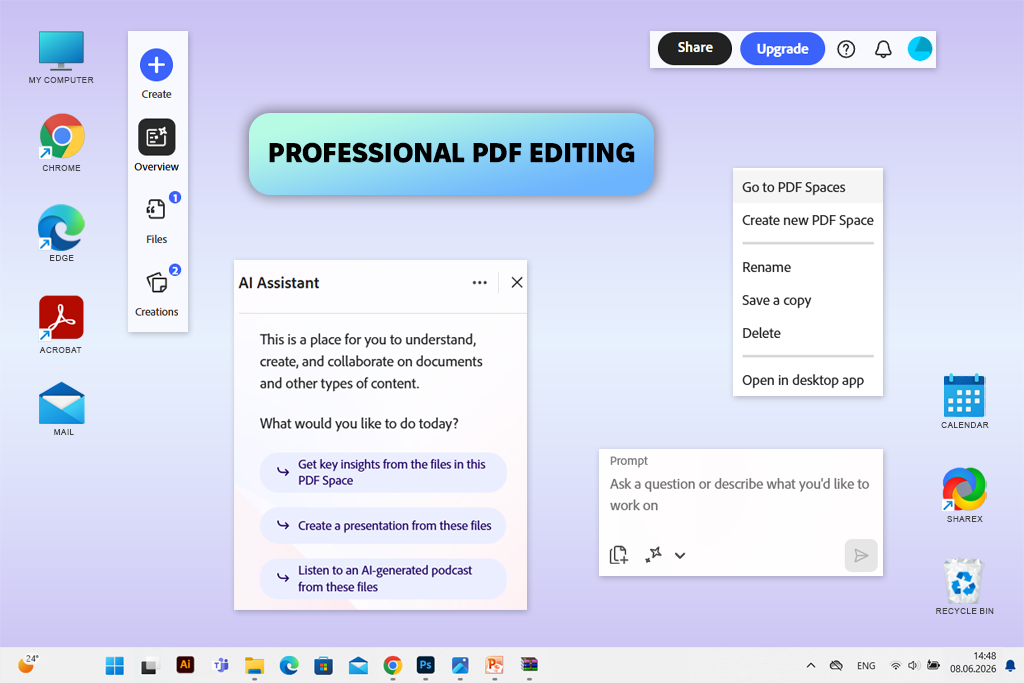
Adobe Acrobat is the best Smallpdf alternative I have ever tested, as it has extensive functionality and delivers reliable performance. At first, I did not set my expectations high, as I thought that it would be too complex for solving simple tasks from a browser.
I decided to test the online version of this software first because I wanted to understand whether it could help me optimize my Smallpdf workflow. I uploaded a document that included product photos, a table, links, and some information that required an update.
Unlike some Smallpdf competitors, the web version of Adobe Acrobat allows users to edit PDFs with text, pictures, and different types of formatting. Other Adobe products make it easy to convert, manage, and share documents. In addition, I used its online PDF compressor to see whether it would allow me to quickly process a file with a lot of photos. I often use Smallpdf for such tasks, so I was wondering whether I would be able to do the same here.
I believe that Acrobat is the best PDF editor on this list, because it was built for those who work with files in this format and aren’t going to convert their documents. Even though Smallpdf may be more suitable for solving simple tasks quickly, Acrobat has a wider range of uses.
“Smallpdf allows me to compress documents faster. However, when I need to perform other tasks with PDFs, Acrobat is more suitable for my needs, as I can access every tool I need and control the output perfectly without using multiple services.”

I was able to seamlessly switch between the online version and other Adobe software for working with PDF files. After paying for an Acrobat subscription, one can use a desktop, browser-based, and mobile version, which allows users to continue editing their files from different devices.
In addition, I was impressed by Acrobat’s capabilities when it came to converting documents. I often receive files that I need to convert into the formats supported by Word, Excel, or PowerPoint to ensure that my FixThePhoto colleagues would be able to work on them. Acrobat allows me to save PDFs in Microsoft Office formats without disrupting document structure and layouts.
For better results, try using Acrobat online first. It will allow you to try out its Edit, Convert, Compress, Organize, and Sign tools and learn how to use them properly before using the advanced features available in the desktop software. It will make it easier for you to switch between these two versions.
Key features:
Pricing: A free version allows users to access a limited set of PDF tools online. The Acrobat Standard plan currently starts at $14.99/month on Adobe’s annual plan for US clients.
Why it is better than Smallpdf: Familiar tools that can be accessed at an affordable price from multiple platforms
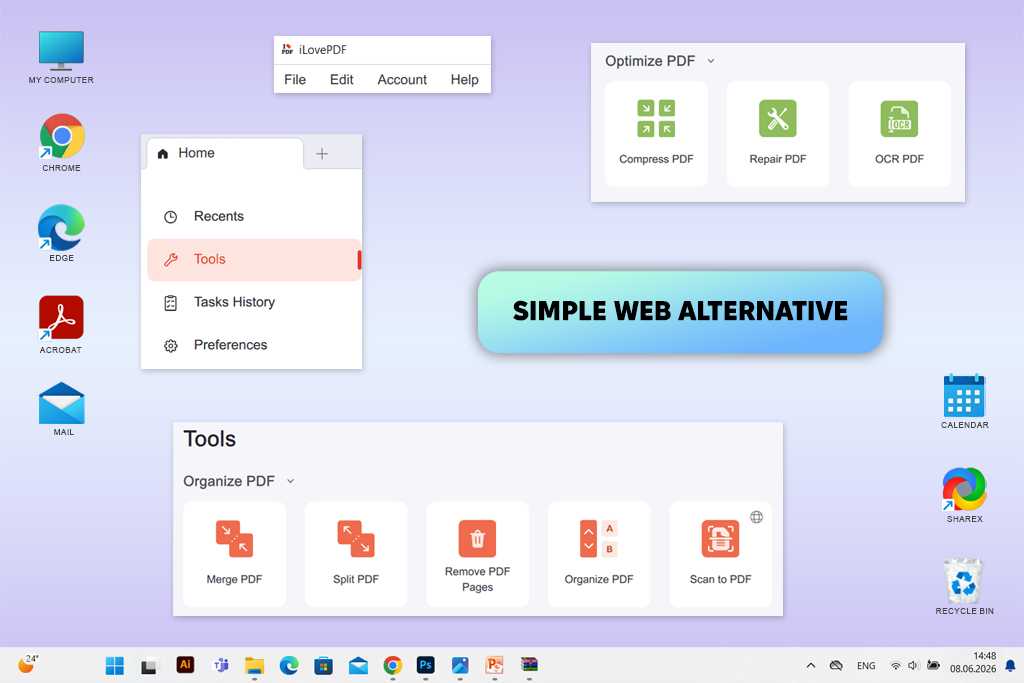
iLovePDF was the most intuitive alternative I’ve tested. Besides, it's quite similar to Smallpdf.
After testing both platforms, I realized that both of them have nearly identical workflows. You need to choose a tool you want to use, upload a document, adjust the settings, process the file, and save the output to your device.
At first, I mostly focused on the features I use most often, including Merge PDF, Split PDF, Compress PDF, PDF to Word, JPG to PDF, Rotate PDF, Watermark, Organize PDF, OCR, and Edit PDF.
As a result, I realized that iLovePDF could be the perfect option for those who want to find PDF tools like Smallpdf instead of looking for a solution that looks completely different. Unlike the traditional platforms I mentioned in my Acrobat Reader DC vs iLovePDF comparison, iLovePDF was built for online use. Besides, it has tools for solving specific tasks.
“This platform reminds me of Smallpdf a lot, which is why I started to use it almost instantly, without any preparation. The tools are well-organized and easy to find. iLovePDF allows me to handle a variety of daily tasks with PDF documents without using dedicated software.”

During the initial test, I decided to merge six PDF research documents into a single document and then optimize the size of the output to share it online. iLovePDF coped with these tasks quickly.
In addition, I converted JPG pictures into one PDF, changed the page order, rotated a picture, and inserted a page number. There was no need to spend a lot of time trying to master the tools available on the platform. Such intuitive functionality gives iLovePDF a slight edge over iLovePDF. The advantage of both platforms is that even beginners can use them without any preparation.
The first shortcoming I noticed was when I decided to make more precise edits. I realized that it’s better to use solutions like Acrobat, Foxit, or PDFelement when I need to edit my documents at a professional level, perform OCR correction, or work with complex document workflows.
This is why I believe that iLovePDF could be an excellent choice for students, freelancers, content creators, and professionals who are looking for free Smallpdf alternatives and want to find a platform that supports file conversion.
My advice is to pay for a subscription only after testing the available tools for free. The free version will allow you to assess the functionality of this platform compared to Smallpdf. The Premium version will be suited for your needs if you work with PDF files daily or want to switch between desktop and mobile versions.
Key features:
Pricing: You can use basic tools available in iLovePDF for free. The Premium plan currently costs about $5/month.
Why it is better than Smallpdf: Improved balance between in-depth editing and casual web use
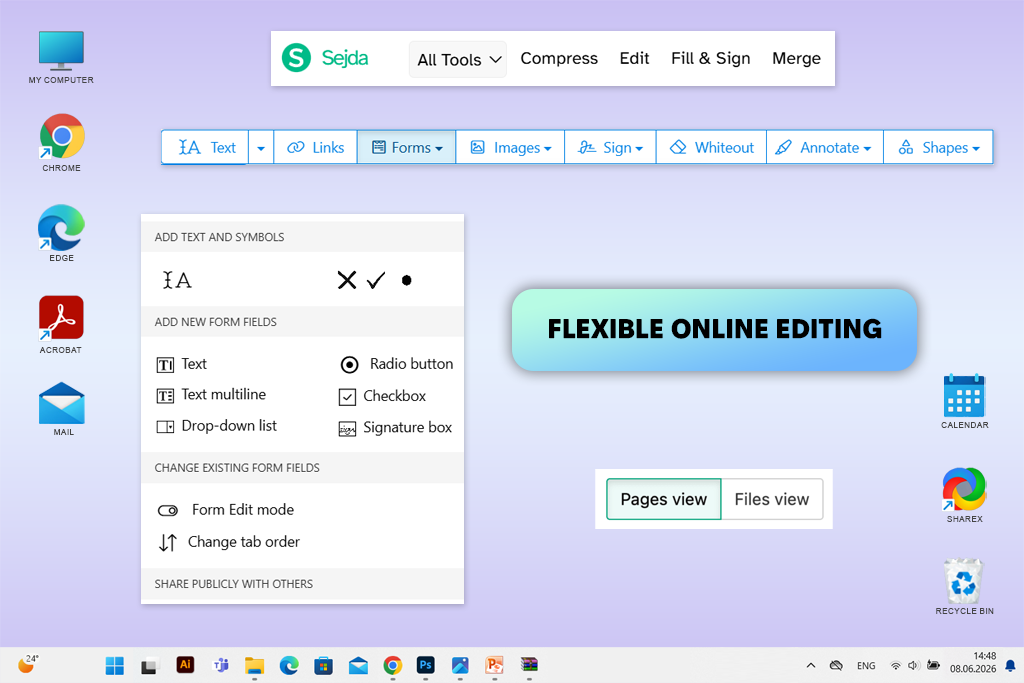
Sejda is a Smallpdf alternative that completely exceeded my expectations when I started testing it. This lightweight utility is available from any browser and can be compared with dedicated desktop software in terms of functionality.
At FixThePhoto, I often have to deal with a situation when a PDF document is almost ready, and then someone notices some typos. Instead of recreating the file in the program that was used for its creation, I can quickly access this web-based editor to fix these issues. Besides, it allows me to add and replace links, forms, pictures, annotations, signatures, and other elements.
“Sejda is a web solution for working with PDF documents that I use when I need to edit my documents without using advanced professional software.”

In addition, I tested the desktop version of Sejda because I wanted to access offline editing tools. What makes Sejda one of the main Smallpdf competitors is that it has versions for Windows, macOS, and Linux. Besides, you can use its free version, with some daily limits.
When using Sejda’s free version, you need to remember that it’s restricted by default. The company requires users to pay for a subscription if they need to remove pages. Besides, you will have to deal with hourly limits and other restrictions. This is why it’s impossible to use this service absolutely for free.
Despite this drawback, I believe that Sejda can still be useful for those who need to use Smallpdf alternatives free of charge several times per week.
For better results, I use Sejda to edit my documents, as it’s less suitable for optimizing repetitive workflows. PDF24 is a better choice if you want to use PDF tools without limitations, while Adobe Acrobat is perfect for working with documents that contain sensitive info or are too complex and should be edited at a professional level.
Key features:
Pricing: A free version has usage limits. Sejda also offers a non-recurring Web Week Pass and a Desktop + Web Annual plan for regular use.
Why it is better than Smallpdf: Provides access to the PDF toolkit without a subscription
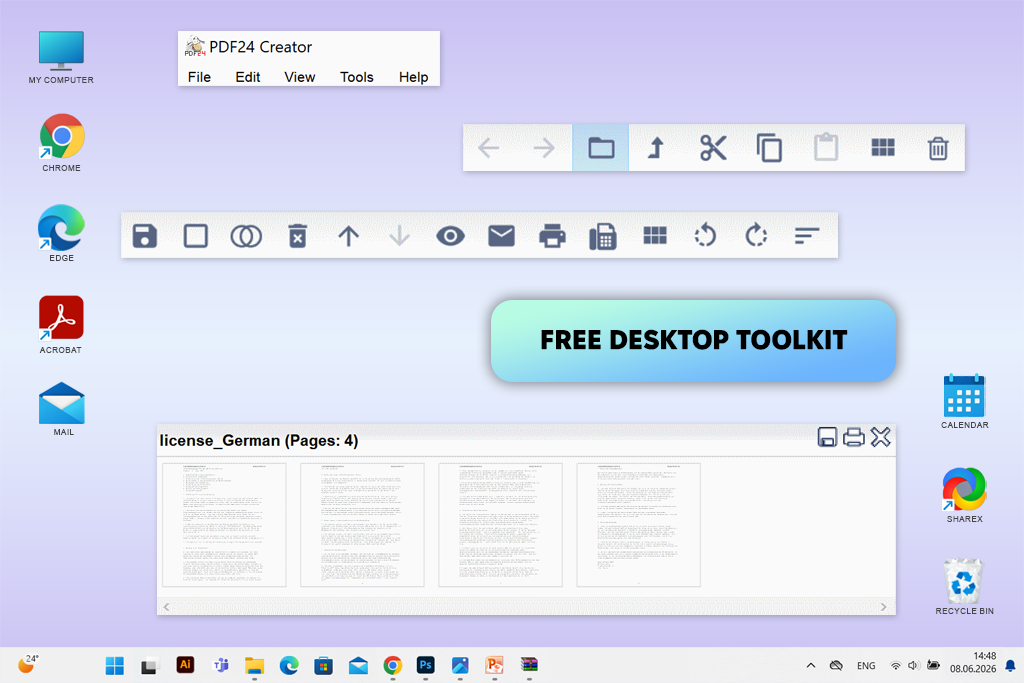
When I started to use PDF24 Creator, I immediately noticed that it looks less modern than Smallpdf. However, after using it for about 20 minutes, I completely forgot about this. I decided to include it in my list, as it clearly stands out among other free alternatives to Smallpdf, allowing users to access its tools without paying a dime. Even though many similar services claim to be available for free, most of them have strict usage limits.
PDF24 allows users to use its tools to work with PDF files without paying anything. PDF24 Creator is its desktop version for Windows.
I merged documents, removed the pages I did not need, changed the page order in the document, compressed the output, converted pics, extracted pages, performed OCR, and saved a version for sharing.
“PDF24 does not have the most polished UI among the tools I’ve tested, but it allows me to use a variety of tools for free. On other platforms, the same features are available only through a subscription.”

I was especially impressed by the PDF compressor. It allows me to adjust several output settings instead of allowing me to choose only between two options, basic or strong. It helped me create a complex PDF with photo samples and avoid reducing file size too much.
PDF24 also supports OCR, allows users to extract pages, and comes with tools for creating PDFs, editing files, and adding and filling forms. It supports file conversion, protection, unlocking, comparison, and has a collection of utilities. I thoroughly tested its free PDF to Word converter when I decided to save a document with a lot of text as a smaller file that could be edited quickly.
The main shortcoming of this solution is that its offline tools are available only for Windows users. Mac users can access it only from a browser.
The UI is more basic than in Smallpdf or iLovePDF. If you have a limited technical background, it might be better for you to use iLovePDF instead.
However, this all-in-one solution might be the perfect fit for Windows users who want to access PDF tools for free without paying for a costly subscription.
I recommend switching to PDF24 Creator if you often need to work with large documents or files that contain sensitive data. However, it will suffice to use a browser-based version for editing regular files occasionally.
Key features:
Pricing: Free. PDF24 allows users to access its online tools for free and has a free desktop version for Windows, PDF24 Creator, for offline use.
Why it is better than Smallpdf: More advanced tools without a convoluted interface
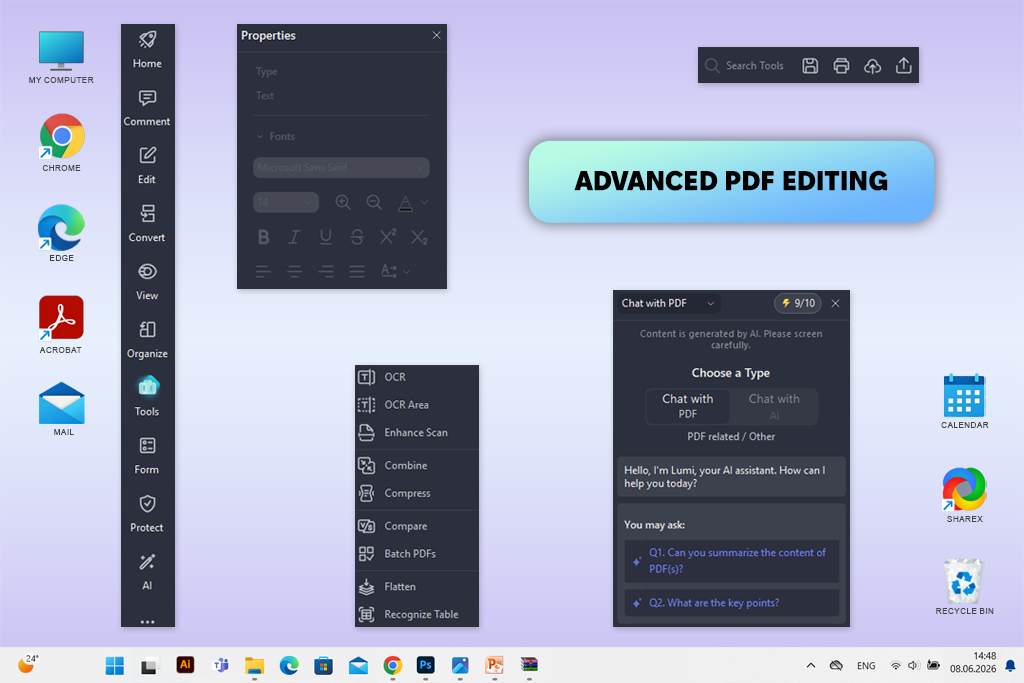
PDFelement was frequently mentioned by two of my colleagues who liked the fact that its functionality was similar to Acrobat but liked using a different AI. Before I started testing it, I was sure that it would turn out to be quite similar to traditional document editing software.
However, when I started using it, I discovered that Wondershare made it easy to find the features I needed, as they were organized around visual controls. It made it easier for me to use it after testing web-based PDF services.
Wondershare has a more extensive set of features than Smallpdf. PDFelement is suitable for PDF editing, OCR, conversion, AI-based document workflows, and batch processing.
“I enjoy using PDFelement because it is extremely easy to use despite its advanced tools. While using this platform, I can quickly find the tools I need.”

I was especially pleased with the result of my test when I ran OCR to make a converted table easy to edit. After performing OCR, it was easy for me to edit the recognized text the way I saw fit.
Unlike online Smallpdf alternatives, this desktop software has powerful batch processing capabilities. It helped me process 15 PDF drafts in a similar way. There was no need to upload these files separately online.
In addition, PDFelement has AI-based tools. When I need to read long tutorials, I like using its AI summarization feature to find the pages that are worth focusing on. Unlike more lightweight PDF editor apps, PDFelement was created for complex workflows that include PDF editing, OCR, conversion, and batch processing.
However, when my colleagues send me a PDF and ask me to resize it, I prefer to use Smallpdf, iLovePDF, or PDF24 instead of PDFelement as they allow me to perform this task faster.
For better results, start using the features you need to use often first and then master the rest of the tools. It might be too challenging to test all PDF, OCR, batch processing, conversion, and AI tools when you are just getting started. It will add unnecessary complexity to your workflow.
Key features:
Pricing: PDFelement has a trial version with limited functionality. Users can access all its tools after paying for a subscription or buying a perpetual license.
Why it is better than Smallpdf: Its tools are suitable for repeated tasks with professional documents
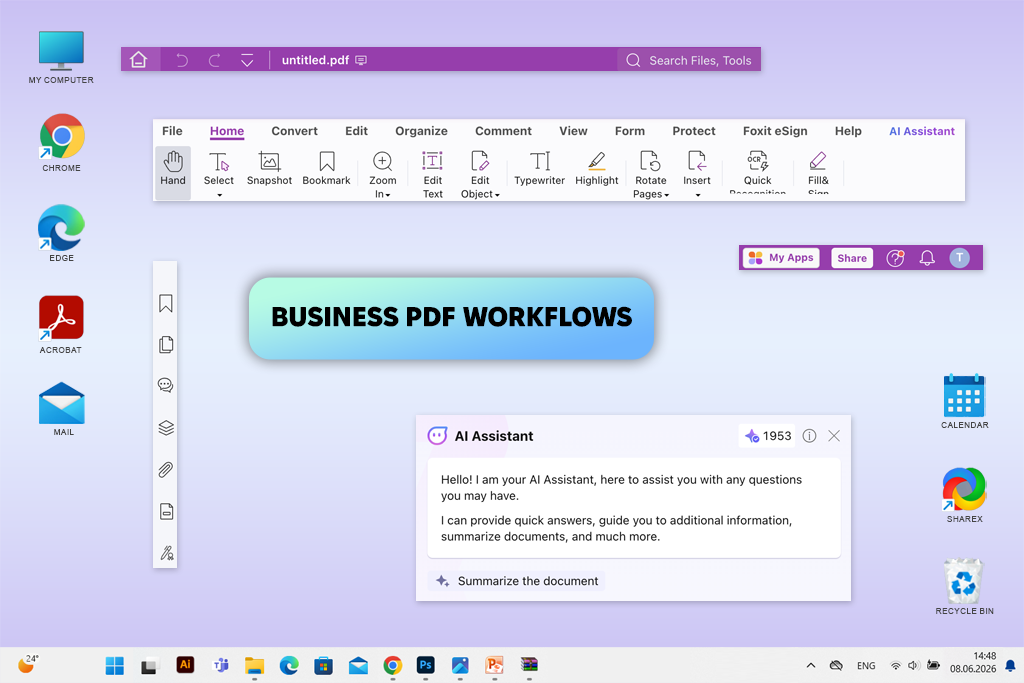
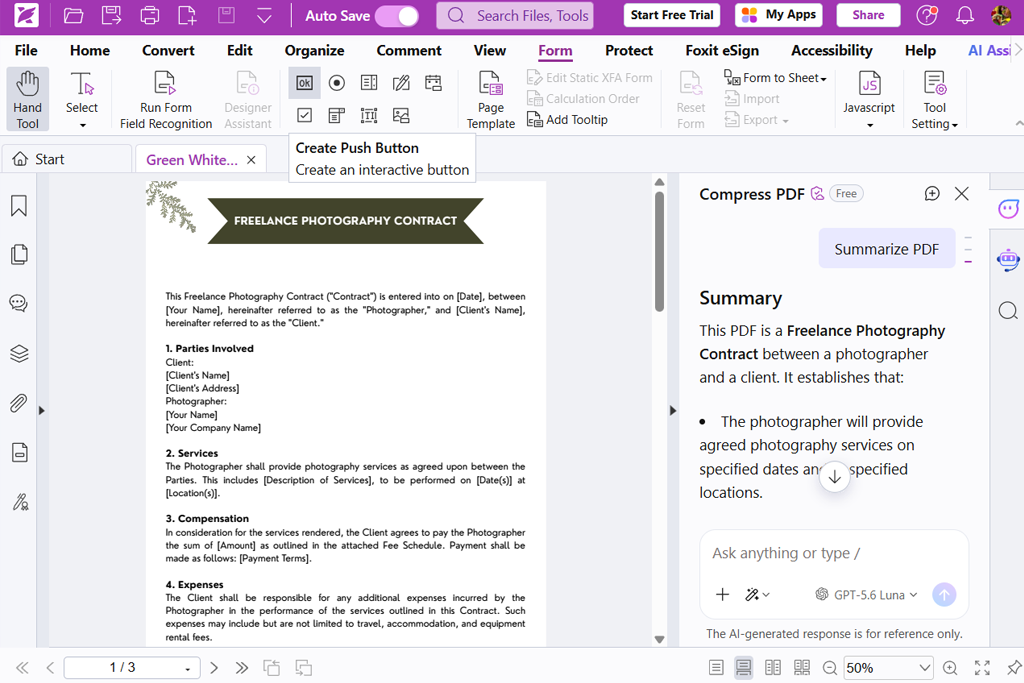
When looking for Smallpdf alternatives, I saw many people mentioning Foxit. Users compared it to Adobe Acrobat and Wondershare PDFelement in terms of functionality.
At first, I thought that Foxit was mostly suitable for enterprise needs. However, even though it is preferred by many corporate users, its PDF Editor is suitable for casual users as well and can easily beat many online PDF tools.
“Foxit is less similar to web-based PDF editors, as it functions as a dedicated document processing suite. I do not normally launch it when I need to process a simple document, but it helps me a lot when I need to work on long manuals.”

Foxit can easily beat standalone solutions, as it has many other features besides PDF editing tools. It uses cloud services, has AI features, allows users to add e-signatures, can be accessed from mobile devices, and can be used for enterprise needs, depending on the subscription you choose.
It’s especially useful for teams that include professionals who focus on different tasks. It has similar tools to Smartpdf, which allows users to edit text, approve or sign files, password-protect documents, or streamline a document workflow. Team members can access all types of tools within a single ecosystem.
Another thing I like about this software is that it offers multiple licensing options. Users can pay for a subscription or a perpetual license, which allows them to choose a pricing model that suits their needs best.
The only shortcoming I noticed is that Foxit may be too complicated for casual users. Even though it can replace Smallpdf in terms of functionality, it’s much more difficult to use.
My advice is to customize the workspace to your liking after a couple of days of use. I hid the tools I did not need to access frequently, which made it easier for me to navigate the interface.
Key features:
Pricing: Foxit allows clients to access its PDF Editor by paying for an annual subscription or choosing other licensing options. You can also access a 14-day trial version of PDF Editor+ to test its tools.
Why it is better than Smallpdf: Advanced form creation and document-completion workflows
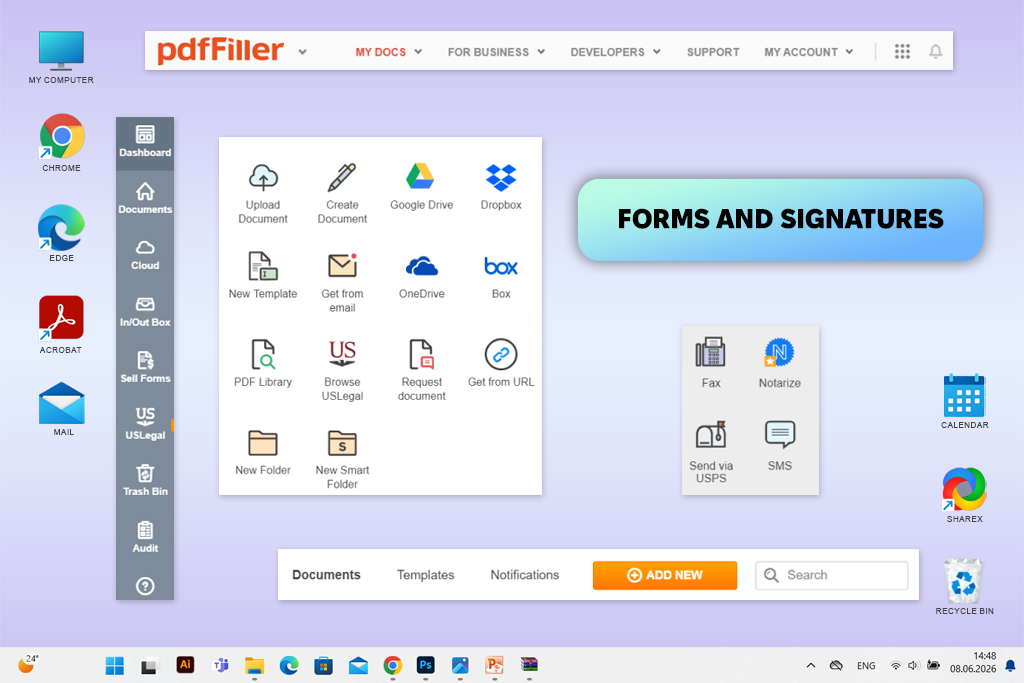
Among other apps like Smallpdf, pdfFiller has the narrowest areas of specialization. I do not normally use this solution when I need to compress documents with pictures or convert files in JPG format. However, it helps me a lot when I need to work on a PDF and then send it to another person to complete it.
Once I started using this service, I immediately realized why pdfFiller was often used by companies that work with forms. What makes it stand out among many PDFfiller alternatives is that it comes with editing tools that allow users to change the content of PDF files, add fillable fields, insert images, manage pages, share documents, and request e-signatures.
“pdfFiller is best suited for situations when I need to send PDFs to another person after editing them. Instead of saving the output to my device, I can add fields and send it to a recipient to fill out or sign.”

In addition, I tested the available editing features because I did not want to include in this list software that is suitable only for working with forms.
Using the available tools, I could add new text, insert pictures, change the page order, redact data, add annotations, and add signatures. As I often need to work with many forms, I liked the fact that this software made it easier for me to make a static document more interactive.
This solution will come in handy for those who work on many contracts or have to deal with onboarding paperwork, approval forms, questionnaires, purchase documents, tax-related files, and administrative templates that are reused several times. However, pdfFiller is hardly suitable for those who are looking for free PDF services.
I recommend pdfFiller if you often need to send finished documents to clients, employees, or contractors. However, if you want to find a basic PDF merger online, this form-focused platform is hardly a feasible option to consider, as it does not have a free version.
Key features:
Pricing: Subscription-based. Current annual billing plans allow users to minimize the monthly price, which makes them a better option than paying month-to-month; plan costs depend on the covered form, mobile, team, and signature functionality.
When looking for websites like Smallpdf, consider how often you need to work with PDF documents and what kind of tasks you need to handle. A web-based service will suffice for occasional editing. However, if you often need to work with scans, forms, large files, or sensitive documents, it’s better to choose dedicated desktop software.
| Tool | Best for | Free option | Web | Desktop | Mobile |
|---|---|---|---|---|---|
|
Best overall
|
Limited
|
✔️
|
✔️
|
✔️
|
|
|
Smallpdf-like workflow
|
✔️
|
✔️
|
✔️
|
✔️
|
|
|
Occasional PDF editing
|
Limited
|
✔️
|
✔️
|
✔️
|
|
|
Free PDF utilities
|
✔️
|
✔️
|
✔️
|
❌
|
|
|
Advanced easy editing
|
Limited
|
✔️
|
✔️
|
✔️
|
|
|
Business PDF workflows
|
Limited
|
✔️
|
✔️
|
✔️
|
|
|
Forms and e-signatures
|
Limited
|
✔️
|
✔️
|
✔️
|
Together with the FixThePhoto team, I tested each Smallpdf alternative on real PDFs. I wanted to see how they would handle the tasks we have to deal with daily, including editing client documents, preparing files for sharing, converting files into different formats, enhancing scans, and optimizing the size of large files.
I decided to use several documents for testing purposes, including a PDF with many photos, a scanned document, a form, a long document, and a PDF that included pictures, links, and tables. I used the same files while testing all these services to make my comparison unbiased.
I first tested these services on simple PDF tasks to see whether these tools are suitable for merging, splitting, compressing, rotating, deleting, and rearranging pages. I often use these tools in Smallpdf, which is why I wanted to find a replacement capable of handling them as well.
Then, I examined PDF editing quality. I tried editing text, adding new text blocks, replacing pictures, and inserting links. I wanted to see whether the original formatting would stay the same. I was especially interested in the consistency of fonts, spacing, text wrapping, and page layouts.
I also wanted to check conversion quality, which is why I converted my PDFs to Word, Excel, PowerPoint, JPG formats, and back to PDF. I compared the outputs to check whether these services preserved tables, pictures, headings, fonts, and editable elements with high accuracy.
In addition, I tested the OCR capabilities of these services while working on scanned documents that included text, numbers, and basic tables. We ranked a platform higher if it supported high recognition accuracy and the outputs it produced did not require a lot of manual editing.
While testing the compression capabilities of these services, I used a PDF with high-resolution photos. I considered file size before and after compression to see whether the images would stay clear instead of becoming blurry.
My colleagues tested these services to see whether they would be suitable for performing specific tasks. Content writers tested text editing and conversion features, designers assessed image quality and checked whether these services preserved the layouts, while software testers considered performance, use limitations, errors, and practical usability.
Finally, I focused on intuitive functionality, limitations of the free versions, accessibility from desktop and mobile devices, upload limits, and pricing. I thoroughly tested each service to assess its performance because I did not want to find a budget alternative to Smallpdf that would produce low-quality outputs. The seven services included in the final version of our list delivered better performance than Smallpdf in some areas or helped us significantly streamline our workflow while working with PDF documents.





![9 Best AI Reference to Video Generators [Top Picks]](http://fixthephoto.com/blog/images/gallery/news_main__preview_29461.jpg)
![7 Best AI Age Progression Tools in {{%year}} [Tested & Reviewed]](http://fixthephoto.com/blog/images/gallery/news_main__preview_29353.jpg)



















