Adobe Acrobat PDF Spaces
When preparing for photography projects and social media campaigns, I use more than just photos for my decision-making process. I also use trend reports, brand guidelines, content calendar, etc. Collecting and sorting such documents takes time, and I wanted to do it efficiently. This is why I decided to test Adobe Acrobat PDF Spaces and understand what it can offer for research and planning.
Adobe PDF Spaces allows bringing documents, links, notes, and insights together. I don’t need to go through all the pages of each document one by one. I can upload up to 100 files, including PDFs, Word & Excel documents, PowerPoint slides, webpages, and video transcripts.
Afterwards, I can request the AI Assistant to identify key points, compare information, and look for particular pieces of data with citations. For instance, when creating a visual concept for a certain brand, I can compare its brand guidelines with industry reports and campaign research in order to determine which concepts should be developed further before I start working on photos.
Moreover, I can use PDF Spaces to create reports, audio summaries, and other materials based on my information. I can create a collaborative workspace with my colleagues and let them access all the same documents and notes instead of looking for documents in separate links and attachments.
The Adobe PDF Spaces examples show how this feature can be used for organizing information and working on different topics. In this post, I will analyze how PDF Spaces can fit into my creative processes, which functions of PDF Spaces are the most helpful for research and planning, and how I can use the collected information.
The Adobe PDF Spaces pricing depends on Adobe Acrobat Studio subscription rather than separate subscription for the feature. The subscription costs $11.99 per month with an annual commitment billed monthly. It also provides such tools as AI Assistant, advanced PDF tools, and Adobe Express Premium, so it can suit the needs of content creators who require tools for working with documents and creating content.
You can also check Adobe Black Friday for special offers and discounts that can decrease the subscription price. Using the free Adobe Acrobat Reader, you can still view, print, and share PDFs, but you won’t have access to the PDF Spaces features.
Adobe PDF Spaces free version can be found among other Adobe free apps. Adobe provides a free version called Student Spaces, which is a dedicated space for studying. It offers tools for creating flashcards, quizzes, study guides, and mind maps. Both of the tools allow uploading up to 100 files, however, they serve for different purposes.
Adobe Acrobat PDF Spaces provides me with a tool to organize documents, analyze the information and collaborate with others. Rather than opening one file at a time, I can unite my sources, generate summaries, compare the information and find interesting points to develop further.
Adobe PDF Spaces works in 13 languages, including English, German, Spanish, Italian, Japanese, Korean, Dutch, Danish, Finnish, Norwegian, Portuguese, and Swedish. Adobe also claims that it doesn’t use customer content for training its models, providing customers with more control over the use of their documents.
One of the helpful features of Adobe PDF Spaces is that it supports multiple file types. Each PDF Space contains up to 100 files with the limit of 100 MB and 600 pages per file. I can upload PDFs, Word, PowerPoint, and Excel documents, TXT, RTF, and VTT files, pasted text, and public web links. Import from Google Drive and OneDrive is available cross-platform, while Dropbox and Box imports are available through desktop application.
While writing a new article for our photography blog, I frequently need articles from competitors, product guides, research reports, and notes from different sources. With Adobe PDF Spaces, I can keep all these documents in one workspace instead of saving them separately.
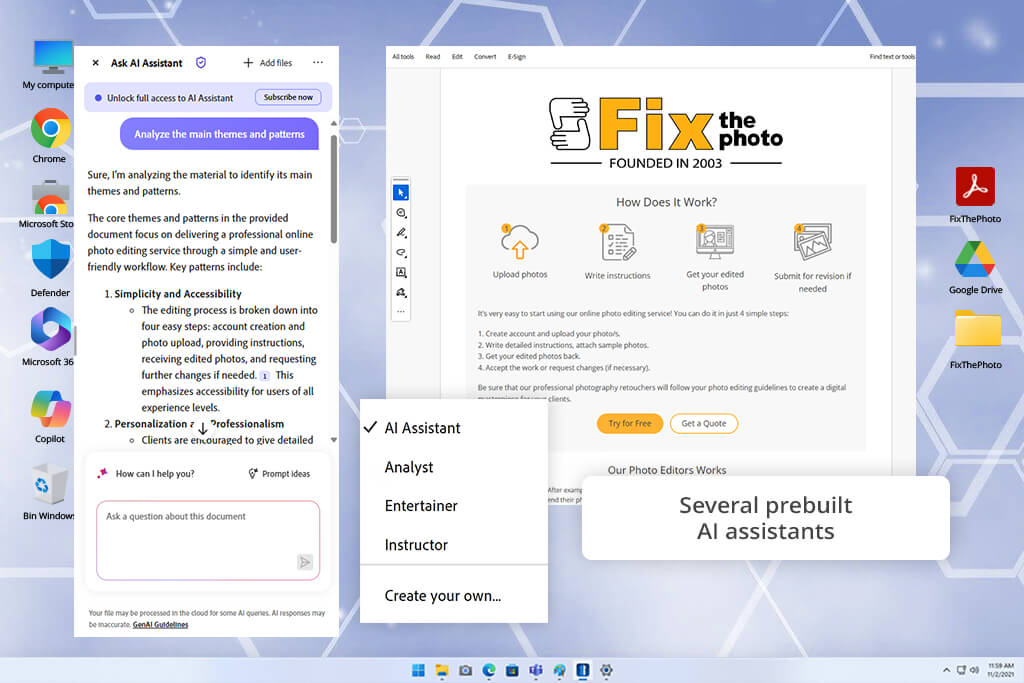
The Adobe Acrobat AI Assistant is useful for Adobe PDF Spaces as it helps me find the information I need depending on my actions. There are several AI assistants available: AI Assistant for general questions, Analyst for data analysis and research summaries, Entertainer for storytelling, and Instructor for explaining difficult concepts.
That means I can use the workspace for multiple purposes, from analyzing the research to finding information and working on creative projects. Also, this AI tool to chat with PDF files becomes even more versatile.
Also, I can set up a personalized AI Assistant with its own name, description, and instructions. I asked it to extract product specifications from documentation and highlight key points from industry reports. The answers included citations to the sources, allowing me to verify the information before including it in an article. It was useful to have several sources about the same topic.
“Comparing information in several documents became much easier. The prompts gave me better results, especially when I needed exact answers for my research.”

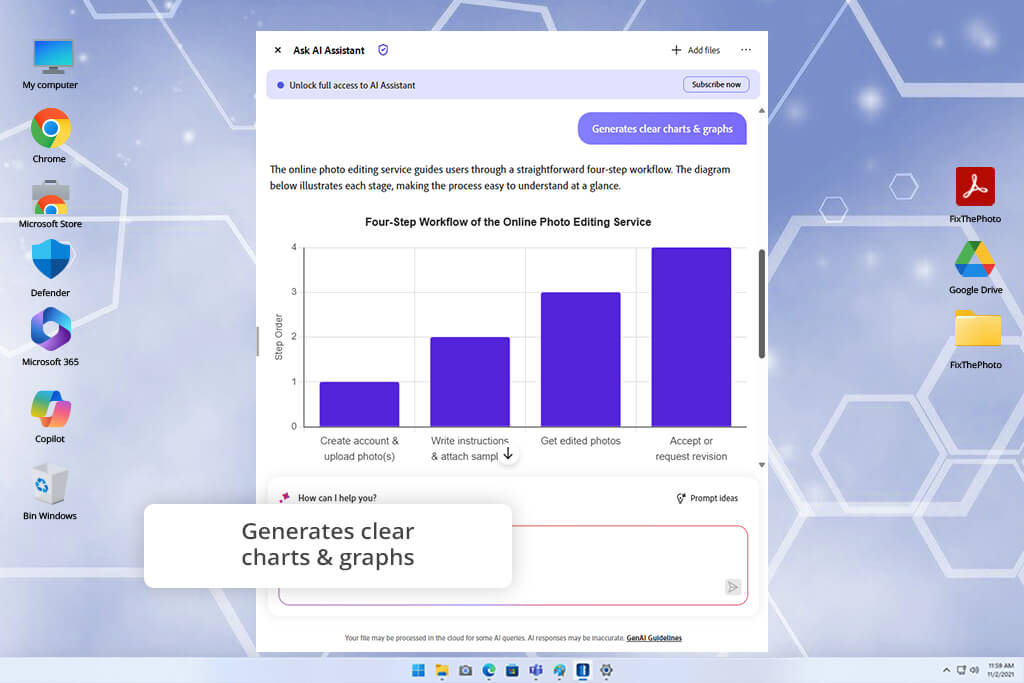
One more helpful function of this generative AI tool is creating visualizations such as charts and graphs using the information from different documents. Rather than comparing numbers in several spreadsheets and reports myself, I can ask the AI Assistant to visualize trends, compare categories and organize the data in the visual form.
For instance, I tried some prompts, such as: “Create a bar chart comparing the quarterly revenue mentioned in these documents” and “Generate a pie chart showing issue categories across the uploaded reports”. The more specific my request, the better the results I got. I can also ask follow-up questions for a closer look at certain numbers or findings.
While working on a creative project with my colleagues, I need to share briefs, research, references, and feedback. Adobe Acrobat PDF Spaces organizes all these materials and I can invite my colleagues from FixThePhoto to view them. This eliminates file exchanging and looking for information in multiple conversations. All of my colleagues can access the same workspace and be up-to-date with the project.
Adobe PDF Spaces has three permission levels: Viewer can read the files, Reviewer can view and comment them, and Contributor can add, edit or delete the content. I can share the workspace with particular people, make it available for my organization or create a public link.
The comments, replies, @mentions, and notifications keep everyone informed about the feedback and changes. I can also adjust the permissions or revoke the access to the materials when the project is finished, keeping the control over access to the documents.
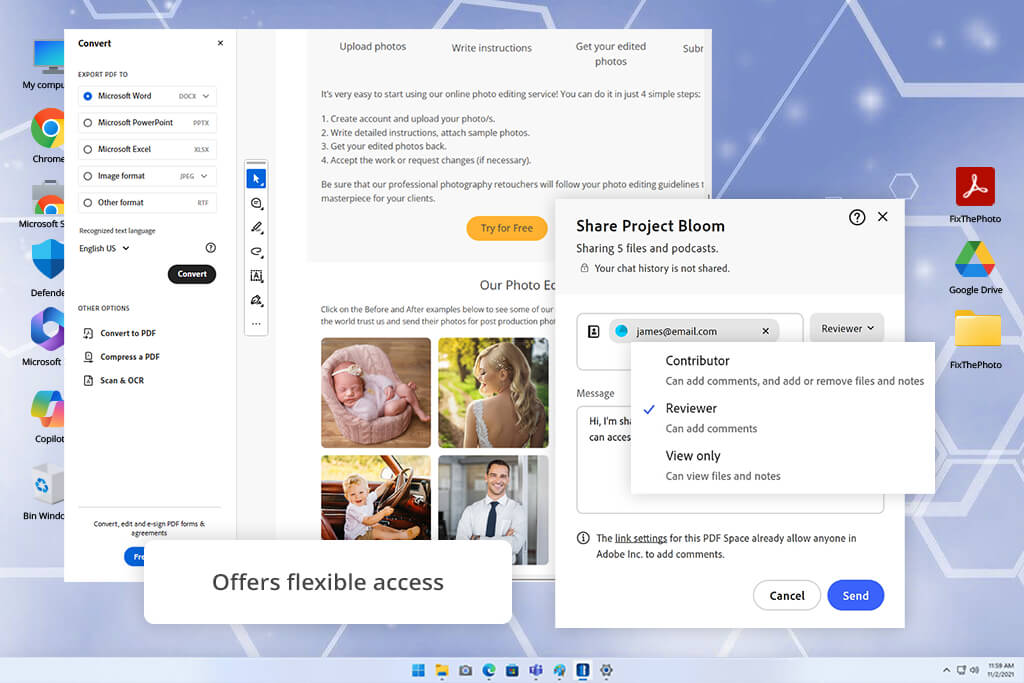
In my Adobe PDF Spaces review, I also found it useful to organize the information in a clear way rather than just sharing my documents. Before sharing the materials with other people, I can customize the Overview page, modify the summaries, organize the information, and add notes, podcasts or branding. It helps my recipients understand the content of the workspace and where they can start.
While sharing the PDF Space, I can decide, what exactly the others can access: the customized Overview, the full list of files, or just one document. I can invite people by email, share the direct link, or share it through Outlook, Gmail, Teams, or WhatsApp. If I want to share just one document, I can share the link to the document itself.
I can also specify who can have the access to the PDF Space and what exactly they can do there. I can make it accessible for anyone who has the link, the people in my organization, or only invited users. I can decide whether they can view the files and notes, leave comments or edit the content. It is helpful when I need to share my research with the clients or project materials with my colleagues while controlling the access and changes.
“I liked the ability to have different permission options when sharing a PDF Space. It is useful for team projects, but unnecessary for users who need only basic PDF editing.”

Adobe Acrobat PDF Spaces is helpful for organizing and reviewing the documents, but it has several limitations. Some file types and tasks may also require additional actions.
Adobe Acrobat PDF Spaces supports up to 100 files per workspace with the limit of 100 MB and 600 pages per file. It is enough for most of my projects, where I need to organize brand guidelines, client briefs, industry reports, and reference materials.
However, the large files and long reports may require splitting into pieces. Also, I may need to exclude the documents, which aren’t related to the project. The preparation of all the documents beforehand makes it easier to fit the limitations.
Adobe PDF Spaces supports multiple document formats, but there are some file types that can’t be added to the workspace. Such files are password-protected documents, videos, handwritten notes, and images with vector graphics. For using this content, I may need to remove the password protection, convert it to a supported format, or write down my notes.
Sometimes, the summaries don’t provide me with all the necessary information, and the details may be inaccurate, so I need to check them against the original documents. Sometimes, the citations can be missing in the Insights dashboard when the language of the app and the sources differ.
“I didn’t face any problems with the file limits or unsupported file types during my testing, but I would check the compatibility of the files beforehand.”

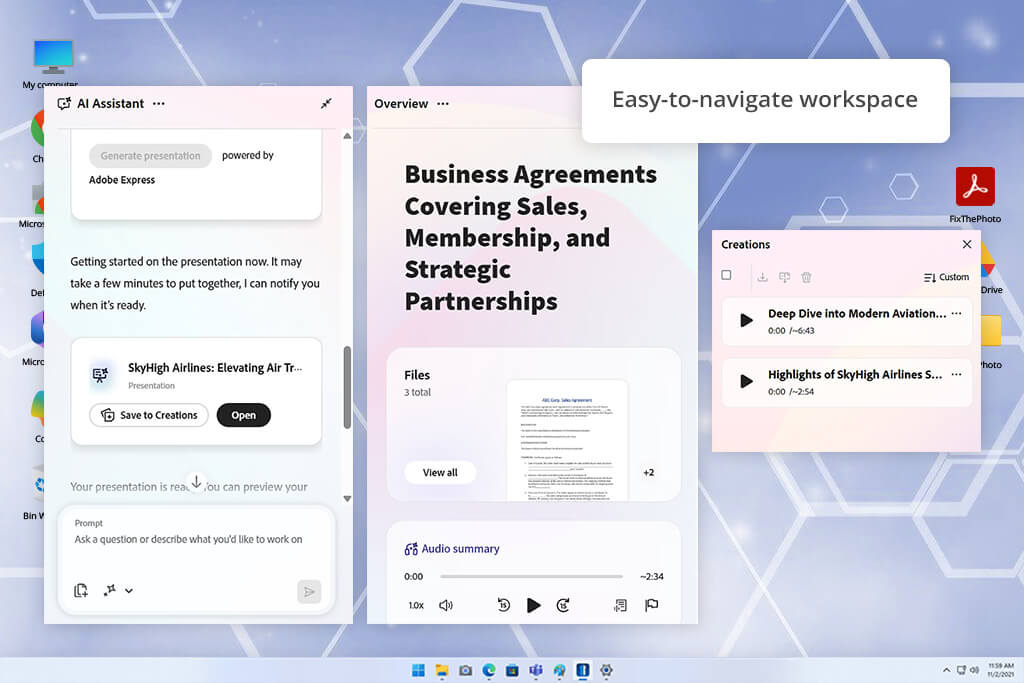
Creating a PDF Space in Adobe Acrobat is an easy process. Here are the steps I took in order to organize my documents and try all the functions of the tool.
Step 1. Open PDF Spaces. I opened Adobe Acrobat and chose PDF Spaces from the left-hand menu on the home screen.
Step 2. Create a new space. I clicked Create a PDF Space to start.
Step 3. Add my documents. I added supported files, imported documents from cloud storage, added web links, and pasted text. After selecting all my documents, I clicked Add to PDF Space.
Step 4. Analyze AI-generated content. Adobe Acrobat created the Overview with the summaries and insights from my documents. I verified the key points from the original documents to be sure that everything is correct.
Step 5. Customize the workspace. I renamed the PDF Space, modified the Overview and summaries, and added notes for clarity and convenience.
Step 6. Explore and share. I used the AI Assistant to ask questions about my documents and look for particular information. When I was done with my work, I could share the workspace with my colleagues or prepare the Overview to help other people with understanding of the materials.
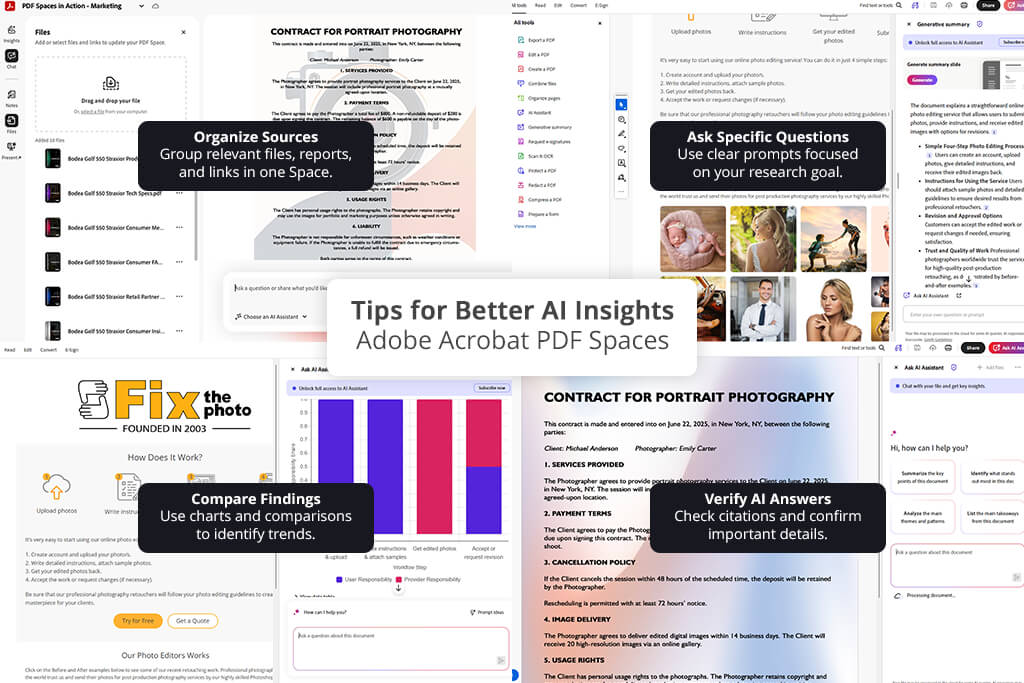
The results in Adobe Acrobat PDF Spaces depend on the documents and questions I ask. Several simple tips can help me get better summaries, compare the information, and find answers for my research or creative projects.
Yes. I can add several documents to one PDF Space and ask the AI Assistant to generate summaries, compare the information, find the common themes or answer the questions based on the content.
PDF Spaces is mostly used for organizing and reviewing the documents. For editing, I can open the document in Adobe Acrobat Pro and use PDF editing tools.
All the documents in PDF Spaces are protected by Adobe Acrobat security features, including encryption and sharing controls.
Yes. The PDF Spaces gallery contains examples and templates from Adobe Express for various business needs such as sales strategies, marketing campaigns, and project management.
Yes. I can delete the unnecessary files in order to keep my workspace organized.
No. PDF Spaces can be used for organizing your documents and conducting research, but it won’t help you in assigning tasks, setting up deadlines and tracking your progress.
I tested Adobe Acrobat PDF Spaces in my daily work with documents and research. I uploaded PDFs, reports, notes, web links to one workspace and tested how easy it is to manage documents and find necessary information. I asked some questions, compared information provided in different documents and checked my conclusions against the sources.
I evaluated the opportunities of customizing the Overview section, sharing your work and adjusting the permissions according to my needs. I checked the usability of the app, file types it allows using, the capabilities it offers for conducting research and creating content.
I also assessed the limitations of the app such as file restrictions and the need to check the answers against the source documents.
|
|
|




 Yes, if you work with several documents and need to conduct the research and have a single place for managing your project documents and collaborating with your colleagues.
 No, if you don’t need any additional tools to work with PDFs and prefer reviewing documents by yourself or work with unsupported file types such as video recordings and handwritten notes.