I use Sony cameras daily and often need to work with high-resolution ARW images that have a lot of details and a wide dynamic range. RAW format allows photo editors to control every aspect of an image, but it also requires one to use dedicated software to avoid issues with color rendering and highlights.
Together with my colleagues from the FixThePhoto team, I decided to find the best Sony RAW editor that could become a part of our workflow. We used popular and niche solutions to edit studio portraits, high-contrast photos captured outdoors, and low-light images. We wanted to compare skin tones, test shadow recovery, check whether it would be possible to reduce noise, and assess color consistency.
Besides analysing image quality, we also focused on workflow efficiency. A powerful photo editor should deliver a consistent performance during batch editing, come with a set of responsive masking tools, load previews instantly, and preserve details when exporting large images.
Some programs were suitable for working with colors, but their performance slowed down when we used them to perform complex edits. Other solutions had issues with tonal transitions. After testing these programs, we realized that the best Sony RAW editor should support the following:
When looking for the most suitable Sony RAW editor software, one should consider whether they would be able to achieve consistent outputs when editing photos taken in different lighting conditions.
| OS | Color Profiles | Tethering | Free Plan/Trial | Best for | |
|---|---|---|---|---|---|
|
Windows, Mac
|
✔️
|
✔️
|
✔️
|
Native Sony RAW processing
|
|
|
Windows, Mac
|
✔️
|
✔️
|
✔️ (trial)
|
Workflow & catalog management
|
|
|
Windows, Mac
|
✔️ (Advanced)
|
✔️
|
✔️ (trial)
|
Professional color control
|
|
|
Windows, Mac
|
✔️
|
❌
|
✔️ (trial)
|
Noise reduction & optics
|
|
|
Windows, Mac, iPad
|
Limited
|
❌
|
✔️ (trial)
|
Budget RAW editing
|
|
|
Windows, Mac
|
✔️
|
❌
|
✔️ (trial)
|
All-in-one RAW workflow
|
|
|
Windows, Mac
|
Basic
|
❌
|
✔️ (trial)
|
AI-based RAW adjustments
|
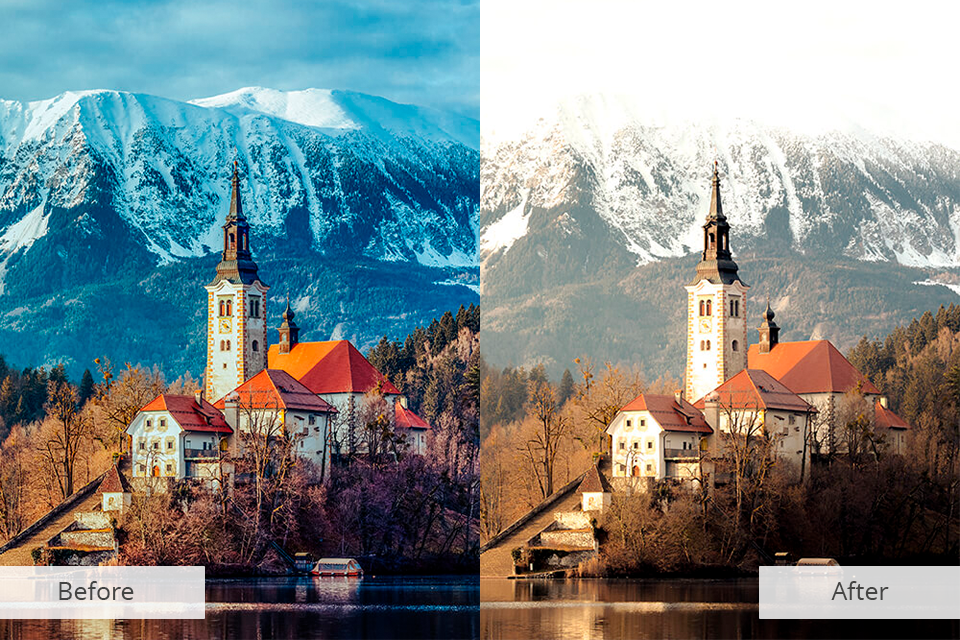
We tested a variety of programs to find the best Sony RAW editor, which helped me discover a lot of useful information about their functionality. Several months ago, I captured a high-contrast sunset portrait on my Sony camera and noticed that the highlights were too excessive, while the shadows seemed too deep. The RAW file had a bit of a flat feel, but it allowed me to recover more detail than a typical JPEG file. The difference stems from the fact that the RAW processor handles colors better and supports a wider dynamic range.
It might be challenging and time-consuming to fix issues with exposure, highlights, and color balance without using dedicated tools. However, after choosing the right Sony RAW editors, I learned how to edit complex photos while keeping skin tones natural and avoiding issues with shadows.
Such programs become especially useful when one needs to use high-resolution models from the recommended Sony cameras list. With such cameras, it is especially important to preserve fine detail and accurate colors. Follow such tips to achieve better results:
Recent trends in Sony RAW editing:
Platforms: Windows, macOS
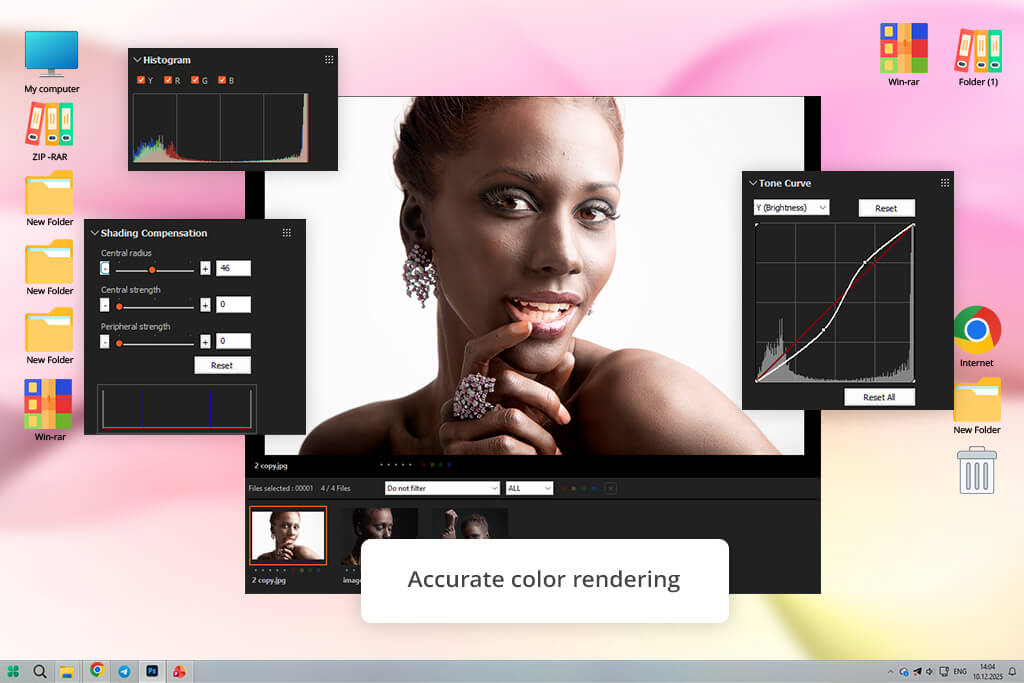
I decided to use Sony Imaging Edge Desktop to check whether it was suitable for processing ARW files captured with my Sony camera. As it was developed by Sony, I wanted to see whether it fared better at preserving the original color science than other popular editors.
I tested this free Sony RAW editor when processing high-contrast portrait photos taken at sunset and studio pictures. Many of these photos were taken with the best Sony lenses I have ever used, so the color rendering remained accurate and consistent.
This Sony Alpha RAW editing software has impressive conversion capabilities. However, its choice of creative tools is rather limited. I was able to adjust highlight recovery settings, shadows remained natural in the output, and the program maintained the original level of optical detail captured by the pro-grade lenses I used. Despite this, I had a limited choice of options when it came to performing complex local adjustments and using masking tools.
“I was pleased by how faithfully it handles Sony color science. If you need to handle your ARW files without distorting the original hues, it’s a reliable starting point to consider.”

Even though this program does not support professional AI masking, layer-based editing, or advanced color grading, it’s the perfect choice for tethered shooting or adjusting the technical aspects of RAW files. It’s especially suitable for photographers who value native rendering support and want to optimize their workflow instead of focusing on creative tools. You may also use it as a Sony A7R RAW editor.
Pricing: Free
Platforms: Windows, macOS
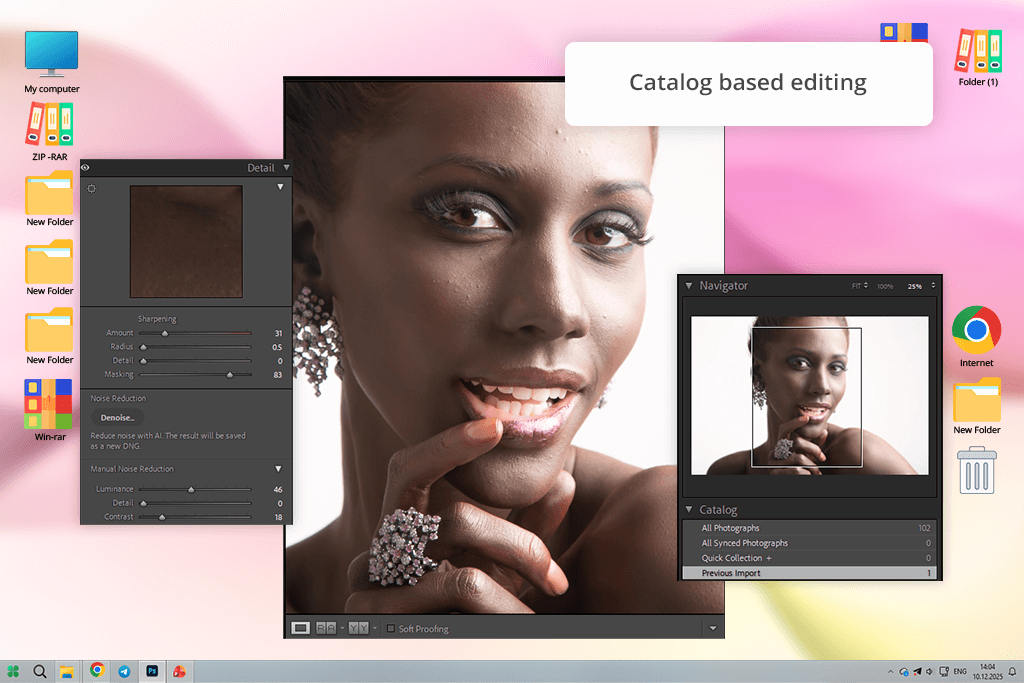
I decided to try using free Adobe Lightroom Classic when I noticed that my Sony RAW library expanded significantly. Suddenly, it became challenging to handle hundreds of studio photos and outdoor pictures in ARW format. It was not enough to convert them into another format. I needed a solution that would allow me to organize my images. Lightroom has a powerful catalog system that helped me organize my pics and streamlined batch color correction.
I used the Sony RAW photo editing tools available in Lightroom to test dynamic range recovery on my backlit portraits. The program fixed issues with highlights and kept skin tones natural without adding sharp transitions. Using the AI masking tools, I was able to select skies, subjects, and backgrounds in my portrait photos almost instantly.
“Lightroom allows me to organize large Sony photo libraries with ease. I use Smart Previews to expedite my workflow and perform AI masking to edit subjects without impacting the rest of the picture.”

Lightroom isn’t a simple photo editor. It’s a powerful solution for photographers who want to streamline their Sony photo editing workflow. It allows one to edit pictures quickly with high precision and organize large collections with ease.
Pricing: from $9.99/month
Platforms: Windows, macOS
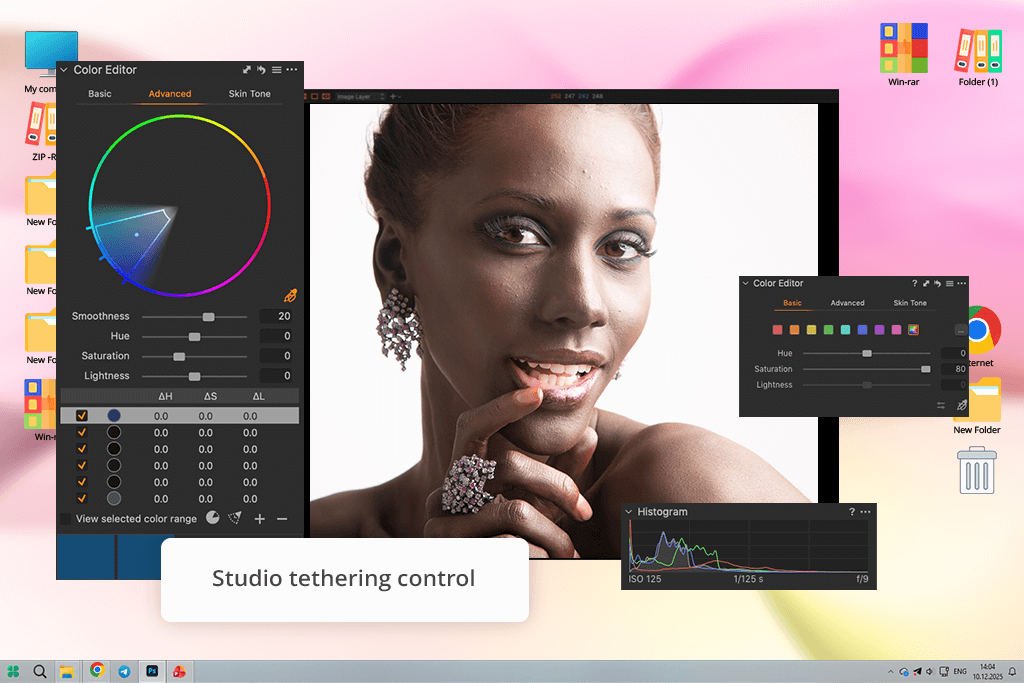
I often use Capture One when I need to achieve higher color accuracy. This is why I decided to use it to edit high-resolution Sony photos taken during a studio fashion shoot and controlled portrait sessions. I used the same ARW images I edited in other similar software to compare the outputs. Capture One was better at making highlight transitions smooth. It made the midtones richer and preserved natural skin textures.
The key advantage of this software is that it supports in-depth control. Unlike a basic RAW converter for Sony files, it has more advanced functionality. Using its Color Editor, I can make targeted adjustments and adjust specific hue ranges without impacting the rest of a photo. It makes it useful for editing skin tones and fabric colors when working on commercial projects.
The sharpening tools are quite accurate and allow me to maintain the original micro-contrast. The program supports stable tethering performance in a studio setting.
“When using Capture One to edit Sony RAW files, I liked the fact that it kept skin tones natural and helped me achieve well-balanced contrast. As a result, my images looked polished and had a professional feel after processing.”

The interface might be challenging to master. Besides, this program is more expensive than many of its alternatives. However, now that I have learned how to use it, I can make more technically precise edits. It’s an excellent choice for Sony photographers who value high color fidelity and tonal depth.
Pricing: from $24/month

Platforms: Windows, macOS
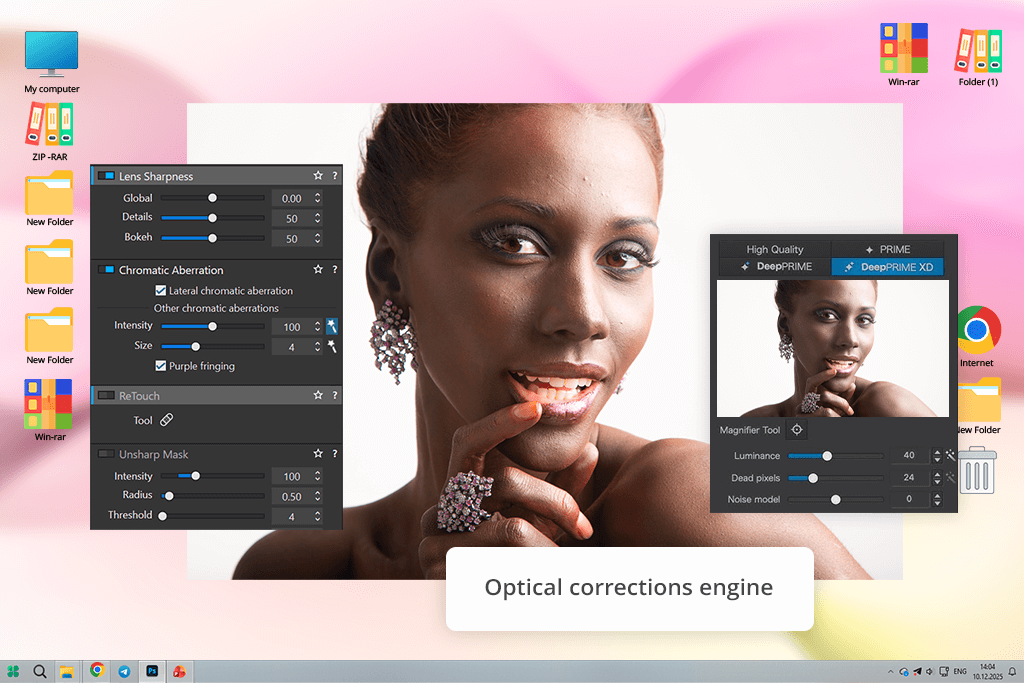
I was impressed with the performance of DxO PhotoLab when I used it to edit high ISO Sony files. I tested its DeepPRIME noise reduction feature to enhance low-light portrait photos and pictures taken on evening streets. It removed grain with better efficiency than many alternatives and maintained the original textures and fine detail. Shadows looked natural and did not seem overly smooth.
Another advantage of this Sony ARW RAW processing software is that it supports automatic lens correction. DxO’s optical modules fix distortion, vignetting, and chromatic aberration issues quickly, making this software especially suitable for those who work with wide-angle Sony lenses. The program recovers highlights with high efficiency and does not add any harsh transitions.
“DxO PhotoLab is an excellent solution for reducing noise when editing high ISO Sony photos. It allows me to make my photos polished and keep textures realistic.”

The only shortcoming is that this software prioritizes technical image improvement over workflow management. It does not have powerful catalog organization features like Lightroom. Besides, unlike Capture One, it lacks pro-grade local adjustment tools. Despite these disadvantages, it’s a great choice for photographers who want to make their images clean and achieve higher optical precision.
Pricing: from $229 (one-time)
Platforms: Windows, macOS, iPad
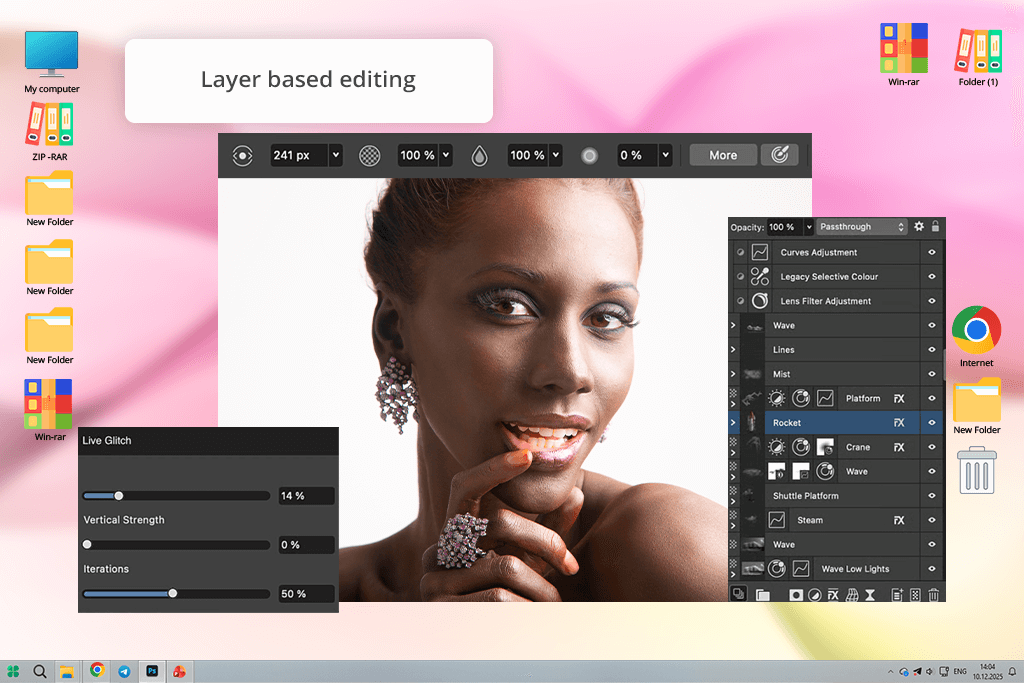
Affinity Photo is especially suitable for photographers who want to use software that allows them to work with layers and does not require paying for a subscription. This solution handles Sony images perfectly and supports decent exposure correction.
Besides, it allows one to adjust white balance and recover highlights using its Develop Persona before switching to the whole set of editing tools. After initial file processing, I was able to quickly switch to in-depth retouching and make non-destructive edits.
One of the key advantages of this Sony RAW workflow software is that it supports high-accuracy manual control. You can use masks and layers, experiment with blend modes, perform frequency separation, and use pro-level selection tools to make advanced edits.
The program allows me to work with high-resolution Sony photos and maintains the original detail. With it, I was able to sharpen my images, tweak colors, and make local adjustments. This solution is especially suitable for retouching portraits, enhancing product photos, and working on complex projects that require highly accurate adjustments.
“It’s an excellent choice for making precise layer-based edits when enhancing Sony images. With it, I can perform any task, from simple corrections to advanced retouching.”

Even though it does not have an advanced asset management system, it’s perfectly suitable for those who are mostly interested in photo editing. It’s the top choice for photographers who want to control the output with high precision and do not want to pay for a subscription. The program has excellent RAW development capabilities and supports advanced retouching.
Pricing: from $11.95/month
Platforms: Windows, macOS
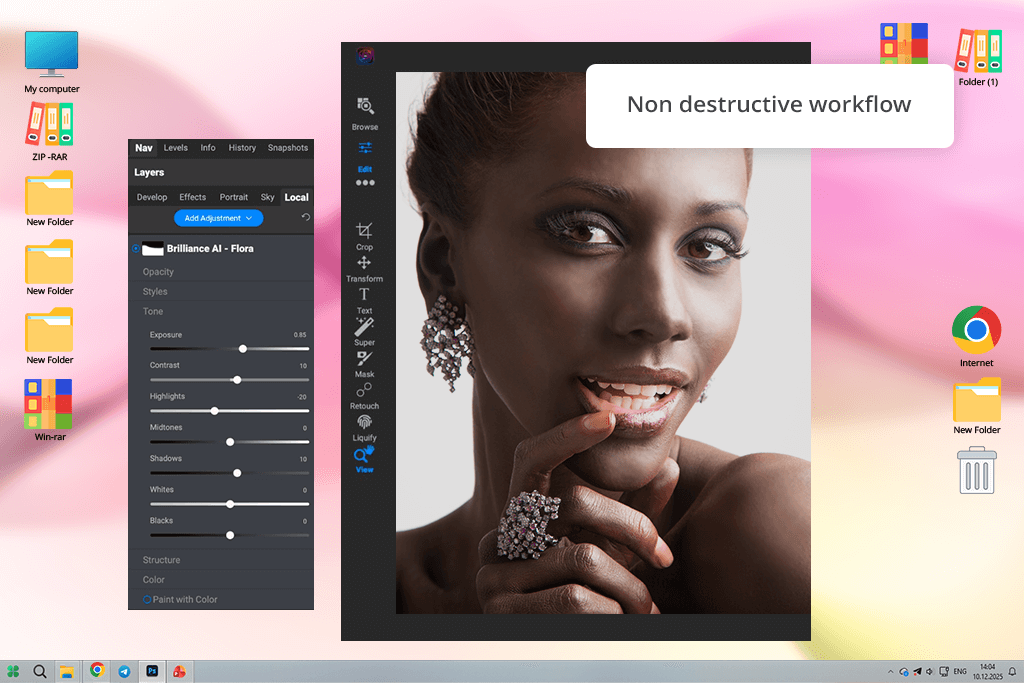
ON1 Photo RAW is an all-in-one solution for those who want to access organization and creative tools within a single workspace. It loads Sony photos quickly, adjusts tones, and streamlines highlight and shadow recovery. When testing this software on high-resolution images, I was pleased by the fact that exposure adjustments did not result in any contrast issues.
The AI masking tools helped me select the subject and the sky quickly, which streamlined local adjustments. The program has a large collection of presets that can be applied to batches of images to achieve consistent results. In addition, I used its Sony RAW noise reduction tools and manual adjustment features to make the outputs more polished after performing automated corrections.
“I like the fact that this program allows me to use editing and organization tools. I used masks to expedite my workflow when editing Sony images taken during a long photoshoot.”

The performance of this software depends on the hardware configuration you have. If you have a powerful computer or laptop, you will be able to structure your editing workflow better using the available organization and creative tools. This software is especially suitable for photographers who are looking for an all-in-one solution and do not want to switch between multiple programs.
Pricing: from $99.99
Platforms: Windows, macOS
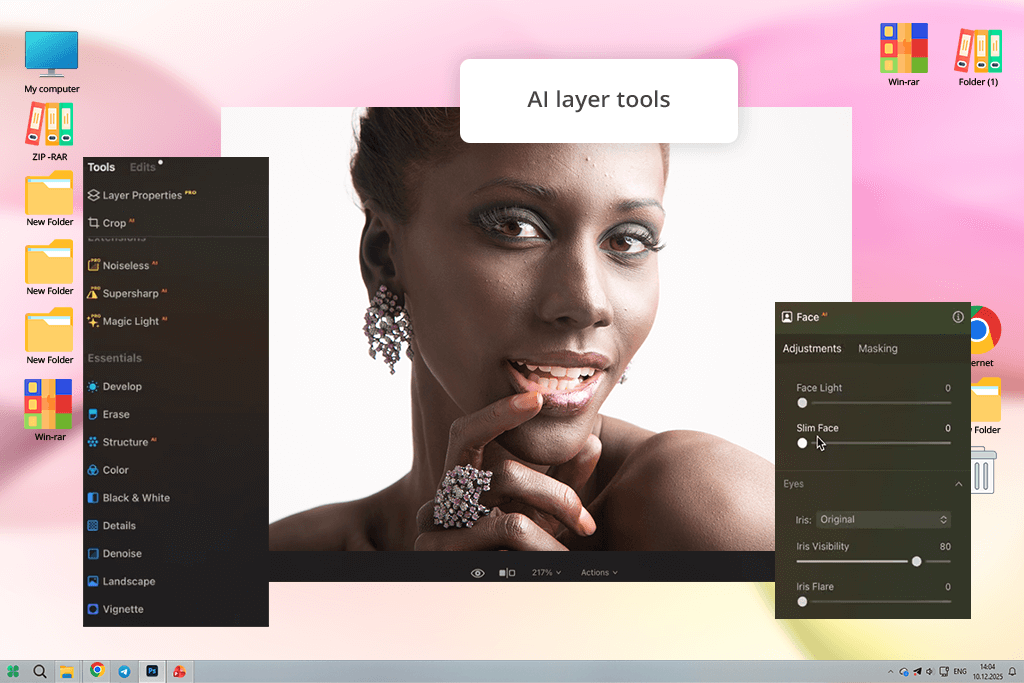
Luminar stands out for its high performance speed and AI tools. It opens Sony images quickly and automatically detects subjects, skies, and backgrounds, which facilitates making local adjustments without using advanced masking tools. You can adjust exposure and tweak colors with ease to make the outputs more visually appealing.
“Using the AI tools available in this software, I can quickly edit Sony photos. It’s especially useful for editing portraits and outdoor photos.”

This solution is especially useful for enhancing portraits and landscape photos quickly. You can use AI-driven tools to make the skin smoother, fix lighting, replace the sky, and transform the atmosphere of a photo without complicating your workflow.
However, photographers who want to perform color grading manually and make technical adjustments may find the functionality of this software to be quite limited.
Pricing: from $11.95/month
As I wanted to find the best Sony RAW editor that could become a part of my workflow, I tested each solution together with my colleagues from FixThePhoto using high-resolution images in ARW format.
We wanted to assess the performance of these tools by testing them on studio portraits taken in the studio, photos capturing high-contrast scenes outdoors, low-light photos taken at high ISO, and detailed product images. Our main goal was to see whether these RAW editors would allow us to preserve the original textures.
We evaluated each solution using the following criteria:
We edited each photo by following the same approach to avoid potential biases. We evaluated tonal transitions after fixing exposure and checked whether there were any artifacts, banding issues, or unnatural color shifts.
Besides image quality, we were also interested in the usability of each software. We checked whether their interfaces were intuitive, assessed the precision of masks, and evaluated their performance. Instead of focusing on advertised functionality, we wanted to discover software that would allow us to achieve consistent outputs in real-life situations.




![12 Best AI Flyer Generators [Online & Free]](http://fixthephoto.com/blog/images/gallery/news_main__preview_28910.jpg)


![7 Best Loom Alternatives [{{%year}} FixThePhoto Choice]](http://fixthephoto.com/blog/images/gallery/news_main__preview_28902.jpg)
![7 Best Sketchbook Alternatives [{{%year}} FixThePhoto Choice]](http://fixthephoto.com/blog/images/gallery/news_main__preview_28913.jpg)

















