LightPDF is a practical choice for everyday PDF work, with tools for editing, conversion, OCR, and AI features in one simple interface. However, many readers still ask me about sites like LightPDF. Some need stronger editing tools, others want more features without paying for a plan, while professionals may need better collaboration, document organization, or support for more complex tasks. That made me take a closer look at other PDF solutions.
Instead of comparing feature lists and promotional claims, I tested each option in real-world situations. I also involved several members of the FixThePhoto team to make the comparison more balanced. We tried common PDF tasks and looked at ease of editing, conversion tools, overall usability, speed, restrictions, and whether the price felt reasonable.
The options I chose differ in what they do best, not just in appearance. Some are better for detailed PDF work, while others focus on organizing files, converting documents, working with others, or getting more value from a free plan. This gives users more freedom to pick a tool that matches their needs instead of using the same type of PDF software for every task.
Adobe Acrobat is my top choice among LightPDF alternatives because I’ve used it for years and know it can handle more demanding PDF work reliably. I’ve also started using the web version more often when I don’t want to open the desktop app.
In one comparison, I opened the same PDF in both Acrobat and LightPDF, edited several text sections, replaced an image, and moved pages around. Both handled these tasks well, but Acrobat gave me more precise control over the layout, especially when I needed the edited page to keep the same look as the original.
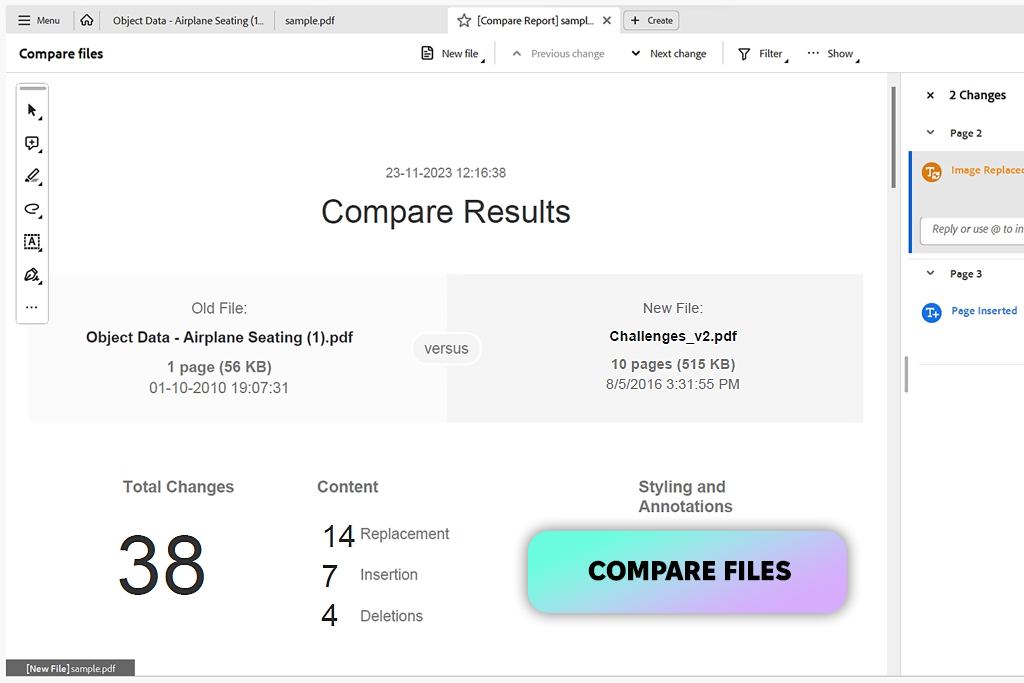
“I usually turn to Acrobat for more detailed PDF work. Recently, I fixed some text while keeping the page’s original look intact, and the result came out well. I also use Compare Files when I receive a revised copy and need to spot the differences quickly.”

The difference became clearer with scanned files and documents that needed review. After using OCR, I could search and edit the text, leave comments, highlight important parts, and create fillable fields without switching between different apps. LightPDF also supports OCR, annotations, forms, signatures, merging, splitting, and other common tasks, but Acrobat feels more capable for heavier workflows.
I especially find its file comparison, password protection, e-signatures, and security features useful. The downside is the busier interface: with so many professional tools available, some less familiar features can take longer to find than in LightPDF.
Acrobat became even more useful to me after Adobe expanded its AI tools. I use AI Assistant to summarize long PDFs, ask questions about their content, and find key details across several files. The citations are also helpful when I need to check the source behind an answer.
LightPDF takes a different route, with features such as translation, mind maps, and prompt-based content creation. Acrobat is available on Windows, Mac, the web, and mobile, but I get the most value from it when working within Adobe’s wider ecosystem and handling more structured professional tasks.
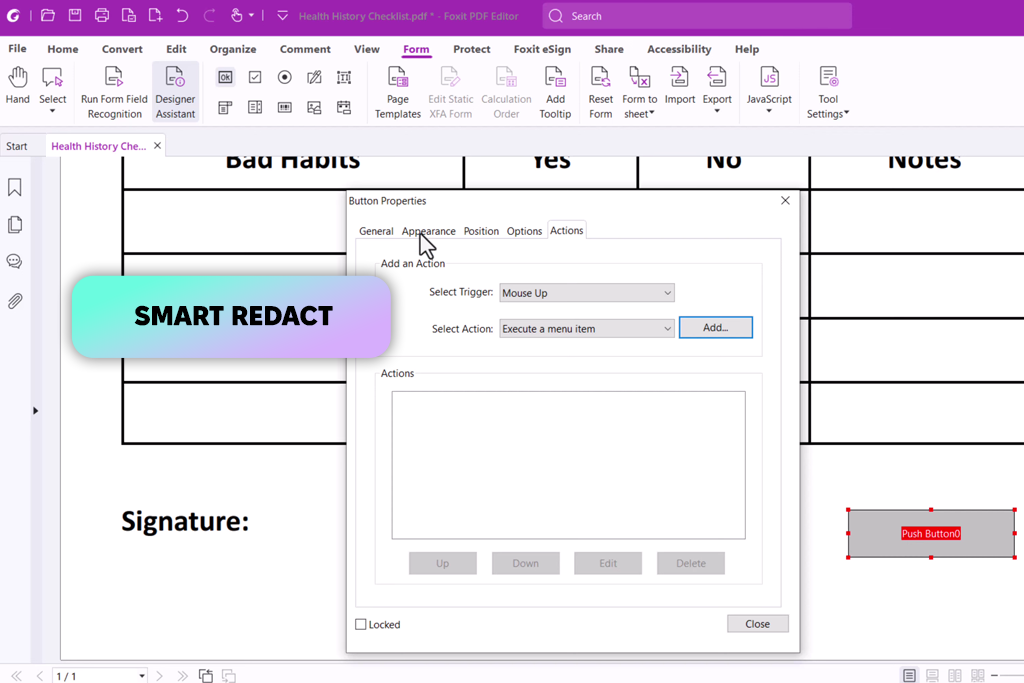
Foxit PDF Editor caught my attention when I had to work with a batch of PDFs that needed more than basic conversion or page management. I installed the desktop version and focused on changing existing content, adjusting page layouts, and adding detailed annotations.
Compared with LightPDF, Foxit gave me more control when I made larger changes within a document rather than simply splitting, merging, or converting files. I could edit text and images directly, organize pages, and use review tools without feeling like I was pushing a web-based utility beyond its intended use.
“Redaction is one of the tools I’ve actually needed when preparing files to share. The interface can feel busy, though, and I sometimes have to look around for features I don’t use very often.”

I also tested Foxit with documents that I would normally handle more carefully before sending them to others. The redaction tool of this LightPDF alternative for Windows was especially useful because it let me remove sensitive information properly instead of simply covering it up. I also tried its form features and digital signatures, and the process felt closer to professional office software.
LightPDF is quicker when I just need to make a simple change in a browser, while Foxit offers more security, form, and document-management tools. The trade-off is a busier interface, so for a quick edit, I sometimes found Foxit slower to navigate than LightPDF.
AI PDF editor tools are where my choice can change depending on the task. When I tested LightPDF’s chat, summaries, content generation, and PDF-to-mind-map tools, AI was a central part of the experience.
Foxit focused more on standard PDF work, including editing, OCR, review, security, eSignatures, and its Document Management System. I also liked that Foxit works on desktop, web, and mobile, although I preferred the desktop app for longer editing sessions rather than switching between devices for quick tasks.
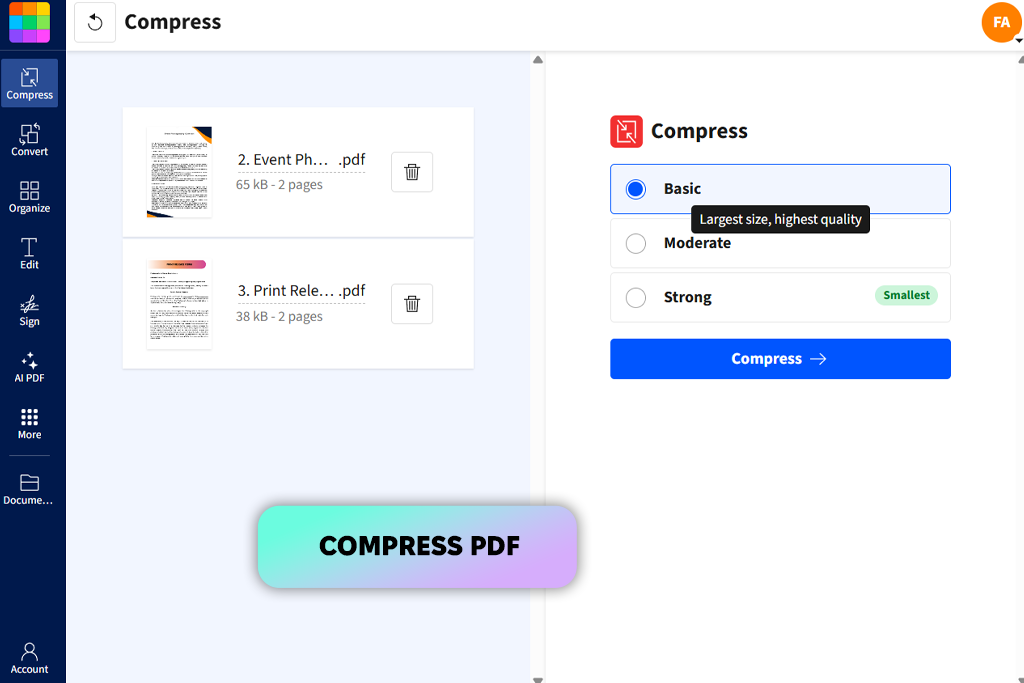
Smallpdf is my top online tool to share PDF online because it keeps the process simple. I tested it with several common tasks, including reducing file size, turning JPGs into PDFs, combining pages, and adding a signature.
I could move from one task to another without much searching. LightPDF offers a similarly simple browser experience, but Smallpdf feels more focused. If I already know what I need to compress, convert, or sign something, I can usually get there quickly without extra menus getting in the way.
One thing I tested was sending a large PDF to a colleague. I used Compress PDF, checked the output, and then converted another file without installing any software. I also tried Merge PDF and Split PDF for similar tasks. That showed me why I keep coming back to Smallpdf: each function is focused and easy to complete from start to finish. LightPDF offers more options, especially with AI features and batch work on desktop, but I prefer Smallpdf when I only need a basic PDF task. The main drawback is that free users can only complete a limited number of tasks each day.
I wouldn’t pick this LightPDF alternative for research-heavy PDF work. LightPDF is more useful when I need to ask questions about a document, create summaries, or use other AI features to understand its contents. I usually open Smallpdf when I already know what I need to do with the file, such as edit, convert, compress, rearrange pages, or sign it. That focused approach is also why I like the browser version for quick tasks when opening a full desktop editor would take more time.
PDFelement is one of my colleague Kate’s preferred PDF tools, so I wanted to see how it handled more involved tasks. I tested it by editing text, replacing an image, moving pages, and fixing the formatting afterward. Compared with LightPDF, PDFelement gave me more control within a single desktop workspace. LightPDF is faster when I only need a quick online edit, but PDFelement felt more suitable for documents that required several changes.
“What I like about PDFelement is that I can handle major changes without opening the original Word file again. I recently ran OCR on a scanned PDF, fixed some recognition mistakes, and edited the text directly. The batch tools are useful as well.”

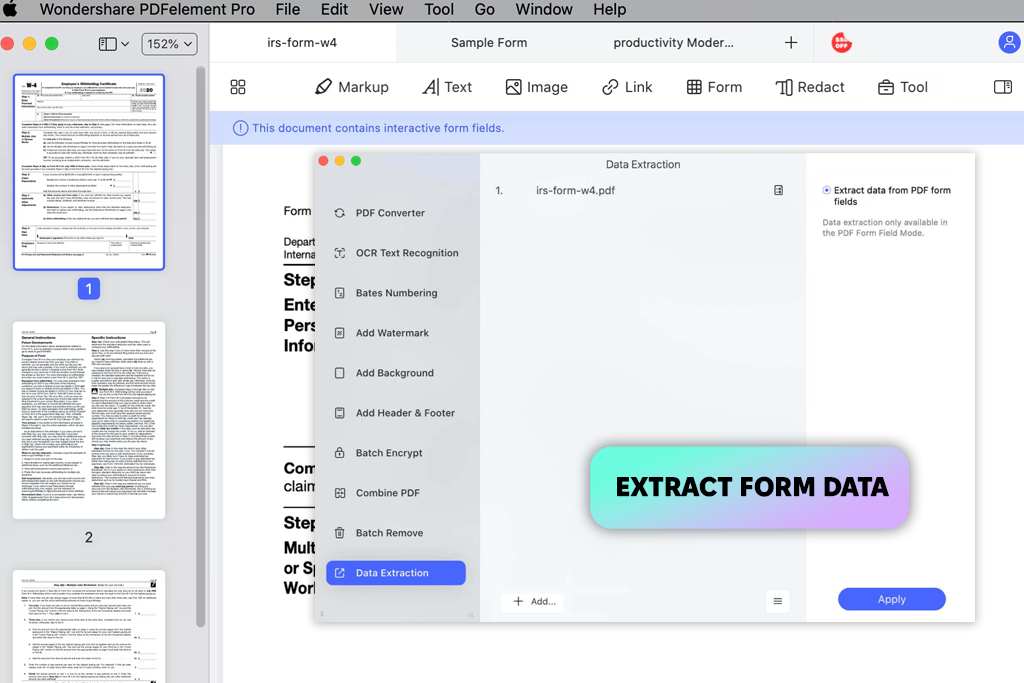
I then tested this LightPDF alternative for Mac with several files at once instead of handling each PDF separately. Its batch tools let me run the same actions across multiple documents, while OCR and data extraction worked well with files containing forms.
This was a clear advantage over my usual LightPDF workflow, especially when I had many documents to process or needed to pull information from them. The trade-off is a busier desktop interface, so some tools took me longer to find than they would in LightPDF’s simpler web workspace.
Kate also recommended the form and signing tools, and these became some of the features I used most. I filled out fields, tested a more complex form, and used the digital-signature tools without opening another app. LightPDF handles many common PDF tasks and puts more focus on cloud access and AI features, while PDFelement felt better suited to longer editing sessions where the document stayed at the center of the work. It is available on Windows, Mac, and mobile, although I spent most of my testing time in the desktop app.
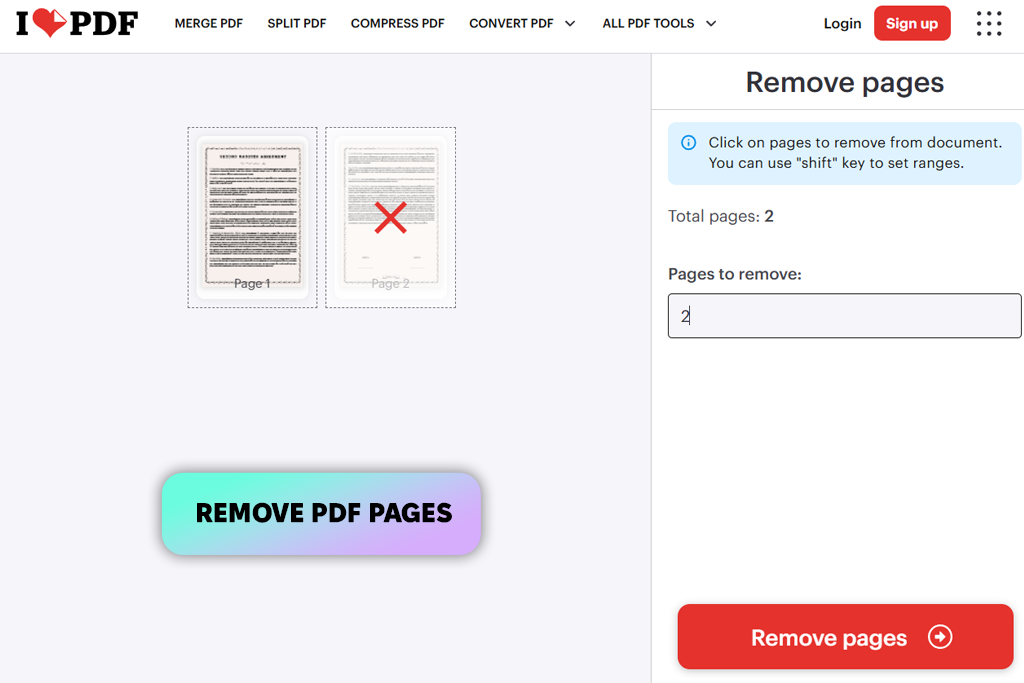
I first used iLovePDF when I needed to delete pages from PDF, and I still like it for the same reason: it keeps simple tasks simple. I uploaded a file, removed the unwanted pages, and saved the result without navigating a large editor. For this comparison, I also tested page reordering and splitting another PDF. LightPDF offers the same basic tools, but iLovePDF feels more focused because each task has its own simple workflow.
“I merged several PDFs and compressed the final file before sending it by email. It only took a couple of minutes, but the free limits can become a problem when I have many files to process.”
This time, I also tested Merge PDF and Compress PDF before converting several files together. I liked the modular workflow: I could choose a tool, add my files, make the needed changes, and then move on to the next task. Batch conversion was especially useful when I had several documents waiting instead of just one PDF.
Compared with LightPDF, iLovePDF felt more convenient for this kind of repeated file handling, although its free limits on file size and the number of tasks can interrupt the otherwise quick workflow when I have a larger batch to process.
LightPDF is still my preference when I need to do more than change the file itself. Its AI tools let me chat with a PDF, create summaries, and analyze its contents, while OCR and advanced editing give me more flexibility without needing another service. With this app like LightPDF, I treated the work more like a series of separate tasks: remove pages, combine files, reduce the size, then convert the next batch.
That approach worked well when I already knew what needed to be done. I also rarely had to look for a tool because the interface is built around these specific actions rather than a larger document-editing workspace.
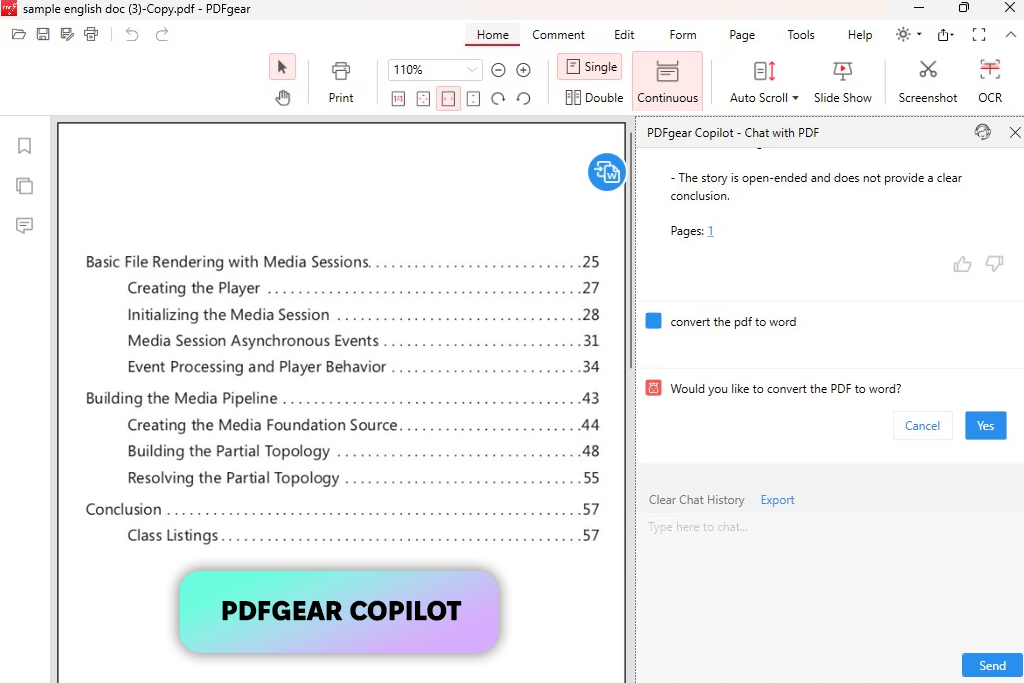
I installed PDFgear on my laptop and worked with files saved on the computer. I edited text, added an image, moved pages, converted a PDF to Word, and tested OCR on a scanned file. I was also able to complete these tasks without being pushed into a paid plan. LightPDF is more convenient for browser-based work, but PDFgear is a better fit for handling multiple files locally without sending them to an online service.
Next, I tested PDFgear Copilot with a longer document by asking for a summary and then asking about specific parts. I also gave it instructions to perform tasks instead of finding each tool myself, which made the AI feel like part of the PDF workflow. LightPDF offers a wider range of AI features, including mind maps, presentations, and document translation, so PDFgear felt more limited in this area.
I kept this LightPDF competitor installed because it handled the routine PDF work I deal with often, such as reading files, completing forms, signing documents, converting them, and making minor changes. Having these desktop features at no cost is a strong advantage over LightPDF when I don’t need online teamwork or a higher usage allowance. However, when several people need to access and edit the same file online, LightPDF’s cloud setup works better for me.
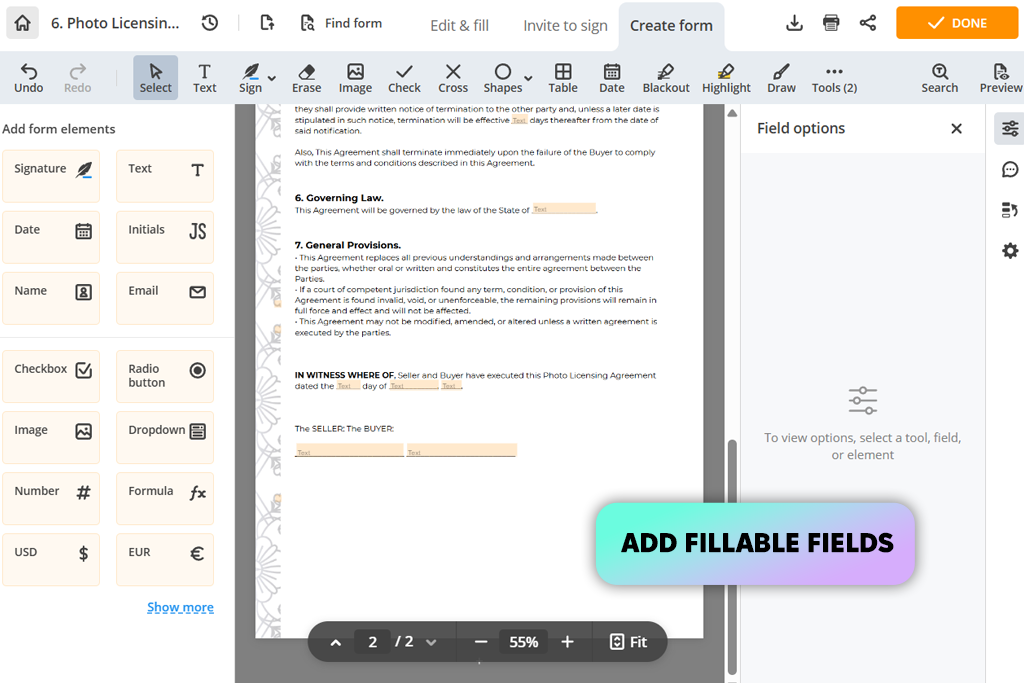
I found pdfFiller while looking for LightPDF alternatives, and its strong focus on forms made me want to test it. I uploaded a simple PDF and turned it into a form that someone else could complete by adding text boxes, checkboxes, and a signature field. LightPDF works well for quick edits and file conversion, but PDF filler gave me more control over how the recipient would use the document.
To see how it would fit into a real workflow, I completed another form, added an electronic signature, and tested sending documents between different users. I also tried the data import and export tools, which are especially useful when forms are handled on a regular basis. This made pdfFiller feel quite different from LightPDF: it is built around managing documents through an ongoing cloud-based process, while LightPDF is more focused on tasks like editing, compressing, and converting files.
There were still times when I would choose LightPDF. If I just need to shrink a file, run OCR, convert it, or use AI to summarize and examine a document, LightPDF lets me reach those tools more quickly without setting up a larger workflow. With pdfFiller, I spent more time considering how the document would be handled after I finished creating it.
If you handle PDFs professionally every day, I’d start with Adobe Acrobat. It’s a better fit when you need accurate editing, OCR, document comparison, signatures, and security rather than a quick browser-based workflow. Foxit PDF is another strong AI-powered LightPDF alternative, especially for desktop work with forms, redaction, annotations, and longer documents.
For anyone who mainly wants to open a browser, make a quick PDF change, and move on, I’d choose Smallpdf and iLovePDF. Smallpdf is my pick for simple tasks like compressing, converting, signing, and arranging files. iLovePDF works especially well when you already know what you need to do, such as removing pages, combining files, splitting a PDF, or converting several documents at once.
For users who need more advanced editing without stepping into enterprise-level software, PDFelement is a strong option. It offers greater control over layouts, OCR, forms, batch tasks, and data extraction, making it better suited to people who regularly work on detailed documents rather than only making quick PDF changes.
If you’re looking for the best free LightPDF alternative and prefer working from a computer, I’d try PDFgear first. Its free editing tools, OCR, conversion features, and built-in Copilot make it a strong choice for individual users who like keeping files on their device. LightPDF is better suited to cloud collaboration and offers more AI-based workflows, so the better option depends on whether you prefer working locally or online.
Finally, pdfFiller is worth considering when documents need to be shared with different people. It works especially well for fillable forms, collecting responses, requesting e-signatures, and keeping track of documents after they are sent. For my needs, I’d choose pdfFiller for business forms and shared workflows, PDFelement or Acrobat for advanced editing, PDFgear for free desktop use, and Smallpdf or iLovePDF for quick online tasks.
We used LightPDF as the benchmark and tested each online LightPDF alternative with the PDF tasks my colleagues and I handle regularly. Our tests included text-heavy files, image-based documents, scans, forms, and long multi-page PDFs. What mattered was not just whether a feature was available, but how easy it was to use and whether the final document kept its original layout.
Editing was a key part of our tests. We edited text, changed the size and position of images, moved or removed pages, combined and separated PDFs, added comments, and reduced file sizes. We also converted PDFs into common editable formats and converted them back, checking whether the fonts, images, spacing, and layout stayed intact. Since LightPDF already makes many of these tasks quick and simple, we looked for alternatives that either made the process easier or gave us more control.
Kate focused especially on OCR, forms, and security features because they show how well a PDF editor handles more demanding work. With scanned files, she checked whether the converted text could actually be searched and edited. She also created and completed form fields, tested signatures where available, and tried features such as redaction and password protection. These tests helped us separate simpler LightPDF alternatives from tools designed for more complex professional document work.
“I checked the page layout after each conversion, looked for OCR errors in scanned files, and reopened edited PDFs to confirm that text and images remained in the right places. I also repeated these tasks in LightPDF, which made differences in speed and the number of steps much easier to see.”
AI tools required a slightly different testing method. Ann used summaries and asked questions about longer documents when these features were available, focusing on the quality and usefulness of the results rather than simply counting how many AI tools a service offered. Since LightPDF already includes AI-assisted PDF features, she also looked for other strengths that could make an alternative more useful, such as more advanced editing or stronger offline support.
Finally, I checked how each service performed across web, desktop, and mobile when those versions were available. I also considered free-plan limits and paid features, including file and task caps, batch processing, cloud collaboration, and how easily I could move between different PDF tasks. This helped us compare each option with LightPDF based on real workflows rather than simply counting features.



![7 Best AI Age Progression Tools in {{%year}} [Tested & Reviewed]](http://fixthephoto.com/blog/images/gallery/news_main__preview_29353.jpg)


![7 Best AI Image Analyzers [{{%year}} FixThePhoto Choice]](http://fixthephoto.com/blog/images/gallery/news_main__preview_29393.jpg)

















