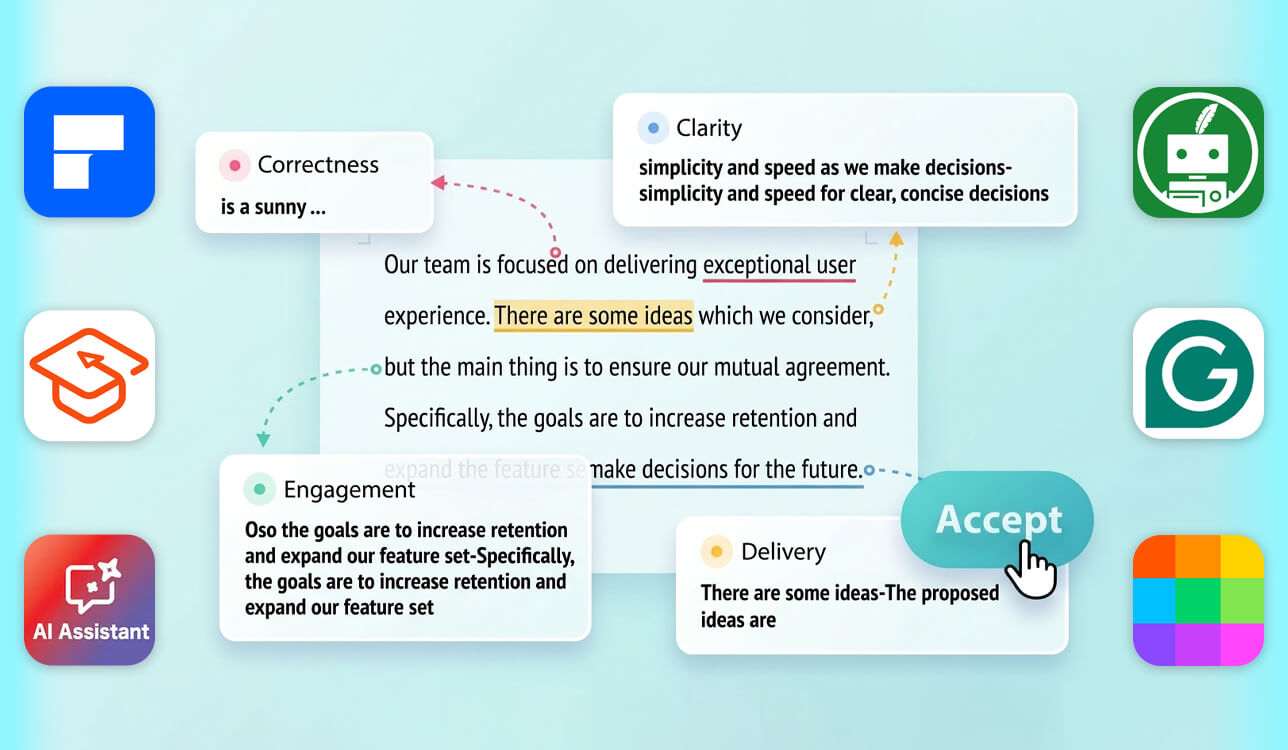
My work involves a steady stream of documents, including PDF guides, internal reports, and other materials. The review process typically consumes much time. AI changes that. Initially, I used such tools for repetitive editing tasks. Proofreading became an obvious next step, especially when a large batch of PDFs was waiting, and manual checking seemed like the worst use of your time.
The AI PDF proofreaders covered here all work in a browser. You do not have to install software or convert files. Just upload your PDF, let the AI flag what needs attention, and handle corrections without leaving the tab. The FixThePhoto team also helped with the evaluation, going beyond feature lists to see how each tool holds up in a real document workflow.
The tools I’ve picked go beyond a basic spell check. Some fix grammar and punctuation. Others suggest cleaner phrasing, rewrite entire passages, or summarize what a document contains. A few let you ask direct questions about an uploaded PDF and get instant answers. I paid close attention to how each tool handles the actual file. If you have to copy text into a separate chat window just to get feedback, the process breaks down quickly. The tools here work with your document directly.
AI PDF proofreading tools are useful for cutting down that first editing pass, but I’d never hand one the final sign-off. Here’s why, and what to watch for when you use them.
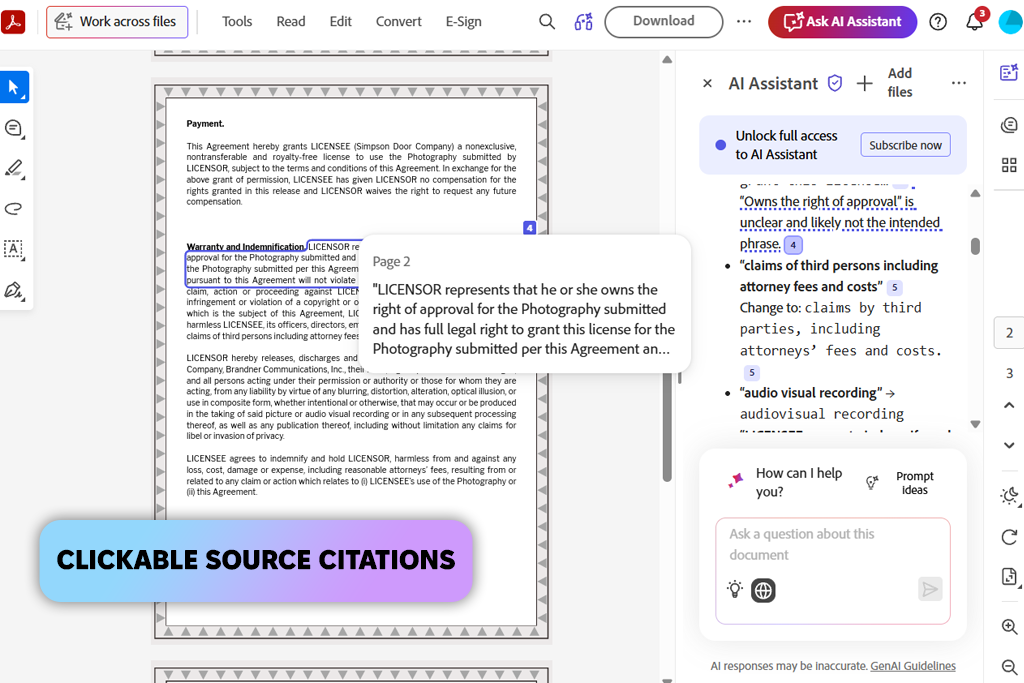
If you already live in Adobe Acrobat, as I do, adding AI Assistant is a smart move. The biggest practical win is that you stay inside the same environment. You don’t copy text into a separate AI chat. You don’t juggle windows. The AI PDF proofreader works directly with the content already in your PDF, so you can ask it to tighten a passage, rephrase something awkward, or flag a structural issue right there in the document. It can also function as a light writing coach, which comes in handy when a sentence is technically fine but just doesn’t flow the way it should.
“Since I already work with PDFs in Acrobat, the AI Assistant feels like a natural addition. I mostly use it to find specific details in long files without searching page by page.”

For longer documents, the conversational search alone is worth it. Instead of guessing which keyword the document uses, you ask a plain question and get pointed to the right section. Structured summaries help you get your bearings before you start editing. And the clickable citations, which link back to the exact source location, let you verify what the AI found against the actual text.
That last part matters. You want to see the original, not just a polished summary of it. Still keep in mind that AI Assistant is a paid feature, not something every Acrobat Reader user gets by default.
Things get more interesting with multi-document work. PDF Spaces lets you pull several files together, including PDFs, Word docs, and mixed formats, and analyze them side by side. If you’re working across revisions and need to track changes or pull recurring details, that’s useful. There are also audio summaries if you want to review content away from the screen. For real proofreading, though, you’ll still want the PDF open. Wording, page context, and citations need to be in front of you.
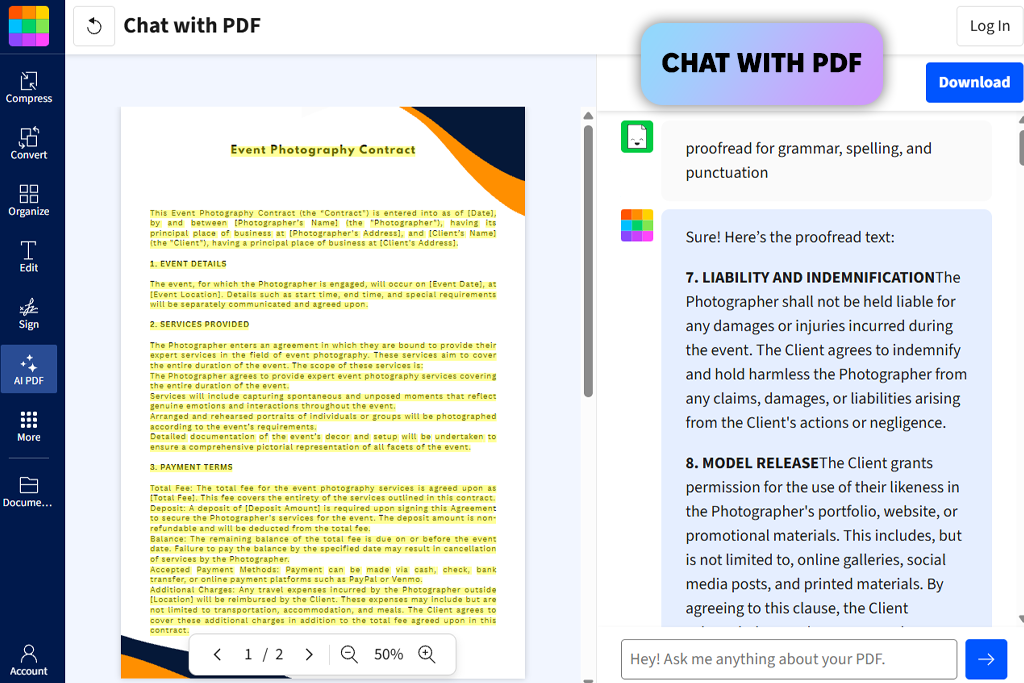
Sometimes you just need to get in, fix a few things, and move on. Smallpdf is the best AI PDF proofreader online for such cases. Setup is basically nonexistent. Open Chat with PDF, drop in your file, or pull it from Google Drive, Dropbox, or OneDrive, and type what you need. A prompt like “proofread this document for grammar, spelling, and punctuation errors” is enough to get started. For quick checks, that simplicity is hard to argue with.
“I like how easy Smallpdf is to use. There are no complicated settings to figure out. I just upload a document and ask the chat to check it for me.”

The chat format gives you more control than a standard spell-check pass. You direct it, asking for unclear sentences, requesting cleaner alternatives, and nudging the tone in a specific direction. It reads the surrounding content, not just the flagged line. Long document? Query a specific detail instead of hunting through pages.
Need a summary or a translation on top of the proofreading? That’s all inside the same browser window. Just make sure to review every suggestion yourself, especially anywhere the wording has legal or sensitive implications.
The free tier has limits, and you’ll feel them once you move past a single file. A batch of PDFs will burn through your allowance quickly. The more advanced features are available in the Pro plan. But considering that Smallpdf is created to get you into a document fast, answer targeted questions about it, and let you move on, it holds up well. If your alternative is firing up heavy tools like Smallpdf for a fifteen-minute job, this is the smarter call.
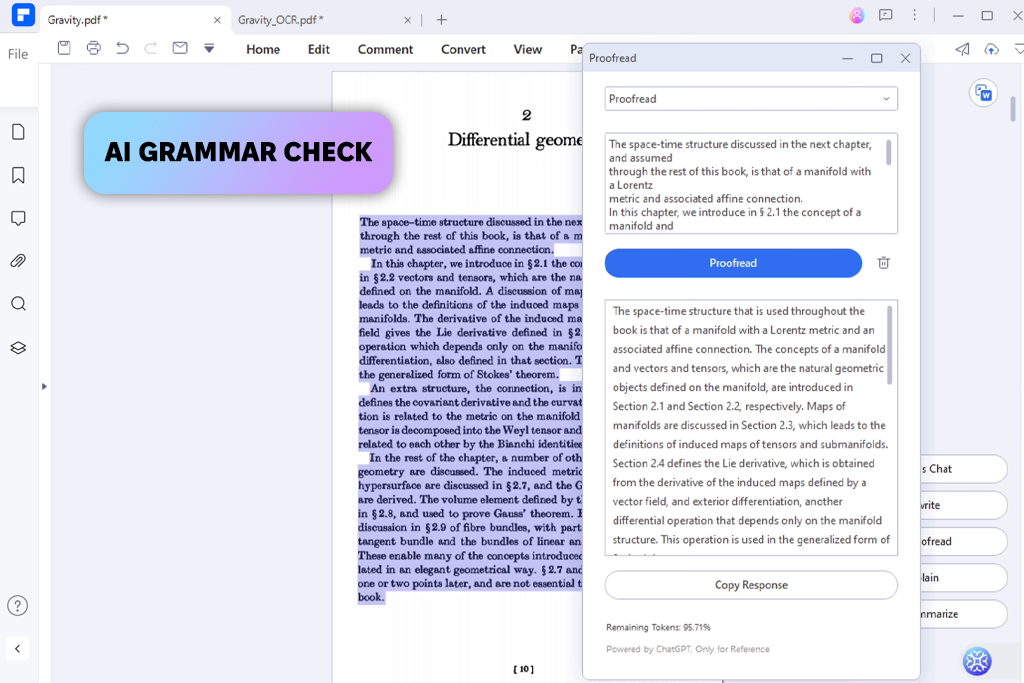
PDFelement came onto my radar through Julia, a colleague whose PDF work is more involved than mine. She does not deal with clean, copy-pasteable text, but works with scanned reports and image-based pages that most browser tools simply can’t touch. Watching her workflow made me realize there’s a whole category of proofreading problems I’d been ignoring.
“I use it often for scanned documents. I like that I can recognize the text and proofread it in the same tool instead of switching between different apps.”

The starting point is OCR, and it’s built right in. You don’t need a separate app to make a scanned page readable. PDFelement does the conversion before proofreading even begins. Multilingual support extends the same logic. With 40+ languages covered, you’re not stuck the moment a document steps outside English.
What I find most interesting is how the AI Grammar Check handles explanations. It doesn’t just underline a problem and move on. It tells you why the correction is being proposed and shows you alternative phrasing. So instead of blindly accepting a suggestion, you can judge whether it fits the sentence. Such transparency makes a difference when the writing needs to stay in a particular voice.
For heavier edits, this AI PDF proofreading tool has an AI Rewrite and Rephrase feature. It lets you work on selected passages directly, pushing the tone toward something more formal, concise, or polished. Everything stays inside one workflow with no bouncing between the document and an external tool.
The trade-off is scope. PDFelement also includes AI chat, translation, and conversion tools, which makes it powerful for complex documents but slightly over-engineered if your only task is a quick typo fix. AI features also run on query or token limits, so keep that in mind on longer documents with multiple rounds of edits. For Julia, though, the combination of OCR and proofreading in a single environment is exactly what her work calls for.
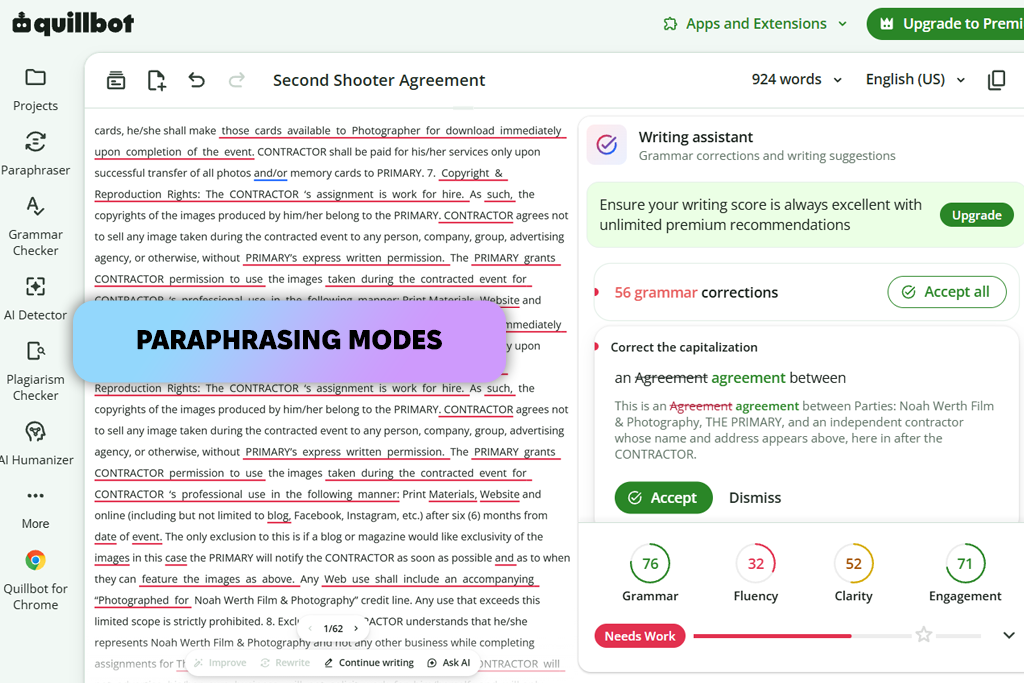
I didn’t come to QuillBot through PDF proofreading. I came through a stubborn paragraph that wouldn’t read right no matter how many times I rewrote it. The paraphrasing tool cracked it.
The paraphrasing side is very flexible. You get alternative formulations for passages that are clunky, plus synonym suggestions that let you nudge vocabulary without handing over full control.
That second part matters more than it sounds. In technical writing or product documentation, some terms are fixed. An interface label is an interface label. A paraphraser that swaps it out for something “smoother” creates a new problem. QuillBot lets you override those suggestions, which keeps you in charge of the final call.
Grammar and style checking handles spelling, sentence structure, and clarity. It won’t surprise you, but it’s reliable. The Summarizer is one of the bragging points of this platform. Drop in a long section, and you get a compressed version back. That’s useful before you decide where to focus your editing attention, rather than after. Translation rounds out the toolkit for multilingual work. Combined, these features cover a reasonable range of text cleanup tasks without leaving your browser.
The limitation is scope. QuillBot is a writing assistant, not a top-notch AI PDF proofreader. If your PDF needs formatting changes or direct edits on the page, you’re looking at a different tool for that part. Free access gets you a useful amount of functionality, but heavier usage and some features require Premium. Reach for QuillBot when the writing itself needs work, especially when one rewrite isn’t enough, and you need to try a few angles before something lands.
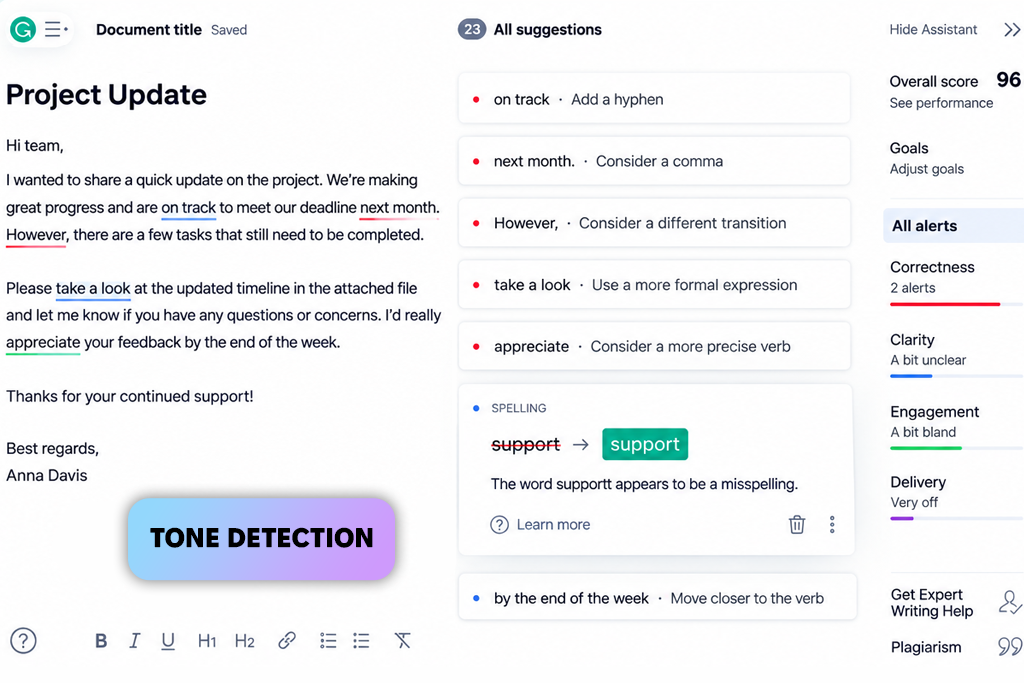
When using Grammarly, I always pull the PDF content into an editable space because the tool has nothing to grip until I do. Once I’m there, errors surface individually. That’s a deliberate advantage. You stay in the driver’s seat instead of watching an algorithm reshape your paragraphs.
One underrated feature of this free AI PDF proofreader is tone detection. Grammatically correct writing can still be too breezy for a formal report or too stiff for a client-facing piece. Grammarly catches that drift before it becomes someone else’s problem.
“After reading the same text over and over, I tend to miss small mistakes, so the grammar and punctuation checks are helpful. The citation checks were less reliable, though. It marked some of our correct APA references as incorrect.”
Generally, Grammarly is less like a PDF specialist and more like a proofreader who follows you everywhere. The Chrome extension lives inside your browser, which means the same sharp eye covers your documentation, emails, web copy, and social posts. Your quality standard travels with you. And if your needs are basic, the free tier covers them. No subscription is required just to catch everyday mistakes.
As for weak points, the research documents with APA citations are a minefield. Our tests found incorrect flagging in around 30% of properly formatted citations. Approve everything blindly, and you’ll introduce errors. There’s also no tracked-changes export, and this proofreading tool is English-only.
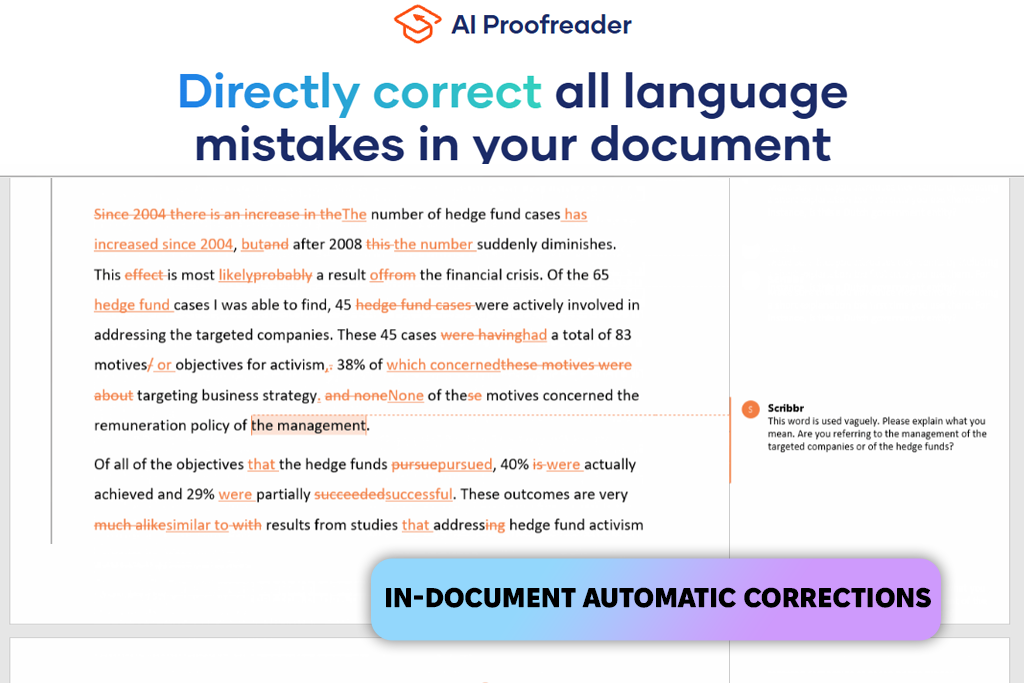
Scribbr came up in a plain Google search for online proofreading tools. I was impressed by how quickly it distinguished itself. Most AI PDF proofreaders on this list pitch themselves as general-purpose. Scribbr doesn’t bother. It’s built for academic work, and it does not attempt to hide that.
The entire workflow is intuitive. Upload a DOCX file or paste your text, and it returns corrections for grammar, spelling, and basic style problems right inside the document. No settings to work through before you can start. If your goal is a quick language pass before a file gets finalized, that low barrier is exactly what you want.
“It does a good job with basic proofreading, and that's usually enough. For bigger changes or a complete rewrite, I'd rather switch to a different tool.”
But the proofreader is arguably not the main highlight. Scribbr pairs it with a citation generator, plagiarism checker, and AI detector in the same place. For a student who’s already there managing references or running a plagiarism check, proofreading becomes one more step in a workflow they already know. That’s a big convenience when you’re close to a submission deadline and don’t want to learn a new tool.
The automatic checker does have a ceiling, though. It’s built for surface-level corrections and won’t help you with deeper editorial work. Scribbr offers paid human editing for that, which is a sensible way to draw the line between what automation handles well and what it doesn’t. One other thing worth noting is that there’s no AI humanization feature. So, if the writing needs a tone overhaul rather than a cleanup, you’ll need to look elsewhere.
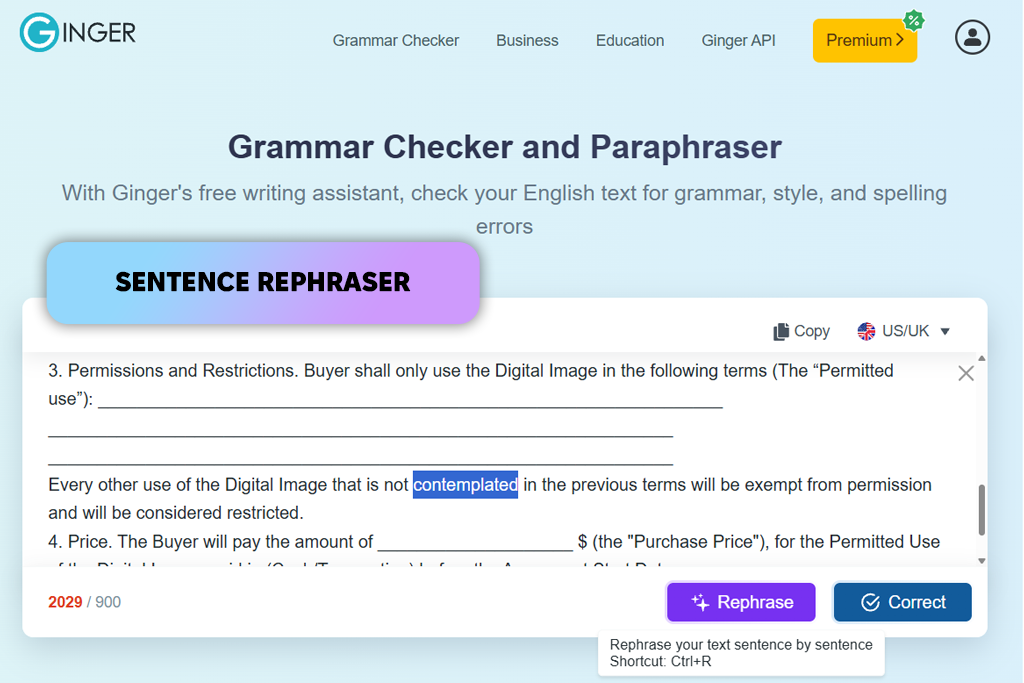
Working with PDFs means using different tools, and Ginger fits into that workflow as a text-level proofreader perfectly. The process is simple. You copy the text out of the PDF, paste it into the Grammar Checker, and let it run through grammar, spelling, punctuation, and contextual word choice in one sweep.
Unlike tools that isolate individual suspect words, Ginger reads complete sentences and can apply multiple corrections at once. On longer sections, that leads to a faster review. The extra copy-paste step is the trade-off. Tools like Acrobat or Smallpdf let you stay inside the original file. With Ginger, you’re working on extracted text, so factor that into your process before you start.
Ginger brags about the Sentence Rephraser. Sometimes a passage clears every grammar rule and still reads awkwardly. That’s exactly the situation it’s built for. It suggests alternative structures rather than surface-level synonym swaps. Speaking of synonyms, there’s a separate tool for those too, helpful when the same word keeps showing up. Just keep one thing in mind. In technical documentation, a more elegant phrasing can silently overwrite terminology that needs to stay put. Always check before you accept.
US and UK English are both supported, which is valuable when language consistency across a document matters to your client or audience. Grammar checking is English-only in the free version. Premium adds translation across 40-plus languages – worth noting, but that’s not the same as multilingual grammar support. Browser extensions and Office integration round out the picture for general writing tasks. For PDFs specifically, Ginger offers a clean proofreading pass, not a replacement for a dedicated PDF workflow.
We didn’t just test if these tools could open a file. The real question is what happens to the document once it’s inside the tool. So, we treated this as an editing task from the start, doing our best to figure out whether each online AI PDF proofreader could catch the mistakes that grind document prep to a halt. We also watched for a subtler failure mode, as suggestions that polish the sentence can bend the meaning.
Workflow was part of the score. How you get a document into a tool matters. Is upload straightforward, or does it involve copying text into a separate box? Does proofreading happen directly inside the PDF, or does the layout disappear the moment you start editing? For tools with document chat, we went further, testing whether natural-language prompts could navigate longer files, not just surface sentence-level fixes in isolation.
“I wanted more than a tool that just points out mistakes. It was important to see each suggestion in context, decide if it made sense, and fix the text without disrupting my usual PDF workflow.”
We looked at the full editing toolkit, not just spell-check. Rewrite and rephrase controls are only useful when they give you real levers such as tone, formality, and clarity. Where available, Kate also tested OCR for scanned files, multilingual proofreading and translation, summarization, source citations, and the ability to work across multiple documents at once. These aren’t extras. They become essential the moment your PDF is a scan, switches languages mid-document, or is one of fifty reports in a revision cycle.
AI suggestions were never assumed to be correct. Julia specifically tracked how much human judgment the workflow still demands, especially around technical terms, formal citations, and sentences where a single word change shifts the meaning. Formatting was flagged as a real concern, too. A proofreader that fixes your prose but drops your table structure or disconnects corrections from their original location on the page creates a different kind of problem.
Single-use performance isn’t the point. The limitations that matter most don’t show up on the first pass. They show up on the fourth. Free-tier caps, query or token limits, language support, file compatibility, and export formats these shaped our conclusions on the best AI PDF proofreader online. A tool that handles one paragraph beautifully may disappoint under a stack of PDFs with a deadline attached.