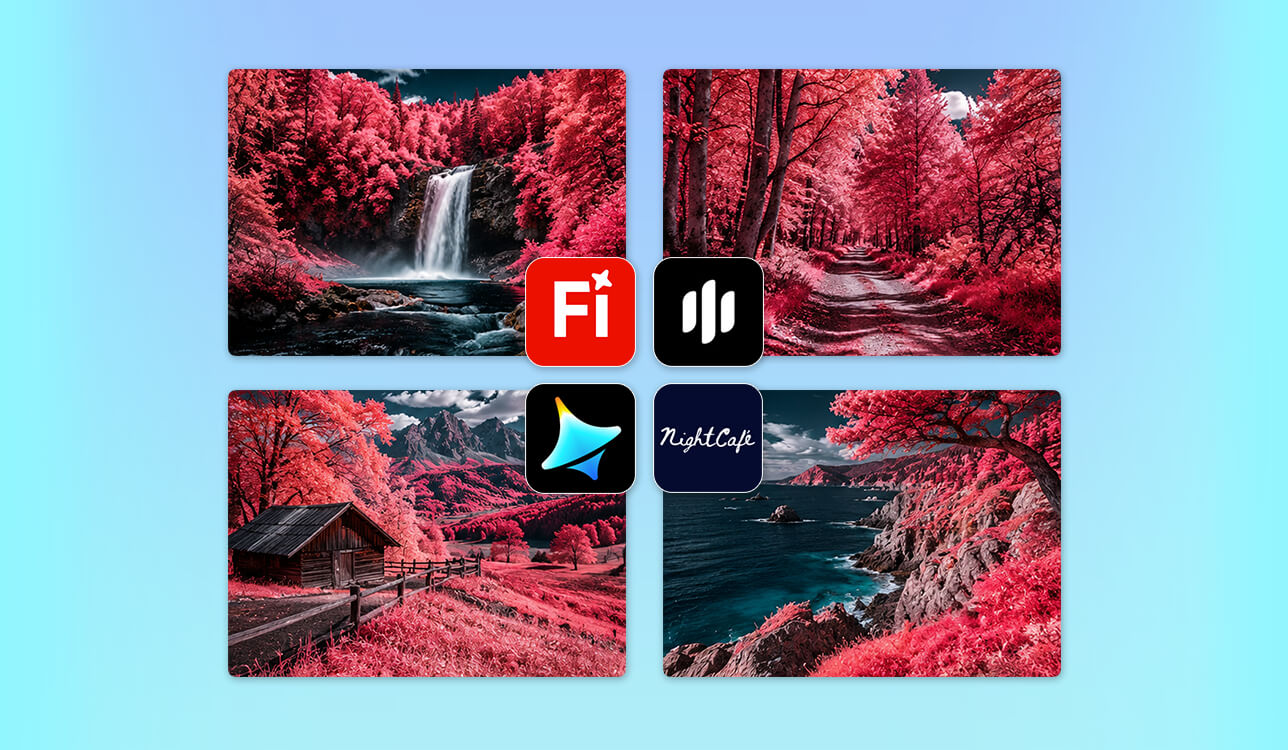
In search of the best AI infrared photo effects, I've done my research while preparing photos for an independent travel magazine. Photos had to show unusual landscapes, abandoned constructions, and forests with the typical infrared look with light-colored foliage, dark skies, and unusual colors.
Buying an infrared camera was not possible, and I couldn't shoot all these photos once again, so I decided to edit those I've already taken. Recreating the effect in my photo editor meant making all necessary adjustments to the colors, contrast, and individual tones.
However, it was difficult to do correctly. Some photos turned out too pale, others had unusual colors or too much noise. That’s why together with my team, I tested 40+ AI infrared photo effect generators to find a reliable tool with decent outputs.
I was looking for an effect that will work with standard photos, retain the original composition, and allow me to adjust the level of its strength. I wanted to obtain natural highlights, dark shadows, effects of black-and-white and false color, as well as high resolution.
Infrared effects add unusual colors, sharp contrasts, and unique style to photos. They are often used in artistic photography, but can also be beneficial in other types of image processing.
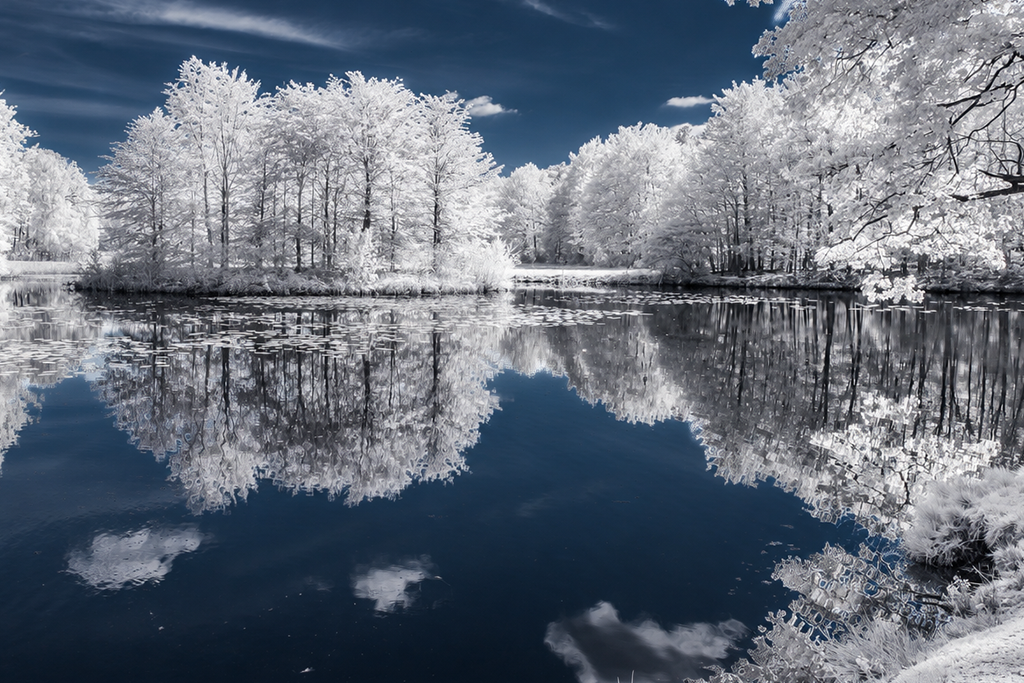
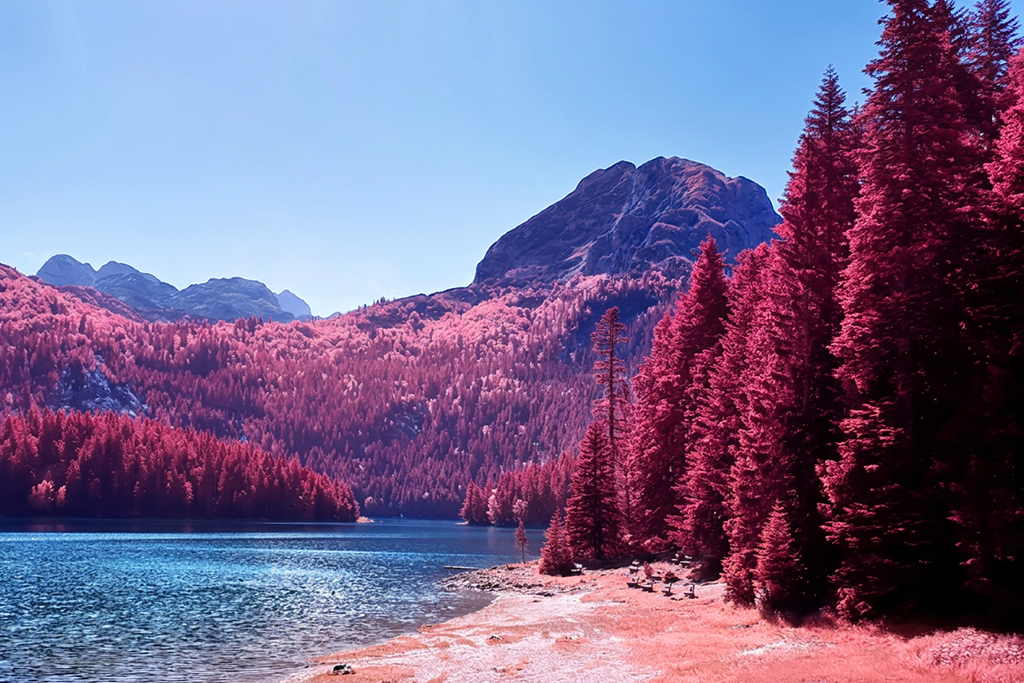
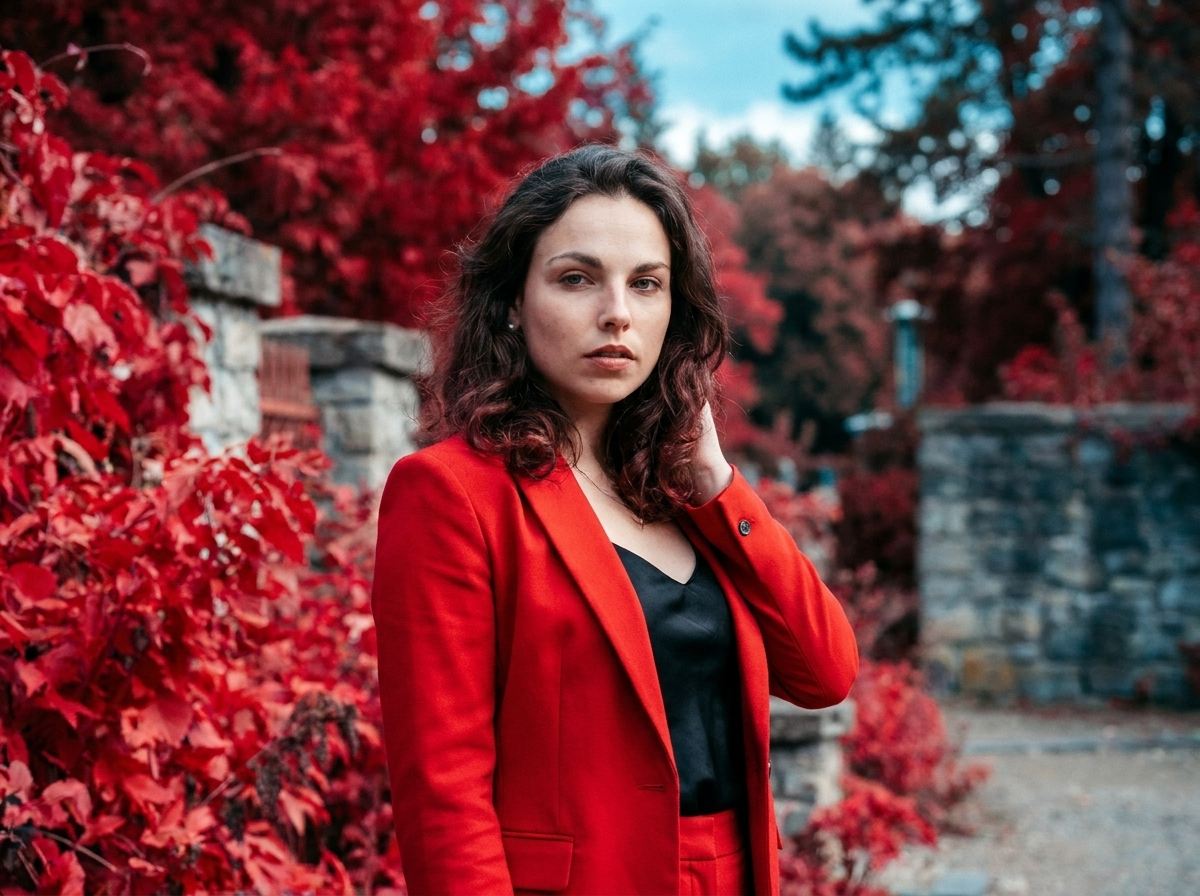
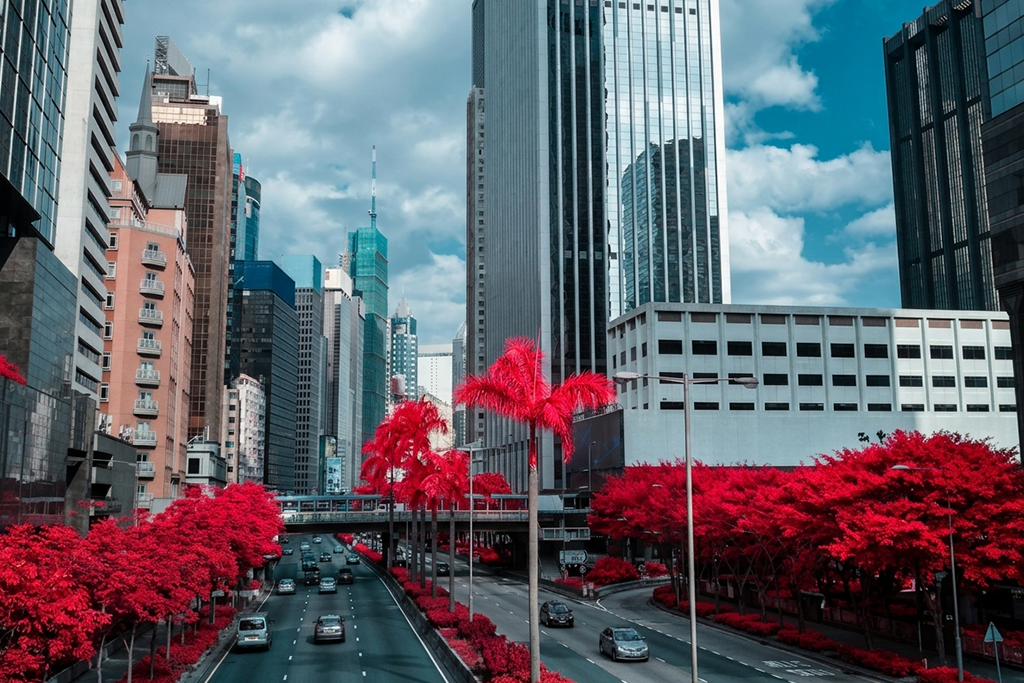
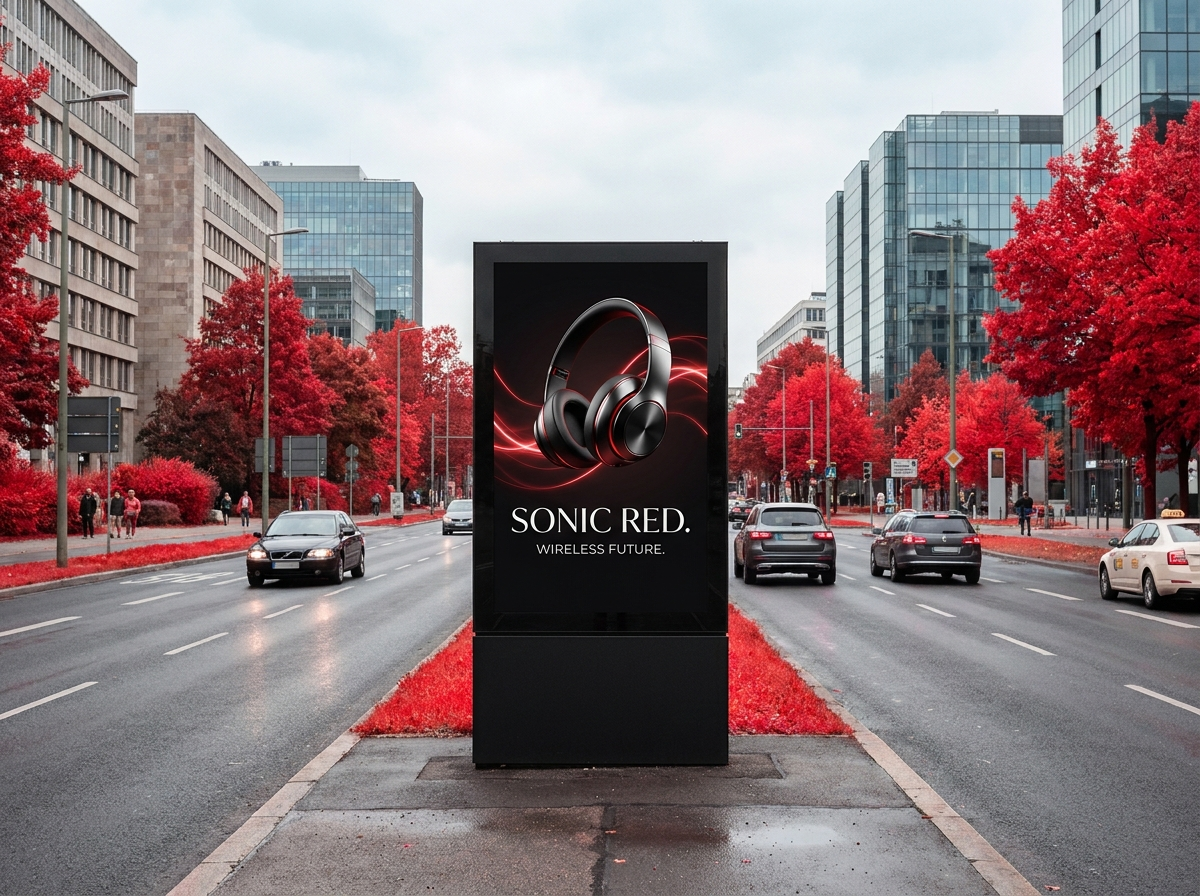
It's important to distinguish the simulated and actual infrared effects. Photo editing software for PC and Mac allows simulating the effect for creative purposes, while actual infrared photography is required for scientific and environmental research.
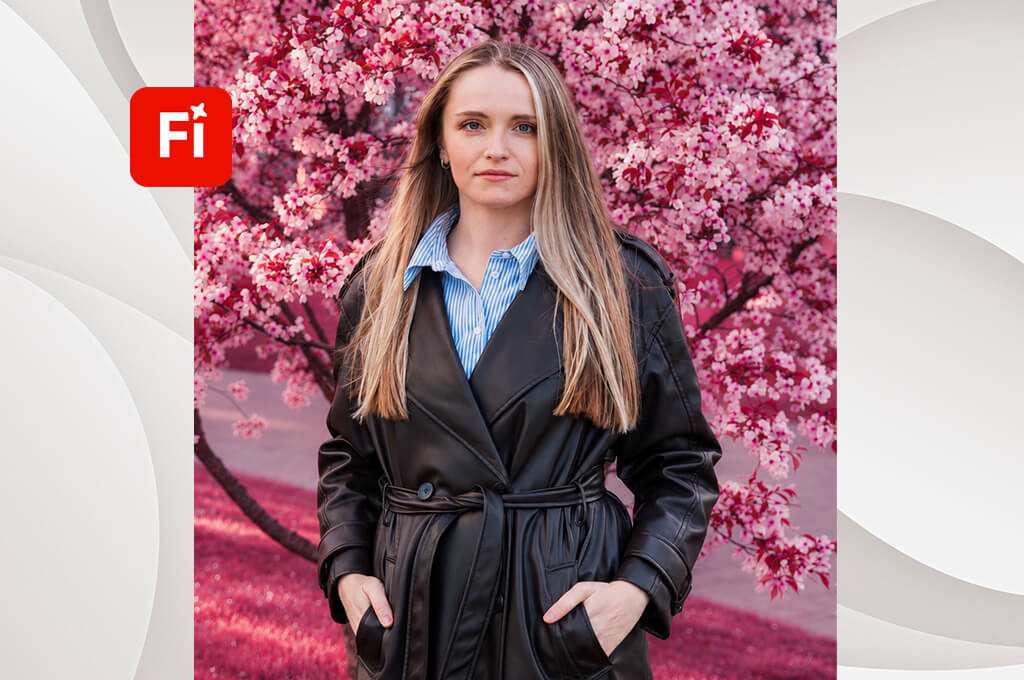
I tried Firefly’s AI infrared filter first on a photo of a wooded trail, where I wanted to lighten the leaves and darken the sky without losing the details of the trees and path. Adobe Firefly allows adjusting the result through such options as Generate Image, reference images, and styles.
I spent some time trying different options in Effects and style menus, including high-contrast black-and-white and unusual color combinations. In order to get the desired effect, I used text prompts about bright leaves, dark shadows, and natural photo details.
Firefly generated several interesting results, however, some looked more like creative edits than the real infrared photos, and I had to adjust my prompts in order to obtain the desired result.
“I really liked the infrared colors I got from this tool. It's nice to have control over the results, although obtaining the natural film look sometimes requires some attempts.”
Then, I tried Firefly on a photo of a mountainous landscape with a cloudy sky, winding road, and distant peaks. I wanted to darken the sky and make the grass look almost white. The result looked quite dramatic, however, I noticed that some fine details changed. I compared it to the original in order to make sure that the landscape is still natural.
Firefly worked best for me when I wanted to experiment with the look and do some additional editing afterwards. The only disadvantage was that it was harder to make all the images look consistent.
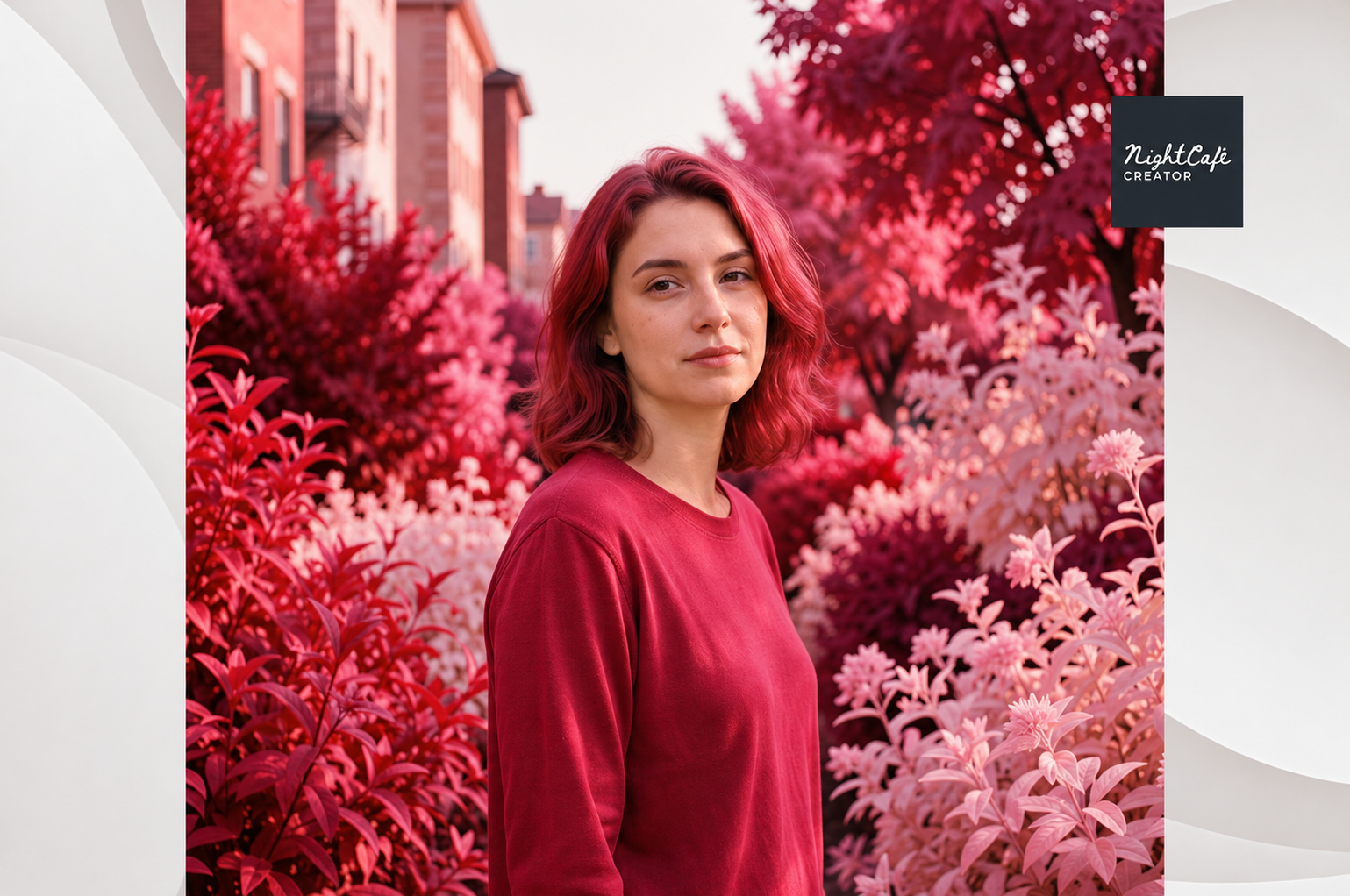
I decided to try NightCafe since I could experiment with several looks of the same photo. I tried prompts for the classic black-and-white infrared photography, unusual colors, and soft, dreamy landscapes in order to see how each style changes the original picture.
I also liked the possibility to choose between different AI models. This AI art generator allowed me to experiment with the same photo in different ways. However, the results depended on the model and prompt used.
I was interested in the Style Transfer option that allows using one photo as a reference for another. I wanted to try an infrared photo as a reference and see if NightCafe can add the same look to my landscapes. However, the generator stated that it will discontinue its older Style Transfer, Artistic, and Coherent models.
The next test included a photo of the lakeshore with reeds in the foreground and reflections on the water. I tried both soft, dreamy effects and high-contrast versions. Some results looked great, however, the reflections and even the shape of the shore were altered.
This infrared photo effect was best for experimenting with the styles, generating ideas, and comparing the visual results. The strongest advantage of this tool was the variety of the creative options, however, it was sometimes hard to preserve the details of the original picture.
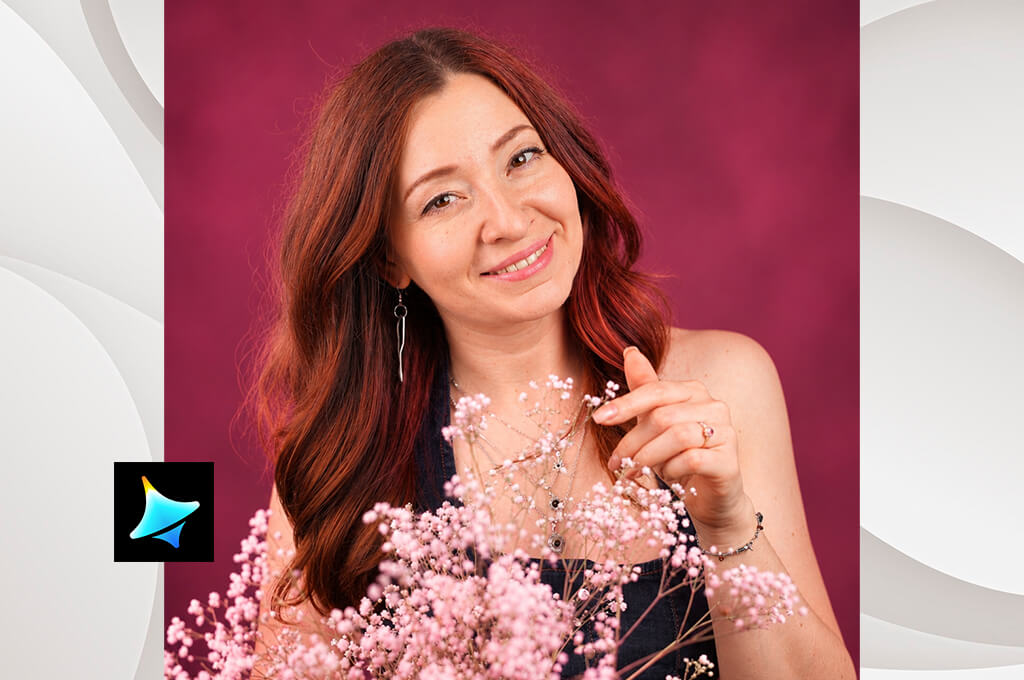
I liked Dreamina for the presence of an AI Infrared Photo Filter that allows adding the infrared effect to the existing photo. I took a photo of a summer meadow with wild flowers and requested to lighten the plants, darken the shadows, and make some color changes. The process was simple and it took me a little time to understand how it works.
I tried the prompt-based editing using various reference images and style settings in order to see what results can be obtained. Some versions turned out black-and-white, while others became colorful in unusual shades of pink and yellow.
The AI image generator also offers tools for creation and editing of images, including Seedream models that produce detailed results. Thus, I had more options to experiment with various styles, although I had to make sure that the edited images retained the main details of the originals.
“I like how quickly it can turn an ordinary photo into something colorful and dreamy. The colors can be a bit too saturated, so obtaining the right look sometimes requires several attempts.”
Next, I tried the AI infrared photo editor on a photo of coastal cliffs with white waves crashing against the dark rocks. I wanted to accentuate the contrast between the water, rocks, and sky without distorting the shape of the cliffs.
The more dramatic versions that I created with this tool looked quite impressive, however, some of them distorted the waves and some details of the rocks.

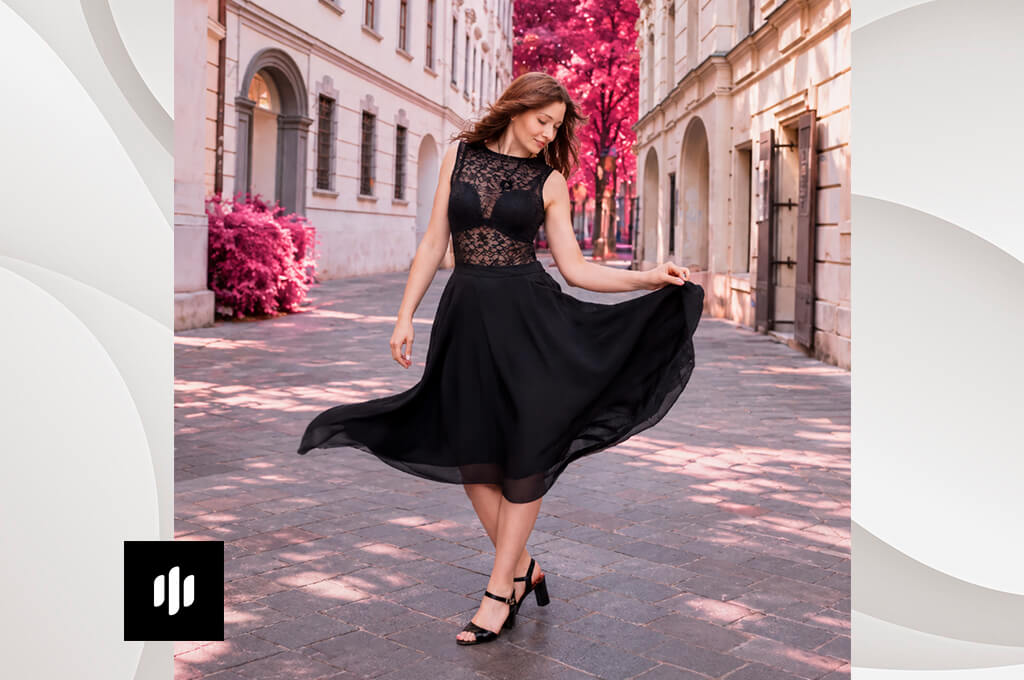
I liked Morphic AI infrared filter for the possibility to describe the effect I want in simple words instead of selecting from a long list of presets. For my first test, I chose a photo of the city park in the early autumn with green lawns, trees, and winding paths.
I asked for an infrared film effect with bright leaves, dark shadows, and a touch of magenta. That way, I had more flexibility to create the style that fits the magazine instead of using the typical infrared photography style.
Using the AI Filter, I could try various colors, textures, and moods while keeping the main object and original composition recognizable. Morphic also has different models and Workflows that allow applying the same effect to several photos easily.
Also, I tried Morphic on a photo of the old stone bridge surrounded by the trees. I wanted to highlight the bright and almost white leaves, while keeping the stonework and water reflections as they are. I got the effect I needed, however, some fine details near the bridge and stones were altered.
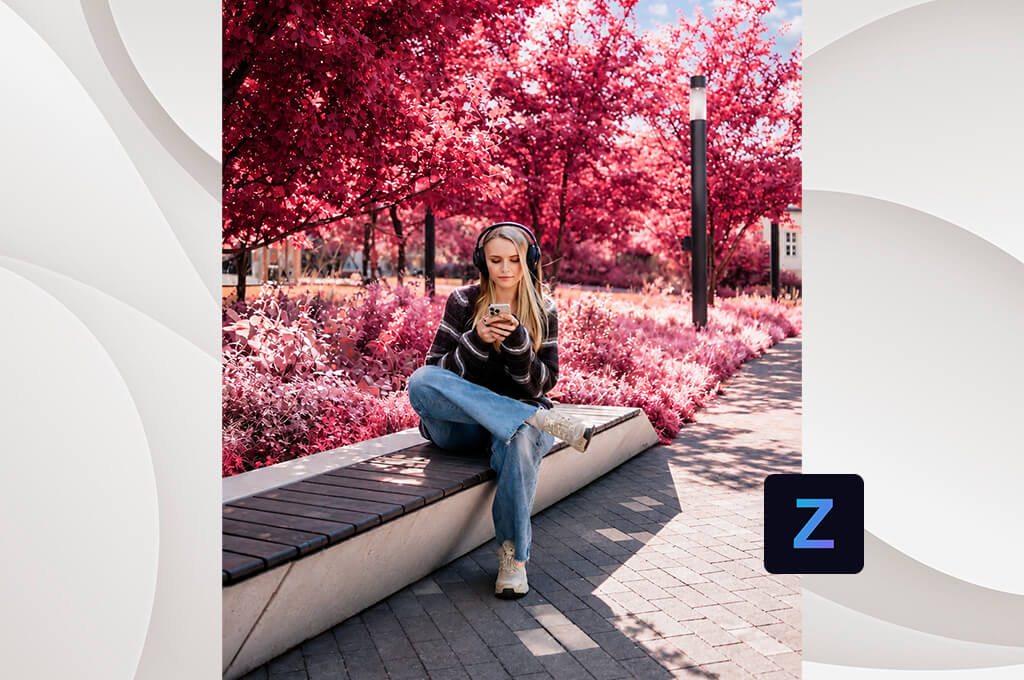
ZSky AI caught my eye since it focuses on the infrared photo effect online. I tried it on a photo of the mountain meadow with the intention to lighten the grasses, darken the sky, and apply unusual colors. I wanted to get an unusual look of the meadow without distorting the original landscape.
I tried two different infrared-inspired effects: black-and-white and false color. In order to get the right look, I provided descriptions of foliage, contrast, and photo texture. The results had quite different moods. The black-and-white version looked more dramatic, while the false-color version gave the meadow a soft and dreamy look.
“I had fun trying different infrared looks, and some of the results were quite interesting. It's great for experimentation, however, some details can look a little unnatural.”
Next, I tried ZSky AI infrared filter on a photo of a quiet country road with hedge and tall trees. I wanted to see how the effect will look in the scene with the combination of open sky and abundant greenery. I also looked at the different filters for landscape photography for comparison. The results looked good, however, I wanted to make sure that the original details are still there, especially for travel photos.
I wanted to try Media.io since it has an AI Infrared Photo Filter included in the application. I just had to upload a photo, provide descriptions, and try several versions instead of making all the changes manually. For my first test, I used a photo of a coastal landscape with the cloudy sky and a stretch of pale sand.
Both black-and-white and false color infrared effects were in my tests. As I intended to edit the photos I already have, I paid attention to the functioning of the filter app with the uploaded images.
As Media.io AI infrared photo converter works in a browser, I didn't need to install any other programs. Next, I tried a photo of the garden with green leaves, flowers, and a stone path. The filter changed the look of the photo quite drastically, especially the colors of the plants. Some versions looked great, however, I noticed that some details softened.
I decided to test VSCO IR filter series since it uses the photo presets instead of generative AI. For the testing, I used a photo of the forest clearing and several infrared-style presets. The IR1–IR7 VSCO Lightroom presets offer many ways to obtain the infrared look of the photos. IR3 is the black-and-white preset that makes green tones brighter and shadows darker, thus creating a contrast.
I could also adjust the preset's strength and fine-tune the colors using Contrast, Saturation, and HSL. My next photo was of the city garden with benches, flower beds, and trees. I kept the effect subtle in order not to lose the paths and other details.
I also used the same infrared photo filter preset for the second outdoor photo in order to test its consistency. VSCO is better for adjusting colors and obtaining the similar look of the photos than for editing the actual scenes.
“I like using it to get the moody, film-like look of the photos. The color presets are nice, however, obtaining the proper infrared effect still requires some manual work.”
Effect.app attracted my attention thanks to its Infrared Film effect. It's a good tool to make a false-color infrared photo filter online in just a few moves. I used the effect on a photo of the park near the lake with trees around and the path going to the shore. My goal was to add red, pink, and magenta tones to the leaves similar to those seen in Aerochrome infrared photos.
Without relying on AI, I edited the original photo to get the desired result. There are five Aerochrome-style LUTs provided by the effect: Classic, Pastel, Muted, Rust, and Deep. One can also adjust the intensity of the effect to achieve the desired look.
I used Classic for more vivid and colorful leaves and Pastel for softer effect. Besides, Effect.app allows you to see the changes on the go, save presets, and edit several photos at once.
I also tried this effect on a photo of the vineyard with rows of the vines going to the hills. The repetitive pattern helped me see the difference the LUTs make to the colors of the leaves and shadows. As Effect.app doesn't rely on the generative AI and uses LUTs, it changes the colors without creating or modifying any details of the scene.
What attracted my attention about Oakgen was not only its unusual effects but the fact that it provides more than just infrared ones. I wanted to try different image models and see how useful they may be to find the appropriate look for the magazine. First, I described the effect I was looking for: pale leaves, dark skies, and natural infrared film colors.
Oakgen has a wide range of tools for AI images creation, making videos, editing and upscaling. The platform works with credits and the features available depend on your plan. I didn't find the specific AI infrared filter in Oakgen and regarded it rather as a general creative tool than the specialized one for infrared photos editing.
“The infrared-style effects gave me some interesting ideas, but the results weren't always consistent. I also wished there were more options to adjust the colors.”
In another test, I used a photo of the rural area with a small farmhouse in the distance. I compared the edited photo with the original one to see if the horizon, the fields, and the farmhouse remained the same.
Some versions of the edited photo gave it a new look, but in some cases, the landscape was modified rather than just changed the color palette. It demonstrated that the creation of the new image is quite a different task than the editing of the existing photo.
At FixThePhoto team, we tested all the tools on the same landscape photos and compared the results. Vadym, Eva, and Nataly took part in the testing. Our goal was to find the generators capable of creating a convincing infrared effect without changing the distinctive details of the photos.
First, we used four different kinds of the photos: a forest path with green trees around, mountainous landscape with the cloudy sky, rocky shore with the waves and crashing waves, and a garden with many trees and flowers.
“Media.io and Dreamina were my go-to choices for adding quick infrared effects to landscape photos.”
These photos allowed us to test the effects on a different variety: turning green leaves white or pink, darkening the sky without losing the details of the clouds, black-and-white and false colors similar to infrared film photography.
During testing, we looked at how realistic the effects are, what details preservation, color adjustment possibilities, user-friendliness, and the quality of the final image. Also, we checked if the tools follow the prompts, keep the original composition, and preserve the small details such as branches, flowers, shorelines, and other elements.
“Firefly and Morphic gave me more options to play with, while VSCO and Effect.app made it easier to keep colors consistent across multiple images.”
We also analyzed how much control the AI infrared photo converters provide. Some AI editors change the uploaded photo in order to create a new look, while the preset-based tools apply the same color treatment consistently. It helped us understand which approach works better in what case.
“NightCafe was also worth trying, although some of its results strayed too far from the original photo.”
Also, we considered the compatibility of the results with a real-life editorial project. The dramatic effect alone wasn't enough. The image should look balanced, have recognizable details, and provide good export quality.
After the testing of each tool, we had a clearer understanding which of them was the quickest for infrared effects, which provides more space for experimenting, and which is the most suitable for the editing of several photos in the same style.
“Media.io was one of my favorites overall because it gave my landscapes an infrared look with very little effort.”