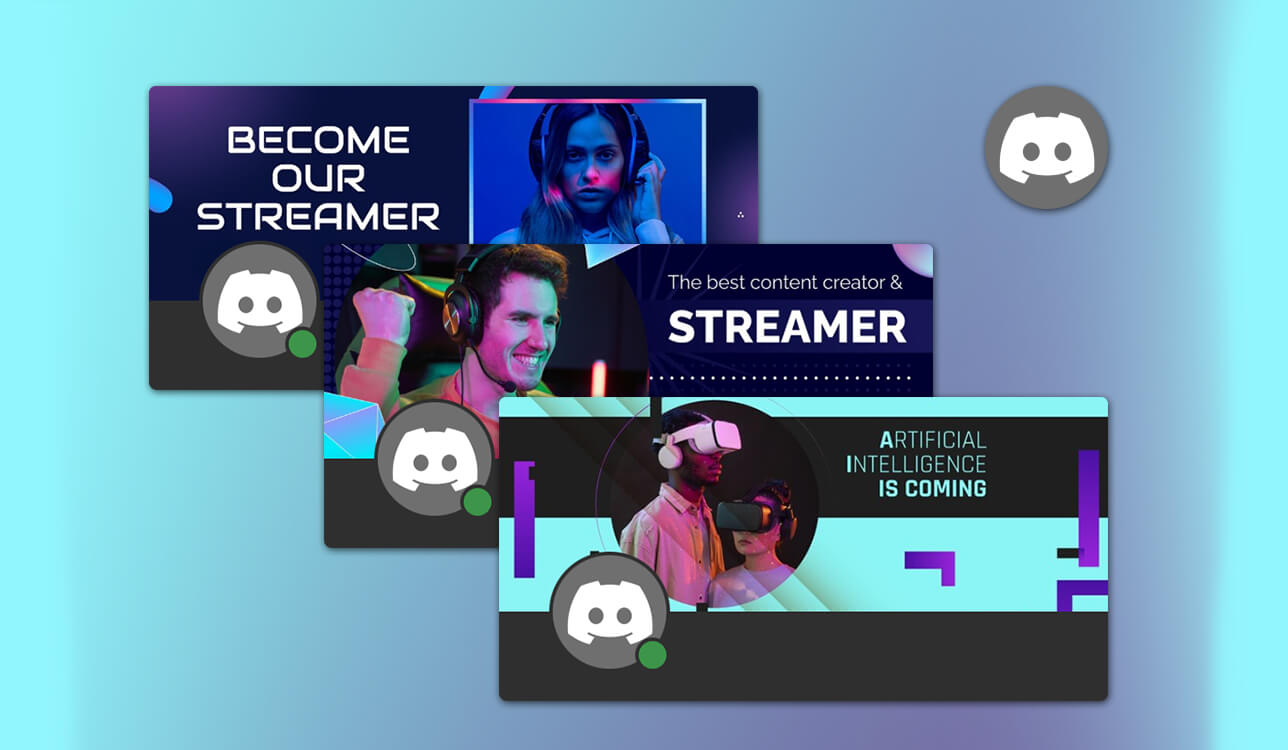
Discord banner makers have gradually been added to my toolset. I’m responsible for managing the content on our Discord server, regularly producing new visuals for our community. I make images for promoting retouching tips, service updates, short-term discounts, etc. A tidy, branded banner sets the desired tone, ensuring the initial visual impression is impactful and recognizable.
Since I’m the sole Discord manager, I can’t afford to waste time. Whenever I need to make a new banner or promotional image, I don’t want to use something as complex as Photoshop or Illustrator to do it. That’s why I focused on trying out more lightweight solutions with contemporary templates and in-depth customization.
My team and I spent a lot of time in the last couple of months testing 20+ Discord banner makers that were suggested on Reddit, YouTube, and creator forums. This article is a summarized breakdown of that experience. When looking for the perfect Discord server banner maker, I prioritized:
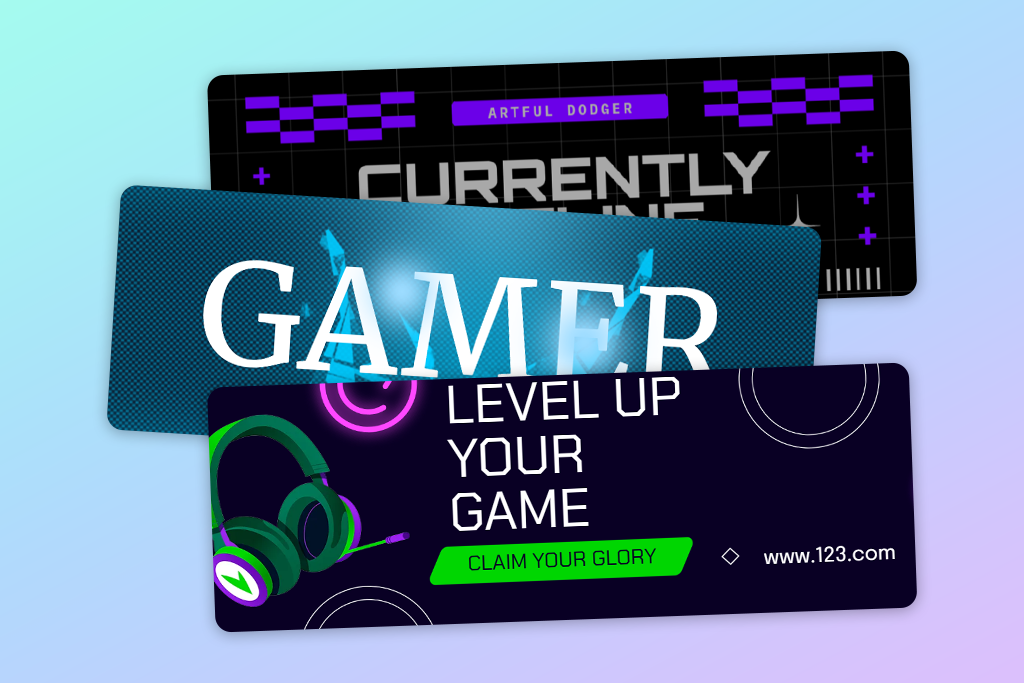
As an experienced FixThePhoto Discord server manager, I know that a banner is more than a fancy image. It’s among the first visuals a user sees, before they start paying attention to the specific channels, rules, or pinned posts.
It helps set the mood and convey the main idea behind the server. Is it active or forgotten? Is it professional, artistic, or casual? Is it helpful or spammy? Proper visuals help answer all those questions.
When trying out various banner styles for our Discord (seasonal sales, promotional banners, more minimalistic announcements), the differences in engagement rates were immediately apparent.
Posts related to updated banners received a bigger number of reactions, new users were more active, and people spent more time exploring different channels instead of instantly clicking away. This is why I use banners as a useful tool, not a useless decoration. A well-designed banner can help you in various ways:
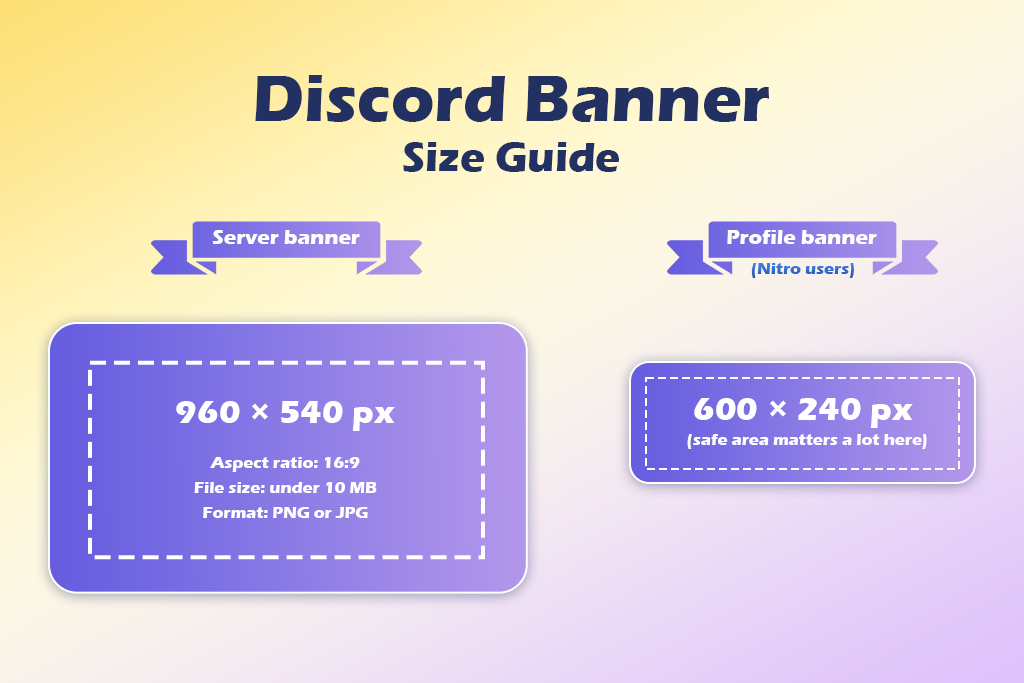
A typical mistake many people make (including me at the start) is not following the specific standard banner sizes recommended by Discord. Failure to do so results in aggressive cropping and ruined designs. Stick to these dimensions:
Server banner:
Profile banner (Nitro users):
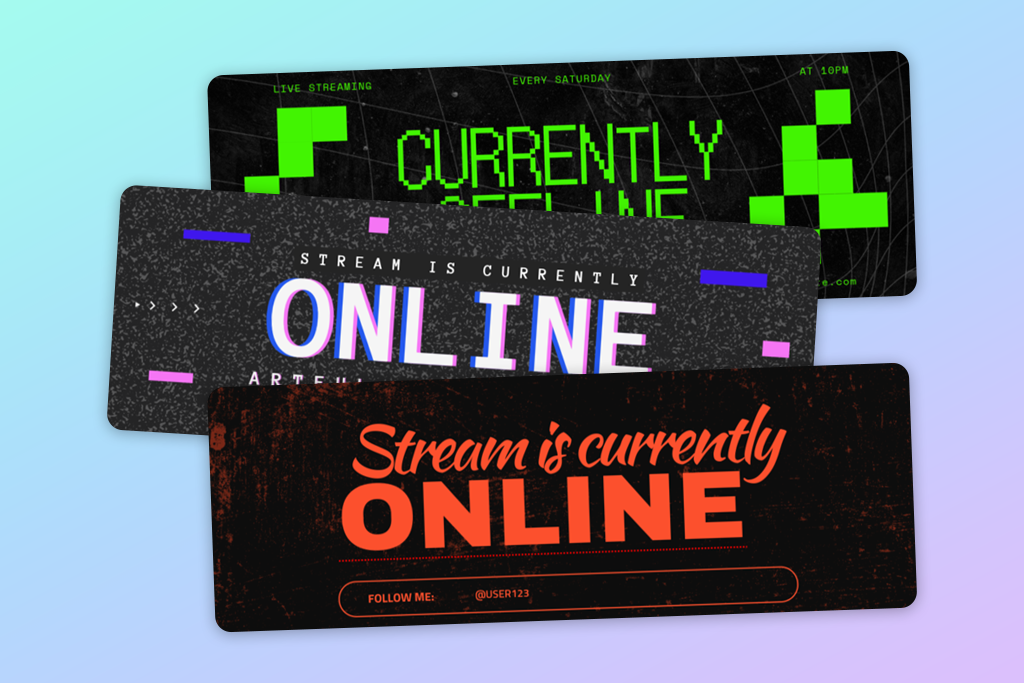
A banner can look aesthetically pleasing and still be ineffective. Its usefulness grows from balance.
Best for: branded Discord servers
Ease of use: 5/5
Discord banner templates: 100+
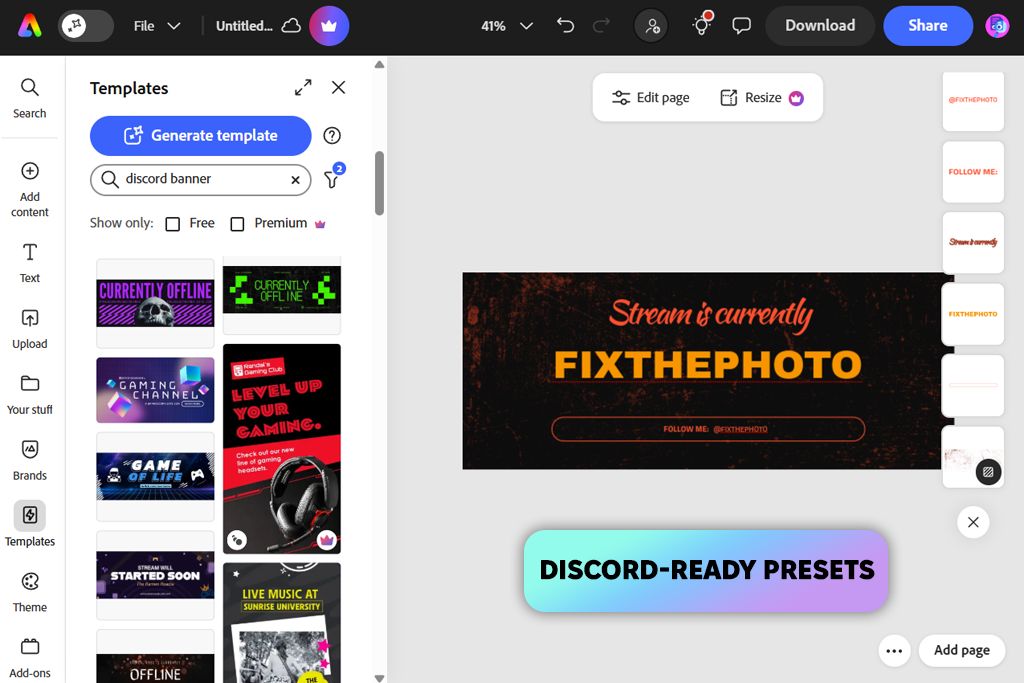
Adobe Express was recommended to me by my FixThePhoto coworkers. Several of them have been relying on it for making social media content, so they ended up saying that I should create a banner for Discord using Express, and they were spot on.
Adobe Express came across as purpose-built rather than generic. What immediately stood out is how well the templates are optimized for actual Discord use.
They aren’t lazily resized social banners, but rather specifically crafted to meet Discord’s server and profile recommended proportions, so I didn’t need to worry about cropping problems. The templates look polished, trendy, and eye-catching, which is essential if you’re targeting creatives as your main audience.
I used Adobe Express to make multiple server banners: one for a wedding photo retouching promo, another for a live Q&A session. Customization felt satisfying – enough options to recreate FixThePhoto branding, but not so overwhelming that it would cause frustration.
“I appreciated how convenient it was to tweak the font hierarchy and spacing without having to manually adjust all the elements.”

The AI tools can be extremely useful. I employed background removal to conveniently isolate different elements, while the text suggestions allowed me to enhance my banner headlines when I was in a hurry. The AI functionality ensured the design process was a lot more streamlined compared to most other solutions.
What sets Adobe Express apart is how professional it is. The final banner looks sharp, polished, and consistently visually appearing across all popular screen sizes. It allows you to easily receive beautiful designs that don’t look “template-made.”
Downsides? The free plan is rather limited, as many of the best-looking templates are hidden behind a paywall. However, if your needs are limited to making Discord banners, you don’t have to subscribe unless you’re interested in branding kits and premium visuals.
My tip: Begin by choosing a Discord-optimized preset, then streamline it. Express provides the best results when you allow the banner to breathe.
Pricing: Adobe Express free plan; $9.99/month
Best for: fast, varied Discord banners
Ease of use: 5/5
Discord banner templates: 1000+
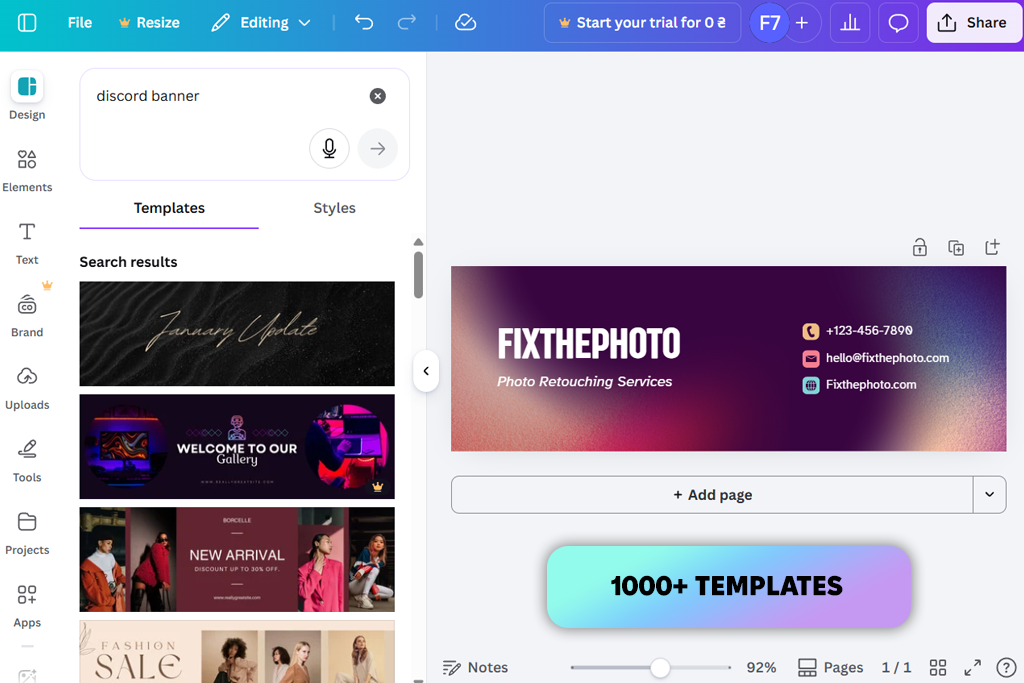
I found Canva when going through different Reddit threads dedicated to different banner makers for Discord. It was one of the most frequently brought up solutions, so I wanted to try it myself.
Canva has an incredible ecosystem, ensuring you have thousands of assets to choose from when making your Discord banner. It offers presets for announcements, community branding, seasonal sales, and even fun meme-like designs. If you like trying out different things and approaches, Canva is perfect for the job.
I particularly enjoyed how versatile Canva is. I would begin by picking a suitable server banner template before drastically transforming it by changing the layout, combining different elements, changing the typography, and even including parts of my previous designs.
“The drag-and-drop controls are pleasantly convenient, ensuring beginners can enjoy the flexibility of Canva without possessing advanced graphic design skills.”

Additionally, I used Canva’s AI tools like Magic Design and the background remover. Magic Design allowed me to quickly generate different concepts, while background deletion made it easier for me to prepare photos for various profile banner size layouts.
What sets Canva apart from Adobe Express is scale. It’s not a basic Discord PFP maker and server banner maker, but rather a versatile design platform, which is both its strength and drawback. Sometimes it requires you to manually double-check sizes to avoid cropping, particularly when designing Discord profile banners.
The banner quality is pleasantly high, even if it doesn’t feel as polished compared to what you get in Adobe Express. However, it still deserves to be included among the best Discord banner makers due to its speed, flexibility, and free functionality.
My advice: Employ Canva folders for storing reusable Discord layouts – it will streamline the process of repeating banners in the future.
Pricing: Free (asset limits); From $12.99/month
Best for: animated Discord banners
Ease of use: 4/5
Discord banner templates: 60+
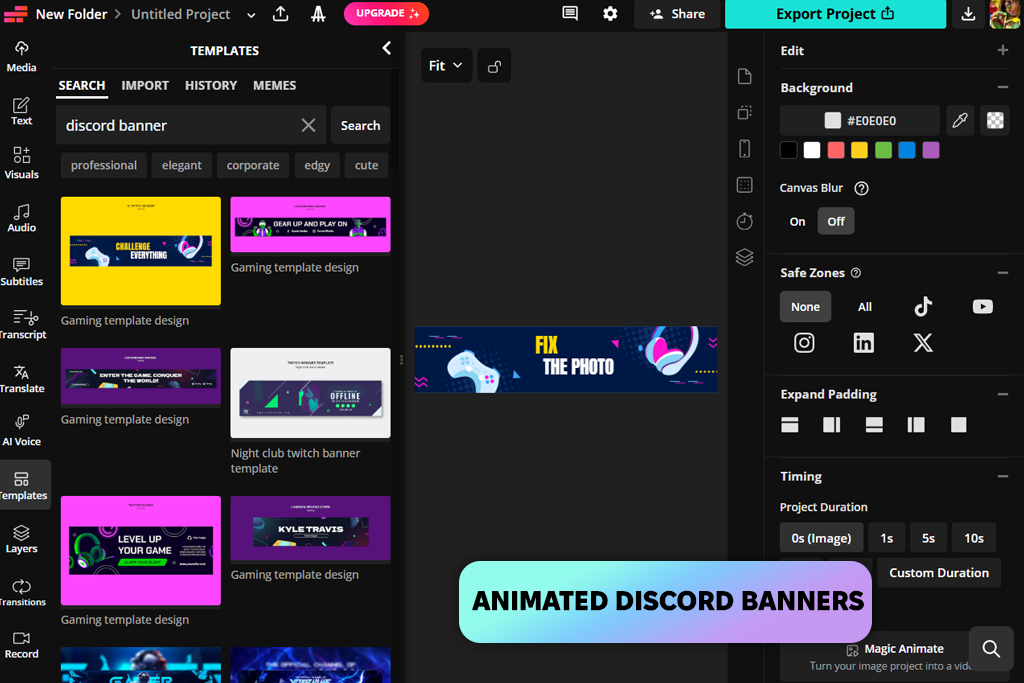
Kapwing was mentioned by several members of our Discord server when they were talking about more dynamic solutions. For a platform like Discord, motion and striking typography can often help you get more engagement compared to minimalist designs, particularly when it comes to announcements and events.
In terms of banner creation, Kapwing resembles a creator studio more than a regular design tool. It provides presets with Discord-ready profile banner sizes, but its biggest benefit is how it excels at tackling animated visuals.
When I used it, I made several banners for live Q&A sessions and limited-time promotions. By introducing a bit of motion to text or background gradients, I ensured they instantly looked more eye-catching.
Template-wise, Kapwing prioritizes quality over quantity. The presets look trendy, intentional, and relevant for the modern YouTube and streaming zeitgeist. It allows you to customize everything: layers, fonts, timing, and transparency without swamping you with dozens of menus and tools.
“Its AI features, like auto-subtitles and text resizing, easily optimize headline text to ensure it remains readable within Discord’s banner size limits. It helps save time on making manual edits.”

The output quality is very impressive – sharp typography, clean exports, no aggressive compression. Weaknesses? The free version applies a watermark, and people who are only interested in making static banners will find the abundance of video tools to be pointless. However, if motion is important, Kapwing deserves your attention.
My tip: Add animations mindfully – a single moving element can already attract attention, while an overdesigned banner can force you to employ a Discord video compressor to ensure the file fits within the allowed size limits.
Pricing: Free (watermark); From $16/month

Best for: fast AI-made banners
Ease of use: 4.5/5
Discord banner templates: 40+
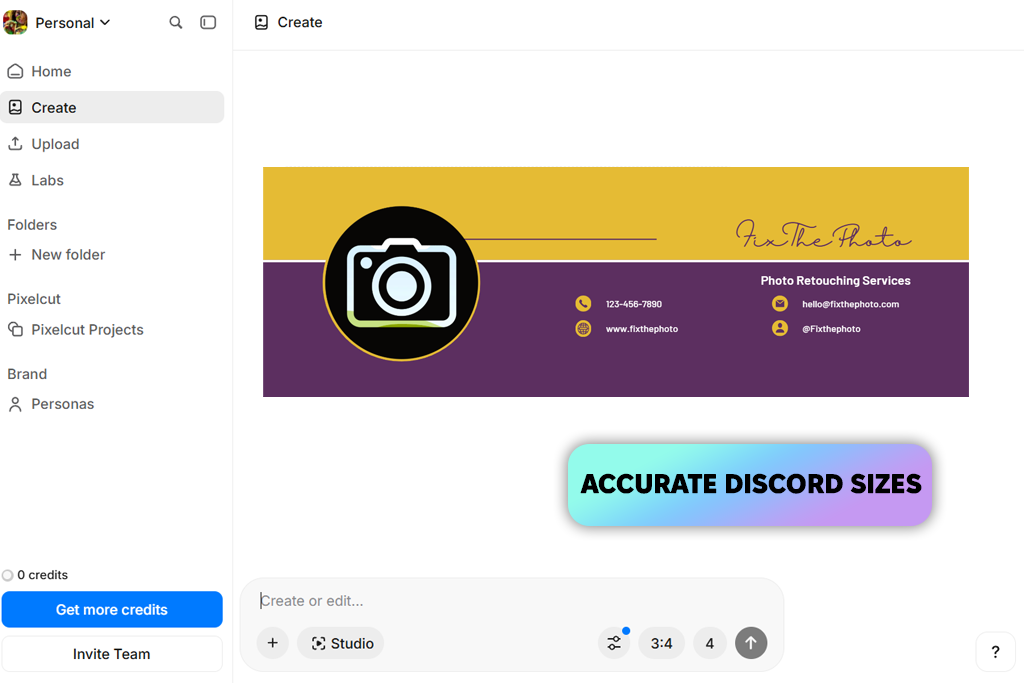
Pixelcut was recommended to me on YouTube by people who are interested in a banner maker for Discord that is all about automation. After using it, I’ve concluded that it’s the most AI-oriented solution from the ones I tried.
During my test, I began by importing raw images – portraits, product photos, even busy backgrounds – to check how the AI would handle them. The background removal provided terrific results and feels quicker and cleaner compared to most alternatives. For Discord banners, that is very important since proper subject isolation can make a design look instantly more appealing.
“Templates aren’t as varied as they are in Canva, but they look trendy and perfectly suited for Discord.”

Pixelcut doesn’t make you learn dozens of tools the moment you open it. Instead, it provides precise size presets for Discord server banners, while helping you create your design without any issues.
What makes Pixelcut stand out is how intuitive it is. I employed AI layout suggestions to rearrange elements automatically, which is ideal if you just want to create an effective design in a simple Discord and Facebook banner maker without worrying about alignment or spacing.
The output banner quality is crisp and Discord-ready, even if Pixelcut isn’t as customizable as Adobe Express or Canva. That’s the compromise you make to enjoy superior speed.
Is it worth the money? If you just want to make one or two banners, the free plan is sufficient. A subscription is recommended if you frequently employ AI tools and are interested in batch creation.
My tip: Pick Pixelcut when you have high-quality source images but no time to process them properly.
Pricing: Free (export limits); From $9.99/month
Best for: clean server banners
Ease of use: 5/5
Discord banner templates: 30+
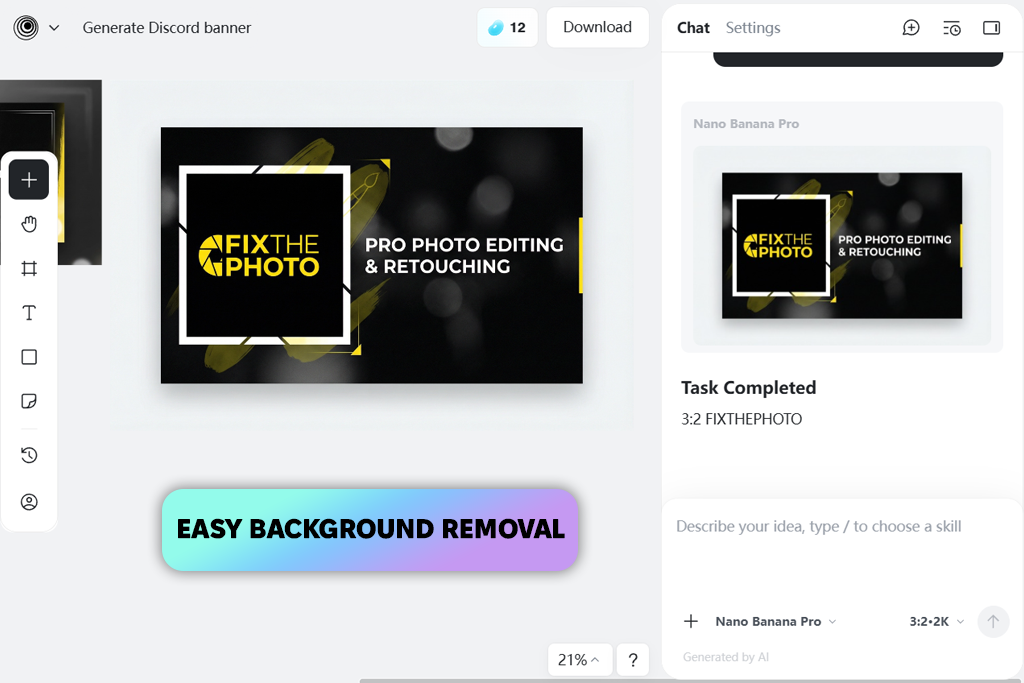
I ran into Insmind on Reddit when trying to find a more lightweight Discord server banner maker. Users praised it as “basic but smart,” which resonated with my needs at the time.
As a Discord and Twitter banner maker, Insmind doesn’t overwhelm you with hundreds of tools. Instead, it prioritizes doing a couple of tasks on a high level. During my test, I made multiple polished server banners for FixThePhoto, including service announcements and minimalist, brand-focused visuals without any flashy effects.
The templates feel trendy and minimalistic, relying on neutral layouts that don’t distract from the message. Customization is basic: fonts, colors, spacing, and images can be conveniently fine-tuned without messing around with complex menus.
“Insmind comes with AI-powered background removal, which helped me clean up images before adding them to banners with speed and efficiency.”

Discord profile banner sizes are handled properly, meaning I didn’t have to adjust my designs manually for cropping. The exported banners look tidy, readable, and refined, while being a particularly great fit for informational servers. Drawbacks? The selection of templates is very small, and you don’t have as many customization options as you do in Canva. However, for a dependable, streamlined solution, Insmind is exactly what you expect.
Tip: Choose Insmind if you need a clean Discord banner that doesn’t try to steal attention from your main content.
Pricing: Free (export limits); From $8.99/month
Best for: business Discord servers
Ease of use: 4/5
Discord banner templates: 50+
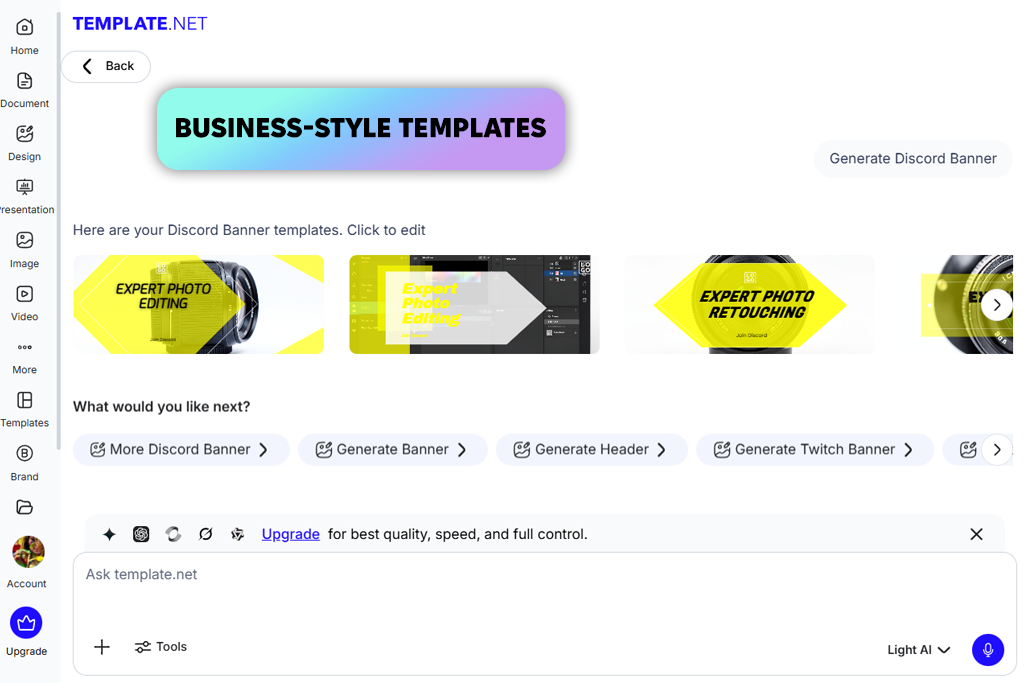
I found Template NET on a forum that primarily included business users instead of creatives. The nature of the community made it clear what kind of Discord banner maker this is.
Template NET offers a very convenient structure, while having a separate section titled Discord banner templates with correct sizes, which makes using it extremely easy. It helped me make banners for service updates and pricing announcements, scenarios that value clarity over creativity.
The templates included in this Discord and Instagram banner maker are mostly in corporate and informational styles. They aren’t eye-catching, but they’re refined, readable, and dependable. In terms of customization, you can adjust the text, colors, logos, and images.
“I used Template.net’s AI generator, which produces layouts based on simple prompts. It’s not awe-inspiring, but it’s useful when you need to quickly prepare a foundation for your design.”

The export quality is pleasantly high. The recommended Discord server banner sizes are applied accurately, so your creations will look properly aligned across all popular devices. The drawback is the lack of creative freedom. Template.net isn’t suitable for making expressive or community-driven visuals, and a large number of its assets require a paid subscription.
Advice: Perfect for professional servers, less optimal for more fun-oriented Discord communities.
Pricing: Free (locked downloads); From $10/month
Best for: Discord profile banners
Ease of use: 4.5/5
Discord banner templates: AI-generated
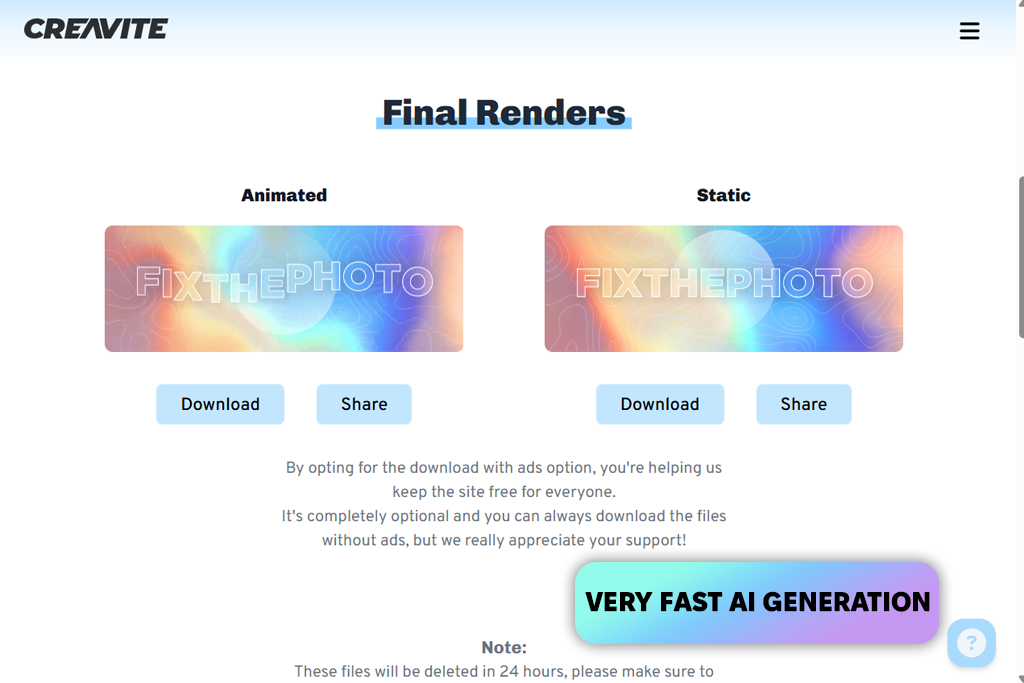
Creavite was brought to my attention by a coworker as a Discord and Twitch banner maker that produces AI-generated visuals. It doesn’t resemble the other options on this list, and that's why it was included.
This platform is closer to an automated design engine than a traditional software that lets you create a banner for Discord. When working on a project, I chose a size recommended by Discord, picked a style I like, and typed in my preferences, while letting the AI generate several banner variations automatically.
“Rather than fine-tuning the detail yourself, you need to pick a variation that matches your vision the best. If your goal is experimental visuals, Creavite is a great platform to use.”

Templates look trendy and abstract – gradients, textures, and striking compositions. Customization is non-existent compared to Canva or Adobe Express, but that’s by design. The export quality is sharp, and the output has an “AI-designed” feel to it, which can be a pro or a con depending on your point of view.
The lack of manual control can be a huge issue for some. If you value precise branding or strict typography rules, this isn’t the tool for you. However, when it comes to receiving polished, eye-catching results quickly, Creavite is perfect.
Tip: Employ Creavite for making profile banners or visualizing different ideas, not generating assets that need to be personalized to match your branding perfectly.
Pricing: Free (limited exports); From $12/month
Trying out all the different Discord banner makers wasn’t a task I finished in a single day. It was a laborious, multi-week process that also involved several other members from the FixThePhoto team. As we have our own Discord server, this test had a practical application for us too.
I began by preparing a selection of over 20 tools that were recommended on Reddit, YouTube, our Discord server, and specialized forums. I browsed past sponsored articles and focused on the platforms discussed by actual people.
Next, I narrowed that list down to only include options that have specialized presets for Discord or make it easy to set the necessary sizes without a lot of effort.
Not all platforms passed the tests. Some popular solutions like Fotor, VistaCreate, Snappa, Placeit, and Pixlr didn’t make the cut. Some suffered from dated templates, while others couldn’t get the recommended Discord banner size right. There were also tools that had overly aggressive monetization.
I tried each tool myself while also getting at least one colleague involved in the review process. We designed multiple actual banners: promotional server headers, clean informational banners, and Discord profile banners. I focused on how convenient it was to create banners for Discord when trying to meet a deadline, not in ideal, stress-free conditions.
We applied identical testing criteria that we use for all FixThePhoto trials:
Setup and onboarding. I evaluated how quickly I could begin working on the banner. Account creation, mandatory tutorials, or overwhelming dashboards lowered the rating of the tool.
Templates and design relevance. My coworkers and I discussed how contemporary the templates looked. Trendy layouts, readable fonts, and clean spacing are more important than the number of presets.
Customization and flexibility. I checked the available level of customization: fonts, colors, spacing, imagery. Solutions that felt either over-restricted or overwhelming got lower scores.
Sizing and export accuracy. Discord cropping can be brutal. I tested how each solution handles Discord profile banner sizes to ensure my creations remained consistent across devices.
Speed and workflow fit. We measured how much time is required to go from concept to final result. Platforms that required too many steps or demanded countless re-exports didn’t pass the test.
Free vs paid value. I don’t mind spending money when it's worth it, but for basic Discord banners, free features matter. If a platform locked essential tools behind a paywall, it got a lower rating.
The final list primarily includes time-saving solutions capable of producing clean banners while allowing the user to meet tight deadlines.
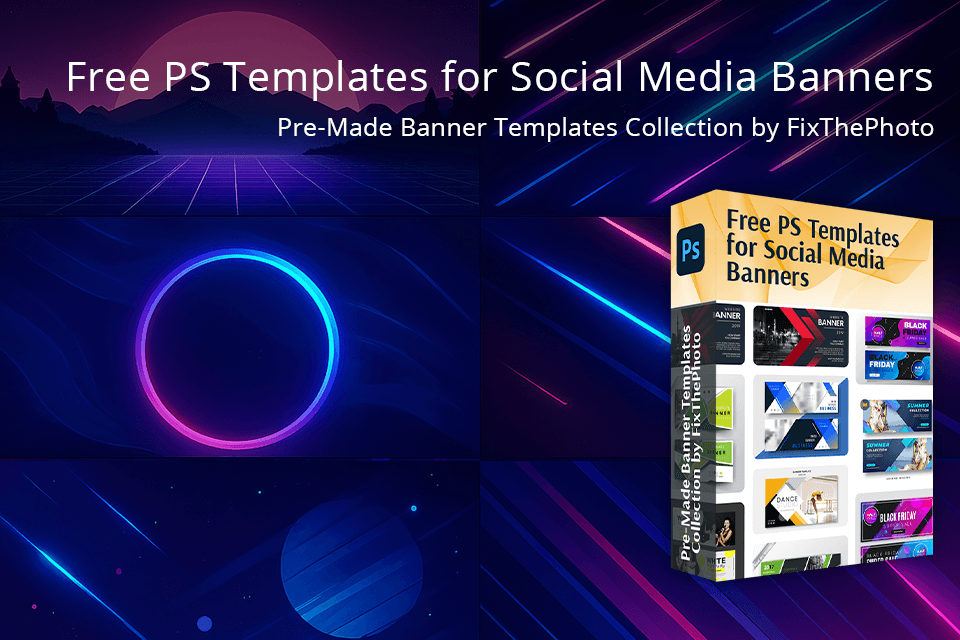
If your work or hobby involves frequent creation of Discord banners and social media content, these tools are great. This FixThePhoto bundle includes a selection of free, professional Photoshop banner templates optimized for popular platforms like Discord, Instagram, Facebook, Twitch, LinkedIn, and several others.
These presets are perfect for a variety of real-world scenarios, offering clean compositions, balanced typography, and safe text areas that are adapted to different banner sizes. I employ them as a foundation whenever I want something more personalized than what a regular Discord banner maker can offer, but don’t want to create a design from scratch.
They’re fully customizable, are supported by all recent Photoshop versions, and are flexible enough to be used for digital-only and cross-platform campaigns alike.
In most situations, the recommended Discord server banner dimensions are 960 × 540 px with a 16:9 aspect ratio. They ensure you don’t suffer from cropping problems and the text remains readable on different types of screens. Remember to stay within the safe zones when adding text.
Yes, a server needs to have Boost Level 2 to feature a banner.
A server banner is a depiction of the server’s brand or community and is shown at the top of the server. Meanwhile, a profile banner is related to a specific user and is shown on their profile. Profile banners also demand Discord Nitro and have different dimensions, so you can’t use the same size presets for both.
Definitely. Solutions like Adobe Express or Canva allow you to make Discord banners within minutes without having to use any complex tools.
In most cases, yes. Free plans tend to cover basic templates, correct sizes, and regular exports. Paid plans are only needed if you’re interested in premium templates, branding kits, or more robust AI functionality.
Personally, I prefer to update our banner every 1-2 months or during big events. Updated visuals let your audience know that your Discord is active and help increase engagement.
Clarity is more important than decoration. A high-quality banner conveys a single clear message, has readable text, strong contrast, and visuals that reflect the server’s purpose. If someone can figure out what your server is about within a couple of seconds, you have a good banner.




![Fish Eye Filter Online [FREE]](http://fixthephoto.com/blog/images/gallery/news_main__preview_28873.png)


![11 Best AI Brochure Makers [Free Tools]](http://fixthephoto.com/blog/images/gallery/news_main__preview_28906.jpg)
![Add Skeleton Filter on Photo Online [FREE]](http://fixthephoto.com/blog/images/gallery/news_main__preview_28921.jpg)

![7 Adobe Capture Alternatives [Free for iOS & Android]](http://fixthephoto.com/blog/images/gallery/news_main__preview_28909.jpg)

















