As a photo editor, I use Photoshop daily. I’ve learned that many problems, like strange errors, sudden crashes, or slowdowns, happen because the settings get corrupted. That’s why resetting Photoshop preferences is such an important (and often overlooked) skill every user should know.
Resetting Photoshop preferences might seem intimidating, but it can turn a slow, glitchy program into one that runs like new. If you've ever struggled with Photoshop lagging, you understand how frustrating it can be, and why this simple fix is so helpful.
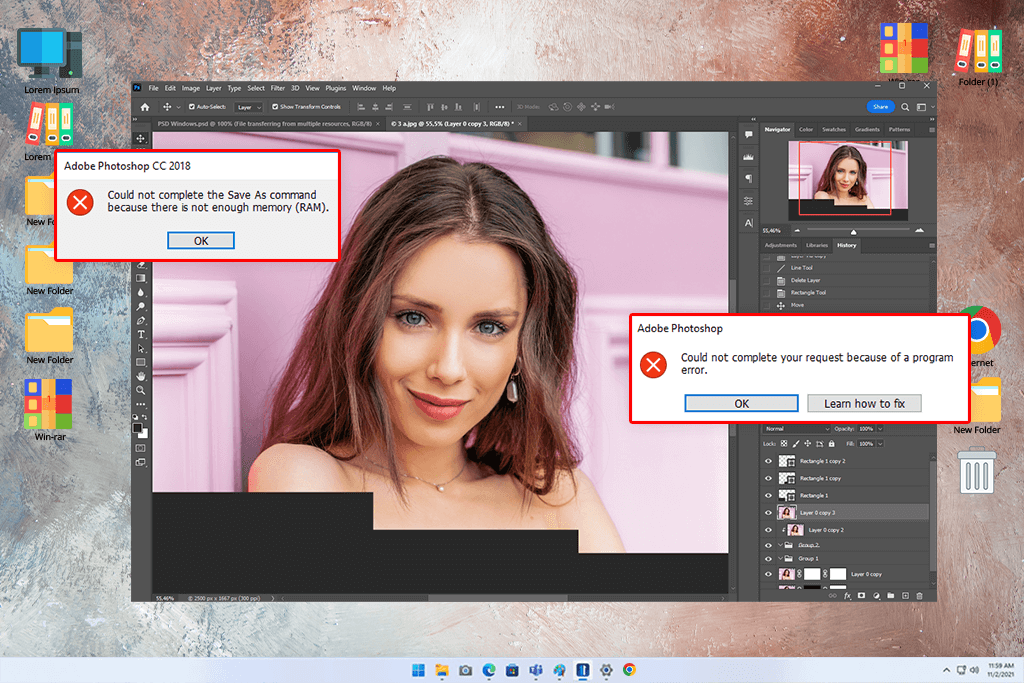
Photoshop is a big, complicated program. As you use it, it saves lots of your personal settings like tool adjustments, workspace setups, performance changes, and keyboard shortcuts. But sometimes these files get damaged, especially after updates or crashes.
Here are common issues that resetting preferences can solve:
If you've tried all other fixes like updating plugins, adjusting scratch disks, or cleaning up your computer, but Photoshop still acts up, resetting preferences could be your final (and best) solution.
Here's what gets reset:
Don't worry though, things like installed Photoshop brushes, plugins, and actions stay safe because they're stored differently. But to be extra careful, it's good to make backups of these, too.
To save your custom settings and avoid starting from scratch, I always suggest backing up your preferences first. Here's my simple method:
Step 1. Find your preferences folder:
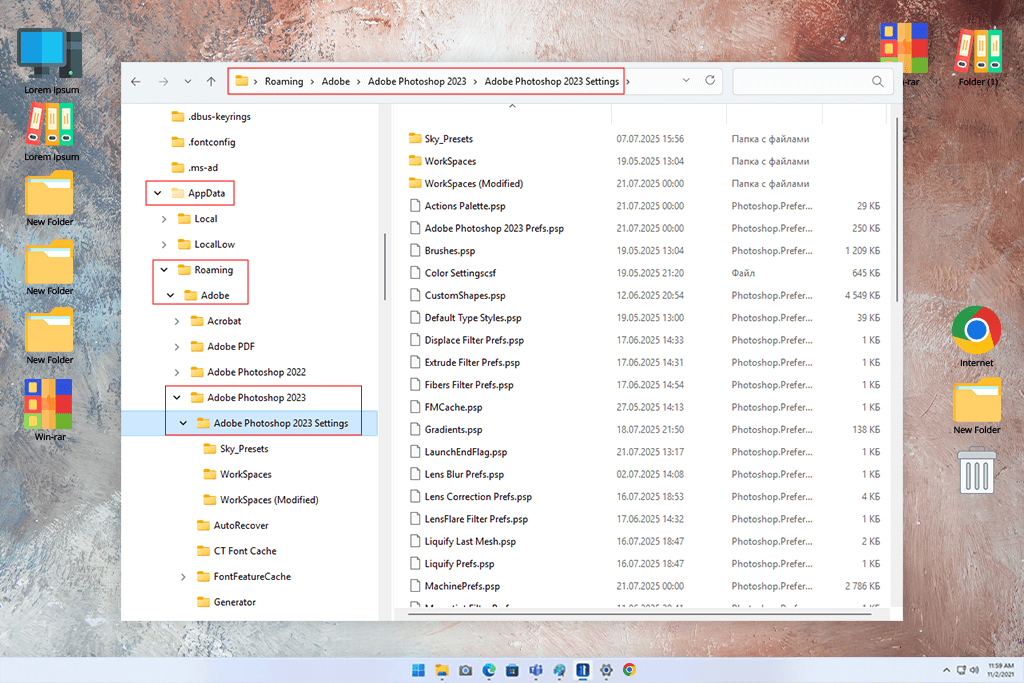
On Windows: C:\Users\[Your Username]\AppData\Roaming\Adobe\Adobe Photoshop [version]\Adobe Photoshop [version] Settings\
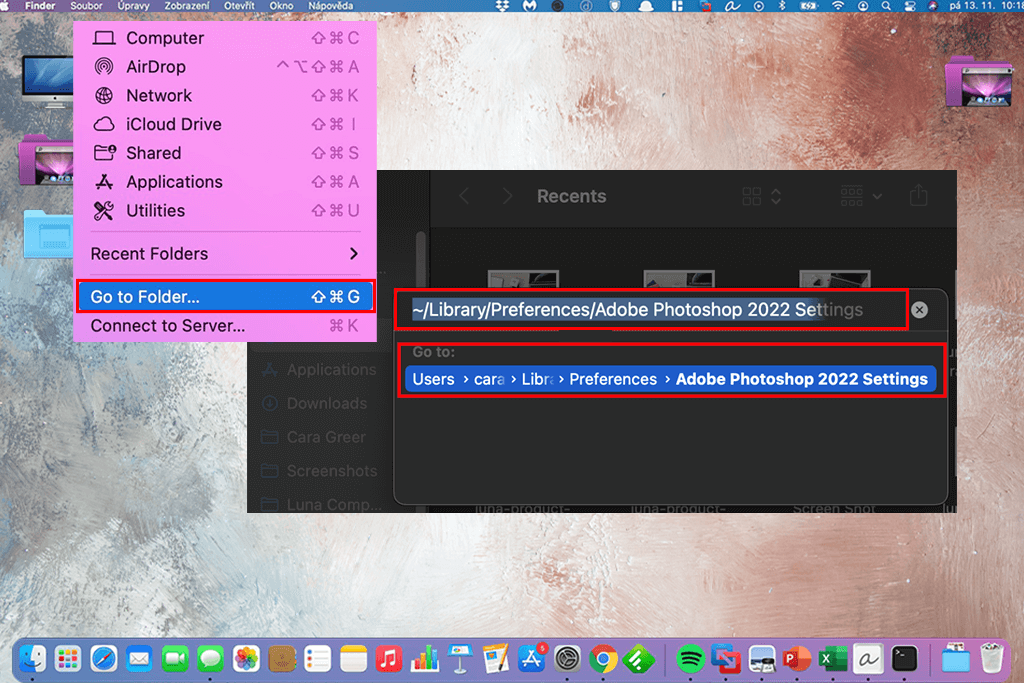
On Mac: /Users/[Your Username]/Library/Preferences/Adobe Photoshop [version] Settings/
Step 2. Simply copy the whole preferences folder to an external drive or another spot on your computer. For extra organization, you can right-click and compress it into a ZIP file.
After resetting, you can selectively restore files from your backup when needed, like your Photoshop keyboard shortcuts or particular tool presets.
If you've created custom actions to work faster, you'll want to protect them. There's nothing worse than losing a setup you've carefully built over time.
Through my experience as a photo retoucher, I've discovered several effective methods to reset Photoshop preferences. Each approach works best for different situations and technical issues. Here's a detailed, step-by-step guide to all your options.
Here's my favorite quick Photoshop tip when it acts strangely - like when shortcuts stop working or brushes paint weird shapes. It's easy, works fast, and gives Photoshop a fresh start - just like a morning coffee boost! Here's how:
Step 1. Quit Photoshop completely. Make sure it’s fully closed (check in Task Manager on Windows or Force Quit on Mac if you're unsure).
Step 2. As you restart Photoshop, hold these keys immediately:
Windows: Ctrl + Alt + Shift
Mac: Command + Option + Shift
Step 3. When the confirmation pop-up appears asking to delete settings, click "Yes" (but only if you've already backed up your custom preferences).
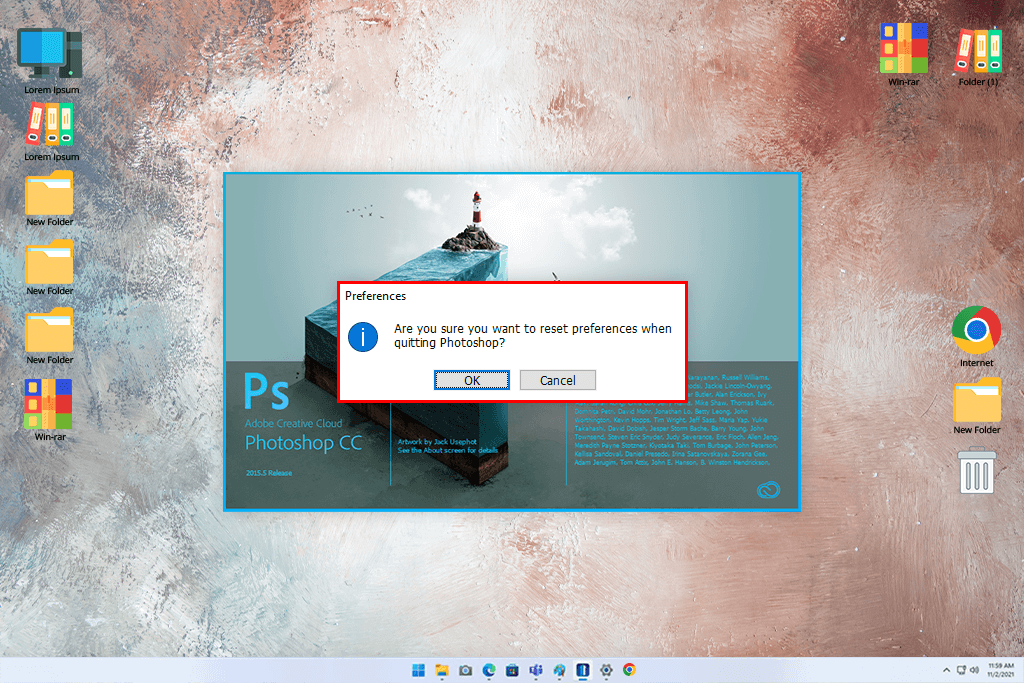
Photoshop will restart with factory default settings - just like when you first installed it.
I've used this trick countless times - especially when setting up laptops for new retouchers joining our FixThePhoto team. The best part is that it works on nearly all Photoshop versions, from older CS6 installations to the newest CC updates.
Step 1. Launch Photoshop as usual.
Step 2. Open Edit > Preferences > General.
Step 3. At the lower edge, find and click Reset Preferences on Quit.
Step 4. Exit Photoshop completely, then reopen it.
When you restart Photoshop, it will open with fresh, factory-default settings.
I find this menu method safer and more beginner-friendly, especially for those worried about losing important elements like custom brushes or imported free Photoshop plugins they might have forgotten to back up.
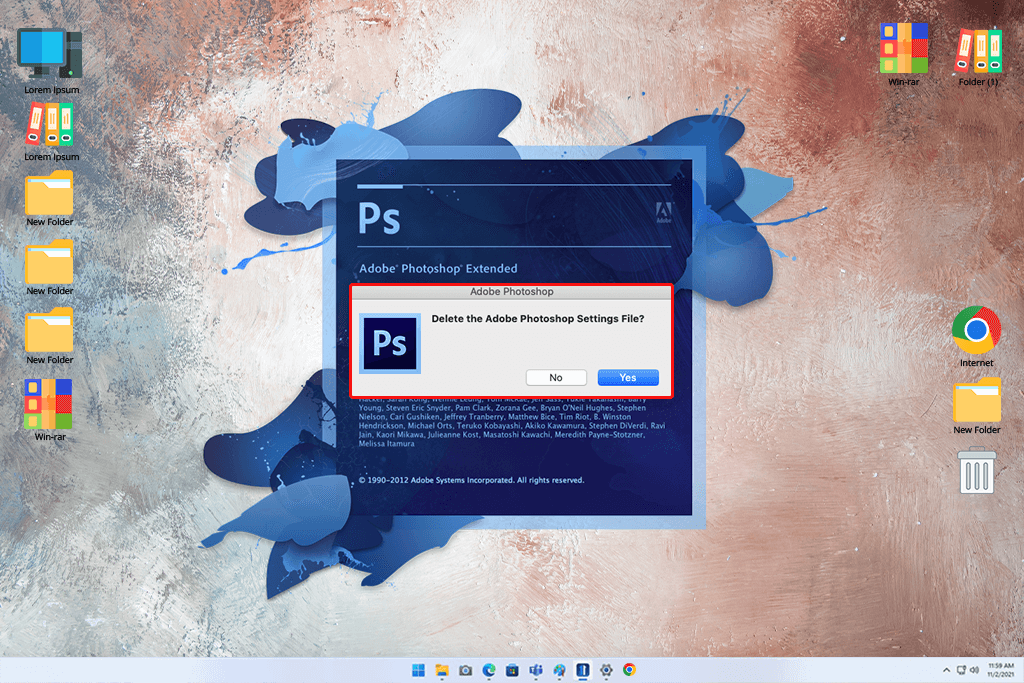
Step 1. Launch Photoshop.
Step 2. Go to Photoshop > Preferences > General in the top menu bar (on Mac, this appears in the application menu rather than under the Edit menu where Windows users find it).
Step 3. Choose Reset Preferences On Quit.
Step 4. Quit and reopen Photoshop.
The timing of your clicks on Mac might feel a bit tricky at first, particularly if you're accustomed to rapid clicking. But once you master it, the process becomes effortless.
I've personally found this menu reset invaluable when fixing MacBook Pro issues during on-location work - especially when preparing print images and needing to prevent sudden color profile problems.
If you're still using the Photoshop CS6 free, which many retouchers prefer for basic projects or older systems, you won't find the "Reset Preferences On Quit" menu option.
To reset preferences in Photoshop CS6, the only solution is the traditional keyboard shortcut method we covered earlier (Method 1):
Step 1. First, make sure Photoshop CS6 is fully closed.
Step 2. While restarting, immediately hold Ctrl+Alt+Shift on Windows or Command + Option + Shift on Mac.
Step 3. When the pop-up asks to delete settings, confirm by clicking "Yes".
I regularly used CS6 for quick batch processing, and this shortcut truly works wonders - it instantly restores Photoshop to a fresh, stable condition. Just remember to save a backup of your custom actions and scripts first if you use them.
When the program won't launch at all, or you need a complete fresh start, manual Photoshop preferences reset is the most effective solution. Here's the step-by-step method:
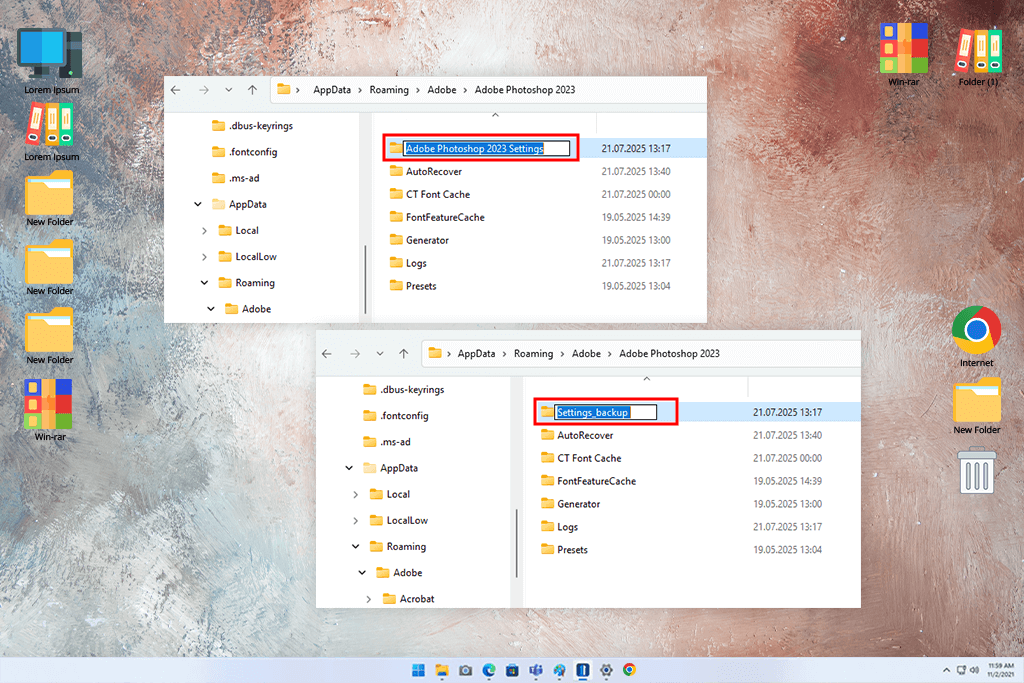
Step 1. First, ensure Photoshop is fully closed.
Step 2. Locate your preferences folder:
Step 3. Give the folder another name like Settings_backup or move it to a safe place.
When you reopen Photoshop, it will create brand-new default settings automatically.
This clean slate works similarly to installing Photoshop actions; it eliminates all old conflicts. My team nicknames this the "nuclear option" because it fixes deep-rooted issues that normal resets can't handle.

When to reset:
When not to reset:
At FixThePhoto, we tested every method across multiple systems - including Windows 10, macOS Ventura, aging MacBooks, and specialized workstations with maximum RAM and solid-state drives.
We deliberately damaged preference files, created fake plugin crashes, and stress-tested Photoshop with demanding tasks - including batch exports and using the Adobe Firefly AI art generator in Photoshop.
What we learned:
The keyboard shortcut (Method 1) is the quickest solution for emergency troubleshooting.
Menu-based reset (Method 2) is perfect for cautious users who want to review before resetting
Manual reset is essential when Photoshop crashes on startup or needs a complete refresh.
With older Photoshop CS6 setups, the keyboard shortcut reset is basically your only solution. I consistently use this method first, only resorting to manual cleanup if needed. This approach reliably restores Photoshop to stable performance, eliminating frustrations and letting me return to smooth editing work.
Your plugins should remain installed since they're stored separately. But some plugin settings may reset, so it's smart to back up any custom plugin presets first.
Absolutely! Right-click the tool in the options bar and select either "Reset Tool" (for that tool only) or "Reset All Tools" (for every tool). This won't touch your other preferences.
The tablet version works differently - there's no direct reset option. Your best solution is to reinstall the app, which clears all app data.
It may help if corrupted performance settings caused the problem. However, for frequent Photoshop not enough RAM errors, you should also verify your system's available RAM and adjust Photoshop's memory allocation settings.
Only when needed - typically when facing stubborn issues that other fixes can't resolve.
Plugins stay installed, though some may require reconfiguration or reactivation if they use custom settings.
No, resets affect all workspaces simultaneously. Save your workspace layouts first to reload them later.
Completely! Resetting clears only your preferences, while reinstalling replaces program files (but often preserves old settings unless manually deleted).




![What Is Editorial Design? [Everything You Need to Know]](http://fixthephoto.com/blog/images/gallery/news_main__preview_27881.jpg)


![Most Wanted Photography Editing Styles [Fixthephoto’s Version]](http://fixthephoto.com/blog/images/gallery/news_main__preview_27886.png)

















