When the FixThePhoto team started conducting more approvals online, I noticed that the concept of an online collaboration software had become too vague. This definition includes instant messengers, cloud storage, task schedulers, and video calling programs. But in practice, each of these platforms solves completely different tasks.
I work as a project manager and content coordinator. During the day, I have to assign articles, check drafts, collect comments from designers, review PDF layouts, discuss edits with remote colleagues, and keep track of deadlines. Therefore, it was not enough for me to simply make a list of popular programs. I wanted to figure out which service is really convenient in a particular work situation.
Together with the FixThePhoto team, I tested more than 30 platforms. We used them for repetitive tasks related to editing, design, document review, onboarding new employees, and holding meetings.
During testing, I paid attention to how quickly colleagues could join the workspace, find the necessary information, leave clear comments, complete the task, and figure out what was happening while they were away. I did not combine all the online collaboration software for teams into one artificial rating. Instead, I divided the best options into practical categories:
| Software | Rating | Best for | Free use | Starting price |
|---|---|---|---|---|

|
★★★★★ (5/5)
|
Daily remote communication
|
✔️
|
$7.25/user/mo
|

|
★★★★☆ (4.5/5)
|
Microsoft 365 organizations
|
✔️
|
$4/user/mo
|

|
★★★★☆ (4.5/5)
|
Internal communication
|
✔️
|
Quote-based
|

|
★★★★☆ (4/5)
|
Small-business intranets
|
✔️
|
Quote-based
|

|
★★★★☆ (4/5)
|
Team motivation and feedback
|
✔️
|
$15.99/user/mo
|

|
★★★★★ (5/5)
|
All-in-one project management
|
✔️
|
$7/user/mo
|

|
★★★★☆ (4.5/5)
|
Multi-team marketing collaboration |
Demo available
|
Quote-based
|

|
|
Visual workflow tracking
|
✔️
|
$9/seat/mo
|

|
★★★★★ (5/5)
|
PDF review and collaboration
|
✔️
|
$24.99/mo
|

|
★★★★☆ (4.5/5)
|
Process documentation
|
✔️
|
$25/mo
|

|
★★★★☆ (4.5/5)
|
Meetings, files, and email
|
✔️
|
$7/user/mo
|

|
★★★★☆ (4.5/5)
|
Video-first collaboration
|
✔️
|
$14.16/user/mo
|

|
★★★★☆ (4.5/5)
|
Visual creative workflows
|
✔️
|
$5/user/mo
|

|
★★★★☆ (4/5)
|
Specialized team workflows
|
✔️
|
$38/user/mo
|

|
★★★★☆ (4.5/5)
|
Structured task management
|
✔️
|
$10.99/user/mo
|

|
★★★★☆ (4/5)
|
Tasks with time coordination
|
✔️
|
$2.99/user/mo
|

Modern online collaboration software is gradually going far beyond its original functions. Slack introduces AI summaries, Zoom combines meetings with documents, tasks, email, video, and online whiteboards, and Adobe turns PDF review into a full-fledged workspace with AI support.
The main trend is obvious: large services strive to support a project at all stages, from the first discussion to the final approval. But a large number of features doesn't always make work more convenient. During the tests, I noticed that the team mastered platforms more quickly when their main purpose remained clear.
Pricing: Free plan; From $7.25/user/month, billed annually
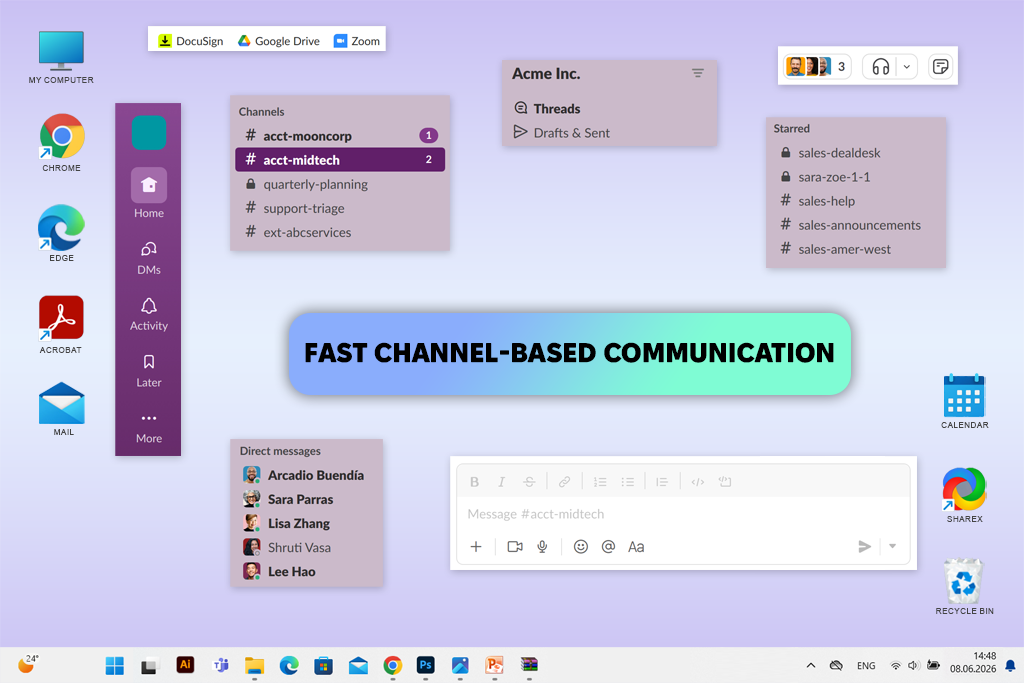
I would choose Slack for a distributed team that needs to communicate quickly throughout the day and easily find old messages. The online collaboration software for remote teams combines channels, personal messaging, file sharing, Huddles, workflow automation, and thousands of integrations.
Slack is most convenient for remote, hybrid, and multifunctional teams whose employees constantly interact with each other. Conversations can be divided by projects, departments, clients, or individual topics.
For testing, I created separate channels for article planning, design approval, urgent fixes, and general announcements. My colleagues immediately understood the proposed structure. It turned out to be much easier to follow the discussions than in a large group chat, where all topics are mixed in one feed.
The reply threads were especially useful. While testing this instant messaging software, the designer could upload a draft layout, the editor could leave a comment under that specific message, and I could return to the discussion later without having to go through dozens of unrelated messages.
The main advantage of Slack is also its main disadvantage: it's too easy to communicate here. During a particularly busy week, I noticed that colleagues were constantly distracted by even minor notifications. Therefore, it is important to establish rules for channels in advance, not to abuse mentions, and to set up a notification schedule.
Slack works with Google Drive, Salesforce, Jira, Zoom, Asana, Trello, Adobe tools, GitHub, and thousands of other applications.
Key features:
Pricing: Free personal version; From $4/user/month, billed annually
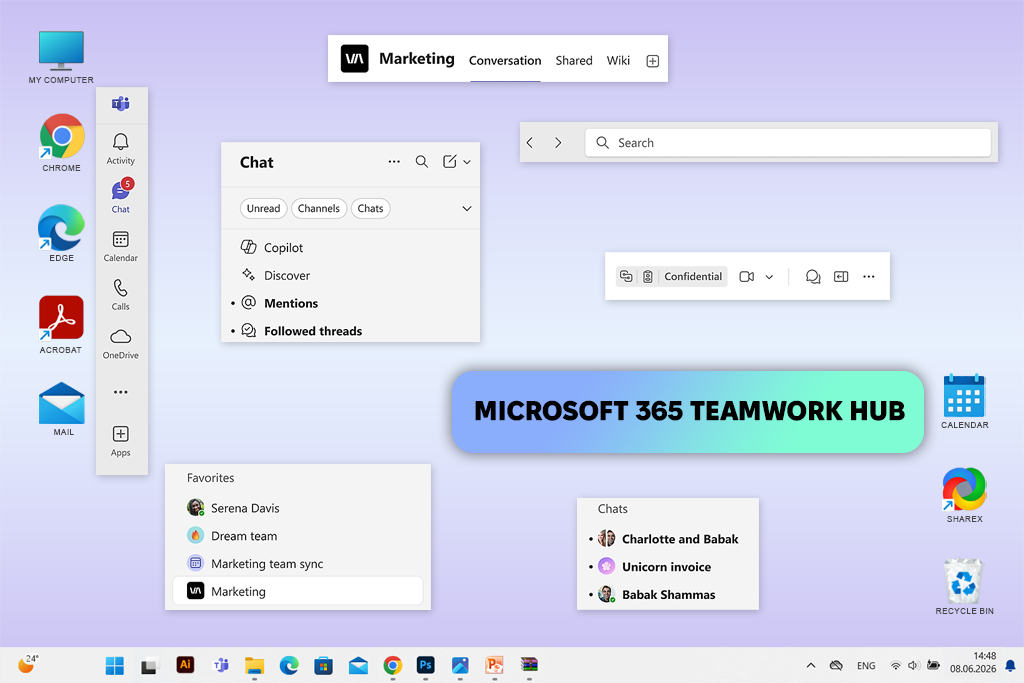
Microsoft Teams is a convenient personal project management software, which combines chats, channels, video meetings, calls, shared files, calendars, and collaboration in Microsoft 365.
Teams will be the most logical choice for companies that already use Outlook, Word, Excel, PowerPoint, OneDrive, or SharePoint. In such an environment, the online collaboration software for project management is perceived not as another additional service, but as a link between tools already familiar to employees.
During testing, I created a small project team, uploaded Word documents and PowerPoint presentations, scheduled meetings through the calendar, and checked how convenient it was to discuss each file.
The main advantage was the integration with Microsoft documents. Several employees could open one file and work with it without downloading new copies. Meeting invitations also automatically appeared within the same ecosystem.
At the same time, the Teams interface seemed to me to be more cumbersome and overloaded than that of Slack. New users did not always immediately understand how a team differs from a channel, or how a meeting chat differs from a regular personal chat. However, after we established a simple and clear structure, it became much more convenient to work.
Microsoft Teams works best with Word, Excel, PowerPoint, Outlook, OneDrive, SharePoint, Planner, Power BI, and other Microsoft services. In addition, the platform supports many third-party business applications.
Key features:
Pricing: Personalized demo available; Pricing available by quote
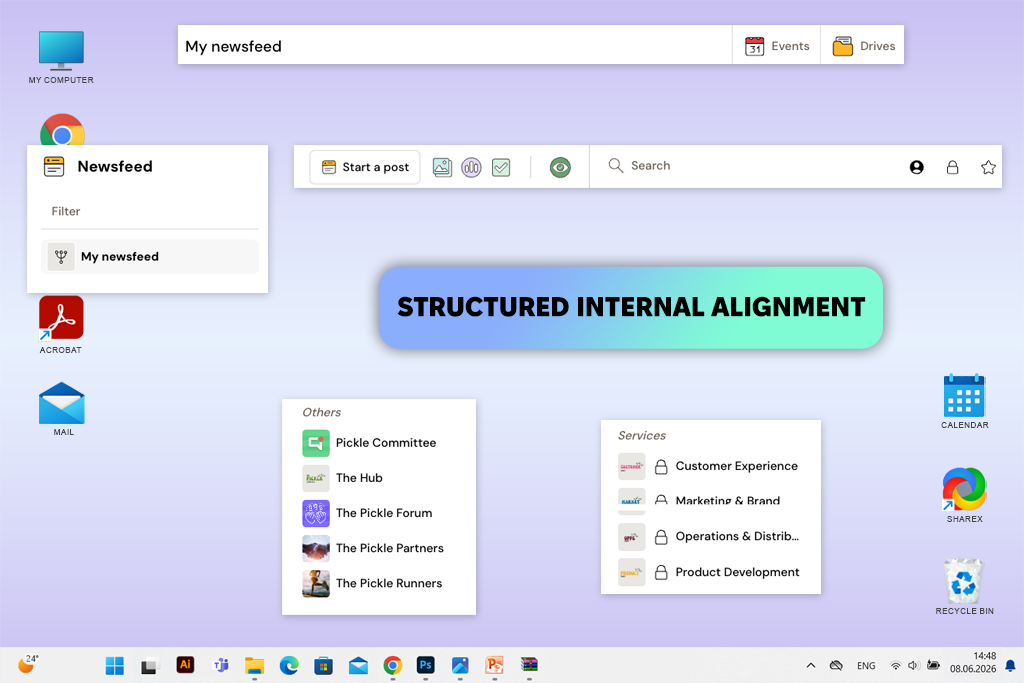
Talkspirit is a European platform that combines internal communication, projects, documents, video meetings, organizational charts, OKRs, and corporate governance tools.
This online collaboration software for small businesses is primarily designed for companies that find a regular work messenger insufficient. I would consider it for organizations with multiple divisions, unions, associations, and businesses undergoing restructuring or other internal changes.
During testing, I didn't try to use Talkspirit as just another Slack alternative. Instead, I modeled a full-fledged internal communication system: I created workspaces for projects, uploaded reference documents, posted announcements on behalf of the company, and tested tools related to the organizational structure.
I liked that the service helps to solve not only everyday tasks, but also broader organizational issues. For example, here you can see who is responsible for a particular role, how different teams are connected, and where official documents should be stored.
This is especially useful in situations where employees understand their task but don't know who has the authority to make the final decision. For a small creative team, Talkspirit may seem too formal and overloaded. Its benefits become more apparent in companies with multiple departments that require a unified internal system.
Talkspirit supports connections to Microsoft 365, Google Workspace, calendars, cloud storage, and other business services. However, the choice of integrations here is still smaller than with Slack.
Key features:
Pricing: Demo available; Custom pricing
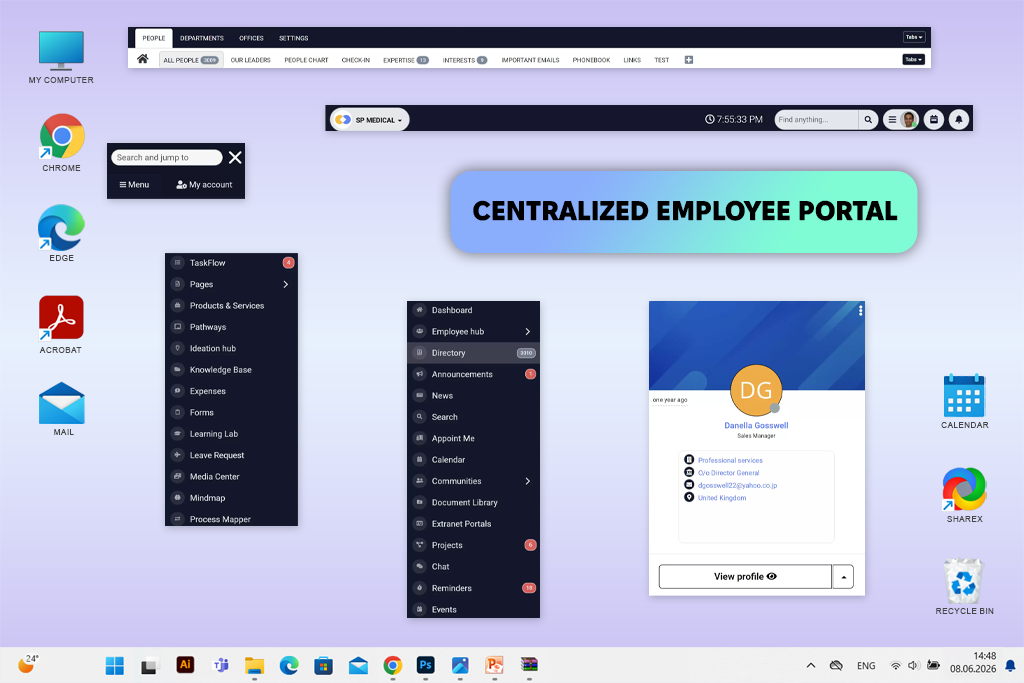
AgilityPortal is a corporate platform in the intranet format. It allows you to gather company news, documents, useful materials, internal messages, an employee directory, and a knowledge base in one place.
The online collaboration software is good for small businesses, growing companies that are already finding it inconvenient to use scattered group chats and shared folders. At the same time, it is not as complex as large corporate intranet systems.
I tested AgilityPortal as if I needed to organize the work of a small remote production company. To do this, I created separate sections with internal rules, announcements, image processing materials, instructions for new employees, and frequently used links.
The main advantage for me was that the information is stored here permanently. Slack is great for communication, but important instructions eventually go far up and get lost among new messages. In AgilityPortal, official documents and rules are given a permanent place.
I also liked the idea of a single start page for new employees. Instead of sending a person five different links and explaining which chat contains the required file, the manager can immediately direct them to the company's corporate portal.
However, it will take time to create such a system. A useful intranet requires a logical structure, people responsible for each section, and regular updating of materials. If this is not done, the portal will quickly turn into another service that employees forget about.
The available connections depend on the selected configuration. The platform can work with office suites, cloud storage, user identification systems, and other corporate tools.
Key features:
Pricing: Free Starter plan available; From $15.99/user/month
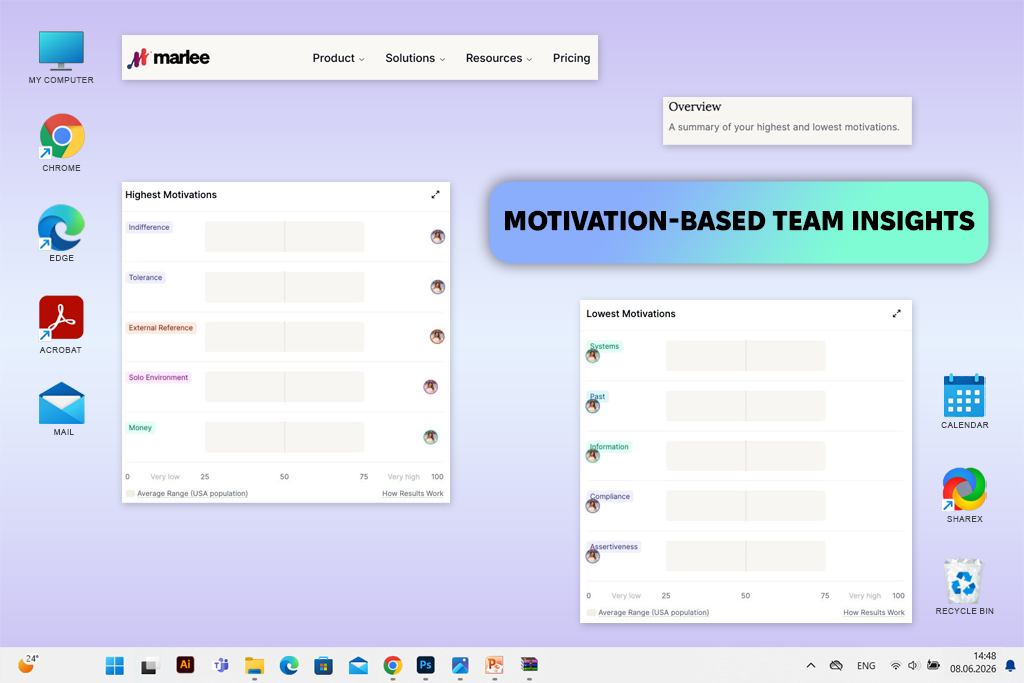
Marlee looks at collaboration not through tasks, boards, or chats, but through employee behavior. The platform analyzes motivation, compares team members, offers coaching recommendations, and helps establish feedback.
Marlee isa good online collaboration software for small businesses that already have separate tools for messaging and task management, but lack an understanding of how different people communicate, make decisions, and stay motivated.
For testing, I invited a small group of colleagues to take a motivation assessment, and then I compared the data obtained for the entire team. This turned out to be a completely different way to assess the quality of teamwork.
Marlee doesn't explain where to store documents or how to assign tasks. Instead, the service showed why one person prefers to prepare thoroughly first, while another gets involved in the work more quickly through experimentation.
Some of the findings confirmed what I had already noticed before. But thanks to the neutral presentation, it became much easier to discuss the differences between colleagues, since they appeared not as personal complaints, but as characteristics of work behavior.
I wouldn't use Marlee as my main workspace. It is not a replacement for Slack, Asana, or Google Drive. For me, it's more of an additional tool that helps a small team use the services they've already chosen more efficiently.
Marlee is primarily designed for behavior analysis and coaching, so integrations don't play as important a role here as they do in messengers or project management systems.
Key features:
Pricing: Free Forever plan available; From $7/user/month, billed annually
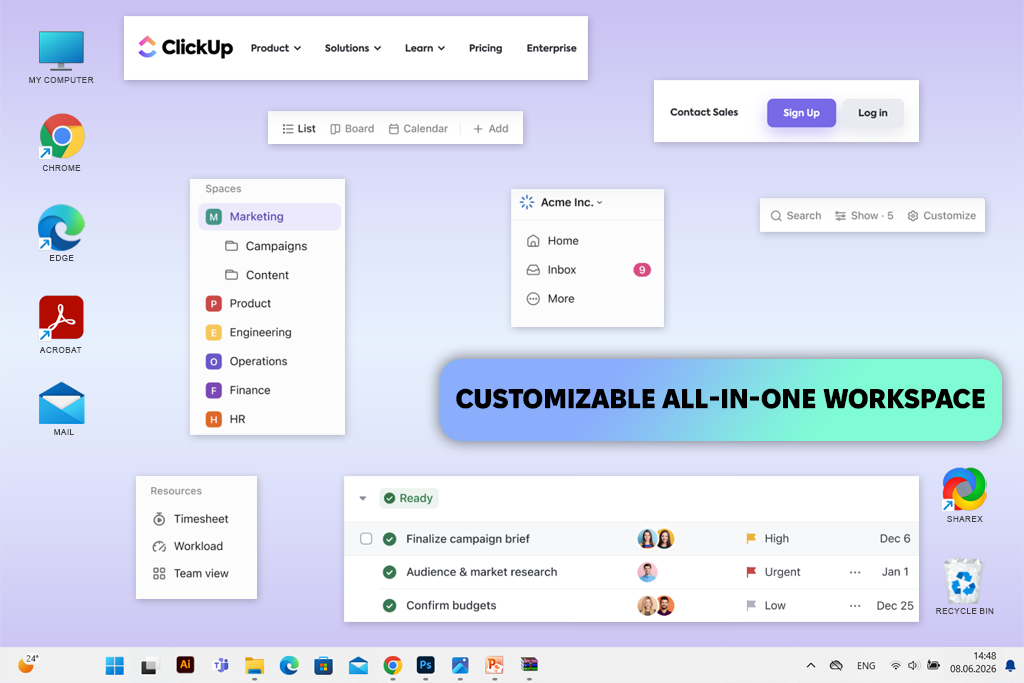
ClickUp is a project management software that combines tasks, documents, dashboards, goals, time tracking, forms, online boards, chat, automation, calendars, and various project display options.
The online collaboration software with task management is best suited for teams that manage complex projects across multiple departments and want to reduce the number of separate services in their work system.
For the test, I created an editorial process in ClickUp with all the main stages: topic research, text writing, proofreading, image preparation, material uploading, and final approval. I also added custom fields for authors, deadlines, text volume, and task priority.
ClickUp handled this scheme perfectly. I could switch between the board, the list, and the Gantt chart without having to create the project again. The automation itself moved the tasks to the next stage and notified the employee who was supposed to continue the work.
The service's flexibility is impressive, but it needs restraint. My first workspace quickly became too complex because I added a lot of statuses, fields, and display options. In the second version, I left only the elements that were really necessary. After that, the interface became noticeably clearer, and the team began to work with it much faster.
ClickUp connects to Slack, Google Drive, Microsoft Teams, Zoom, GitHub, HubSpot, Dropbox, OneDrive, and many other services.
Key features:
Pricing: Custom pricing by quote; Demo available.
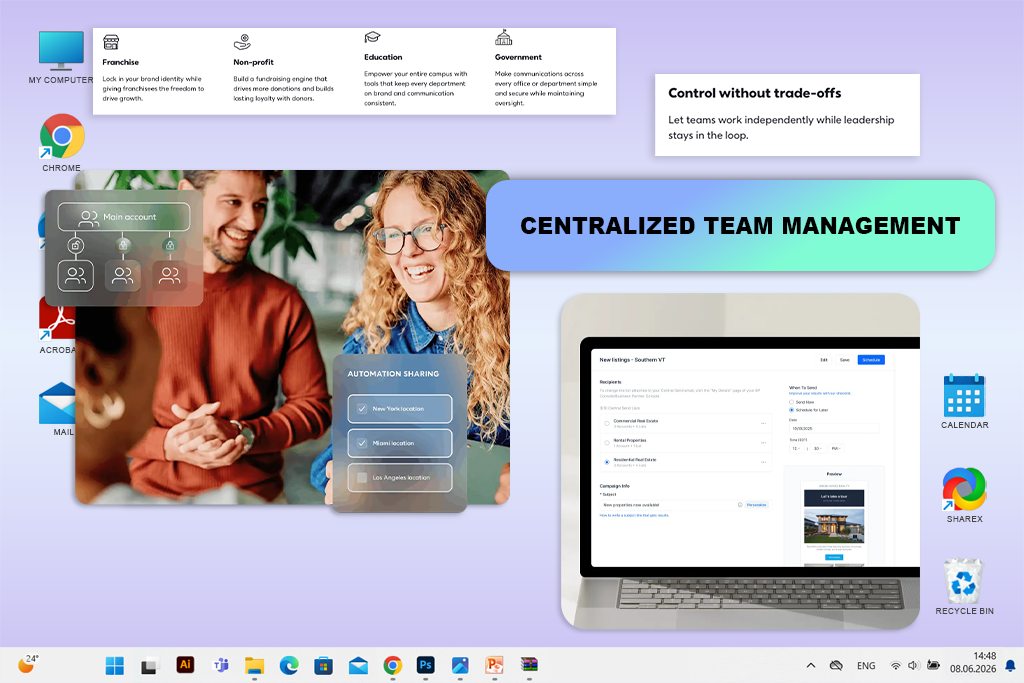
For a remote marketing team that wants to plan campaigns without monitoring each local account individually, I would go with Constant Contact Teams. Email and SMS campaigns, shared assets, branded templates, and approvals are all combined into one platform with this online collaboration tool for remote teams.
Franchises, agencies, colleges, organizations, and companies with multiple locations or departments should all use it, in my opinion. When local teams must tailor their messaging while a central marketing team is still in charge of branding and supervision, it makes especially sense.
The harmony between local autonomy and centralized authority was what drew my attention. I would create a single standard template for a campaign including multiple branches and let each team to modify its own announcement, offer, or contact details. Legal disclaimers and logos could be locked to assist keep those changes within defined bounds.
Constant Contact lists integrations with Canva, Shopify, WooCommerce, Salesforce, WordPress, Wix, Square, Stripe, Vimeo, Facebook, and Zapier. I would check the capabilities of each connection before building a workflow around it.
Key features:
Pricing: Free plan for basic use; Paid plans from approximately $9/seat/month
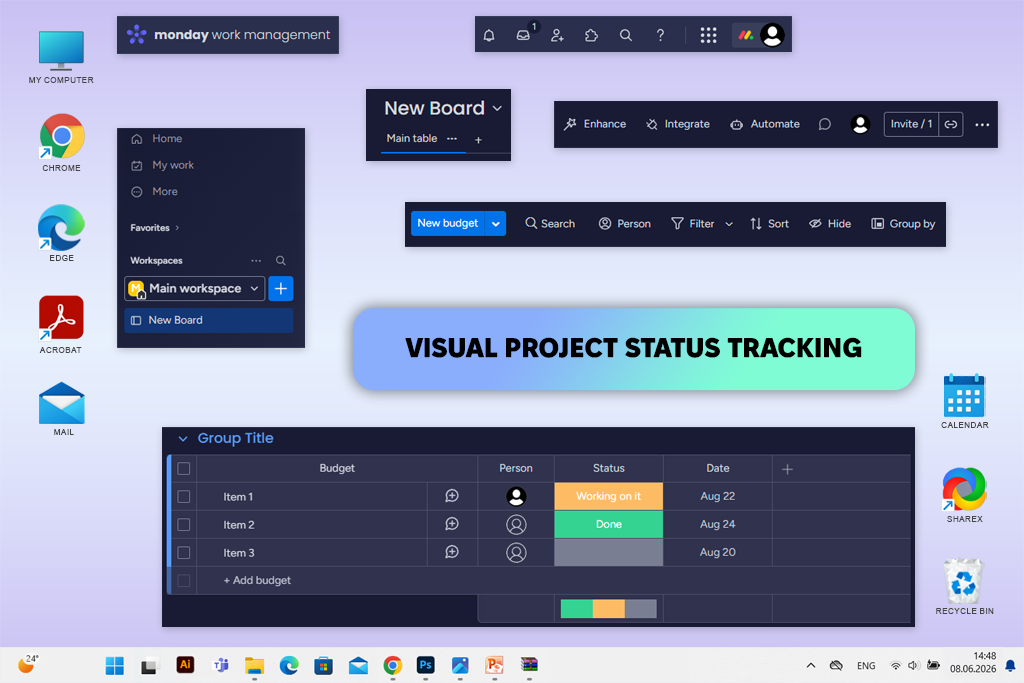
Monday.com is a visual platform for organizing work. Projects here are built on customizable boards, columns, statuses, forms, automations, dashboards, and connections to other services.
I would recommend this online collaboration software for teams that need to see the status of a project in just a few seconds. The same operating principle can be adapted for marketing, sales, HR, production, design, or content creation.
During testing, I transferred our editorial calendar to this program. I used Monday.com as a scheduling software.
I set up a separate color status for each stage: writing the text, editing, preparing screenshots, approval, and publication. Of all the options tested, this system turned out to be one of the easiest to explain to colleagues.
Visual boards helped us quickly notice delays. For example, when several materials were stuck at the "Waiting for images" stage at once, the problem was visible at first glance. I didn't have to open each card separately.
Dashboard panels proved to be especially useful for managers who need a general report on deadlines, workload, and progress, rather than a detailed discussion of each task.
At the same time, it's not always easy to figure out the cost of Monday.com. The company offers several related products, and the subscription is often calculated in packages for a certain number of users. Because of this, the final price may differ from what you expect to see at first.
Monday.com can be connected to Slack, Google Workspace, Microsoft Teams, Zoom, Dropbox, OneDrive, Salesforce, GitHub, Jira, and many other services.
Key features:
Pricing: Free trial available; Acrobat Studio from $24.99/month
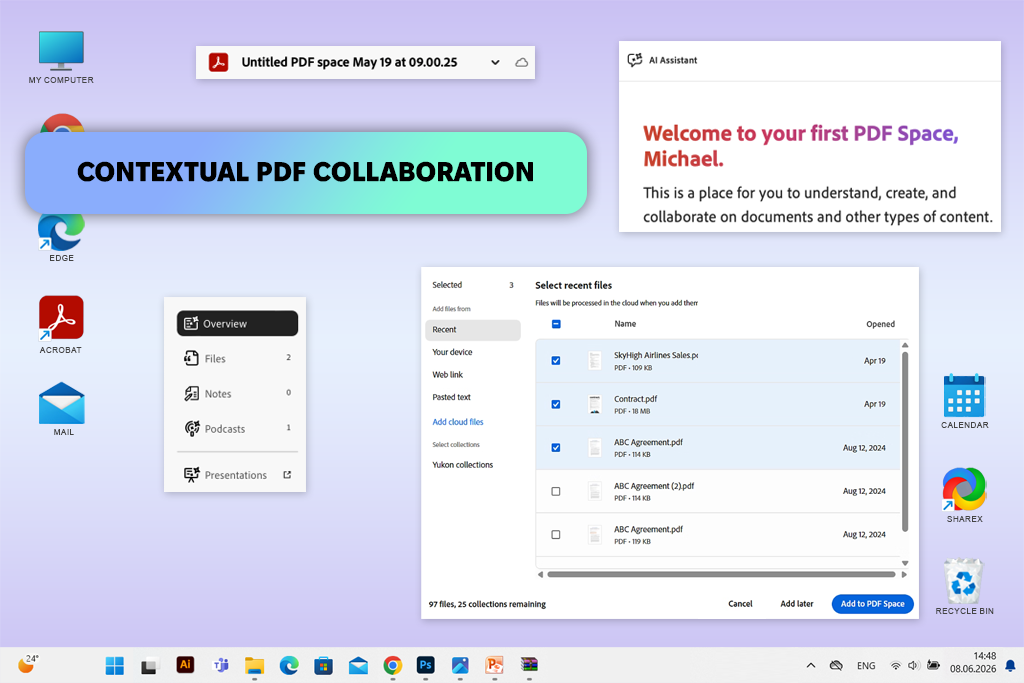
Adobe Acrobat combines PDF editing, comments, sharing, electronic signatures, document comparison, an AI assistant, and PDF Spaces for working with multiple files at once.
Acrobat is especially useful online collaboration software for project managers, editors, designers, lawyers, photographers, marketers, and companies whose collaborative work often ends with a finished PDF. Such a document must be checked, approved, signed, or sent to the archive.
In my work, problems often start precisely at the PDF approval stage. One colleague sends edits by email, another sends a screenshot in Slack, and a third makes changes to the old version of the file. After that, you have to manually figure out which page and which version of the document each comment refers to.
For testing, I uploaded article layouts, promotional brochures, invoices, and a multi-page visual guide. Colleagues highlighted text, attached notes to individual design elements, responded to each other, and marked corrected comments as resolved.
The main advantage of Acrobat is its precision. Instead of a vague message like “the bottom picture is too dark,” I received a comment pinned directly to the relevant image. This resulted in fewer additional questions, and the entire approval history could be easily viewed later.
Working with PDF Spaces made the test even more interesting. I combined several related documents, compared data between them, asked questions, and created brief summaries using this virtual AI assistant.
Adobe also offers several customizable AI agent options. They can be used to check and compare documents and extract the necessary information.
Acrobat works with Microsoft 365, Google Drive, OneDrive, SharePoint, Dropbox, Microsoft Teams, and various corporate systems.
Key features:
Pricing: Free Basic plan available; Pro Personal from $25/month annually
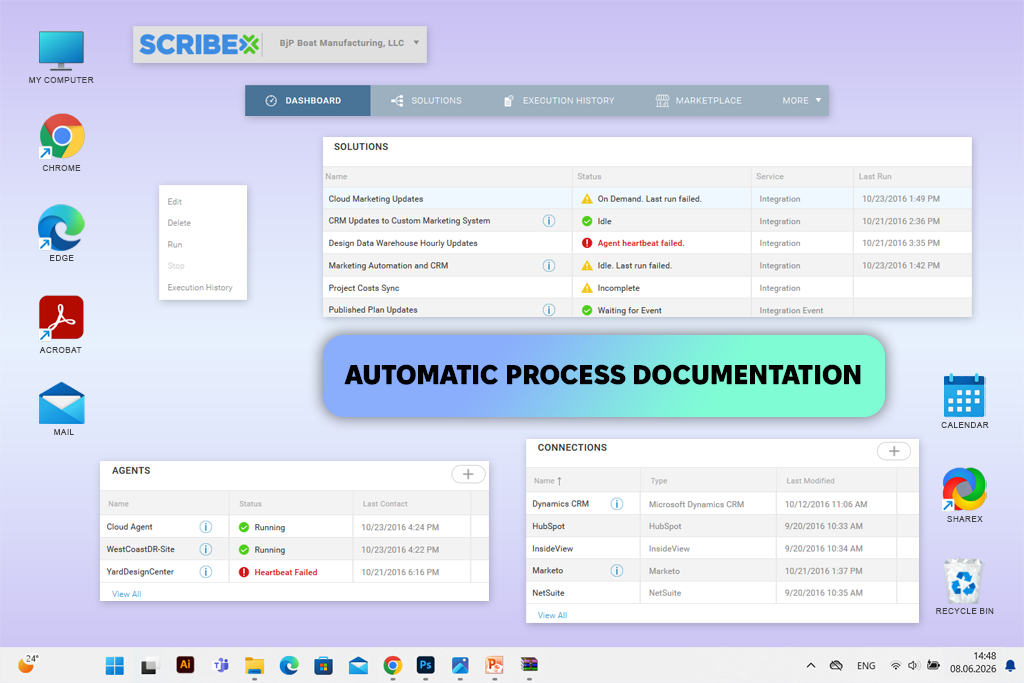
Scribe records the user's actions on the screen and then automatically turns them into a step-by-step guide with screenshots and text explanations.
The online collaboration software for document sharing is useful for teams that regularly have to explain the same actions in programs. It can be used for onboarding new employees, publishing content, internal administrative processes, customer support, and staff training.
For testing, I recorded the entire process of preparing and uploading an article. The program recorded my clicks and automatically created a structured instruction. This took much less time than manually preparing each screenshot and describing all the steps.
After recording, I edited the explanations, removed unnecessary actions, hid confidential information, and sent the link to a colleague who had not performed this task before. She went through the entire process on her own, and we didn't have to make a separate video call.
It is in such situations that Scribe becomes not just a tool for creating screenshots, but a full-fledged program for collaborative work. Work knowledge no longer remains only in the head of a person who remembers the correct sequence of actions.
However, the created text cannot be published without verification. Some of the automatic explanations were technically correct, but too general for our workflow. In addition, the program recorded a few extra steps that were due to my hesitation and were not related to the instructions themselves.
Ready-made Scribe guides can be published via a link or embedded in training systems, knowledge bases, internal documentation, and other work platforms.
Key features:
Pricing: 14-day free trial; From $7/user/month annually
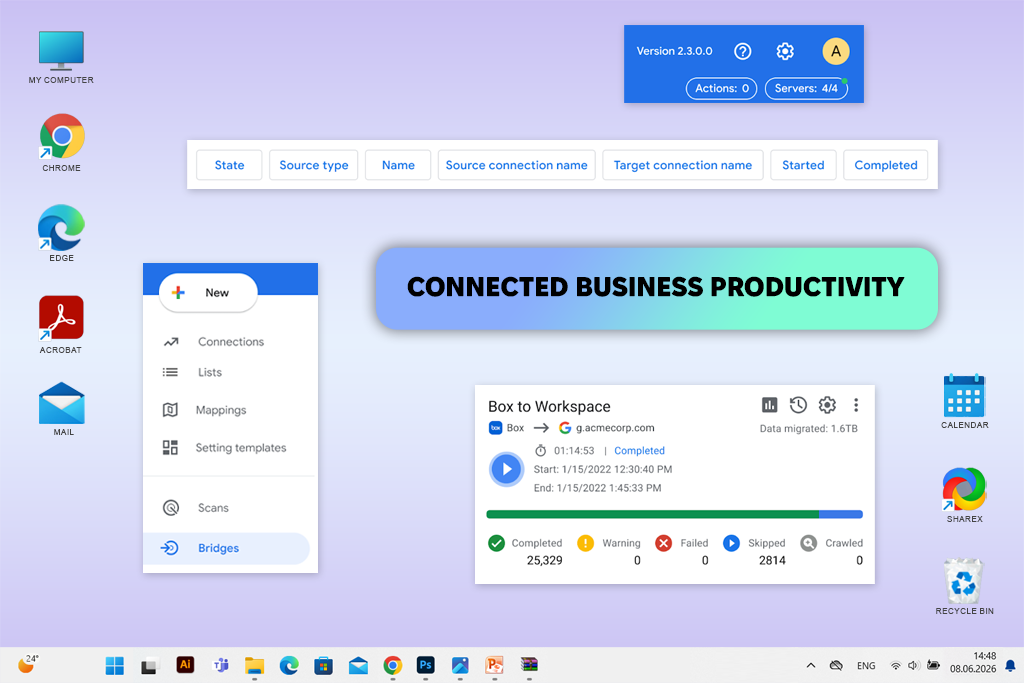
Google Workspace combines Gmail, Drive, Docs, Sheets, Slides, Calendar, Meet, Chat, Forms, Sites, and Gemini-based productivity tools.
This is a convenient online collaboration software for students, small businesses, freelancers, and remote teams who need email, cloud storage, documents, calendars, and video meetings within a single account.
I didn't test each app separately. Instead, I ran a small project through Google Workspace from start to finish.
First, I scheduled a meeting in Calendar, added a link to Google Meet, and attached a general agenda. Then my colleagues and I simultaneously edited the document, uploaded images to Drive, and discussed the changes through comments.
The transition between services was almost seamless. In one calendar event, you can place a link to a video call and all related files, and suggestions and comments remain directly within the document.
Google Meet is not as specialized a meeting management software as Zoom. However, Google Workspace wins as a unified work environment for small businesses.
The team can start with familiar tools and avoid separate subscriptions for email, file storage, document editors, and video conferencing.
Google Workspace connects to Slack, Zoom, Asana, Trello, Adobe services, CRM systems, educational platforms, and thousands of web applications.
Key features:
Pricing: Free Basic plan available; Pro from approximately $14.16/user/month annually
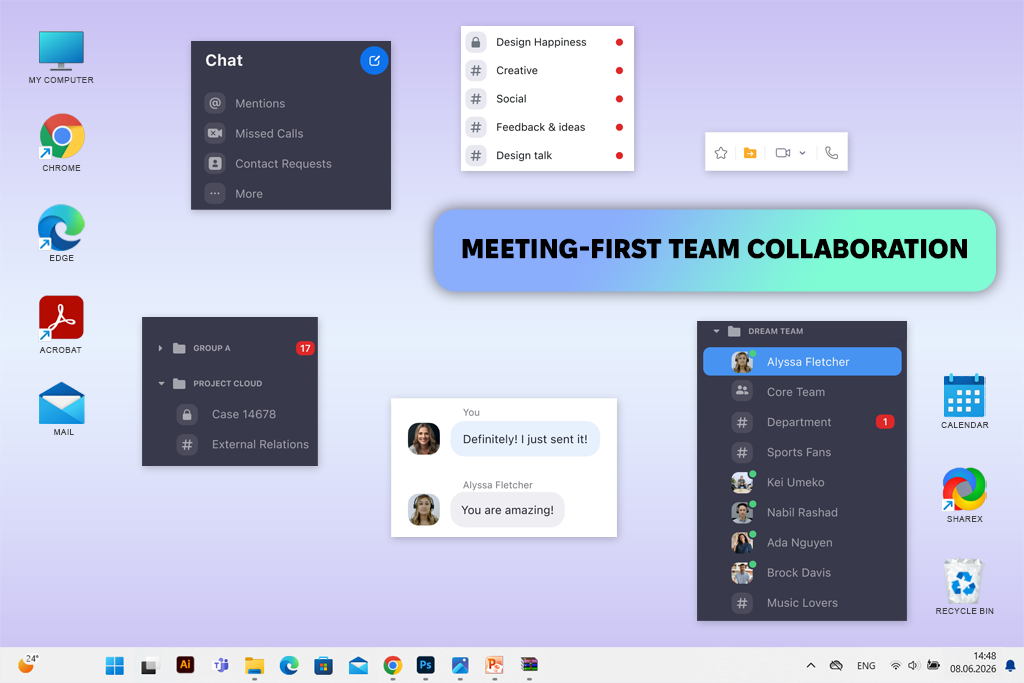
Zoom Workplace has long since gone beyond online collaboration software for video meetings. Now the platform combines online meetings, team chat, short videos, boards, documents, notes, mail, calendar, tasks, and AI-powered meeting features.
Zoom is especially convenient for teams whose collaboration is largely built around video communication. These can be calls with clients, interviews, webinars, training sessions, workshops, and regular team meetings.
During testing, I held several meetings with screen sharing, chat, recording, participant management, and automatic summaries. Of all the platforms, Zoom turned out to be the easiest to explain to outsiders.
It is also one of the most intuitive video interviewing software. Even participants who rarely use work platforms quickly found the right buttons and connected without any unnecessary questions.
The waiting room and host tools came in handy in situations where several clients joined at different times. The screen sharing function worked consistently, and the main controls remained visible and did not require lengthy explanations.
Zoom is gradually evolving towards a full-fledged work ecosystem, but its main advantage is still video meetings. I would choose it over Google Meet when the call itself is the main service. For example, for consultations, remote classes, or presentations to clients.
Zoom connects to Google Calendar, Microsoft Outlook, Slack, Microsoft Teams, Salesforce, HubSpot, educational platforms, and many meeting scheduling services.
Key features:
Pricing: Free for up to 10 collaborators; Standard from $5/user/month annually
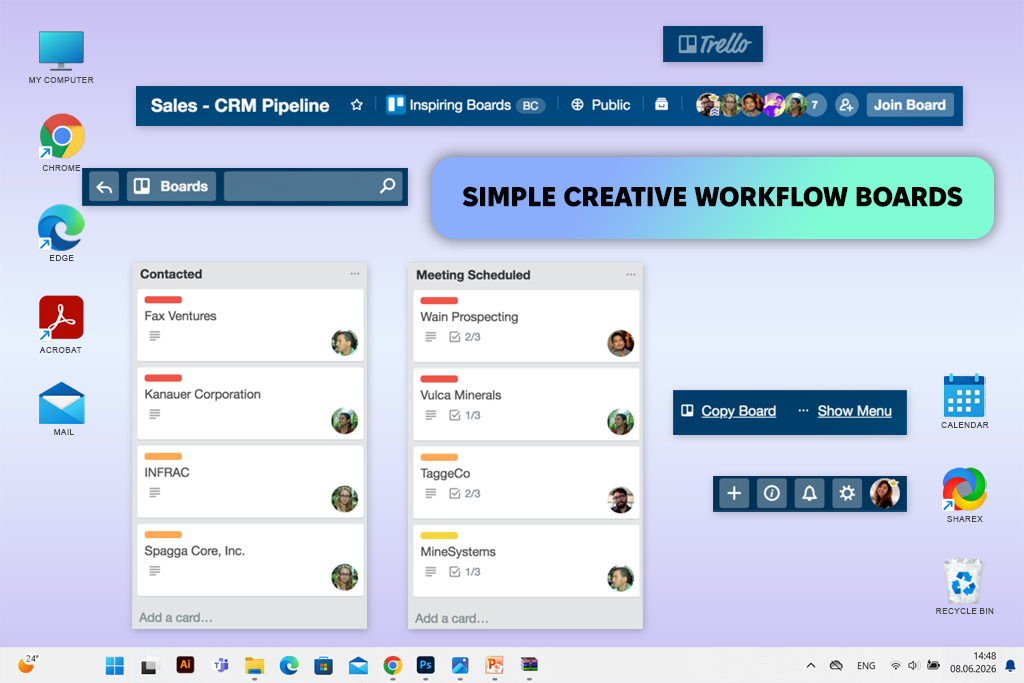
Trello organizes work using boards, lists, and cards that can be freely moved between stages. This is one of the simplest workforce management software, especially if you need to quickly see what stage a creative request is at.
Trello is a good online collaboration software for designers, photographers, marketers, students, and small creative teams. It is convenient for those who need a visual sequence of stages, but do not want to master a complex project management system.
For the test, I created a board with the following lists: "Brief received", "References", "In progress", "Internal review", "Client review", "Edits", and "Approved".
I formatted each design as a separate card. Inside, I added a task description, a checklist, a deadline, attachments, comments, and the name of the responsible designer.
Moving cards between stages turned out to be very convenient. The entire process was clear even to those colleagues who hardly ever used project management software.
For creative work, such simplicity is especially valuable. The team can focus on the project itself instead of spending time setting up and maintaining the system.
However, Trello becomes less convenient when a project has many dependencies, budgets, resources, and related subprojects. It's great for a clear visual flow, but I would choose a different service to manage a large project portfolio.
Through Power-Ups and external connections, Trello works with Slack, Microsoft Teams, Google Drive, Dropbox, Jira, Confluence, calendars, and automation platforms.
Key features:
Pricing: 14-day free trial; Team from $38/member/month annually
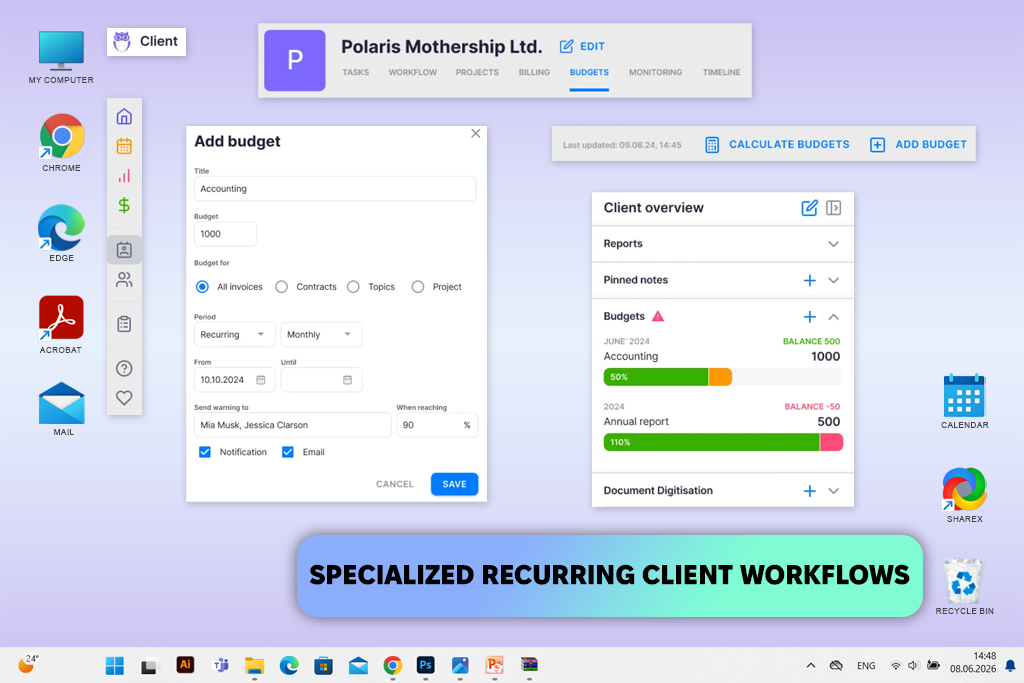
Uku is a workflow management platform created primarily for accounting firms. It combines recurring tasks, time tracking, invoicing, client data, email, documents, and team coordination.
Uku is the best online collaboration software for accounting and professional companies where work with clients is based on repetitive patterns.
Some features may also be useful for specialized creative teams, but compared to Trello or ClickUp, this platform is much more industry-specific.
I was curious to see if a specialized service could organize regular work with clients better than a regular project board.
To do this, I created recurring tasks, assigned responsible persons, added client data, and tested the employee replacement feature for when the primary performer is temporarily unavailable.
Uku retained far more work details than a regular card in a Kanban software.
This approach can be useful for studios that perform a standard set of services for clients every month. But the accounting focus of the platform is undeniable. If a designer only needs mood boards, approval stages, and simple cards, Trello will be clearer and cheaper.
Uku supports connections to accounting and business systems, including QuickBooks, Xero, email tools, and regional accounting software.
Key features
Pricing: Free Personal plan for up to 2 users; Starter from $10.99/user/month annually
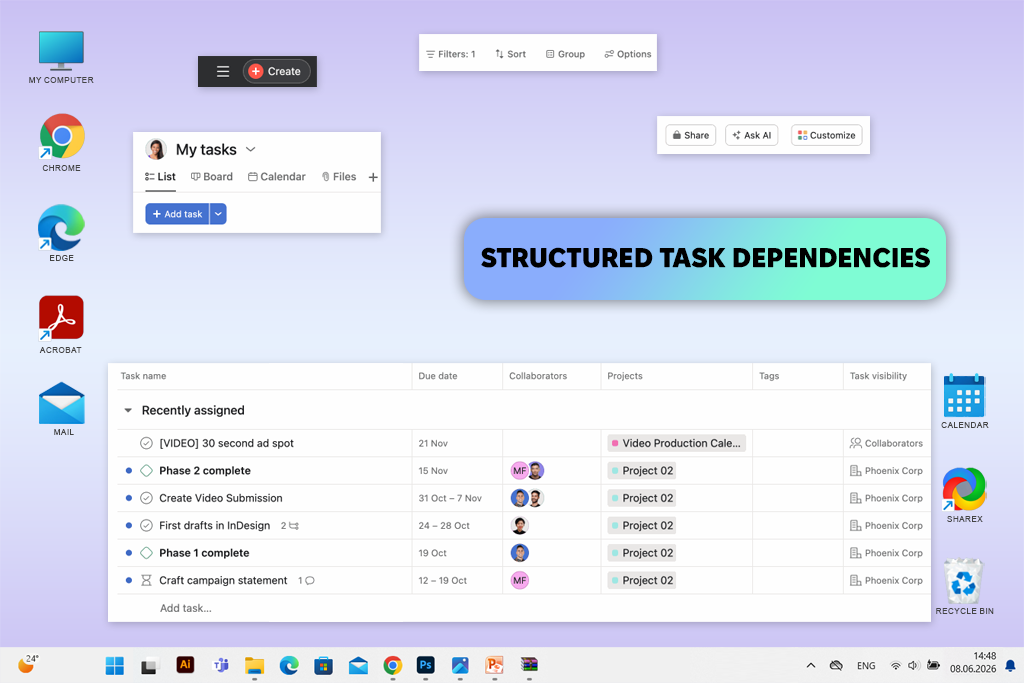
Asana helps you organize projects using tasks, subtasks, sections, custom fields, forms, timelines, boards, calendars, rules, goals, and portfolios.
Asana is convenient for teams that want tasks to remain the main focus of all collaborative work. It can be used as a free task management software.
The online collaboration software is suitable for editorial calendars, advertising campaigns, launches, operational projects, and recurring workflows.
For testing, I created a multi-stage content project in which research, text writing, editing, image preparation, and publication depended on each other.
It was convenient to assign performers, and subtasks helped break down large materials into separate actions without creating additional boards.
Most of all, I liked the dependency system. It immediately showed when a delay in one task prevented the start of the next.
Asana feels more disciplined than Trello, but it's not as overloaded as ClickUp with its large number of settings. It gives the team enough structure, but it doesn't force them to design an entire management system on their own.
Asana works with Slack, Microsoft Teams, Google Workspace, Zoom, Adobe Creative Cloud, Salesforce, Tableau, Power BI, and many other services.
Key features:
Pricing: Free plan for up to 5 users; Pro from $2.99/user/month annually
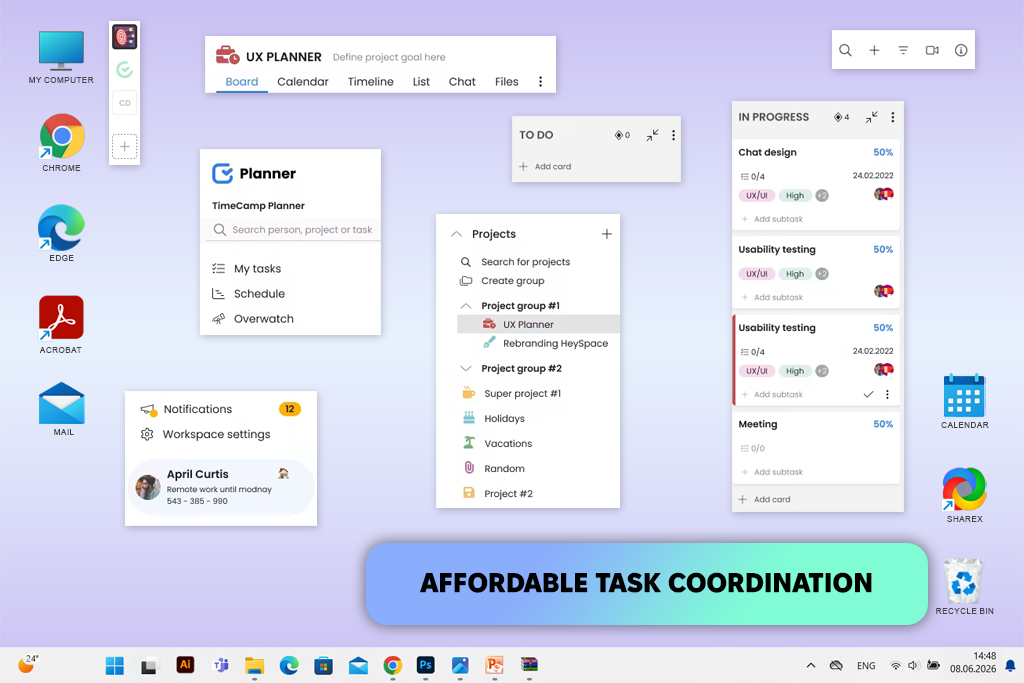
TimeCamp Planner is a lightweight online collaboration software for document sharing that combines task boards, team communication, workspaces, and basic time management tools.
The service is primarily designed for small teams that need a simple system for collaborating on tasks. It is suitable for those who want to keep track of deadlines and assign responsibilities, but are not ready to pay for a large corporate platform with dozens of unnecessary features.
I tested the service in a small group of five people. This is exactly the limit of the free plan. We created separate spaces for active projects, added cards, assigned responsible persons, discussed work in comments, and marked tasks that required urgent attention.
It turned out to be much easier to figure out the interface than in ClickUp. At the same time, TimeCamp Planner offers fewer options for displaying projects and is not suitable for in-depth analytics.
I can easily imagine how a small agency, a startup, or a student group would use this service. There is no need for lengthy training, so you can get to work almost immediately.
The main advantage of TimeCamp Planner is its affordability. It is especially attractive for small teams that need to save money without losing control over tasks.
TimeCamp products support integration with Microsoft Teams, as well as with various calendars, project management systems, and productivity applications.
Key features:
Testing collaboration services took much more than one evening. I conducted the testing together with the FixThePhoto team, since our daily work simultaneously involves remote communication, document review, visual content production, client comments, video meetings, and strict publication deadlines.
First, I compiled a list of more than 40 platforms. Some services had to be excluded immediately. Among them were abandoned projects, products without full-fledged collaboration features, almost complete copies of other solutions, and platforms that did not provide enough access for proper testing.
After the preliminary selection, more than 30 serious candidates remained. I personally tested them in the browser, desktop versions, and mobile apps. We used the standard FixThePhoto testing process as a basis, but we adapted it for collaborative work. I didn't limit myself to a quick look at the interface. Each platform was given several real work tasks.
When checking communication services, I created channels, invited colleagues, sent files, searched for old discussions, and tested mentions. I also checked whether an employee who had been absent all day could quickly understand what had been happening in his absence.
In the online collaboration software for project management, I reproduced the same process. It included deadlines, assignees, dependencies, recurring tasks, custom statuses, approval stages, etc. I deliberately postponed deadlines and handed over tasks to other employees. This made it easier to understand whether notifications help keep track of the project or just create unnecessary noise.
To test document exchange services, I uploaded PDFs, briefs, presentations, and internal instructions. Colleagues highlighted errors, responded to comments, compared versions, and checked whether a note remained linked to the correct page or specific element.
We tested video platforms during internal and external meetings. I checked screen sharing, guest access, recording, chat, subtitles, scheduling, and automatic summaries. Additionally, I was interested in whether it was possible to continue working together after the call ended.
Several well-known services did not make the final list:
I evaluated each finalist based on ease of use, simplicity of getting started, quality of communication, file handling, task visibility, number of integrations, mobile access, notification setup, scalability, free version features, and overall value for money.
But the most important thing for me was how my colleagues behaved without additional instructions. Even if the free online collaboration software looked perfect in terms of features, I lowered the score for usability when employees kept going back to email or didn't understand where exactly to put information.





![Unpixelate Image Online [FREE]](http://fixthephoto.com/blog/images/gallery/news_main__preview_25814.png)



















