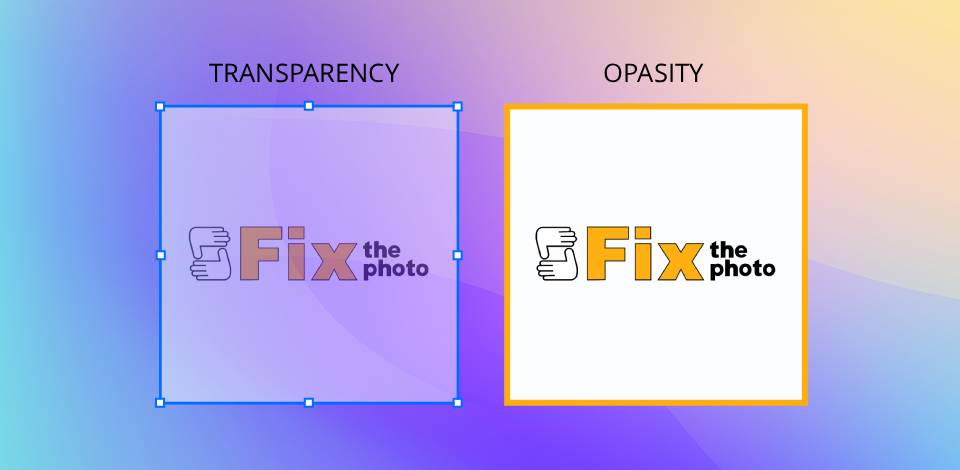
In my work as a retoucher at FixThePhoto, I frequently use layers and masks, and I've learned that a clear distinction between opacity vs transparency is crucial. Though often confused, these concepts control an element's visibility in fundamentally different ways, and misunderstanding them can dramatically change an image's final appearance.
A common mistake among both novice and seasoned editors is using opacity and transparency interchangeably. However, they function differently: opacity adjusts a layer's overall visibility, whereas transparency determines if specific areas are completely see-through. This confusion causes practical problems, such as reducing opacity when a transparent element is needed, choosing incorrect file formats, or misjudging how an effect will print. Ultimately, these technical errors can produce photos that look flat, artificial, or inconsistent.
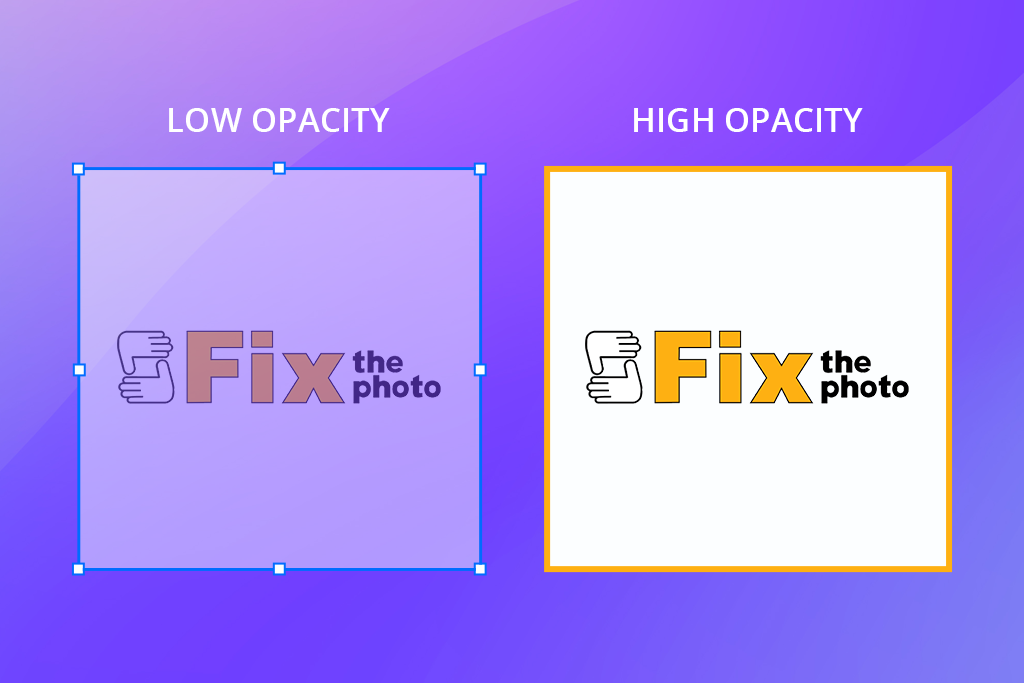
Opacity isn’t just about how much light something blocks - it also affects how heavy or strong it looks in a design. Things with high opacity seem bold and near, while things with low opacity look lighter and farther away.
In photography, opacity decides how much a layer, filter, or change shows on top of the main image. By lowering or raising it, I can make gentle improvements like smoothing skin, mixing colors, or adding light effects without taking attention away from the subject. It’s an important way to make photos look clean and natural while staying in charge of how each layer affects the picture.
How I apply opacity in photography:
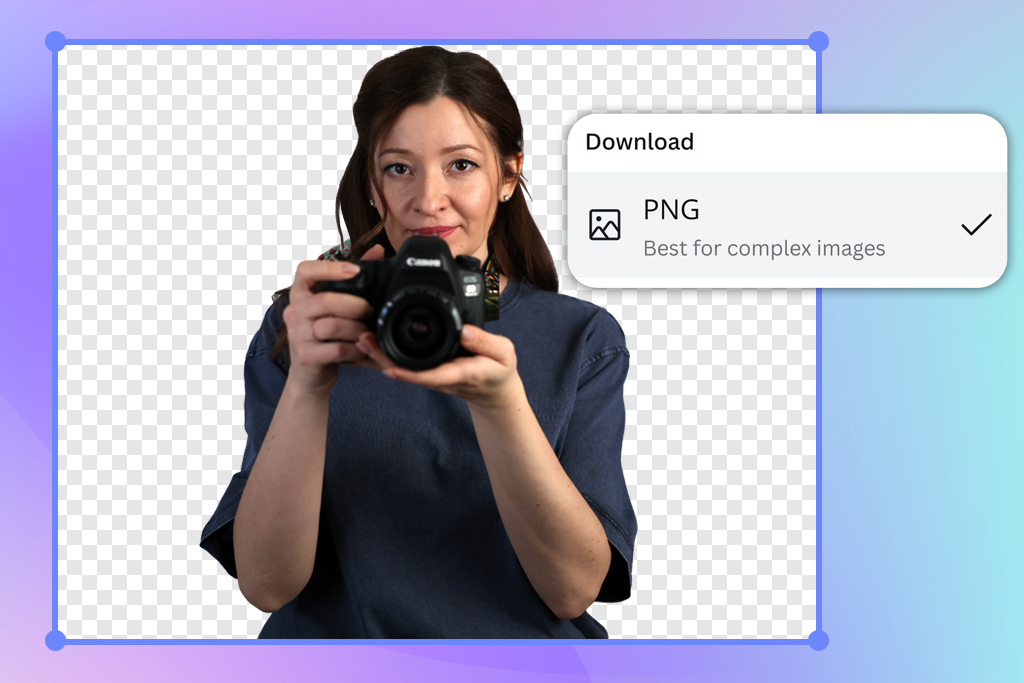
In photography, transparency means parts of an image that allow the background or layers beneath to be visible. It’s important for making composites, overlays, logos, or watermark designs. Using transparent sections helps photographers smoothly combine elements, apply textures or visual effects, and create flexible images suitable for digital, print, or artistic work.
I use transparency in photography:
In digital media, transparency goes beyond mere visibility, as it conveys a message. Transparent visuals can represent values like trust, simplicity, and openness in brand design. Within UX and UI interfaces, semi-transparent layers help build a sense of dimension and space without overwhelming the layout, a concept often seen in glassmorphism aesthetics. Technically, transparency relies on the file type - for instance, PNG and TIFF preserve it, whereas JPEG cannot.
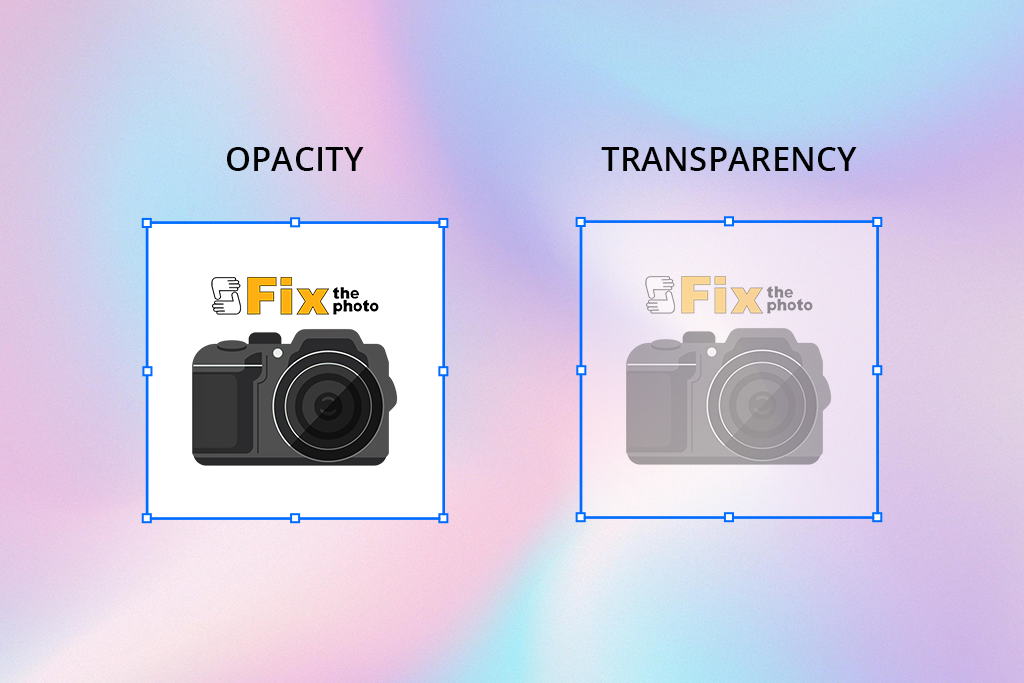
In photo editing, design, and everyday objects, people often mix up the words opacity vs transparency, using them as if they mean the same thing. But they actually describe opposite effects. Knowing the real difference between them is a fundamental skill for making your edits look believable and your designs look professional.
1. Nature of effect
2. Control
3. Application
4. Output/Export
5. Perception
6. Inverse relationship
Think of opacity and transparency as being on opposite ends of a seesaw. When one goes up, the other must go down.
“If something is transparent, light travels straight through it, allowing you to see what's on the other side. If something is opaque, it blocks the light completely, so you cannot see through it.”

In digital editing, opacity is a simple yet powerful feature. It’s not just about making things see-through - it helps add depth, realism, and a professional touch to your work.
Changing opacity is easy in most photo editing programs. We tested many tools, such as Affinity Photo and GIMP, and found that Photoshop is the best opacity editor. Learning to change opacity in Photoshop is an essential skill for editors and designers. It lets you control how visible a layer, brush, or effect is, helping you create soft and polished results.

There are several ways to fix opacity in Photoshop. Here’s how I do it in my workflow:
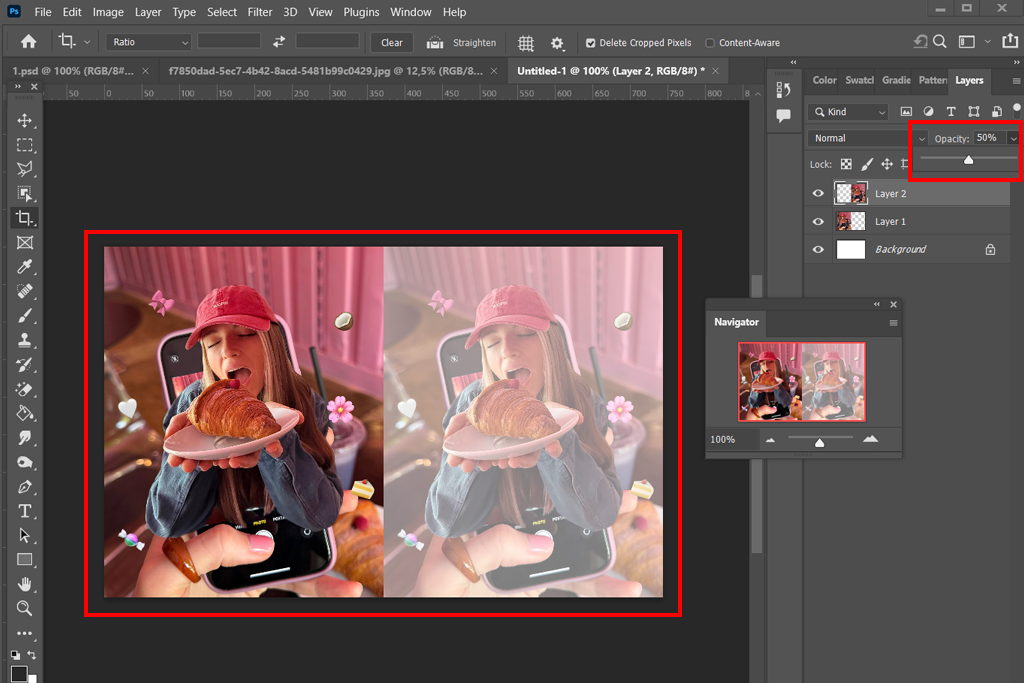
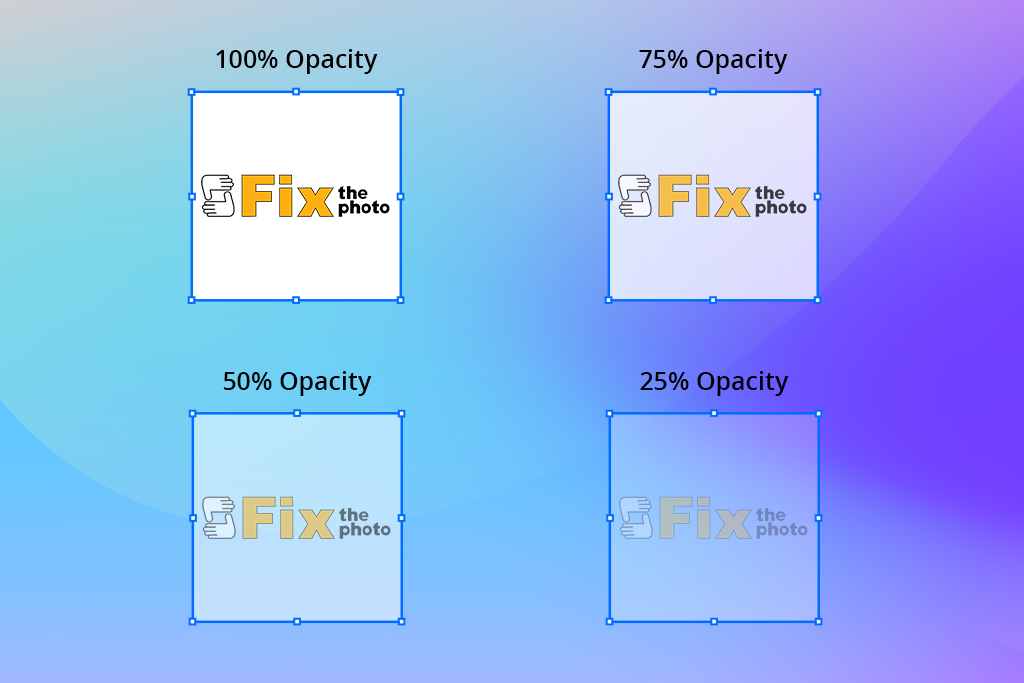
A layer at 100% opacity is completely solid and hides what's below. Reducing the opacity to 50% makes it semi-transparent, creating a blend with the layers underneath. At 0% opacity, the layer becomes fully invisible, revealing the image below completely.
Tip: You can quickly set the opacity by pressing the number keys 1 through 0 (1 for 10%, 5 for 50%, and 0 for 100%).
Example: Adding a warm-colored layer set to Soft Light blend mode at 25% opacity can give portraits a natural glow while keeping the image's depth.
Quick Tips:
“For techniques like skin smoothing or dodging and burning, a brush opacity between 20% and 30% is ideal. This lets you build up corrections slowly, which preserves natural skin texture and prevents a fake, over-edited look.”

Most free Adobe software and design programs give you easy ways to make things see-through. The easiest way to control visibility is with the Opacity slider - in Photoshop’s Layers panel or Illustrator’s Transparency panel. This tool allows you to set how strongly a layer, object, or brush mark appears, letting you choose how much of it remains visible.
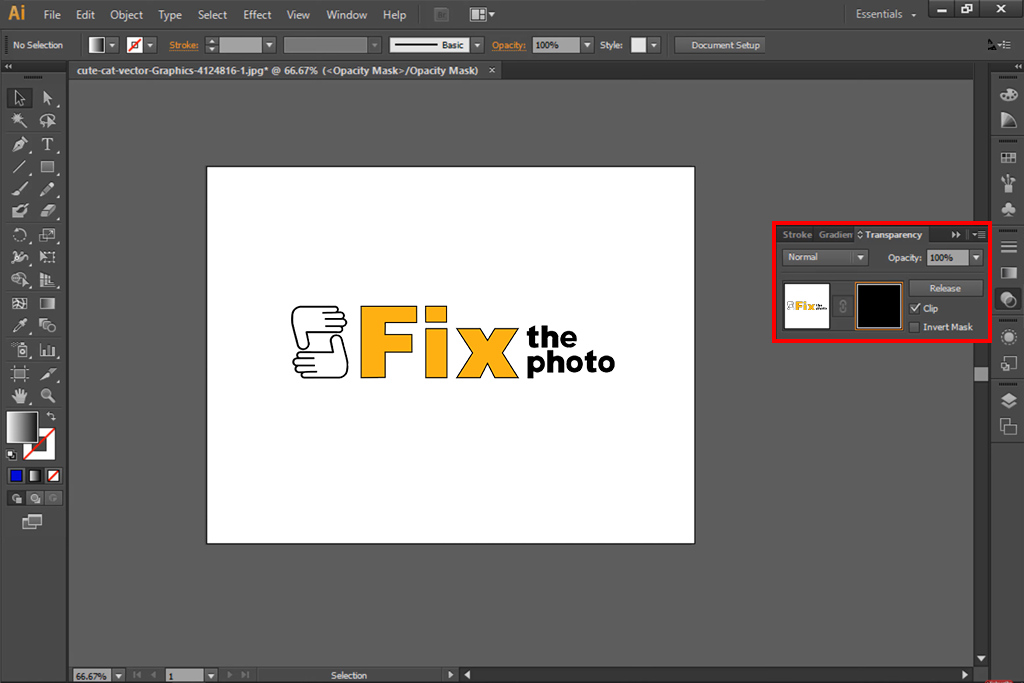
Another useful feature is the Gradient Tool, which lets you apply gradual transparency transitions - perfect for softly merging a subject with its background. In Illustrator, you can achieve a similar effect using Opacity Masks, which fade portions of an object away smoothly.
For more complex effects, Adobe apps have panels for Effects or Transparency. These tools offer styles like blend modes, soft shadows, and a glassy look (often called "glassmorphism" in web and app design). These all use transparency in photography to make designs feel deeper and realistic.
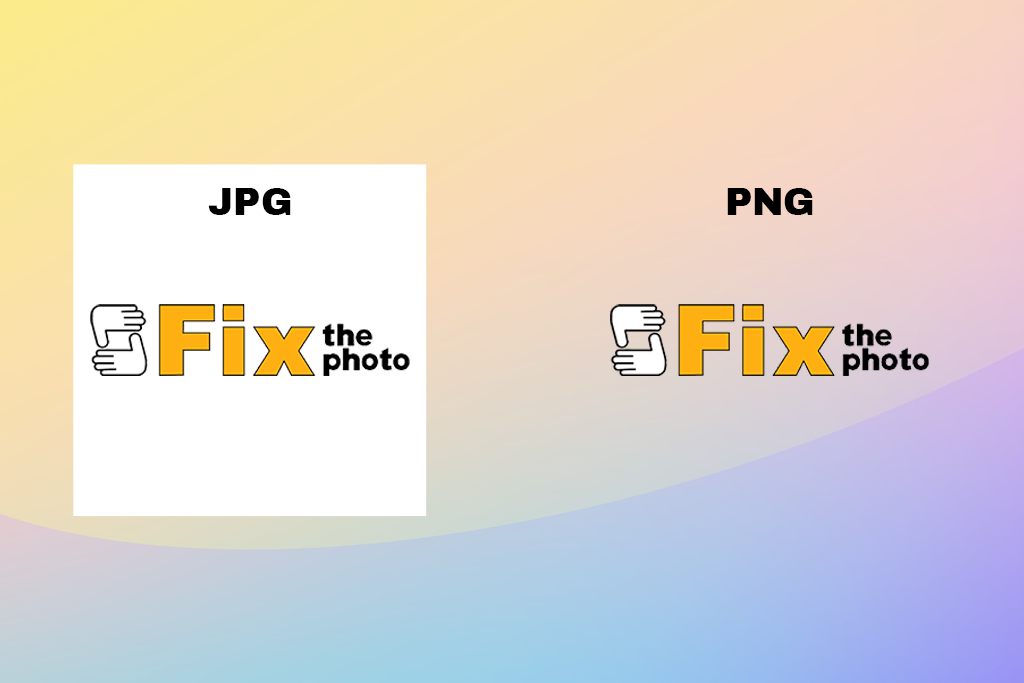
“I always confirm the file format when saving images with transparency. It's important to remember that PNG files preserve transparency, but JPEG files will replace it with a white background. For things like logos or product images, using the correct format is crucial.”

If you need a quick edit, several online transparency editors such as Pixelcut and Canva allow you to adjust transparency directly online without any software.
Even though opacity and transparency are simple ideas, they are often used incorrectly. These mistakes can result in dull-looking edits, file problems, or work that seems unprofessional.
Working with the team at FixThePhoto has taught me a valuable lesson: minor opacity adjustments often create the most professional retouching results. These are the specific techniques my FixThePhoto colleagues and I use in our daily workflow.
“For exact control over transparency, I use layer masks instead of the eraser tool. Painting with black, white, or gray on the mask lets me hide or reveal parts of a layer smoothly. This allows me to create soft fades and make changes without permanently deleting any pixels.”
Opacity is how solid something is. Transparency is how see-through it is. If opacity is high, transparency is low, meaning you can't see through it.
No, 100% opacity means the layer is fully solid and hides anything beneath it. To make something completely see-through, you’d need 0% opacity or genuinely transparent sections.
No, higher opacity means it’s less see-through. For example, something at 80% opacity looks more solid than at 30%.
Yes. By using tools like masks, you can control the visibility of a layer in specific areas. This allows parts of it to be completely solid while other sections remain see-through.
Photoshop uses opacity because you're controlling how solid the layer is. Transparency is better for describing a clear, see-through background, not for adjusting a layer's visibility.
Opacity allows for gentle adjustments without permanently changing the image, such as softening skin or adding light color tones. Transparency is important for precise cutouts, logo design, layered graphics, and interface elements like glass or shadow effects.
Changing the opacity of image is generally simpler, because it only needs adjusting a slider. Transparency can be trickier, as it often requires using masks, selections, or saving files in specific formats.





![Photography Licensing Agreement [+FREE TEMPLATES]](http://fixthephoto.com/blog/images/gallery/news_main__preview_27938.jpg)
![Northern California Engagement Photo Locations [Popular & Secret]](http://fixthephoto.com/blog/images/gallery/news_main__preview_25405.png)


![Does the Camera Really Add 10 Pounds [+ Practical Tips]](http://fixthephoto.com/blog/images/gallery/news_main__preview_28050.jpg)

















