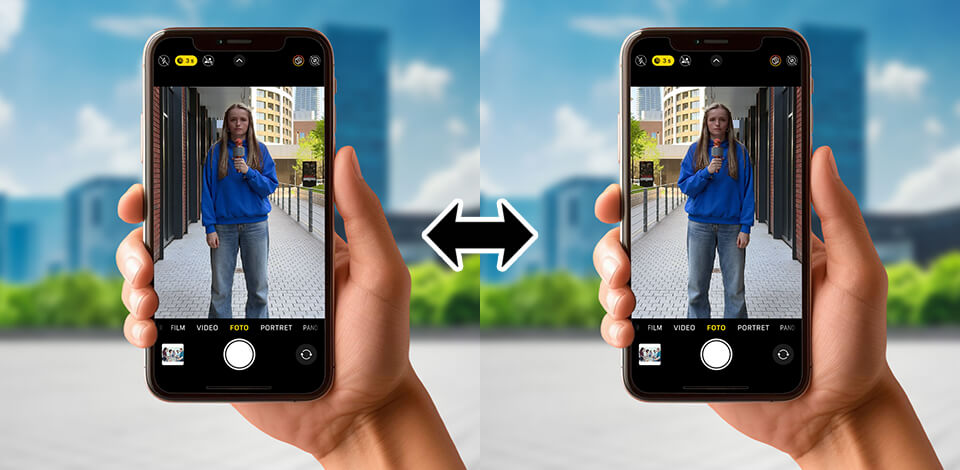
Whether I’m hopping on a quick FaceTime or recording a video for social media, I can’t do without my iPhone. But I used to get frustrated when the front camera mirrored everything.
At first, I had no idea the iPhone camera flipped my selfies after I took them. I thought what I saw on the screen was the final image. Turns out, it’s mirrored, and it changes once you snap the photo or record. So, I decided to learn how to invert camera on iPhone.
After a few awkward video calls and lots of testing, I finally figured out how to fix the inverted camera on my iPhone. I created this simple guide to help you do the same, whether you’re on FaceTime, Snapchat, Zoom, or Omegle. Plus, I’ll share several of my favorite tips on how to look good while talking online.
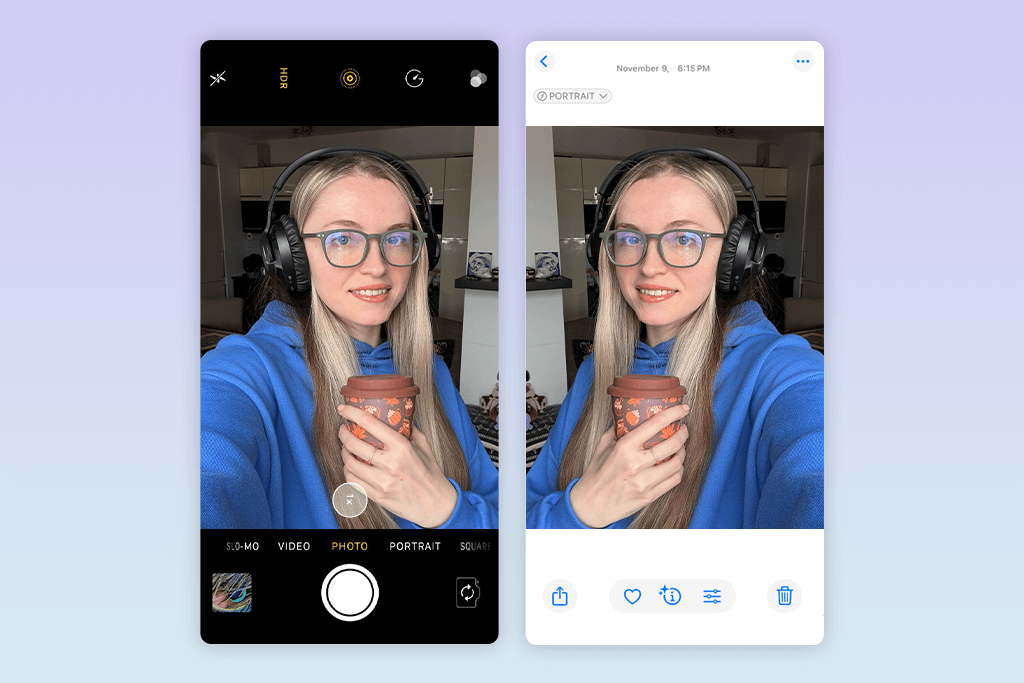
Ever noticed your selfie looks weird after you take it, even if you are using an iPhone with the best camera? That’s because your device shows a mirrored view when you pose like looking in a mirror. But once you snap the photo, it saves the unflipped version. So, your shirt text may look backward in the preview, but normal in the final pic.
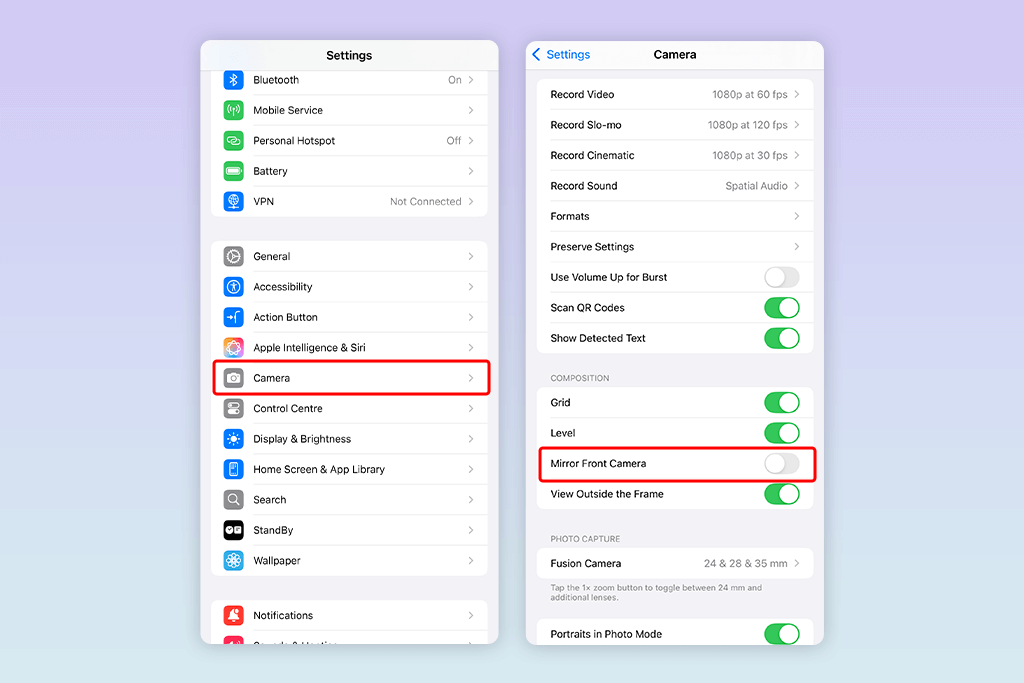
Starting with iOS 14, you can choose to save mirrored selfies on your iPhone. Here's how to turn on that iPhone camera setting:
Step 1. Open Settings
Step 2. Scroll down and tap Camera
Step 3. Toggle ON Mirror Front Camera
This method doesn’t work for older iPhones (pre-iOS 14). Still, you can flip photos manually.
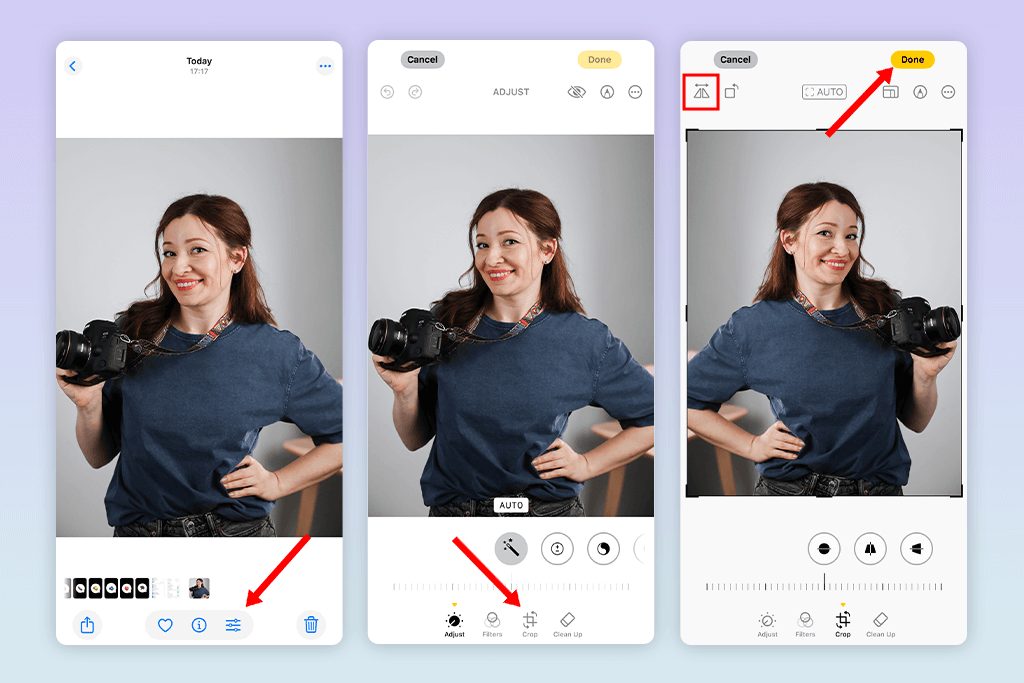
If your selfie came out flipped and not how you expected, don’t get upset. You can manually fix it right in the Photos app using this simple smartphone photography tip. Here’s what to do:
Step 1. Open the Photos app and choose your image.
Step 2. Tap Edit in the upper right corner.
Step 3. Click the Crop & Rotate icon at the bottom.
Step 4. Hit the Flip icon (a triangle with arrows) in the top left corner.
Step 5. Click Done and marvel at your mirrored selfie.
Sometimes, it is particularly important to fix invert camera on iPhone, as such photos make facial asymmetry more noticeable.

At first, I had no clue this even happened. I do most of my video calls on FaceTime, and it shocked me that what looked normal to me was actually mirrored for the other person.
Don’t worry if your preview looks backwards. The person on the other end sees everything correctly. While FaceTime doesn’t let you flip the image during a call, here are some helpful tips on how to inverted camera on iPhone FaceTime.
Option 1: Use Control Center Camera effects (iOS 15+)
Step 1. Start a FaceTime call.
Step 2. Open Control Center.
Step 3. Tap Video Effects > Portrait or Center Stage
It doesn't actually change the flipped view, but it can help you adjust how you’re framed so you look more natural on the screen.
Option 2: Use third-party apps like EpocCam or Camo
Such apps let you use your iPhone as a webcam. Thus, you can decide if the picture is mirrored or stays as it is.
When I opened Omegle on Safari, the camera showed me in a flipped and stretched way. It was very confusing. If you get the same weird effect, don’t worry. Here’s how to fix inverted camera on iPhone.
Switch to another browser. For example, you can use Opera or Firefox. They sometimes handle Omegle's camera better and may not flip your image. It’s not guaranteed, but it could help.
Use a webcam app to pre-flip your camera. I personally recommend Camo by Reincubate. It lets you:
Just connect your iPhone to your Mac and run Camo Studio to control the output. It works great for Omegle calls.
Switch to Mac instead. If any other option doesn’t suit you, open Omegle on your Mac:
Step 1. Open System Preferences > Camera
Step 2. Use QuickTime or a third-party app like ManyCam to flip your webcam before running Omegle.
Snapchat works a little differently:
How to flip your selfie in Snapchat:
Step 1. After taking a photo or video, click the Edit icon
Step 2. Tap the Crop icon
Step 3. Use the Flip tool to correct orientation
You can also flip before taking the snap:
Step 1. Use the front camera
Step 2. Tap the Rotate Camera icon twice quickly
In Zoom, you’re in charge of the mirror effect. To flip your video:
Step 1. Start the Zoom app
Step 2. Choose Settings > Meetings
Step 3. Toggle Mirror My Video ON or OFF depending on what you want
When you record a video with the front camera on Instagram, it often looks mirrored. Luckily, you can change the inverted camera right in the app before sharing.
Step 1. Save your story or reel to your camera roll
Step 2. Open in InShot or Photos app
Step 3. Flip horizontally and re-upload
| Mirrored | True | |
|---|---|---|
|
Selfies for Instagram
|
✔️
|
❌
|
|
Teaching/presenting
|
❌
|
✔️
|
|
FaceTime
|
Doesn’t matter
|
✔️ Yes (what they see)
|
|
Omegle
|
❌ Confusing
|
✔️
|
|
Text/logos in frame
|
❌
|
✔️
|
Here are some easy tricks I always use to fix camera issues on FaceTime, Snapchat, Omegle, and Zoom:
Once I learned how to change camera invert on iPhone, the quality of my photos, videos, and online meetings has improved greatly. If your camera looks mirrored on FaceTime, Omegle, or in photos, don’t worry. There’s an easy fix.
Photos:
FaceTime:
Omegle:
Open Settings, tap Camera, and switch on Mirror Front Camera. This way, your selfies won't flip after you take them.
The front camera shows a mirrored image to make it easier to frame your shot. But once you take the photo, your iPhone often saves the real (non-mirrored) version, which can look flipped. This is particularly noticeable when on FaceTime and other apps.
You can’t flip it directly in FaceTime. It mirrors your preview, but others see the real view. To change how you look, try using third-party apps like Camo or record through another camera app.
The Omegle mobile site doesn’t have a flip option. To fix it, you can use Firefox, record a flipped video with InShot, or connect your iPhone to a computer and use Camo Studio to stream correctly.
Yes, you can. When dealing with photos, open Photos, click Edit, then Crop, and tap the Flip icon in the top left corner. For videos, you need to use InShot, CapCut, and similar apps to flip them horizontally.
iPhone doesn’t have a built-in mirror filter. You can try Snapchat or TikTok, which have filters that flip your image.
Because the phone saves photos the way others see you, not how you see yourself in a mirror. To fix this, turn on Mirror Front Camera in your iPhone Settings.




![Loop Lighting Photography [Setup & Examples]](http://fixthephoto.com/blog/images/gallery/news_main__preview_27935.jpg)


![How to Take Pics of Shoes to Sell in {{%year}} [+Popular Fails]](http://fixthephoto.com/blog/images/gallery/news_main__preview_25469.png)


















