I started to look for UPDF alternatives when I discovered that this service was no longer suitable for handling with the documents I work with at FixThePhoto. As a project manager, I have to deal with contracts, client briefs, reports, invoices, internal checklists, and PDFs. When working on our projects, we need to edit, sign, compress, share, and review such documents.
At first, I thought that it would suffice to use UPDF tools, as they were suitable for simple editing tasks and reading. However, some tools have less advanced functionality than I needed. Besides, the AI tools delivered inconsistent performance. I realized that I needed to find a better solution to work with large files, process batches of documents, and streamline team review.
This is why I asked my colleagues to provide their recommendations, read Reddit and Quora forums, watched YouTube reviews, and watched comparison videos to understand which platforms and apps people recommend. Then, we tested 30+ tools like UPDF, including advanced services, browser-based platforms for working with PDFs, and some free basic solutions. I decided that a decent UPDF PDF editor alternative had to have the following:
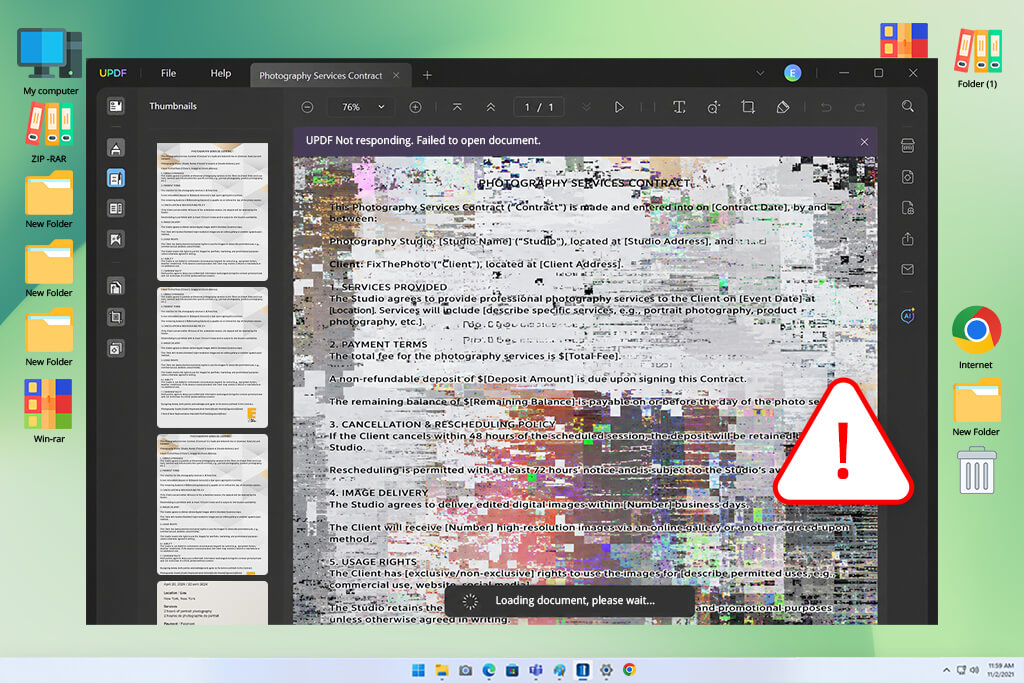
UPDF is a PDF editor that was built for reading, editing, and organizing documents. Besides, it’s suitable for adding connotations to files and using AI to expedite document-focused workflows. It will come in handy for those who are looking for an intuitive, modern service for working with PDF files daily.
At FixThePhoto, I often need to prepare or view files that should look polished. When working on client contracts, project reports, and files that require a signed approval, we need to ensure that they will maintain the right structure. Even minor issues with the layout can significantly complicate the workflow of our managers and retouchers or make a poor impression on our clients.
This is why I decided to find apps similar to UPDF that would deliver a more reliable performance.
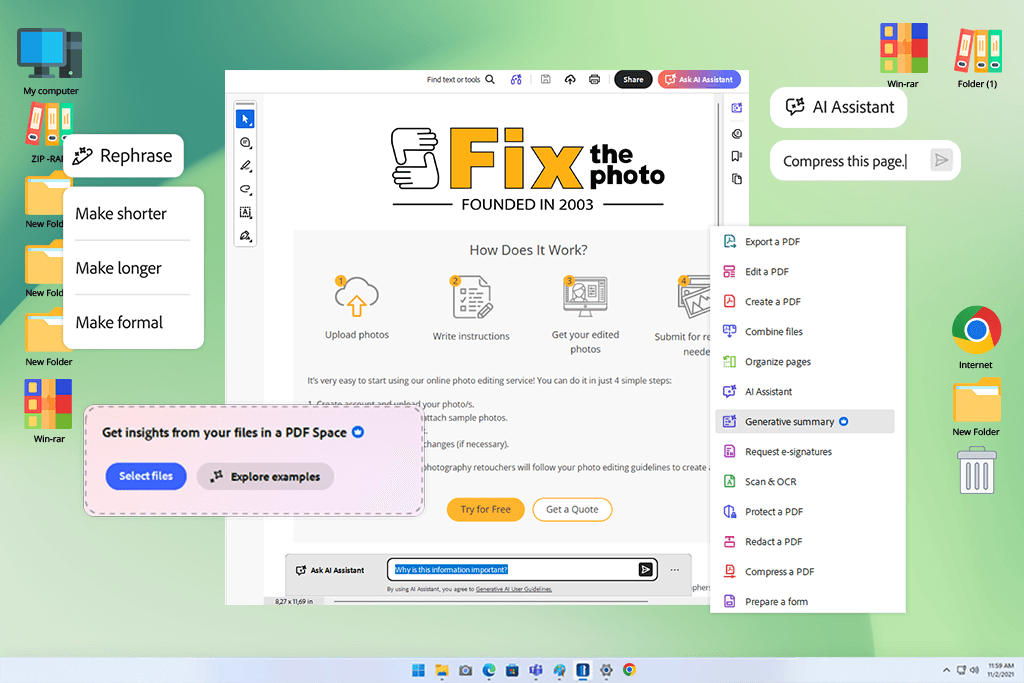
I decided to test Acrobat when one of my FixThePhoto colleagues told me that most of our clients expect us to use this software. As she works as a manager, she knows what people need. UPDF may seem more lightweight and modern at first glance, but Acrobat is an advanced software for all sorts of document-related tasks.
Using the available tools, I could edit text and images, perform OCR when working with scanned documents, compare two versions of the same contract, hide confidential data, request signatures, protect files with a password, and share PDFs for review without complicating my workflow.
“I believe that Acrobat is the best choice for project managers, HR teams, legal assistants, agencies, and professionals who want to work with PDF files at an advanced level while staying secure.”

The AI tools exceeded my expectations. I summarized long client briefs with the help of an AI Assistant and asked clarifying questions about the reports that were difficult to comprehend. I double-checked legal or financial information myself, but the AI features helped me understand the documents quickly before assigning them to one of my colleagues.
The main shortcoming of this solution is that it’s too expensive, especially if you want to use AI features. However, if you want to work on documents at a professional level, Acrobat is one of the most reliable UPDF alternatives I have tested.
My tip is to use the Compare Files feature tool before sending edited contracts. In several cases, it helped me avoid mistakes caused by minor wording changes. Besides, it’s better to perform OCR before editing scanned documents to achieve better outputs.
Pricing: Free; from $14.99/mo
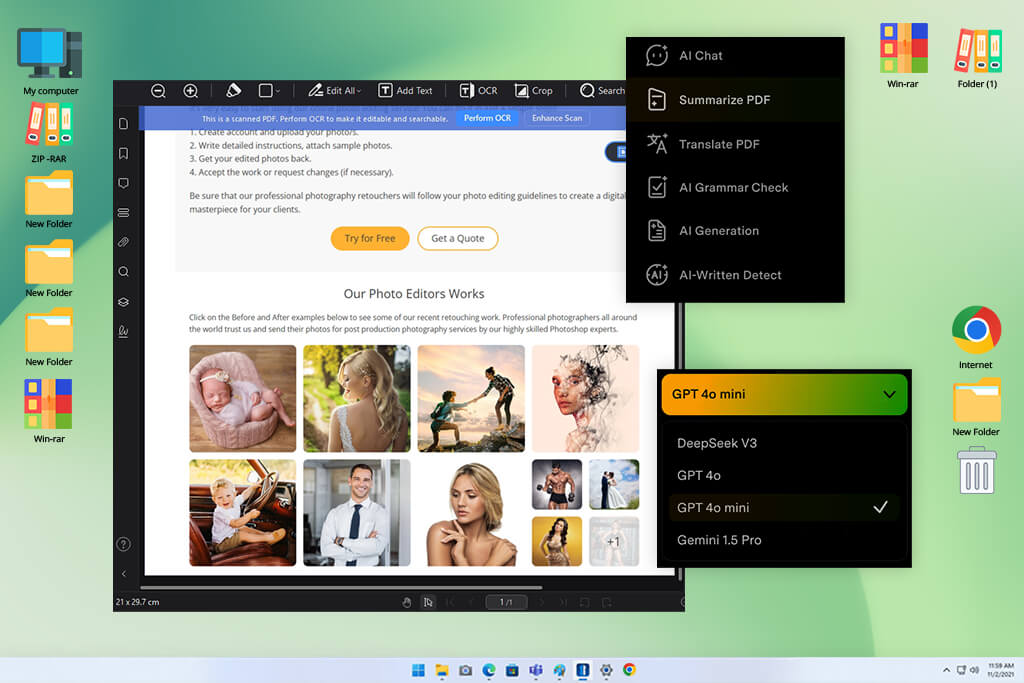
The first time I heard about PDFelement was when I was watching YouTube comparisons that mentioned solutions like UPDF. Some creators mentioned it as a budget-friendly PDF editor similar to Acrobat. This is why I decided to test it as well.
When I started to use PDFelement, I immediately noticed that it has a more convoluted interface than UPDF. However, I discovered that it is perfectly suitable for office workflows. I used its tools to edit, convert, and compress files. It was easy to change the page order, create forms, add watermarks, and batch process documents.
I was especially impressed by the fact that this practical solution helped me expedite my repetitive workflows. When I needed to convert or combine several files, PDFelement helped me automate this process. Besides, I liked working with forms and templates, as it made it easier for me to work on project documentation.
“I believe that PDFelement could be especially useful for freelancers, small business teams, students, and managers who want to find an affordable UPDF PDF editor alternative with a decent choice of features.”

I liked using the built-in assistant, Lumi, to summarize, rewrite, translate, explain, and proofread PDF documents. It was especially useful when I was tasked with creating a long service description and a draft of a client guide. Even though it did not allow me to fully automate my editing workflow, I used it to generate the initial draft quickly and detect wording issues before sending the file to the other members of my team.
My advice is to test this UPDF alternative thoroughly during the trial period. Exported files may have a watermark. Besides, it’s better to clean up scanned documents before performing OCR. I used perfectly straight, high-contrast scans to achieve better outputs.
Pricing: The free trial version has limited functionality and adds watermarks; paid plans cost from $41.99/year; full yearly plans cost from $89.99/year.
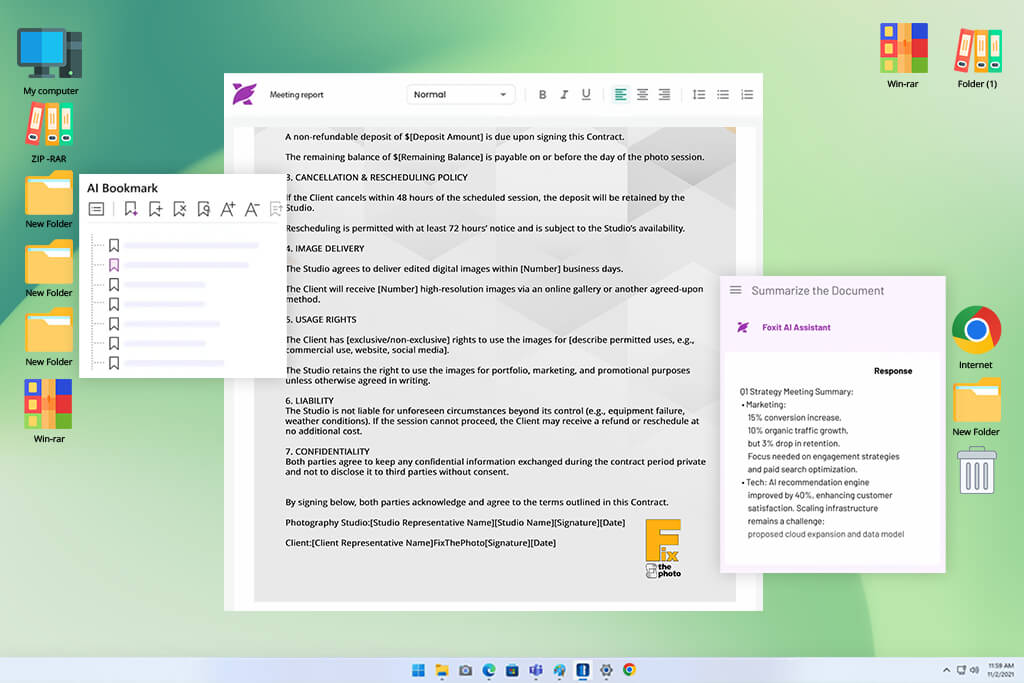
I decided to give Foxit a try during my UPDF alternative test after I saw it recommended repeatedly on Reddit. It was praised as an excellent PDF editor for those who were looking for a lightweight solution suitable for business needs.
What makes it different from UPDF is that Foxit is less similar to a basic PDF app and looks like a professional workspace. I used it when working on client contracts and preparing documents for internal approval. With it, I edited scanned forms and prepared some PDF reports that required me to get feedback from my colleagues from the FixThePhoto team.
“I highly recommend Foxit to office teams, agencies, project managers, legal departments, and those who need to process many documents in PDF format daily.”

What makes Foxit stand out among many other similar platforms is that it comes with a set of features that make it perfect for business use. This free UPDF alternative supports version comparison, batch conversion, OCR, secure file sharing, and editing. Besides, it has eSign and document management tools. I was impressed that it allows users to compare two versions of one document. It makes it easier to track even minor contract edits and meet tight deadlines.
I prefer to use Foxit AI when I need to summarize longer files, translate certain paragraphs, rewrite segments of text, and ask some clarifying questions regarding the content of a PDF file. I especially liked the citations in AI answers. They allow me to quickly find the original quote in a document instead of relying only on a summary.
The only shortcoming is that this solution might be too advanced and overloaded with too many tools if you are mostly interested in quick edits.
My tip is to configure editing and permission rights before sharing files with others. Foxit allows users to adjust many advanced settings, but it may take beginners some time to master them.
Pricing: Free trial version with access to all the features; Foxit PDF Reader is free; PDF Editor costs from $10.99/mo or $129.99/year; PDF Editor+ costs from $13.99/mo or $159.99/year.
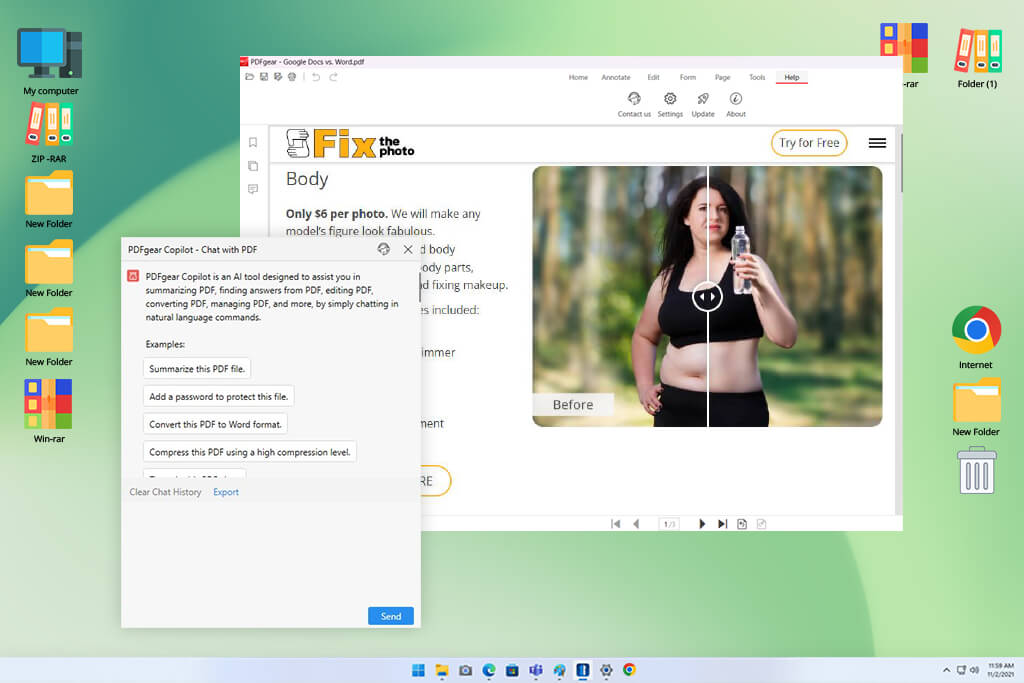
One of my colleagues from the FixThePhoto team recommended PDFgear as an excellent free UPDF alternative. When I started to use it, this service exceeded my expectations. It has handy tools that allow me to edit and convert files, add annotations, organize pages, sign documents, and perform OCR. Besides, it does not add watermarks to exported files.
Unlike some other apps like UPDF, PDFgear has a more streamlined interface. However, even though it does not look like a premium service, it has more advanced functionality than many similar options. I used it when working on short client checklists, scanned notes, simple contrast, and PDF guides that did not require using advanced collaboration tools. This service delivers a fast performance, making it perfect for simple daily tasks.
“PDFgear is especially suitable for students, freelancers, assistants, and small teams that are looking for a free PDF editor for daily use.”

I decided to include this service in the final version of my list because I liked its AI assistant. With it, I quickly summarized a long PDF guide, asked clarifying questions about certain paragraphs, and was able to discover the information I needed without looking through the whole document.
Even though it’s not my top choice for working with important contracts containing sensitive information, it’s an excellent option for those who want to understand what a document is about.
The main shortcoming of this solution lies in the fact that it’s less advanced than some tools like UPDF, such as Acrobat or Foxit, making it less suitable for business needs. However, it’s one of the best free UPDF alternatives I’ve tested.
My advice is to use desktop software when working on large documents or files containing sensitive info and use this web-based service for quick tasks like merging or compressing.
Pricing: Free; no sign-up is required; does not add a watermark on exported documents
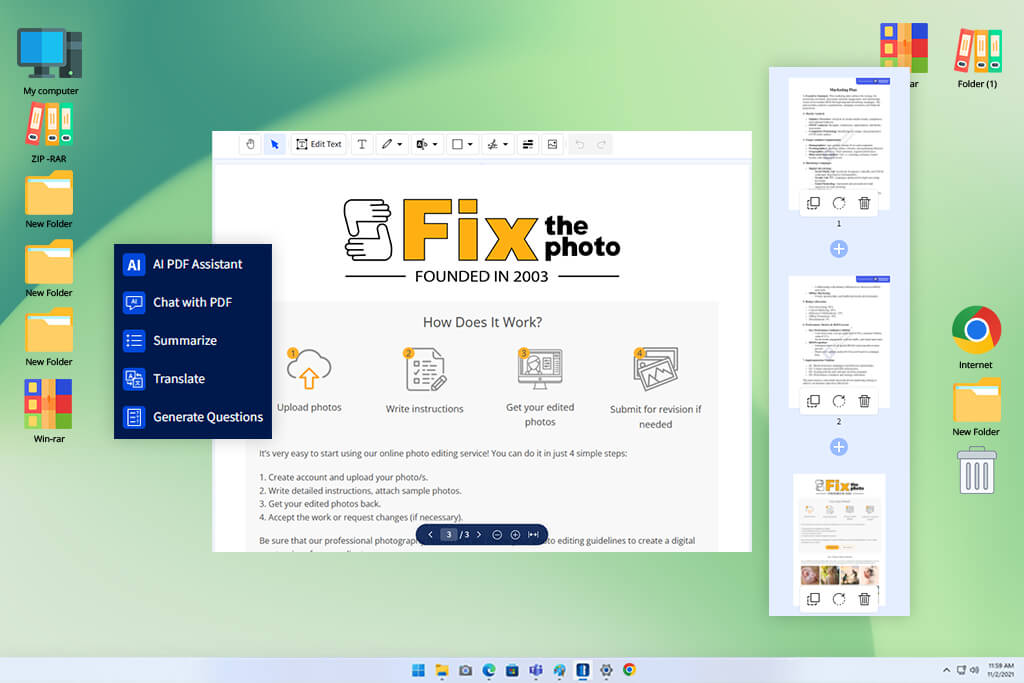
I started to consider Smallpdf as an UPDF alternative when my younger sister, who is currently a student, told me that she liked using this PDF platform, as she could master its tools easily. It was created specifically for those who want to fix their PDF files in a browser.
After comparing it to sites like UPDF, I realized that Smallpdf handles basic tasks more quickly than many of them. I used it to compress a large client report, convert this PDF file to DOCX format, merge several documents before sending them for approval, add a quick signature, or password-protect my PDF document.
I could perform all these tasks without installing a desktop program on my device. Besides, my team members did not have any issues with mastering the interface of this service.
“Smallpdf is an excellent choice for students, assistants, freelance professionals, and managers who want to access quick tools for working with PDF files instead of installing an advanced desktop software.”

I was pleased with its AI tools, as they helped me solve practical tasks with ease. I used the Chat with PDF and AI Summarizer features when working on a long project brief. Thanks to these tools, I could discover the most important insights before sending the document to my colleague. Even though it’s not my favorite service among UPDF competitors when it comes to editing contracts, it saves me a lot of time when I need to understand what the document is about quickly.
My tip is to use it when working with clean files that do not take up a lot of space, as it’s more suitable for basic tasks. I prefer to use desktop software when I need to perform advanced editing tasks or work with confidential client files. Even though the free version is quite handy, you will quickly notice the download limits if you work with PDF files regularly.
Pricing: Free with limited downloads and mobile access; 7-day free trial; Pro from $10/mo when billed annually or $15/mo when billed monthly.
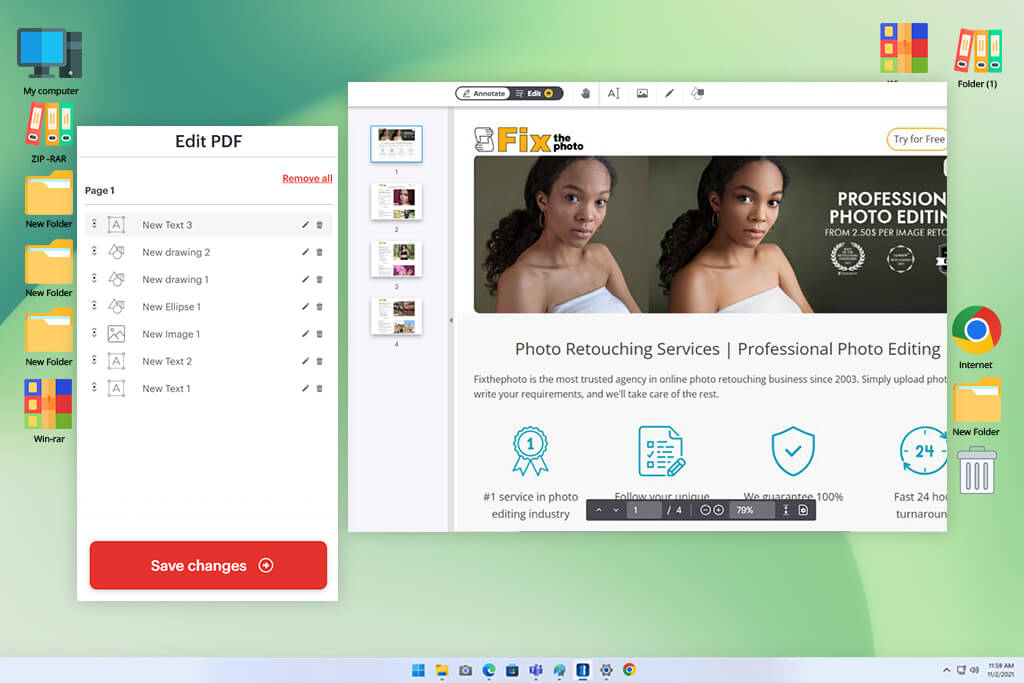
I discovered iLovePDF when I published an Instagram poll asking my followers which PDF services they use regularly. Many people mentioned it as a tool that made it easy for them to merge, compress, split, and convert files. Unlike UPDF, iLovePDF delivers a faster performance, which allows me to use its tools to work with PDF files quickly.
This UPDF replacement is less similar to traditional editors. I liked using it when I needed to process several files at once. I would compress a batch of reports, merge client documents to save them in one package, split large PDF files, convert Word documents into PDF format, and add page numbers before sharing files with my colleagues.
“I highly recommend iLovePDF to students, office assistants, teams, and small businesses that need to perform basic tasks with PDFs.”

In addition, iLovePDF comes with AI features like AI Summarizer and AI-powered PDF Translate. I tested them when working on short reports and articles saved in PDF format. The summarizer was especially useful when I needed to produce a quick overview. I mostly used the translation tools when I wanted to clarify the meaning of documents in foreign languages before choosing a person who should review them.
My advice is to install the desktop version and use it for batch processing, as you won’t need to upload many files manually. The free version is suitable for occasional use, but its functionality is quite limited, and it has ads. The Premium version is the best choice if you work with PDF files regularly.
Pricing: Free with basic tools and limited document processing capabilities; Premium from €5/mo when billed annually or €9/mo when billed monthly.
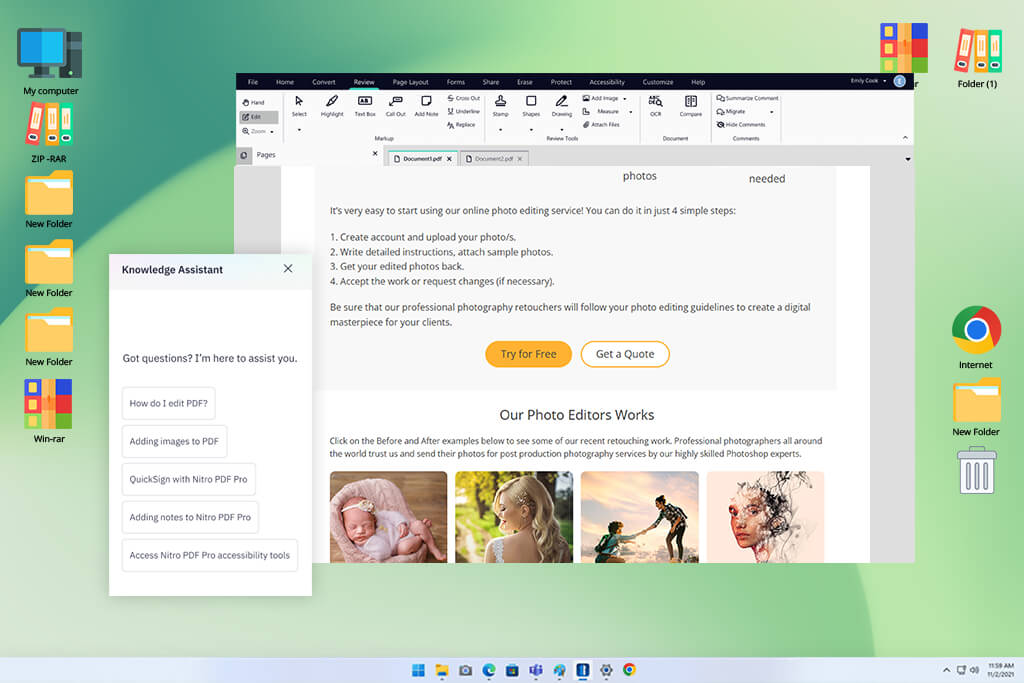
A colleague who works in our FixThePhoto admin team recommended Nitro PDF when I mentioned that I needed to find an advanced UPDF PDF editor alternative for office-style document workflows. When I compared it to UPDF, I thought that Nitro was more similar to Microsoft Office when it came to working with PDFs.
The interface was more convoluted than in UPDF, but it was also more intuitive. My colleagues with limited technical background were able to master the ribbon layout with ease. With this solution, I could edit PDF files, save them to Word and Excel, merge files, run OCR, add documents, protect files with passwords, and send documents for signing with eSignature. It helped me streamline my workflow.
I liked using the AI tools while working on long reports and PDFs with many tables. I summarized content with the help of the AI features available in Nitro, asked questions, extracted data, and converted PDF tables into files that I could continue editing in Excel. This solution is more suitable for office teams than for casual users.
My tip is to use Nitro to work on files that require high accuracy during conversion, need to be signed, or are used as part of regularly repeated admin workflows. It might be too advanced for quick and simple tasks.
Pricing: 14-day free trial with no bank details required and no locked tools; paid plans upon request.
When I decided to find the best UPDF alternatives, I followed a well-structured approach. Together with other members of the FixThePhoto team, we follow it often, as we work with PDF files daily.
Working as a project manager, I often deal with contracts, client briefs, invoices, internal reports, checklists, scanned forms, and approval documents. This is why I wanted to find the UPDF AI alternative that could help me streamline my workflow. I did not need to focus only on the solutions that produced great demo results.
The first thing I did was to create a long list of 30+ PDF editors, web platforms, and AI document apps, many of which were recommended by my colleagues, Reddit users, professionals who posted on Quora, YouTube reviewers, and some people I know.
Next, my team and I created a shorter version of this list to focus on the solutions that were especially suitable for managers who worked with documents regularly, small teams, freelance professionals, students, and people who wanted to find free platforms for casual use. We decided against including some solutions in the final version of our list:
We tested and assessed each solution based on the same criteria:
I started with assessing the ease of setup and everyday use. I wanted to know whether I would be able to open a PDF quickly, edit text, replace pictures, add comments, organize pages, and export the output. If a solution had extensive functionality but did not help me perform these tasks quickly, I ranked it lower.
Then, I assessed layout stability and editing tools precision. I used these services to work on client-style reports, multi-page contracts, scanned forms, and PDFs with many images. My colleagues helped me check whether fonts stayed the same, spacing remained consistent, images remained where I placed them, and converted files maintained the right structure.
In addition, I tested OCR performance, conversion, compression, security features, and tools for working with signatures. I use these features daily, so I was interested in the services that support such functionality. When working with scanned files, I examined the output text carefully to understand whether it was searchable and editable. When testing the conversion tools, I compared the exported Word and Excel files to the original documents in PDF format.
Besides, I tested the available AI tools. I asked these UPDF AI alternatives to generate summaries of long documents, answer questions, explain the paragraphs that weren’t sufficiently clear, translate some sentences, or find crucial details. I never thought that AI tools could be used as a replacement for human oversight and careful reviews, especially when it came to contracts. However, I wanted to know whether such tools can save time.
Finally, we analyzed these services in terms of pricing, the functionality of free versions, export limitations, and real value. We included in the final list only the services that helped us streamline our document workflow without causing any issues.




![7 Best HEIC to JPG Converters [{{%year}} FixThePhoto Choice]](http://fixthephoto.com/blog/images/gallery/news_main__preview_29011.jpg)


![9 Best Lumen5 Alternatives [{{%year}} FixThePhoto Choice]](http://fixthephoto.com/blog/images/gallery/news_main__preview_28975.jpg)

















