Painterly Effect in Photoshop: Overview & Tutorial

When you purchase through affiliate links on our site, we may earn a commission. Here’s how it works.
Painterly Effect in Photoshop Free Bonus Tools

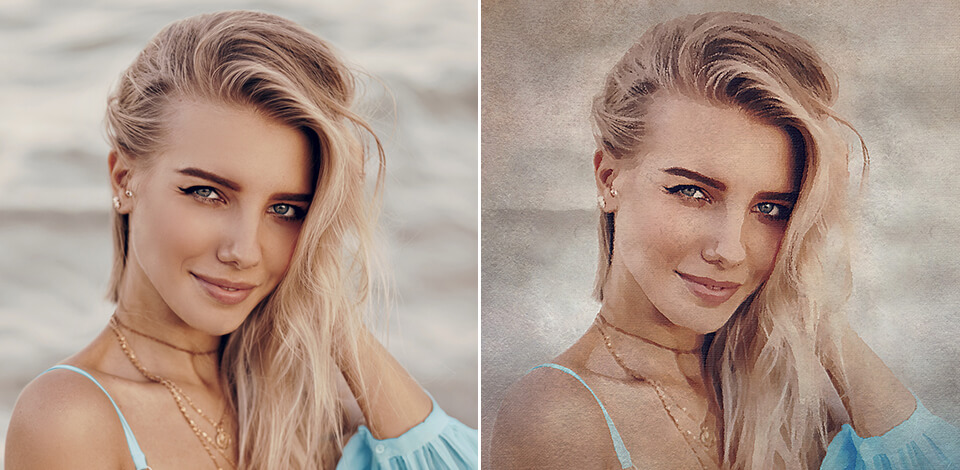
The painterly effect in Photoshop is perfect for anyone who wants their photos to look like classic paintings. With just a few tools, you can add brush-like strokes and textures that make your picture artistic and unique. It’s a popular trick among creatives. Once you learn it, you’ll keep applying this effect again and again.
Painterly Effect in Photoshop: Limitless for Creatives

photoshop box

Updated Photoshop Now Breaks the Limits!

Photoshop doesn’t stop at just the painterly effect. The latest update has introduced new powerful tools to help you create stunning images. Adobe keeps raising the bar, making it easier than ever to bring your creative ideas to life.

The painterly effect Photoshop refers to changing your realistic photo but converting it into something more expressive. It gives your image a painted feel by adding soft textures, brush-like details, and stronger colors. This approach is perfect if you want your photo to resemble a piece of art hanging on a wall rather than a camera shot.

Photoshop, along with other free Adobe software, has just been updated. This means you now have even more fun tools to play with when turning your photos into art.
  • Distraction Removal Tool: You can clean up your image by removing unwanted parts in a matter of seconds.
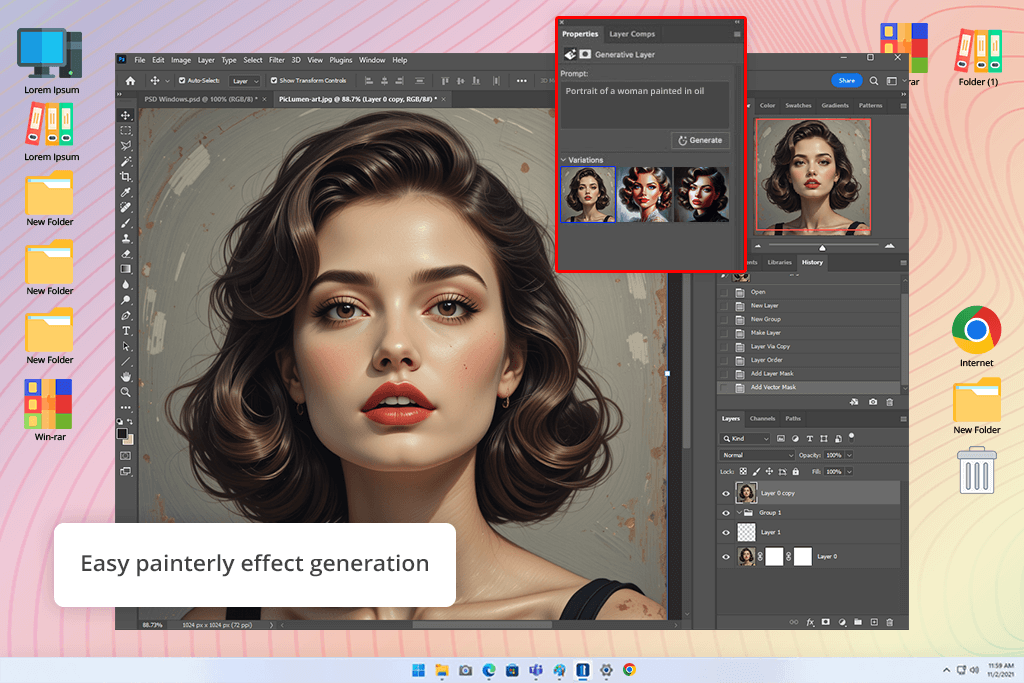
  • Text to Image Feature: Just type what you need, and Photoshop creates a matching image. It is great for building custom art pieces right on your canvas.
  • Adjustment Brush Tool: Combines several steps into one. You can mask, select, and tweak areas simultaneously with better accuracy.
  • Smarter Contextual Task Bar: You can now rotate, resize, or change shapes right from the toolbar. It’s quicker and more convenient.
photoshop updates interface

“Before, I had to spend forever cloning and masking little objects in photos. Now, I just brush over them and they disappear. It’s so helpful for cleaning up distracting stuff in the background. Now I can cope with these tasks faster than before.”


tata rossi fixthephoto expert
Tata Rossi
Tech Trends Journalist

7 Ways to Achieve Photoshop Painterly Effect

What’s cool about Photoshop is that it gives you many ways to create a painterly look. Some people use built-in tools and Photoshop’s filters, while others get more creative with brushes and textures. Either method can give you beautiful results. Just pick the one that suits your style.

1. Using Filters for a Quick Painterly Effect in Photoshop

If you're going for a painterly effect, Photoshop offers integrated filters for a smooth start.
  • Try the Oil Paint Filter (Filter > Stylize > Oil Paint). It smooths your image, adds brush strokes, and gives it a glossy, painted vibe. You can adjust Stylization, Cleanliness, and Scale to control the overall style.
  • Head to the Artistic Filters section (Filter Gallery > Artistic) and check out Dry Brush, Paint Daubs, or Palette Knife. They help you create a painted texture.
  • If you want something personalized, combine filters. Blending different options, like Oil Paint and Poster Edges, can yield amazing results.

Tip: Make a copy of your original layer before you begin. You can try as many edits as you want without worrying about ruining the original.

2. Manual Painting with Brushes

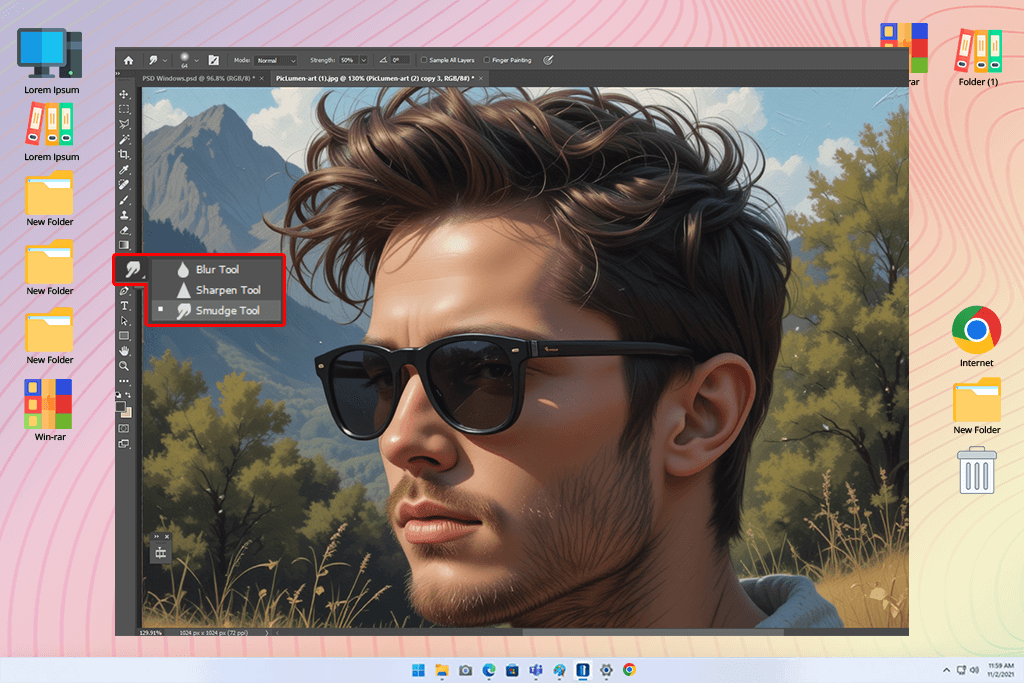
painterly effect photoshop smudge tool

How to create a painterly effect in Photoshop? If you’re aiming for a more personal, painted look, take advantage of Photoshop’s custom brushes.
  • Pick textured brushes that copy the look of oil or watercolor strokes. You can find many online or use the ones built into Photoshop.
  • Paint in colors, shadows, and highlights by hand to give it a realistic, artistic touch.
  • Use the Smudge Tool with a brush tip to blend areas and make everything flow together smoothly.

Why choose this? It’s great for anyone who wants to create expressive artwork, making sure each brush stroke tells its own story.

3. Mixer Brush Tool for Digital Painting

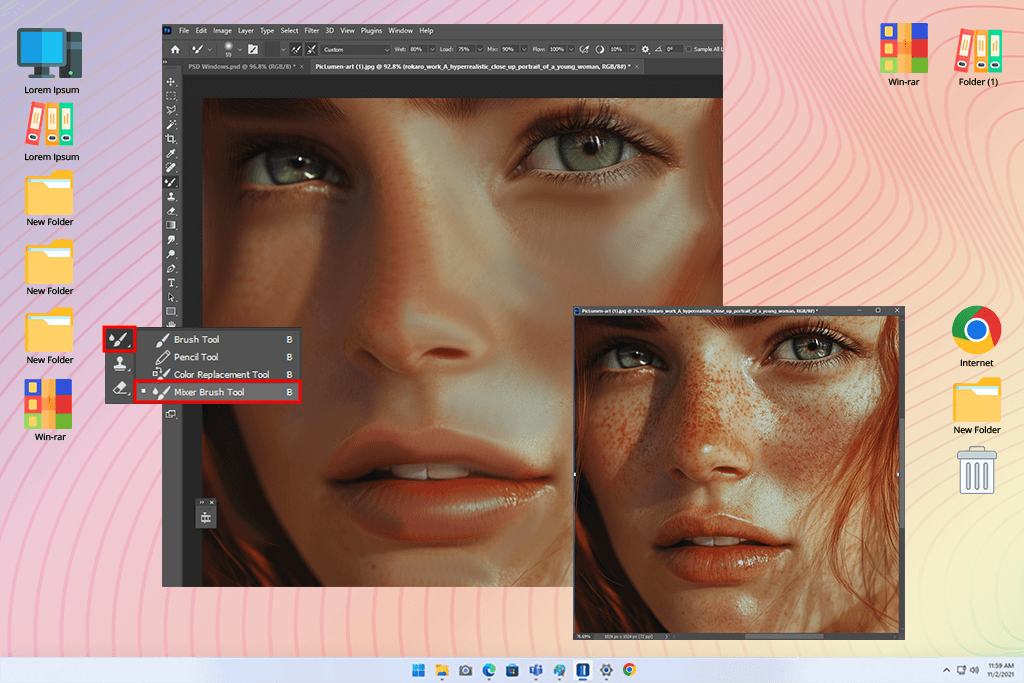
painterly effect photoshop mixer brush tool

The Mixer Brush Tool in Photoshop mimics the look of real paint on a canvas.
  • You can mix colors naturally and paint as if your brush is wet or dry.
  • It works great on detailed, high-res images when you want smooth color changes.
  • Combine it with your current colors to make your image richer and more textured.

How to use: Select the Mixer Brush Tool, set Wet, Load, Mix, and Flow to your liking. Then paint over the image to create smooth color blends.

4. Smart Objects & Non-Destructive Editing

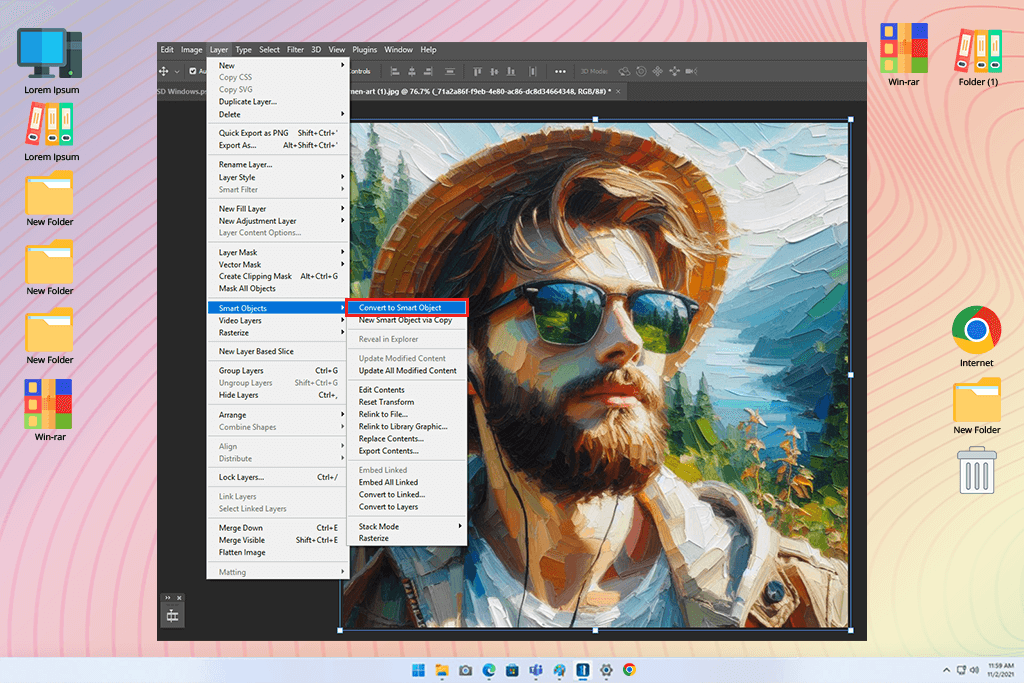
painterly effect photoshop smart object

Want to experiment safely when creating a Photoshop painterly effect? Use Smart Objects so your original image stays untouched.
  • Right-click your photo layer and select “Convert to Smart Object”.
  • Try different filters like Oil Paint or mix a few from the Filter Gallery.
  • You can edit or remove these effects anytime.

Benefit: You’ll have total freedom to try new looks again and again.

5. Blending Modes & Textures for Artistic Depth

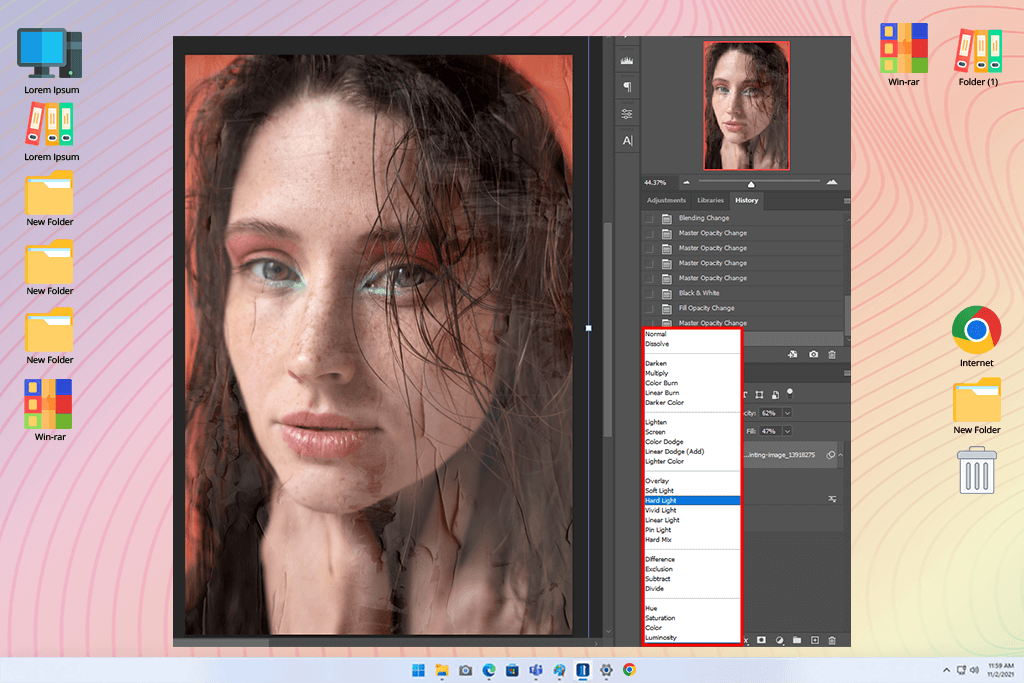
painterly effect photoshop blending modes

To make your photo look more like a painting, add textures and use blending modes.
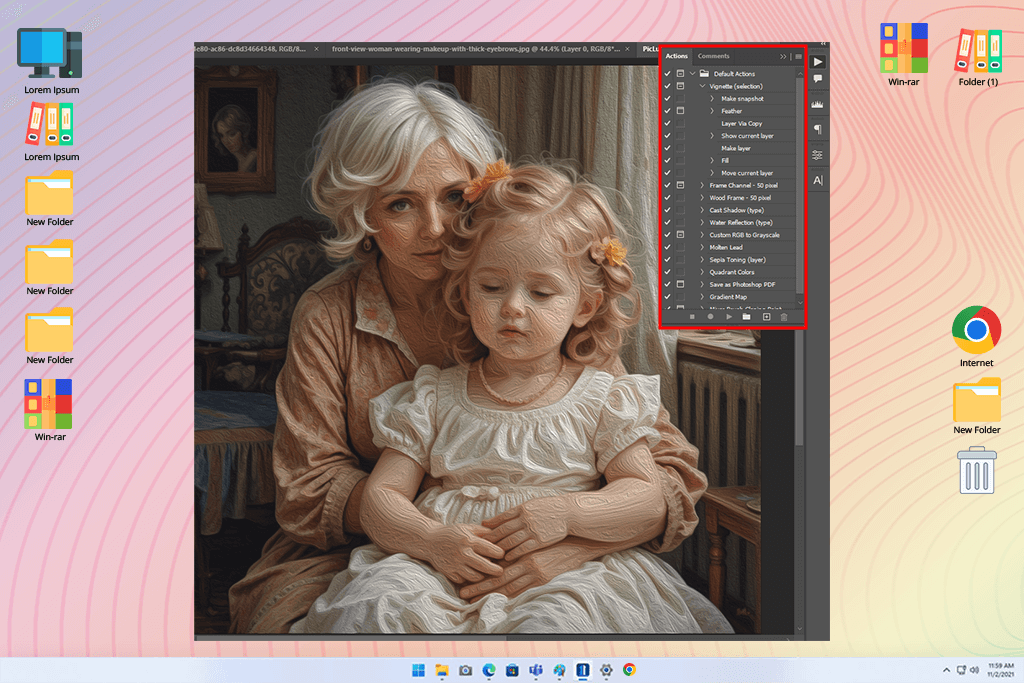
  • Use canvas or paper textures to make it feel like it's painted on a real surface.
  • Play with blending modes like Overlay, Soft Light, or Multiply to blend the texture smoothly with your image.
  • Lower or raise the opacity to make the effect soft or strong.

6. Actions & Presets for Speedy Results

painterly effect photoshop actions

If you want to edit faster or make your photos match each other, free Photoshop Actions can do the trick.

  • With one click, you can apply painterly effects using actions. There are both free and paid versions.
  • Actions usually combine filters, brushes, and textures to give you a creative look in seconds.
  • There are special thematic actions made just for portraits, nature shots, or fine art photos.

7. Combining Manual and Automated Techniques

A lot of artists get the best effect by using a mix of tools:

  • Start with filters to build the base.
  • Add details using brushes or the Mixer Brush.
  • Use textures and blending modes to complete the look.

It’s a creative way to work without wasting time or losing your style.

fixthephoto image manipulation services fixthephoto image manipulation services

Want to Achieve the Desired Painterly Effect?

If mastering Photoshop tools seems to be exhausting and difficult for you, don’t get upset. FixThePhoto can turn your photo into a painting with the look you want. They’ll make all the edits for you fast and professionally, usually in under 24 hours.

Tutorial from the FixThePhoto

You don’t need the full Photoshop version if you’re not using it every day for professional tasks. Photoshop free version works just fine for making this beautiful painterly effect.
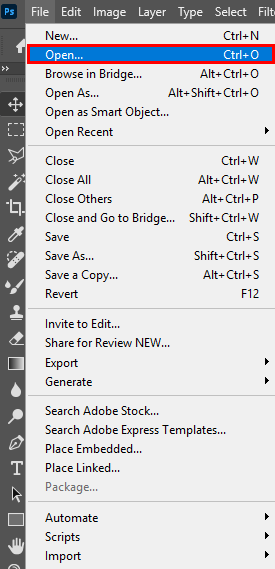
painterly effect photoshop open photo

1. The first step in this Photoshop manipulation tutorial is to open the photo you’d like to turn into a painting.
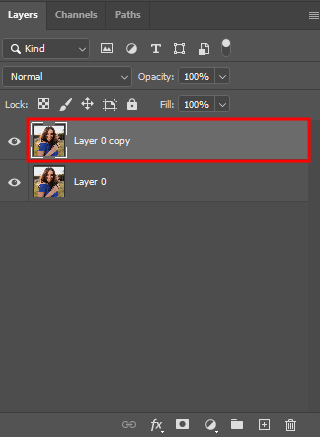
painterly effect photoshop new layer

2. Duplicate the photo onto a new layer.
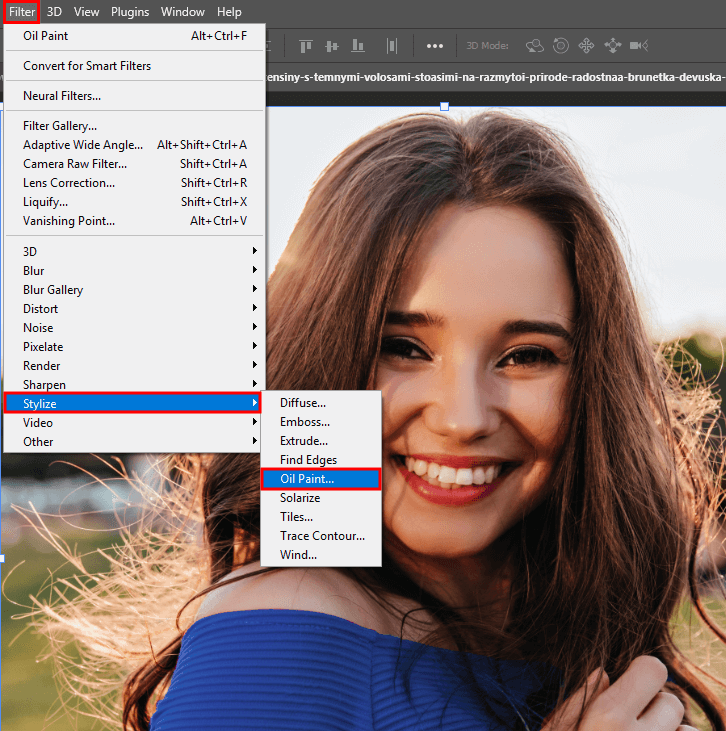
painterly effect photoshop oil paint

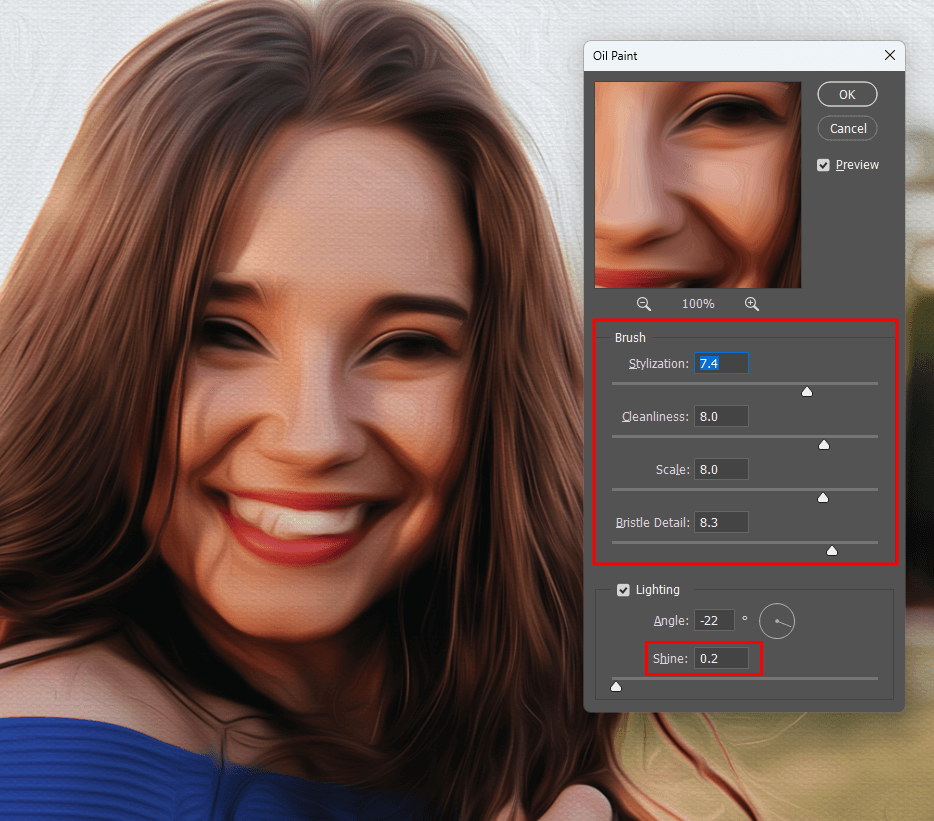
3. Click on Filter, then choose Oil Paint.
painterly effect photoshop shine

4. Lower the intensity of the effect and set the Shine value to 0.2.
painterly effect photoshop mask

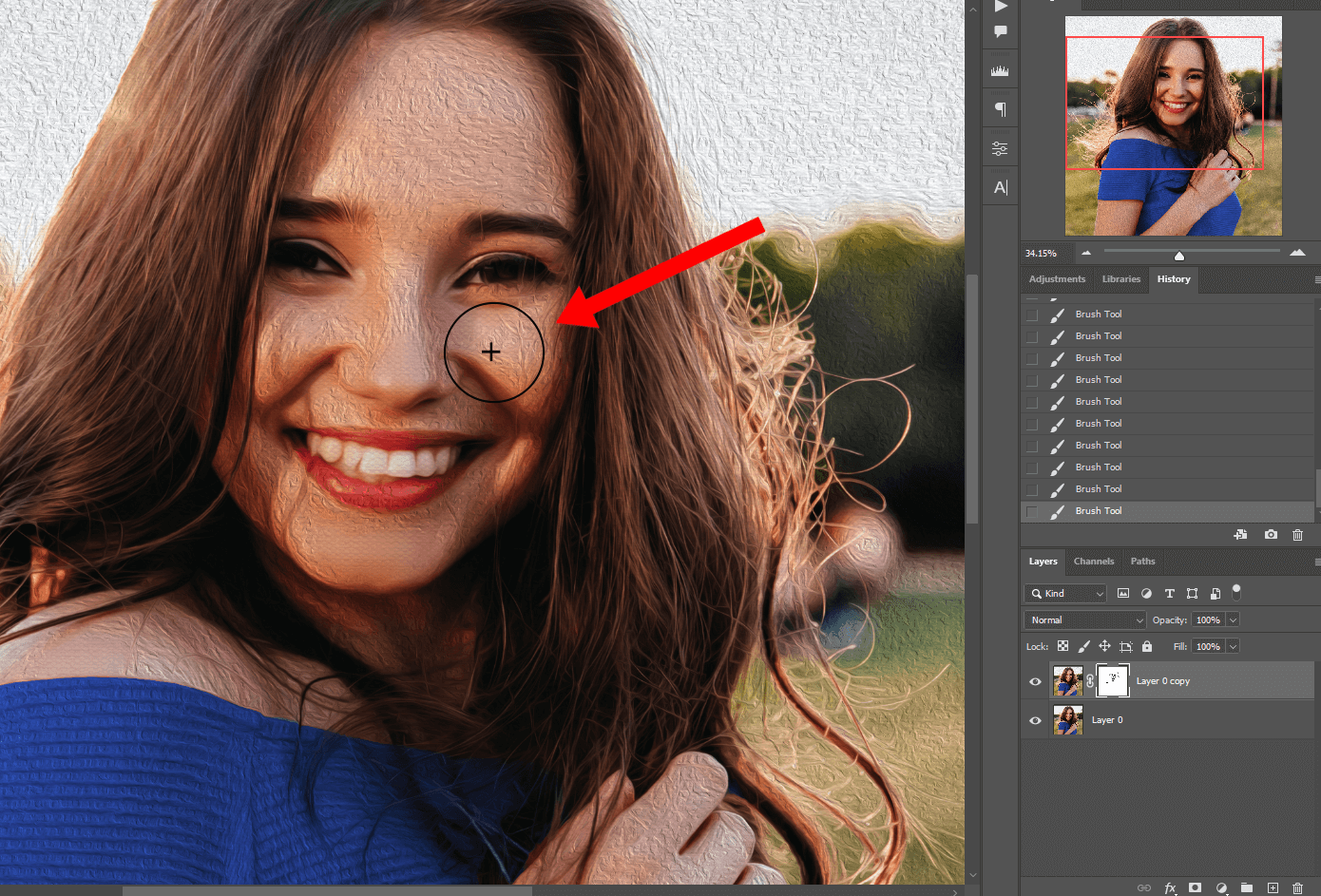
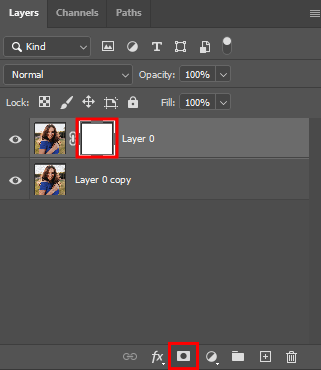
5. Create a mask on the layer.

painterly effect photoshop brush

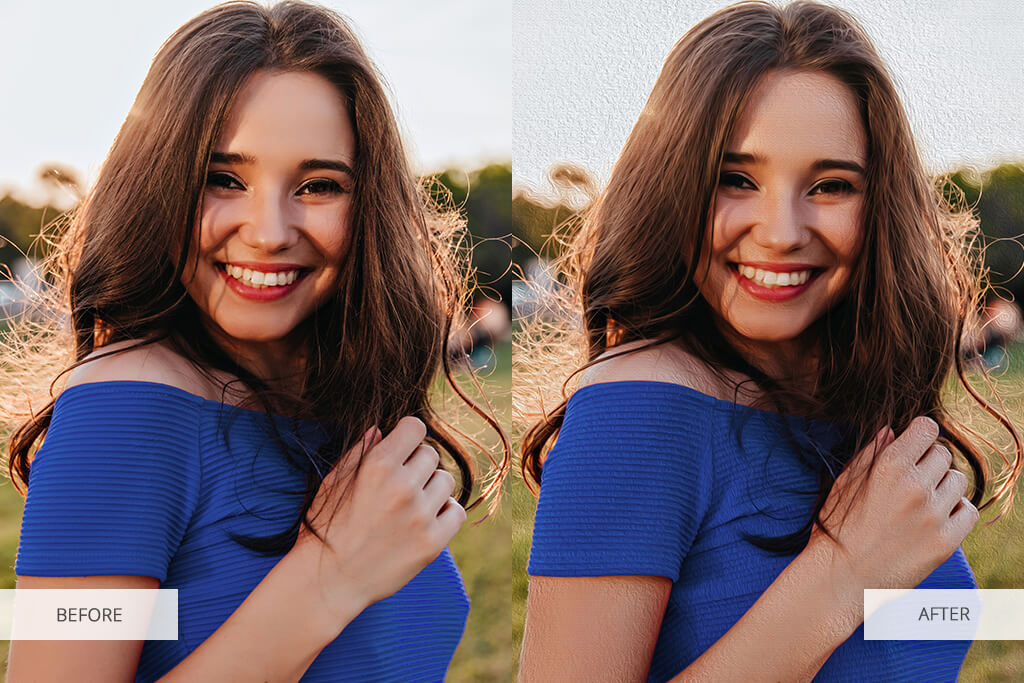
6. The final step in the Photoshop tutorial is to select a black brush and paint over sharp areas to soften them and make the image look more realistic.

That’s it!
painterly effect photoshop final

Painterly Effect in Photoshop CC: FixThePhoto Expert Tips

Getting a top-quality painterly effect in Photoshop isn’t just about clicking a few filters. It takes both skill and an artistic eye. The expert retouchers from the FixThePhoto team have shared their experience to help you get professional-looking, realistic results.

“Use Smart Objects and adjustment layers to keep your edits flexible.”


tetiana kostylieva fixthephoto expert
Tetiana Kostylieva
Photo & Video Insights Blogger

“Adjust the Mixer Brush to blend colors naturally, just like real paint.”


kate gross fixthephoto expert
Kate Gross
Digital Technology Writer

“Layer in canvas textures with Overlay or Soft Light for a traditional art feel.”


julia newman fixthephoto expert
Julia Newman
Senior Writer – Tech & Privacy

“Paint light and shadows on separate layers with a soft brush for added depth.”


tati taylor fixthephoto expert
Tati Taylor
Reviews Writer

“Use a mix of blurred and sharp edges to guide the viewer’s eye, just like in real artwork.”


ann young fixthephoto expert
Ann Young
Retouching Guides Writer

“Begin with large, rough shapes, then fine-tune the details.”


vadym antypenko fixthephoto expert
Vadym Antypenko
Tech Gear Specialist

“Try Gradient Maps or Curves to color grade and tie your colors together.”


eva williams fixthephoto expert
Eva Williams
Writer & Gear Reviewer

“Don’t apply too many changes. Sometimes, less is more when you want a polished, painterly effect.”


nataly omelchenko fixthephoto expert
Nataly Omelchenko
Tech Innovations Tester

“You can use actions or presets to speed up your workflow, but don’t neglect manually tweaking to make the image truly yours.”


tani adams fixthephoto expert
Tani Adams
Apps Reviewer & Writer

“Remember to zoom out now and then to see how your image looks as a whole.”


robin owens fixthephoto expert
Robin Owens
Senior Tech Writer

FREE Bonus Tools

If you want to create painterly effect in Photoshop fast, make use of the FixThePhoto brushes. It is easy to install Ps brushes and set them up. They are perfect for projects where you need a hand-painted look whether it’s watercolor, oil, or acrylic.


Ann Young

Retouching Guides Writer

Ann Young is an expert photographer, retoucher, and writer with over 9+ years of working at FixThePhoto. Her career in digital community began after earning her degree from New York University. She believes AI can be a real helper if you know how to use it properly. Unlike many photographers, she isn’t afraid that AI tools can replace human experts in different spheres.

Read Ann's full bio

Tetiana Kostylieva

Photo & Video Insights Blogger

Tetiana Kostylieva is the content creator, who takes photos and videos for almost all FixThePhoto blog articles. Her career started in 2013 as a caricature artist at events. Now, she leads our editorial team, testing new ideas and ensuring the content is helpful and engaging. She likes vintage cameras and, in all articles, she always compares them with modern ones showing that it isn’t obligatory to invest in brand-new equipment to produce amazing results.

Read Tetiana's full bio

adobe special offer adobe special offer