

As someone who creates short videos for FixThePhoto daily, be it Reels, YouTube Shorts, or behind-the-scenes footage, finding the best app for speeding up videos was very important for me. I wanted a tool that would let me set the playback speed, create time-lapses, and add smooth transitions.
The speed of a video can have a dramatic effect on how we perceive it. Whenever I’m transforming a lengthy retouching session into a brief before/after clip or creating a fast-paced montage for Instagram, being able to speed up a video quickly and conveniently is paramount for enjoying an efficient editing experience.
However, determining which solution is the best for you can be quite tricky. Some options damage the video quality, others are very slow, while the third kind applies distracting watermarks. I tried out over 25 apps for speeding up videos to learn which of them offer a satisfying combination of quality, performance, and user-friendliness. I did a lot of online research, studied endless user reviews, and talked to my FixThePhoto coworkers who also create social media videos.
While you can use an app to speed up videos to make them more engaging, you might receive a choppy result with disfigured sound if you don’t handle it properly. I tried a variety of solutions and approaches myself, and here’s what I can recommend:


Price: Free trial, plans start at $22.99/month
OS: iPhone / Android
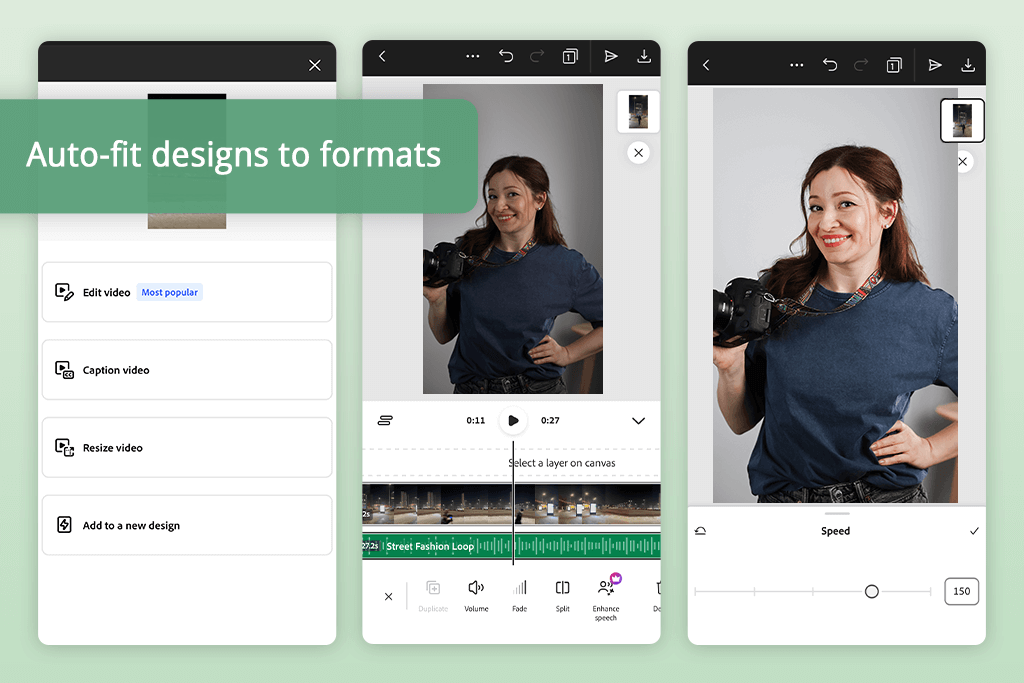
Adobe Express for free is particularly useful for short video edits when the objective is to expedite films for social media. For short-form films, reels, and stories where time is more important than frame-by-frame accuracy, I frequently utilize it to change the playback speed. Even for those who have never edited a film before, the controls are straightforward and simple to comprehend.
The seamless integration of Express's design elements with video speed tools is noteworthy. Once a clip has been accelerated, it is simple to add text, overlays, or change the framing so that the video seamlessly adapts to various platforms.
This speeds up the process, particularly when producing content for several formats at once. Creators who seek crisp, ready-to-post outputs without complicated editing stages are best suited for Adobe Express.
Price: Free (with watermark) or from $4.99/month
OS: iPhone / Android
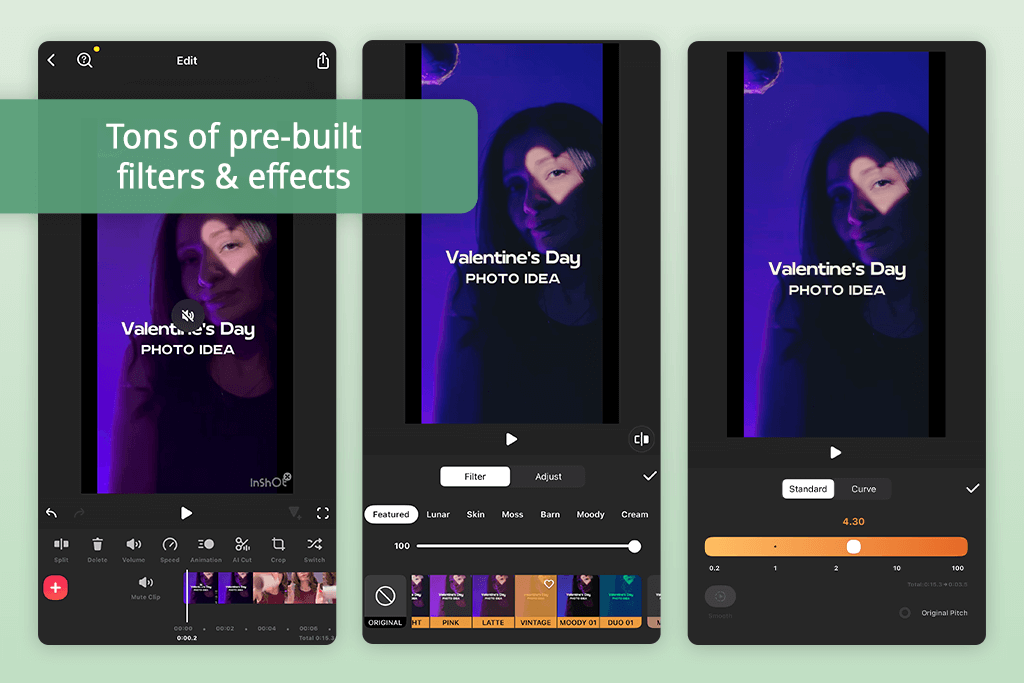
I decided to check how InShot fares as a speed-up video app, both when tackling brief clips and lengthier behind-the-scenes footage. The UI is minimalistic, intuitive, and perfect for making instant edits on a phone or tablet. Changing the playback speed is also very simple: you import a video, select “Speed,” and move the slider to the right to increase the speed. I particularly enjoyed the ability to preview the changes in real time, ensuring I could get the result I needed without having to restart the entire process.
For my test, I employed InShot to turn a regular video on photo retouching into a 15-second time-lapse while also adding a cinematic rush to a town walk clip. I was very happy with the output, even at 2x-4x speed, particularly since this is a free application.
In addition to speed settings, InShot offers several important features you’d expect to see in an all-in-one free video editing app, providing a variety of premade filters, effects, and transitions, allowing you to color-grade or stylize your footage without opening any other software. Sadly, if you try to edit long 4K videos, you can notice some lag, which can result in possible sound sync issues upon export.
Price: Free or from $7.99/month
OS: iPhone / iPad
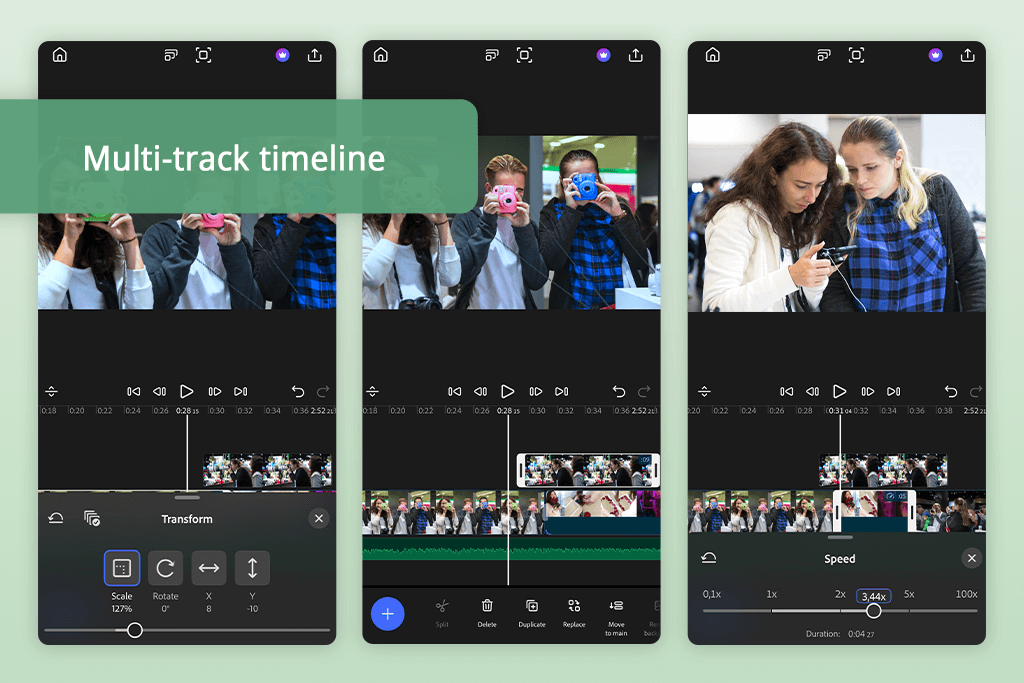
Adobe Premiere is arguably the best app to speed up videos on iPhone. It’s suitable for making high-action Reels, tutorials, and time-lapses. It has a user-friendly UI and a useful multitrack timeline for trimming, reordering, and layering footage.
Using the app is very easy – pick a clip, choose the speed settings, and set the desired playback speed, while slowing down, reversing, or freezing different moments as you see fit. The real-time preview feature ensures this video editing app for iPad makes it simple to adjust pacing and export a smooth result, whether you’re working on a 10-second clip or a 20-minute video.
For my test, I employed Premiere on iPhone to increase the speed of a retouching tutorial and an urban exploration video. The output was pleasantly smooth, as I didn’t notice any frame drops or stuttering. Moreover, Premiere is a full-cycle editing app, allowing me to perform color grading, apply stickers and captions, layer audio effects, and leverage AI generation to increase the quality of my projects.
Additionally, it lets you begin working on a video on the phone and make further adjustments using Premiere Pro on a desktop, enjoying a versatile workflow.
This iPhone-exclusive app has both free and paid versions, with the former enabling you to save videos in 4K resolution without any watermarks, which is great news. The only notable issues with this option is the absence of Android compatibility and the credit-based system of all available AI tools. Thankfully, those problems aren't related to speeding up videos in any way.
“Perfect for professional-quality adjustments, but a steep learning curve if you want to make precise edits.”

Price: Free or from $6/month
OS: Android
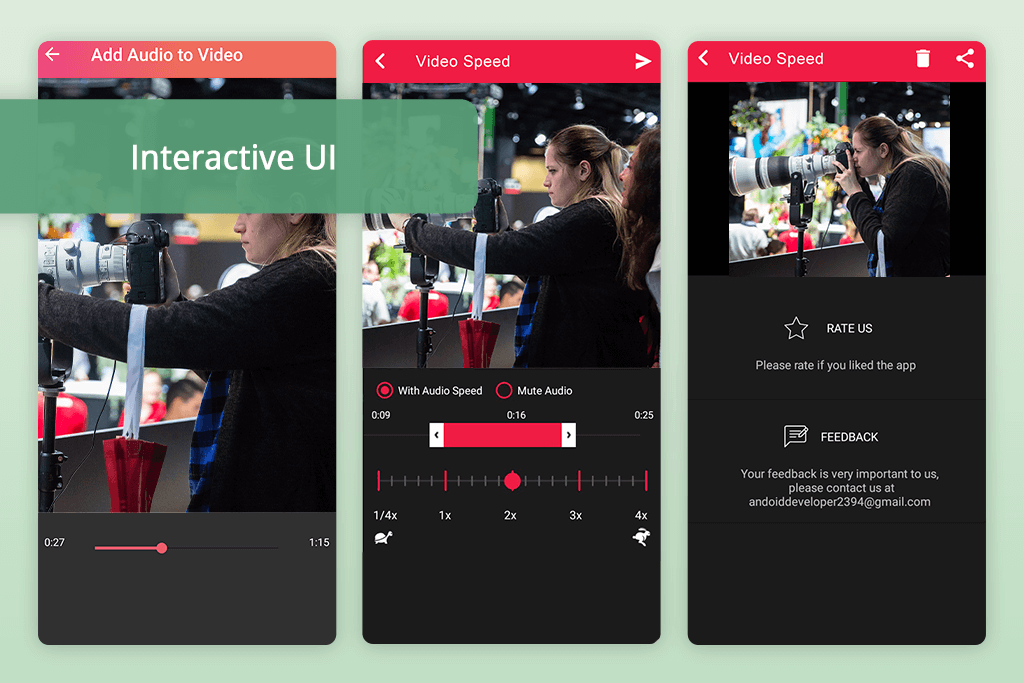
Video Speed Fast & Slow Motion is an extremely useful fast-forward video app with an intuitive UI that lets you import or record a video, and then set the speed between 1.25x and 4x for quicker motion or drop it down to 0.25x. The real-time preview ensures this free stop motion software allows you to make sure you’re satisfied with the edit before you export the video, which is ideal for time-lapses, tutorials, or quirky fast-motion clips.
During my test, I sped up photo retouching tutorials, behind-the-scenes footage, and lifestyle clips. This solution allows me to import and export files in MP4, MOV, AVI, and MKV formats while delivering a professional, smooth result. I enjoyed trying out multiple speeds, ensuring the video was still enjoyable to watch and fulfilled its purpose.
That said, the app struggles with 4K and very long videos, suffering from lag. It is also a lot more restrictive when it comes to editing functionality compared to dedicated video editors for Android, but it’s more than enough for most short-form projects. Additionally, the app is available on Android but doesn’t have an iOS version.
Price: Free or from $3.99/month
OS: iPhone
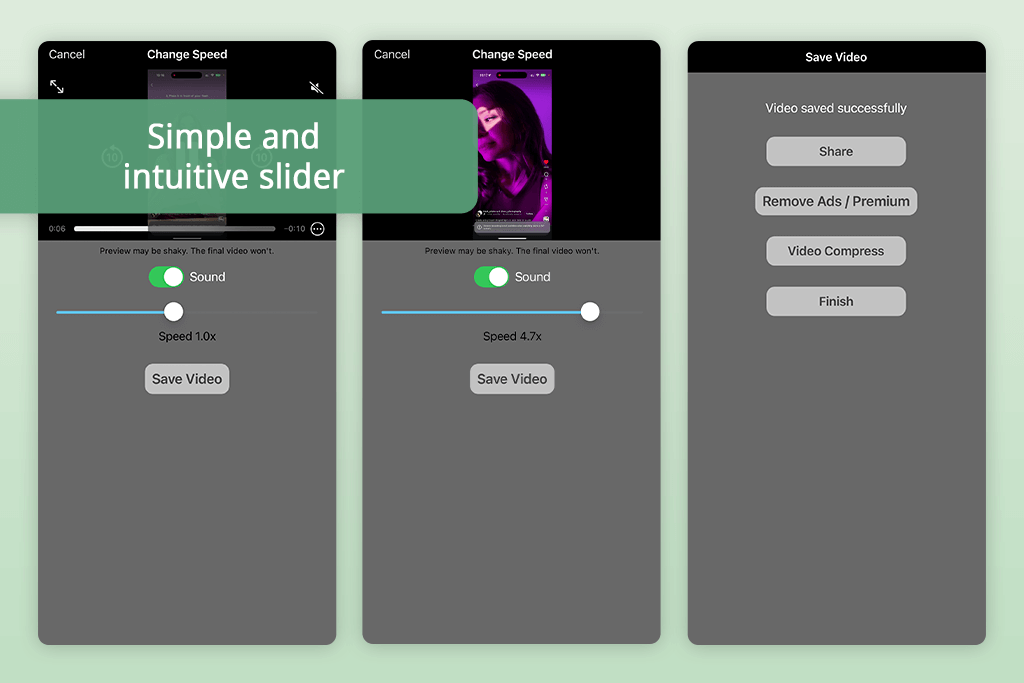
Video Speed Changer is a great choice if you’re looking for an app to speed up videos as well as slow them down. It offers an intuitive UI, and all you have to do is import or record a clip, move the slider to the desired speed setting, and save the result. As such, it's a great option even for users with zero technical skills.
For my test, I increased the speed of a city walk video to make a smooth time-lapse post for Instagram, while also editing a pool jump video to turn it into a slow-motion clip. Video Speed Changer is versatile enough to help me process iPhone and drone footage alike without any quality drops. Additionally, I managed to slow down the speech in one video, which helped me achieve a humorous effect.
Sadly, this app can start to lag if you try to edit longer videos, and the absence of dedicated editing features, as well as the small number of supported formats, make it less appealing. It’s also not available on Android. However, if all you want is to change the playback speed, this time-lapse editing app deserves your attention.
“Video Speed Changer is user-friendly and convenient to use, ideal for on-the-fly speed adjustments, even if it doesn’t have professional editing tools.”

Price: Free or from $9.99/month
OS: iPhone / Android
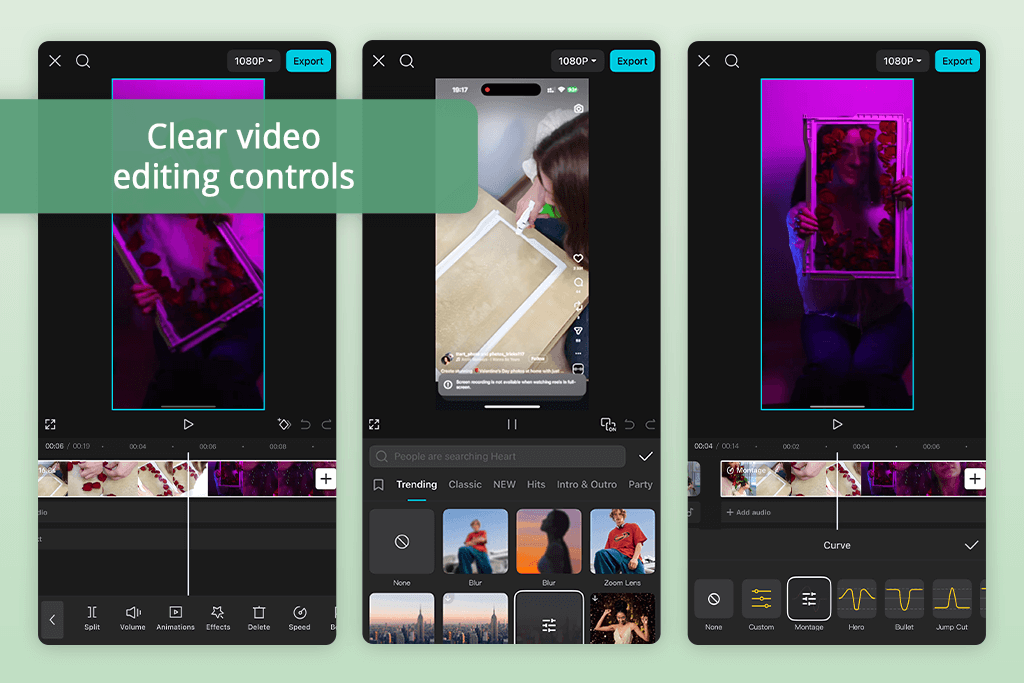
CapCut is my favorite Reel editing app for speeding up videos if I’m in a hurry and need to produce a new social media post quickly. It’s very easy to use, yet comes with a wide range of useful features. Changing the speed is very simple.
I used CapCut to work on a tutorial, city walk, and behind-the-scenes photoshoot footage. I tried different options, ranging from 1x to 10x, while also checking how this video fast-forward app could handle acceleration and deceleration.
The real-time preview feature and the provided timeline streamline the task of adjusting playback speed, while the optical flow tool helps preserve smooth movement when making slow-motion videos. For my test, I increased the pace of a 4-minute tutorial and turned it into a 40-second highlight reel. I also added some flash-forward effects to a city walk without noticing any drops in quality. The fact that you can get this video editing software for Windows and macOS is another huge plus.
CapCut comes with a bunch of additional useful features as well, including visual effects, filters, music and audio effects, keyframe support, image stabilization, and chroma key, making it among the best apps for speeding up videos if you’re looking for an all-in-one solution. It lets you save your projects in 4K resolution at 60fps before posting them on Instagram, TikTok, or YouTube. The only drawbacks I noticed are subtle motion artifacts when increasing speed by a lot, and the long export times for 4K footage.
Price: Free
OS: iPhone
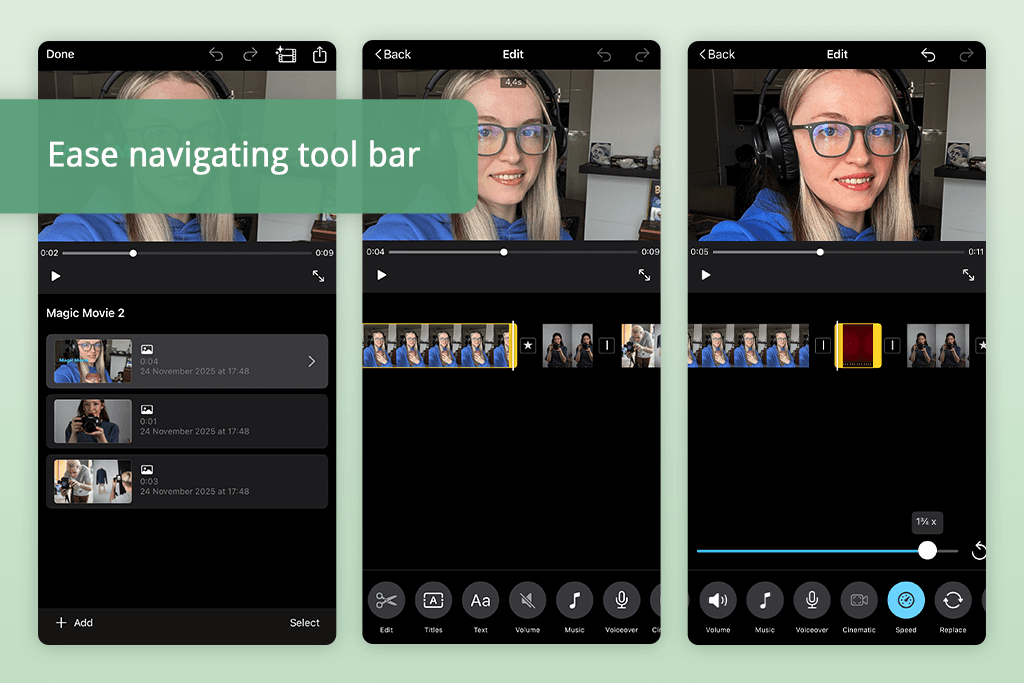
If your goal is to find a free speed-up video app that is easy to use, then iMovie is the natural first destination. I used it on a couple of videos, including a minute-long behind-the-scenes look at a photoshoot and a 3-minute tutorial. It only took me a few taps to set the playback speed to 2x, making the clips a lot more engaging to watch.
The UI of this iOS app is clean and easy to navigate, ideal for edits on the go. You can simply drag and drop footage onto the timeline before adjusting its speed. Sadly, iMovie caps the playback speed at 2x, so if you want a more dramatic increase, you'll need to find a different solution. When I tried stacking several speed-ups for my test, it took multiple attempts before I was satisfied with the result.
“Great option for beginners, even if it’s incapable of making highly precise or segmented speed adjustments.”

Price: Free or from $6.99/month
OS: iPhone / Android
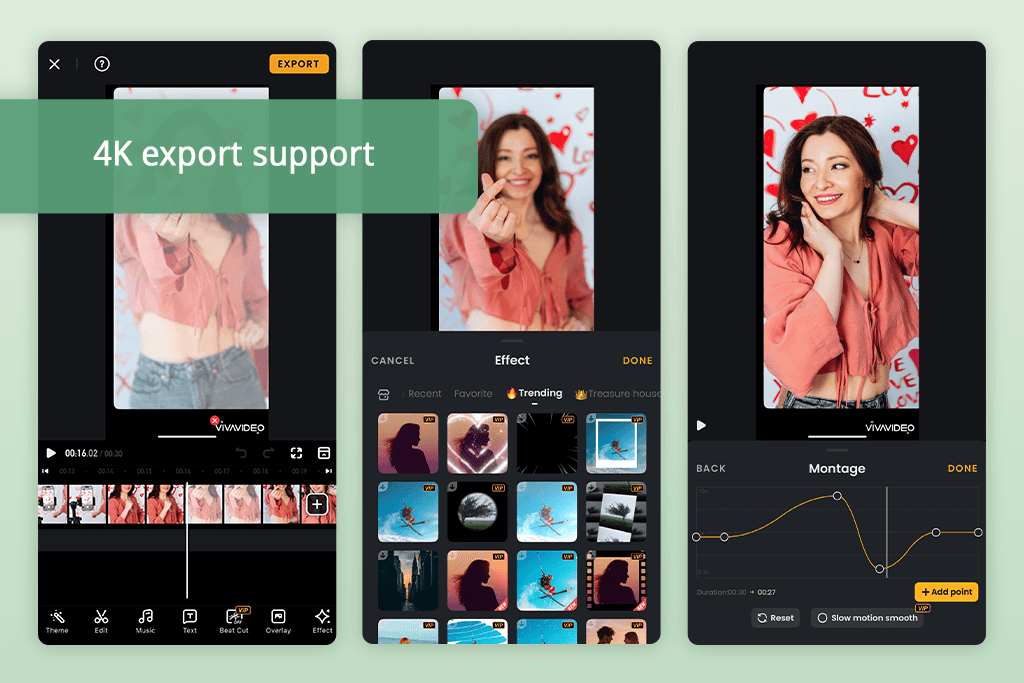
VivaVideo offers both standard editing features and AI functionality, which is why many consider it the best app to speed up videos on both Android phones and iOS. I used it to convert a 3-minute video into an 8x time-lapse, while also speeding up travel footage and applying some music to it with the help of the Beat Sync feature.
This app lets me set the playback speed between 0.1x-10x, while the real-time preview ensures I can fine-tune this setting without wasting any time. The UI is minimalist and professional, making it easy to apply filters, transitions, and music without having to use other tools.
The output preserved its smooth motion even at increased speed, and I greatly appreciated the ability to save the video in 4K resolution as well. Unfortunately, if you decide to use VivaVideo as a free app to speed up videos, you’ll have to deal with watermarks, ads, and a bit of lagging. That said, this is still a great free video editor for YouTube if you value precise speed controls and want to have access to an array of editing features on your phone.

Price: Free or from $5.99/mo
OS: iPhone / Android
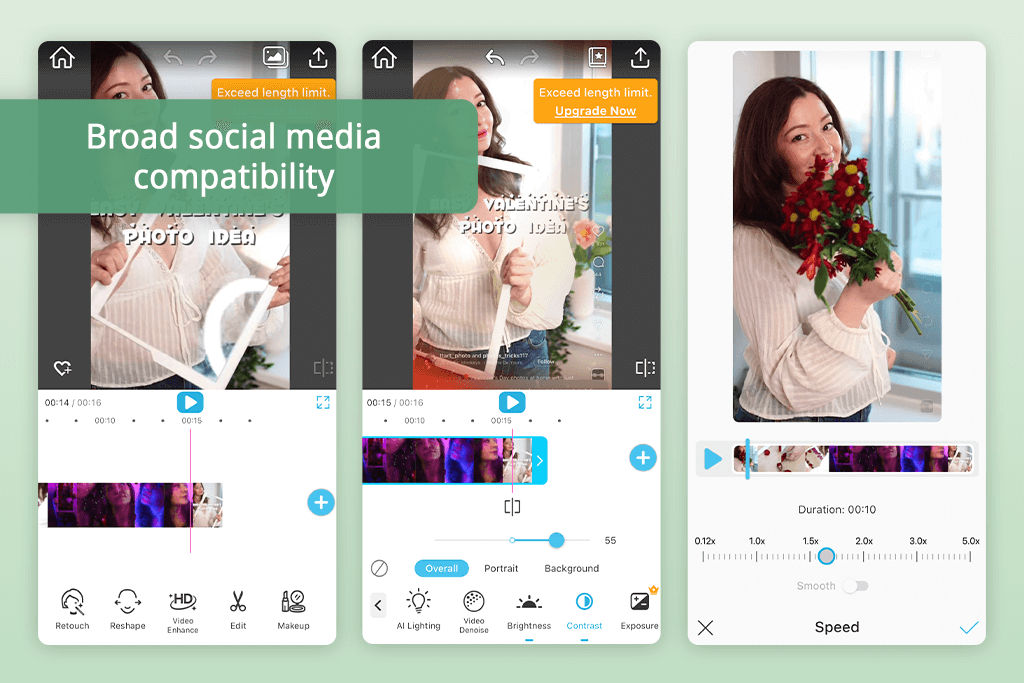
YouCam Video isn’t just a beauty editor, but also a good answer to anyone asking how to speed up a video on Android phones. I used it for several videos, including a 4K time-lapse and a behind-the-scenes project that showcased our studio, and the output remained fluid and enjoyable to watch even at 5x speed.
The slider ensures you can adjust the playback speed with minimum effort, while the real-time preview lets you instantly check if the result meets your expectations. YouCam Video does a great job preserving smooth movement and natural sound, which is exactly what you need for sped-up Reels or tutorials.
The minimalist UI and integrated AI filters streamline the process of enhancing your videos without having to use a separate visual effects app. That said, YouCam Video isn’t perfect. Some of the more complex AI filters can cause lagging, and you can only export videos in resolutions above Full-HD if you get the paid subscription. Still, it’s a great option for most of your daily needs.
Price: Free (with watermark) or from $9.99/month
OS: iPhone / Android
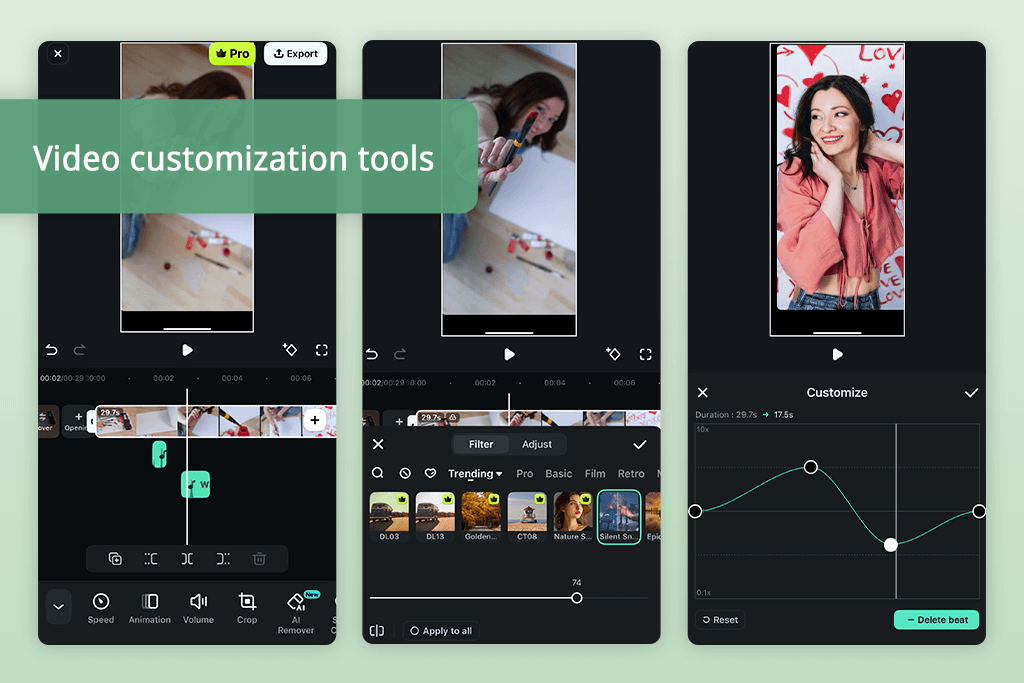
From all the apps that speed up videos I’ve tried, the Filmora video editor is among the most advanced and user-friendly ones. It helped me add a fast-forward effect to a 4K video I recorded on my last trip, preserving smooth movement even at 8x speed. Filmora also has a speed curve feature, which is perfect for making precise adjustments when producing time-lapses or dynamic product advertisements. Additionally, it provides speed templates for instant edits, which are very useful if you need to make a quick social media post.
The UI is clean and simple to master, as you have easy-to-recognize icons for trimming, filters, and playback speed settings. Exporting the video was quick and convenient, and the output preserved its quality despite the several stacks of applied effects.
Unfortunately, the free Filmora edition applies a watermark, and it can also struggle when exporting long 4K videos. However, if you're in search of a dependable solution that offers intuitive controls and an expansive feature set, Filmora is among the best apps on the market.
“Excels at providing smooth playback even at increased speeds, even if some tools are only accessible after you get a premium subscription.”

Price: Free (with watermark) or from $9.99/month
OS: iPhone / Android
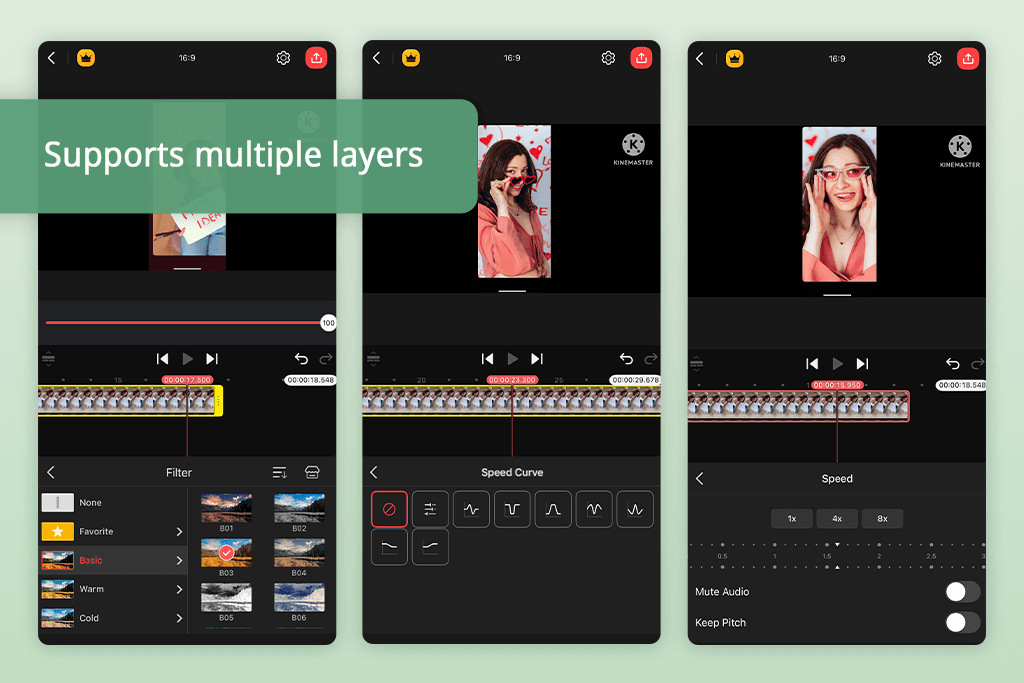
I use the KineMaster app to fast-forward videos whenever I want to make highly accurate tweaks for my social media clips. I used it to set a 6x speed for a lengthy behind-the-scenes studio video, and 8x for a city walk recording. I particularly liked the speed curve feature that makes it easy to go from faster to slower segments and vice versa.
It also has a real-time preview feature and an intuitive timeline, ensuring you can check how the result will look at any moment. Meanwhile, keyframe functionality helps you polish your content even further.
The UI of this YouTube Shorts app is pleasant to look at and navigate, while providing chroma key, layers, transitions, and audio tools. I had no issues saving the video in 4K 60fps, and the provided social media presets make it easy to share clips online. That said, several advanced features are only available in the paid version, and it can be a bit difficult to make precise edits on a small phone screen.
Price: Free (with watermark) or from $4.99/month
OS: iPhone / Android
I used Videoleap to speed up a video on Android when I was working on several short-form posts for our social media pages. It helped me increase the playback speed of a 3-minute behind-the-scenes video to 4x, and I also set a 5x setting for the city walk project. The motion remained smooth without suffering from stutters. The handy slider makes it simple to preview edits in real-time while fine-tuning the changes you make.
Afterward, I tested Videoleap as an app for video collage creation, combining several sped-up clips into one dynamic sequence, which I later posted on Instagram and TikTok.
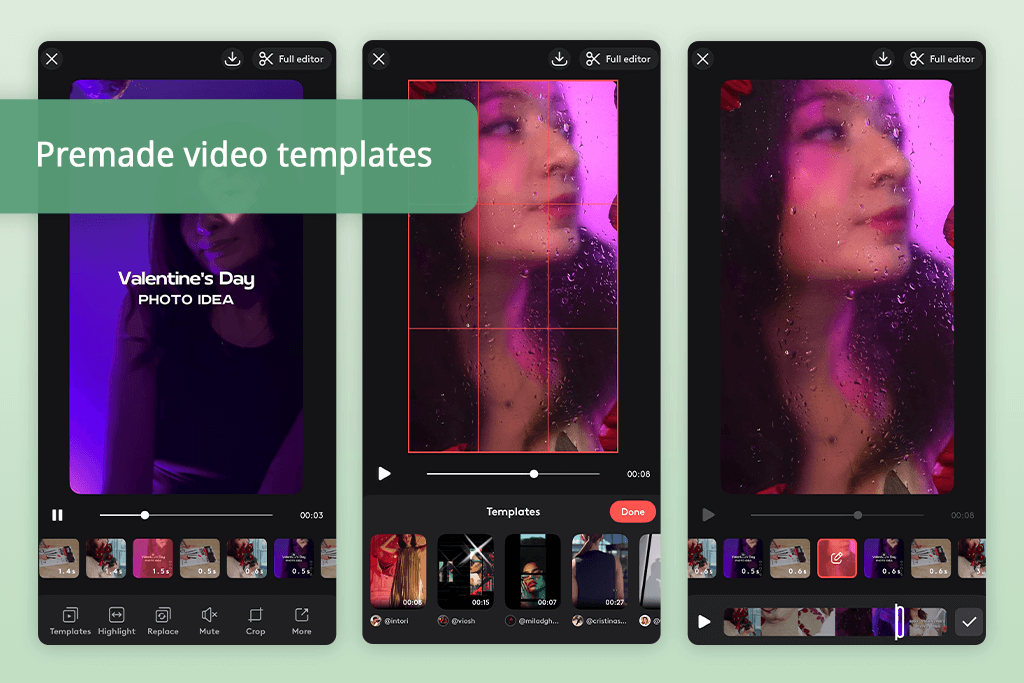
The UI is sleek and easy to navigate, while allowing me to use hundreds of effects, filters, transitions, and music.
Templates simplify the task of producing polished content quickly, while AI-based features provide extra flair. Some of the flaws include limited free export parameters, possible lag when creating multiple layers or applying complex effects, and some advanced tools being only available after you get a paid subscription.
“Videoleap streamlines the process of speeding up footage, although the video can start stuttering if you set one of the higher speeds.”
Yes. There are lots of options that let you speed up videos for free, including Adobe Premiere on iPhone, InShot, Videoleap, and YouCam Video. That said, many free versions can apply watermarks or impose a limit on the export resolution, encouraging you to get a premium subscription.
Varies from app to app. Most mobile apps let you set the speed between 2x-5x speed, while premium solutions like CapCut, Adobe Premiere on iPhone, or KineMaster can go as high as 8x or even 100x for dramatic time-lapses. Some options also offer speed curves to smooth the transitions between fast and slow segments.
Yes, most quality apps preserve the quality even if you speed up the video. Solutions like VivaVideo, Filmora, CapCut employ advanced rendering technology to prevent stuttering, and you can save the result in Full-HD or 4K. That said, some applications can lose some of the detail, particularly if you’re processing a very long video.
Yes. Most popular tools, including InShot, YouCam Video, FilmoraGo, and Videoleap, are available on both Android and iOS, giving you the freedom to use any device you like.
Unlikely. Quality apps like CapCut, Filmora, and Adobe Premiere on iPhone preserve smooth motion even at increased speeds. Dramatic speed adjustments can result in some stuttering or unnatural motion, but you can employ speed curves, optical flow tools, or frame interpolation to prevent such issues.
Most such apps tend to come with a variety of editing features: slow motion, trimming, cropping, transitions, filters, music, text, and even AI-based functionality. Certain solutions, like Adobe Premiere on iPhone, Videoleap, and InShot, can even help you create multilayer video collages, which you can use for Reels or YouTube Shorts.
Yes. Most apps allow you to split, combine, and set different speeds to every clip, enabling you to include both fast-forward and slow-motion segments in a single video.
To find the best free apps to speed up videos, I checked out a long list of solutions and collaborated with my colleagues from FixThePhoto.
Some options we tried but didn’t add to the final list are: Canva, PowerDirector, GoPro Quik, SloPro, InVideo, Lapse It, SlowMo, Flow Speed Control, Video Speed Changer, Wondershare Filmora, Slow Motion Video, ActionDirector, Videoshop, and EaseUS VideoKit. All of them come with a lot of benefits, but they also have significant restrictions like limited playback speed settings, noticeable stuttering at high speeds, or less precise control.
Here’s how I tested every tool:
Even though you can easily find an app to speed up video for free, not many of them are optimized to provide smooth, fast-paced playback. Picking the right option requires you to find the balance between functionality, output quality, and user-friendliness.