Working as a mobile photographer, I rarely have a chance to take photos in a studio, as, in most cases, I need to capture pictures on the go. I typically take photos when moving between locations. Due to this, I rarely use my desktop computer for editing photos. I prefer to enhance them using photo editing apps for Android instead.
At first, I did not like using my phone for photo editing, but later I realized that it can help me simplify my workflow. The most important thing wasn’t to capture polished photos but to develop a mobile editing workflow.
I wanted to find the best photo editing apps for Android with fast and stable performance that would have tools for working with RAW files, support quick social media image editing, and allow me to send the outputs to my clients without delays.
I decided to expedite my testing process, so I asked my colleagues to help me test 60+ photo editing apps for Android.

Yes, many Android photo editing apps have advanced functionality, making them suitable for professional workflows. However, one should consider some limitations of these solutions.
Mobile apps are suitable for most photography editing tasks. They allow one to enhance their pictures at a professional level.
You can use them to edit RAW files, change exposure and color with high precision, use selective masking, delete objects, and perform advanced color grading. These apps support high photo editing quality, making them similar to desktop software. They are suitable for enhancing social media content, travel photos, and commercial pics.

The key advantage of such apps as Photoshop, FixThePhoto Face Body Editor, or PhotoDirector is not their functionality but high speed and mobility. When I work as a photographer, I appreciate the opportunity to take photos, edit them, and share them between different devices.
However, mobile applications have their limitations. Desktop programs are more suitable for batch processing, advanced retouching, including high-end beauty or product retouching, and working with layers. It might be challenging to perform detailed edits on the small screen, as it’s better to use a calibrated monitor and a mouse for some tasks.
Most professional photographers do not consider Android apps as an alternative to professional desktop software. However, they recognize the importance of such tools when it comes to expediting production. Mobile photo editing tools are suitable for travel, lifestyle, street, and social content editing, but it’s still better to use desktop solutions for detailed commercial post-production.


Photoshop App on iPhone and Android shares a lot of similar features with the desktop software, making it a portable studio setup I can take with me anywhere. I used it when I wanted to make polished edits. It’s less suitable for quick adjustments of social media content.
When editing RAW street photos with mixed neon and daylight, this app tweaked selective exposure and masking with impressive accuracy, uncommon for mobile apps. I could isolate parts of my photos and edit them without affecting the rest. It was useful when I needed to edit photos taken with inconsistent lighting to make them look better balanced.
While editing portrait photos, I decided to perform subtle retouching. The healing tool helped me remove small distractions without affecting natural skin texture. In addition, I used curves and selective color adjustments to improve contrast. However, when I started to edit heavier RAW images, I discovered that it may slow down.
“This app is like a mini desktop editor accessible from a mobile phone. I used it for complex edits and was pleased with its powerful performance.”

This Photoshop app helped me streamline my workflow. I use it when I need to achieve specific results. Even though it’s not the best choice for editing images quickly, it’s suitable for situations when high accuracy is more important than the time spent on a task. I use it when I need to produce polished results.

I prefer to use FixThePhoto Face Body Editor when I need to enhance influencer-style pics and street photos taken in low-light situations. When using many Android photo editing apps, I noticed that they made faces overly smooth and made people look unnatural by changing their facial structure. But this app fixed small imperfections while keeping skin and facial features natural.
I was also pleased that I could upload my pics quickly and send them to experienced retouchers for manual editing. I would write a short description of the edits I was interested in (retouching, lighting correction, background cleanup, or overall enhancement), and get professionally enhanced images within an hour.
This app is perfect for situations when I need to edit multiple photos at once, enhance social media photos, or prepare client projects. The team edits the first photo free of charge, which allows me to assess the quality of the services before ordering them.

Snapseed is an excellent Android photo editor that remains one of the most reliable tools I’ve tested. I use it when I need to control the output with high precision and achieve natural results.
When I used Snapseed to edit portrait photos, I liked using its tone and curve controls. They helped me achieve the level of precision that I typically can achieve only when using desktop software. I could adjust contrast gradually instead of applying presets or automated filters.
The healing tool helped me remove small imperfections and make my photos polished. The “Details” tool was more challenging to use, but it enabled me to improve texture without increasing sharpness.
“It’s an intuitive and advanced app suitable for many tasks. I use it for all sorts of projects. However, it does not have modern AI tools available in other apps.”

What I liked the most about this app is that it does not support excessive automated editing. Besides, it runs quickly on my Android phone even though it’s a bit outdated. This photo masking app is a reliable tool for photographers who know what result they want to achieve. Even when I complete tasks quickly, the results look consistent, regardless of the lighting conditions.

Lightroom Mobile has quickly established itself as one of the most important apps in my workflow, as it allows me to edit multiple images quickly, making it especially suitable for enhancing travel and client photos. I used it to achieve consistency when editing images taken with my Android phone in different lighting conditions.
It helped me maintain the right color harmony. I could build a preset when editing one image and apply it across several photos to ensure that they are edited in the same style. After editing images taken at different times of day, I could use them to create a coherent visual narrative.
When testing Lightroom’s RAW capabilities, I was impressed with its unparalleled performance. I used shadow recovery and highlight control features when editing high-contrast street scenes. I was pleased with the masking features, especially the subject and sky selection tools. I could fix pictures taken in difficult lighting conditions without making them look flat.
This photo editor for Android also has excellent color grading capabilities. Using its tools, I achieved a consistent mood when editing a series of photos. This free Adobe app helped me organize my photo editing workflow.

While testing Luminar Neo, I discovered that it was more similar to an AI-based extension rather than a standalone mobile photo editing app. I mostly used it to experiment with automated tools when editing travel and portrait photos.
It comes with a set of handy AI tools that allow me to adjust lighting, replace the sky, or make the atmosphere of a photo more dramatic. It makes it useful for editing the style of photos. However, I noticed that my images may look overly stylized after editing them on my Android phone using this app.
“It comes with powerful AI features like sky replacement. The outputs occasionally look overly edited, but they have a polished feel.”
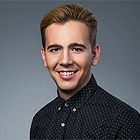
When I used Luminar Neo to enhance portrait photos, its AI relighting feature helped me transform the mood without performing manual masking. I was pleased with the speed this app.
However, this photo editor app for Android supports a lower level of control than Snapseed or Lightroom. The edits often look artificial, making this app less suitable for those who want to achieve consistency when working on client photos.


VSCO has become an integral part of my workflow as I often use it to transform the mood of my images. This Android photo editor is less suitable for in-depth adjustments. I prefer to use it when I need to improve my content on the go or between shoots. Using its presets, I can quickly achieve the right visual tone and prepare my pictures to be published on social media.
The key advantage of VSCO is that it allows users to recreate a subtle film-like aesthetic. What makes it different from other photo masking apps is that its presets can be used even for semi-professional purposes. However, this app has a limited choice of manual editing features, making it less suitable for in-depth edits than other tools.
While testing this photo editor for Android, I discovered that VSCO Lightroom presets are effective when I use a high-quality input image. It allows me to subtly adjust the mood instead of solving technical problems. I could add grain and fade, as well as adjust tone to follow a consistent visual style.

Picsart is the most creative tool I’ve tested. This photo editor app for Android was built for those who enjoy experimenting. I used it when I wanted to focus on more expressive ways of editing my photos. As I am interested in night street photography, I used this app to layer effects, textures, and blending modes.
Instead of focusing on realism, this app helped me transform my image completely. Unlike an average automatic photo editor, this solution is more similar to creative design studios.
“It has such an extensive choice of tools and effects that it might be difficult to find the option you need. This app is an excellent solution for creative edits, but sometimes I need to use something more basic.”
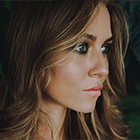
While editing portrait photos, I tried applying the double exposure effect and enhancing the background. Using the available tools, I could make my photos look like conceptual posters. This photo collage app is perfect for experimenting with different ideas. Such functionality can be considered one of its main shortcomings.

Ribbet is a lightweight, browser-based solution that can be accessed from mobile devices with ease. I used it to perform basic adjustments when I did not want to use more complex apps. When editing simple street shots, I could crop them quickly, adjust exposure, and make simple enhancements.
This photo editing app for Android prioritizes simplicity over advanced functionality. It does not support pro-grade masking or subtle color tweaking. However, it delivers a consistent performance when one uses it for simple tasks. When enhancing portrait photos, one can use it to adjust brightness and contrast. However, it does not have professional editing tools, making it more suitable for beginners.
I was impressed with the quick and stable performance of this app. It launches without delays, handles edits quickly, and is easy to master.

Instasize became the perfect addition to my mobile photo editing workflow. I typically enhance photos in other free photo editing apps for Android and then use Instasize to save them in the formats supported by popular social media platforms.
The key advantage of Instasize is that it facilitates maintaining visual consistency when publishing images across different platforms. With it, I could add borders, choose aspect ratios, and format my images for grid layouts.
“It’s an excellent choice for resizing and enhancing photos for Instagram posts. I often use it to improve my pictures before posting them on social media.”

While testing this service, I also focused on its collage tools. I was pleased to discover that they were suitable for basic visual storytelling. Instagram photo editor was created specifically for those who want to edit their images before publishing them on social media.

BeFunky is a useful app suitable both for casual editing and simple creative enhancement tasks. With it, I could make quick edits and improve my content for visual storytelling purposes when I did not want to spend a lot of time on in-depth editing.
I liked using this app when enhancing travel photos. It comes with a set of one-tap quick enhancement features that helped me streamline my workflow. However, it prioritizes speed over natural outputs. It was built for convenience of use rather than high accuracy.
I especially liked using the collage tools when testing this Android photo editor. It helped me create a composition from several travel shots and publish it on social media. However, if you compare it to more advanced solutions like Picsart, you will see that it supports limited creative control.

I became interested in Fotor after I heard a lot of positive comments on this AI-powered editor. Using them, I could adjust brightness and contrast quickly. However, I noticed that this app supports high editing speed, but it sometimes fails to achieve high accuracy.
I liked that Fotor supports batch processing. When using this app on my Android phone, I edited several photos taken in similar lighting conditions. It helped me create quick client previews or enhance large bundles of travel photos. This free photo editor for Android allows users to achieve higher productivity, but it’s less suitable for creative workflows.
“It delivers quick outputs and allows me to enhance photos with one tap. However, the editing workflows occassionally feels too automatic.”
When I used this app to edit portraits, its AI tools helped me make my photos clear and enhance skin tones. However, I noticed that they would occasionally make some details excessively smooth. As a result, textures started to look unnatural.

I became curious about testing Image Editor when I learned that this Android photo editing app was built specifically for simple tasks like cropping, rotating, and resizing pictures. Besides, it allows users to perform quick brightness and contrast adjustments before uploading photos online.
When I started to test this photo editor app for Android free of charge, I was immediately struck by its simplicity. The UI is quite intuitive, so I could find the most important tools quickly. I could make the horizon straighter, crop my photos to achieve a well-balanced composition, and adjust exposure in a few clicks.
This app was created by Elsner Technologies for those who prioritize speed and convenience of use over advanced editing tools.

Pixlr is perfect for creative editing tasks. When enhancing portrait photos, I tested out different overlays and blending modes. This app makes it easy for me to improve my pictures before uploading them to social media.
While testing this Android photo editor free of charge, I liked using layers to combine different effects. It allowed me to add textures and color overlays to my images. This app is more intuitive than Picsart but has more advanced functionality than basic editors. It’s especially suitable for those who use their phones to create content.
“It’s a reliable all-in-one solution with handy filters. The app is especially suitable for enhancing social media content. However, I noticed some lag when processing bigger files.”

This photo enhancer app for Android is especially suitable for those who are interested in street photography. Using it, I performed quick color adjustments and stylized edits. With it, I managed to transform the atmosphere without making advanced technical edits.
Our testing FixThePhoto team included my colleagues Kater Debela, Eva Williams, and Vadym Antypenko, each of whom was assessing the performance of these apps from a different angle.
Kate Debela was mostly interested in the available portrait editing tools. She checked whether these solutions were suitable for skin retouching, face shaping, and other tasks. She wanted to see whether these apps would preserve the original facial features.
Eva Williams prioritized testing usability and performance speed. She checked how quickly Android apps would allow her to produce content ready to be published on Instagram.
Vadym Antypenko assessed these apps in terms of technical quality. He was interested in color accuracy and the way these apps dealt with shadows. Besides, Vadym wanted to see whether these apps would preserve image detail with high accuracy even after multiple edits.
We decided to use a variety of photos for testing to understand whether these apps could become an integral part of our daily workflows. The set included café portraits taken in low light conditions, outdoor travel shots captured during a bright sunny day, group photos with distracting backgrounds, and produce-style pictures that needed professional color correction.
We tested each photo editing app for Android phone by performing the same set of tasks, including simple exposure adjustment, skin or object retouching, and color grading to make them ready for social media.
After completing the testing process, we concluded that there is no all-in-one Android photo editing app suitable for every task. Eva discovered that apps that supported the highest performance speed were the best choice for producing social media content.
Kate found mobile photo editing apps for Android that were best suited for natural portrait retouching. Vadym discovered that solutions like Lightroom and Snapseed were the top choice for professional-level color adjustments.